
Comparaison de produits
L’abonnement comprend
Assistance
File upload for WooCommerce allows customers to attach files to their orders on multiple pages, ensuring smooth communication for customizable products. Store owners can charge a fee per upload, either as a fixed amount or a percentage.
File Uploader helps store owners sell personalized products by adding a “File Upload” button on product, cart, and checkout pages. Customers can even modify their uploaded files on the ‘thank you’ page after ordering. Admins can set file type and size restrictions and limit uploads to specific products, categories, or user roles.
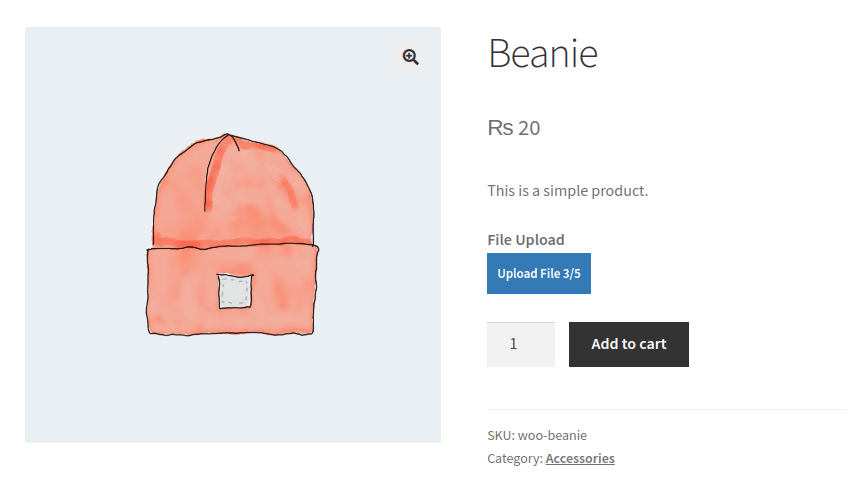
Let customers personalize their orders effortlessly with the upload file for WooCommerce. This feature allows them to upload files directly to the product page, customizing their orders according to their preferences.
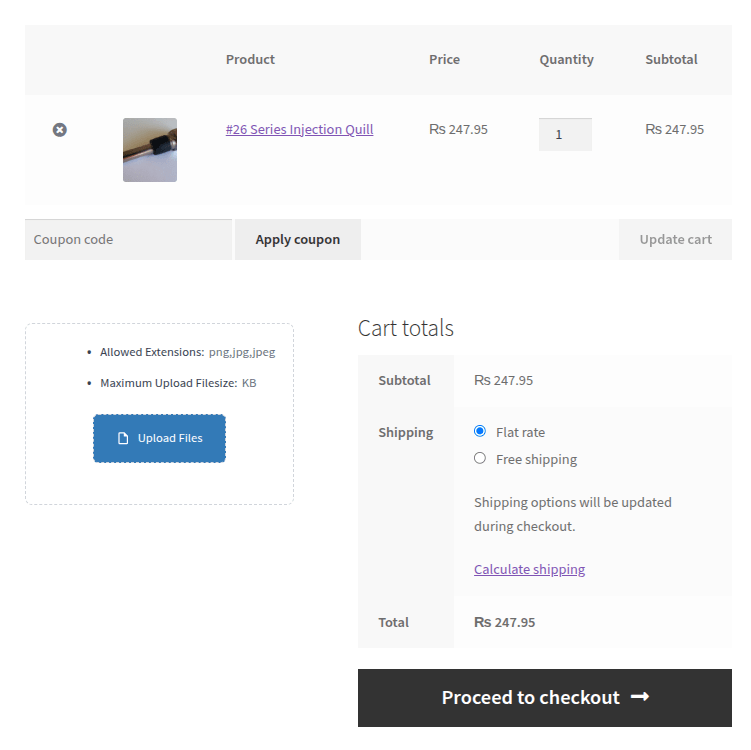
Customer upload files for WooCommerce lets your customers upload files on the cart page. This removes the hassle of back-and-forth emails or order notes, providing clear instructions directly with the selected products.
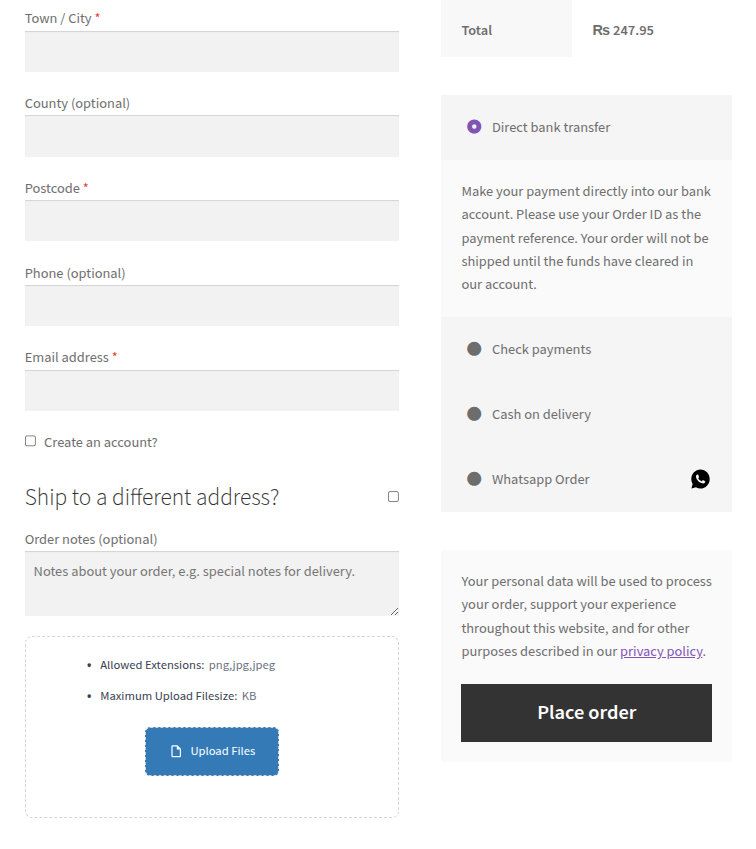
Allow your customers to easily add important files directly at the WooCommerce checkout page. This straightens out the ordering process for your customers and enables you to gather all the relevant details or order specifications in one place.
Customers can upload the desired file more easily with the drag-and-drop option. Instead of browsing through folders to select a file, users can simply drag the desired file and drop it into the upload area.
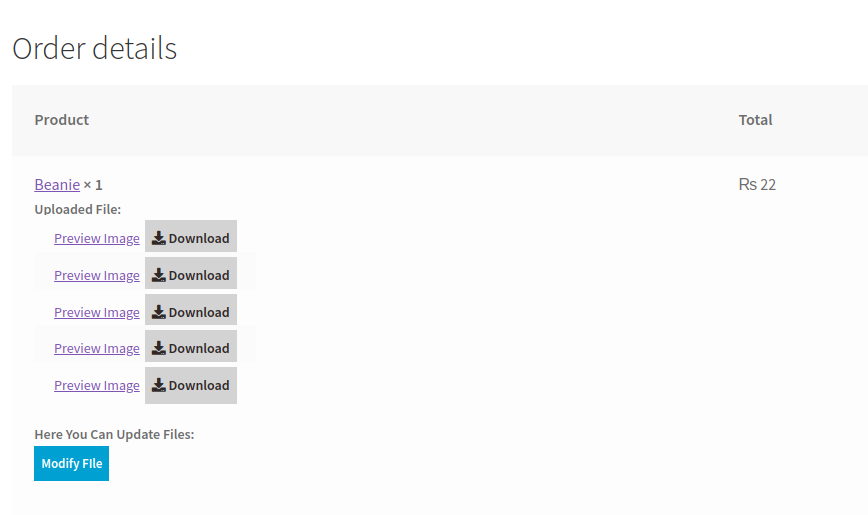
Allow customers to upload or update their files directly from the Thank You page after placing an order. If they forget to attach a file or need to replace an incorrect one, they can quickly do it without contacting support. This helps reduce order errors and ensures you receive the correct files on time.
Give customers the flexibility to upload and manage their files from the My Account page. From the Orders section, they can add new files, update existing uploads, preview attachments, and check file status, making file handling simple and organized.
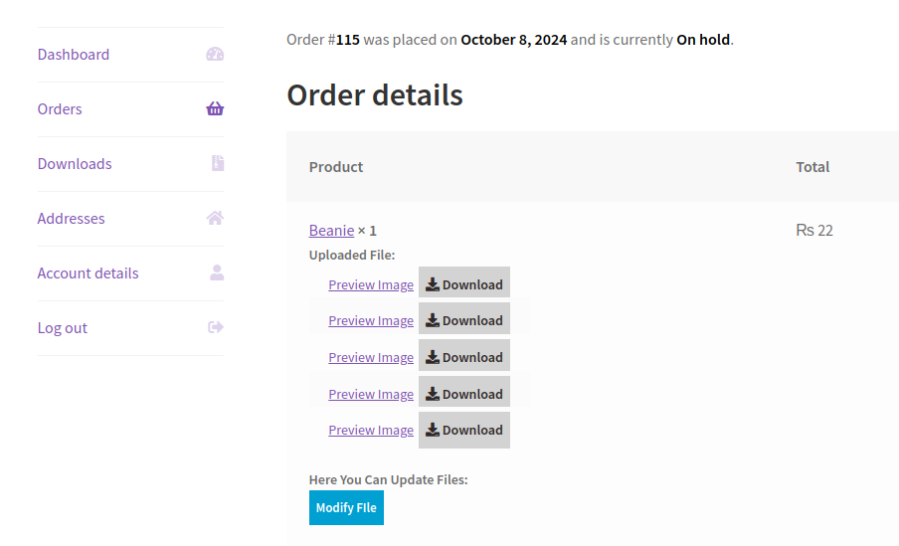
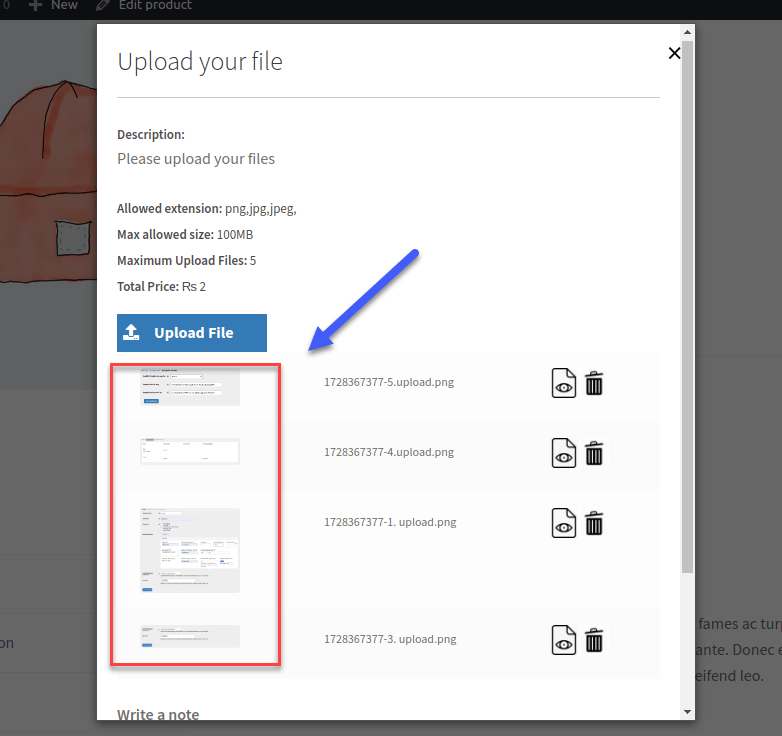
File Uploader for WooCommerce allows customers to instantly preview their uploaded documents and verify whether they have attached the correct information. They can delete or replace files if need be. This convenient feature saves time and frustration by allowing customers to catch errors before or after submitting their files.
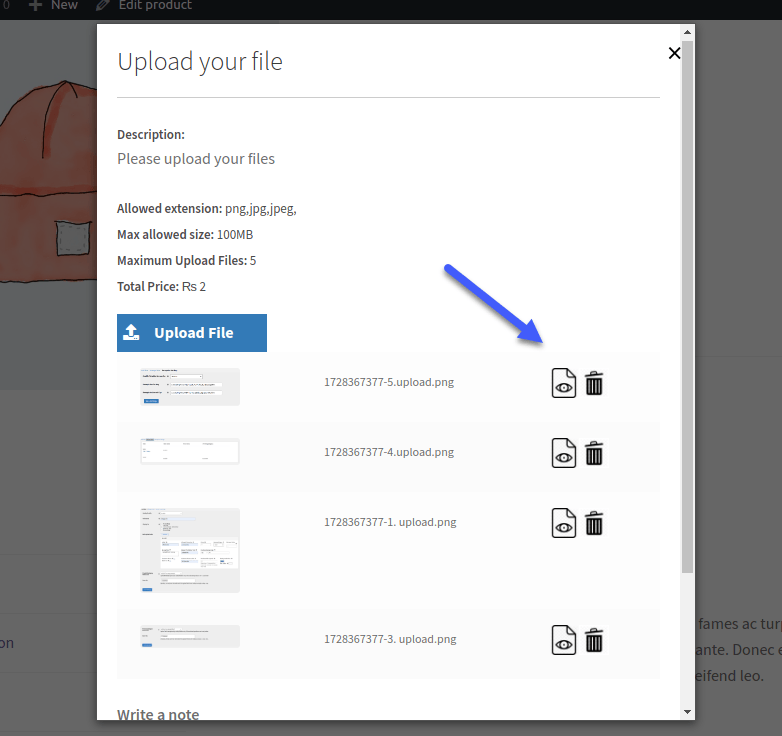
Customers can now upload multiple files across different pages, making it easier for them to communicate their needs and customization preferences without limitation. File upload for WooCommerce allows single or multiple file uploads in one go, ensuring clear and efficient order processing.
Upload file for WooCommerce makes it easy to add the upload button anywhere on your site. You can use a simple shortcode with popular page builders like Elementor, WPBakery, Divi, and more. For regular WooCommerce product pages, the upload button is added automatically using hooks. This gives you full flexibility to place the upload field exactly where you need it.

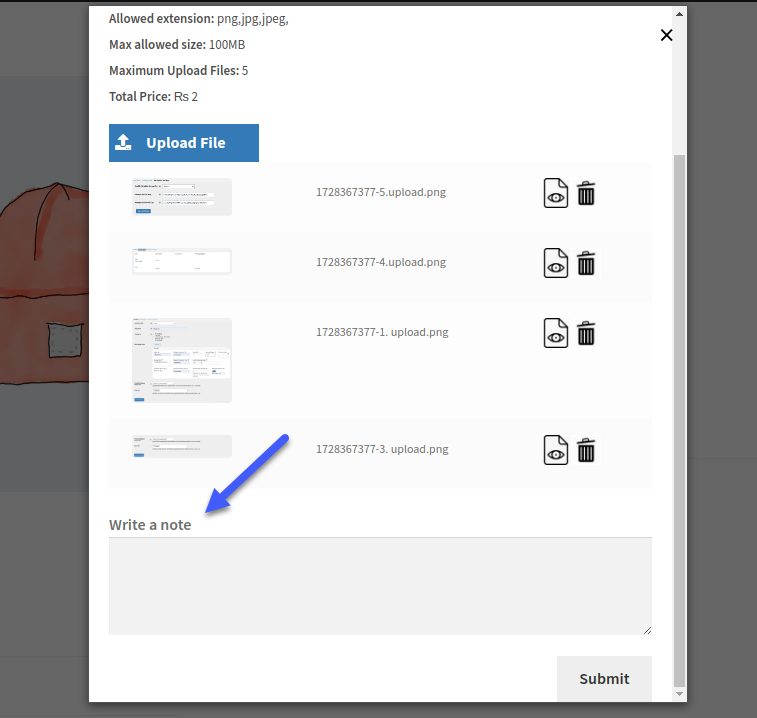
Allow customers to upload files along with detailed notes that contain additional information. Notes may contain clearer instructions and specific requirements, allowing little room for errors. Notes can be made compulsory by the admin to ensure that all the required details are mentioned.
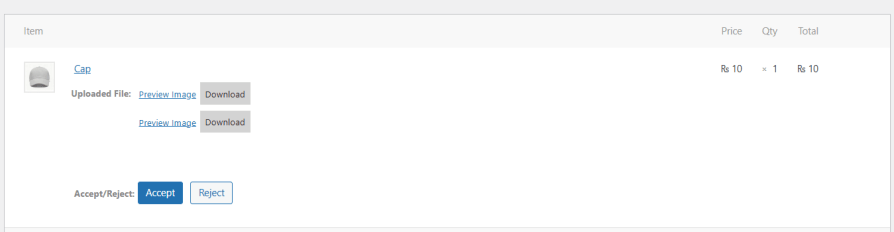
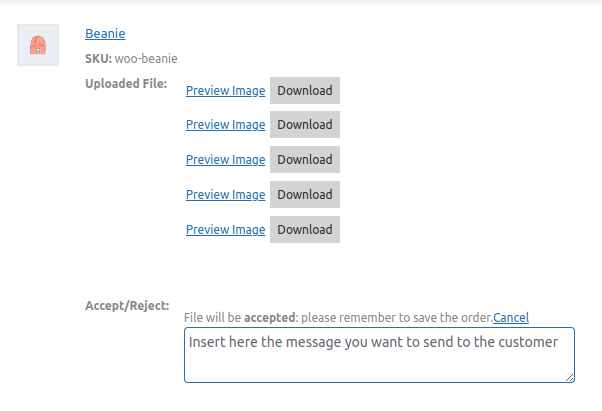
Files can be accepted or rejected by the admin through the back-end. Customers will be notified via email upon acceptance or rejection of their provided files. You can also accept or reject files that are attached to the whole order. Once the uploaded file is accepted, customers will not be able to modify or change the file.
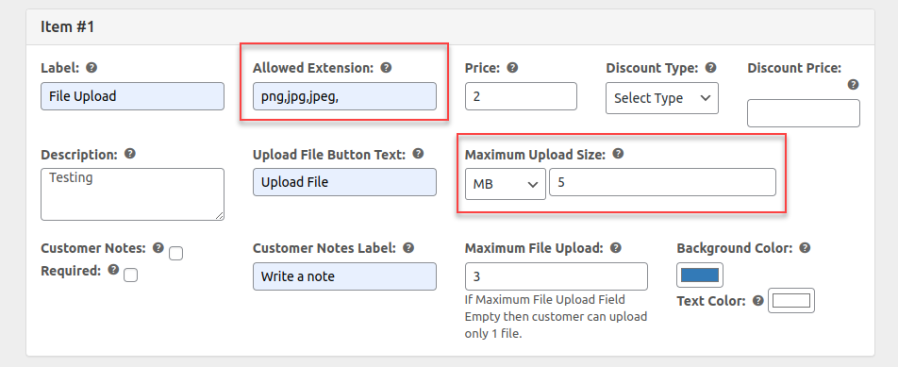
File Uploader lets you choose which file formats are allowed for uploading, such as JPEG or PNG files. You can also set limitations to how big a file size can be, as long as it does not exceed the server’s upload limit.

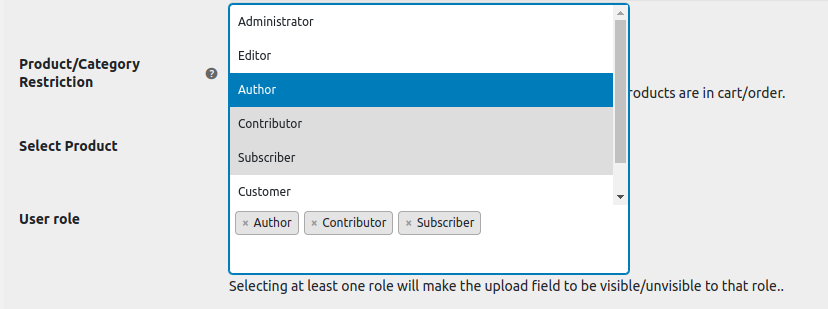
File uploads can be limited for users according to their role. For instance, contributors can be restricted from uploading files while customers or subscribers can.
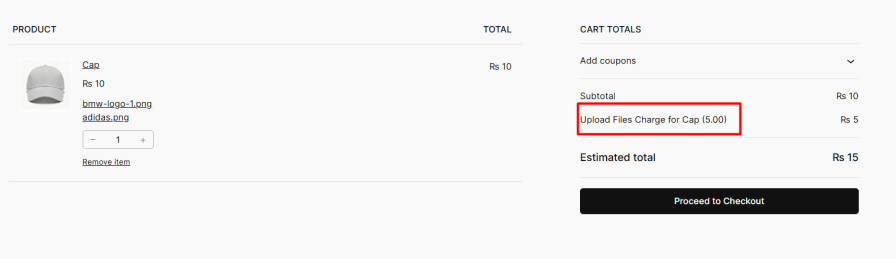
Customer upload files for WooCommerce allows you to charge for each file uploaded by the customer. This may also act as a product add-on where charges apply for every customization request made by the customer. Along with that, discounts can also be offered for each file uploaded.
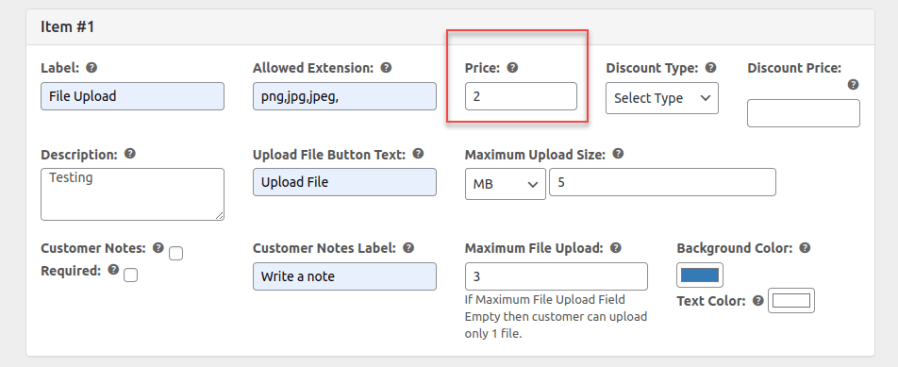
Choose how you want to charge for file uploads and make pricing simple and transparent for your customers. You can choose from:
For every accepted or rejected file, a feedback note can be attached by the store admin. The file review process is improved through this and communication becomes more direct within your WooCommerce store.
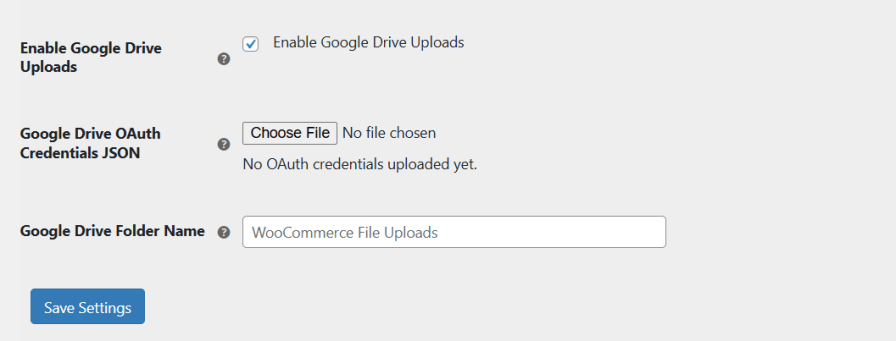
Connect your store with Google Drive to store the files that customers upload. It helps you offloads file storage from your hosting server, reducing disk usage and ensuring optimal site performance.
File uploader allows you to save customers uploaded files in a dedicated folder. This helps store admins keep customer uploads organized and prevents them from being mixed with product images or other store data.

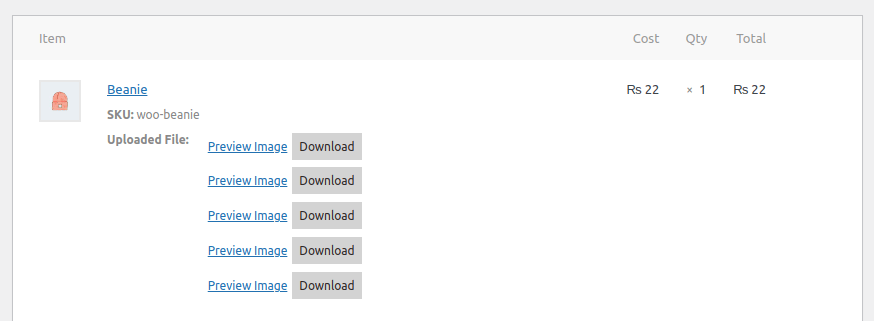
Notes and files can be viewed by the admin by clicking on the order. This helps the admin get a better idea about the customer’s requirements.
You can enable the file upload WooCommerce option for specific products or categories in the plugin settings.
Customers can preview their uploads and have the option to delete or replace them even after placing an order. Customers can modify or replace uploaded files from the Thank You page or My Account section.
With the WooCommerce customer upload file, you can add a file upload button to the product, cart, shop, and checkout pages.
You can set a fixed price or percentage-based fee for file uploads as it enables you to monetize additional customization services.
Yes, as an admin, you can specify allowed file types (like JPEG, PNG, etc.) and set size limitations. This ensures that only the appropriate files are uploaded
Admins can review the uploaded files and choose to approve or reject each file. Customers receive email notifications regarding the status of their uploads, and admins can attach feedback notes.
Informations sur l'extension
Vérifications qualité
Pays