
Installazioni attive
1K+
L'abbonamento include
Supporto
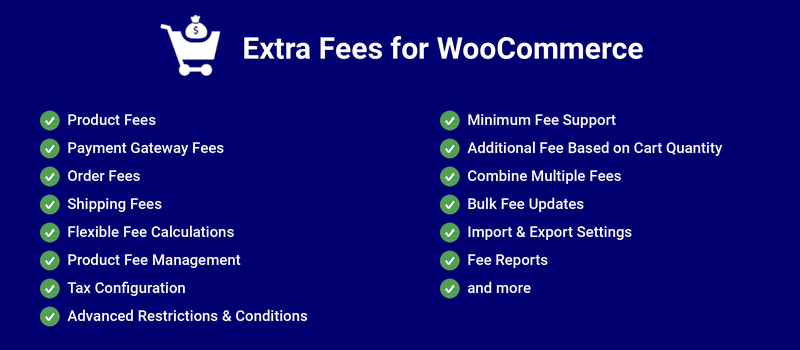
With Extra Fees for WooCommerce, you can charge additional fees such as handling fees and payment gateway fees to encourage customers to increase the order value. Encourage your customers to spend more to avoid order total fees.
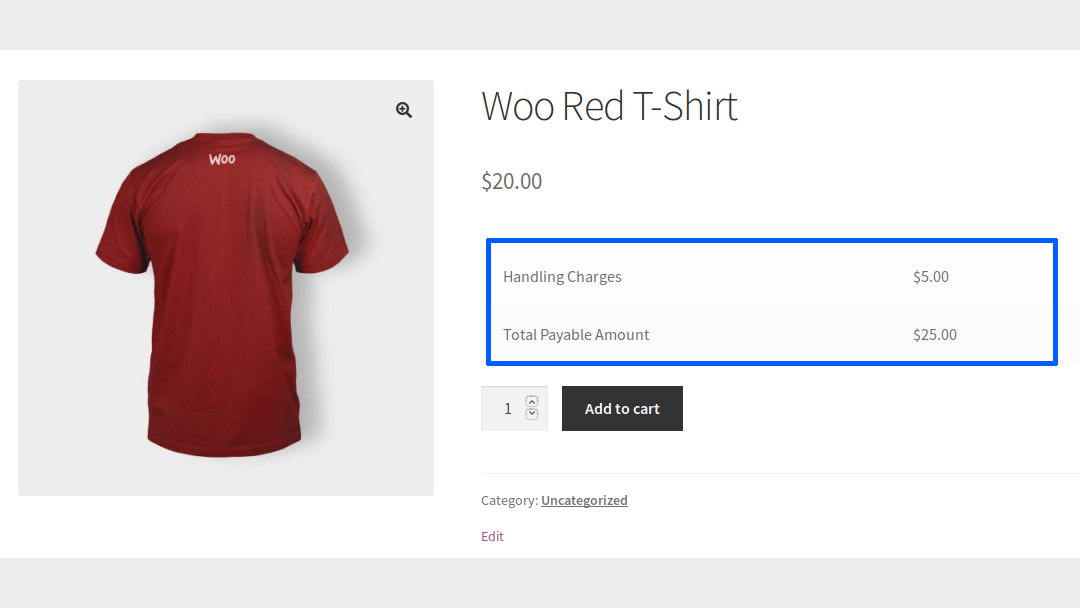
Product fees appear on the product page. When the user purchases the product, they will pay any additional fees you set in addition to the product’s price. Additionally, product fees appear on the cart page, checkout page, and thank you page below the product’s name.
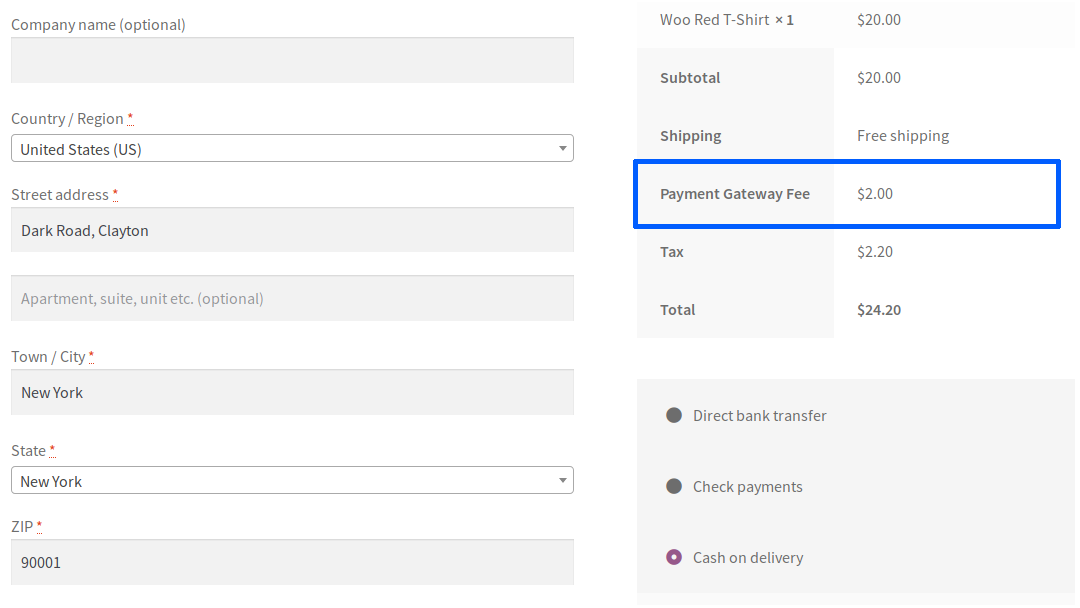
If you assign a fee to a payment gateway, the customer will need to pay that fee if they choose to pay via that gateway. The fee is added once the payment gateway is selected.
The user must pay the order fee when their cart subtotal is within the specified limit. The fee appears on the cart page, checkout page, and thank you page.

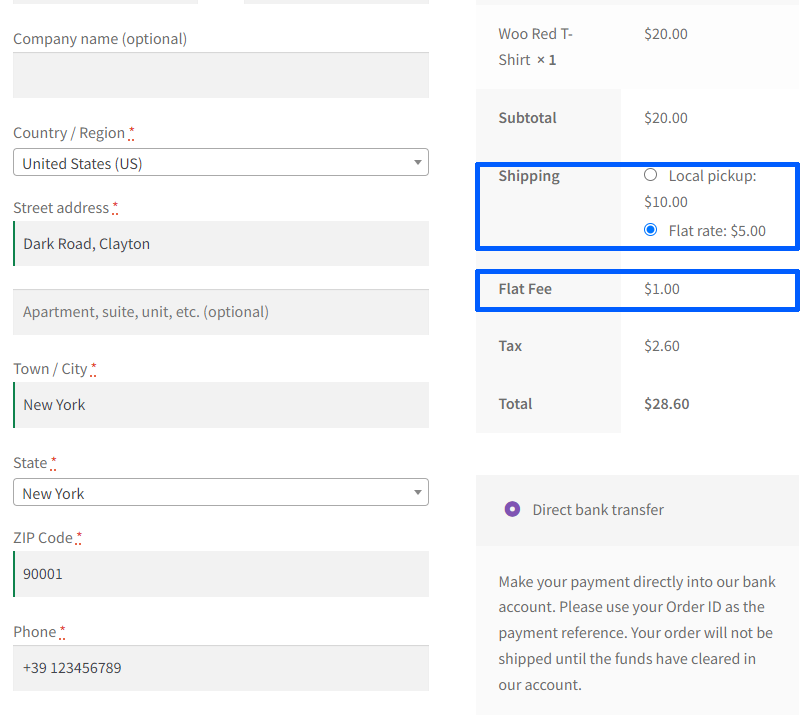
Create fee structures that align with your business requirements using multiple calculation methods. Whether you need fixed fees, percentage-based charges, or a combination of both, the plugin offers complete flexibility.
Apply and manage fees at different levels across your product catalog. Configure fees for individual products, entire categories, or globally across all products.
Ensure accurate tax calculations by assigning dedicated tax classes to supported fee types. This helps maintain compliance while providing flexibility in fee management.
Apply fees only when predefined conditions are met. Create targeted fee rules based on products, customer roles, payment methods, shipping methods, and order values.
Guarantee a minimum fee amount even when percentage-based calculations result in lower values. This ensures that operational and transaction costs are always covered.
Automatically charge additional fees based on the total quantity of items in the cart. This is ideal for handling, packaging, or fulfillment costs that increase with larger orders.
Provide a cleaner checkout experience by combining multiple fee charges into a single fee line item. This reduces clutter on the Cart and Checkout pages while maintaining accurate fee calculations.
Save time managing large product catalogs by updating product fee settings in bulk. Quickly apply fee configurations across multiple products without manual effort.
Easily back up, transfer, or replicate your fee configurations across multiple stores. Import and export settings with just a few clicks.
Gain detailed insights into fee collections across your store with dedicated reporting tools. Monitor revenue generated through fees and review fee charges at the order level.
Integrate seamlessly with popular WooCommerce extensions and multilingual solutions to ensure fee calculations work consistently across your store ecosystem.
1. Fees can be charged based on Products, Payment Gateways, Orders & Shipping Methods.
2. Fee Types supported in Product Fee are Fixed Fee & Percentage of Product Price & Fixed + Percentage of Product Price.
3. Multiple Product Fees can be charged for a single product.
4. Configure Product Fee Settings from Category Pages for faster bulk fee management across products.
5. Product Fees can be configured to specific products/product categories using a Product/Category filter.
6. Configure Product Fees based on Product Brands for brand-specific pricing and fee rules.
7. Different Product Fees can be configured to specific products/categories using the Bulk Update option.
8. Apply Product Fees based on Minimum and Maximum Quantity ranges to support tiered and quantity-driven pricing strategies.
9. Product Fees can be displayed on the Shop Page with the following combination,
10. Description for Product Fees can be set & it will be displayed in a Pop-up at frontend.
11. Restrict Product Fees to be charged based on User/User Role filter.
12. Option to calculate the tax cost for Product Fees.
13. Option to calculate the Product Fees for only one quantity of the product.
14. You can modify the Product Fees based on the discounted value applied through coupons.
15. Product Fees can be charged based on Tags.
16. Product Fees can be set based on a specific time period.
17. Product Fees support with YITH WC Quote Plugin.
18. Compatibility provided with Product Bundles for WooCommerce, allowing Product Fees to be applied to bundled and linked products.
19. Product Fee compatibility given with WooCommerce Deposits plugin[Fee can be charged with the First or Final Installment].
20. Product Fee compatibility given with Payment Plan Suite plugin [Fee can be charged with the First or Final installment].
21. Product Fee compatibility provided with the Tier Pricing Table for WooCommerce plugin[Fee can be charged based on the Modified Product Price.].
22. Create Multiple Rule-based Payment Gateway Fees with advanced conditional configurations.
23. Payment Gateway Fee will be charged only when the Minimum & Maximum Cart Subtotal/Order Total has matched.
24. Option to charge the Minimum Amount for Payment Gateway Fee when the configured condition doesn’t match.
25. Description for Payment Gateway Fee can be set & it will be displayed in a Pop-up at frontend.
26. Restrict Payment Gateway Fee to be charged based on Product/Category Filter.
27. Restrict Payment Gateway Fee to be charged based on User/User Role filter.
28. Option to calculate the tax cost for Payment Gateway Fee.
29. Option to calculate the Payment Gateway Fee during specific Date Ranges.
30. You can charge the Payment Gateway Fee based on Country/Region.
31. Fee types supported in Order Fee are Fixed Fee, Percentage of Cart Subtotal & Percentage of Order Total.
32. Configure Multi-Level Order Fees using advanced conditional logic and rule prioritization.
33. Order Fee will be charged only when the Minimum & Maximum Cart Subtotal/Order Total has matched.
34. Multiple Rules can be configured to charge the different Order Fee based on Minimum & Maximum Cart Subtotal/Order Total.
35. Rule priority[First Matched Rule/Last Matched Rule] will decide when the Order Fee is matched with more than one rule.
36. Description for Order Fee can be set & it will be displayed in a Pop-up at frontend.
37. Apply Order Fees based on specific Countries and States for region-based fee management.
38. Option to calculate the Tax Cost for Order Fee.
39. Restrict Order Fee to be charged based on Shipping Methods.
40. Restrict Order Fee to be charged based on Product/Category Filter.
41. Restrict Order Fee to be charged based on User/User Role Filter.
42. Fee Types supported in Shipping Method Fee are Fixed Fee, Percentage of Cart Subtotal/Percentage of Order Total & Fixed + Percentage Fee.
43. In the Fixed + Percentage Fee combination, the Fixed Fee is calculated before or after the Percentage Fee in Shipping Fees for advanced pricing control.
44. The Shipping method fee will be charged only when the Minimum & Maximum Cart Subtotal/Order Total has matched.
45. Option to charge the Minimum Amount for Shipping Method Fee when the configured condition doesn’t match.
46. Description for the Shipping Method Fee can be set & it will be displayed in a Pop-up at frontend.
47. Restrict Shipping Method Fee to be charged based on the Product/Category Filter.
48. Restrict Shipping Method Fee to be charged based on the User/User Role Filter.
49. Option to calculate the Tax Cost for Shipping Method Fee.
50. Option to calculate the Shipping Method Fee during specific Date Ranges.
51. Restrict Shipping Fees by specific Weekdays to support delivery schedules, peak-day pricing, and operational requirements.
52. Configure additional fees based on Cart Quantity conditions.
53. Option to combine and display multiple fees as a single consolidated fee on Cart & Checkout pages when fees are shown as separate components.
54. Customize and enhance fee display styles using Custom CSS support.
55. View detailed Order Fee Reports to track fee amounts charged across customer orders.
56. Export Order Fee Reports in CSV format for accounting, reporting, and business analysis.
57. Export comprehensive Extra Fees Reports for business tracking and operational insights.
58. Product, Payment Gateway Fee, Order Fee & Shipping Fee can be charged for manual orders.
59. Compatible with Cart and Checkout blocks.
60. Compatible with WooCommerce Subscriptions
61. Compatible with the Avalara Avatax extension.
62. Compatibility with WPML Multilingual & Multicurrency for WooCommerce for:
63. Compatibility with FOX – Currency Switcher Professional for WooCommerce for:
Minimum PHP version: 5.6
Extra Fees for WooCommerce allows you to charge additional fees based on product price, payment gateway used, and cart subtotal.
Please check by following the below steps,
i) WooCommerce -> Extra Fees -> Product Fee -> Product Fee Global Settings
ii) Now, you can see the Product Fee settings in each product. For simple products, you can see the settings in the General Section whereas settings will be displayed in each variation for variable products.
iii) You can set the fee based on your needs for each product.
Yes, it is possible. Please check by following the below steps,
a) WooCommerce -> Extra Fees -> Product Fee -> Product Fee Global Settings
b) Example:
i) If you are expecting to set a $5 fee for Category A & Category B.
ii) If you are expecting to set a 2% fee for Category C & Category D.
Note:
In this case, the configured fee will be reflected only for Category C & D, not for A & B. Since you have already assigned the fee to Category A & B, it will remain the same fee. It won't be ignored because of removing & configuring the fee for Category C & D.
Yes, it is possible. Please check by following the below steps,
i) WooCommerce -> Extra Fees -> Product Fee -> Product Fee Global Settings
ii) Now, you can see the Product Fee settings in each product. For Simple Product, you can see the settings in the General Section whereas settings will be displayed in each variation for Variable Product.
iii) Also, you can see the “Add Rule” button in product-level settings using which you can configure multiple fees for a product.
Yes, it is possible. Please check by following the below steps,
WooCommerce -> Extra Fees -> Product Fee -> Restriction Settings
Yes, it is possible. Please check by following the below steps,
WooCommerce -> Extra Fees -> Product Fee -> Restriction Settings
WooCommerce -> Extra Fees -> Product Fee -> General Settings
You can see it under WordPress Dashboard -> All Products -> Product Fee column.
i) Please ensure that you have enabled the global checkbox on this settings page.
WooCommerce -> Extra Fees -> Payment Gateway Fee -> Enable Payment Gateway Fee
ii) Please check whether the Minimum Cart Subtotal/Order Total to Add Fee & Maximum Cart Subtotal/Order Total to Add Fee is getting matched for the selected payment gateway at checkout.
Yes, it is possible. Please check by using the options available in the Reports tab.
Categorie
Informazioni sull'estensione
Controlli di qualità
Compatibilità
Paesi
Lingue