
Aktive Installationen
800+
Das Abonnement beinhaltet
Support
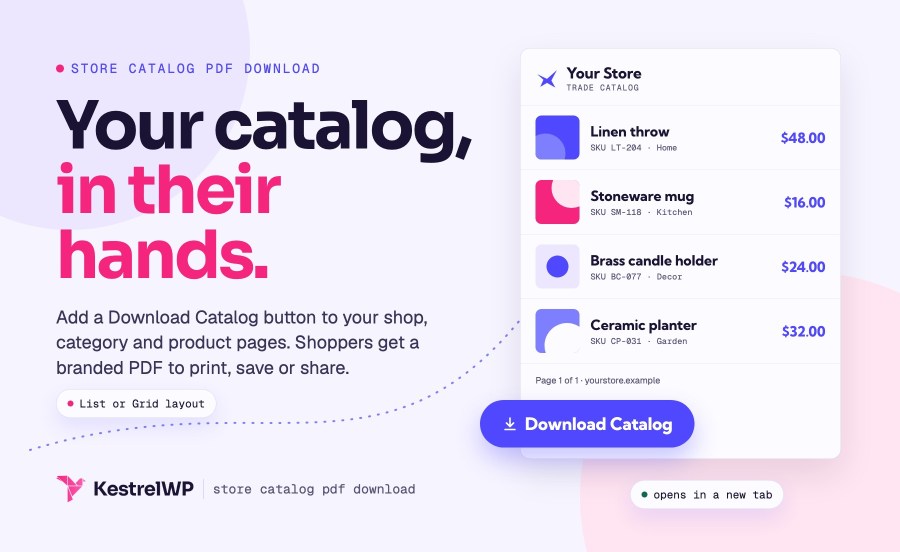
Store Catalog PDF Download for WooCommerce adds a Download Catalog button to your shop, category and product pages. One click builds a branded PDF catalog of the products on that page, with your logo, header, footer and colors, and opens it in a new tab. It also covers a single product: the button on a product page builds a one-product PDF. It suits trade buyers checking prices offline, designers collecting products for a client, and shoppers who like paper. For a file of your whole store, upload your own.
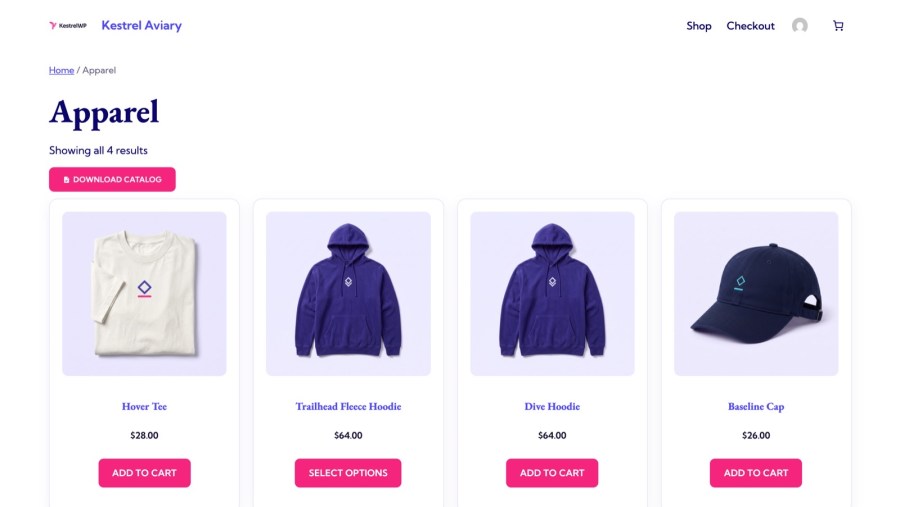
The button appears on shop and category pages and on single product pages. Shoppers click it, the PDF is built from the products on that page, and it opens in a new tab ready to save or print. You choose where the button sits and what it says, so a trade store can call it Download price list and a gift shop can call it Take the catalog with you. Shop, category and product pages each get the button, so a shopper can grab one category or the product in front of them.
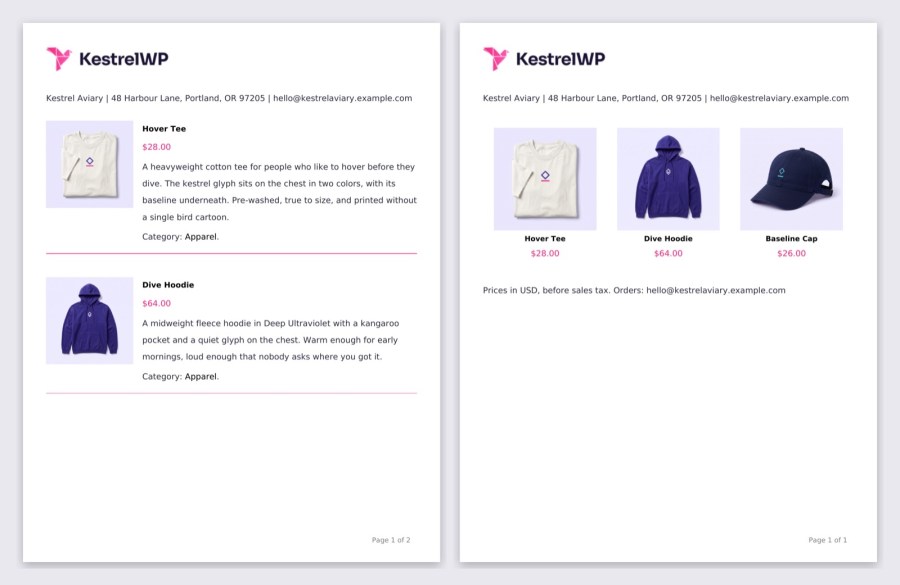
Use List when buyers need detail: each product shows its image, title, price, description, SKU, categories, tags and attributes. Use Grid when you want more products per page, with image, title, price and SKU. List can flow several products per page or give each product its own page, and product pages always get a detailed one-product sheet. Pick the layout once and every PDF follows it, so a long category stays readable. Grid suits a wide range of small items, and List suits products where the specs decide the sale.
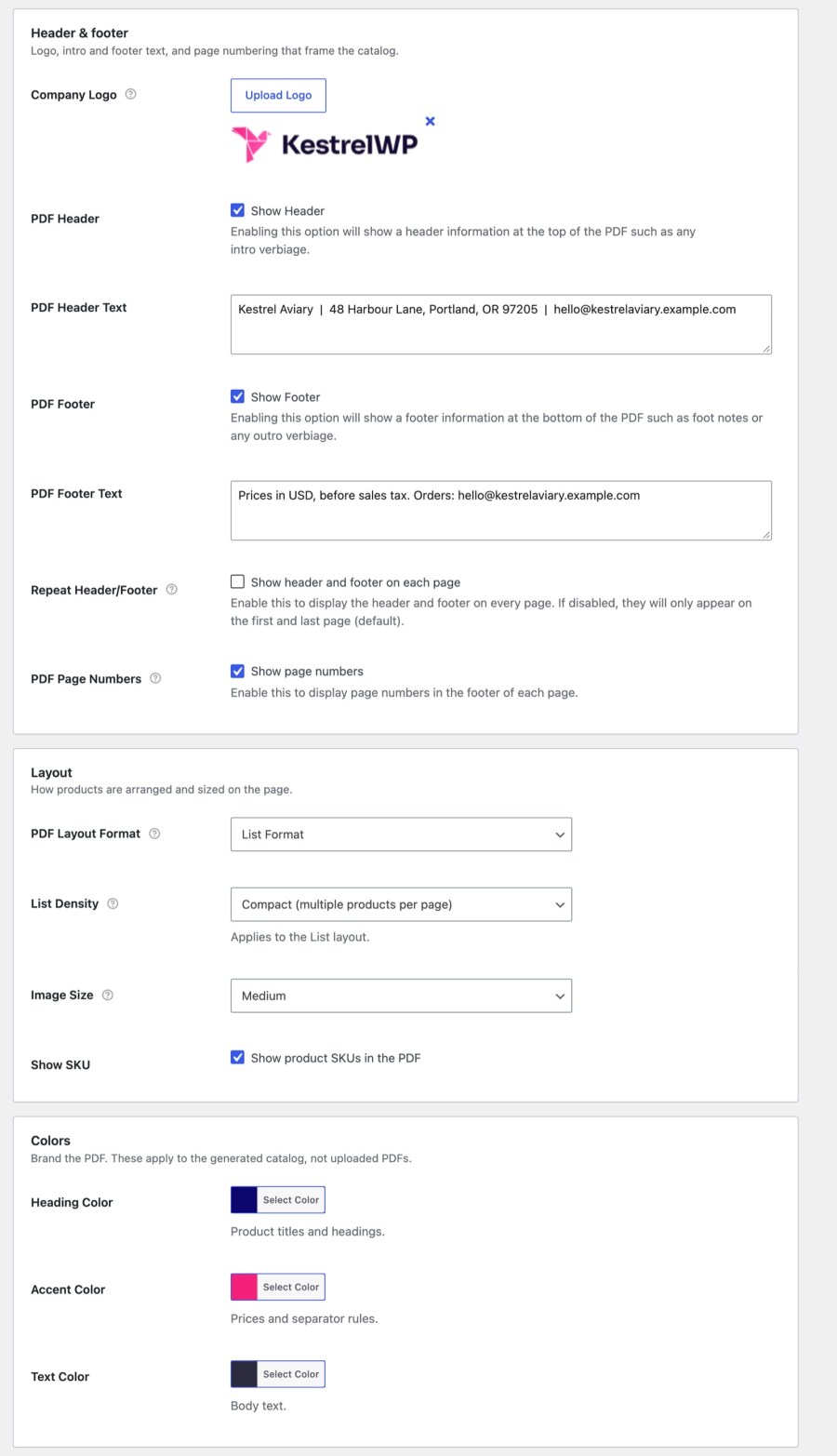
Add your logo, a header with your contact details and a footer with terms, then match the colors to your brand. The logo links back to your site, and so do product names and images, so a printed or saved catalog still leads back to your store. Header and footer show on the first and last page by default, and one setting repeats them on every page, with page numbers if buyers will print it. The colors apply to the generated catalog only, so your store’s own design stays untouched.
The generated PDF carries the details buyers need: image, title, price and SKU on every layout, plus description, categories, tags and attributes in List. On a single product page the button builds a detailed one-product sheet, so a designer collecting products for a client or a trade buyer comparing specs gets something to attach to an email or print for a meeting. Every name and image links back to the product on your store, and because the PDF is built when the shopper clicks, it reflects your current prices and details (a version built for guests is reused for up to an hour).

Already have a catalog your designer made? Upload it as a ready-made PDF and place the [wc-store-catalog-pdf] shortcode on any page, post or widget area. The button opens your file in a new tab. It works alongside the generated PDFs, so you can offer both: the generated catalog for the page a shopper is on, and your designed file for the whole range. A wholesale landing page can carry its own download button, even where the generated one can’t appear.
link_label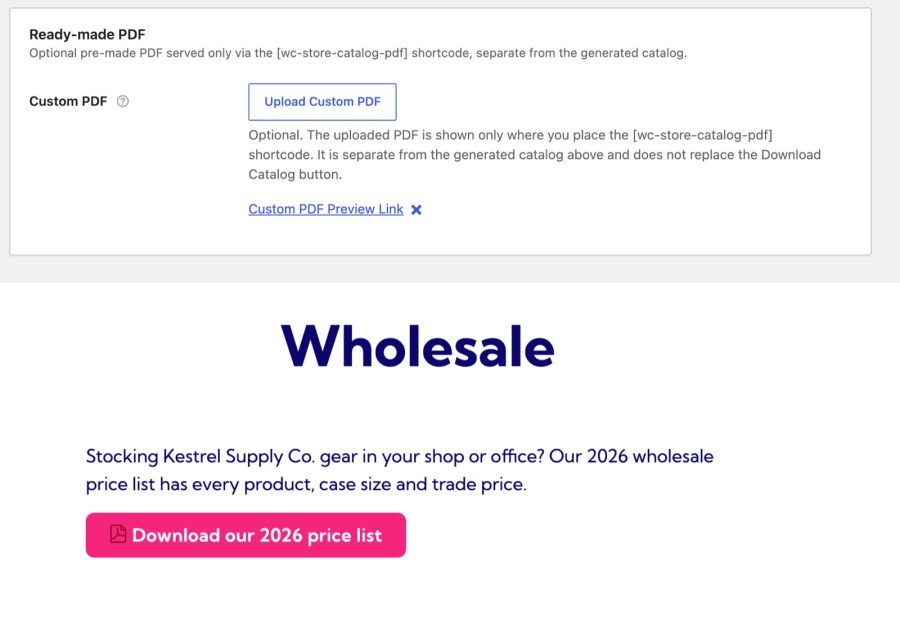
Store Catalog PDF Download works with simple and variable products, the WooCommerce Cart and Checkout blocks and High-Performance Order Storage, and it needs nothing else installed. The Download Catalog button attaches to WooCommerce’s standard shop and product page templates. If a page builder replaces those templates and hides the button, the ready-made PDF shortcode still works on any page, post or widget area, so a wholesale landing page can carry its own download button.
Setup details are in the Store Catalog PDF Download documentation.
Built and supported by Kestrel, a long-time WooCommerce extension developer.

Not on its own. A generated PDF holds the products on the page being viewed, so a category page gives that category. For a whole-store file, upload your own catalog as a ready-made PDF, then offer it with the shortcode.
The products shown on the current page, in the order shown. On a paginated shop or category, only the products on the page being viewed are included, and there is no category picker.
Yes. Upload it under Ready-made PDF and add the shortcode where you want the button. It doesn't replace the Download Catalog button, so turn that off on single product pages and set the shop placement to Don’t show if you only want your own file.
A page builder such as Elementor can replace the shop templates the button attaches to, so use the ready-made PDF shortcode on those pages. If a PDF comes out blank or never finishes, WooCommerce » Status has a Store Catalog PDF Download section that checks the upload folder and the PHP extensions the plugin needs.
No. Arabic and Hebrew aren't supported by the PDF library the plugin uses, so the generated catalog can't render them correctly. Left-to-right languages work, and you can upload your own PDF for a right-to-left catalog.
WordPress 6.2 or later, WooCommerce 8.2 or later and PHP 8.1 or later, with the DOM, GD and MB String extensions and allow_url_fopen turned on. It works with simple and variable products, the Cart and Checkout blocks and High-Performance Order Storage.
Kategorien
Extension information
Quality Checks
Länder