Installations actives
200+
L’abonnement comprend
Assistance
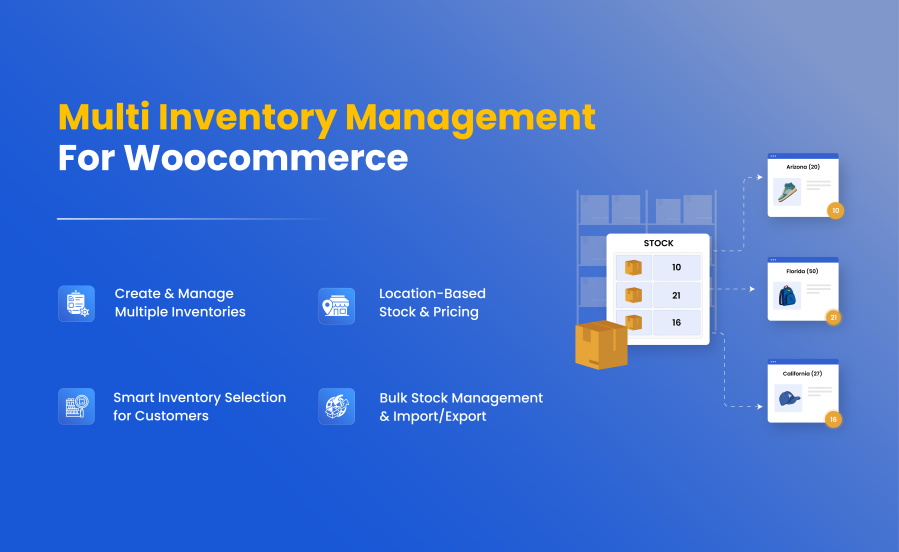
WooCommerce Multi Inventory Management extension by Addify enables you to effectively create and manage inventories across different locations, warehouses, and stores. You can add multiple stocks for each product based on type, location, and suppliers.
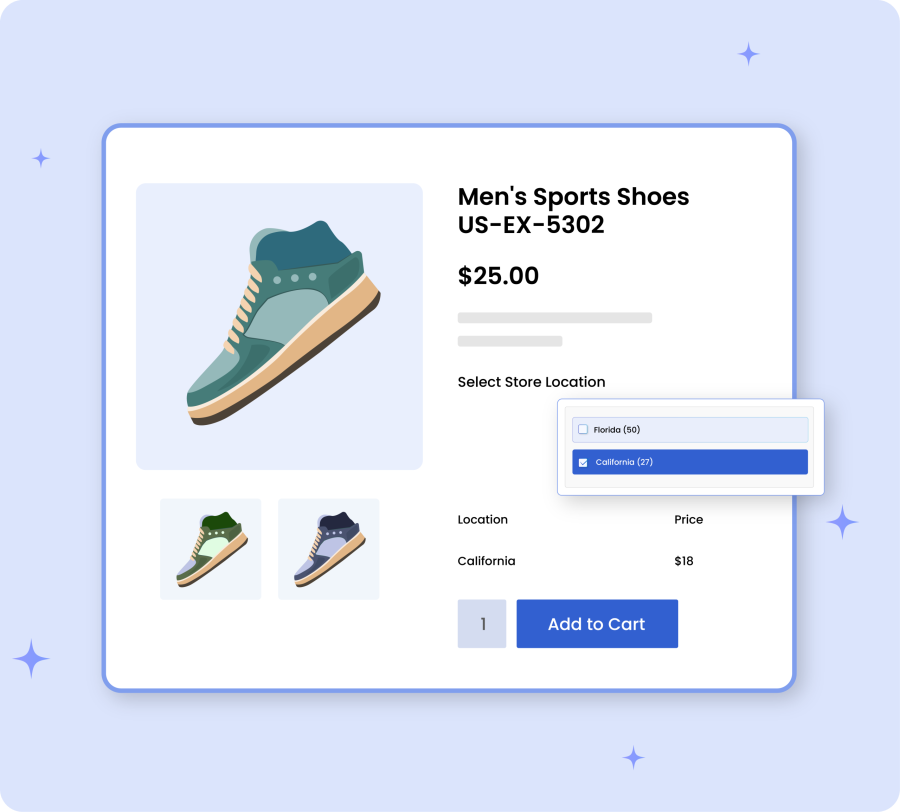
Use the standard price or add different prices for each inventory and let customers select the relevant inventory/location while adding the product to their cart. You can import and export inventories using a CSV file to bulk update your product stock.
The extension comes with a smart stock listing page that allows you to view stock and edit product stock from a single page. Dashboard offers a clear executive picture of the current stock status, stock change history, and a list of out-of-stock, low stock, and overstock products.
The store managers can enable the admin mode to hide locations from customers and let only admin users allocate orders to relevant inventories. The following are the detailed features of this extension.
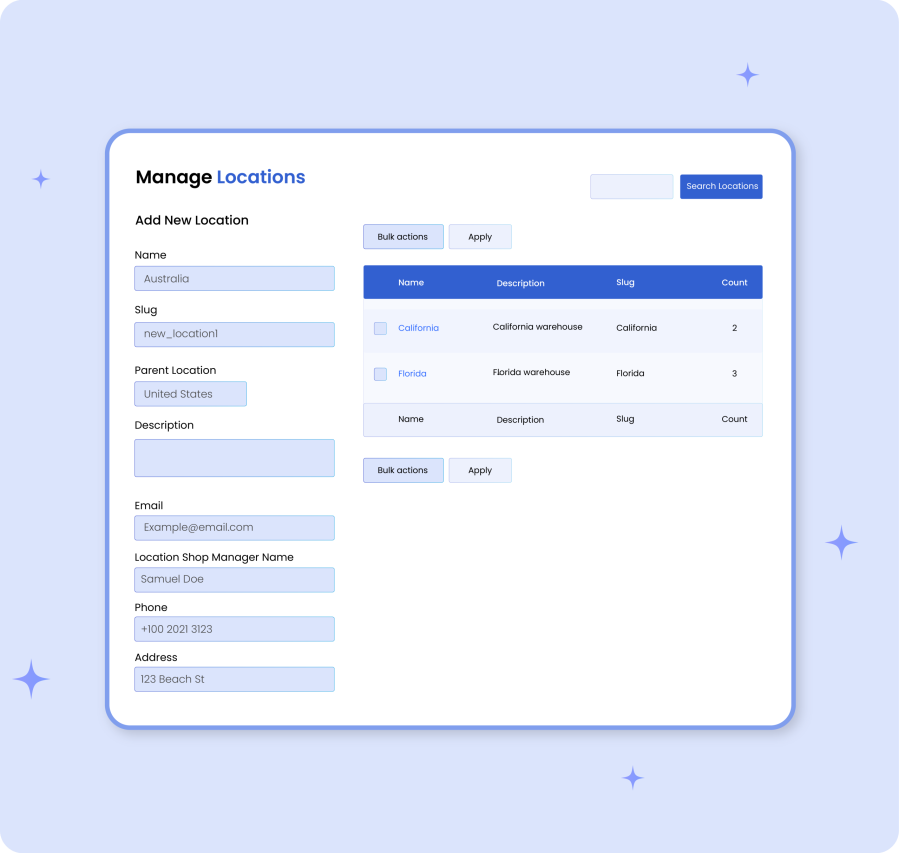 |
Add Multiple Inventory LocationsYou can create multiple inventories based on location, warehouse, stores, or types. While creating a new inventory, you can customize the following options :
|
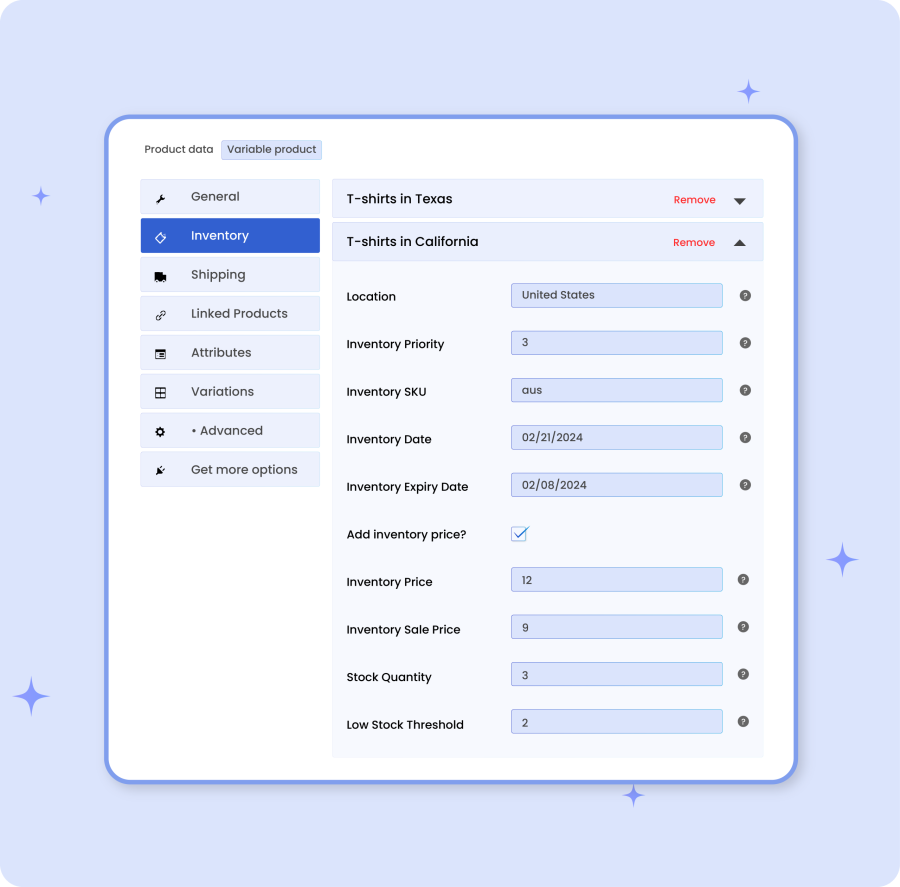
Adding Inventory From Product LevelYou can enable multi-inventory on the product detail page and add inventories for different locations. Your existing product inventory will become the main inventory. You can add additional inventories along with the following details:
|
 |
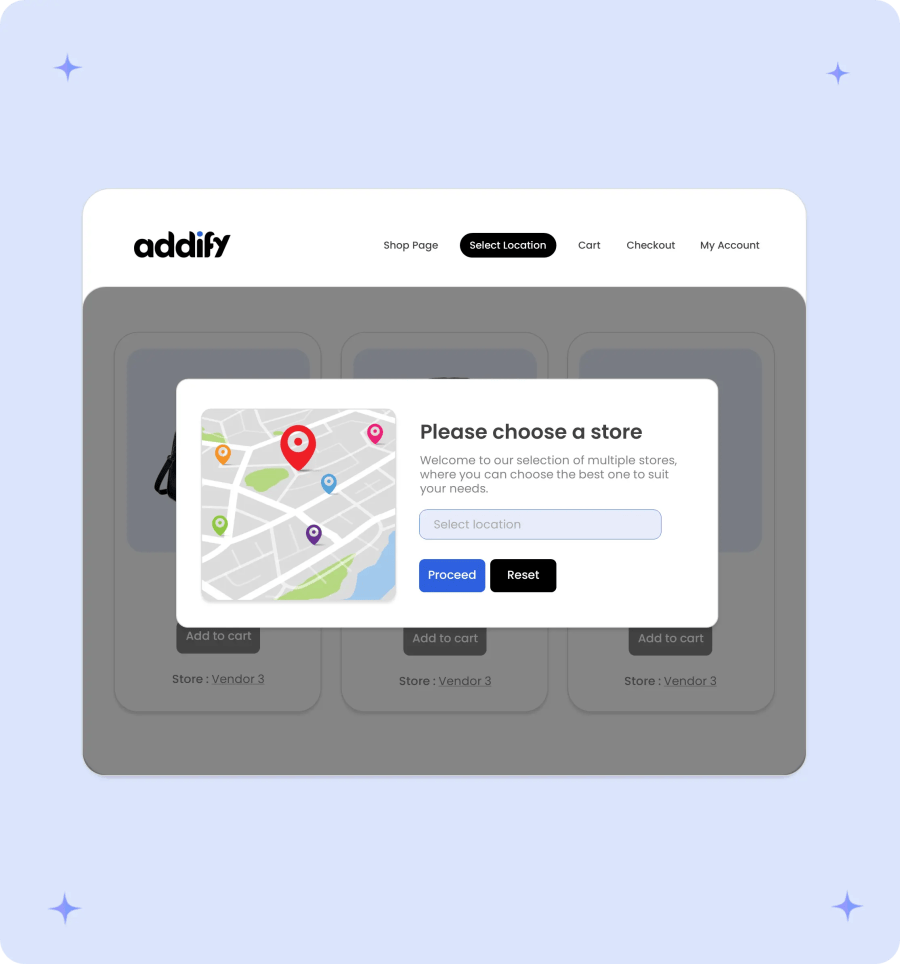 |
Select Location from popupLet your customers choose their nearest location as soon as they visit your store. You can show a popup asking them to select a location or add a “Select Location” button to the top menu bar. Once a customer picks a location, they can view the inventory available at that branch and find the products they need. |
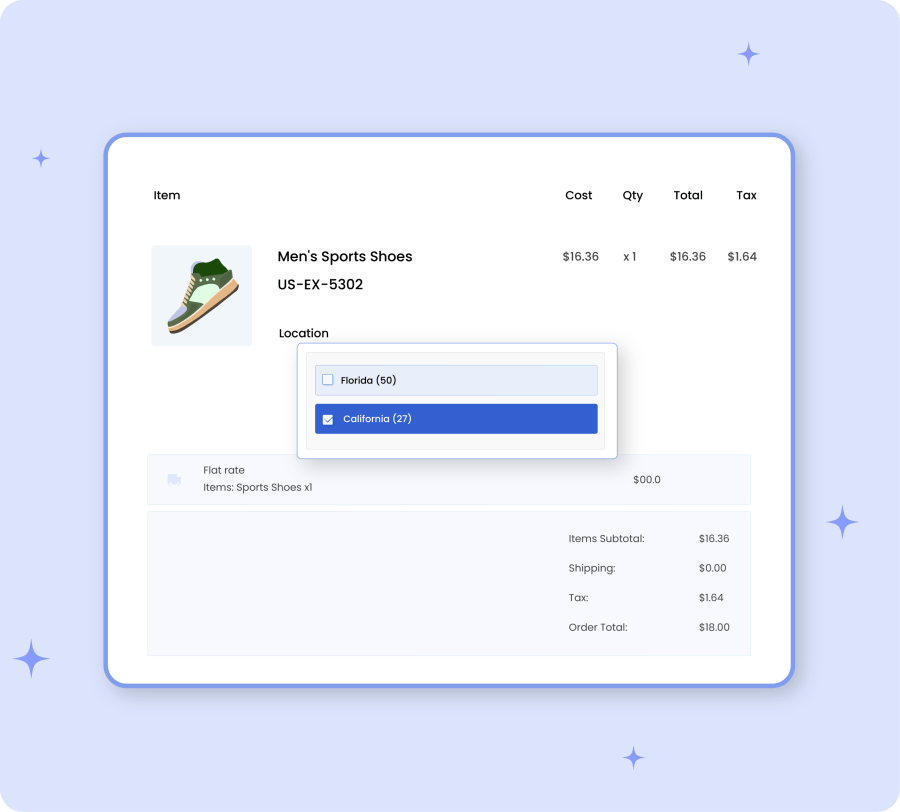
Inventory Allocation By CustomerShop managers can allow customers to select their preferred inventory location based on their needs. Simply help customers to choose from available stock options while managing the entire inventory with ease. |
 |
 |
Inventory Allocation By Order Detail PageBy enabling the backend mode, customers won’t be able to select an inventory location when placing an order. Instead, shop managers can allocate appropriate inventory directly from the order detail page. |
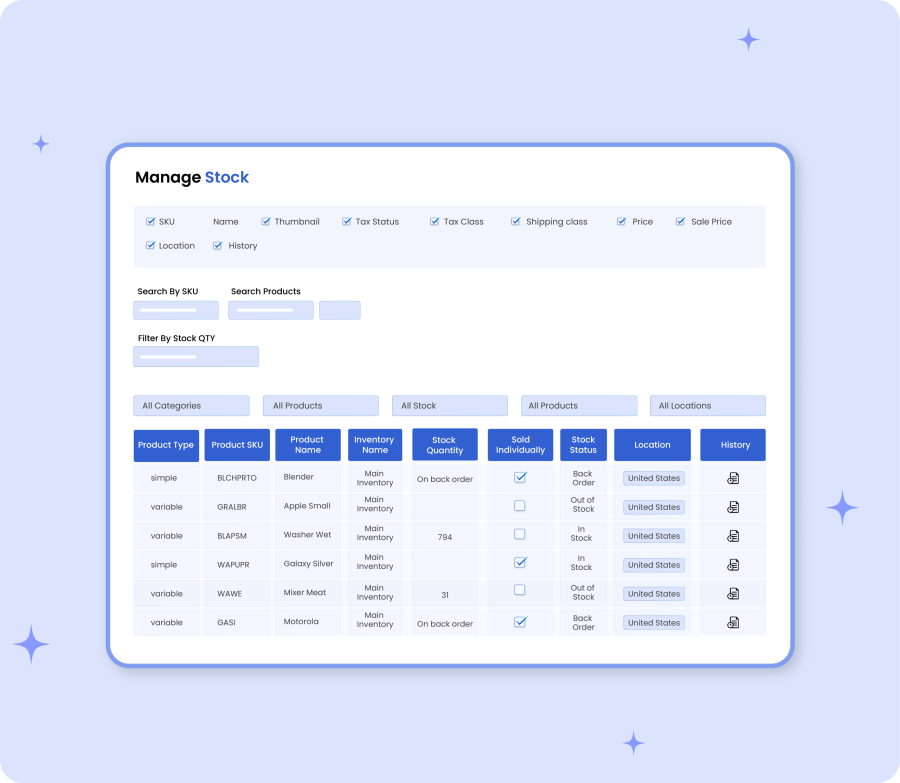
Bulk Stock Management Using List ViewManage your product stock using a bulk stock listing page. Instead of visiting each product page, you can view and edit stock of different products from the same page. The advance filters help you to navigate and easily find the relevant products. |
 |
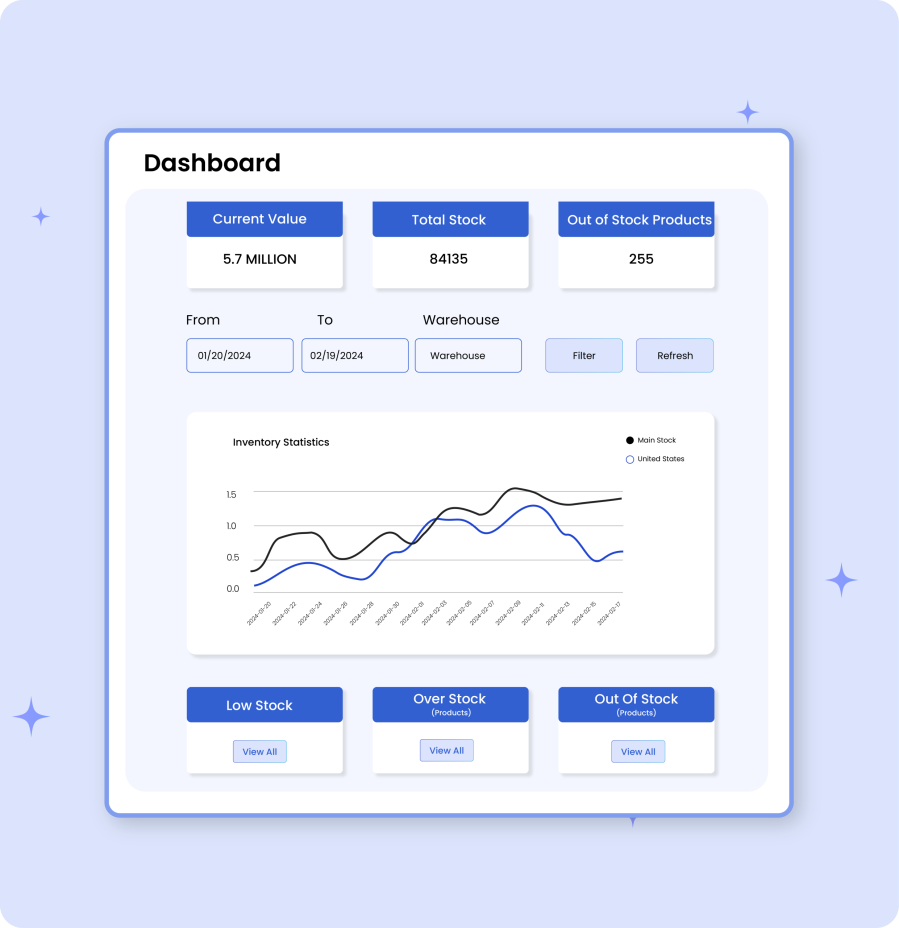 |
DashboardMulti Inventory Management extension comes with a smart dashboard to communicate important information about your product inventories. You can view the total stock quantity, stock value, out of stock, low stock products, and more. The dashboard provides a graph to let you filter stock by location and see the stock trends over a specific period of time. |
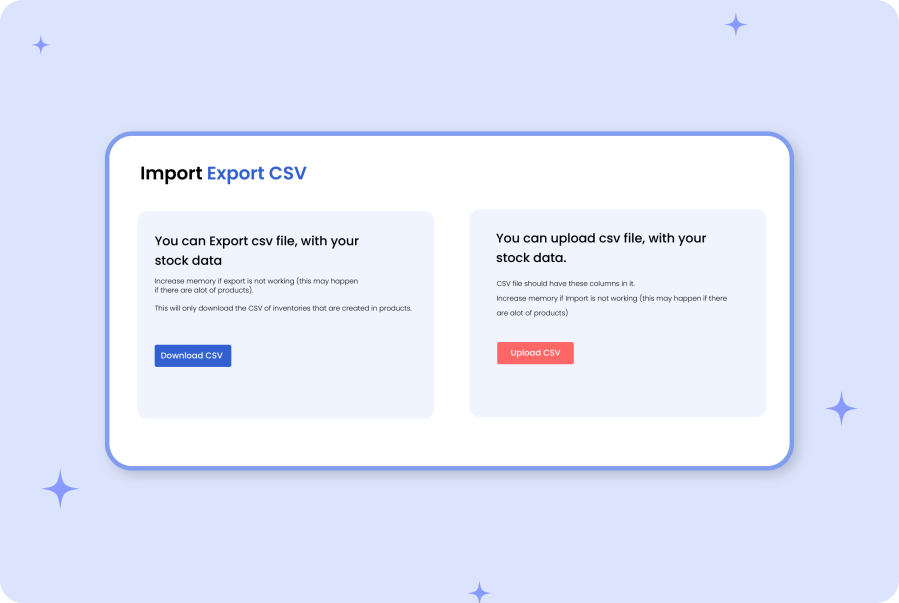
Import ExportYou can import and export location-based stock of individual products using a pre-defined CSV file. Instead of adding stock from each product page, you can import them using a CSV file. |
 |
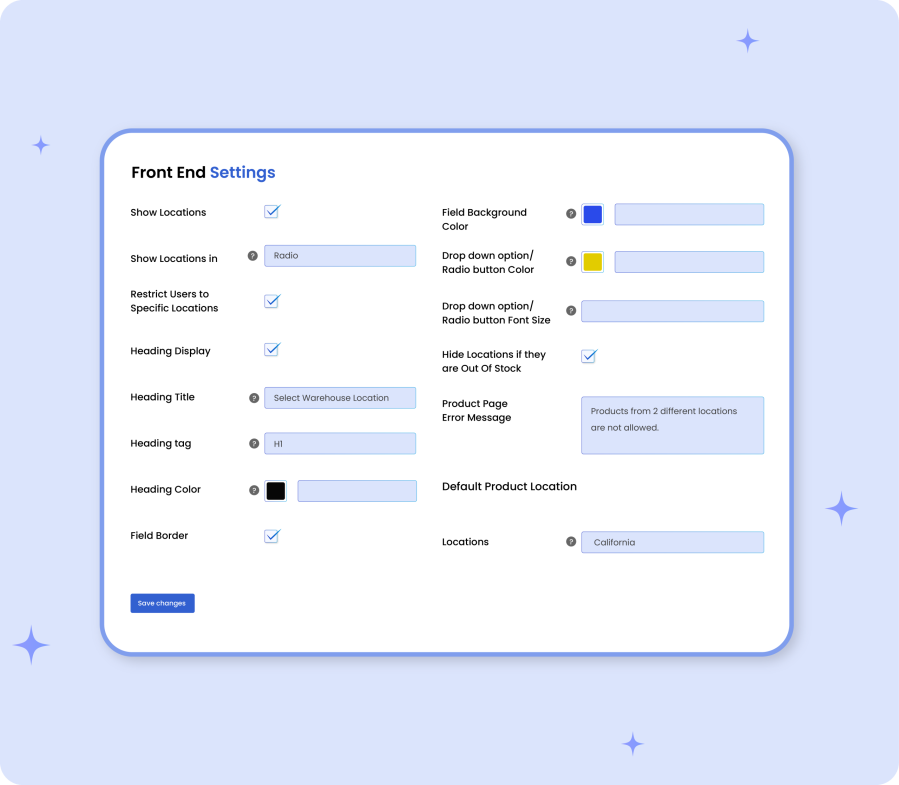 |
Customization Options
|
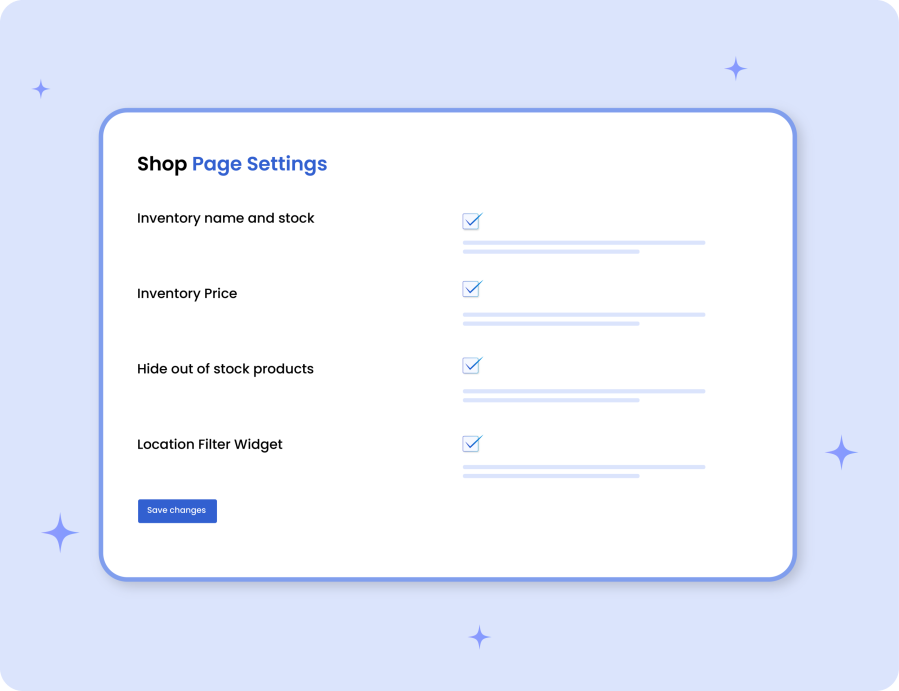
Shop Page
|
 |
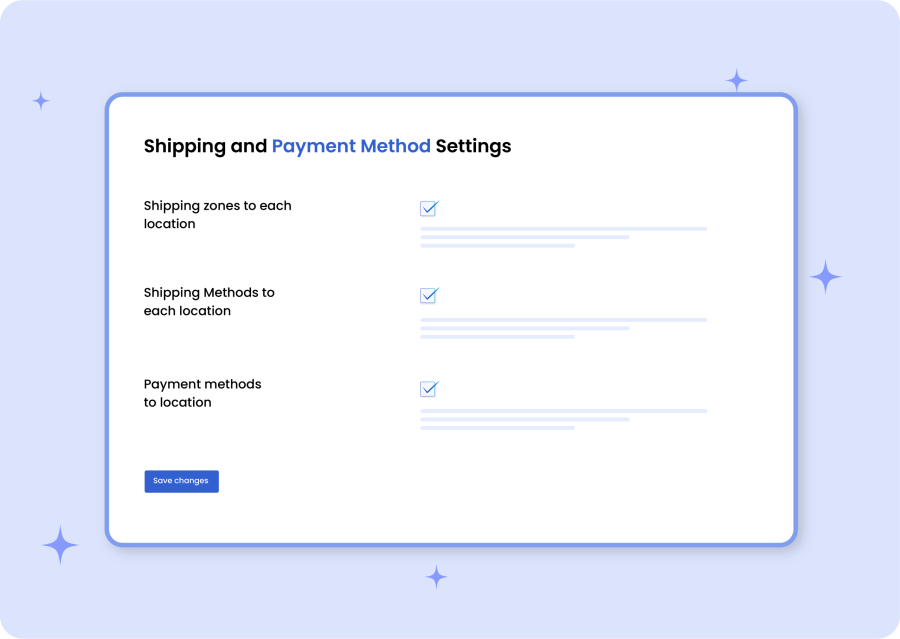 |
Payment and Shipping RestrictionsYou can restrict shipping zones, shipping methods, and payment methods to specific inventory locations. Once the restriction is enabled from settings, you should be able to apply the restriction while creating a new location or editing an existing one. |
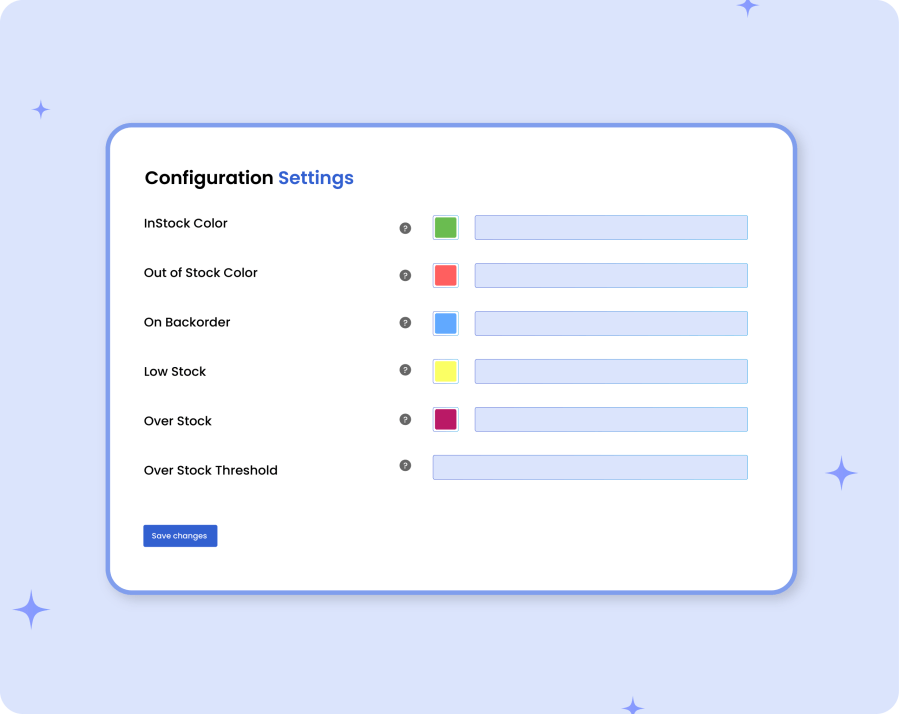
Manage Stock ConfigurationsAdd a low and over stock threshold and customize the color scheme for in-stock, out of stock, overstock, and low stock products displayed in the bulk stock listing page. |
 |
Informations sur l'extension
Vérifications qualité
Pays