
Icona del prodotto

Product Specification Table per WooCommerce

Create and display product details in tables on product pages with Product Specification Table for WooCommerce.
Scegli un'opzione di fatturazione
$49
Risparmia 20%
$98 $78.40

Confronto prodotti

L'abbonamento include

  • Aggiornamenti e miglioramenti del prodotto
  • Servizio clienti
  • Garanzia di rimborso entro 30 giorni

  • Works for simple and variable products
  • Easy to create and use the Product Specification Table
  • Multiple field types supported[i.e Text, Radio, Select-box, Image, Hyperlink & more] in the attribute creation
  • Create multiple Specification Tables for a single product
  • Table elements can combine into groups, and you can use them across multiple tables
  • Shortcode for displaying the Product Specification Table
  • An option to Hide the Product Specification Tab when the Shortcode is used to display the Specification Table
  • An option to hide certain attribute(s) of the respective Group(s) in the Product Specification Table while configuring it under the product
  • Sorting supported for the Attributes in the Group, Groups in the Table and Attributes of the respective Table under each product configuration
  • An option to bulk update to assign Specification Table with products
  • An option added to display the Specification Table when clicking the link
  • An option to Hide the WooCommerce Specification Table display when the plugin’s Specification Table is available in the Product
  • Highly customizable

Display Product Details in a Table

Product Specification Table for WooCommerce allows you to create and display product details in tables on the product pages.

Benefits

Reduces cart abandonment

Customers can view all product details so they can complete their purchases without hesitation.

Customer-friendly

Your customers can easily view all product details and make their purchase decisions accordingly.

How does it work?

Group configuration

The first step in creating a Product Specification Table is making the Groups available. With Groups, you can bundle multiple table elements (attributes) in each Group. Use created groups later to create any number of tables.
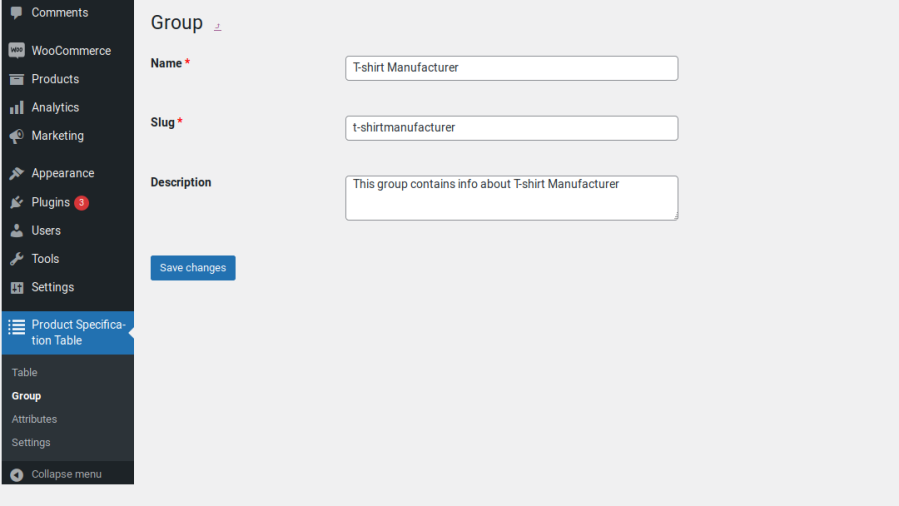
Group Configuration

Attribute configuration

  • Attributes are elements that display in the Table. One or more attributes can link to a Group.
  • The following type of fields supported in the attribute creation,
    • Text
    • Select
    • Radio
    • Text Area
    • Checkbox
    • Hyperlink
    • Image
Attribute Configuration

Table configuration

Within this section, you can create Tables by selecting the available Groups and its attributes. You can sort the selected Groups as per your preferences. This sorting is helps in the Table value display when it is selected under the respective product configuration.
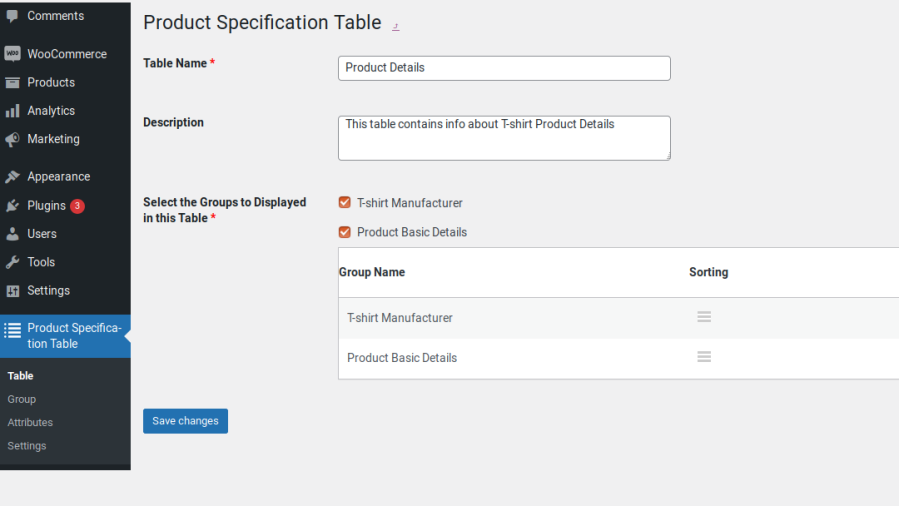
Table Configuration

Linking tables to products

  • Once you have created the Groups, Attributes and Tables, assign the tables to products.
  • Create a New Product or edit an existing product.
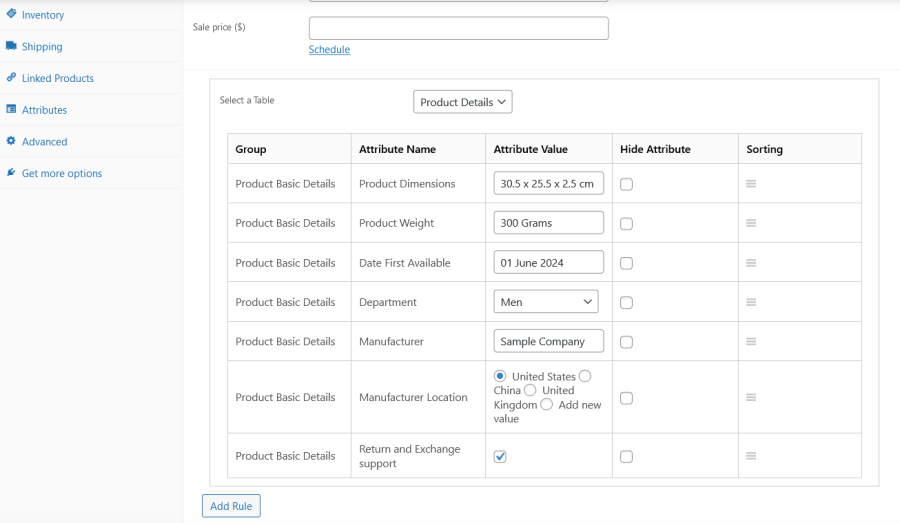
  • In the General section of the product configuration, select the Table you want to display for this product under the Select a Table option.
  • Once you select the Table, all the attributes linked to the Table will display in the same order you have configured.
Configuring Table on Product Page
  • You can change the Attribute Values as per your need for this product and Publish it.
  • You can hide the specific attributes as per your need for this product using the respective field which is available under the Hide Attribute column.
  • You can sort the attributes as per your need for this product using the sort field which is available in the respective attributes.
  • To create a second table, click on the Add Rule button and repeat the process.
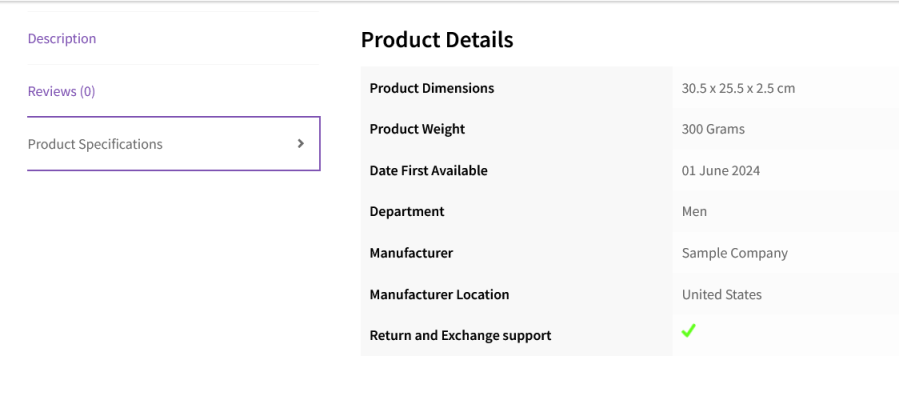
  • Once the changes have been saved, the Product Specification Table will be displayed on the selected product page under the Product Specifications section.
Product Specification Table Visible on Product Page

Update the Specification Table in Bulk

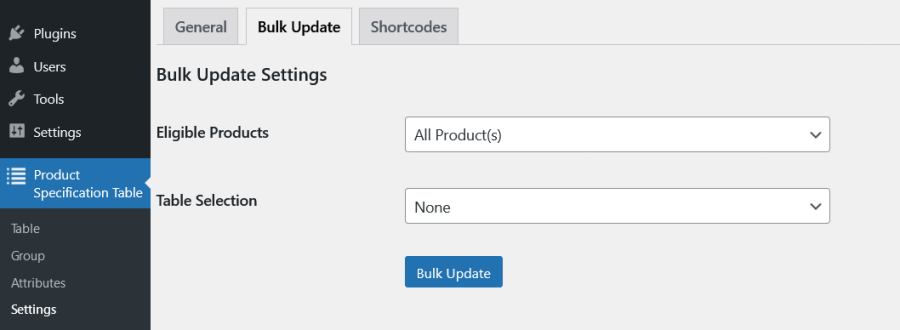
Bulk Update Settings
  • If you want to update the same specification for more than one products or products of a specific categories, then you can achieve it using the Bulk Update settings.
  • Select the Eligible Products/Categories using the Product Filter & the respective specification Table under Bulk Update settings and click the Bulk Update button.

Popular Features

1. Product Specification Tables

Build reusable specification tables that hold a set of attribute groups, then assign one or more tables to any product from the product configuration dashboard.

Key Capabilities:

  • Create unlimited, reusable product specification tables with a display name and description.
  • Assign multiple named rule-sets (tables) to a single product.
  • Central Tables admin screen to add, edit, and manage every table in one place.
  • Table-level sorting to control the order specifications appear in.

2. Attribute Groups for Organized Display

Bundle related attributes into groups like Dimensions, Materials, or Warranty so specifications render in clean, logical sections instead of one long list.

Key Capabilities:

  • Create unlimited attribute groups and give each a display name.
  • Attach multiple groups to a single specification table.
  • Reuse the same attribute across multiple groups.
  • Drag-and-drop sorting for both groups and the attributes inside them.

3. Flexible Attribute Field Types

Build each attribute with the input type that fits the data, from plain text to images, so specifications display exactly the way they should.

Key Capabilities:

  • Seven field types: Text, Text Area, Select, Multiselect, Radio, Checkbox, and Image.
  • Set a default value for every attribute at creation.
  • Field-type filter on the Attributes list screen for quick management.
  • Attribute-level sorting control across tables and groups.

4. Per-Product & Per-Variation Customization

Override attribute values for individual products and for each variation of a variable product without changing the shared table or group defaults.

Key Capabilities:

  • Edit and override attribute values directly from the Edit Product screen.
  • Full support for Variable Products, including variation-level attribute values.
  • Hide specific attributes on a per-product or per-variation basis.
  • Automatic fallback to group or table defaults when no override is set.

5. Bulk Update Across Products

Apply a specification table, or update attribute values, across many products in a single action instead of editing each product individually.

Key Capabilities:

  • Bulk-assign tables by product, product category, product type, or product tag.
  • Background progress bar for tracking large bulk update jobs.
  • Bulk update support for every field type, including checkbox, multiselect, and image attributes.

6. Import & Export

Move specification data between sites, or back it up, at every level of the plugin’s structure Attributes, Groups, Tables, and product-level assignments. Ideal for staging-to-production migrations or replicating setups across sites.

7. Display Modes & Placement

Control exactly where and how the specification table appears on the product page, from a dedicated tab to an on-demand link.

Key Capabilities:

  • Dedicated, custom-labeled “Product Specifications” tab on the single product page.
  • Choice of Default or Toggle (expand/collapse) display mode.
  • Optional link-based display: A “See Specification Tablelink reveals the table on click.
  • Shortcode support for placing a product’s specification table anywhere in content.

Extensive Features List

Specification Table Architecture

  • The plugin uses a three-tier structure Attributes, Groups, and Tables to build modular, reusable specification data across all products in the store.
  • Each tier is independently created and managed, then assembled into a full specification table that can be assigned to any product.

Specification Attributes

  • Create reusable specification attributes that represent individual rows of product data (e.g. Weight, Color, Material, Warranty).
  • Each attribute is configured with the respective values and Associated Group(s) info.
  • An attribute can be assigned to one or more groups simultaneously, making it available in multiple table contexts.
  • Filter the attributes list table by Field Type to quickly locate specific attribute types.
  • Drag-and-drop sorting controls the order in which attributes appear within their groups across the store.

Attribute Field Types

  • Each attribute can use one of eight distinct field types to control how values are entered and displayed:
    • Text: A free-form single-line text input, supporting any plain text value including spaces.
    • Text Area: A multi-line text input supporting longer content; line breaks are preserved in the frontend display.
    • Select: A dropdown menu where the product editor selects from the configured list of values; supports an “Add new value” custom entry option.
    • Multiselect: A multi-value dropdown where one or more options from the values list can be selected simultaneously.
    • Radio: A group of radio buttons where one option from the values list is selected; supports an “Add new value” custom entry option.
    • Checkbox: A true/false toggle with a configurable default of either “on” or “off”.
    • Hyperlink: A URL/link input, displayed as a clickable link on the frontend.
    • Image: A media library image selector; the chosen image is displayed inline within the table cell.

Specification Groups

  • Create specification groups that act as named sections or row categories within a table (e.g. “Physical Dimensions”, “Performance”, “Connectivity”).
  • Groups contain all attributes that have been assigned to them and serve as visual section headers in the rendered table.
  • Drag-and-drop sorting controls the order in which groups appear within a table.

Specification Tables

  • Create named specification tables that assemble multiple groups and all their associated attributes into a single presentable table.
  • Groups within a table can be reordered using drag-and-drop sorting determining their display sequence on the frontend.
  • A preview of the table’s content (groups and attributes) is accessible from a popup without leaving the list screen.

Product-Level Specification Configuration

  • Assign specification tables directly to individual products from the WooCommerce product edit page via a dedicated product data panel.
  • Supports both simple products and variable products, with separate configuration panels for each.
  • For variable products, specification values can be configured at the variation level, allowing each product variant to display unique attribute values.
  • Add multiple table rules to a single product, allowing different tables to be displayed simultaneously
  • Each product-level rule allows:
    • Selection of which global specification table to apply.
    • Setting or overriding the attribute value for each attribute in the table, using the configured field type (select, text, radio, checkbox, etc.).
    • Select “Add new value” to enter a custom value beyond the predefined options for Select and Radio field types.
    • Hiding individual attributes from the frontend display on a per-product basis.
    • Reordering attributes within the table using drag-and-drop sorting specific to that product, independent of the global attribute sort order.

Frontend Display

  • Specification tables are rendered within a dedicated Product Specifications tab on the single product page, seamlessly integrated into WooCommerce’s standard product tab system.
  • The tab label is customizable.
  • Optionally hide the default WooCommerce “Additional Information” tab when the plugin’s specification table is configured for a product, preventing duplication of specification-style content.
  • Optionally hide the Product Specification tab when the shortcode is used to embed the table elsewhere on the page, avoiding double display.
  • Enable a Specification Table Link that appears on the single product page; clicking the link reveals the specification table inline without navigating away or scrolling to the tab.
  • The link label is customizable.
  • Choose between two table display modes:
    • Default: the specification table is shown fully expanded at all times.
    • Toggle: the specification table sections can be collapsed and expanded by the customer.
  • Checkbox attributes are rendered with visual checkmark or X-mark icons based on their on/off value.
  • Image attribute values are rendered as inline images within table cells.
  • Hyperlink attribute values are rendered as clickable links.
  • Multiselect values are displayed as a combined list of all selected options.

Shortcode Support

  • Embed the specification table anywhere on the site using the shortcode: [pst_product_specification_table product_id=”product_id” table_id=”table_id”]
  • The shortcode accepts a specific product_id and table_id to render a targeted table for any product on any page or post.
  • When the shortcode is in use, the plugin tab on the product page can optionally be hidden to avoid duplication.

Bulk Update

  • Apply specification table configurations to multiple products simultaneously using the dedicated Bulk Update settings panel.
  • Scope the bulk update to specific products using a configurable Eligible Products filter.
  • Select the specific specification table to apply during the bulk update.
  • Configure attribute values and hide/sort settings within the bulk update interface using the same field-type inputs as the individual product editor.

Import & Export

  • Full import and export support for all four data types:
    • Specification Attributes : Export and re-import all attribute definitions, including field type, values, default values, and group associations.
    • Specification Groups: Export and re-import group names, slugs, and descriptions.
    • Specification Tables: Export and re-import table configurations, including their associated group selections.
    • Product-Level Specification Tables: Export and re-import the per-product attribute value configurations.
  • Import and export for product-level tables are also accessible directly from the product edit page.

Custom CSS

  • A Custom CSS field in the General Settings allows store owners to apply targeted styling to specification tables without editing theme files, resolving layout conflicts and matching store branding.

Requirements

Minimum PHP version: 5.6


Recensioni dei clienti

Stiamo accettando recensioni per questo prodotto e le mostreremo quando ne avremo ricevute alcune in più.

Informazioni sull'estensione

  • Versione PHP richiesta: 7.4.0
  • Testato con WordPress: 7.0
  • Testato con WooCommerce: 10.7.0
  • Richiede almeno WordPress: 6.2
  • Richiede almeno WooCommerce: 8.2.0

Compatibilità

  • Cart & checkout blocks
  • High performance order storage (HPOS)

Paesi

  • Mondiale

Lingue

English (United States)

Related Products

Prezzo $79 Annualmente
Valutato 3.4 su 5 stelle
Prezzo $279 Annualmente
Valutato 3.2 su 5 stelle
Prezzo $59 Annualmente
Valutato 3.1 su 5 stelle
Prezzo $109 Annualmente
Valutato 2.7 su 5 stelle
Prezzo $49 Annualmente
Valutato 4.1 su 5 stelle
Prezzo $109 Annualmente
Valutato 2 su 5 stelle
Prezzo $109 Annualmente
Valutato 2.3 su 5 stelle
Prezzo $39 Annualmente
Valutato 2.8 su 5 stelle
Prezzo $109 Annualmente
Valutato 2.6 su 5 stelle
Uso dei tuoi dati personali
Noi e i nostri partner trattiamo i tuoi dati personali (come dati di navigazione, indirizzi IP, informazioni sui cookie e altri identificatori univoci) sulla base del tuo consenso e/o del nostro legittimo interesse per ottimizzare il nostro sito web, le attività di marketing e la tua esperienza utente.