
Comparação de produtos
A assinatura inclui
Suporte
Customer File Upload for WooCommerce allows customers to upload files to their orders directly from the product, cart, checkout, and order pages. Whether you sell custom products, print services, or anything that needs user files, this plugin handles it with an easy drag-and-drop box, file type and size controls, and clear upload limits. Customers can add notes, rename files, and even update them later if needed.
Using WooCommerce File Upload, Store owners can approve or reject files, set upload deadlines, charge extra fees, and manage everything in one dashboard. Set unlimited file upload rules and apply them to specific products, categories, user roles, or order statuses — and keep the whole process clear and organized with quick access to download, review, and track every uploaded file.
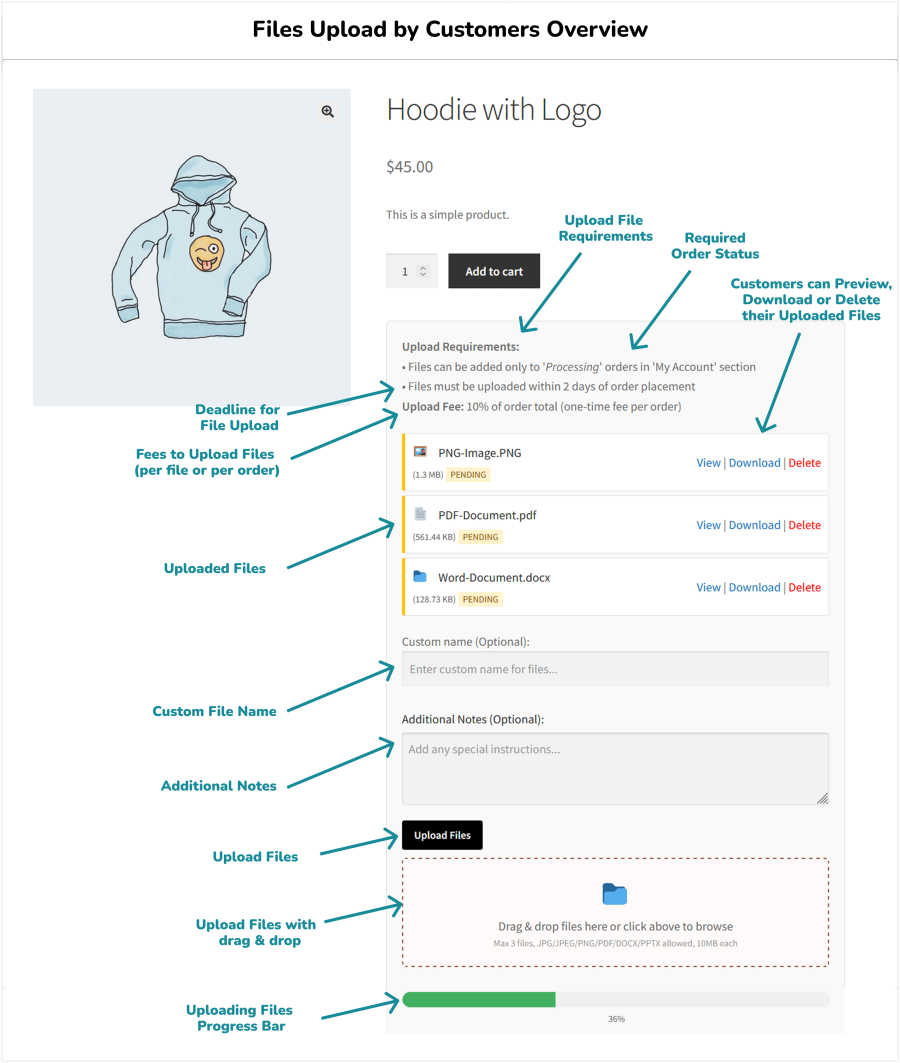
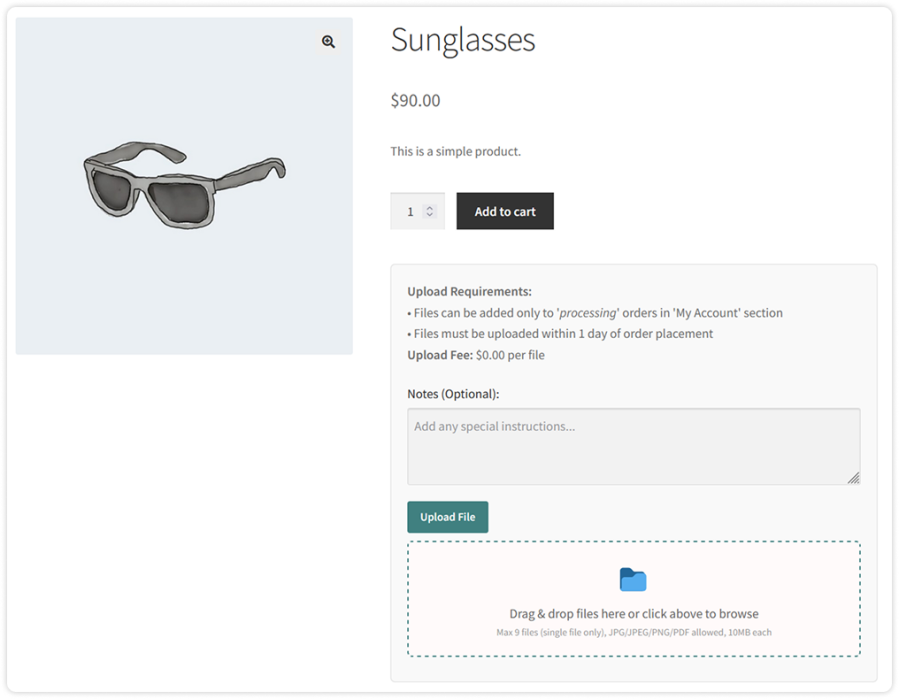
Let customers upload files directly from the product page before adding items to the cart. Ideal for custom orders that need design files or extra details up front.
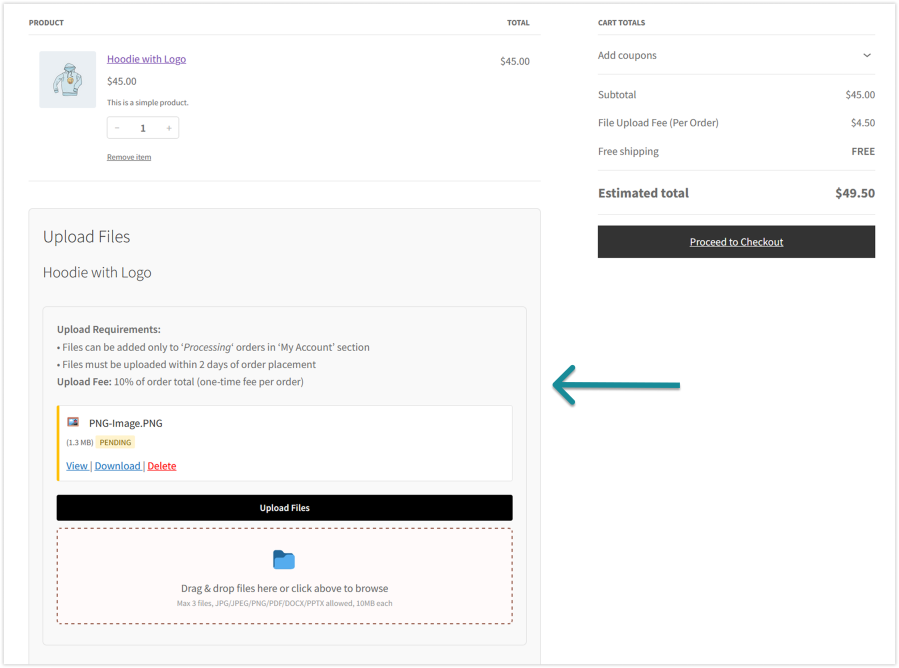
Upload File WooCommerce allows customers to add or update files right from the cart page. Perfect for last-minute uploads or edits before checkout.
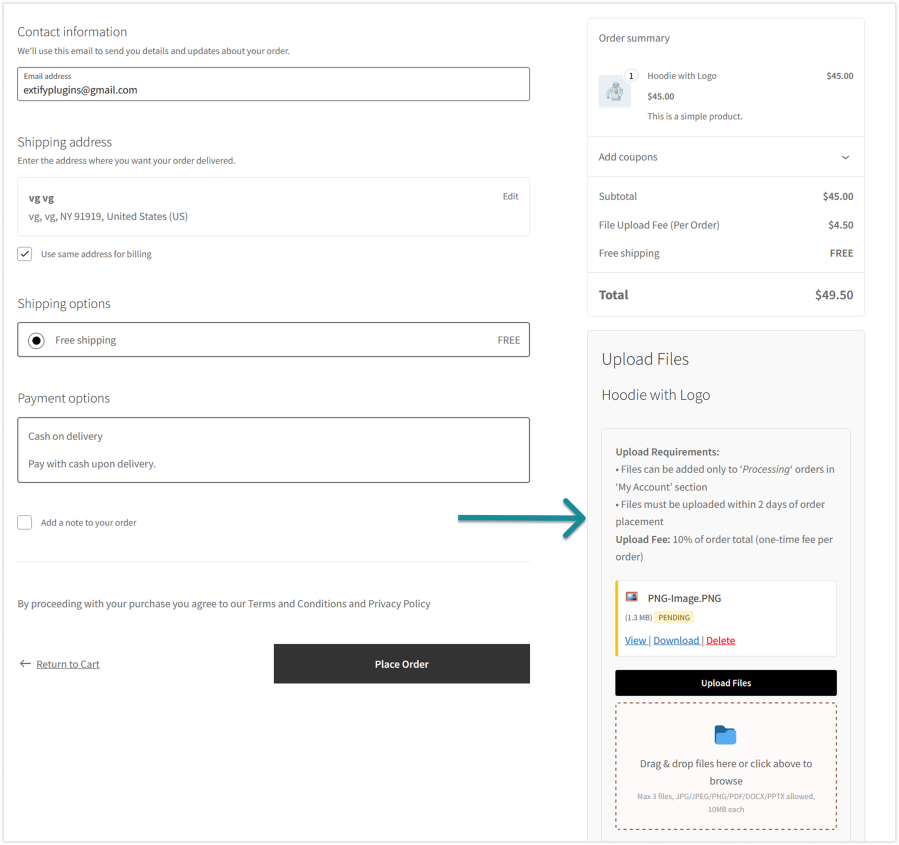
Let customers upload files during checkout without extra steps. Great for collecting final files needed to complete an order using Checkout Files Upload for WooCommerce.
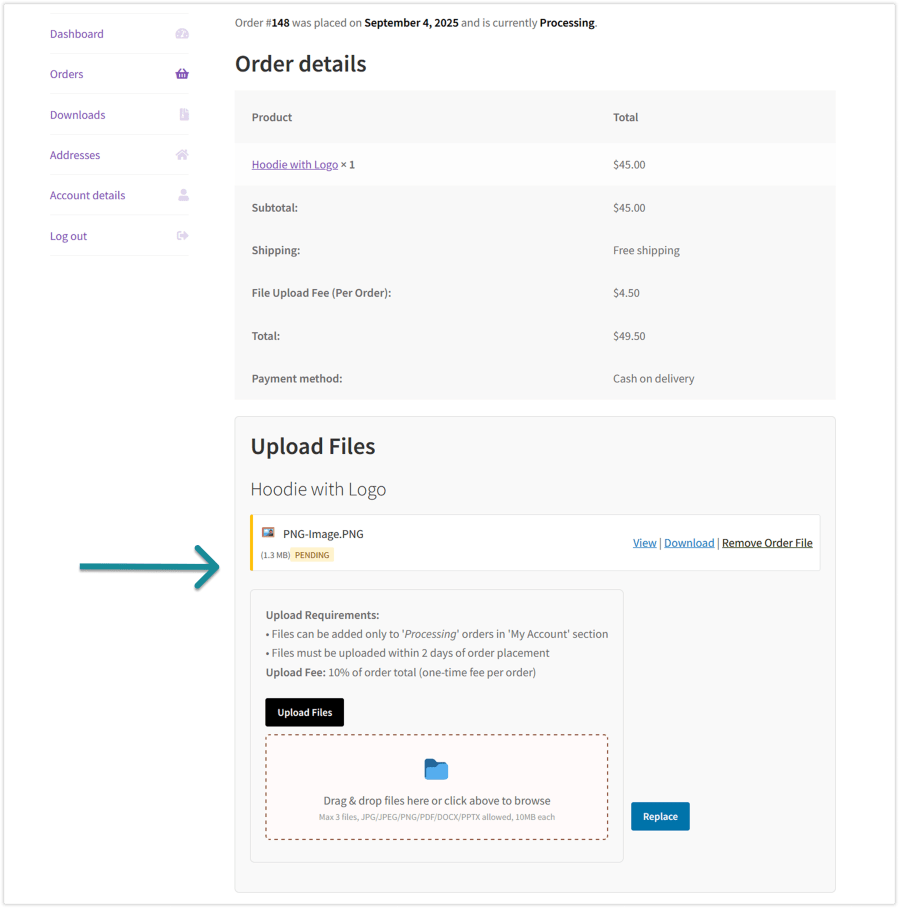
Customers can update or remove uploaded files directly from the My Account page while the order is still pending or on hold. This makes it simple to fix mistakes or upload the correct file without canceling or changing the entire order.
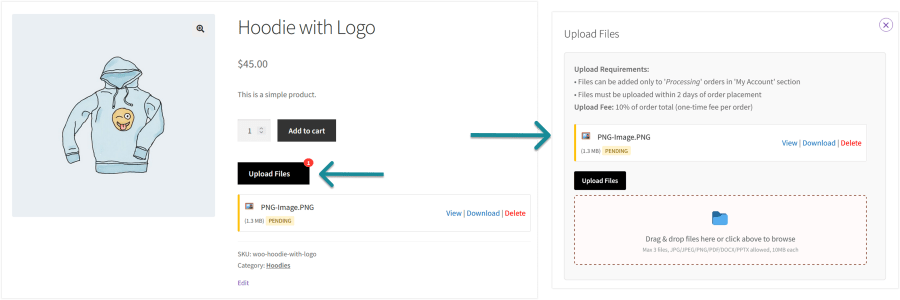
Admin can choose whether the upload section appears directly on the page or in a popup window—making it easy to match your store’s design and shopping flow.
The upload fields are shown directly on the product, cart, checkout, and order page.
The upload fields opens in a popup window when customers click an “upload file button”.
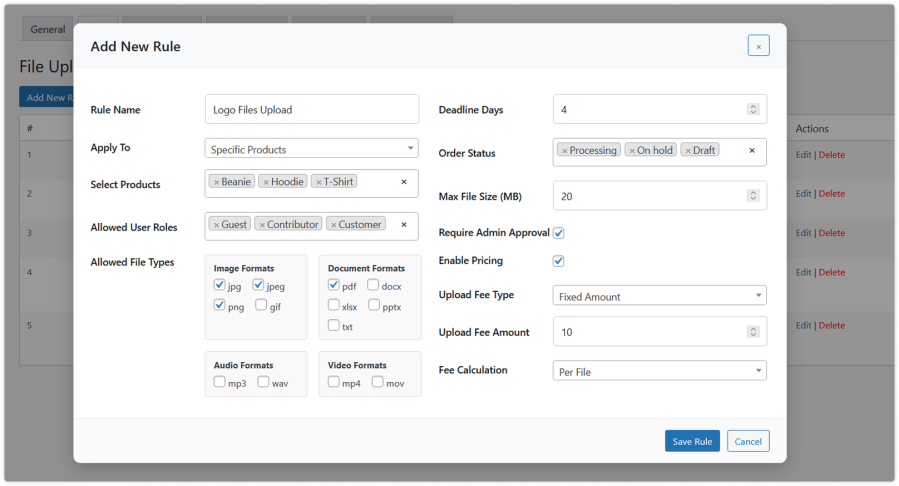
With WooCommerce Upload File Plugin, you can create unlimited rules based on your requirements see below screenshot for creating a new rule.
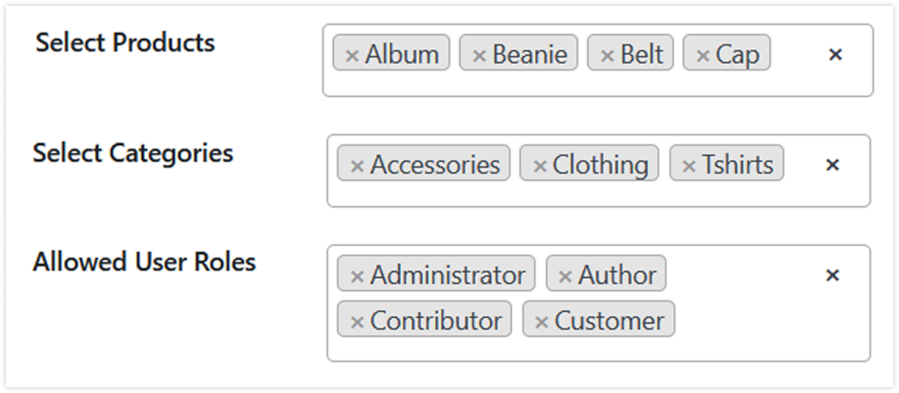
You can apply different rules to specific products, entire categories, or even limit them to certain customer roles (e.g., wholesalers or VIP members).
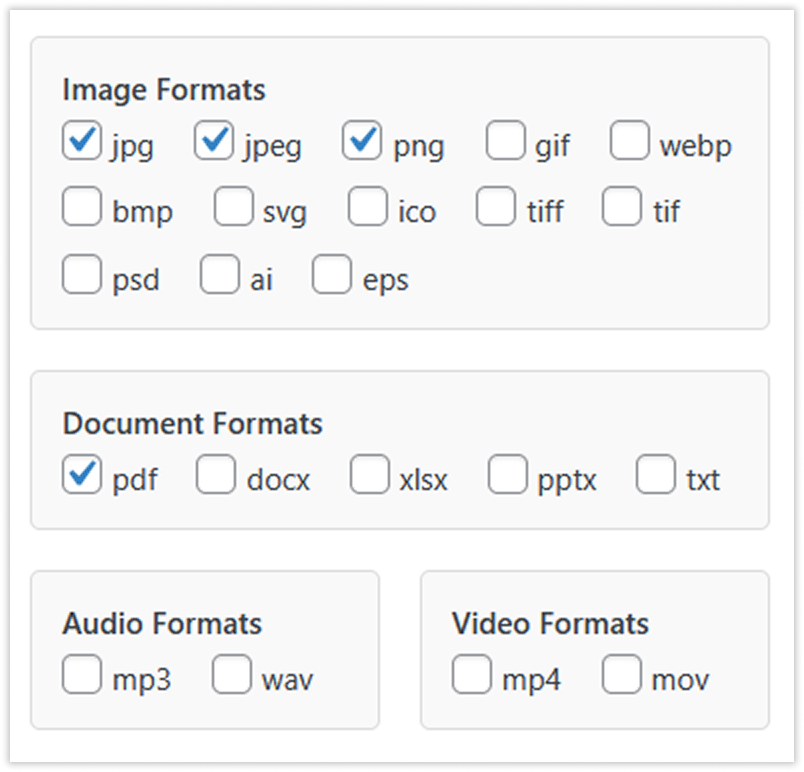
Decide which file formats customers can upload—such as images (JPG, PNG), documents (PDF, DOCX), or other safe file types—so you only receive the files you need.
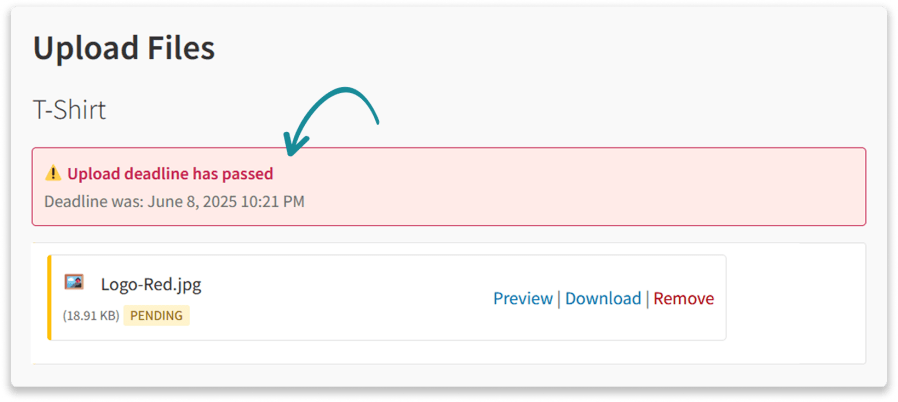
Set a time limit for customers to upload files after placing an order. Keep projects on track and avoid late submissions.
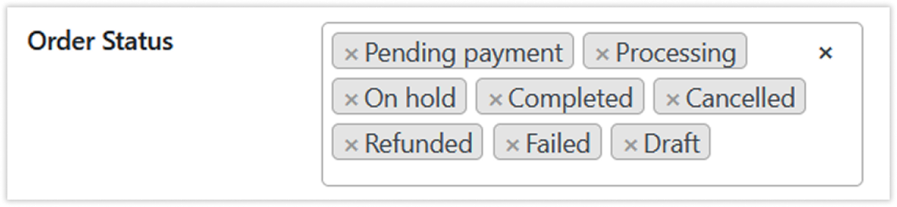
Manage when uploads are possible. For example, allow uploads when the order is processing, after it’s completed, or even for draft orders before purchase.
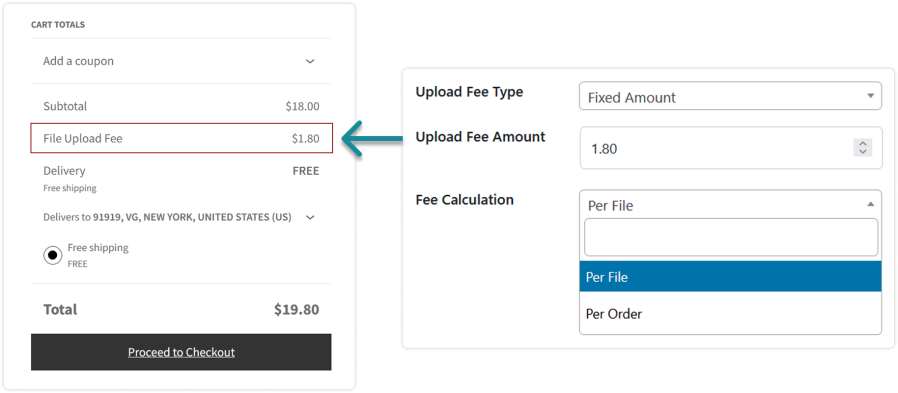
Earn extra revenue by charging for uploads. You can set a fixed fee or a percentage, and choose whether to apply it per file or per order with File Upload WooCommerce.
Customers can preview their uploaded files, download them anytime, or remove them if needed. Gives full control before and after placing an order using WooCommerce Upload File.
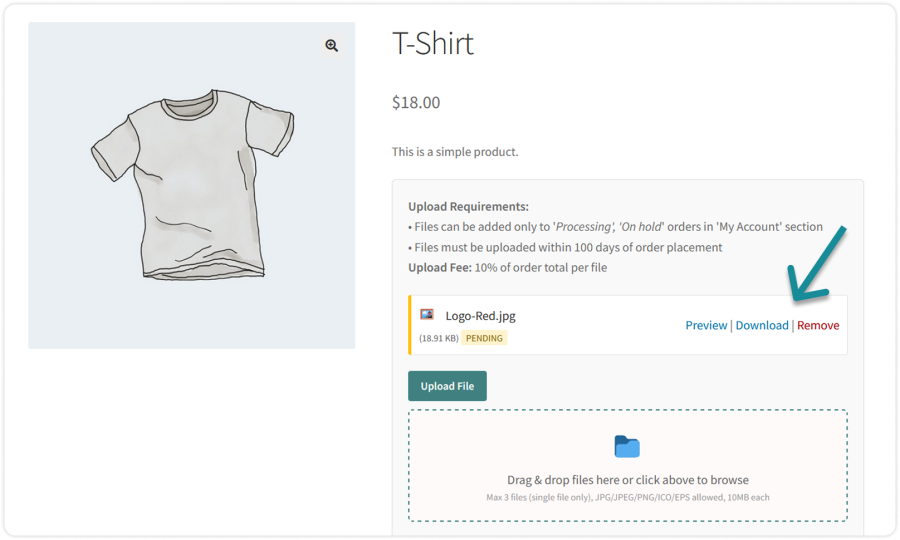
Customers can easily drag & drop files or select them manually to upload, with a customizable upload area. WooCommerce File Upload makes adding files quick and user-friendly.
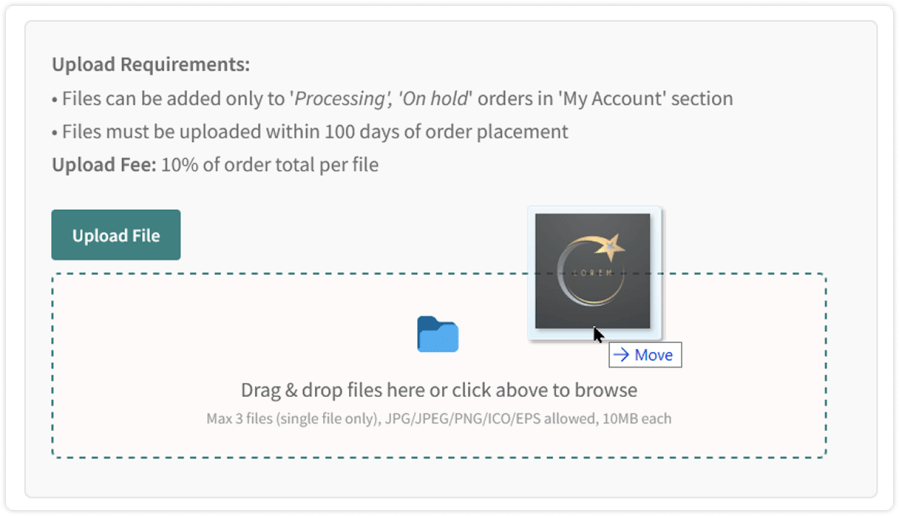
Show customers a clear progress bar while files upload. Easily adjust its colors and style to match your store’s design.
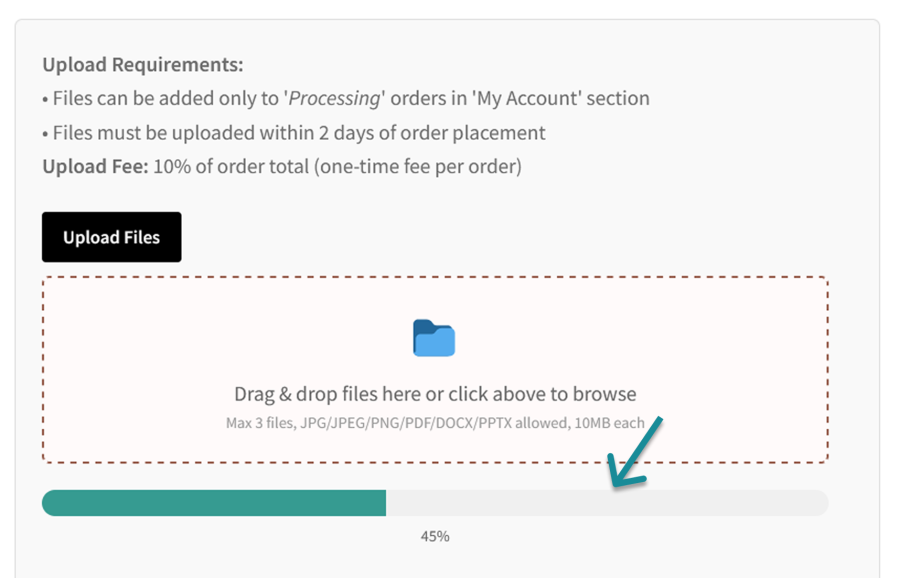
Let customers add notes with each file to share extra details or special instructions. Keeps communication clear for custom orders.
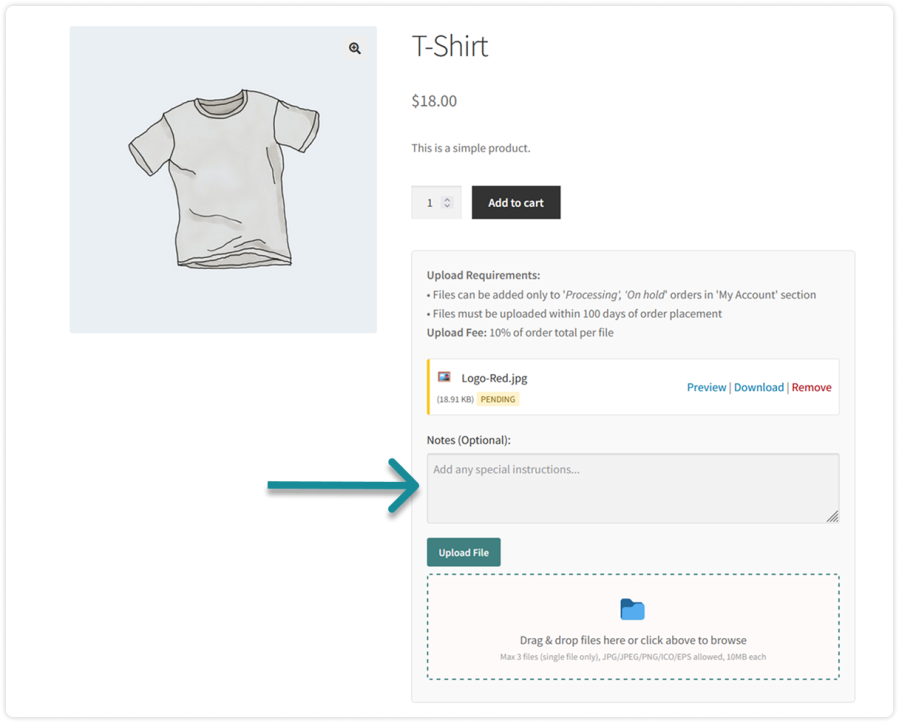
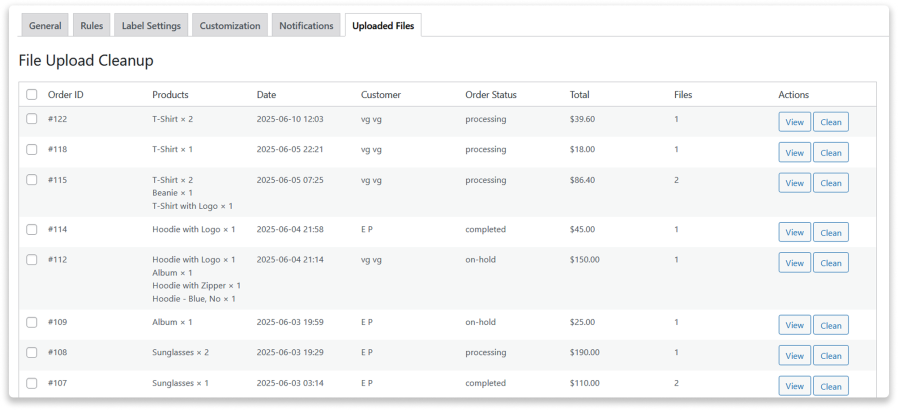
Admins can view and manage all uploaded files in one centralized dashboard. See order details, customer info, uploaded files details, and easily review, download, or clean up files as needed with Customer File Upload WooCommerce.
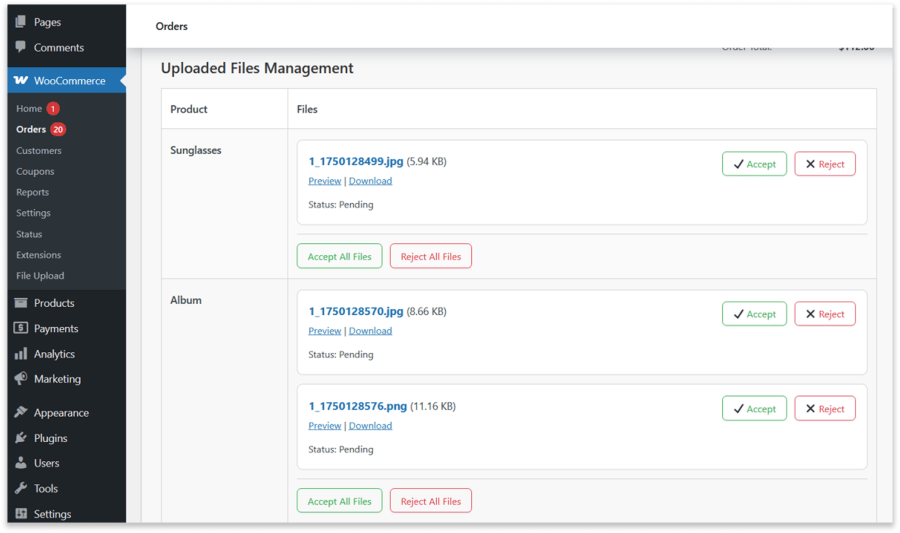
In each order, admins get a separate section to approve, reject, preview or download uploaded files by customers. Makes managing customer files quick and easy. When a file is approved or rejected, the customer automatically receives an email notification.
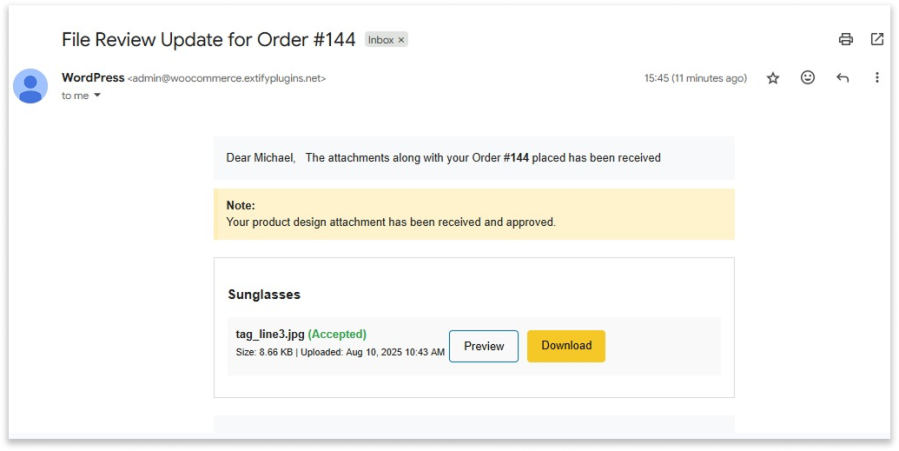
Whenever the admin approves or rejects an uploaded file, the customer instantly receives an automated email update. This ensures clear and timely communication.
Allow customers to upload files safely with their orders. Files are stored securely on your server, restricted to authorized staff, and fully manageable from your WooCommerce dashboard.
Easily change the colors of buttons, drop areas, progress bars, and file previews. Make the upload section look and feel just like the rest of your store.
Change the text for upload titles, buttons, labels, and actions like preview, download, remove, and replace. Your custom wording will also appear in customer emails and order details for a consistent experience.
Yes. WooCommerce File Upload works seamlessly with Elementor-built pages. The file upload section displays correctly on Elementor product, cart, checkout, and order pages without layout issues or styling conflicts. It is fully responsive and adapts smoothly to Elementor’s design structure.
Customers can upload files on the Product, Cart, Checkout, and Order pages. You choose where the upload option appears.
You can display the file upload area either inline on the page or in a popup, giving you flexible design options to match your store with WooCommerce Upload Files.
Yes, you can allow or block specific file types, set size limits, and define how many files can be uploaded.
Yes. All files uploaded by customers are stored securely on your server and are only accessible to store administrators and authorized staff through the WooCommerce dashboard. Customers cannot access or view files uploaded by others. You can also apply restrictions such as allowed file types and size limits to further enhance security.
You can add fixed or percentage-based fees per file or per order to cover extra handling or customization costs.
Yes, customers can upload new files or replace existing ones on the Order page, if you allow it.
You can view, approve, reject, download, or delete files directly from a dedicated dashboard or the order details page.
Informações da extensão
Verificações de qualidade
Compatibilidade
Países