Product Icon

Gift Cards Pro for WooCommerce

Allow users to purchase and send virtual gift cards, physical gift cards, product gift cards, promotional gift cards and more.
Choose a billing option
$79
Save 20%
$158 $126.40

Das Abonnement beinhaltet

  • Product updates and improvements
  • Kundensupport
  • 30-tage geld-zurück-garantie

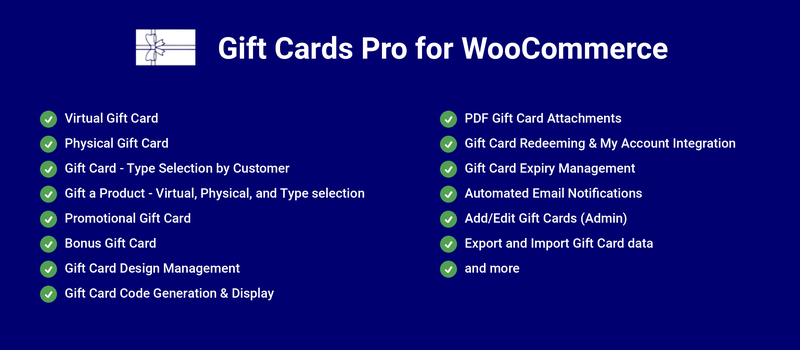
Gift Cards Pro for WooCommerce allows you to offer gift cards to your customers using the following prominent features,

Benefits

Gifting made easy

Customers appreciate the option to send gifts to their friends and relatives easily and quickly.

Get insights on future sales

Unused gift cards offer insights into future potential sales.

Increases your brand image

When a new user receives a gift card, they may become aware of your store for the first time. It increases your brand’s reach and customer base.
How does it work?

Ways to Purchase/Receive Gift Cards

Virtual Gift Cards

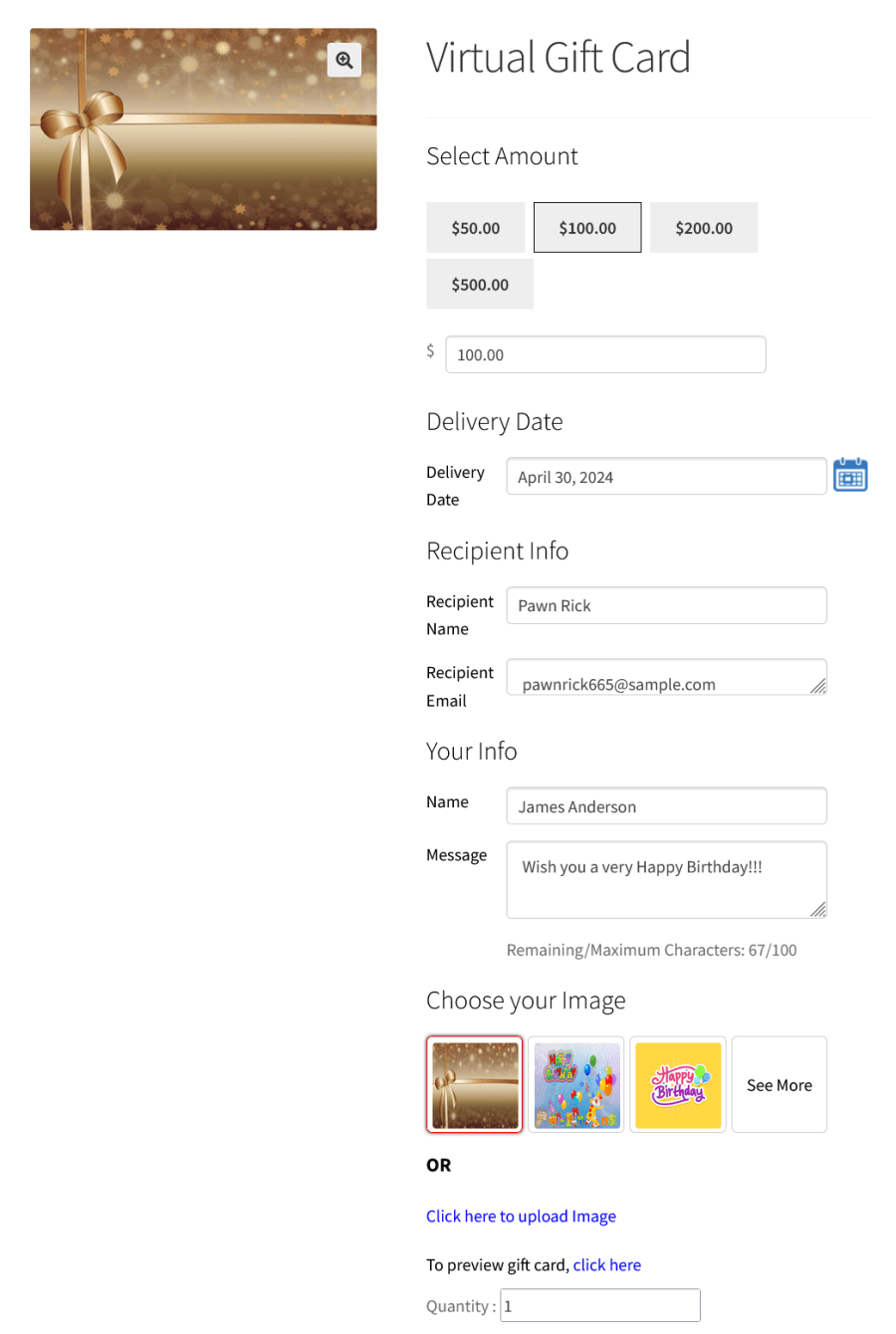
  • Customers choose gift cards in predefined amounts or custom amounts (admins can configure gift cards in predefined amounts or allow customers to choose the amounts).
  • The Gift Cards will be delivered once it is generated. The sender can schedule the Gift Card delivery based on their needs.
  • In the Recipient Info section, customers fill in the Recipient Name and Recipient Email.
  • The customers will be able to purchase a gift card for a single recipient only.
  • They can also purchase Gift Cards for multiple recipients by entering the recipient emails with comma separator to achieve this.
  • In the Your Info section, customers fill in their names and a message they want to send to the recipient.
  • In the Choose your Image section, customers choose an image. They can also get a preview of the email users will receive by clicking the preview link.
  • Once the required details have been filled in, customers can add the gift card to the cart, proceed to checkout, and complete the purchase.
Virtual Gift Cards Single Product Page
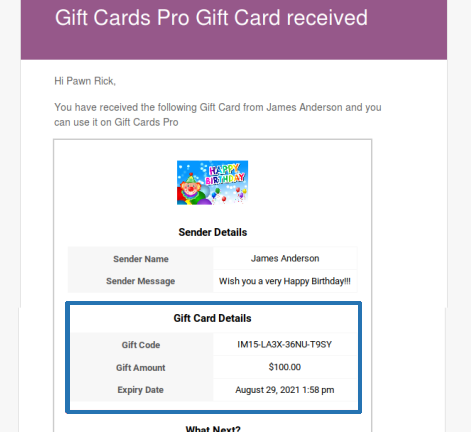
  • Once the purchase is complete and the order reaches the respective status which is selected to get the Gift Card, then the recipient will receive the gift card via email.
  • The sender can also notify the recipient about the Gift Card using the Resend Email option.
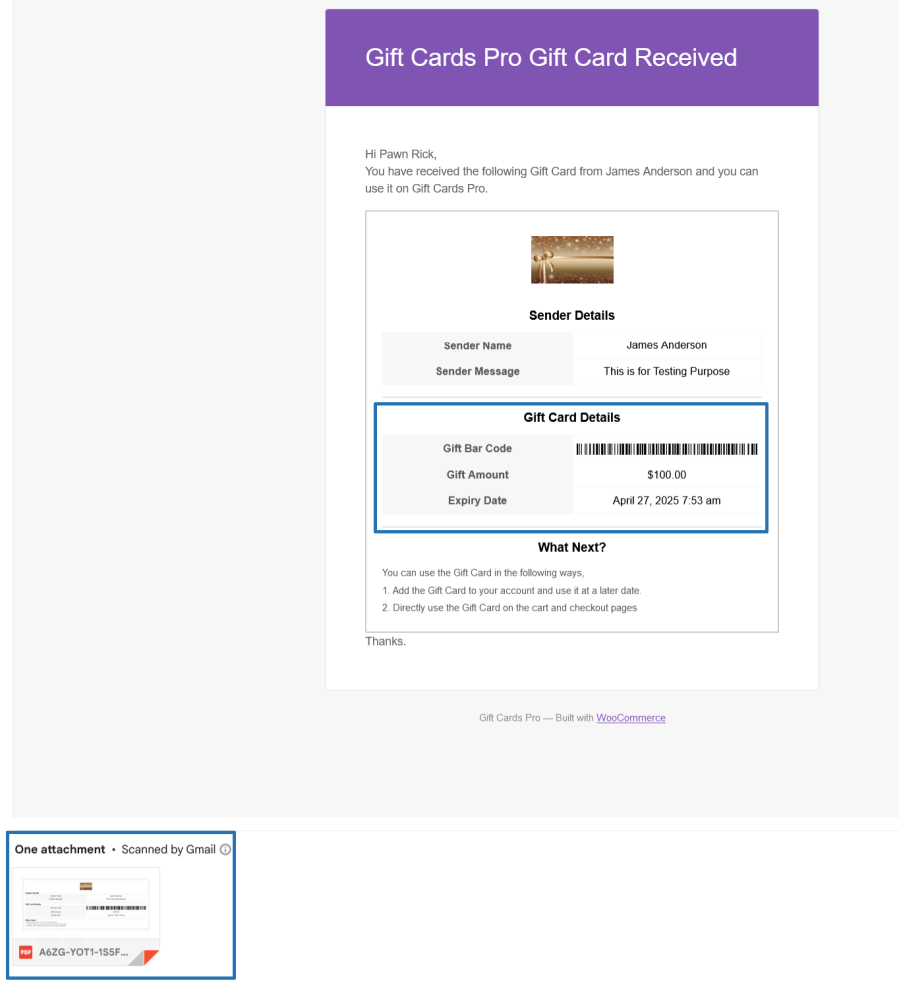
Virtual Gift Cards Normal Gift Code
Virtual Gift Cards Barcode and PDF

Physical Gift Cards

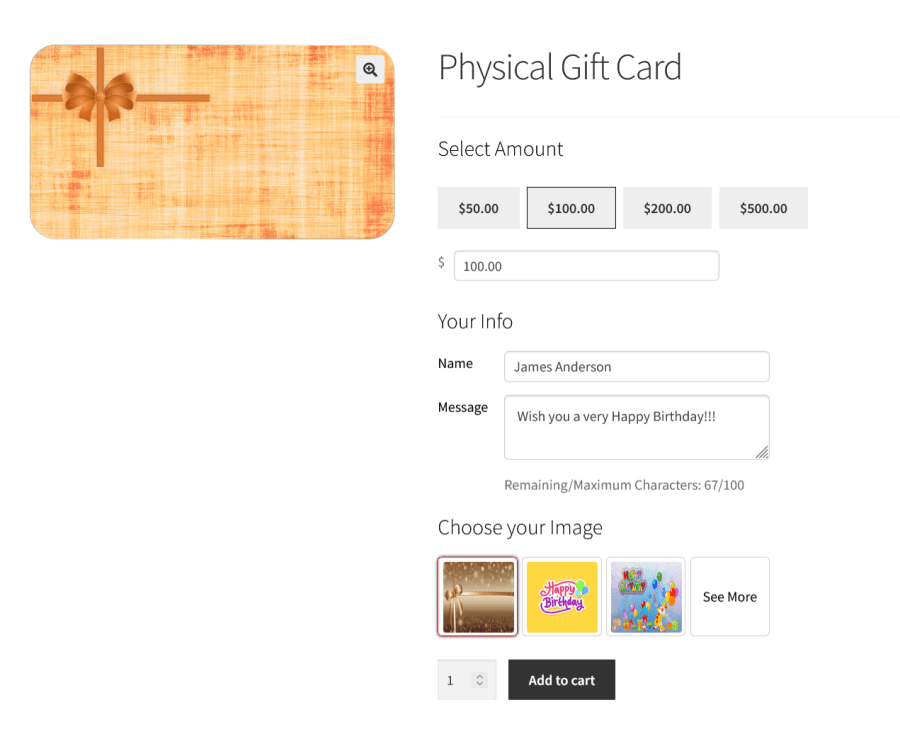
  • Customers choose gift cards in predefined amounts or custom amounts (admins can configure gift cards in predefined amounts or allow customers to choose the amounts).
  • Design selection can be allowed for the Physical Gift Card purchase.
  • In the Your Info section, customers fill in their names and the messages they want to display to their recipients. If they want, then they can be allowed to include the recipient details for the Physical Gift Card purchase.
Physical Gift Cards Single Product Page
  • Once customers fill out the required details, they can add the product to the cart, proceed to checkout, and complete the purchase.
  • Once the purchase is complete, the physical gift card will be sent to the recipient.
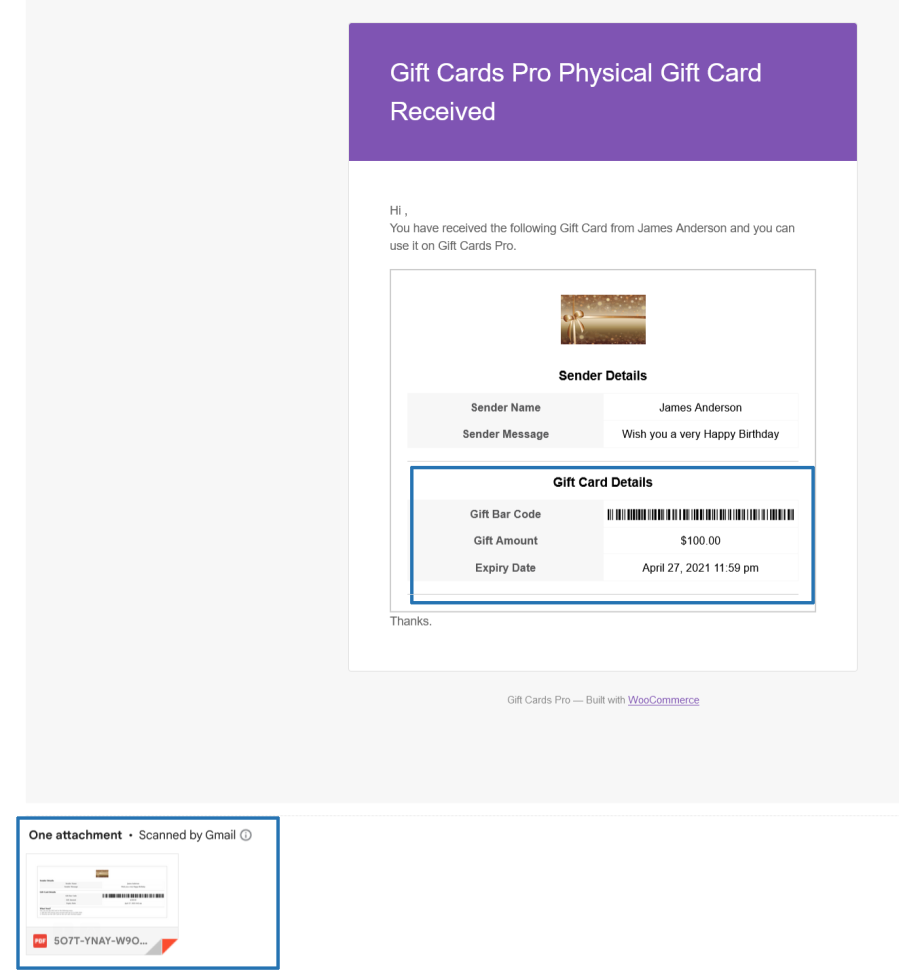
Physical Gift Cards Barcode and PDF
  • Only one Gift Card will be generated for the amount of the total quantity selected in the Physical Gift Card purchase. You can also be allowed to Generate separate gift card for each quantity purchased.

Gift Card Type Selection by Customer

Customers can choose the Gift Card type during their purchase. Based on the type selected, they need to proceed with the respective steps to complete the purchase.

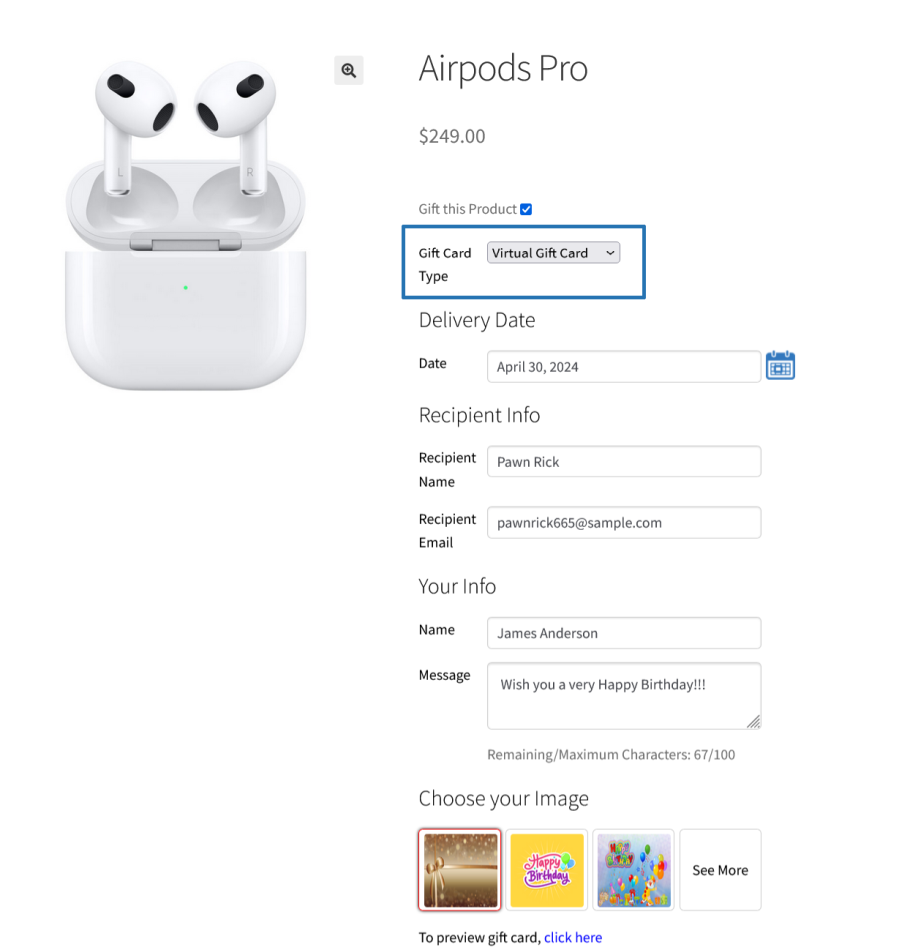
Gift Card Type Selection on Single Product Page

Gift a product

  • On Single Product Pages, the Gift this Product checkbox will be visible.
  • When the Gift this Product checkbox is checked, the following sections will be visible:
    • Gift Card Type
    • Recipient Info
    • Your Info
  • In the Gift Type section, customers need to select their preferred type of the Gift Card[virtual or physical]. It is not needed if the type selection is not supported for the respective product.
  • In the Recipient Info section, customers fill in the Recipient’s Name and the Recipient’s Email.
  • In the Your Info section, customers fill in their names and the messages they want to send to their recipients.
Gift This Product Selection on Single Product Page
  • Once the required details have been filled in, customers add the products to their carts (the price of the product is the gift card’s value) and then proceed to checkout and complete the purchase.
  • Once the purchase is complete and the order reaches reaches the respective status which is selected to get the Gift Card, the recipient will receive the Gift Card via email.
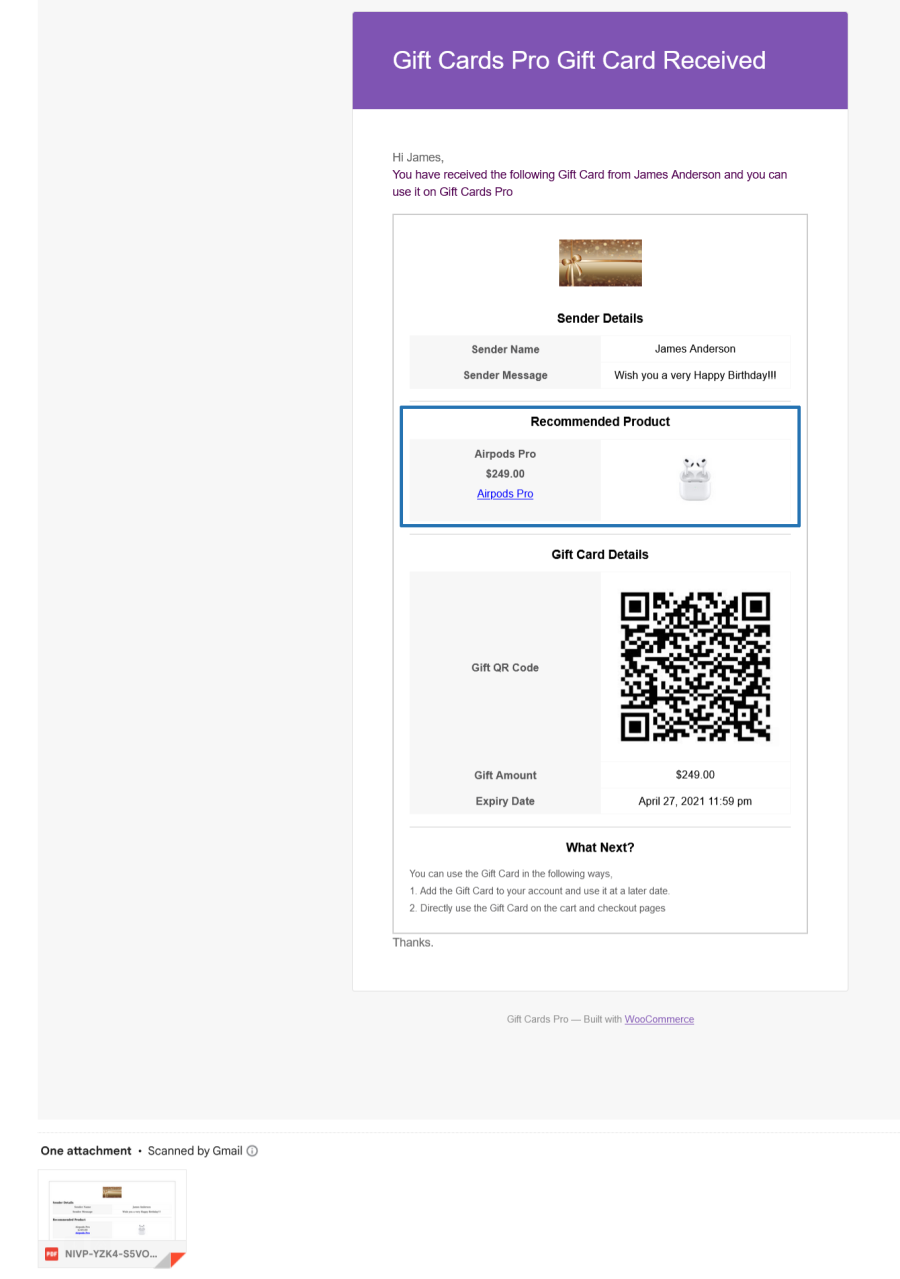
  • The recipient’s email will contain the Gift Card and the recommended product for purchase. The recipient can use the gift card to purchase the recommended product or any other product in the shop.
Gift this Product Email

Promotional Gift Cards

You can generate the Gift Cards and shared it to the customers for site’s promotional purpose. For Promotional Gift Cards, the following sections will be used,

  • Gift Card Generation Type
  • User Selector
  • Gift Card Value

In the Gift Card Generation Type, you need to select the type[Add to the site and Email to the Users or Add to the site] for the Gift Card generation.

In the User Selector, you need to select the respective customers to whom you want to share the Gift Cards for Promotional purpose.

In the Gift Card Value, you need to enter the respective Gift Card value.

Click the Generate Gift Cards Button.
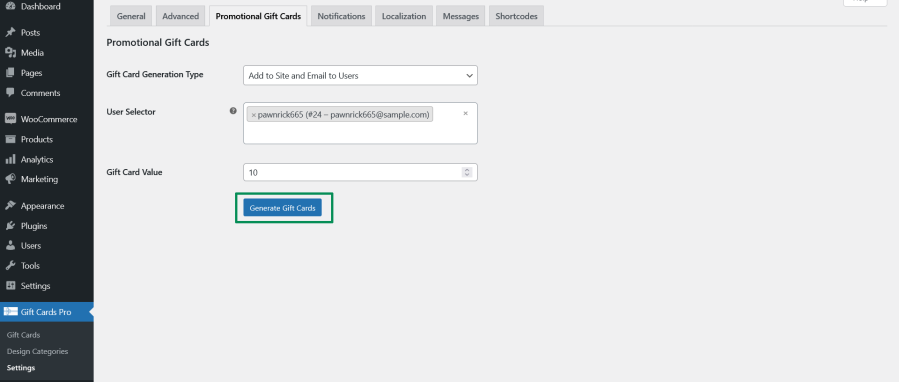
Promotional Gift Cards Generation

Once clicked, the Gift Cards will be generated based on the selection.

Ways to Use Gift Cards

Gift Cards can be used in two ways,
Added to the site for later use

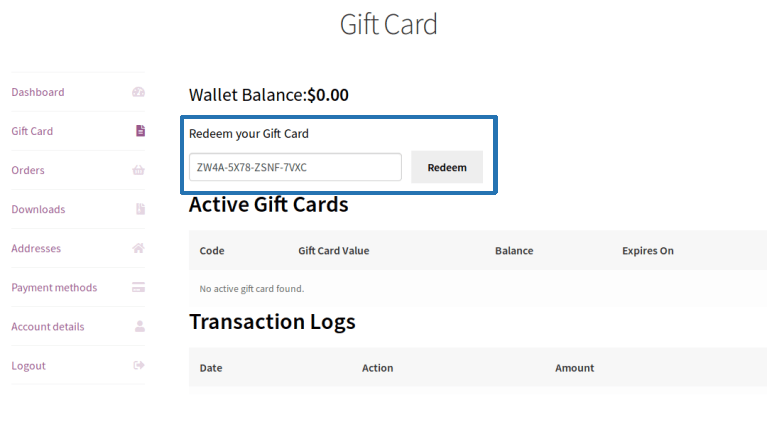
  • To add a gift card to the site, customers need to go to My Account > Gift Card.
  • Customers can check the balance of the respective Gift Card using the Check Balance option.
  • Customers then enter the Gift Card code in the Redeem your Gift Card field and press the Redeem button.
Gift Cards Section on My Account Page
  • Once redeemed, the Gift Card balance will be added to the customer’s account.
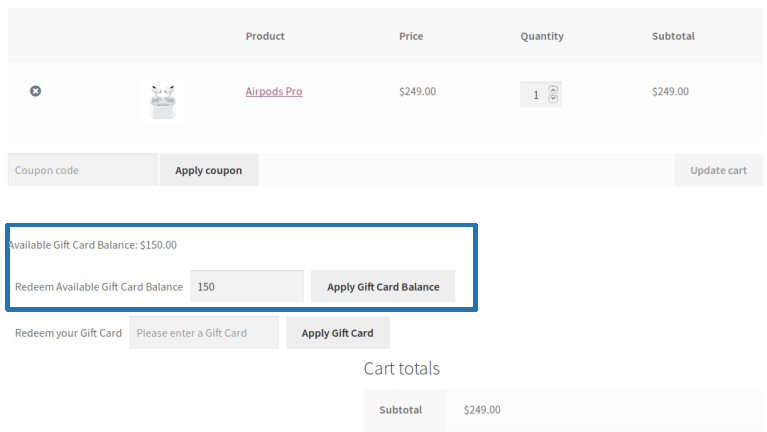
  • If the customer wants to use the Gift Card balance from the account, they need to enter the amount to redeem in the Redeem Available Gift Card Balance field. This field will be available on cart and checkout pages.
Gift Cards Redemption on Cart Page
  • Once the Gift Card balance is applied to the cart, the customer will pay any remaining balance to complete the purchase.
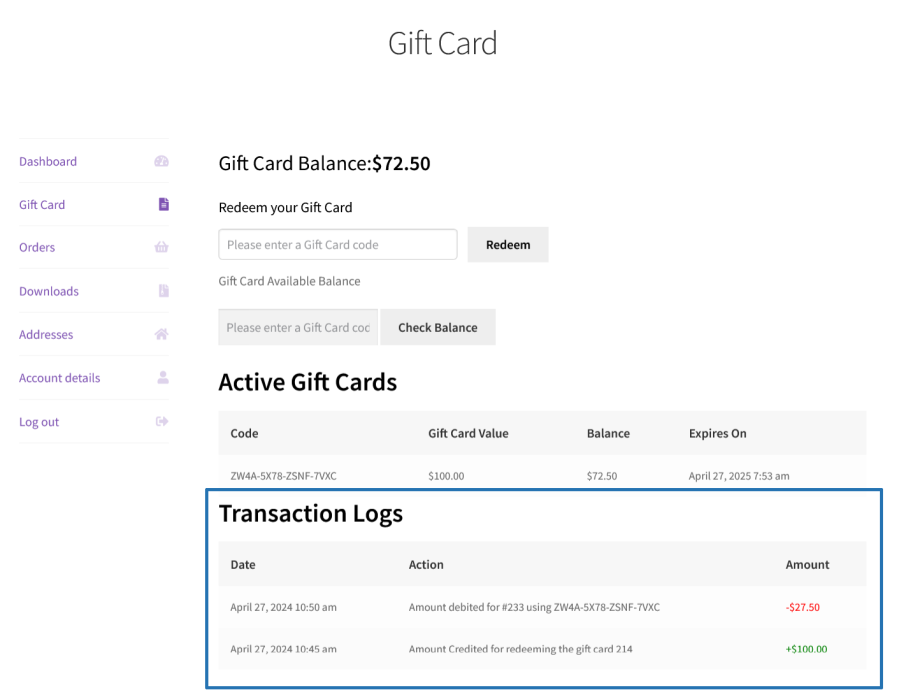
  • The redeemed Gift Cards and respective transactions will be notified to the customers using the Transaction log under this section.
Gift Cards Transaction Log

Directly used on cart and checkout pages

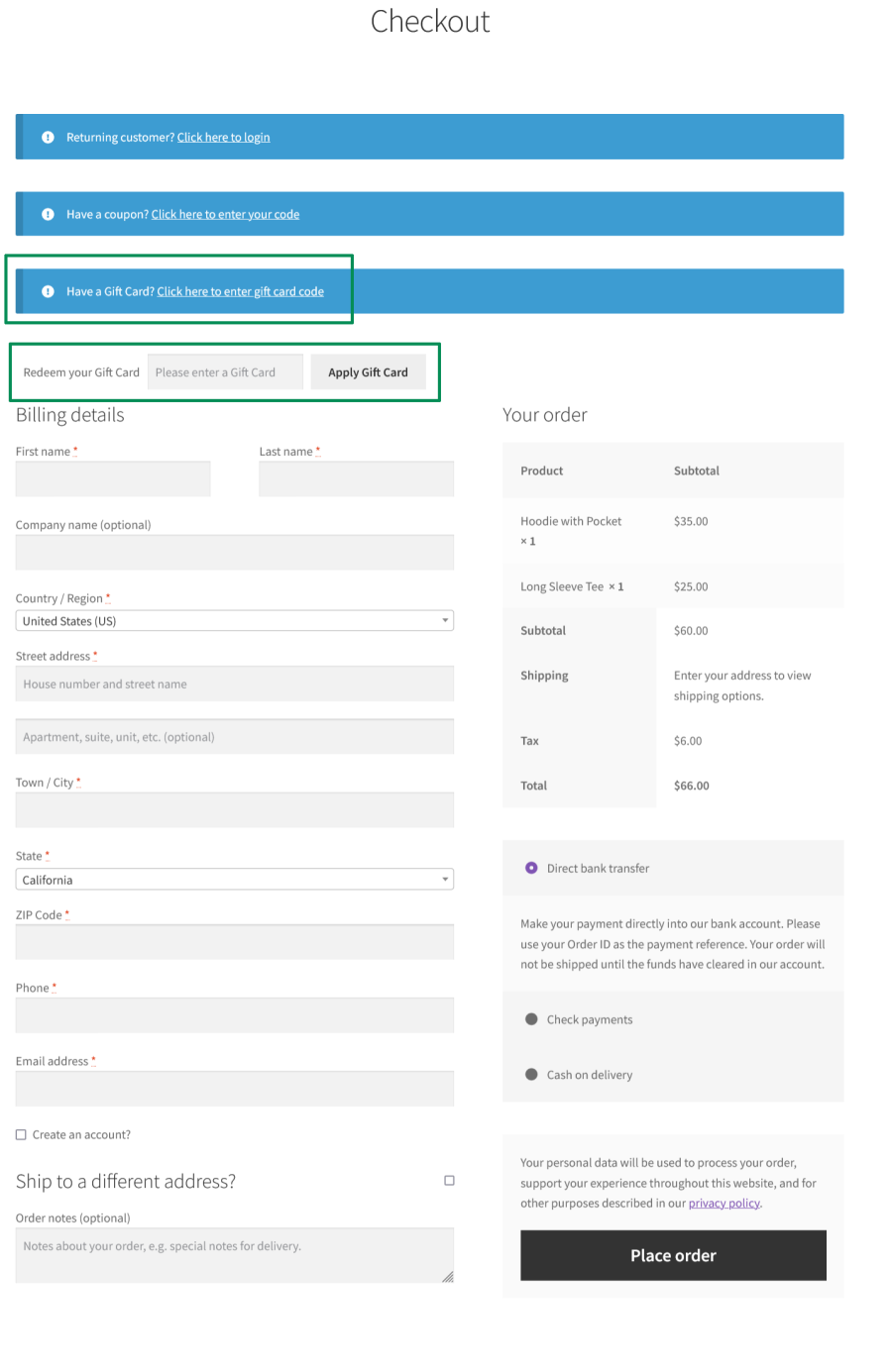
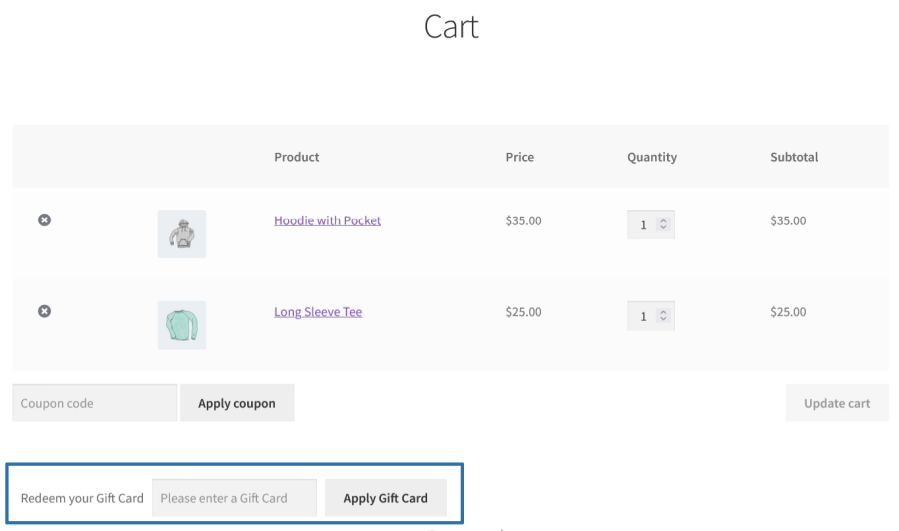
  • To redeem a Gift Card directly on cart and checkout pages, the customer needs to enter the gift card code in the Redeem your Gift Card field and click the Apply Gift Card button.
Gift Cards Direct Redeeming Field on Cart Page
Gift Cards Direct Redeeming Field on Checkout Page
  • Once the Gift Card is applied to the cart, the user will have to only pay any remaining amount and complete the purchase.

Gift Card Redeeming Restrictions

Gift Card redeeming can restrict using the below options,

  • Restrict for specific Cart Total range [i.e Minimum and Maximum Cart Total].
  • Restrict for specific Product/Category using the two methods,
    • Global configuration based
    • Each Product configuration based
  • Restrict when the Order Total is less the Gift Card value.
  • Restrict for another Gift Card Product purchase.
  • Restrict if discount is already applied using WooCommerce Coupon.

Gift Card Product Purchase Restrictions

  • Normal Product purchase along with the Gift Card Product can be restricted.
  • WooCommerce coupon discount can be restricted for the Gift Card purchase.
  • Payment for Gift Card purchase can be restricted to specific payment gateway(s).

Gift Card Export

Generated Gift Cards will be Exported.

Gift Cards Pro for WooCommerce helps users purchase and send virtual gift cards, physical gift cards, product gift cards, and more.

Popular Features

1. Gift Card Types

  • Virtual gift cards: Purchase and send to recipient’s email
  • Physical gift cards: Shipped to recipient’s address
  • Promotional gift cards: Admin-issued to selected users
  • Gift a product: Send a specific product as a gift card
  • Bonus gift cards: Awarded on gift card purchase

2. Virtual Gift Card

Send digital gift cards directly to a recipient’s inbox. The buyer fills in the recipient’s name, email address, and a personal message at the time of purchase. The recipient receives a beautifully designed gift card info attached email notification.

  • Personal Sender Message Support
  • Instant and Scheduled Gift Card Delivery
  • Multiple Recipients per Single Purchase

3. Physical Gift Card

Sell gift cards that are physically shipped to the recipient. Collect complete delivery information from the buyer during the purchase process to ship the generated gift cards to buyer/recipient.

  • Optionally collect Recipient Name, Email, Phone Number & Address.
  • Multiple Quantity Purchase Support.
  • Generate One Unique Gift Card Code per Item Quantity.
  • Generate a Single Consolidated Gift Card for Combined Purchase Value.
  • Optional Design Template Support for Physical Gift Cards.

4. Type Selection by Customer

Give buyers the flexibility to choose how they want to send a gift card digitally or physically directly on the product page. This removes the need to create separate products for each delivery method and keeps the catalogue clean.

  • Virtual or Physical Type Selection on the Product Page.
  • Configurable per Product via a Single Checkbox Toggle.
  • Fields Adapt Dynamically based on Selected Type.

5. Gift a Product

Allow customers to gift existing WooCommerce product to a friend or family member. A “Gift a Product” option is placed on the product page, and when clicked, the buyer can send the product’s value as a gift card amount to the recipient.

  • Works on Simple and Variable WooCommerce Products.
  • Variable Product Support: Display at Variant Level or Variable Level.
  • Display Gift a Product Button Shop & Category Pages.
  • Configurable Button Positions on Shop & Category Pages.

Gift a Product — Virtual Type

Send a product’s value as Gift voucher via email. The recipient receives a notification with a link to redeem the voucher, along with a personal message from the sender.

Gift a Product — Physical Type

Send a product’s value as Gift voucher via physical delivery. Collects the recipient’s complete shipping details during purchase.

Gift a Product — Type Selection by Customer

Allow the buyer to choose whether to send a product’s value as Gift voucher via digitally or physically at the time of purchase.

6. Promotional Gift Card

Create and distribute promotional gift cards to customers directly from the admin panel. Ideal for loyalty rewards, referral programs, seasonal campaigns, and store credit distribution — without requiring any purchase.

  • Target Specific Customers or Broadcast to All Users.
  • Choose to Add to Site Only, or Email Directly to Selected Users.
  • Admin-Generated Gift Cards with configurable Count & Value.
  • Customers Receive a Dedicated Promotional Gift Card Email Notification.
  • Optionally allow Customers to Redeem Promotional Gift Card Value into Their Wallet Balance.

7. Bonus Gift Card

Automatically reward customers with an additional gift card when they purchase a gift card product. Define tiered bonus rules based on minimum and maximum purchase amount ranges to incentivize higher-value gift card purchases.

  • Enable Bonus Rewards per Gift Card Product.
    • Tiered Bonus Rules based on Min & Max Purchase Amount.
    • Configure the Bonus Amount Offered per Tier.
  • Allow Bonus Calculation across Multiple Gift Cards in a Single Order.
  • Buyer Receives a Dedicated Bonus Gift Card Email Notification.
  • Bonus Gift Card Tracked Separately in the Admin Gift Card List.

8. Gift Card Design Management

Create visually rich gift card experiences with categorized image design libraries. Assign specific design sets to individual gift card products, or allow customers to upload their own personalized image at the time of purchase.

  • Create and Manage Design Categories inside the Admin section.
  • Upload Multiple Images per Design Category.
  • Drag-and-Drop Image reordering within Design Categories.
  • Assign All Designs or Only Selected Designs per Product.
  • Display Design Selection on the Product Page with a Popup Picker.
  • Design Preview Link available during Purchase.
  • Allow Custom Image Upload by Customer per Product.
  • Admin-Configurable allowed Image File Types, Minimum & Maximum Image Size and Minimum & Maximum Image Dimensions.

9. Flexible Gift Card Amount Configuration

Define exactly how customers select or enter the value of a gift card. Choose from fully fixed amounts, admin-defined preset options, fully open custom entry, or a combination of presets with a custom option with optional minimum and maximum boundaries.

  • Fixed Amount: A single admin-set value; no customer input required.
  • Predefined Amount: Customer selects from a list of admin-configured values.
  • Custom Amount: Customer enters any value within configurable min/max limits.
  • Predefined Amount with Custom Amount: Customer picks a preset or enters a custom value.

10. Gift Card Code Generation and Display

Control how the gift card code is visually presented inside email notifications and PDF attachments. Choose the format that best suits your store’s redemption workflow and in-store scanning needs.

  • Standard Text Code Display.
  • QR Code Display: Configurable size and error-correction data level (L / M / Q / H).
  • Barcode Display: Configurable height and custom bar color.
  • Code Pattern Options: Alphanumeric, Numeric, or Predefined Pattern (e.g., ****-****-****-****).
  • Custom Prefix & Suffix on Generated Codes.
  • Configurable Code Length.
  • Excluded Character Support for Alphanumeric Codes.

11. PDF Gift Card Attachments

Automatically generate and attach a professionally formatted PDF gift card to recipient email notifications. Fully customizable to reflect your brand, with separate PDF templates built for each gift card type.

  • PDF Automatically Attached to Recipient Email Notifications.
  • Enable/Disable PDF Attachment per Notification Type.
  • Custom Logo Upload with configurable Width & Height.
  • Custom Header Content with Shortcode Support ({site_name}, {logo}).
  • Custom Footer Content with Shortcode Support ({PAGENO}, {nb}).
  • Header & Footer Background Color, Font Color Customisation.
  • Download & Print Gift Card PDF from Admin Gift Card Record.

12. Gift Card Redeeming

Customers can apply gift cards at cart or checkout using a dedicated redemption field, or via the standard WooCommerce coupon field. Remaining balance carries over automatically for use on future orders. Full control over when and how redemption is permitted.

  • Redeem Gift Card Code on Cart/Checkout Page.
  • Redeem via WooCommerce Coupon Field.
  • Use Accumulated Gift Card Wallet Balance on Cart/Checkout Page.
  • Admin can manually redeem the gift card on the order(s) behalf of customer’s request.
  • Supports Both WooCommerce Shortcode & Block-Based Cart/Checkout.
  • Minimum & Maximum Cart Total Restrictions for Redemption.
  • Restrict Redemption by Specific Products or Categories in the Cart.
  • Prevent Redemption When Order Total is Less Than Gift Card Balance.
  • Prevent Using Gift Card Balance to Purchase New Gift Cards.
  • Prevent WooCommerce Coupon Use When a Gift Card is Applied.

13. My Account Integration

Give customers a dedicated section inside their WooCommerce My Account area to manage all their gift card activity check balances, view active cards, browse transaction history, and redeem new codes all in one place.

  • Dedicated Gift Card Tab in My Account Page with optional Show or Hide functions.
  • Configurable Menu Position Within the My Account Navigation.
  • View All Active Gift Cards and their Remaining Balances.
  • Gift Card Transaction History & Usage Log per Card.
  • Redeem a New Gift Card Code directly from My Account.
  • Display Available Wallet Balance summary.
  • Sender can Resend Gift Card Email Notification to Recipient from View Order Page.

14. Automated Email Notifications

A full suite of configurable email notifications keeps buyers, recipients, and store admins informed at every stage of the gift card lifecycle. Each notification has its own enable/disable toggle, customizable subject line, message body, and shortcode support.

  • Customer
    • Virtual Gift Card Received
    • Physical Gift Card Received
    • Product Gift Card Received
    • Promotional Gift Card Received
    • Gift Card Expiry Reminder
    • Gift Card Delivery Reminder
    • Gift Card Expired
  • Sender
    • Bonus Gift Card Notification
    • Gift Card Used Notification
    • Gift Card Delivered Notification.
  • PDF Attachment Toggle per Notification.
  • CC Email Address Support on Recipient Notifications.
  • Custom CSS Support for Email Template Styling.
  • Shortcode-Powered Dynamic Message Content.

15. Add/Edit Gift Cards Manually as a Site Admin

Create and manage gift cards directly from the WordPress admin panel independent of any customer purchase or WooCommerce order. Admins have full control to issue new gift cards, update existing ones, manage statuses, trigger email notifications manually, and redeem cards on behalf of customers.

16. Gift Card Expiry Management

Keep your gift card program compliant and operationally clean with configurable expiry settings. Set a global expiry window or assign fixed expiry dates at the product level.

  • Global Expiry Period (Days from Purchase).
  • Product-Level Expiry Date Override.
  • Fixed Expiry Date Option.

17. Export and Import

Back up, migrate, and manage your entire gift card database with dedicated CSV export and import tools. Filter exactly what to export, and import gift cards in bulk from any compatible CSV source.

  • Export Gift Cards to CSV with Column Selection.
  • Import Gift Cards from CSV via Step-by-Step Import Wizard.
  • Transaction Log Export from the Admin Gift Card Record.

Extensive Features List

1. Gift Card Types

  • Virtual Gift Cards: Delivered by email to the recipient with a customizable design and message.
  • Physical Gift Cards: Shipped to a recipient’s postal address; supports phone number and address fields.
  • Promotional Gift Cards: Admin-issued gift cards distributed for marketing purposes; optionally redeemable as gift card balance.
  • Gift a Product: Allows customers to purchase any existing WooCommerce product as a gift card for someone else; includes a dedicated “Gift this Product” button on single product, shop, and category pages.
  • Bonus Gift Cards:  Automatically issue an additional bonus gift card when a buyer spends a qualifying amount.

2. Virtual Gift Card

  • Recipient Email: Collected during the gift card purchase to send the generated virtual gift cards to the respective email address.
  • Sender Name & Message: Buyer can personalize the card with their name and a custom message.
  • Fetch Sender Name Automatically: Optionally pre-populate the sender’s name from the logged-in user’s account (first name, or first + last name).
  • Scheduled Delivery Date: Buyers can choose a future date for the gift card email to be sent.
  • Multiple Recipients: Send gift card to multiple email addresses in one transaction; configurable character/count limit.
  • Resend to Recipient: Admin or sender can resend the gift card email from the View Order screen.

3. Physical Gift Card

  • Recipient Name, Email, Phone Number & Address: Optionally collected details during the gift card purchase to send the physically generated gift cards.
  • Hide Phone / Address Fields: Admin can toggle phone number and address fields on/off per product.
  • Multiple Quantities: Allow customers to purchase more than one quantity of physical gift card in a single order.
    • Generate multiple gift cards based on the purchased quantity
    • Generate a single gift card based on the purchased value
  • Design Support for Physical Cards: Optionally show the design selector for physical gift card products.

4. Promotional Gift Cards

  • Admin-Issued Codes: Store admins can create and distribute promotional gift card codes to customers in the form of printed gift cards or email them.
  • Gift Balance Redemption Option:Customers can redeem the promotional gift cards directly on cart and checkout pages and optionally redeem into their Gift Card balance.

5. Bonus Gift Card Rules (Per Product)

  • Tiered Bonus Rules: Define spend-based thresholds at the product level; automatically issue an additional bonus gift card when a buyer spends a qualifying amount.

6. Designs & Visual Customization

  • Design Categories: Create and manage groups of card design images from the admin dashboard.
  • Drag-and-Drop Image Ordering: Reorder design images within a category by dragging and dropping.
  • Per-Product Design Assignment: Assign one or more design categories to a specific gift card product.
  • Allow Custom Image Upload: Let buyers upload their own image during purchase; configurable supported image types, minimum/maximum file size, and minimum/maximum image dimensions.
  • Design Preview: Senders can preview full-size card designs in a pop-up before selecting.
  • Barcode / QR Code Display: Show the gift card code as a barcode or QR code; configurable size, height, data level, and color.
  • Custom CSS: Add store-specific CSS overrides from the plugin settings.

7. Gift Card Amount Configuration (Per Product)

  • Fixed Amount: A single predefined value.
  • Predefined Amounts: A comma-separated list of amounts displayed as selectable options (e.g., 10, 20, 50).
  • Custom Amount: Buyer enters any amount, with optional minimum and maximum limits.
  • Predefined + Custom Amount: Combines a dropdown of preset amounts with a free-entry field.

8. Gift Card Code Generation

  • Alphanumeric codes: Random characters with configurable length.
  • Numeric codes: Digit-only codes with configurable length.
  • Predefined Pattern: Use a custom pattern such as ****-****-****-****.
  • Prefix & Suffix: Attach a store prefix and/or suffix to every generated code.
  • Excluded Characters: Prevent specific characters from appearing in generated codes.
  • Trigger by Order Status: Generate codes when one or more configurable WooCommerce order statuses are reached (e.g. Processing, Completed).

9. Expiry & Validity

  • Global Expiry Setting: Set a default expiry period in days that applies to all gift cards.
  • Product-Level Expiry: Override the global setting on a per-product basis with a custom number of days.
  • Fixed Expiry Date: Set a hard calendar date on which a gift card expires, regardless of the purchase date.
  • Optional Gift Card Expiry: Choose whether gift cards expire or remain valid indefinitely.
  • Expiry Reminder Emails: Automated cron-based notifications sent to recipients before a gift card expires.

10. Comprehensive Email Notification System

  • Built-in automated email notification engine for gift card events.
  • Separate notification workflows for recipients, senders, and administrators (via CC).
  • Event-driven email triggers integrated with gift card generation, delivery, redemption, expiration, and reminder processes.
  • Gift Card Received Email: Sent to the recipient when a virtual gift card is generated.
  • Gift Card Expiry Reminder Email: Automated reminder to the recipient before the card expires.
  • Gift a Product Email: Sent to the recipient with a link to redeem the gifted product.
  • Gift Card usage email: Sent to the sender when the Gift card balance is completely redeemed.
  • Customizable Email Templates: Each email type supports configurable subject, heading, and body with shortcodes.
  • From Name & Address: Configurable sender name and email address for all plugin emails.
  • Shortcode Support in Emails: Dynamic placeholders including {recipient_name}, {sender_name}, {gift_card_code}, {gift_card_amount}, {expiry_date}, {product_name}, {username}, and more.

Requirements

Minimum PHP version: 5.6


Kundenbewertungen

Average rating 3.3
8 reviews
5 stars, 38% of reviews
4 stars, 13% of reviews
3 stars, 13% of reviews
2 stars, 13% of reviews
1 star, 25% of reviews
8 reviews
  • Mary Walker
    Bewertet mit 3 von 5
    Support
    Jan 26, 2026
    Support
    Does the job. Decrements the value every time the card is decremented if the card has not been fully used. I have reported this to the author, and they "cannot reproduce the problem". Don't have the time to switch, and we have a workaround for the issue. I would not recommend the plugin if you have a high volume of gift card activity.
  • pascalappointbe
    Bewertet mit 5 von 5
    Functionality
    Jan 5, 2026
    Functionality
    Support and documentation are solid, and the plugin feels actively maintained, which is a big plus. Overall, this is a great choice for anyone looking to add professional gift card functionality to their WooCommerce store. Highly recommended.
  • posluhwoo
    Bewertet mit 5 von 5
    Support
    Dec 2, 2024
    Support
    Excellent plugin. Also no words can describe how satisfied I am with their support which resolved all my issues which I had with plugin or even with other plugins conflicting with theirs. They are always ready and happy to help so all my recommendations are going to them!
  • letitflowroi
    Bewertet mit 4 von 5
    Functionality
    Jul 11, 2024
    Functionality
    This plugin has eased our work a lot. There of course are some flaws, previously {gift_card_info} was easy to modify, now we cant anymore find a place where we can edit text that comes after gift card info. Is there anyone who could help us?
  • trondheimspa
    Bewertet mit 1 von 5
    Jan 3, 2024
    Not worth the money!
    This so called "Gift Cards Pro" is not a pro extension! Here you have to build everything from scratch, a Pro extension should have a "easy to use" design tool instead of like i get answer from "customer support" Try to download MailPoet to customize" This should be a part of a "PRO EXTENSION"!, I miss a "easy to use" integration with Woo commerce. A automatic pickup of products from our woo commerce web shop and so on. Everything here seems to me to be a manual job, and fare away from what i expected and far away from other experience i have with pro extensions i use with word press. 0 stars, but that's no option...! One year subscription directly in the garbage!

Extension information

  • PHP version required: 7.4.0
  • Tested with WordPress: 7.0
  • Tested with WooCommerce: 10.8.1
  • Requires at least WordPress: 6.2
  • Requires at least WooCommerce: 8.2.0

Kompatibilität

  • High performance order storage (HPOS)

Länder

  • Worldwide

Sprachen

English (United States)

Related products

Price $279 Jährlich
Rated 3.2 out of 5 stars
Price $199 Jährlich
Rated 4 out of 5 stars
Price $79 Jährlich
Rated 3.4 out of 5 stars
Price $59 Jährlich
Rated 3.1 out of 5 stars
Price $109 Jährlich
Rated 2.7 out of 5 stars
Price $49 Jährlich
Rated 4.1 out of 5 stars
Price $109 Jährlich
Rated 2 out of 5 stars
Price $109 Jährlich
Rated 2.3 out of 5 stars
Price $39 Jährlich
Rated 2.8 out of 5 stars
Use of your personal data
We and our partners process your personal data (such as browsing data, IP Addresses, cookie information, and other unique identifiers) based on your consent and/or our legitimate interest to optimize our website, marketing activities, and your user experience.