
Active installs
100+
Product comparison
Subscription includes
Support
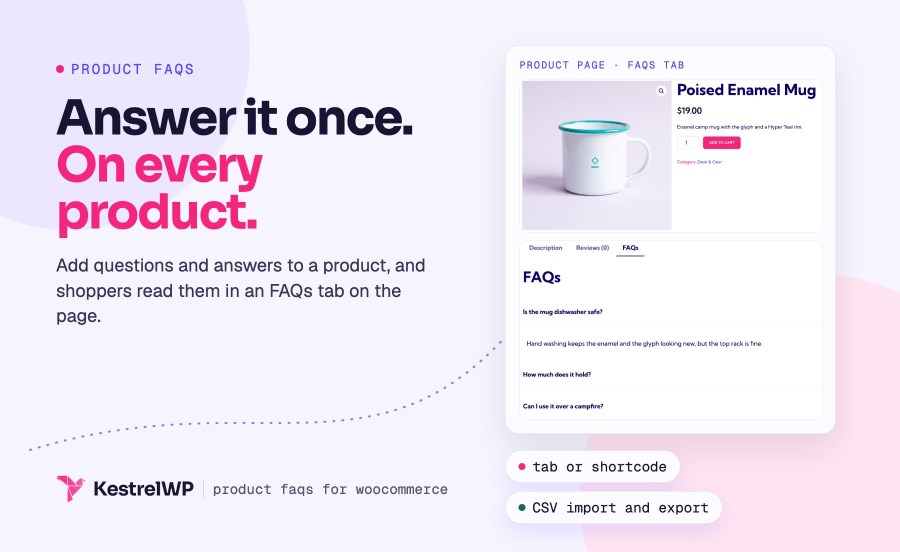
Product FAQs for WooCommerce is a WooCommerce product FAQ plugin: it adds a question-and-answer list to each product. You write the questions in the product editor, and shoppers open the answers from an accordion on the product page, in a tab or anywhere you place a shortcode. It’s a small extension: your staff write the FAQs, one product at a time, and you can import and export them with WooCommerce’s CSV tools.
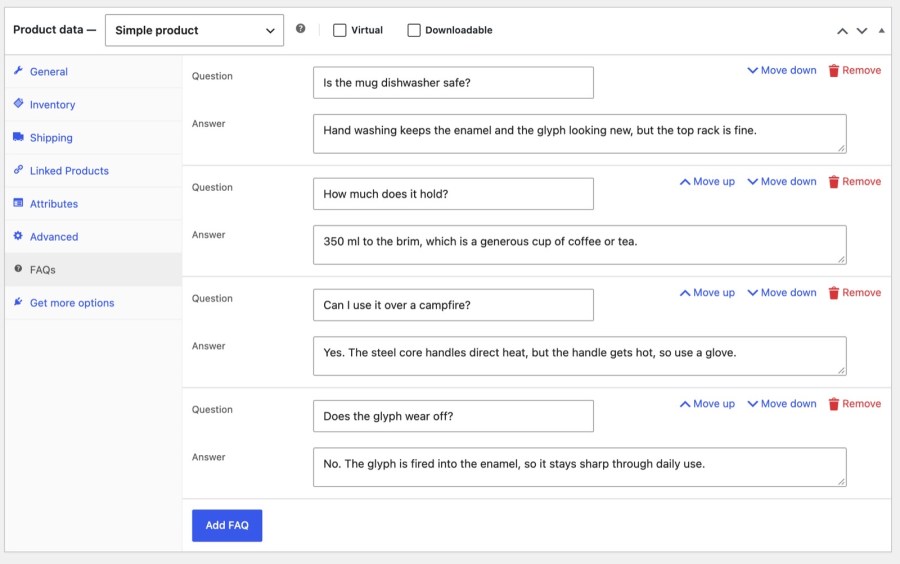
Open a product, choose the FAQs tab in Product data and click Add FAQ. Type a question and an answer, then add more. Move them up or down to put the most asked first, remove the ones you don’t need and click Update. Add as many as you need. Answers accept the basic HTML WordPress allows in posts, such as links and bold text, so an answer can point to your sizing guide or shipping policy instead of repeating it.
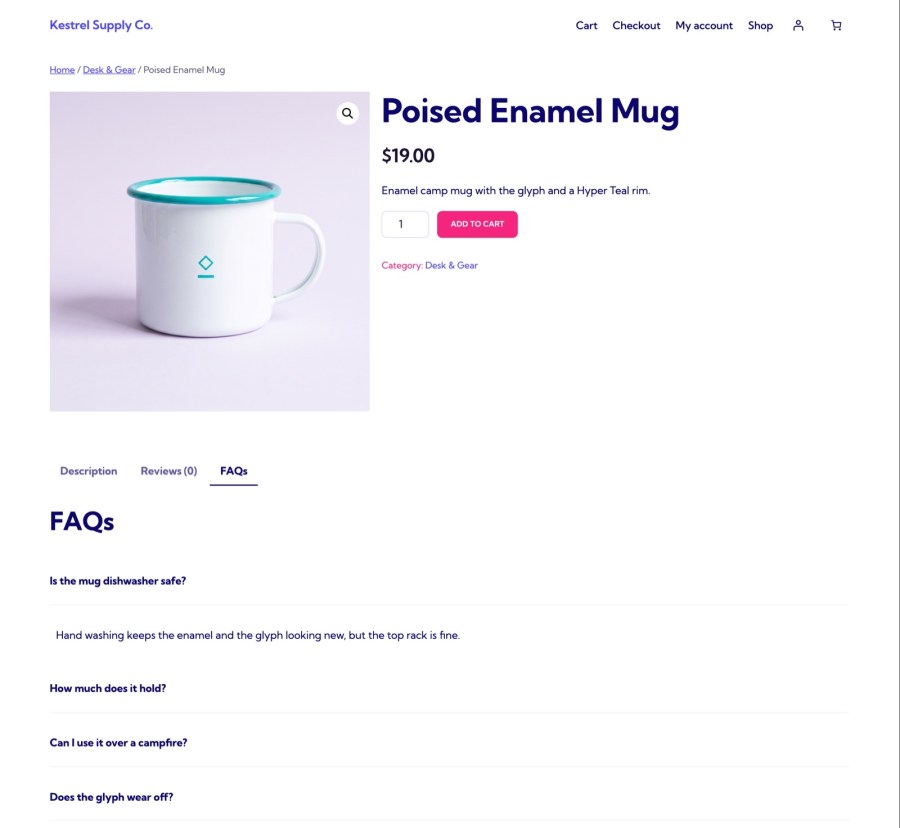
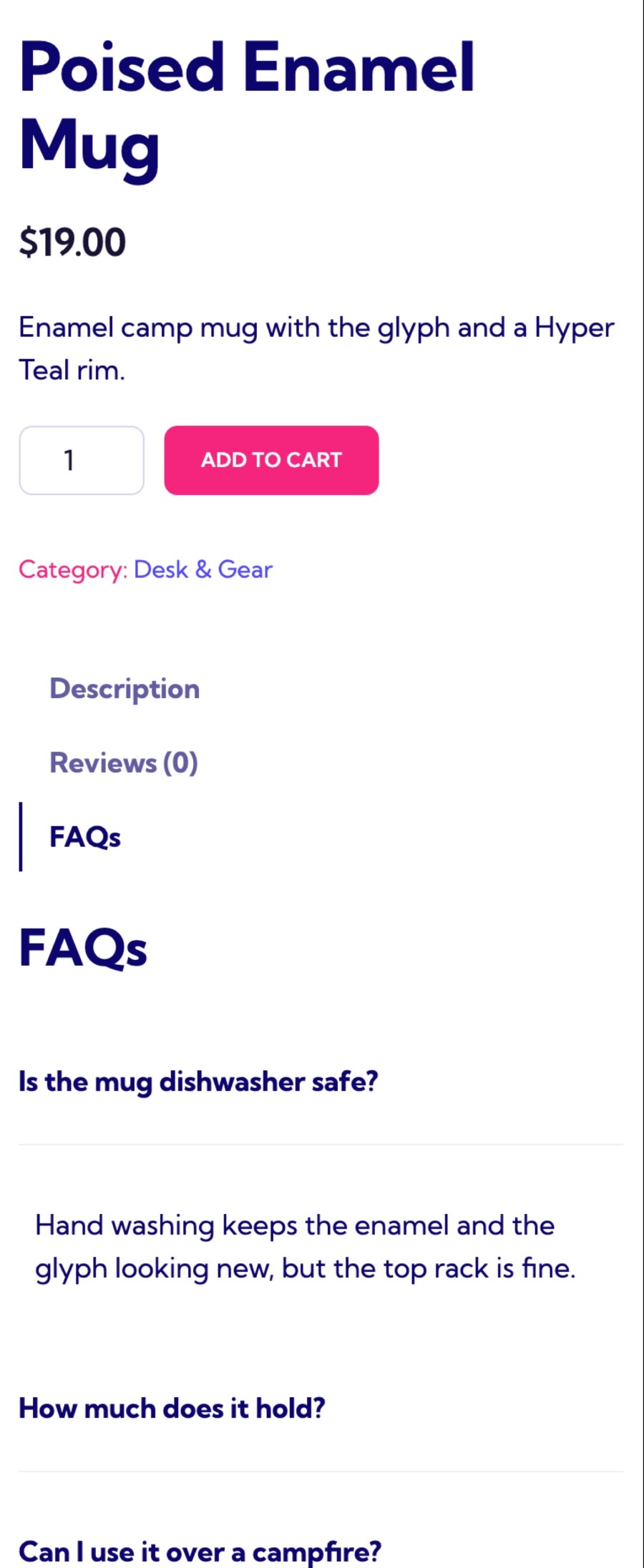
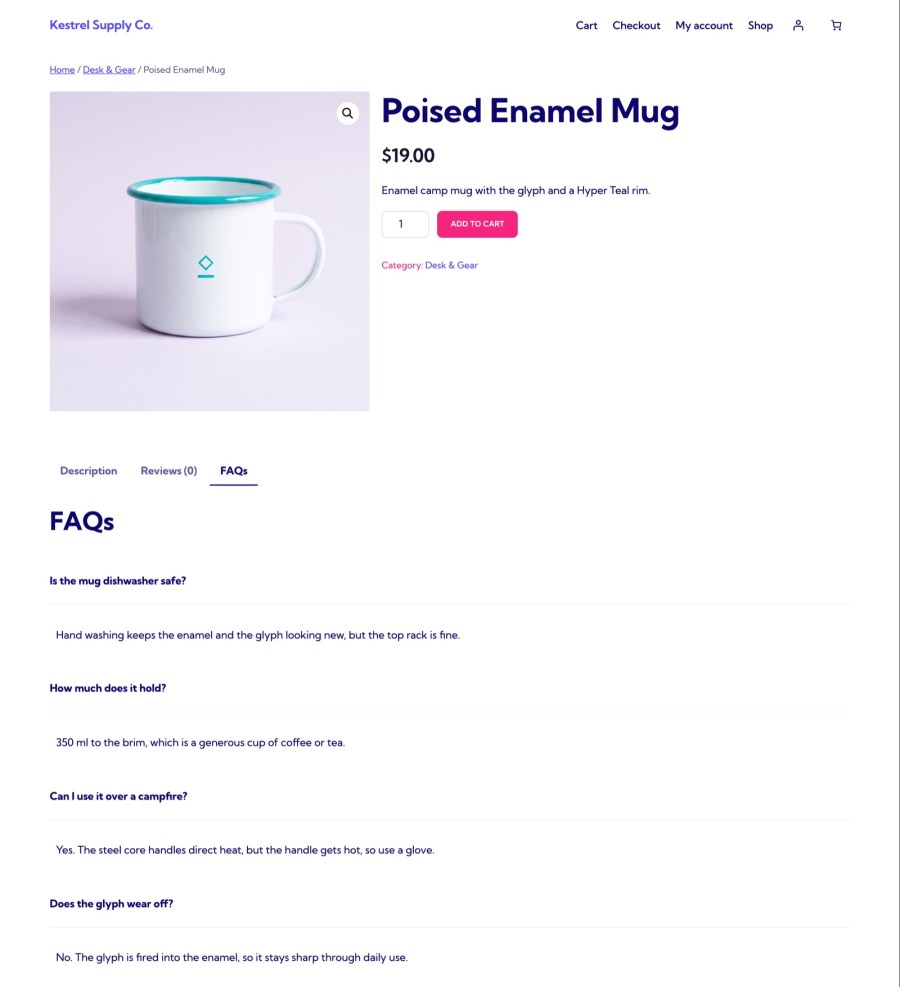
Products with FAQs get an FAQs tab after the standard tabs, and products without FAQs don’t get one. Answers start collapsed, and clicking a question slides its answer open or closed. Only FAQs with both a question and an answer are shown. Shoppers scan the questions, open the one they care about and keep shopping, which suits phones as much as desktops because the list stays short until they ask for more. Half-finished entries stay hidden until both fields are filled.
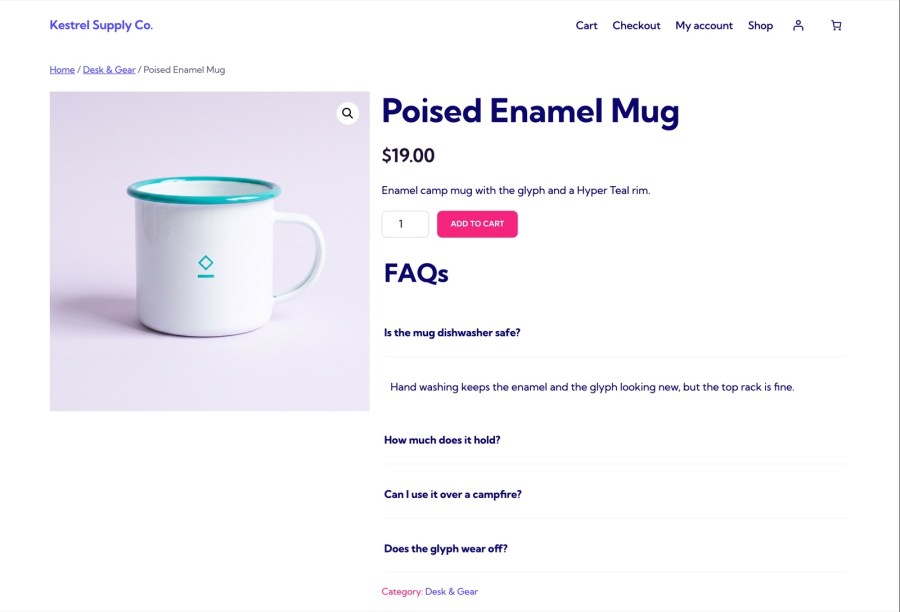
Use [wcpf_product_faqs] to show the current product’s FAQs, with the same heading and accordion, anywhere in a single product template. Use it when your theme or page builder replaces the standard WooCommerce product tabs, or when you want the answers right under the add to cart button, where a shopper is deciding. It reads the product being viewed, so one template covers every product, and a builder layout you design once shows each product’s own questions. Products with no FAQs show nothing, so the template stays clean for the rest of your catalog.
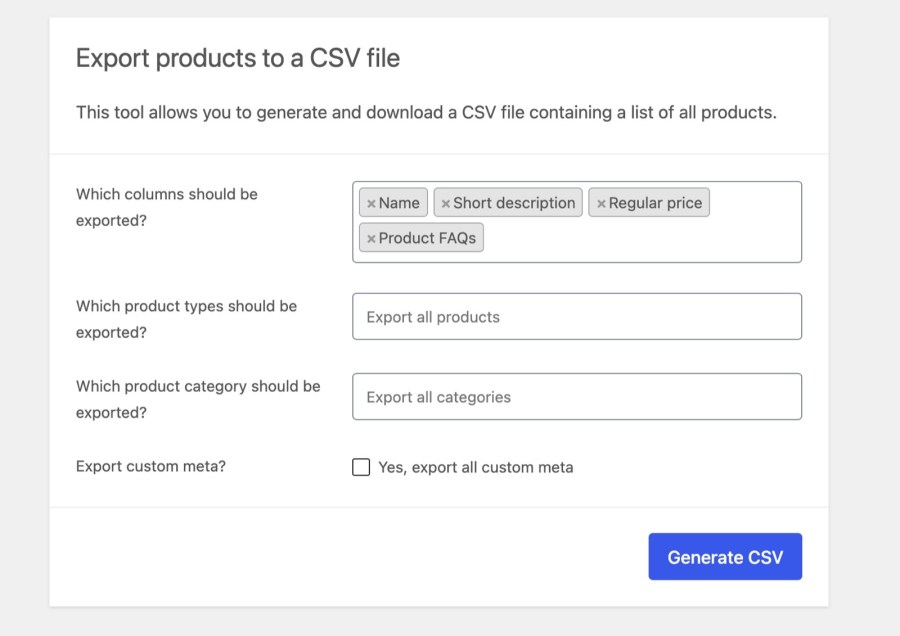
WooCommerce’s product CSV import and export carry your FAQs in a Product FAQs column holding a JSON list of questions and answers. Export to copy FAQs between stores or edit them in a spreadsheet. On import, a product’s existing FAQs are replaced, an empty cell leaves them alone, and an empty list [] removes them. Import keeps plain text, so links and bold text are lost. Reusing the same answers across many products takes a copy and paste, not retyping.
[]
Developers can change the tab title and position, the heading above the list, start with answers expanded, turn off the plugin’s styling and add text before or after the list. The tab and accordion carry classes you can style from your theme, so the FAQs can match your design instead of fighting it. A one-line filter opens every answer by default for products where the answers are short, and another switches the plugin’s styling off if your theme already styles accordions the way you want.
Product FAQs works with any theme that shows WooCommerce’s product tabs. With a page builder that replaces the tabs, such as Divi, or with Elementor’s Theme Builder, place the [wcpf_product_faqs] shortcode, or add the product data tabs widget in Elementor. Renting out gear? Rental Products for WooCommerce lists the policies in one info tab; Product FAQs adds a question-by-question accordion for return times, damage policy and pickup, and carries it on every rental through the product CSV. It supports the Cart and Checkout blocks and High-Performance Order Storage.
[wcpf_product_faqs] to the templateBuilt and supported by Kestrel, a long-time WooCommerce extension developer.

Edit the product, open the FAQs tab in Product data and click Add FAQ. Write a question and an answer, add more if you like, then click Update. Reorder them with the move up and move down links so the most asked questions come first.
In an FAQs tab after the standard WooCommerce tabs, as an accordion with answers collapsed. If your theme or page builder doesn't show the product tabs, add the [wcpf_product_faqs] shortcode to the product template instead, or add the product data tabs widget in Elementor.
No. Each product has its own FAQs, and there are no store-wide, category or shared FAQs. To reuse FAQs, export your products as CSV, copy the Product FAQs cell to other rows and import the file.
Yes. FAQs travel with WooCommerce's product CSV import and export in a Product FAQs column. Importing replaces a product's FAQs, and links and bold text in answers are lost on import, so keep a copy of formatted answers.
No. Product FAQs shows questions and answers your team writes, and it has no customer question form or moderation. Answers you write from real support emails tend to be the ones shoppers want most.
It outputs the visible accordion only, so there is no FAQ structured data in the page source. Because FAQs belong to the product, a variable product shows one set on its page for every variation.
Extension information
Quality Checks
Countries
Languages