
Active installs
100+
Product comparison
Subscription includes
Support
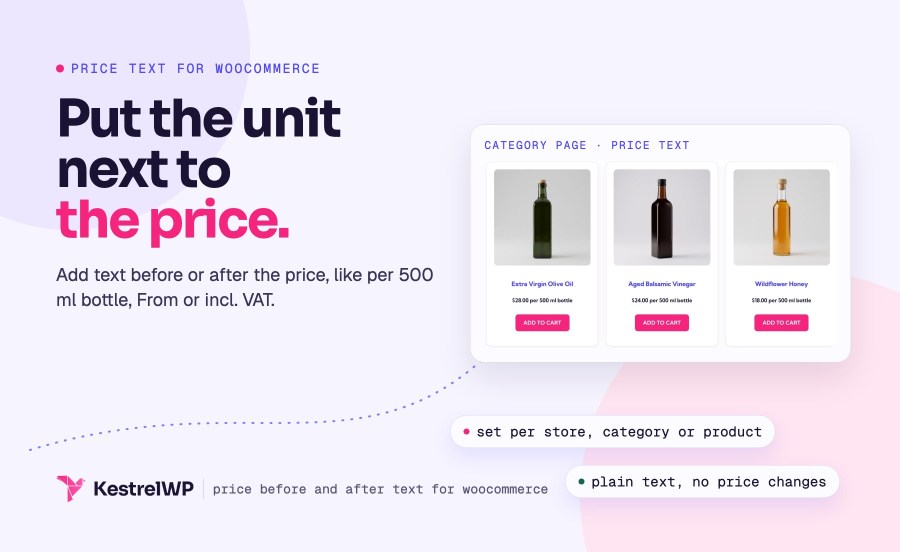
Add text before and after WooCommerce product prices: From $24.99, $24.99 incl. VAT or $28.00 per 500 ml bottle. Product Price Before and After Text adds plain text before and after the price WooCommerce displays, so shoppers see the unit, the qualifier or the tax note next to the number. Set it once for the whole store, for a product category or for a single product, and the most specific level wins. Built by Kestrel, a long-time WooCommerce extension developer.
WooCommerce’s own price display suffix is one store-wide setting under Tax; this sets text per store, category or product, before or after the price. It adds text next to the price and changes nothing else: no price or total is altered, and there are no conditions (role, country or price) and no HTML. It declares support for the Cart and Checkout blocks and High-Performance Order Storage.
Open WooCommerce » Settings » Products » Price text and fill in Before price text and After price text. They apply to every product price that has no more specific text, so one line such as “incl. VAT” or “per kg” can cover a whole catalog. Nothing changes in your product data, and clearing the field removes the text from every price that was inheriting it. It’s the quickest way to add a consistent price suffix across WooCommerce without touching a single product.

Each product category’s add and edit screens have the same two fields. Use them for a group that shares a unit or a qualifier, such as “per 500 ml bottle” for everything in a Pantry category. A product in several categories uses its primary category (Yoast SEO’s primary product category) if one is set; otherwise it uses the first of its categories that has text. Deleting a category removes its price text too, so no stray text stays behind in your settings.
On a product’s Advanced tab in Product data, the same two fields override the category and the store-wide text. Use them for the exception: one product sold from a price, one sold by the case, one with a different tax note. Before and after text are resolved separately, so a product can take its before text from one level and its after text from another. Leave a field empty and that product inherits from the category or the store, as before.

The text is added through WooCommerce’s price display, so it appears wherever your theme, a block or a template shows a product’s price that way: shop, category and product pages, and prices loaded after the page, such as in a quick view pop-up or a “load more” list. On variable products the text stays when a shopper picks a variation. It isn’t shown on admin screens, and it never changes cart, checkout or order totals, so what shoppers pay still matches what WooCommerce calculates.
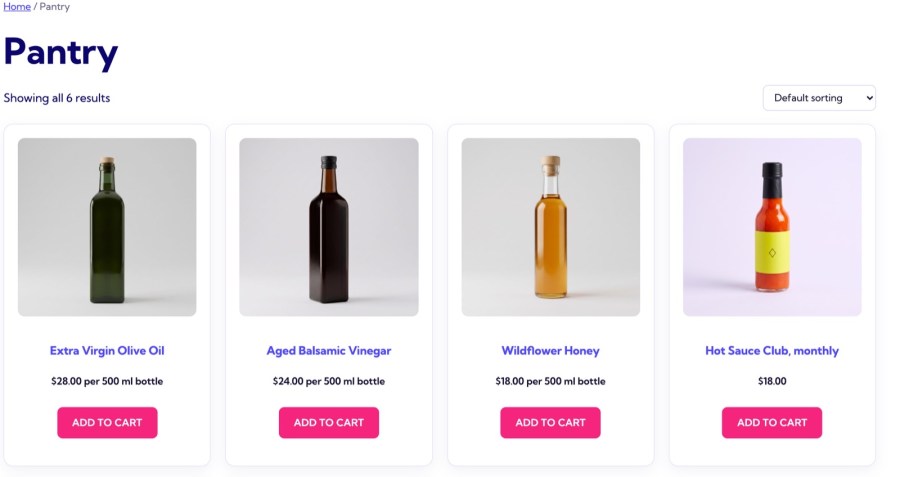
Each part is wrapped in its own span with a class, wcppbat-product-price-before-after-text-before and wcppbat-product-price-before-after-text-after, so your theme’s CSS can make the text smaller, lighter or a different color from the price it sits beside. Product-level text is stored as product custom fields, so the WooCommerce product CSV export (with custom meta enabled) and import can edit it for hundreds of products at once, and you can read through the result in the same file before you import it back into your store.
Pair it with Sale Flash Pro. This plugin writes the words around the price; Sale Flash Pro for WooCommerce writes the words on the sale badge, so a discounted product can say “25% off!” on its badge and “per 500 ml bottle” beside its price. They change different parts of the product listing, and each works on its own without the other.
Show the text in quick view. Price text also appears on prices loaded after the page, including the pop-up from Quick View for WooCommerce, so shoppers who open a product preview still see the unit or qualifier next to the price. Quick View handles the closer look; this plugin handles the words beside the price, and each works without the other.
Setup and the order of levels are in the Get started with Product Price Before and After Text guide. Kestrel support is there if you get stuck.
Built and supported by Kestrel, a long-time WooCommerce extension developer.

Open WooCommerce » Settings » Products » Price text and enter After price text, such as "per kg". It shows after every product price. For one category or product, use the same field there. For text before the price, fill in Before price text in the same screen.
WooCommerce's own price display suffix is one store-wide setting under WooCommerce » Settings » Tax. It shows only when taxes are enabled and the product is taxable, and it can insert the price with or without tax. This plugin adds text before the price too, and sets it per category or product.
Yes. Product text overrides category text, which overrides the store-wide text. Before and after text are resolved independently, so one product can take its before text from its category and its after text from the product itself. A product in several categories uses its primary category first.
Wherever your theme, a block or a template shows a product price through WooCommerce's price display: shop, category and product pages, and prices loaded after the page, such as quick view. It doesn't appear on admin screens, and it doesn't change cart, checkout or order totals.
Yes. The text uses the parent product's category and product settings, and stays when a shopper chooses a variation. Variations carry no text of their own, so you set it on the parent product or its category, or once for the whole store.
No. The fields take plain text, and any markup is removed when you save. There is no text by user role, country or price, and no separate text for the cart or checkout, because the plugin works on product prices only.
Extension information
Quality Checks
Countries
Languages