
Active installs
1K+
Subscription includes
Support
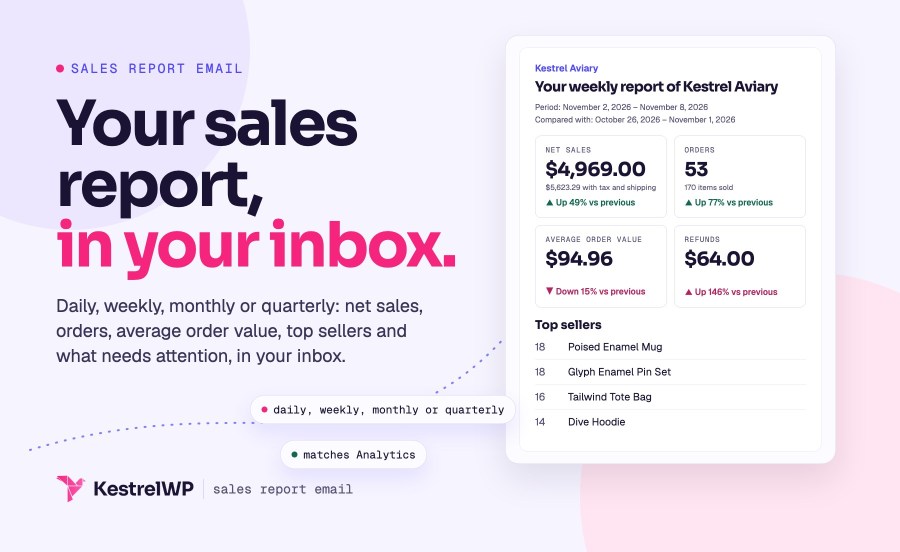
Sales Report Email for WooCommerce sends a WooCommerce sales report to your inbox every day, week, month or quarter, so you know how the store did without opening Analytics. It is built from WooCommerce Analytics, so the figures match your dashboard. Each report opens with net sales, orders, average order value and refunds, can compare them with the previous period, then lists your top sellers and categories and flags unpaid orders and low stock. You choose what it includes, the period it covers, the send day and time, and who receives it.
It is a WooCommerce email, so your store’s email colors and sender settings apply, and it supports the Cart and Checkout blocks and High-Performance Order Storage. It needs WooCommerce 8.0 or later with Analytics turned on.
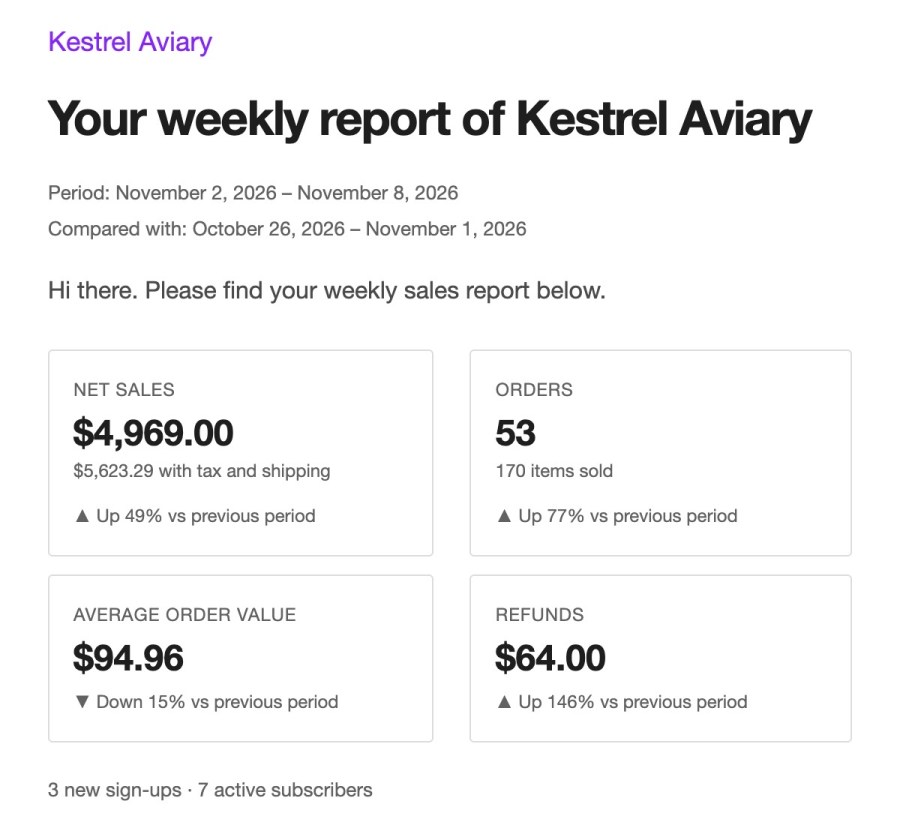
The report opens with net sales, with the total including tax and shipping beneath it, then orders with the items sold, average order value and refunds. Switch on Comparison and each figure shows whether it is up or down against the previous period of the same length, with the dates of both periods printed under the heading. New sign-ups, and active subscribers when WooCommerce Subscriptions or Constellation is active, sit beside them as counts.
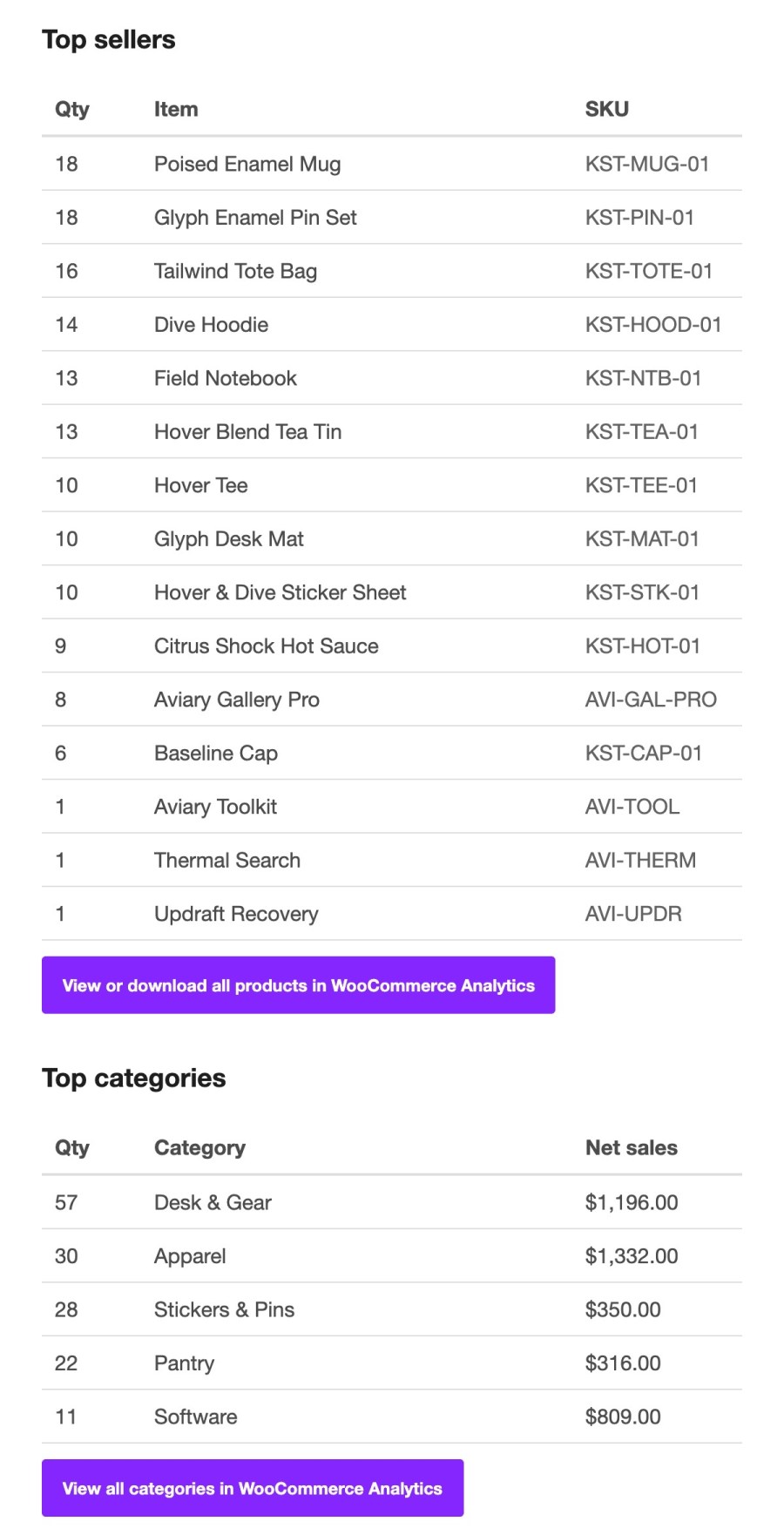
Top sellers lists up to 50 items, most sold first, each with its SKU, and a variation that sold appears on its own line. When more sold than the email lists, a line says how many are left and a button opens the full list in WooCommerce Analytics, where you can view or download it. Top categories lists the best-selling categories with their net sales and links to the full list in the same way.
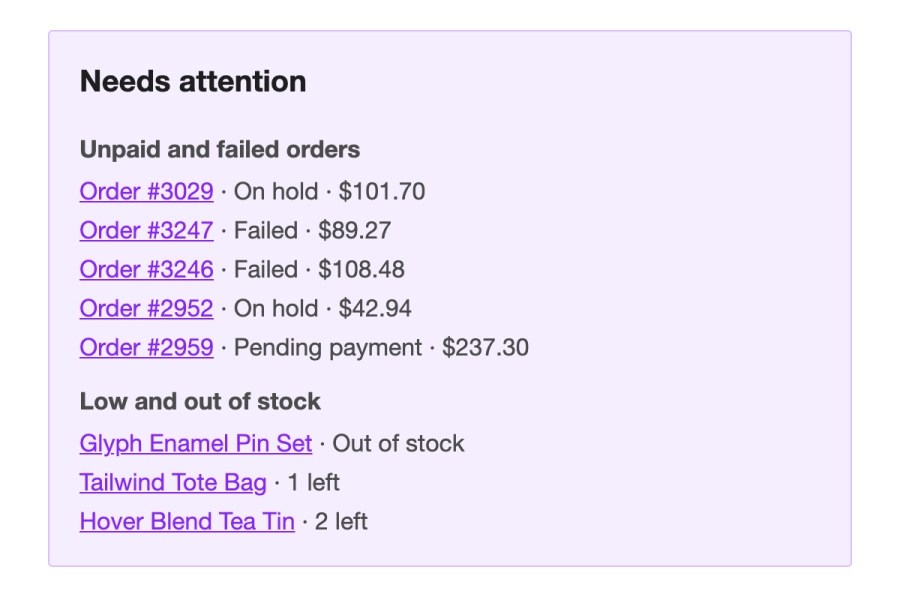
A Needs attention box lists orders from the period that are still pending, on hold or failed, each linking to the order, and products that are out of stock or at or below your low stock threshold, each linking to the product. It lists up to 20 orders and 10 products, with a link to the rest. Each list appears only when there is something to show, so a quiet day stays short. Set the threshold under WooCommerce » Settings » Products » Inventory.
Under Report contents, tick the sections you want: Summary, Comparison, Top sellers, Top categories, New sign-ups, Active subscribers, Unpaid and failed orders and Low stock. Pick the Period each report covers: since the last email, yesterday, the last 7 days or the last 30 days. The Subject, Email heading and Intro text are yours to edit, with {site_title}, {interval} and {date_range} placeholders, so the report arrives worded the way your team reads it.
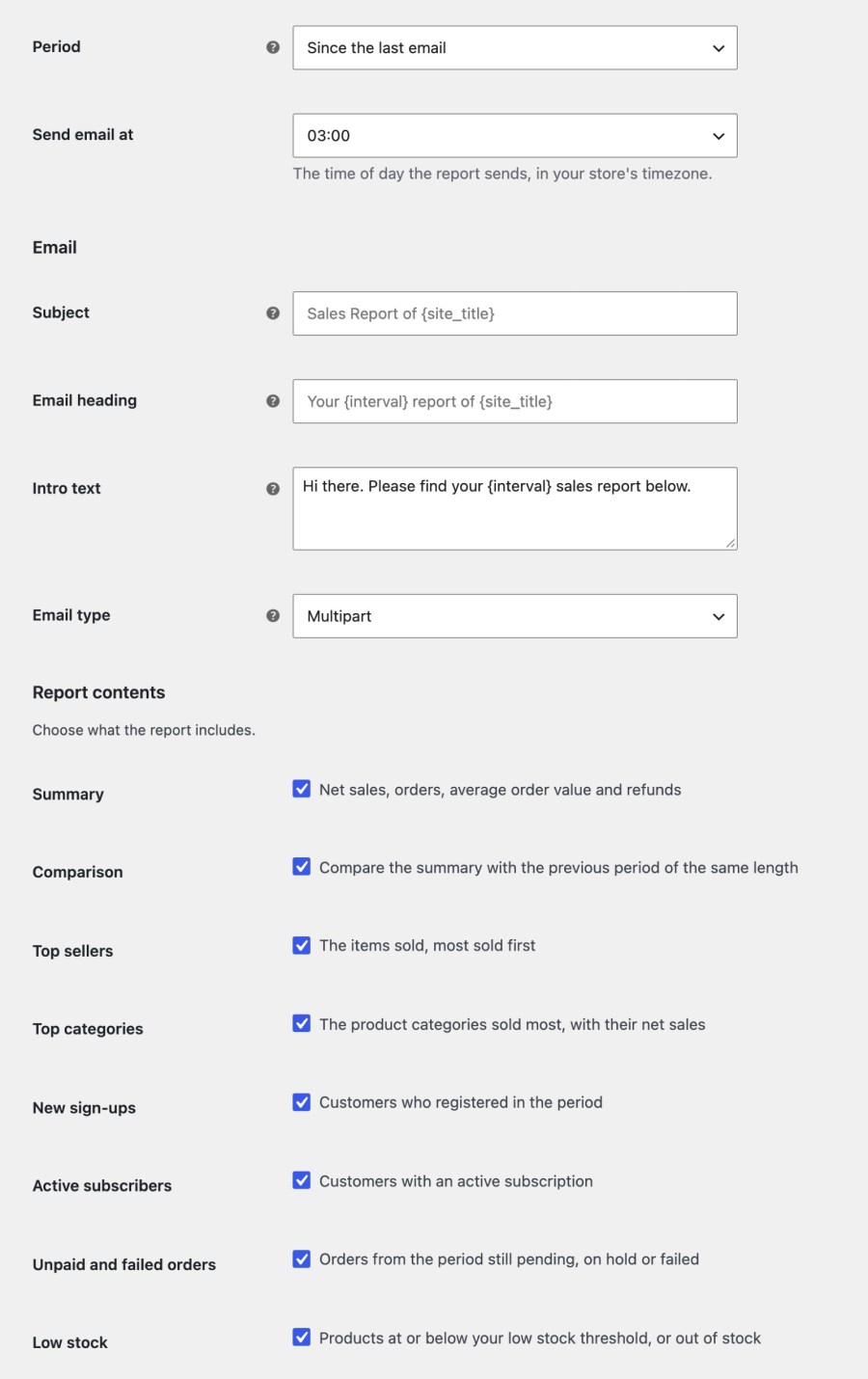
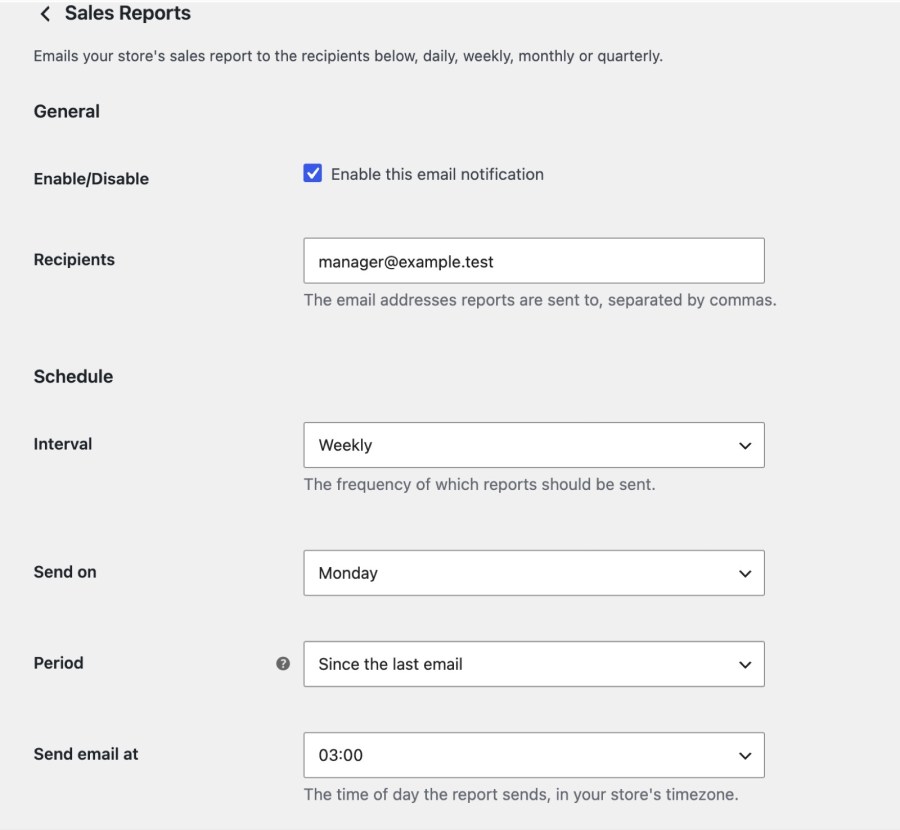
Choose daily, weekly, monthly or quarterly. A daily report goes out on the weekdays you pick, so a store that is closed at weekends can skip them, and the next report covers the days it skipped. Weekly reports go out on the day you choose, and monthly and quarterly reports on a day from 1 to 28, with quarterly reports in January, April, July and October. Send at a time you choose, in 15 minute steps, add one recipient or several, and pick HTML, plain text or multipart.
Reports are sent by WordPress’s scheduled tasks (WP-Cron), so a quiet site or a host that restricts cron can send them late. The figures come from WooCommerce Analytics, counted by the date orders were paid, so Analytics has to stay turned on. If it is off, the plugin shows a warning in the admin, because the report leaves out orders placed while it is off.
Selling subscriptions? With WooCommerce Subscriptions active, the report adds an Active subscribers count, so recurring revenue sits beside your sales. Selling memberships? Constellation Memberships for WooCommerce has built-in recurring billing and adds the same count. Want orders as they happen, not once a day? Slack Notifications for WooCommerce posts each one to a channel.
Full steps are in the Get started with Sales Report Email guide, and Kestrel support is there if you get stuck. Built and supported by Kestrel, a long-time WooCommerce extension developer.

Install Sales Report Email, add your address under WooCommerce » Settings » Emails » Sales Reports, and choose daily, weekly, monthly or quarterly. New installs start on weekly, sent on Monday at 03:00 in your store’s time zone, once you add a recipient.
A summary of net sales, orders, items sold, average order value and refunds, compared with the previous period if you turn Comparison on. Then top sellers, top categories, new sign-ups, active subscribers if Subscriptions or Constellation is active, and a Needs attention box for unpaid and failed orders and low stock.
Yes. The report is built from WooCommerce Analytics and counts orders by the date they were paid, so its figures match the Analytics dashboard. Analytics has to be turned on: the report leaves out orders placed while it is off, and the plugin warns you in the admin.
Yes. Tick the sections under Report contents, and set Period to since the last email, yesterday, the last 7 days or the last 30 days. There is no date picker; a developer can set a custom period or skip dates such as holidays with the wc_sales_report_email_date_range and wc_sales_report_email_skip_dates filters.
Yes to both. Enter several addresses separated by commas, and edit the Subject, Email heading and Intro text in the report’s email settings. The default subject is “Sales Report of” followed by your site title.
Stores upgrading from 1.x keep their existing report: Comparison, Top categories, Unpaid and failed orders and Low stock start turned off, so your emails don’t change unannounced. Tick them under Report contents in Sales Reports settings. New installs start with every section on.
Categories
Extension information
Quality Checks
Countries