
Instalações ativas
900+
A assinatura inclui
Suporte
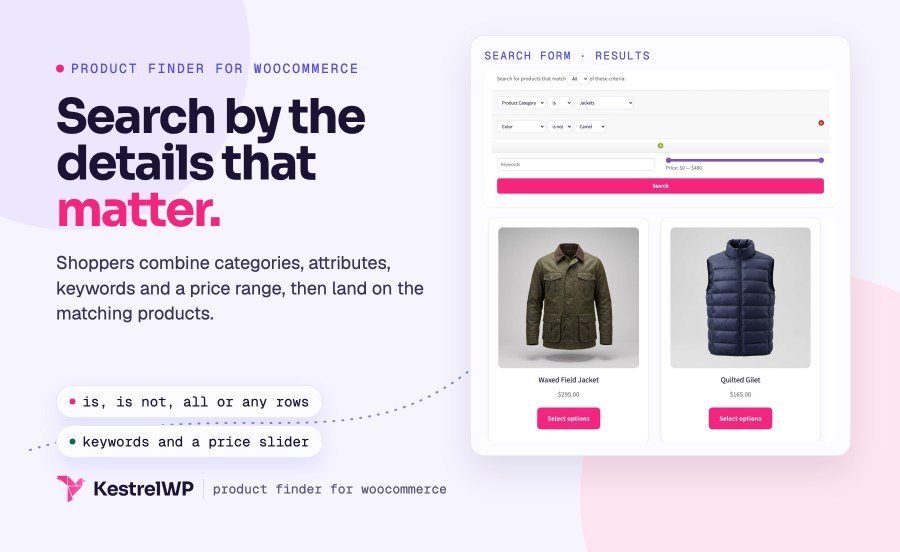
Product Finder for WooCommerce adds an advanced product search form to your store, so a shopper who wants a navy jacket under $300 can find it without clicking through categories. The form is made of rows. Each row picks a product category or a global attribute, is or is not, and a value, and shoppers add as many rows as they need. They can also add keywords and a price range, then land on your shop’s normal results page with the matching products. Built by Kestrel, a long-time WooCommerce extension developer.
It is a search form for exact criteria, not a live filter sidebar or a typo-tolerant text search: results load as a page, and it searches product categories and global attributes, not custom per-product attributes. It changes the results only when someone submits the form, so your regular site search is untouched.
Each row is a criterion (Product Category or one of your global attributes, such as Color or Size), is or is not, and a value. Shoppers choose Add row for another, and choose whether a product must match All or Any of the rows. The value list loads when a criterion is chosen and shows only terms that have products. A row set to is not removes the products that carry a value, such as every jacket that isn’t navy, which a category menu can’t do on its own.
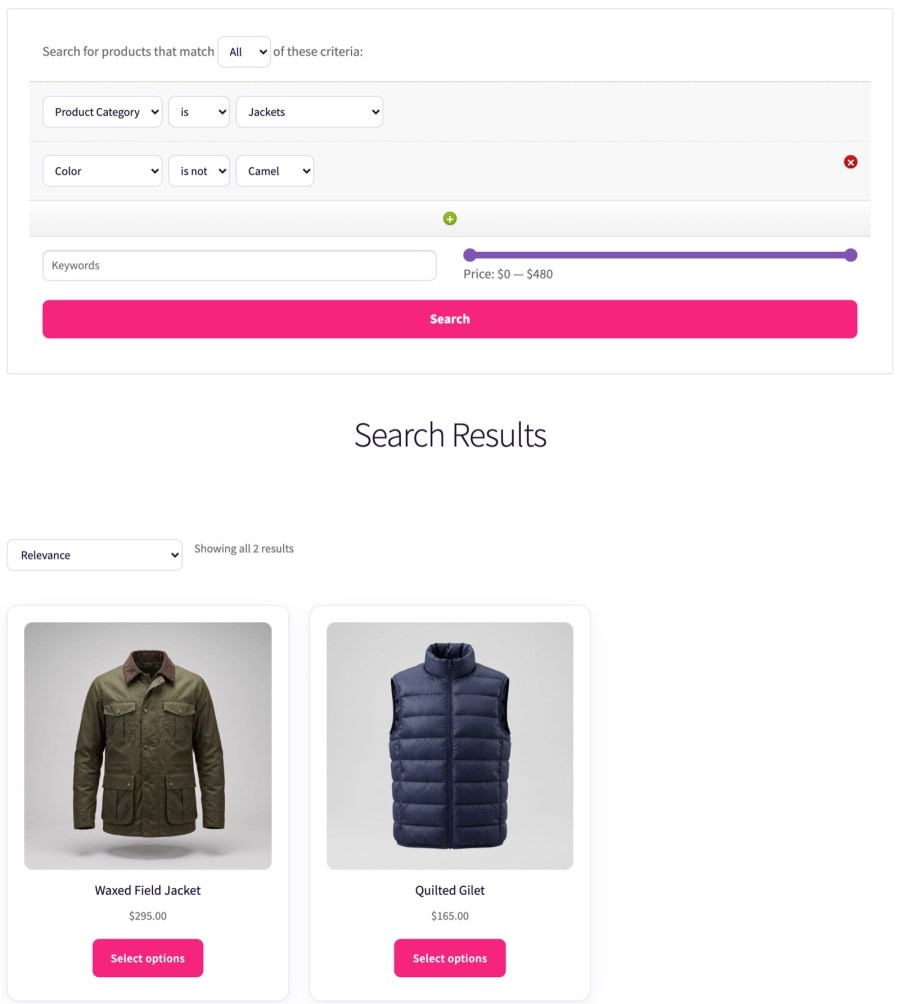
An optional Keywords field searches product text, and a price slider with Min price and Max price limits results by product price. The slider runs from 0 to the highest price in your store, adjusted for your tax display settings, and has a Reset price link. A price handle left at its end doesn’t limit the search, so shoppers who never touch the slider don’t lose products by accident. Every field is optional, so shoppers can search with one row, five rows or a keyword alone.

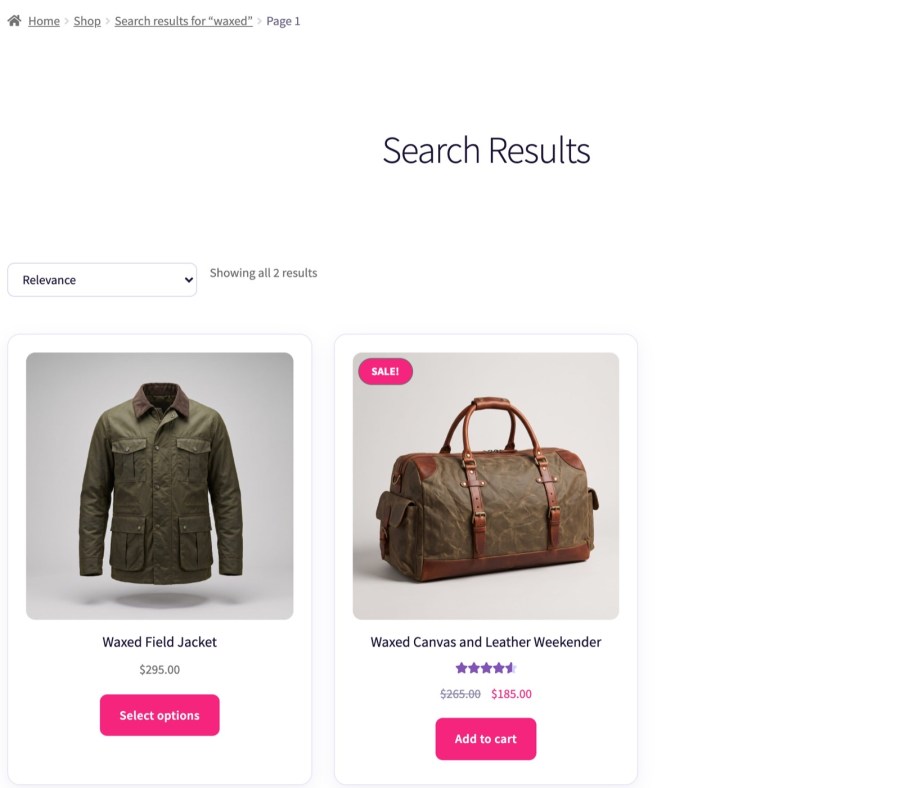
When shoppers submit the form, they go to your shop page with their filters in the URL, and your theme’s product archive shows the matches under the heading Search Results. The results use your theme’s own product grid rather than a separate layout, so a search looks like the rest of your store, and shoppers can sort and page through the matches the way they already do. The filters stay in the page address, so a results page can be reloaded or shared.
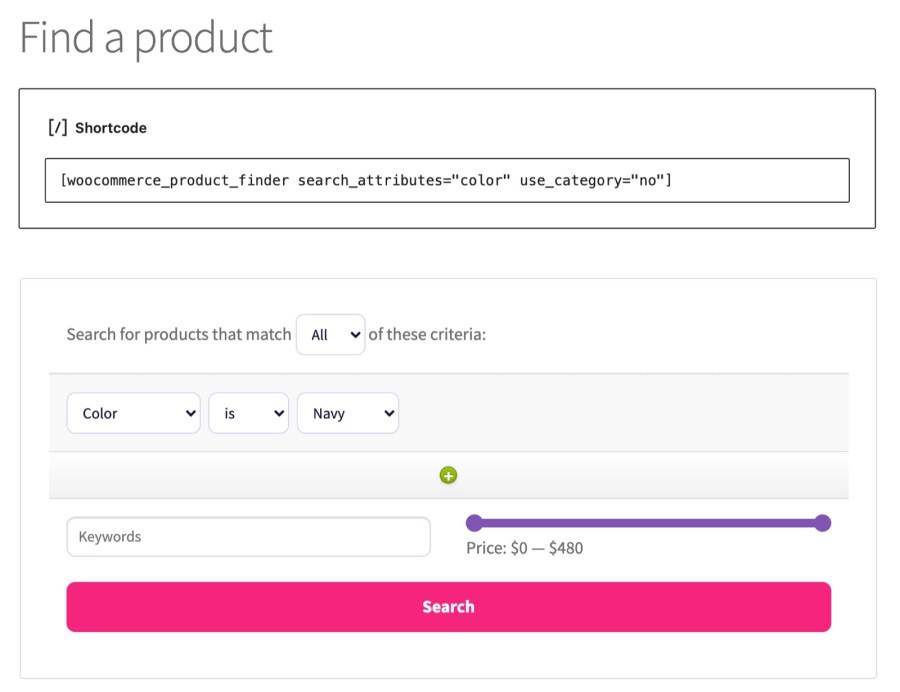
Add the form with the [woocommerce_product_finder] shortcode, the Product Finder widget, the woocommerce_product_finder() template tag or the woocommerce_product_finder action hook. All four print the same form, so use whichever fits where it goes: the shortcode in a page or a Shortcode block, the widget in a sidebar, and the template tag or hook in theme code, where you control the markup around the form. The widget needs a widget area, which classic themes provide; on a block theme, use the shortcode. A shortcode or template tag can override which criteria a form includes with search_attributes and use_category.
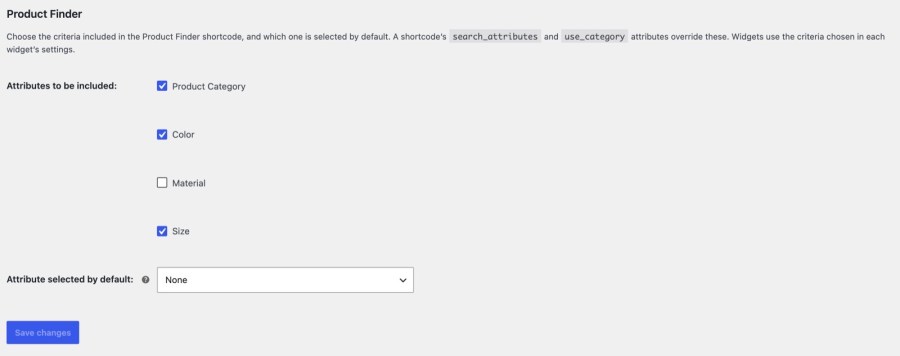
Under WooCommerce » Settings » Products » General, the Product Finder section lets you choose which criteria every form includes, Product Category and each global attribute you have, and which criterion new rows start on. A shortcode or template tag can override that per form, and each widget has its own criteria checkboxes, so a homepage form can offer color and category while a footer form offers only price and keywords. Criteria show as included until you first save the section.
Product Finder or Ajax Layered Navigation? Both help shoppers narrow a big catalog. Product Finder is one search form that sends shoppers to a results page; Ajax Layered Navigation is a set of filter widgets that update the product grid in place. Choose Product Finder for a search box with several criteria at once, including keywords and a price range, and Ajax Layered Navigation for filters beside the products. They don’t depend on each other, so a store can use both.
Pair it with Quick View. Search results load as a normal shop page with your theme’s product grid. Quick View for WooCommerce adds a pop-up preview to product lists on themes that use WooCommerce’s standard product loop, so shoppers can check a match without leaving the results. Each plugin works on its own, and neither depends on the other being installed.
Keep your badges on the results. Search results are a normal shop page, and Product Badges for WooCommerce adds its badges through WooCommerce’s shop loop hooks, so sale, low stock and seasonal badges can stay on the products in your results. Product Finder helps shoppers find the product; Product Badges tells them what is special about it. Each works on its own.
Setup and the shortcode options are in the Get started with Product Finder guide and the Product Finder documentation. Kestrel support is there if you need it.
[woocommerce_product_finder] shortcode to a page, or add the widgetBuilt and supported by Kestrel, a long-time WooCommerce extension developer.

Yes, in the sense of a search form shoppers fill in: they combine categories, attributes, keywords and a price range, and land on your shop's results page. It searches categories and global attributes, not custom per-product attributes, and it leaves your regular site search untouched.
No. It adds a separate search form. Your existing search box keeps working, and Product Finder only changes the results when someone submits its own form. Results then show on your shop page under the heading Search Results, in your theme's normal product grid.
No. The form sends shoppers to your shop results page, which loads as a normal page. If you want filters that update the product grid without a reload, look at Ajax Layered Navigation, which is built for that and works as a set of filter widgets.
No. Product Finder searches product categories and global attributes. Attributes set on a single product aren't searchable, and WooCommerce Brands aren't attributes, so they aren't included. Create a global attribute, such as Color or Size, and the form can offer it.
Yes. Tick only the criteria you want under WooCommerce » Settings » Products » General, or set search_attributes (attribute slugs without pa_, comma separated) and use_category on a shortcode to override them for one form. Each widget has its own criteria checkboxes.
Not yet. Use a Shortcode block, or the widget in a widget area, to place the form. The plugin declares compatibility with the Cart and Checkout blocks and High-Performance Order Storage, and the form works on block themes through the shortcode.
Categorias
Informações da extensão
Verificações de qualidade
Países