Aktive Installationen
1K+
Product comparison
Das Abonnement beinhaltet
Support
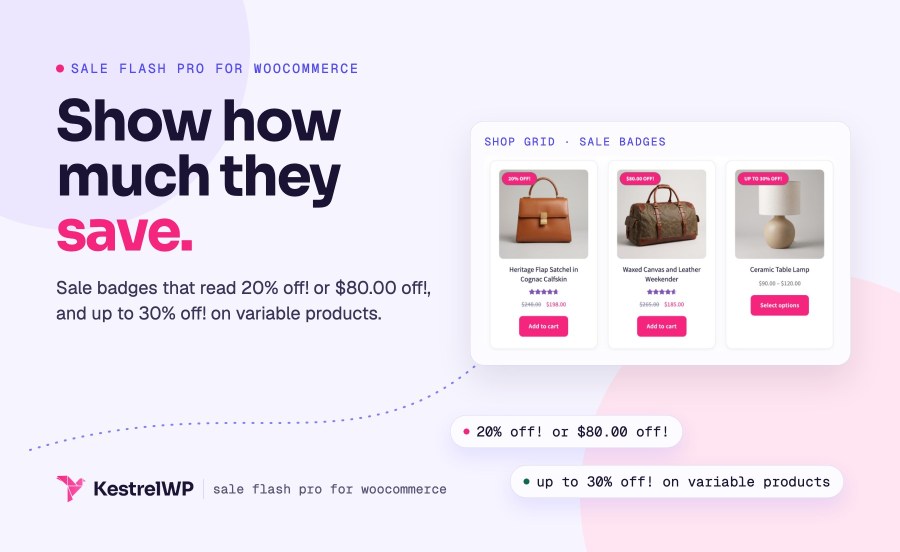
WooCommerce’s sale badge tells shoppers a product is cheaper, but not by how much. Sale Flash Pro for WooCommerce replaces the plain “Sale!” with the discount itself: “25% off!” or “$10.00 off!”. For variable products it can show “up to 30% off!”, using the biggest discount among the variations that are in stock and on sale. You set the format once for the store and override it on any product.
It changes the words on WooCommerce’s own sale badge and nothing else: there are no text or color settings, and the badge keeps your theme’s styling. It works on classic shop templates and shortcode grids; the Product Collection block keeps its own Sale badge. If you want designed badges, see Product Badges below. It declares support for the Cart and Checkout blocks and High-Performance Order Storage.
Under WooCommerce » Settings » General, Sale flash type is either Percent or Amount, with Percent as the default. Percent shows “25% off!”, rounded to a whole number, and Amount shows “$10.00 off!” in your store’s currency format. A product on sale at $198 from $248 shows “20% off!”, and a product $80 off shows “$80.00 off!” when you pick Amount. Shoppers see the saving on the product image before they read the price, in the badge your theme already places there.
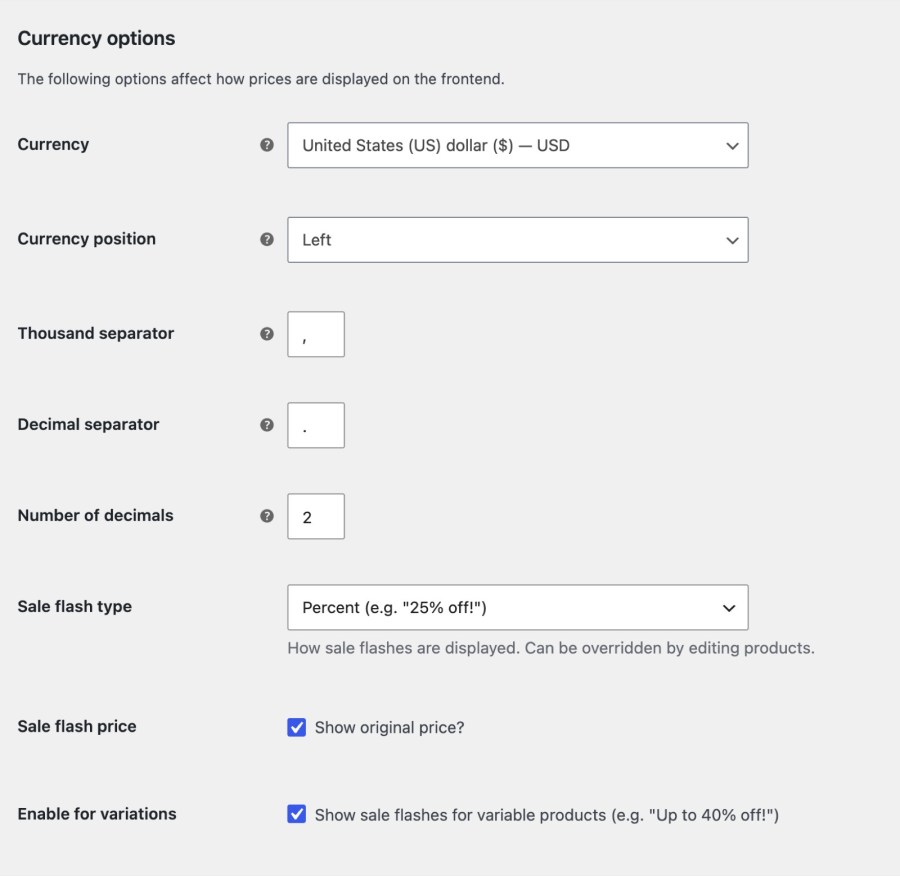
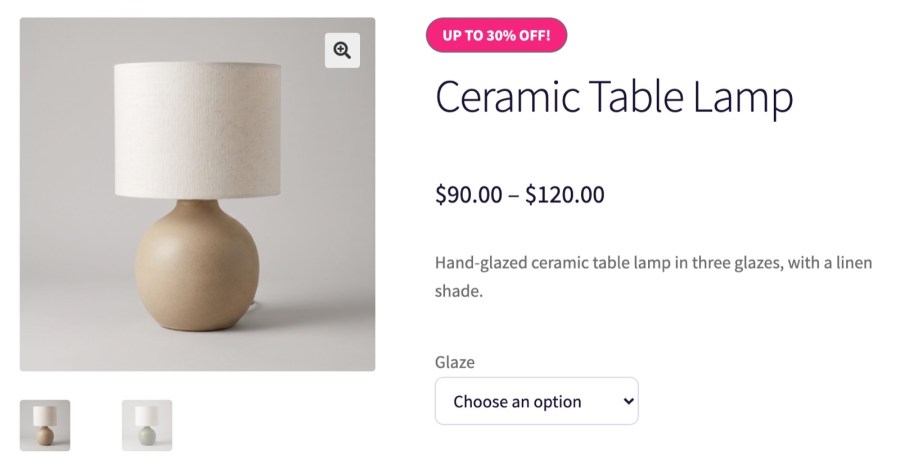
Turn on Enable for variations and variable and grouped products get a badge such as “up to 25% off!”, taken from the biggest discount among their in-stock variations that have a sale price. With Amount selected, the badge shows an amount instead, such as “up to $30.00 off!”. Variations that are out of stock, or whose sale hasn’t started yet, don’t count. With the setting off, variable products keep WooCommerce’s normal Sale! badge, so you can switch it on when you’re ready.
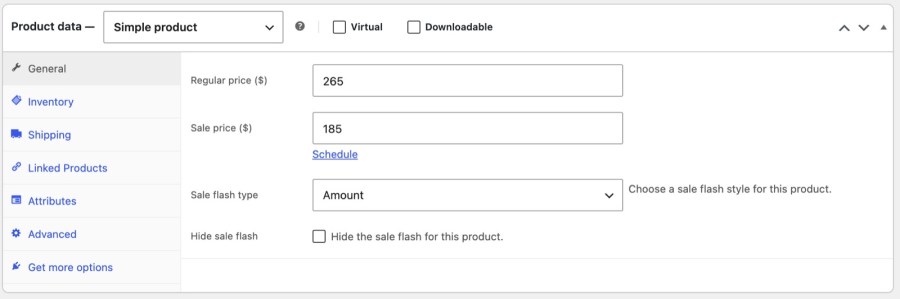
On a simple or external product, the General tab has its own Sale flash type (Default, Percent or Amount) and a Hide sale flash checkbox, under the price fields. Hide removes the sale badge from that product entirely, so a clearance item can show its price without a badge on top of it. Variable and grouped products follow the global settings, and variations take their badge from the parent product. Everything else keeps the store-wide format you chose, so you only touch the products that are exceptions.
Show original price? is on by default. Turn it off and simple products in shop and category lists show only the sale price, without the crossed out regular price beside it, so the badge carries the message about the saving, by itself, whichever page shoppers are on. On the single product page, related products included, both prices keep showing, and variable products keep their price range as it is. The setting sits next to the other Sale Flash Pro options at the end of the Currency options section.
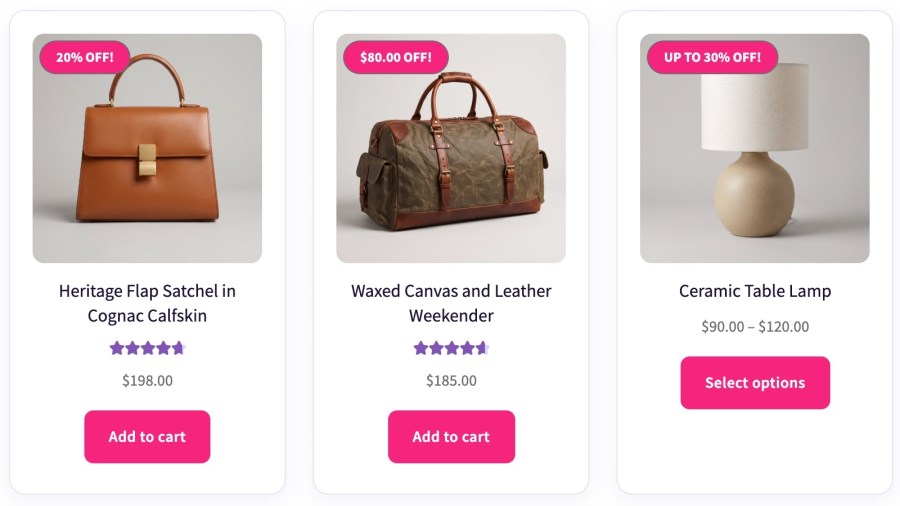
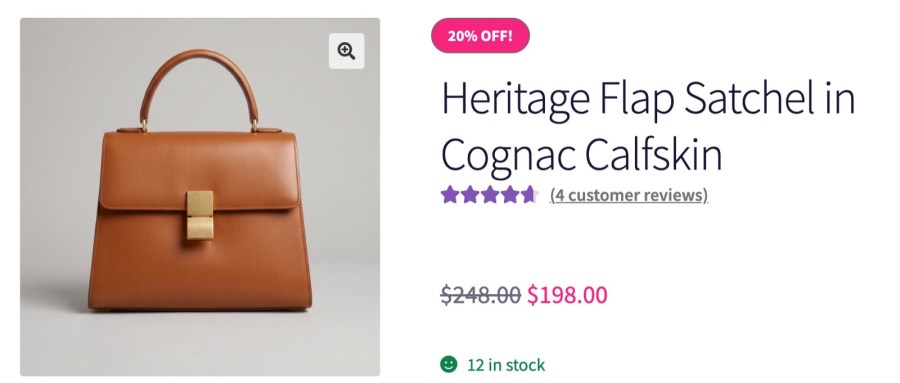
The badge replaces WooCommerce’s own sale flash inside the normal onsale element, so your theme’s CSS still applies and the badge sits where your theme puts it. On classic themes that covers shop and category pages, single product pages and shortcode-based product grids, plus products loaded by AJAX, such as a filtered shop page. When a percentage rounds down to zero, the badge falls back to WooCommerce’s Sale! instead of showing “0% off!”. The wording comes from the plugin’s translation strings, so a translation plugin such as Loco Translate can change it.
Sale Flash Pro or Product Badges? Sale Flash Pro changes the wording of WooCommerce’s own Sale! badge so it says how much is off, in your theme’s style. Product Badges for WooCommerce adds designed badges: artwork, countdowns, text and stock labels, shown by any rule. Product Badges hides WooCommerce’s sale badge by default, including this plugin’s text, unless its Keep WooCommerce sale badge setting is on. If you later want designed badges, Product Badges can sit alongside it; turn on its Keep WooCommerce sale badge setting to show both.
Add context to the price itself. The badge covers the discount; Product Price Before and After Text covers the words around the price, such as From, per kg or Incl. VAT. They change different parts of the product listing, so a sale item can carry a clear badge and a clear price line, and neither plugin needs the other to work.
Settings and per-product options are in the Get started with Sale Flash Pro guide. Kestrel support can help with anything else. Built and supported by Kestrel, a long-time WooCommerce extension developer.

Install Sale Flash Pro and leave Sale flash type on Percent. Any product with a regular price and a sale price shows its discount on the badge, such as "25% off!", rounded to a whole number. Choose Amount instead to show a currency amount.
No code needed. Install it, and the badge shows the discount on any product with a regular and a sale price. Change the format under WooCommerce » Settings » General, or override it on a single simple product.
Yes, once Enable for variations is on. The badge reads "up to X% off!", using the biggest discount among the variations that are in stock and on sale. With the setting off, variable products keep WooCommerce's normal Sale! badge.
Not with a setting. The wording comes from the plugin's translation strings, which a translation plugin such as Loco Translate can edit, and the look comes from your theme's CSS on the onsale element. For designed badges with colors and artwork, use Product Badges.
Yes, on shop and category pages. Turn off Show original price? under WooCommerce » Settings » General, and simple products show only the sale price. On the single product page, related products included, both prices still show, and variable products keep their normal price range.
No. Product Collection and other product blocks show their own Sale badge, which Sale Flash Pro doesn't change. It works wherever WooCommerce outputs its standard sale flash: on classic themes, shop and category pages, single product pages and shortcode-based product grids. Block themes that build the shop from Product Collection show their own Sale badge.
Kategorien
Extension information
Quality Checks
Länder