
Product Icon

Product Search Analytics, Redirect and Synonyms for WooCommerce

See what shoppers search for, then fix zero-result searches with redirects and synonyms. Works with the search you already have.
Choose a billing option
$69
Save 20%
$138 $110.40

Subscription includes

  • Product updates and improvements
  • Customer support
  • 30-day money-back guarantee

Every WooCommerce store has a search box, but almost none of them tell you what happens after a customer types into it. Product Search Analytics, Redirect and Synonyms for WooCommerce shows you what shoppers search for and where they leave empty-handed, then lets you fix it without writing code. It works with the search your store already has and does not replace it.

What This Extension Does

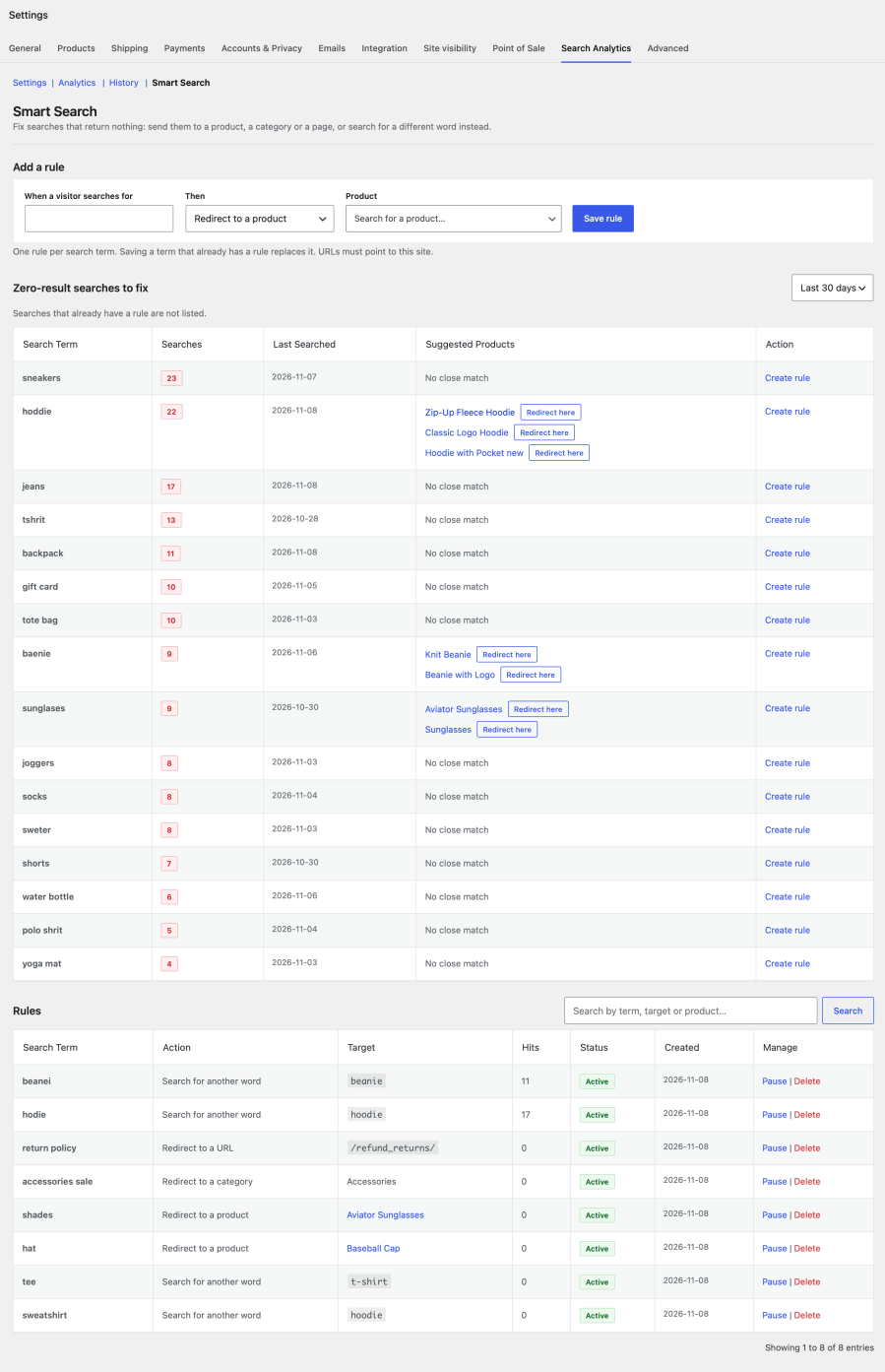
The extension records every search on your store, with the term, the number of results and the page it came from, and turns every search that returns nothing into something you can act on. Each of those searches appears in Smart Search with suggested products, so you can send shoppers to the right product, category or page, or search for another word instead.

Everything lives inside WooCommerce → Settings → Search Analytics, in a Search report under WooCommerce → Analytics and in a dashboard widget. No separate login, no third-party dashboard.
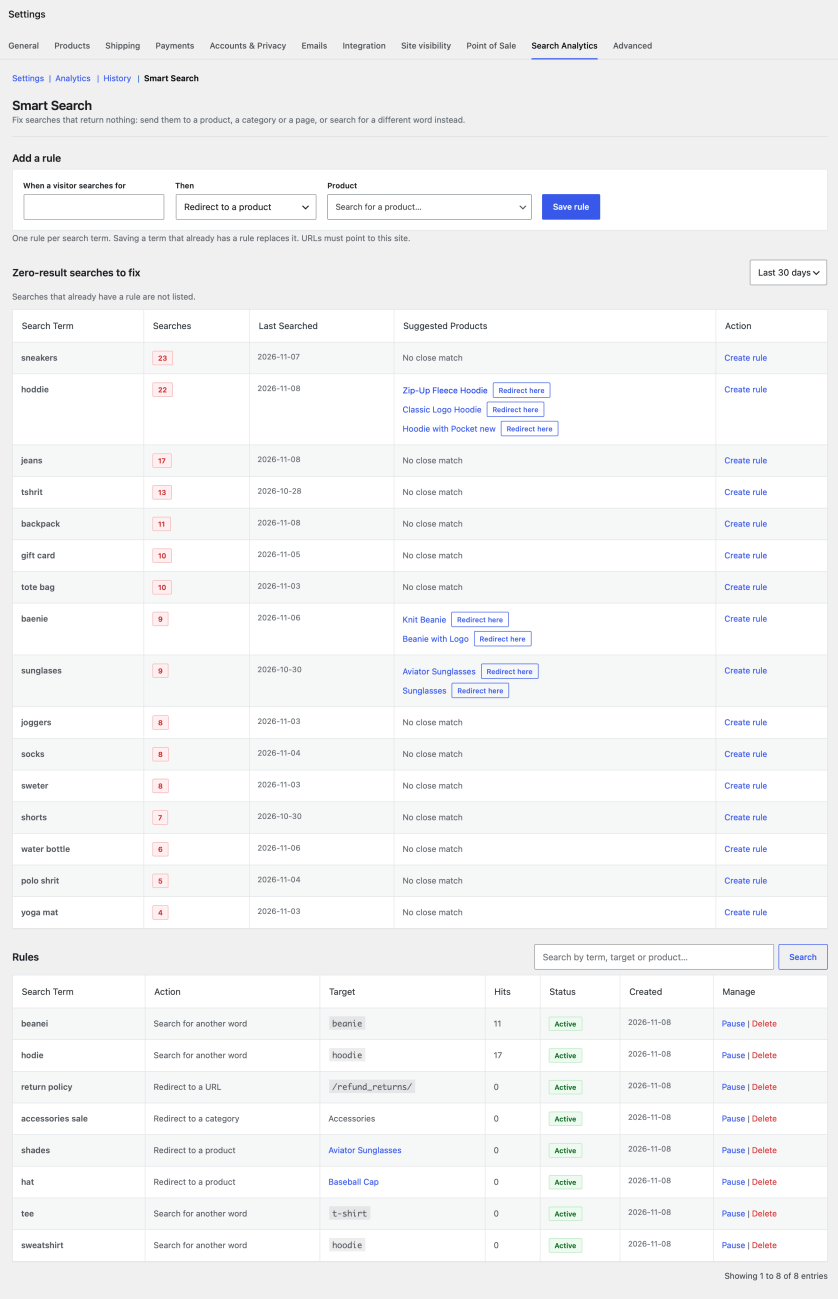
The Smart Search screen with the rule form, zero-result searches with suggested products and the rules table

Key Benefits

  • Fix searches that return nothing. Redirect a search to a product, a category or a page on your site, or search for another word instead, so “tee” finds “t-shirt”. Redirects are temporary (HTTP 302), so you can change them at any time.
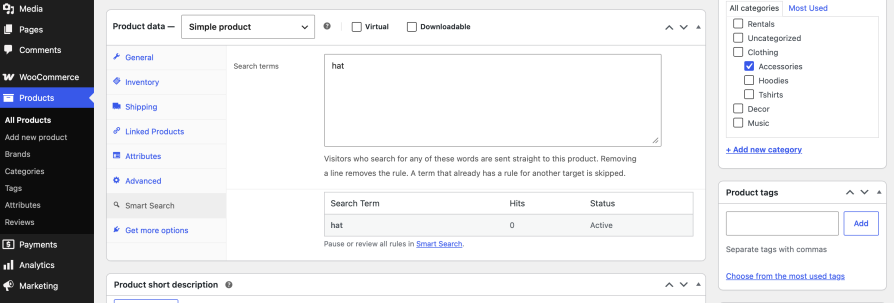
  • One-click fixes. Every zero-result term comes with close product matches and a “Redirect here” button. You can also add the searches that should lead to a product from the Smart Search tab on its edit screen, one search per line.
  • Always up to date. Redirects pause when a product is unpublished or trashed and resume when it is published again. Deleting a product or category also deletes the rules that pointed to it, so shoppers never land on a dead page.
  • Reports where you already look. A Search report in WooCommerce Analytics with the date range picker you already use, comparison with the previous period or year, a chart, top terms and zero-result searches. The dashboard widget shows the top zero-result searches that still need a fix.
  • Full search history. Browse every search with date range, search, sorting and pagination, and export the filtered history as a CSV file for your spreadsheet.
  • Tracking that just works. Searches made with the standard WordPress and WooCommerce search of any theme are recorded automatically. Searches made through the WooCommerce Store API and the WordPress REST search, used by block themes and headless storefronts, are recorded with the exact number of results, and typing is merged into a single search.
  • Your data stays yours. Everything is stored in your own WordPress database. IP addresses and email addresses are not stored, store managers and bots are excluded by default, and old entries are deleted automatically after the retention period.
The Smart Search tab in the Product data box showing the searches that lead to the product

Common Use Cases

Recovering Lost Sales
Shoppers search for “iphone case” but you sell “phone covers”, and see nothing. One rule sends that search to the right category.

Closing Product Gaps
A term like “trail running shoes” appears dozens of times in the zero-result list with no matching product. That is validated demand for a low-risk catalog decision.

Fixing Vocabulary Mismatches
Customers say “tee” and your catalog says “t-shirt”. A synonym fixes it the same day, with no change to your product titles.

Promoting What People Look For
Send a popular search straight to a product page or a landing page, and see in the Rules table how often each rule was used.
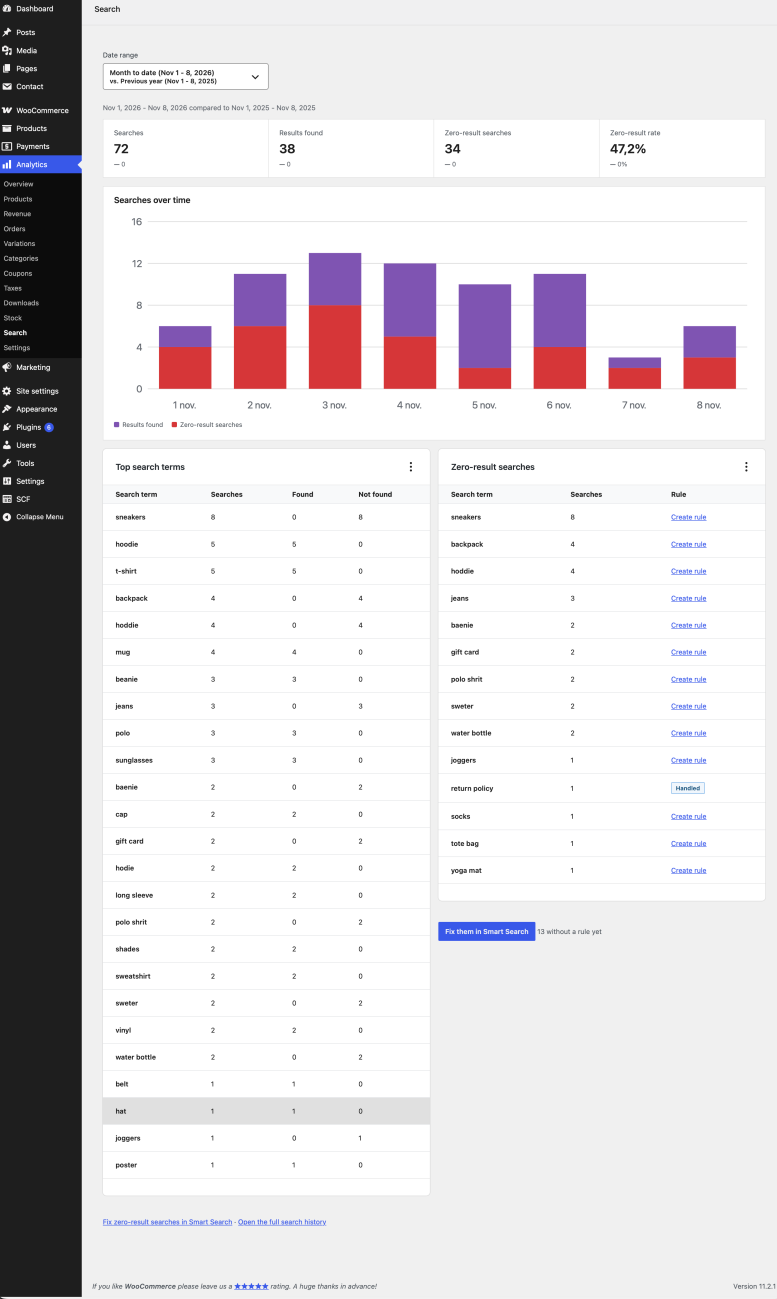
The Search report under WooCommerce Analytics with a chart, top search terms and zero-result searches

How It Works

  1. Install and activate the plugin through the WordPress Plugins screen. WooCommerce must already be installed and active. Tracking starts automatically.
  2. Open Smart Search under WooCommerce → Settings → Search Analytics to see the searches that returned nothing, with suggested products.
  3. Fix them with “Redirect here”, or create a rule: redirect to a product, category or page, or search for another word.
  4. Review the results in WooCommerce → Analytics → Search, in the Analytics and History screens and in the dashboard widget.

Frequently asked questions

Is Smart Search a search engine?

No. Smart Search does not index or replace your search. It works with the search your theme or search plugin already provides: it shows you the searches that return nothing and lets you redirect them to a product, category or page, or search for another word instead.

Does this work with my theme?

Yes, with any theme that uses the standard WordPress or WooCommerce search form or block. No configuration is needed to start tracking.

Does it work with live search?

Searches made through the WooCommerce Store API and the WordPress REST search, which block themes and headless storefronts use, are recorded automatically. Typing is merged, so "ip", "iph" and "iphone" count as one search. Live search plugins that run their own AJAX request are not captured unless they report searches with the nuvirro_psars_log_search action.

Where is the data stored and is it sent anywhere?

All data is stored in two custom tables in your WordPress database. Nothing is sent to external services, and IP addresses and email addresses are not stored.

What happens if a redirected product is unpublished or deleted?

Redirects pause when a product is moved to the trash or set to draft or private, and visitors see the normal search results. Publishing or restoring the product resumes them. Deleting a product or category permanently also deletes the rules that pointed to it.

Can I export the search data?

Yes. Export CSV on the History screen downloads the entries matching the current filters.

What happens if I delete the plugin?

Nothing is removed by default, so a reinstall does not lose your history, rules or settings. Turn on "Delete data when the plugin is deleted" in the settings to remove everything when the plugin is deleted.

Why is my report empty?

Searches made while logged in as a store manager are not counted by default, so test in a private window. Also check the date range and choose "All time" to see older searches.

Use of your personal data
We and our partners process your personal data (such as browsing data, IP Addresses, cookie information, and other unique identifiers) based on your consent and/or our legitimate interest to optimize our website, marketing activities, and your user experience.