

Subscription includes
Support
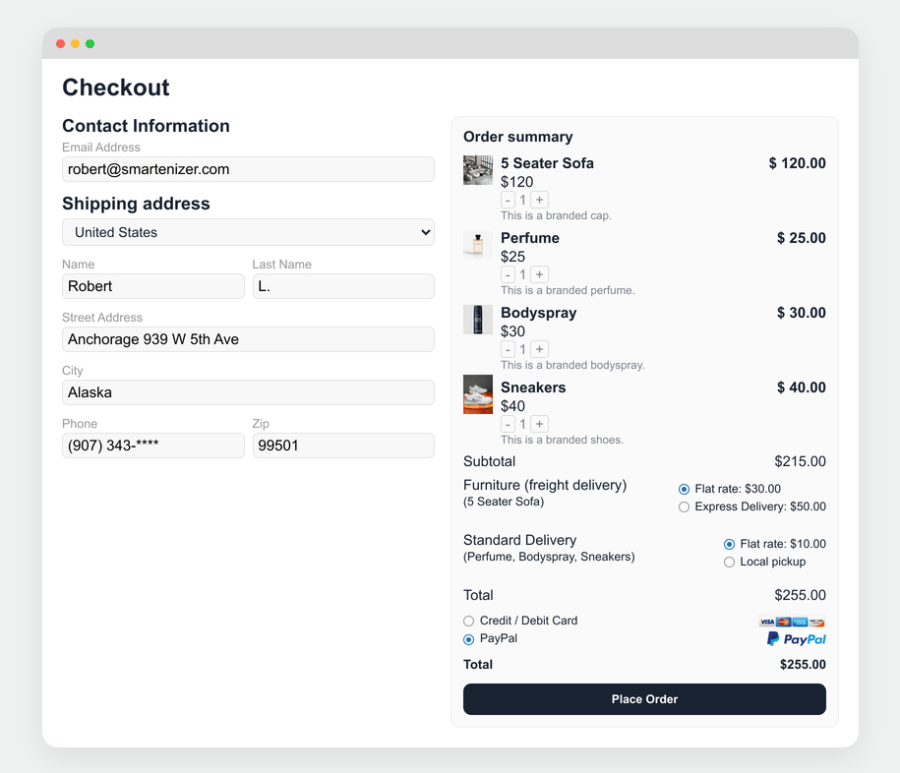
WooCommerce treats the whole cart as one shipment. Real stores do not work that way. Split Shipping Packages lets you create rules that divide a cart into multiple shipping packages at checkout, give each package its own name, and decide which shipping methods each package is allowed to show.
You set the conditions once. From then on, every order is split the way you would split it by hand.
What you get:
Out of the box, WooCommerce calculates shipping for one package containing everything in the cart. That is fine until your catalogue is not uniform.
Imagine a customer who adds a sofa, two cushions and a bottle of cleaning spray to their cart. The sofa needs a freight carrier. The cushions can go by standard courier. The spray is classed as a restricted item and cannot go by air. WooCommerce still shows one set of shipping rates for all three, and the customer gets a price that is wrong for at least two of them.
Store owners usually end up with one of these workarounds:
Split Shipping Packages gives you a rule engine for this exact situation. Each rule answers three questions:
WooCommerce then calculates shipping separately for each package, and your customer sees clearly named shipping options for each one at checkout. Anything that does not match a rule is not left behind: it goes into a default package that you also name.
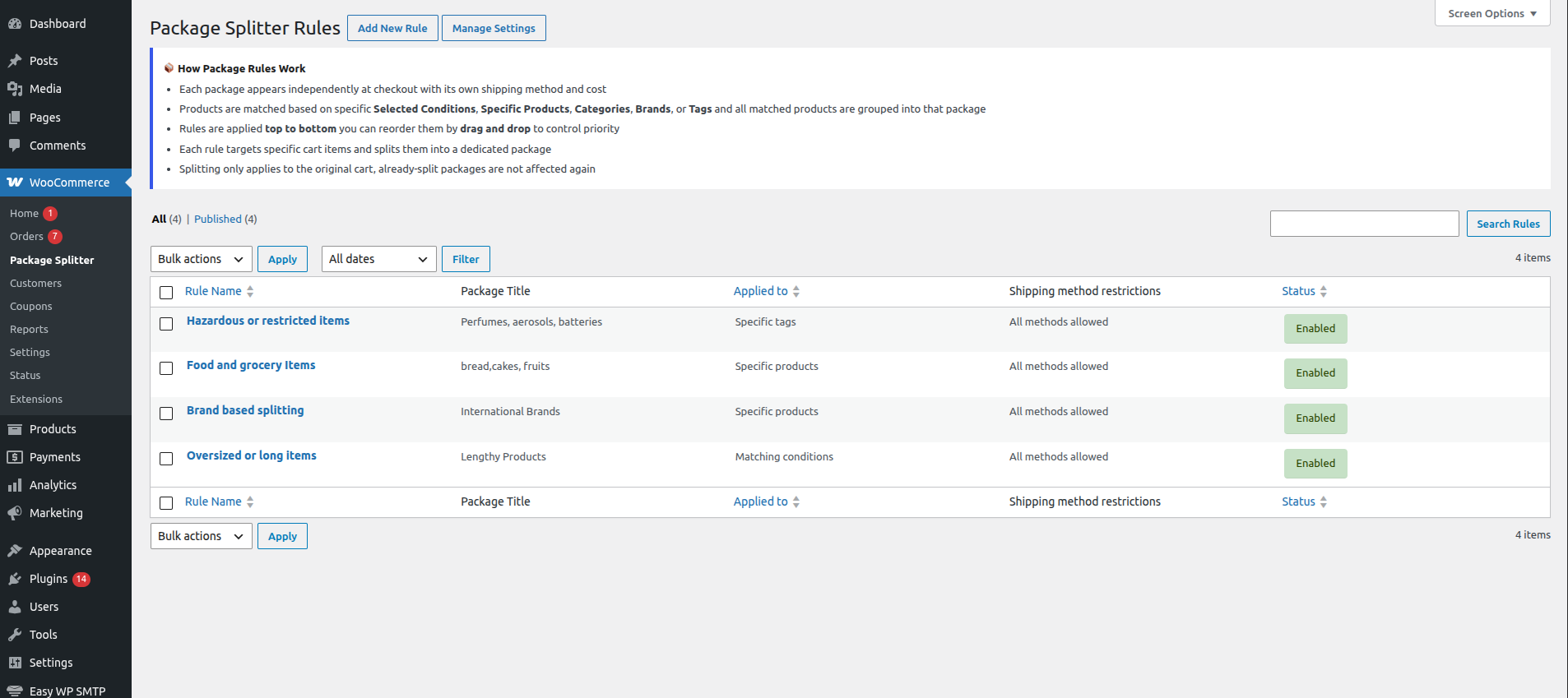
Each rule is its own entry under WooCommerce → Package Splitter. The post title is the rule name, so you can label rules the way you think about them (“Furniture – freight”, “Chilled items”, “Wholesale bulk orders”). You can create as many as your store needs, and they can be searched, edited, and bulk-managed from the standard list table.
Why it matters: once you have more than three or four rules, clear names and a proper list view are what keep the setup maintainable.
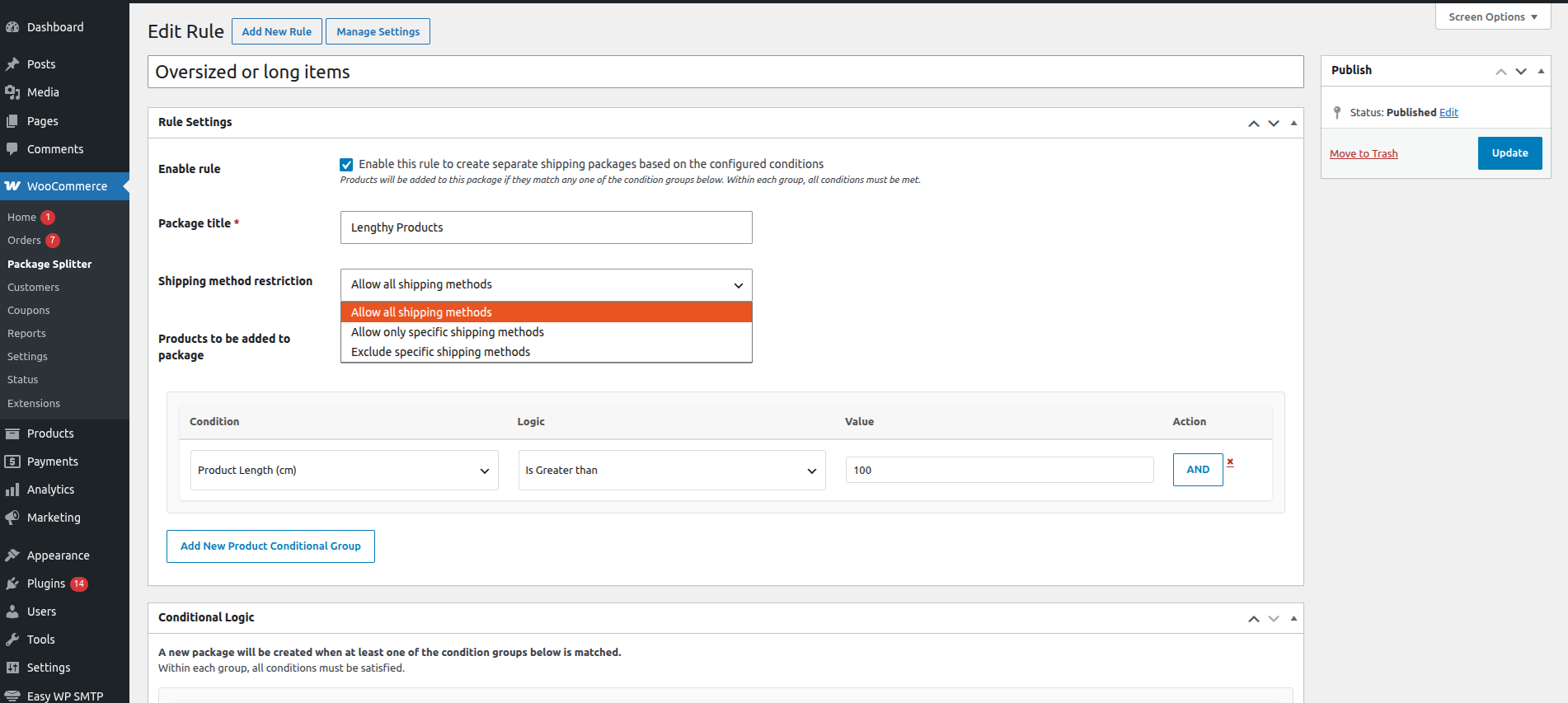
Every rule has an Enable rule checkbox. Turning it off keeps all your settings but stops the rule from running.
A rule only applies on the storefront when it is both published and enabled. A draft rule never runs, even if the checkbox is ticked. This lets you build and review a rule safely before it touches live checkouts.
The Package title field sets the label customers see above the shipping options for that package. “Shipping from our UK warehouse” or “Oversized items” tells the customer why they are seeing separate shipping lines, which cuts down on confusion and support emails.
This is where splitting becomes genuinely useful. Each rule has three modes:
Example: your “Fragile glassware” package allows only a tracked courier service. Your “Digital-adjacent accessories” package excludes local pickup. Each package shows only what you can actually fulfil.
The Products to be added to package field decides what the rule picks up from the cart:
For options two to 5, only products that are in the cart at that moment are considered. Your category or brand can contain hundreds of products, and the package only ever includes the ones the customer is actually buying.
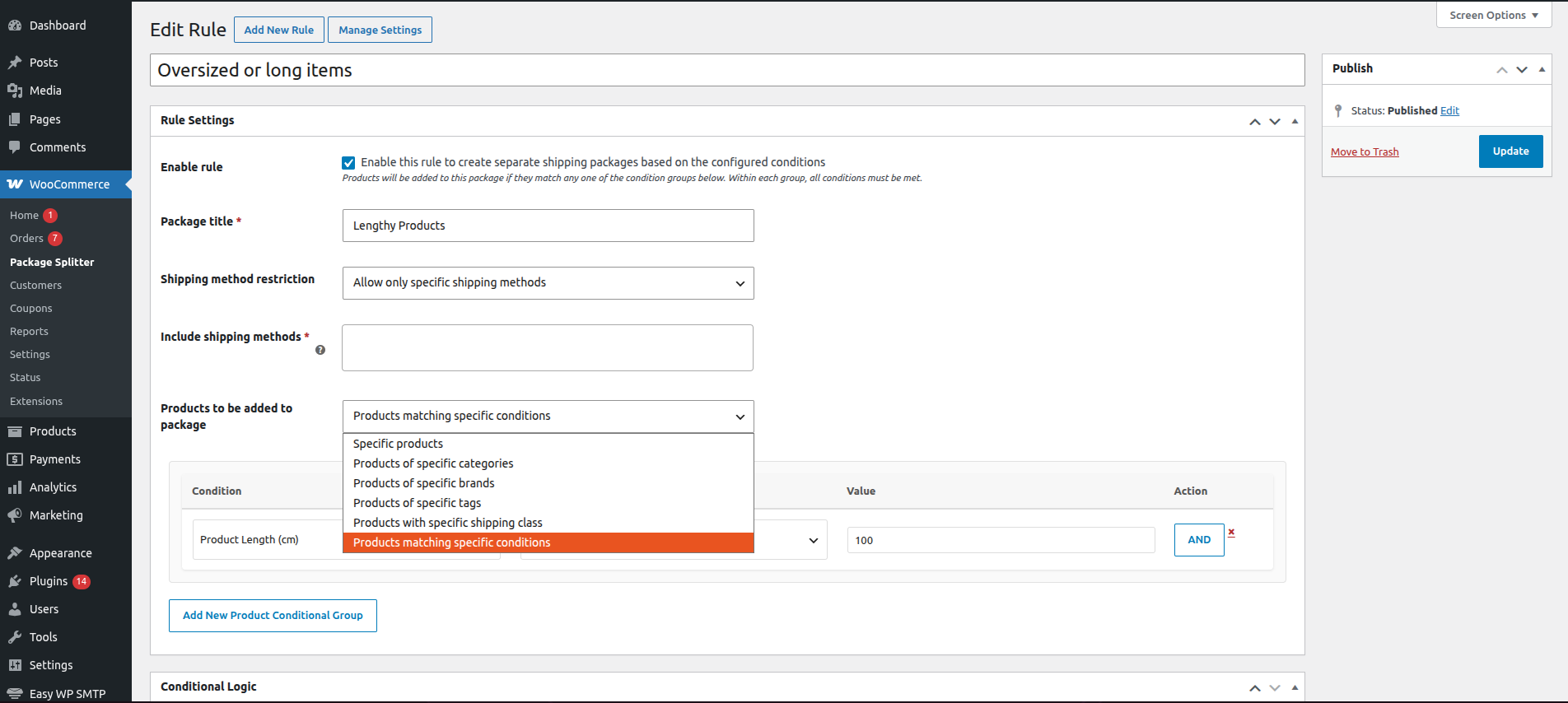
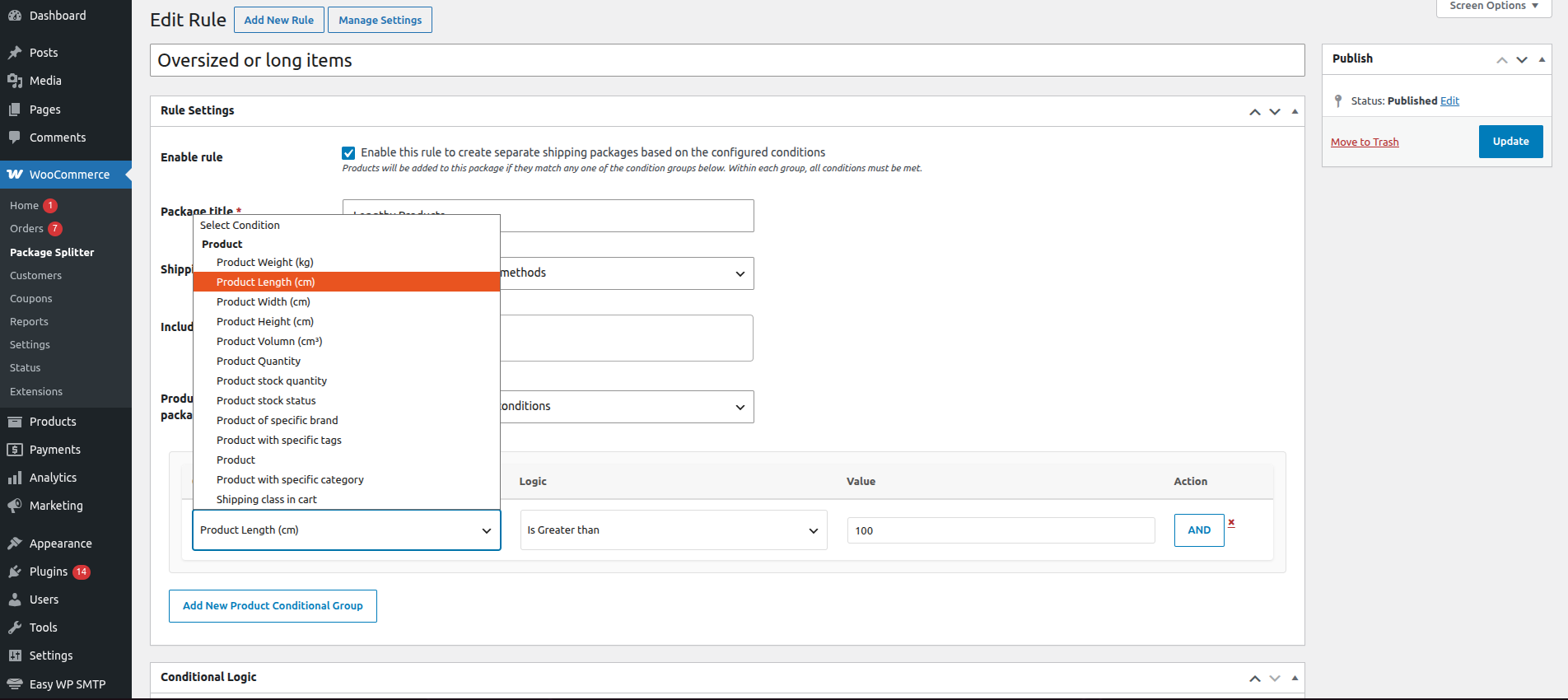
When the built-in selectors are not specific enough, choose Products matching specific conditions and build the match yourself. Each condition row has a condition, a logic operator, a value and an action.
Product-level conditions you can use:
Logic operators change depending on the condition. Numeric conditions offer equal to, not equal to, greater than and less than. Brand, tag, and shipping class offer equal to and not equal to. Category and product conditions have their own plain-language operators.
The value field adapts as well: a text box for numbers, a dropdown of real brands, tags, categories, or shipping classes for the rest.
How the logic combines:
Example: Group 1: weight greater than 20 AND shipping class equals “Bulky”. Group 2: length greater than 150. Any product matching either group goes into the package.
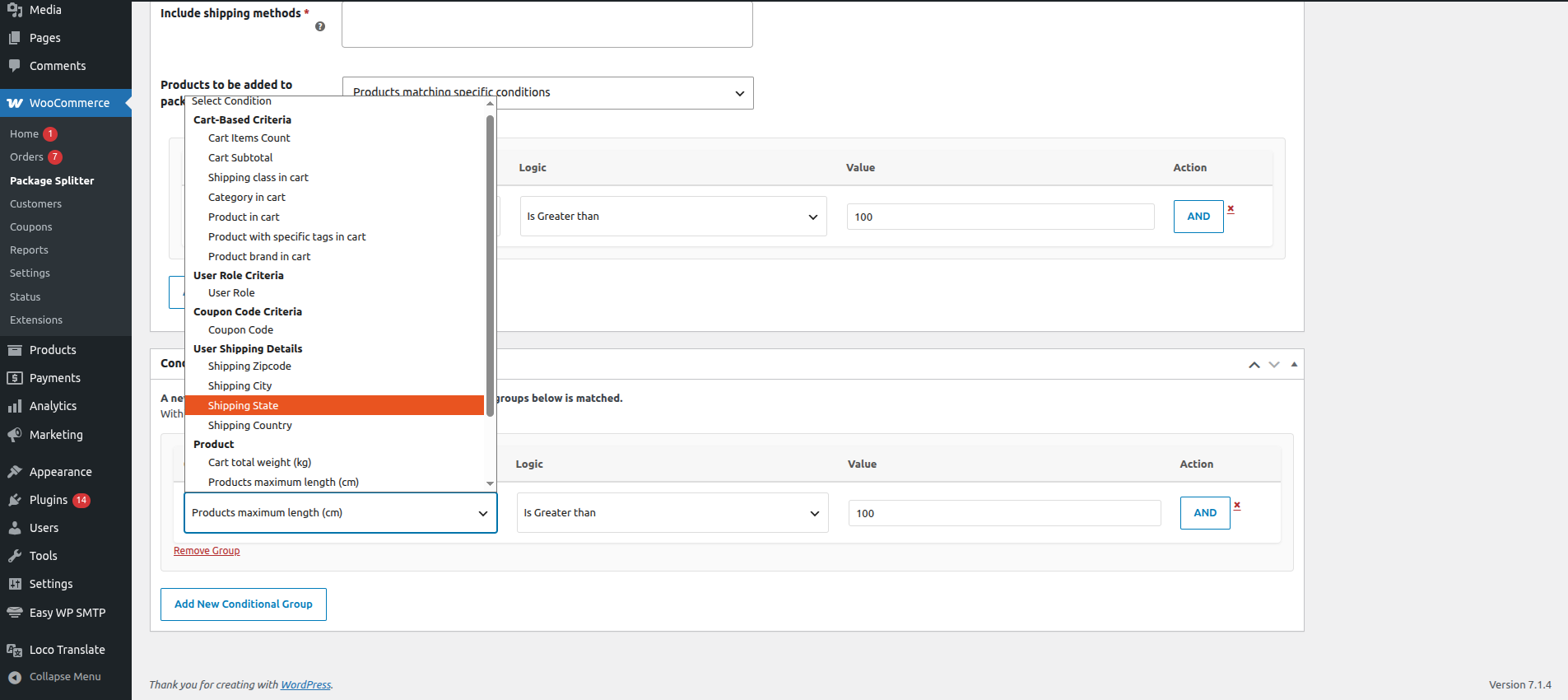
The Conditional Logic box controls whether the rule fires. A new package is created when at least one of its condition groups matches. This box uses the same AND / OR builder but with cart-level and customer-level conditions:
This is what lets you build rules like “only split out bulky items when delivering to a specific country” or “create a separate package for wholesale customers over a set subtotal”.
Rules run from top to bottom in the Package Splitter list. Reorder them by dragging rows. A product can only live in one package, so when it matches more than one rule, the first rule in the list claims it and later rules never see it.
That gives you a predictable priority system: put your most specific rules first and your broader ones lower.
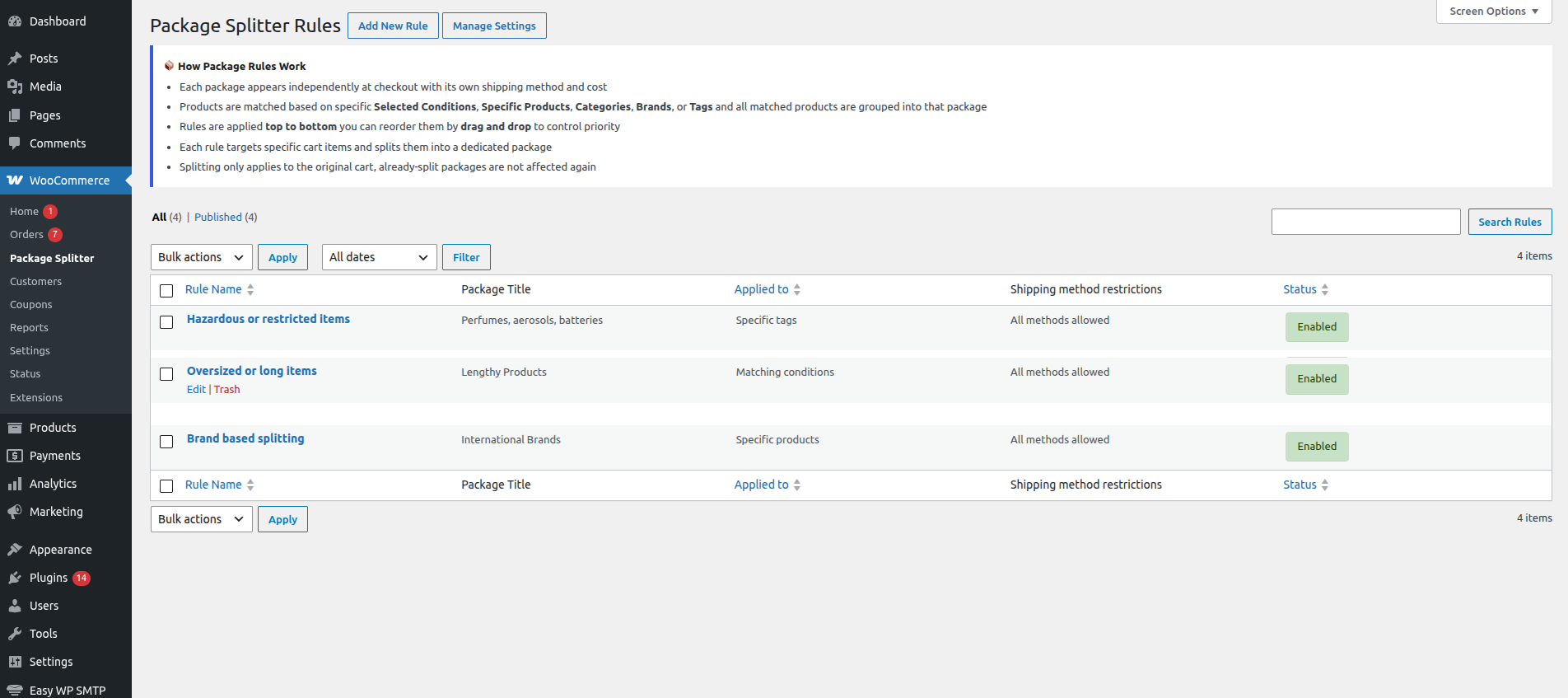
Select several rules in the list and enable or disable them in one action. Useful for seasonal setups, supplier outages, or testing a group of rules against live traffic.
If a cart has six products and your rules claim four of them, the remaining two are not dropped. They form a package of their own, named using the Default package name setting. Customers always get shipping for every item.
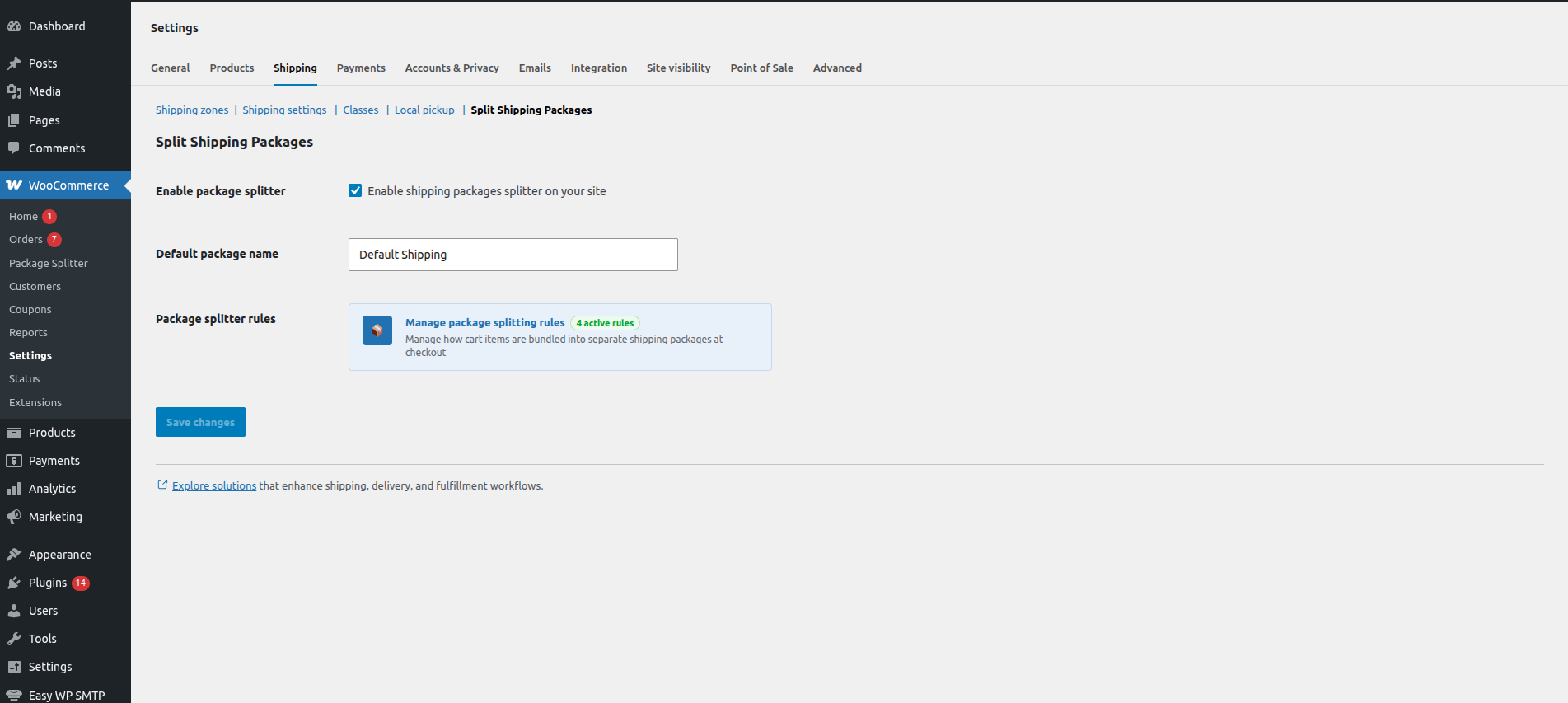
The Enable package splitter checkbox in the settings turns all rule checking on or off. When it is off, no rules are evaluated and WooCommerce goes back to its standard single-package behaviour. If something looks wrong on a busy day, you do not have to disable rules one at a time.
Sofas, tables, and wardrobes go out by freight. Cushions, candles, and small decor go by parcel. A weight or shipping-class rule puts the heavy items into a freight package with only freight methods allowed.
Chilled and frozen products need express delivery. Dry goods do not. Group chilled items by category or tag and restrict that package to next-day methods only.
If brand A ships from one warehouse and brand B from another, a brand-based rule gives each its own package and its own shipping options.
Perfumes, aerosols, batteries, and similar goods often cannot go by air. Use a shipping class or tag rule and exclude the air-based methods for that package.
Create a package only when the customer has a particular user role and the cart subtotal passes a set value, then offer a pallet or freight method for that package.
A rule on product length or dimensions catches items that exceed your carrier limits, such as flooring, curtain poles or boards, and routes them to a suitable method.
Use stock status or stock quantity conditions to separate items that are ready to dispatch from those that are not, so each can have its own method and title.
If a promotion includes special delivery terms, a coupon-based condition can create a dedicated package when that coupon is applied.
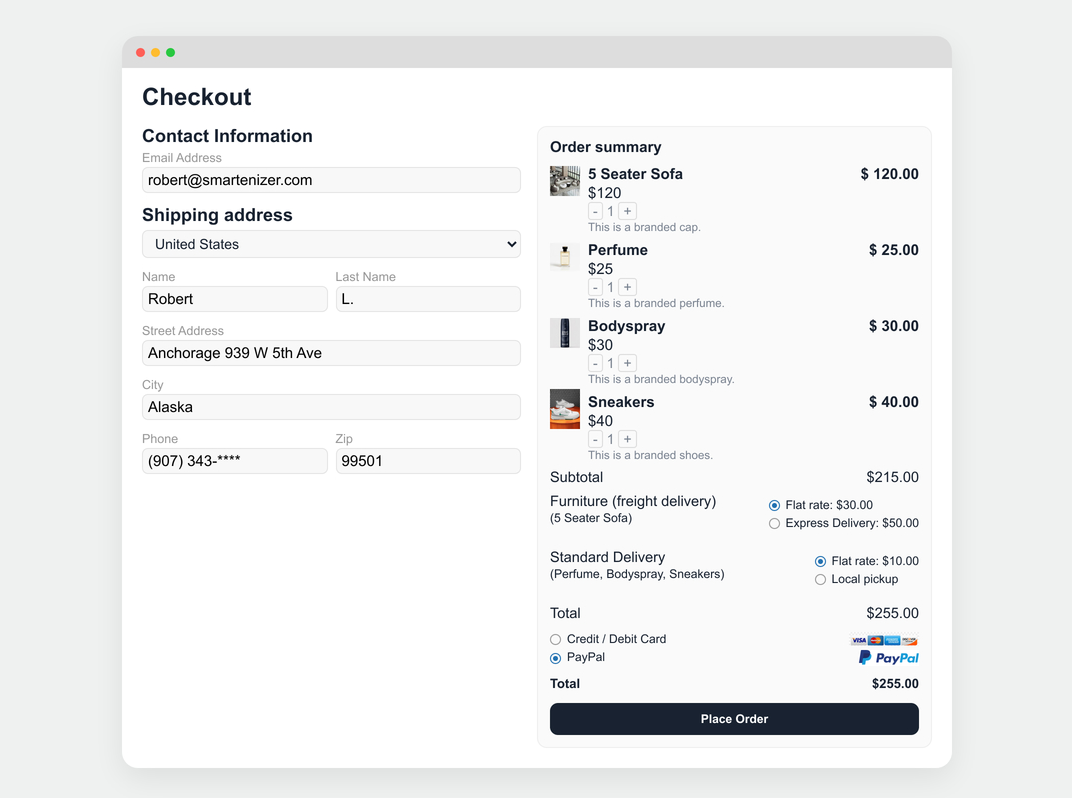
If you are comparing other shipping package plugins, here are the things worth checking on any tool before you commit. This is what Split Shipping Packages offers on each:
| What to look for | Split Shipping Packages |
|---|---|
| Ways to choose products for a package | Six: specific products, categories, brands, tags, shipping classes, and a custom condition builder |
| Brand-based splitting | Yes, as a dedicated option and as a condition |
| Control of shipping methods per package | Allow all, allow only selected, or exclude selected |
| Separate conditions for “which products” and “when to create the package” | Yes, two independent condition builders |
| OR groups as well as AND rows | Yes, in both builders |
| Rule priority | Drag-and-drop ordering with first-match-wins |
| Safe testing | Draft rules never run; one checkbox disables everything |
| Leftover products | Automatically placed in a default package with a name you choose |
If you already use other shipping package splitter plugins, the idea will feel familiar: rules, conditions, packages. The difference you will notice is how much more granular the product matching and the shipping method control are.
If your cart often mixes heavy and light items, chilled, and dry goods, or products from different warehouses, one package per order is costing you accuracy and probably customers. Set up your first rule in a few minutes and see the split on your own checkout.
It splits a WooCommerce cart into multiple shipping packages at checkout, according to rules you create. Each package gets its own title and its own set of allowed shipping methods.
Yes. Each of these has its own selector in the rule. You can also build custom product conditions such as weight, dimensions, stock or quantity.
They are placed into a default package. You choose its name in the plugin settings.
Rules run in the order shown in the Package Splitter list. The first matching rule takes the product, and it is not added to any later package.
Yes. Only published rules with Enable rule ticked are applied on the storefront. Drafts are ignored.
Yes. For each rule you can allow all methods, allow only selected ones, or exclude selected ones.
Yes. Untick Enable package splitter under WooCommerce → Settings → Shipping → Split Shipping Packages. No rules will be evaluated until you turn it back on.
Quality Checks
Countries