
Variation Monster Pro for WooCommerce allows you to enable the Variation Table globally and also customize or disable it on a per-product basis, including changing the table template.
Step 1: Enable the Variation Table Globally
↑ Back to top- Go to WooCommerce → Settings → Variation Monster Pro
- Open Table Settings
- Enable Variation Table
- Save the settings
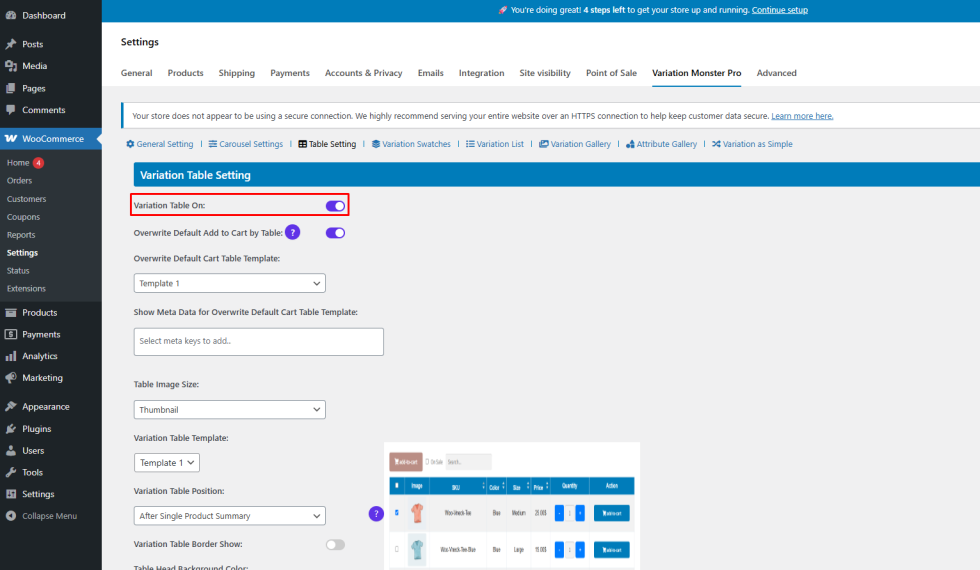
Once enabled, the variation table will appear on all variable product single product pages by default.
Step 2: Disable the Variation Table for a Specific Product (Optional)
↑ Back to topIf you don’t want the variation table to appear on a particular product:
- Go to Products → Edit Product
- Open the Variation Monster tab under Product Data
- Set Variation Table to Off
- Update the product
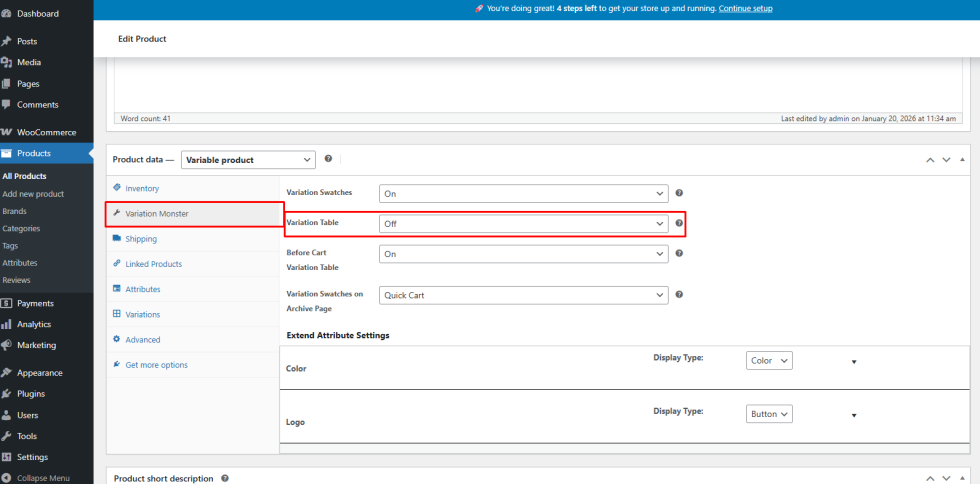
This will remove the variation table from that product’s single product page only.
Step 3: Change the Variation Table Template (Global)
↑ Back to topVariation Monster provides two different variation table templates.
To change the template globally:
- Go to WooCommerce → Settings → Variation Monster Pro
- Open Table Settings
- Select your preferred Variation Table Template
- Save the settings
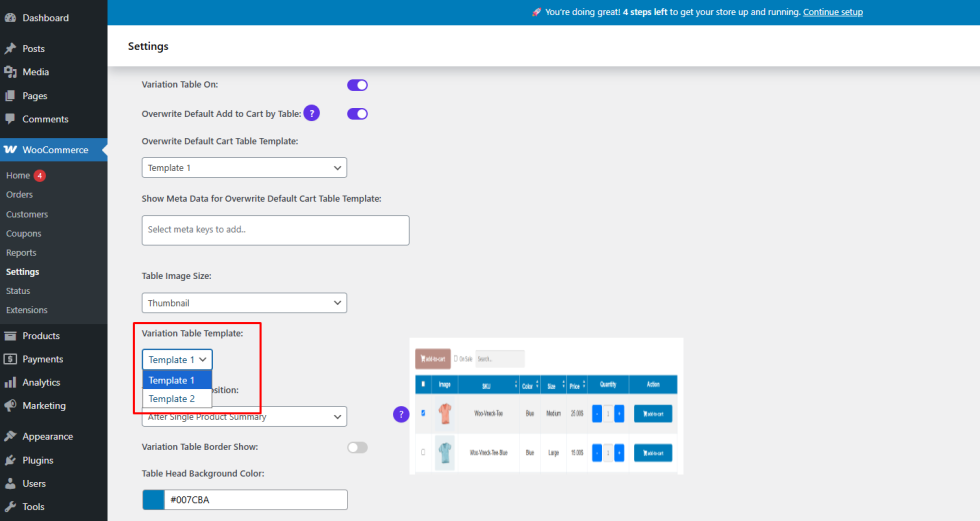
The selected template will apply to all variable products using the variation table.
Step 4: Change the Variation Table Template for a Specific Product
↑ Back to topIf you want a different template for a specific product:
- Edit the product
- Open the Variation Monster tab
- Select the desired Variation Table Template
- Update the product
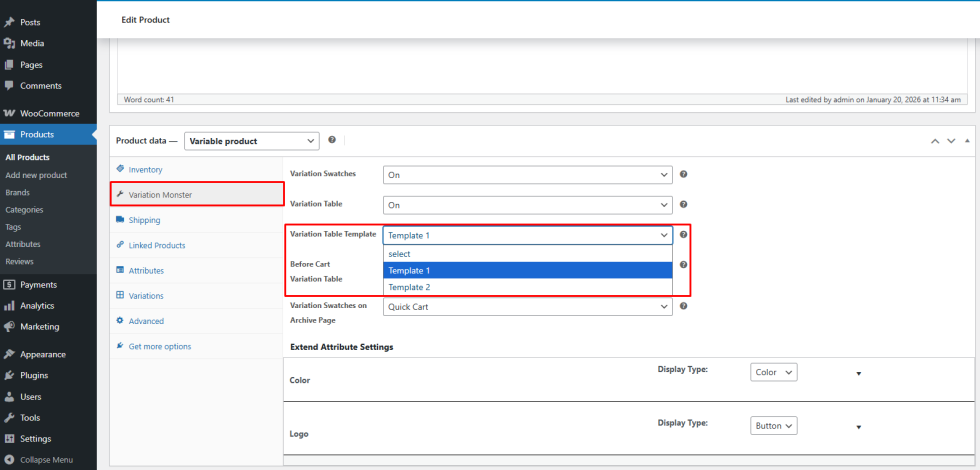
This will override the global template for that product only.
Result
↑ Back to top- Full control over where the variation table appears
- Flexible template selection (global or per product)
- Clean and customizable variation display for different product types