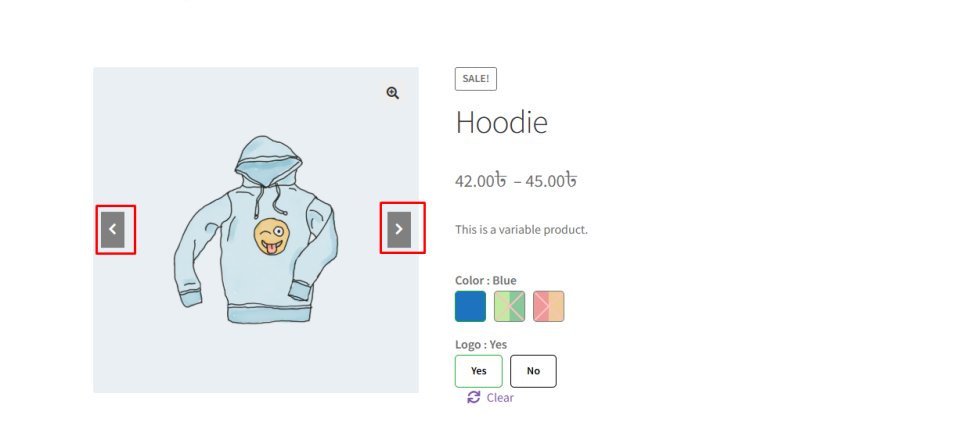
The Variation Gallery feature in Variation Monster Pro allows you to display dedicated image galleries for each product variation. This helps customers clearly see the images related to the selected variation (such as color or style), improving the shopping experience and helping them make faster purchasing decisions.
With this feature, the store admin can customize gallery image sizes, navigation styles, and color settings to match the website design.
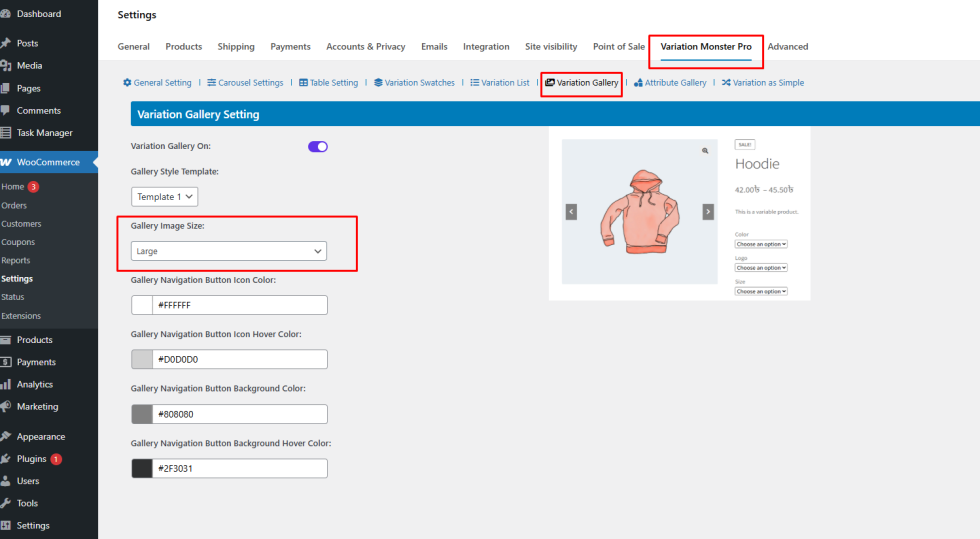
Step 1: Open the Variation Gallery Settings
↑ Back to topTo configure the Variation Gallery settings, follow these steps:
- Go to your WordPress Dashboard.
- Navigate to WooCommerce → Settings.
- Click on the Variation Monster Pro tab.
- Select the Variation Gallery section.
Here you will find all the available options to customize the variation gallery.
Step 2: Configure Gallery Image Size
↑ Back to topVariation Monster allows you to control which image size will be used for the variation gallery. This ensures the gallery matches your theme layout and performance requirements.
You can select from the following image sizes:
- Large
- Medium
- Thumbnail
- Medium Large
- WooCommerce Thumbnail
- WooCommerce Single
- WooCommerce Gallery Thumbnail
Choose the image size that best fits your product page layout. For example:
- Large / WooCommerce Single – Best for high-quality product displays.
- Medium / Medium Large – Balanced between quality and performance.
- Thumbnail / WooCommerce Gallery Thumbnail – Useful for smaller gallery previews.
Setting the correct image size helps maintain fast page loading and visual consistency across your store.
Step 3: Customize Gallery Navigation Colors
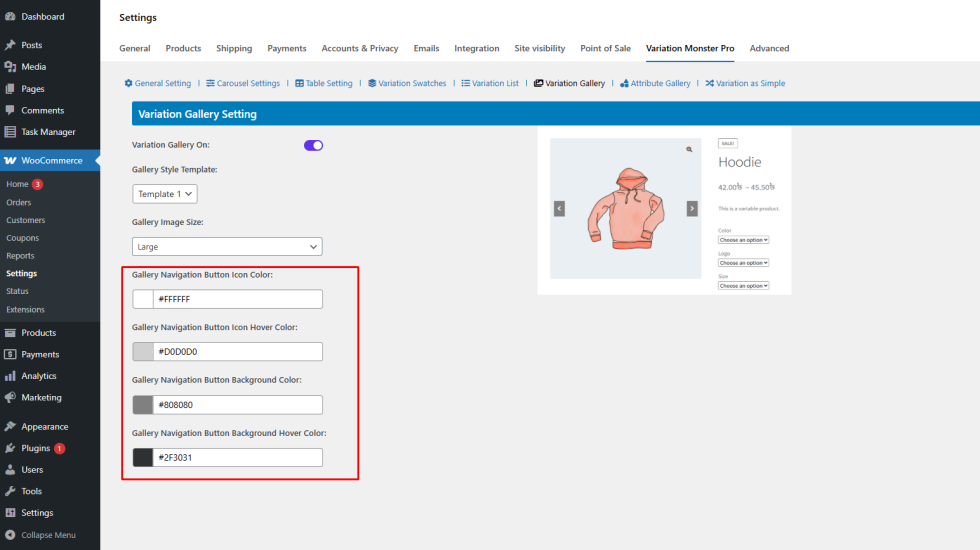
↑ Back to topVariation Monster also lets you customize the appearance of the gallery navigation buttons to match your store branding.
Available design settings include:
Gallery Navigation Button Icon Color
Controls the color of the navigation arrow icons.
Gallery Navigation Button Icon Hover Color
Changes the icon color when customers hover over the navigation buttons.
Gallery Navigation Button Background Color
Sets the background color of the gallery navigation buttons.
Gallery Navigation Button Background Hover Color
Defines the background color when users hover over the navigation buttons.
These styling options help ensure that the gallery navigation blends perfectly with your theme colors and UI design.
Step 4: Save the Settings
↑ Back to topAfter configuring the image size and color options:
- Click the Save Changes button.
- Your variation gallery settings will now be applied.
Frontend Result
↑ Back to topOnce the settings are saved:
- Each product variation will display its own image gallery.
- The gallery will use the selected image size.
- Navigation buttons will reflect the custom colors you configured.
- When customers select a product variation, the gallery updates automatically to show the correct images.
This creates a clean, visually engaging product page that improves usability and increases customer confidence when selecting variations.