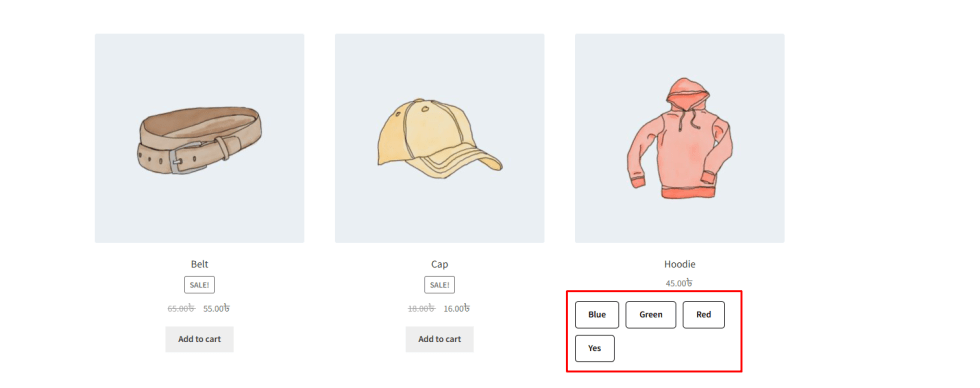
Variation Monster for WooCommerce includes a powerful feature that displays variation swatches on shop and archive pages and automatically redirects customers to the single product page with the selected variation pre-applied.
This makes it easier for customers to preview and choose variations directly from the shop page while keeping the full purchase flow on the product page.
How This Feature Works
↑ Back to topWhen a customer clicks a variation swatch (such as color, image, or button) on the shop or archive page:
- They are redirected to the single product page
- The clicked attribute term is already selected
- The customer can continue purchasing without reselecting variations
This provides a smooth and intuitive shopping experience.
Step 1: Enable Redirect Swatches Globally
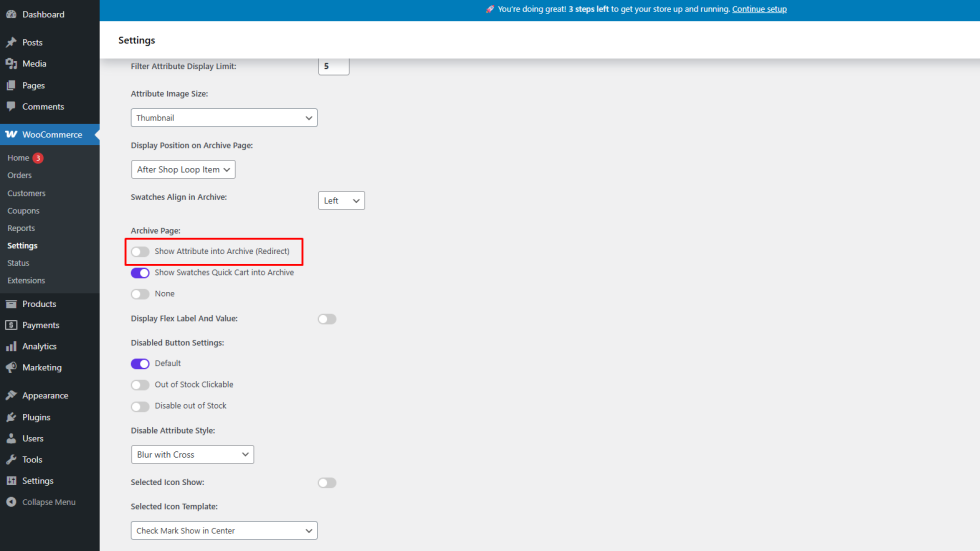
↑ Back to top- Go to WooCommerce → Settings → Variation Monster
- Open Variation Swatches → Archive Page
- Enable Show Attribute into Archive (Redirect)
- Save the settings
Step 2: Enable Redirect Swatches per Product
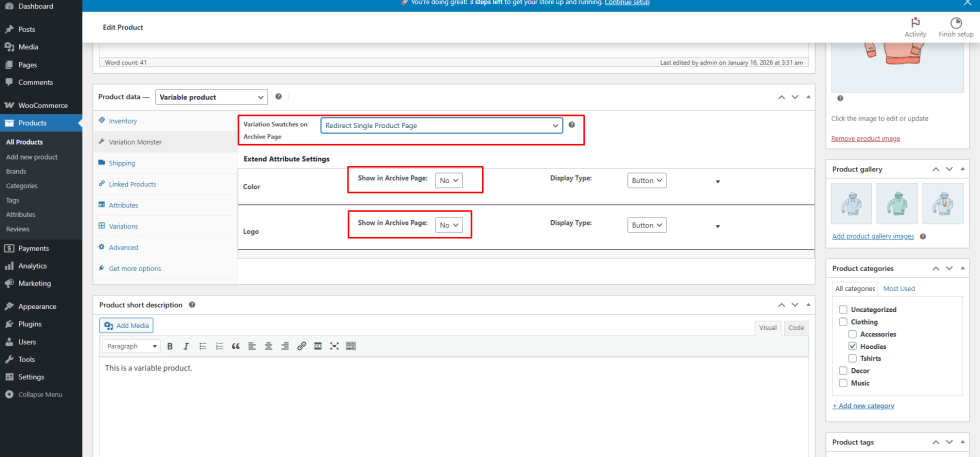
- Edit the desired variable product
- Open the Variation Monster tab under Product Data
- Enable Variation Swatches on Archive Page (Redirect Single Product Page)
This allows product-level control over which products use redirect swatches.
Step 3: Enable Attributes for Archive Display
↑ Back to topFor each attribute:
- Select Show in Archive Page → Yes
- Choose which attributes should appear as swatches on the shop/archive pages
Only enabled attributes will be shown to customers.
Step 4: Preview on the Shop or Archive Page
After completing the setup:
- Variation swatches will appear on the shop and category pages
- Clicking any swatch will redirect to the single product page
- The selected attribute term will already be applied