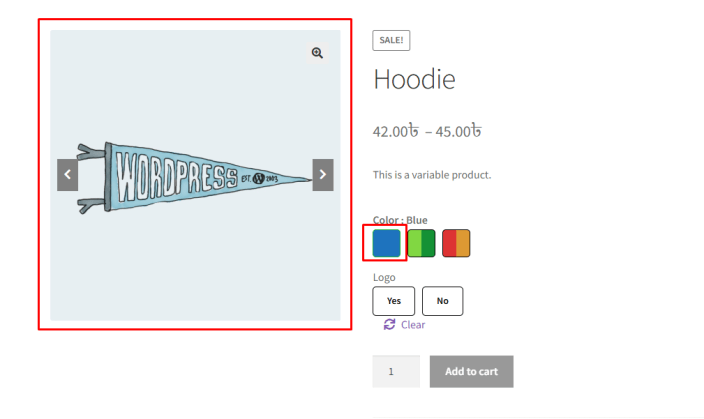
The Attribute Gallery feature in Variation Monster Pro allows you to assign specific images to product attributes such as color, style, material, or pattern. When a customer selects an attribute on the product page, the gallery automatically updates to display the images related to that selected attribute.
This helps customers clearly see the visual differences between attributes and improves the overall product browsing experience.
Step 1: Enable the Attribute Gallery
↑ Back to topBefore configuring attribute images, you need to enable the feature.
- Go to your WordPress Dashboard.
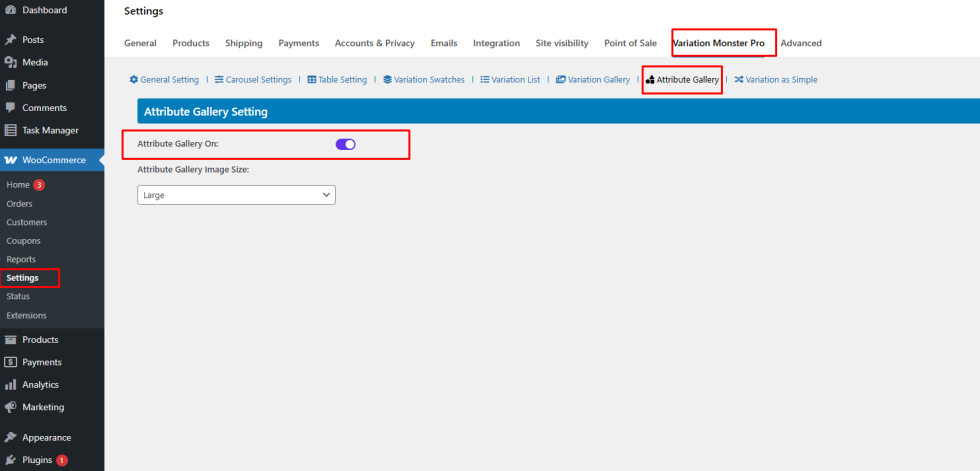
- Navigate to WooCommerce → Settings.
- Click the Variation Monster Pro tab.
- Find the Attribute Gallery option.
- Turn on “Attribute Gallery On”.
- Click Save Changes.
Once enabled, you will be able to configure attribute galleries inside the product edit page.
Step 2: Configure Attribute Images from the Product Page
↑ Back to topAfter enabling the feature, follow these steps to assign images to attributes:
- Go to Products → All Products.
- Open any variable product you want to configure.
- Scroll down to the Variation Monster tab in the product editor.
- Locate the Extend Attribute Settings section.
Here you will see a list of your product attributes. For example, if your product has a Color attribute, it will display values such as:
- Blue
- Red
- Green
- Black
Inside this section, you can:
- Upload or select multiple images for that attribute into Gallery Image.
Repeat the same process for each attribute value.
Once finished, click Update to save the product settings.

Step 3: Configure Attribute Gallery Image Size
↑ Back to topYou can also control the image size used in the attribute gallery.
- Go to WooCommerce → Settings.
- Click Variation Monster Pro.
- Open the Attribute Gallery settings section.
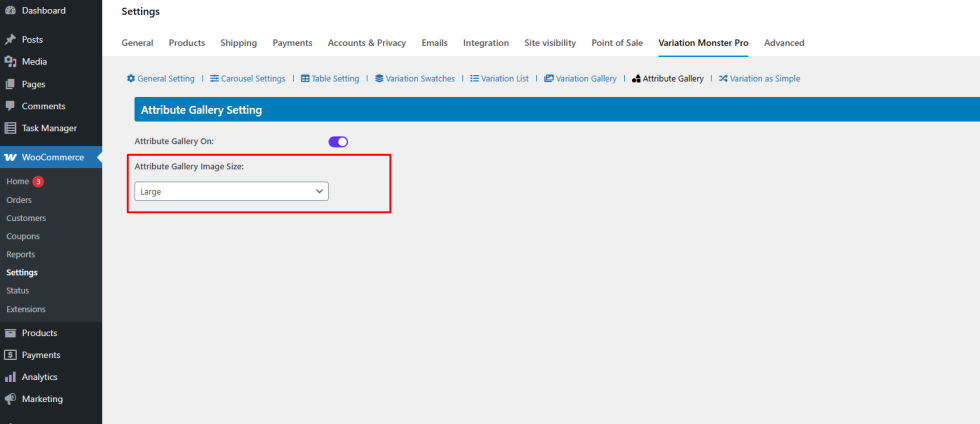
- Find the option “Attribute Gallery Image Size”.
Available image sizes may include:
- Large
- Medium
- Thumbnail
- Medium Large
- WooCommerce Thumbnail
- WooCommerce Single
- WooCommerce Gallery Thumbnail
Select the size that best fits your theme and product page layout, then save your settings.
Frontend Result
↑ Back to topAfter configuration:
- Customers visit the single product page.
- When they select an attribute (for example, Blue color), the product gallery automatically updates.
- The gallery displays only the images assigned to the selected attribute.
This creates a more visual, interactive, and user-friendly shopping experience, helping customers quickly understand product options and make better purchasing decisions.