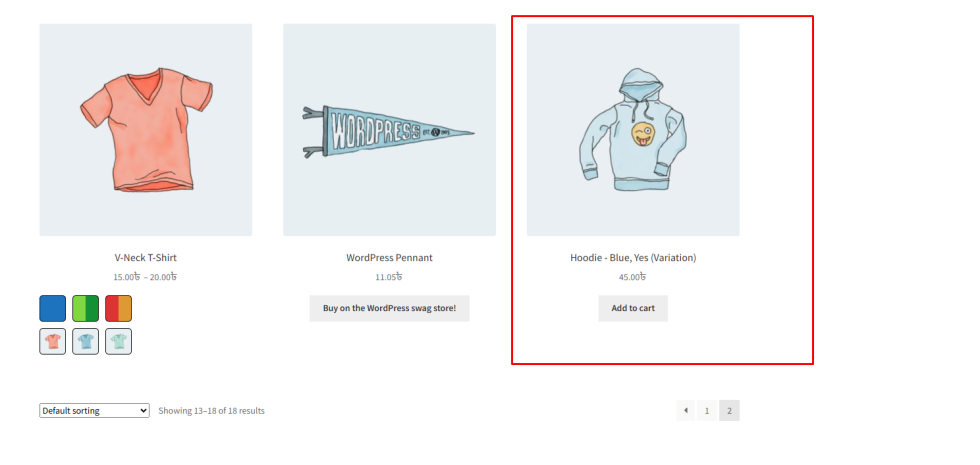
The Variation as Simple Product feature in Variation Monster Pro allows you to display individual product variations as separate products on the WooCommerce shop page. This means customers can see and purchase specific variations (such as color or size) directly from the shop page without opening the main product page.
This feature is especially useful for stores that want to increase product visibility, improve browsing experience, and make variation products easier to purchase.
Step 1: Configure the Feature
↑ Back to topTo enable this functionality:
- Go to your WordPress Dashboard.
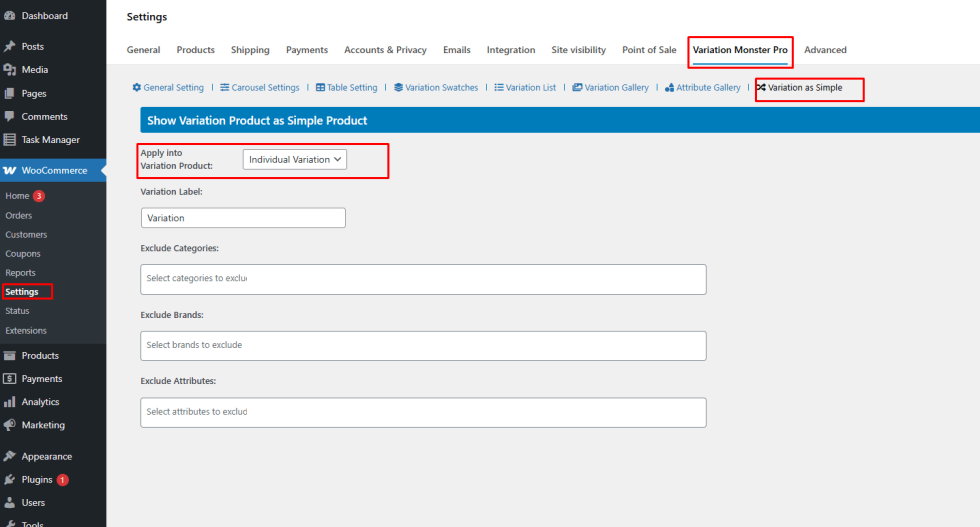
- Navigate to WooCommerce → Settings.
- Click the Variation Monster Pro tab.
- Click the Variation as Simple tab.
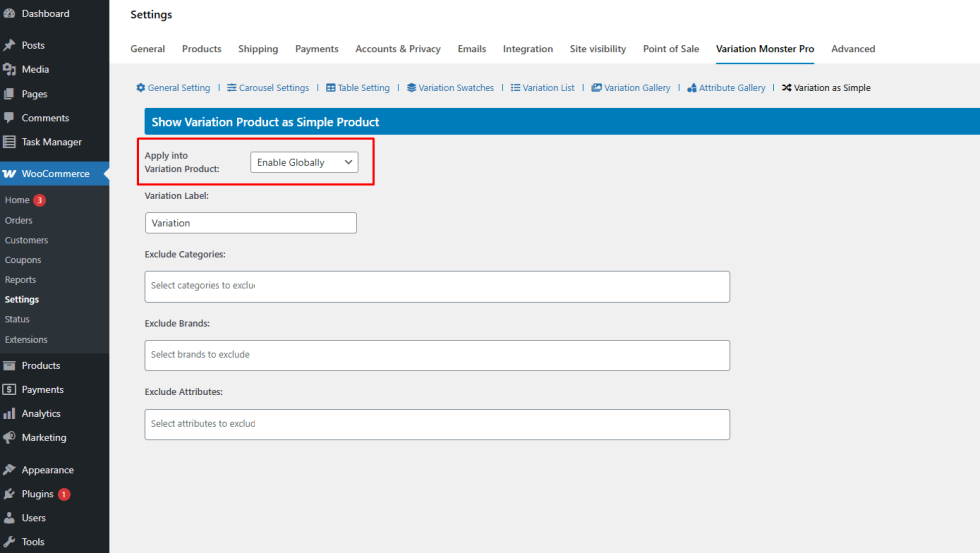
- Locate the setting “Apply into Variation Product”.
You will see two options:
- Enable Globally
- Individual Variation
Option 1: Enable Globally
↑ Back to topIf you select Enable Globally, all variations from your variable products will automatically appear as individual products on the WooCommerce shop page.
Each variation will be displayed with its own image, price, and attributes, making it easier for customers to find and purchase the exact variation they want.
This option is ideal if you want every variation in your store to be visible on the shop page.
Option 2: Individual Variation
↑ Back to topIf you choose Individual Variation, you can manually select which variations should appear as separate products.
To configure this:
- Go to Products → All Products.
- Open the variable product you want to configure.
- Scroll down to the Product Data section.
- Click the Variations tab.
- Expand the variation you want to display separately.
- Find the option “Show as Additional Product”.
- Enable this option.
- Click Update to save the product.
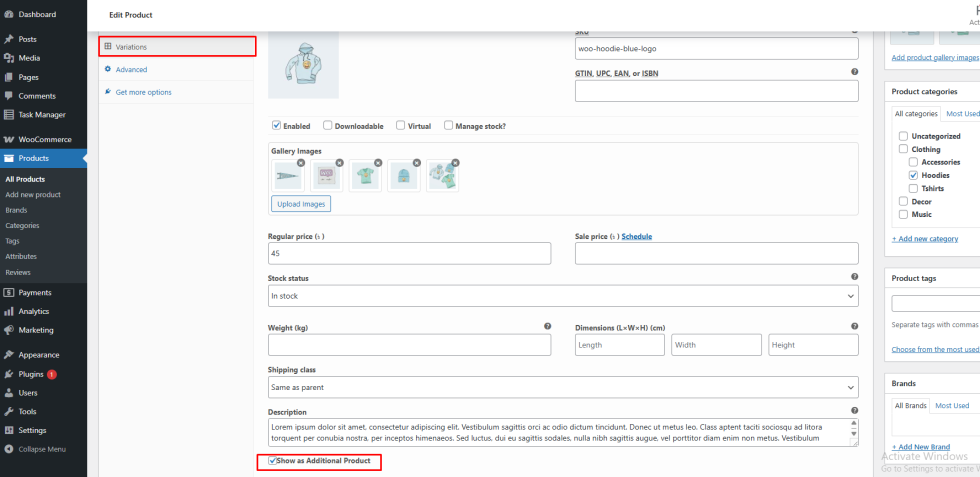
Once enabled, that specific variation will appear as a separate simple product on the WooCommerce shop page.