
Variation Monster comes with 43+ powerful features that allow store owners to fully customize how product variations are displayed, ensuring they perfectly match their store’s design and user experience.
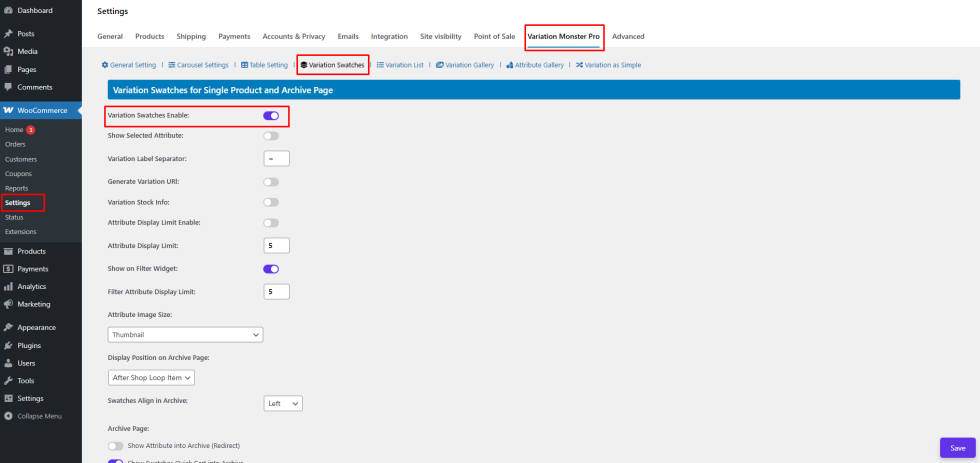
Step 1: Enable Variation Swatches
↑ Back to topTo get started, go to WooCommerce → Settings → Variation Monster and enable the Variation Swatches option. This activates all swatch-related functionality across your store.
Step 2: Configure Attribute Display
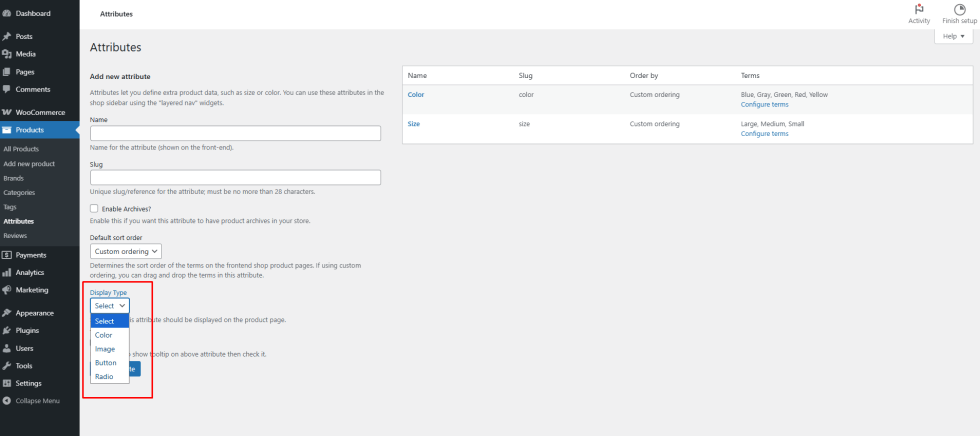
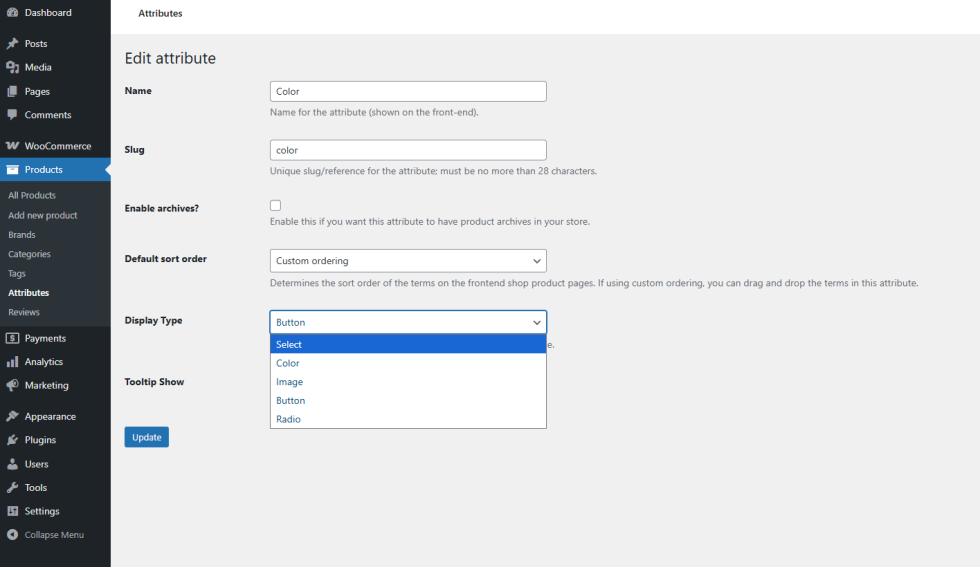
↑ Back to topNext, set up how each product attribute should appear. For every attribute, you can choose the display style that best suits your products, such as:
- Image swatches
- Color swatches
- Button swatches
- Radio options
- Default select dropdown
These settings give you full control over how customers interact with variations like size, color, style, or material.
Step 3: Assign Swatches to Products
↑ Back to topOnce attributes are configured, simply assign them to your variable products. Variation Monster automatically applies your chosen swatch styles without any additional setup.
Frontend Experience
↑ Back to topOn the frontend, variation swatches are displayed beautifully on:
- Single product pages
- Shop pages
- Category and archive pages
Customers can quickly see and select variations without using traditional dropdowns, making product selection faster, clearer, and more intuitive.
Why Use Variation Swatches?
↑ Back to topBy replacing standard dropdowns with visually rich swatches, Variation Monster helps:
- Improve user experience
- Reduce customer confusion
- Increase engagement and conversions
- Create a modern, professional storefront
With its flexible settings and extensive customization options, Variation Monster makes managing and displaying product variations simple, powerful, and visually appealing.

