
A assinatura inclui
Suporte
Not every order is equal — but your orders list treats them like they are. Order Priority for WooCommerce automatically assigns priority levels to incoming orders based on rules you define, flags them visually in your Orders table, and lets your team filter and act on what matters most — before an urgent order gets buried under routine ones.
A high-value B2B order comes in alongside fifty routine ones. An urgent same-day delivery lands in the queue with no flag. A VIP customer’s order gets processed in the same sequence as everyone else. Your team works hard — but without a prioritization system, they are working blind.
The result is avoidable delays, missed SLAs, frustrated customers, and the operational chaos that comes from treating a $5 order the same as a $500 one.
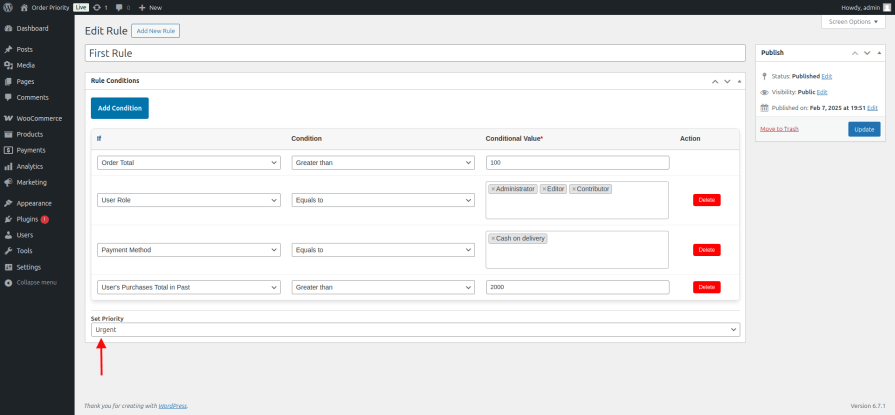
Order Priority for WooCommerce adds an intelligent prioritization layer to your WooCommerce Orders table. Define conditions — order total thresholds, specific product categories, shipping methods, payment gateways, order status, or any combination — and the plugin assigns the right priority level automatically the moment an order comes in. Your team opens the orders list and instantly knows where to start.
Define the conditions that make an order high priority for your business — a total above $200, an express shipping method, a product from a specific category — and the plugin handles assignment automatically. No manual review required. Every order that meets your criteria gets flagged the moment it arrives.
Rules can match ALL conditions (AND) or ANY condition (OR) — giving you precise control without needing to create multiple overlapping rules for common scenarios.
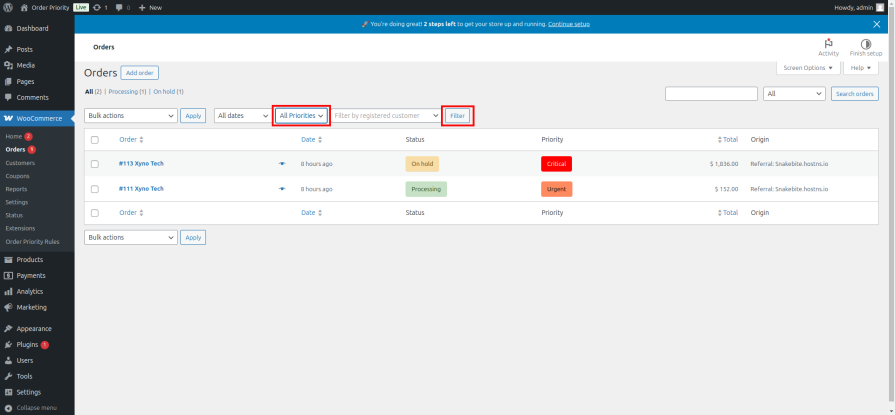
A dedicated priority column sits directly in your WooCommerce Orders table — showing your priority labels at a glance for every order. Your team no longer has to open individual orders to assess what needs immediate attention. The most important orders stand out the moment the page loads.

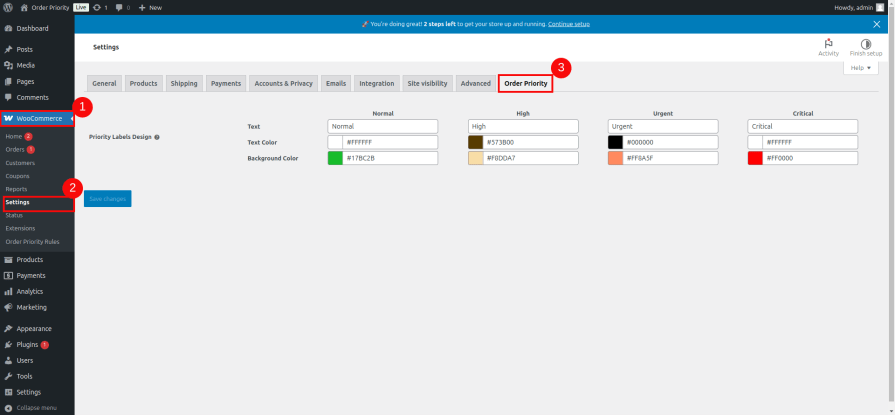
The built-in Normal, High, Urgent, and Critical levels cover most workflows — but your business might speak a different language. Add unlimited custom priority levels directly from the Labels Settings page: name them VIP, Express, Wholesale, Rush, or anything else your team already uses. Each custom level gets its own label text, text color, and badge background, and appears everywhere priority is shown — the orders table, filters, bulk actions, and rule configuration.
Rename any priority level to match your internal language. Set the text color and background for each level so priority indicators are immediately recognizable at a glance, styled to fit your workflow rather than a generic default.
When multiple rules could apply to an order, the first matching rule wins. Drag your rules into the exact sequence you want — no numbering, no configuration screens, just grab and drop. The rule at the top of the list has the highest precedence. Change your mind later and drag again.
Filter the entire orders list by priority level in one click. When a backlog builds up, your team can isolate every Urgent or Critical order and clear them first — without scrolling through hundreds of rows or searching manually. The filter is always there, always fast, and works with all priority levels including custom ones.
Rules run on new orders automatically — but what about the orders already in your system? Use the built-in bulk action on the WooCommerce Orders page to select any set of existing orders and assign a priority level in one step. Tag your entire backlog, clean up old orders, or retroactively apply a new rule’s logic without touching each order individually.
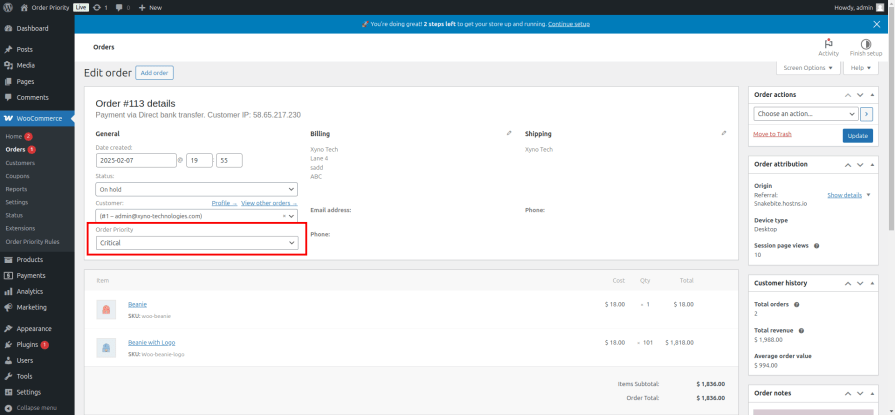
Automated rules handle the routine — but sometimes a situation calls for human judgment. A returning customer mentions urgency in their order notes, or a wholesale buyer calls ahead. Change any order’s priority instantly using the dropdown on the edit order page, with no rules configuration needed.
Every time an order’s priority is changed — by a rule, by a team member from the edit page, or via bulk action — a note is added to the order’s activity log. It records the previous priority, the new priority, the user who made the change, and the timestamp. No more uncertainty about why an order is marked Critical or who escalated it.
Priority isn’t always set at the moment of purchase. An order that moves to On Hold may now need urgent attention. An order that transitions to Processing after a failed payment is worth flagging differently than one that went straight through. Use order status as a condition in your rules — and the plugin re-evaluates priority automatically whenever an order’s status changes.
Works with both standard WooCommerce order storage and High-Performance Order Storage (HPOS) — so whether your store is on a legacy setup or the latest infrastructure, Order Priority for WooCommerce slots in without disruption.
Create, edit, and manage your prioritization rules from a clean admin panel designed to be self-explanatory. Set conditions, assign priority levels, save — no developer needed, no documentation required to get started.
When hundreds of orders arrive daily, manual prioritization is not realistic. Automated rules ensure every order is correctly flagged the moment it comes in — so your team always works the right queue in the right order.
Large orders from business buyers often carry SLA expectations or relationship stakes that routine retail orders do not. Automatically elevate these orders to High, Critical, or a custom Wholesale level so they receive the attention they deserve without requiring your team to recognize them manually.
Shipping method-based rules mean that any order selecting express or same-day delivery is automatically flagged as urgent — giving your fulfillment team the signal they need to act immediately.
Use order status as a trigger to re-flag orders when they move between stages. An order that stalls in On Hold can automatically escalate to Urgent after the status changes. Rules that combine multiple conditions — status, total, shipping method, user role — let you model exactly how your fulfillment team actually thinks.
With the priority filter, visual column, and bulk assignment, your team can open the orders list and instantly know where to start — no briefing, no spreadsheet, no daily stand-up just to determine what is on fire.
Yes. Rules can combine conditions — for example, orders over $300 that also use express shipping — giving you precise control over exactly which orders get flagged at each priority level. Choose AND logic to require all conditions, or OR logic to match any one of them.
The first matching rule in your priority order wins. Drag your rules into the sequence that reflects your business logic — the rule at the top takes precedence. You have full control over which rule runs first.
Yes. Beyond the built-in Normal, High, Urgent, and Critical levels, you can create unlimited custom priorities from the Labels Settings page. Name them anything — VIP, Express, Wholesale, Rush — and assign them their own badge colour and label text. They appear everywhere in the plugin automatically.
Yes. Use the bulk action on the WooCommerce Orders page to select existing orders and assign any priority level in one step — including custom levels.
Yes. Every priority change — whether made by a rule, a team member, or a bulk action — is logged as an order note with the old value, new value, user, and timestamp.
Yes. Order Priority for WooCommerce is fully compatible with High-Performance Order Storage (HPOS) as well as the standard WooCommerce order system.
No. Priority assignment runs efficiently in the background during order creation and status changes — there is no impact on storefront speed, checkout performance, or page load times.
You are covered by a full 30-day money-back guarantee. If it does not fit your operations, request a refund — no questions asked.
Informações da extensão
Países