
The WordPress Site Editor is a powerful visual tool that lets you design and customize your entire WooCommerce store, no code required. Using blocks and templates, you can build and modify every part of your site, from the header and footer to product pages and checkout.
This document provides an overview of the WordPress Site Editor, the central tool for editing your store’s templates and page content. Including how to use the Site Editor, work with WooCommerce blocks and templates, redo or undo actions, and customize global styles like typography, colors, and layout.
To access the full range of store editing features in WooCommerce, your site needs to use a block theme.
What is a Block Theme?
↑ Back to topA block theme is a theme that consists of templates that can be customized in the Site Editor. This means that not only the post or page content is made of blocks but all areas of the site are made from blocks, including headers, footers, sidebars, and other elements.
To take advantage of all of the store editing features in WooCommerce, your site needs to be using a block theme.
Installing a Block Theme
↑ Back to topTo explore available block themes:
- From your WP Admin Dashboard, navigate to Appearance > Themes.
- Click on “Add New Theme.”
- Click the “Block Themes” option.
All the shown themes will be editable via the site editor, so you can take advantage of the Store Editing features in WooCommerce.
To customize a block-based theme, you need to activate it first. If you’re concerned about doing so, we recommend that you set up a test site first to explore the theme.
Introduction to the WordPress Site Editor
↑ Back to topIf you’re new to editing in WordPress, the guides below will help you get familiar with the site editor options and settings in the site editor interface.
- Learn the interface
- Top Menu
- Content Area
- Sidebar Settings
- Navigate the Site Editor
- Personalize the Site Editor
Access the WordPress Site Editor
↑ Back to topOnce a block theme is active, you’ll see a new option in your WordPress admin dashboard under Appearance > Editor.
If you do not have access to Appearance → Editor, your theme does not support editing the full site in the WordPress Editor. We recommend switching to a supported theme to make use of the latest editing features in WordPress.
Anatomy of the WordPress Site Editor
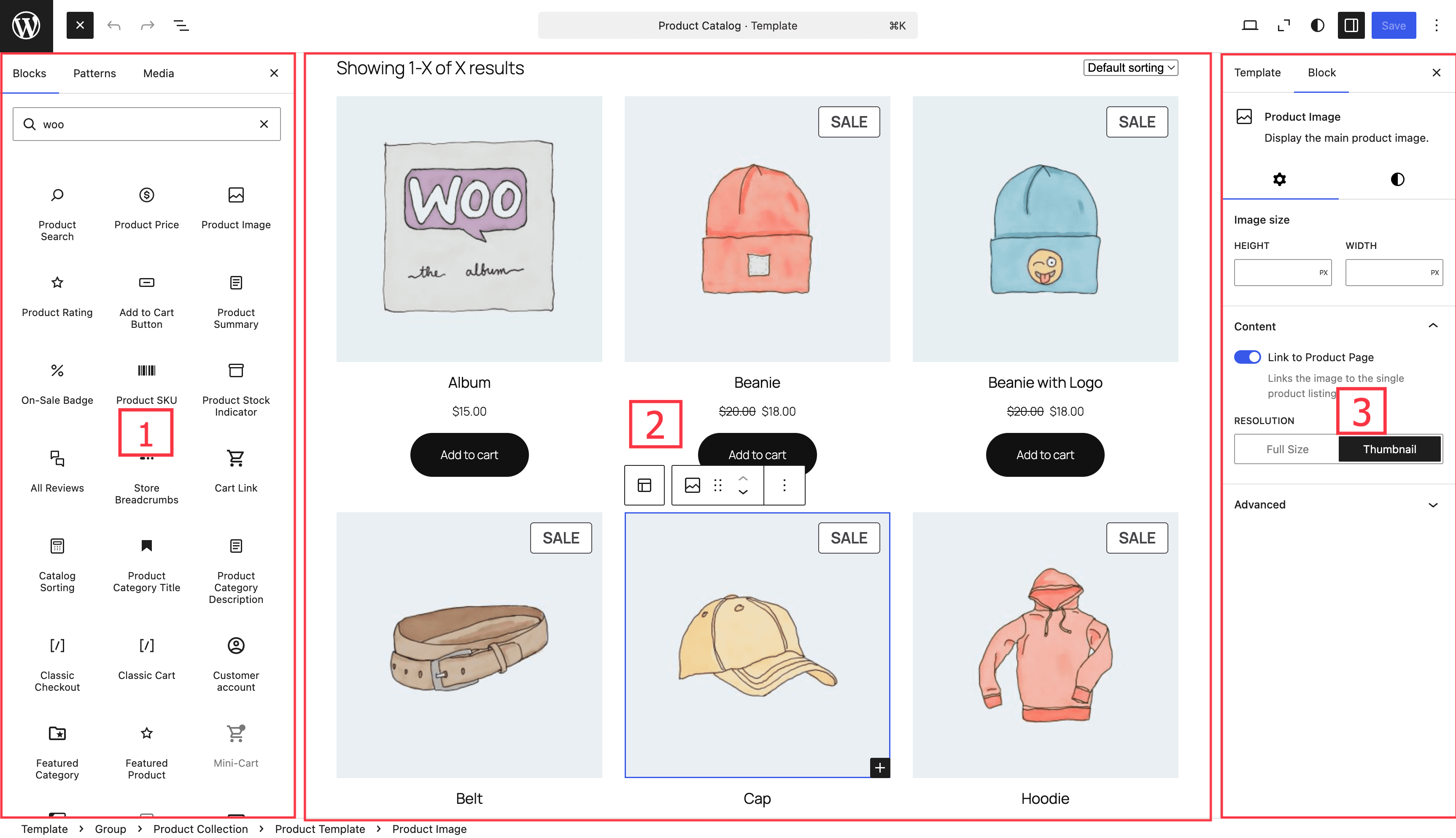
↑ Back to topThe Site Editor has three main areas:
- Block Inserter / List View: On the left sidebar area, you have the options of block inserter and the list view, depending on your current selection.
- Content Area: At the center, the Content area displays the content of the current page, post, template, or template part that you’re editing.
- Settings / Styles Sidebar: On the right sidebar area, you have the settings, or site style settings, when you click the “Settings” or “Styles” icon in the upper right.
The List View
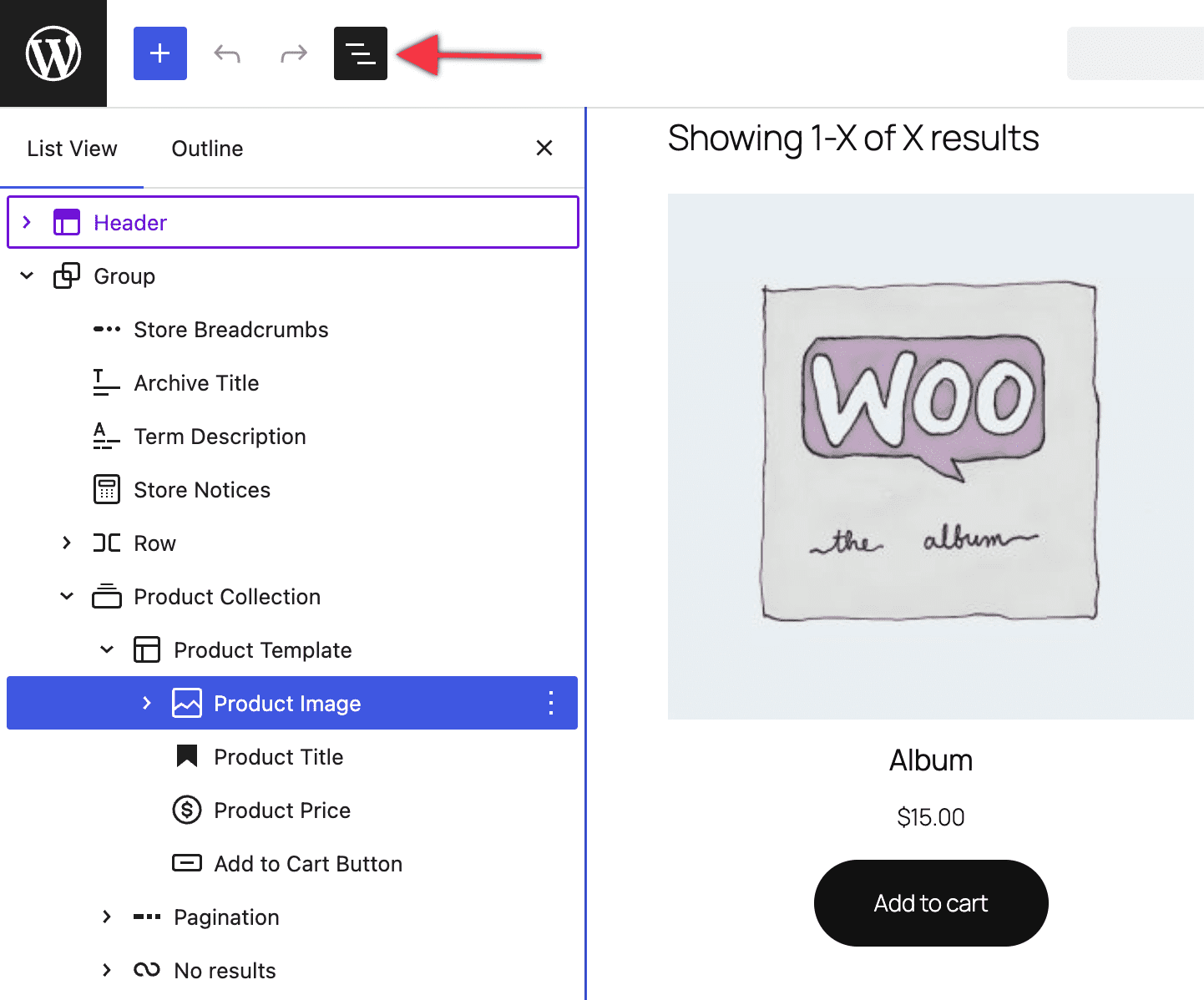
↑ Back to topThe List View is a useful tool for navigating documents with many blocks. It shows a structured outline of all the blocks in your layout, making it easier to select, move, or edit specific elements.
To open the block outline and see a list view of all the blocks that make up your post or page, click on the icon made up of three lines that look like a bulleted list. By clicking on a given block, you’ll be led to that block within the editor field. You can learn more about List View here.
Exiting the Editor
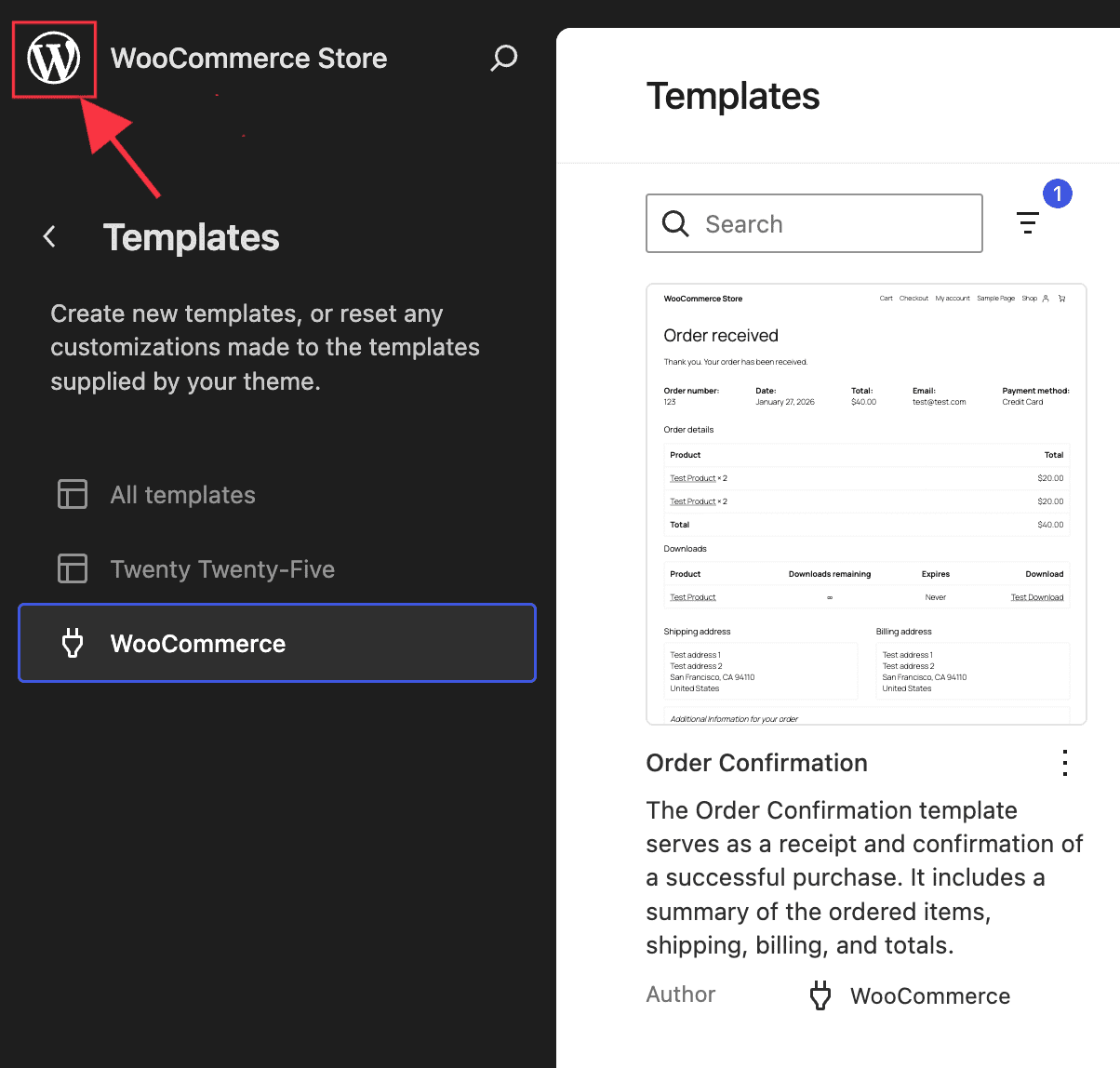
↑ Back to topTo return to your WordPress admin area, click on your store’s icon located at the top left of your screen, to the left of your site’s name.
Redoing or Undoing actions
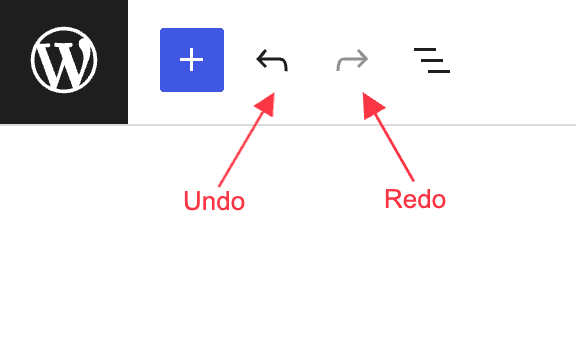
↑ Back to topOn the top left of the page, next to the block inserter, you have the ability to undo and redo actions on your page.
Global Styles to Control Your Site’s Design
↑ Back to topThe theme you choose for your store defines many aspects of your store’s design, such as background color and typography settings like font family and font size.
With Styles, you can customize these elements as much as you’d like. You can set default colors for blocks and create your own custom color palette. You can learn about using Styles to design your site here.
To customize your store’s styles:
- From your WP Admin Dashboard, navigate to Appearance > Editor.
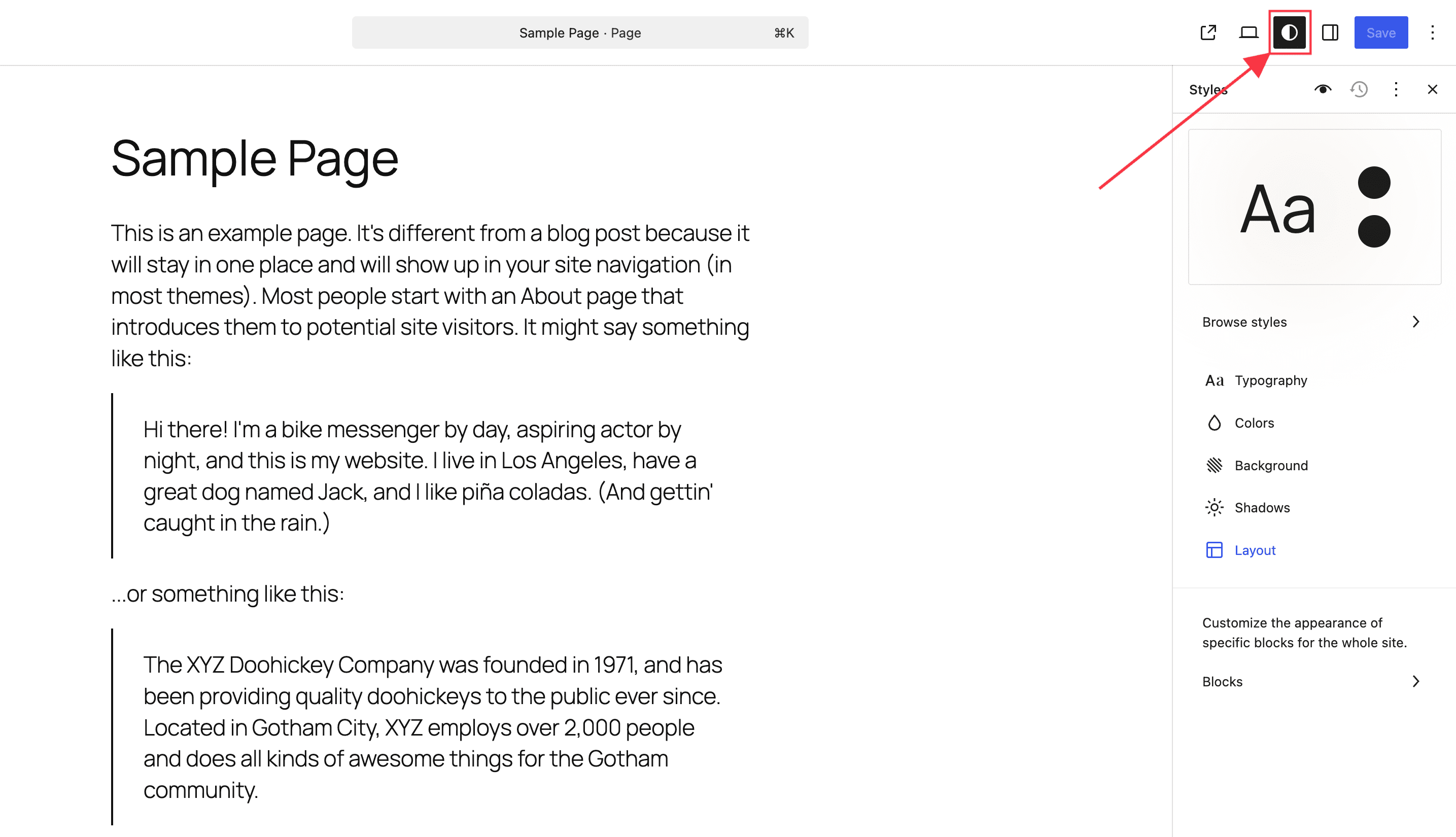
- Click on the Styles icon in the top right corner of the editor, which looks like a circle with a dark half and a light half.
- Select Typography, Colors, Layout, or Blocks and customize their options.
Typography
↑ Back to topTypography settings control the size, style, and appearance of text on your site, helping you create a consistent and visually appealing design. Learn how to adjust typography settings using the WordPress Site editor.
Colors
↑ Back to topThe colors you choose represent a major part of your site’s design. Learn how to manage your site’s color palettes.
Background Color & Image
↑ Back to topYou can personalize your site’s look and feel by giving it a custom background image or color. Learn how to change your site’s background color and background image.
Blocks
↑ Back to topYou can set the default styling for specific block types across your entire site, allowing you to set a consistent style quickly. Learn how to set a default style for blocks.
Layout
↑ Back to topYou can set a default layout for your site and also adjust the layout of blocks per your requirement. Follow the guides below to learn more about editing layout in the WordPress Site Editor:
Manage and Reset your style changes
↑ Back to topYou can restore previous versions of your styles or reset them entirely to start fresh. Learn how to use style revisions to go back to earlier designs and how to reset all styles to return to your theme’s default appearance.
To learn more about editing your store with blocks in WooCommerce to edit your store, check our guide to Using Blocks in WooCommerce.
Questions and support
↑ Back to topDo you still have questions and need assistance?
This documentation is about the free, core WooCommerce plugin, for which support is provided in our community forums on WordPress.org. By searching this forum, you’ll often find that your question has been asked and answered before.
If you haven’t created a WordPress.org account to use the forums, here’s how.
- If you’re looking to extend the core functionality shown here, we recommend reviewing available extensions in the WooCommerce Marketplace.
- Need ongoing advanced support or a customization built for WooCommerce? Hire a Woo Agency Partner.
- Are you a developer building your own WooCommerce integration or extension? Check our Developer Resources.
If you weren’t able to find the information you need, please use the feedback thumbs below to let us know.