
Sharable Checkout URLs make it easier to share ready-to-buy bundles with a coupon code through email campaigns, social media, or landing pages.
Create a link that adds simple products and individual variations to the cart, optionally applies a coupon, and normally sends customers to checkout.
Warning:
A valid checkout link clears products and coupons already in the customer’s cart before adding the items from the link.
For example: https://example.com/checkout-link/?products=123:2,456:1&coupon=SPRING10
Find your Product IDs
↑ Back to topSharable Checkout URLs require the WooCommerce product ID to add the correct product to the cart.
Simple product ID
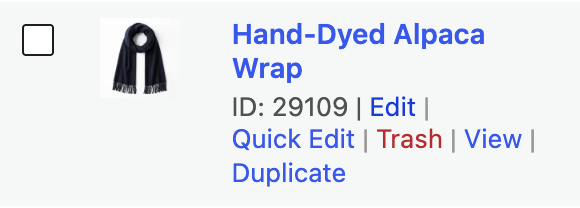
↑ Back to topTo add a specific simple product to the cart, find the product ID in your store’s WP Admin dashboard via Products. Hover over the product title. The product’s ID will appear under the product title.
Variable product ID
↑ Back to topTo add a specific variable product to the cart, use the variation ID found in the Variations section of the Product data when editing the product. In the following example, the Light Pink variation has ID 209.
If a variation leaves an option for the customer to choose, the link can direct them to the product page to select it before adding the item to the cart.

Building the sharable custom URL
↑ Back to topUse the following URL structure to add a single product to the cart:
https://example.com/checkout-link/?products=PRODUCT_ID:QUANTITY
Replace example.com with your store’s URL, and PRODUCT_ID and QUANTITY with your specific product’s ID and the quantity of the product to add to the cart. The product ID and quantity are separated by a colon.
Add multiple products
↑ Back to topUse a comma to separate additional products:
https://example.com/checkout-link/?products=PRODUCT_ID_1:QUANTITY_1,PRODUCT_ID_2:QUANTITY_2,PRODUCT_ID_3:QUANTITY_3
Note:
Products that are limited to 1 product per order will only add a single product to the cart, regardless of the quantity added to the sharable URL.
Add a coupon code
↑ Back to topIf coupons are enabled, WooCommerce attempts to apply the coupon code to the customer’s cart. The coupon must be valid and meet its usage restrictions.
https://example.com/checkout-link/?products=PRODUCT_ID:QUANTITY&coupon=COUPONCODE
Test your checkout link
↑ Back to topOpen the link in a private browser window and check that checkout shows the intended products, quantities, and coupon. If an item or coupon is missing, check the product ID, availability, and coupon restrictions.
Questions and support
↑ Back to topDo you still have questions and need assistance?
This documentation is about the free, core WooCommerce plugin, for which support is provided in our community forums on WordPress.org. By searching this forum, you’ll often find that your question has been asked and answered before.
If you haven’t created a WordPress.org account to use the forums, here’s how.
- If you’re looking to extend the core functionality shown here, we recommend reviewing available extensions in the WooCommerce Marketplace.
- Need ongoing advanced support or a customization built for WooCommerce? Hire a Woo Agency Partner.
- Are you a developer building your own WooCommerce integration or extension? Check our Developer Resources.
If you weren’t able to find the information you need, please use the feedback thumbs below to let us know.