Subscription includes
Support
Bulk Product Price Update for WooCommerce is the all-in-one WooCommerce bulk price updater that lets you change product prices across your entire store in seconds. Whether you need to run a storewide sale, apply a bulk discount to a specific category, or mass update regular prices after a supplier increase, this extension handles it all with a visual filter builder, live preview, and one-click rollback.
Stop editing product prices one by one. With Bulk Product Price Update you can bulk edit product prices by category, tag, attribute, price range, stock status, product type, product name, or any custom field, and apply percentage discounts, fixed price adjustments, or set an exact price in a single operation.
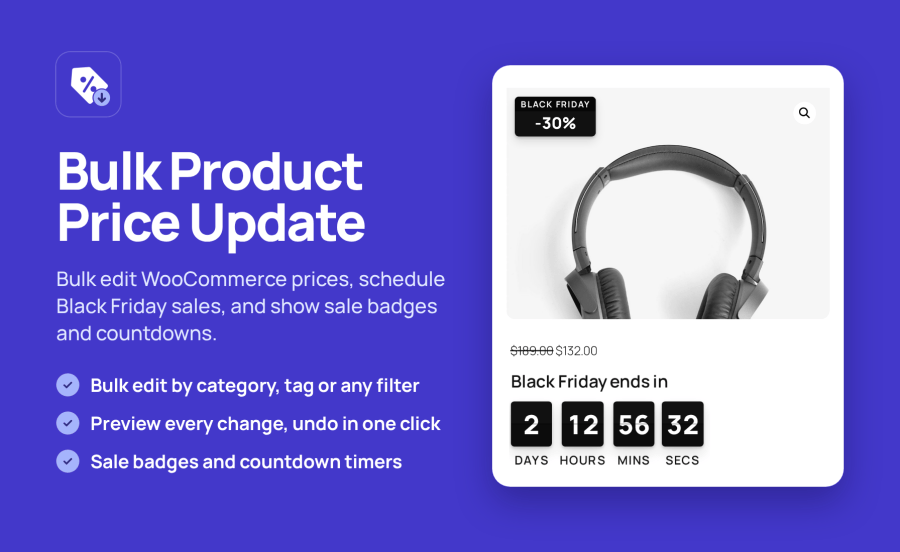
Getting ready for Black Friday, Cyber Monday or the holiday season? Schedule the sale for the right dates in one click, then show customers a sale badge with the real percent off and a countdown timer on product pages and shop pages. Price changes, sale badges and countdowns live in one extension, so you set up the whole sale in minutes.
Not every bulk price update should affect your entire catalog. The built-in filter builder gives you complete control over which products receive a price adjustment. Combine multiple filters with AND, OR and AND NOT logic to create precise product selections, and leave out the products you want to keep at full price.
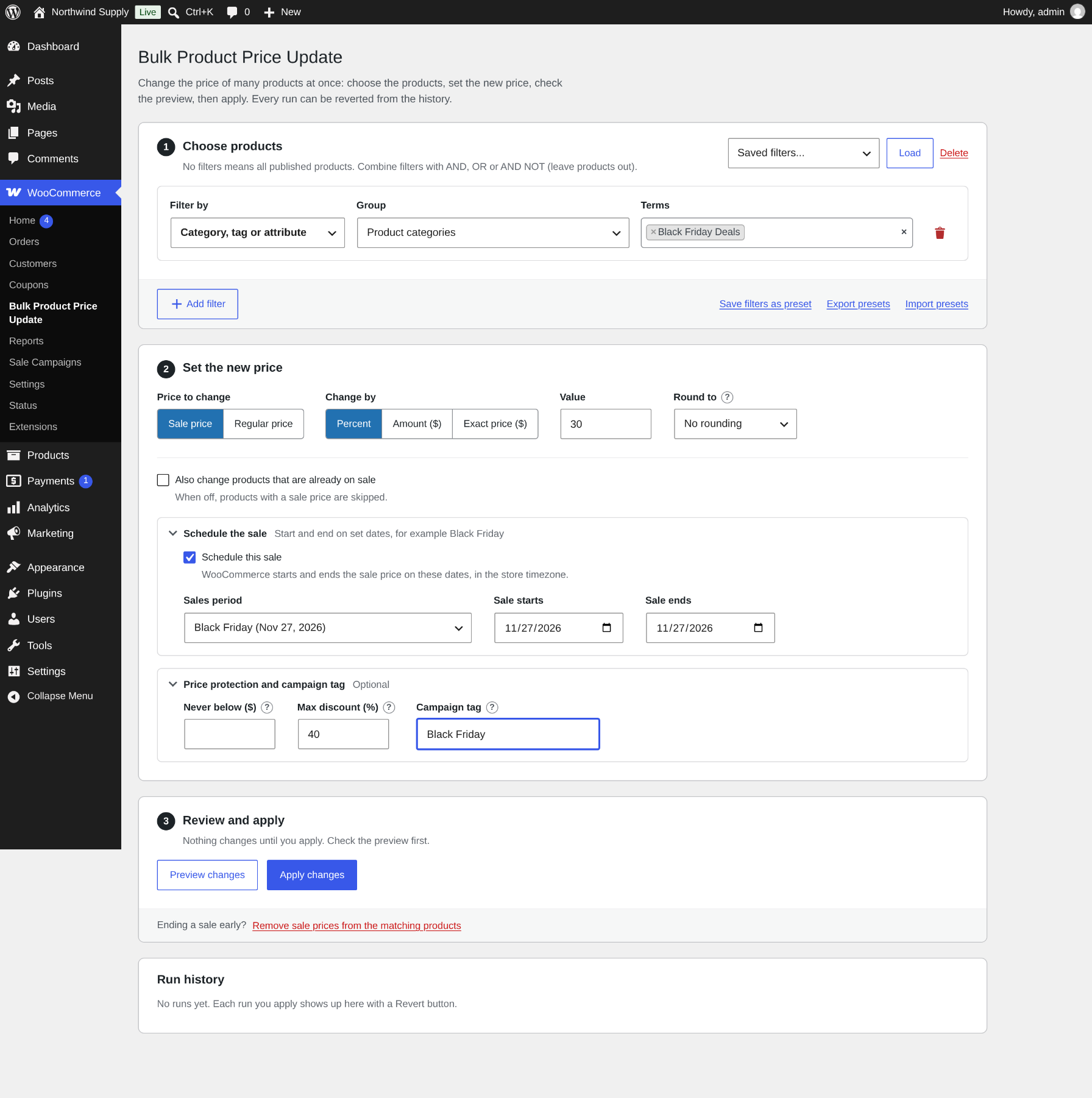
This WooCommerce price manager gives you full flexibility over how prices are calculated during every bulk price change:
Set start and end dates for your bulk sale price update and let WooCommerce activate and remove the sale price automatically. Perfect for flash sales, seasonal bulk discounts, Black Friday promotions, and any time-limited offer, without manually toggling prices on and off.
Pick a sales period and the dates are filled in for you: Black Friday, Cyber Monday, Black Friday to Cyber Monday, Singles Day (11.11), Christmas, Boxing Day, New Year, Valentine’s Day, Easter, Mother’s Day, Summer Sale, Back to School and Halloween, or choose your own dates. The sale ends at the end of its last day in your store timezone, so a one-day sale really lasts the whole day.
Give a bulk run a campaign tag such as “Black Friday” and every product the run changes gets that product tag. Your store instantly has a sale page like /product-tag/black-friday/ to link from your menu, banners and emails. When you revert the run, the tag is removed again from exactly those products.
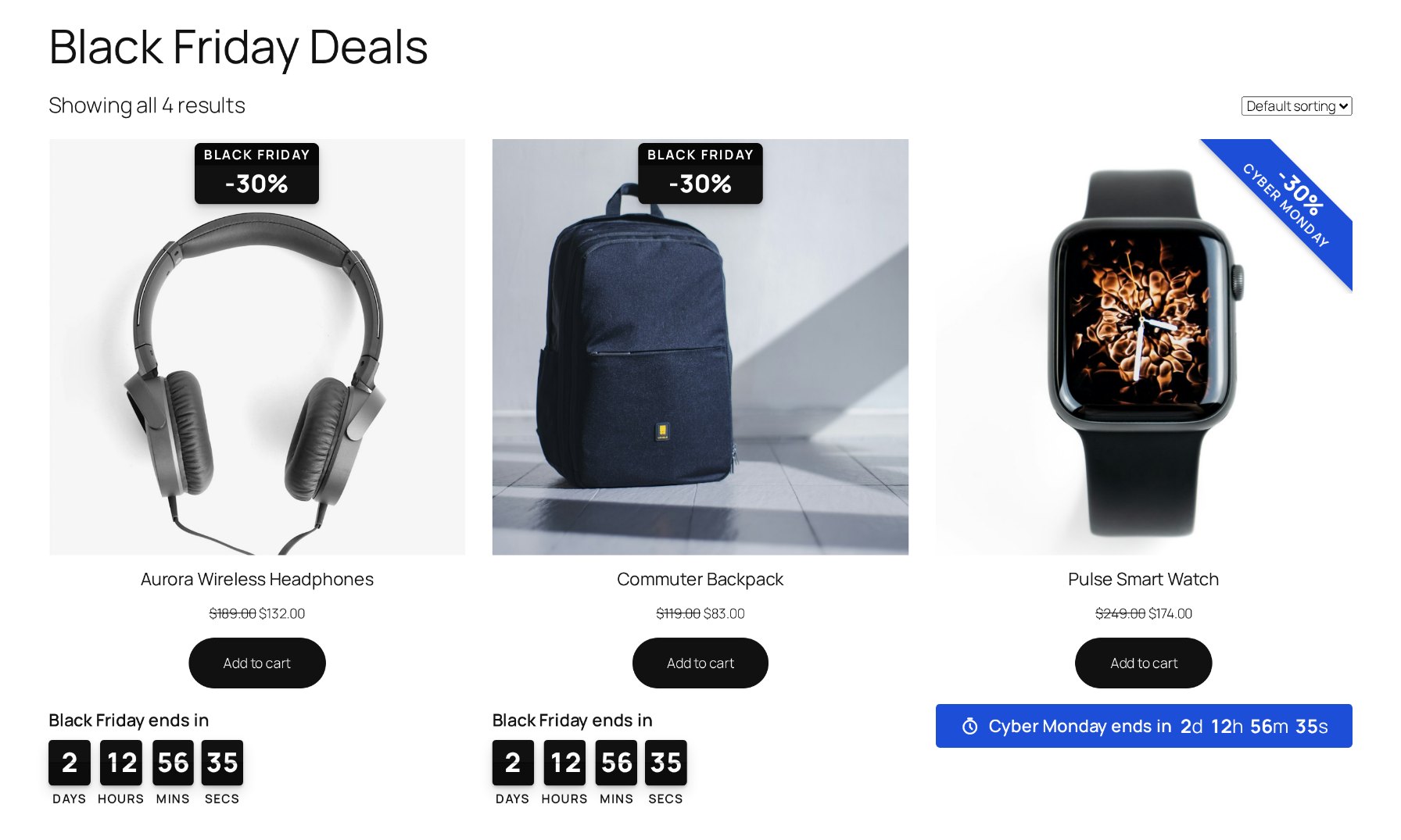
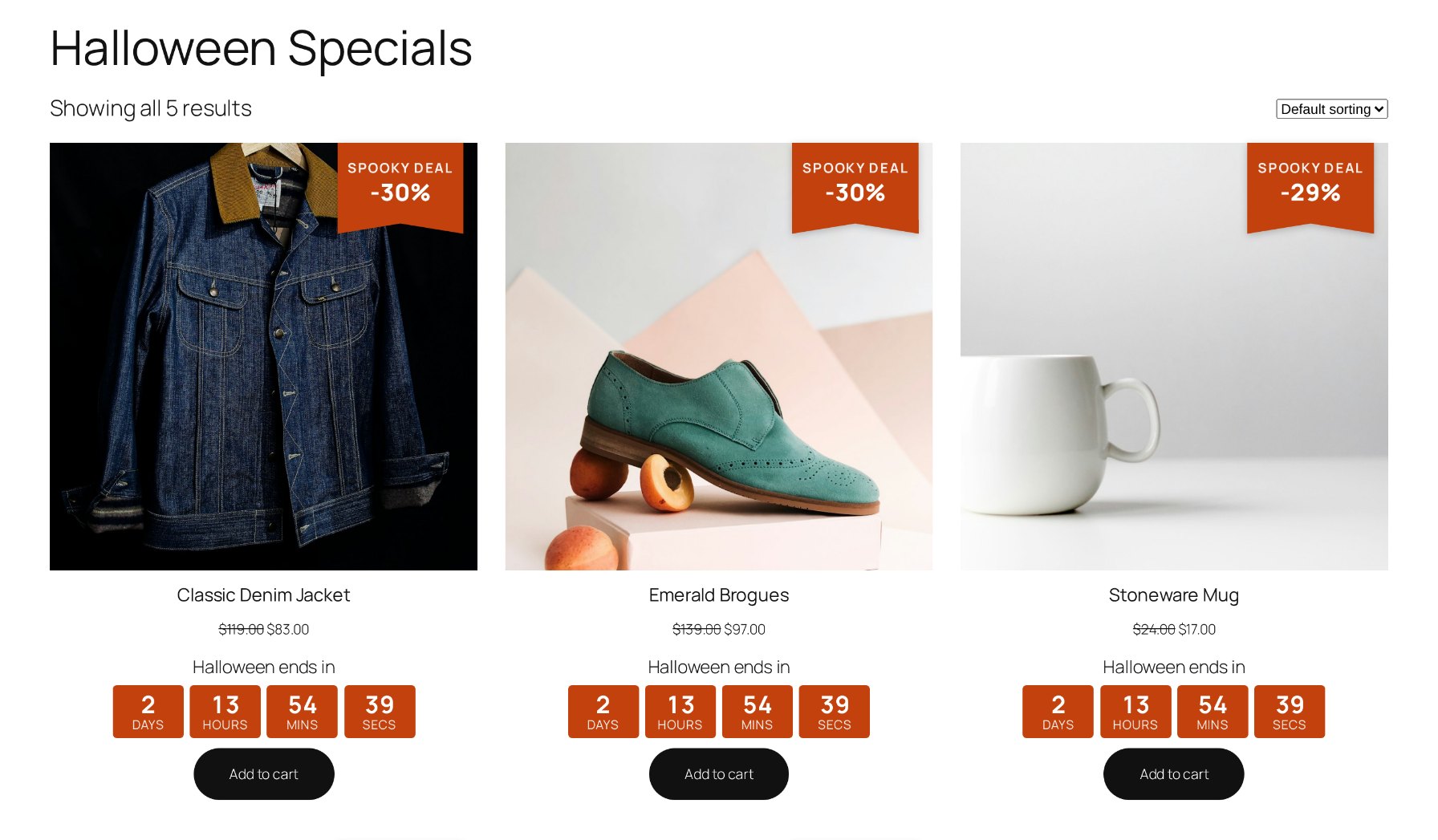
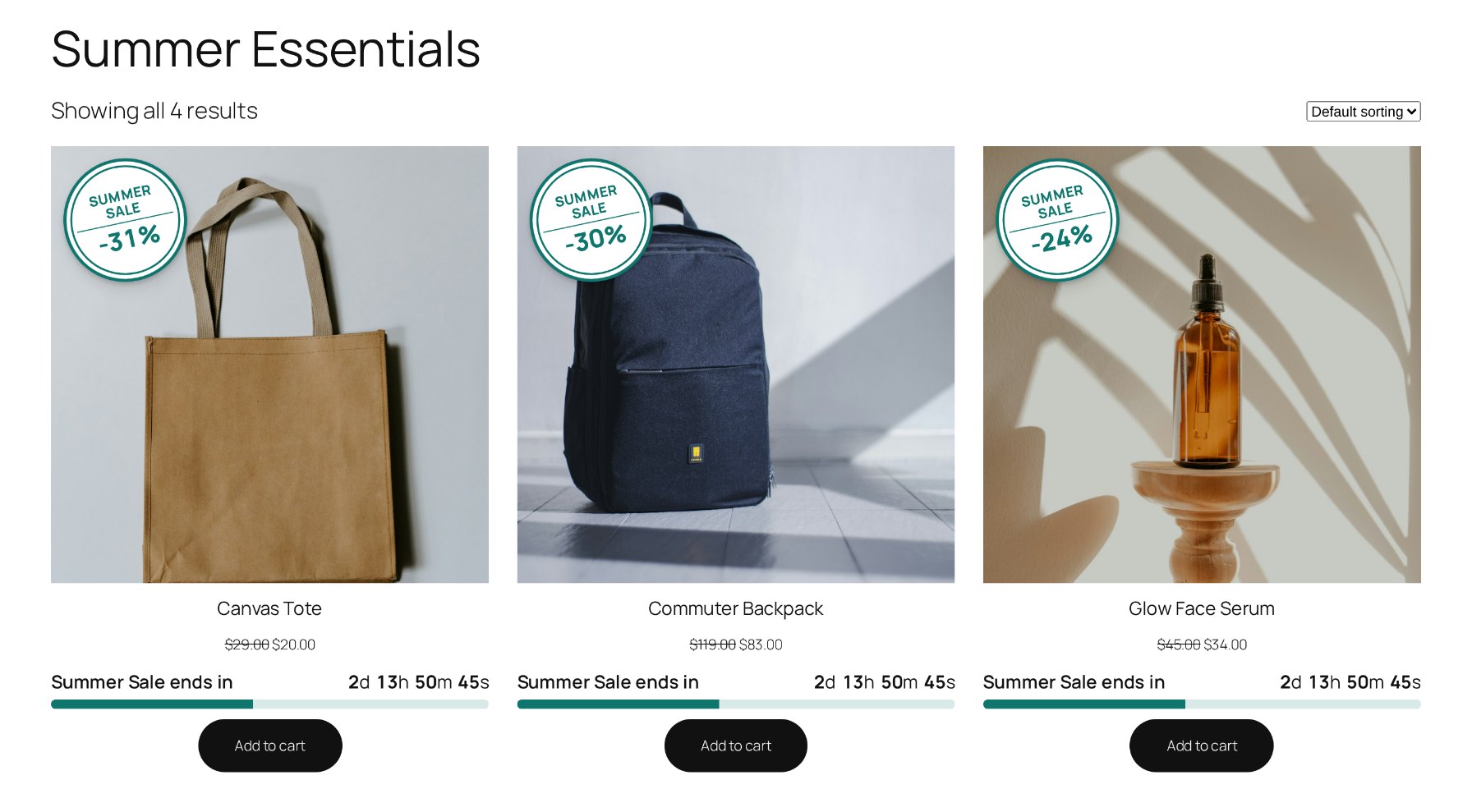
Big sales days need more than lower prices. Shoppers buy when they can see the deal and know it will not last. Sale Campaigns add a percent off sale badge and a live countdown timer to the products in your sale, so the offer is clear on every product card and product page. Clear discounts and a visible deadline are a simple way to boost sales during your busiest weeks.
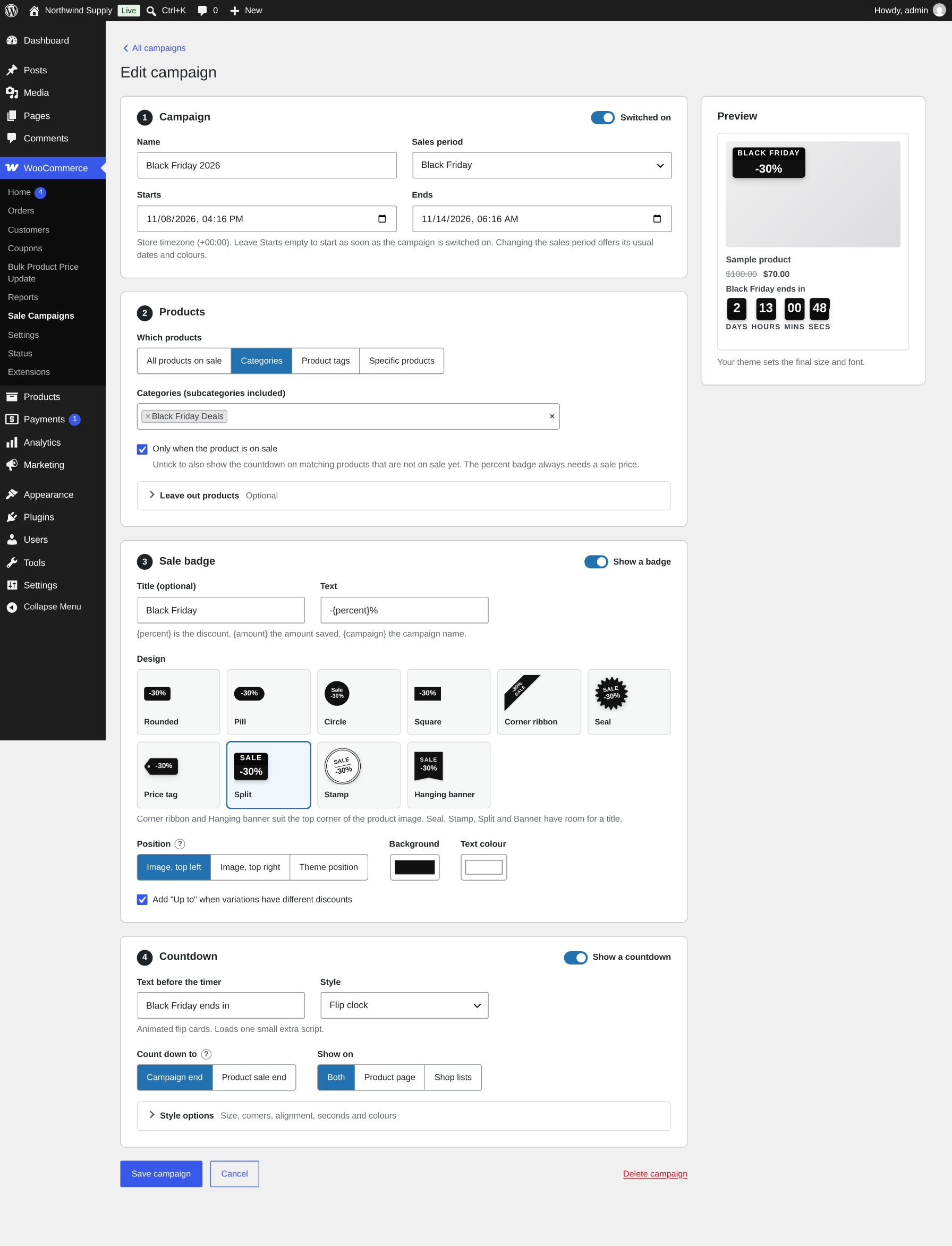
Replace the plain “Sale!” label with a custom sale badge that shows the percent off, such as -30%. The badge works out the discount from each product’s regular and sale price, and shows “Up to -30%” when variations have different discounts. Add an optional title line like “Black Friday” above the percentage, or write your own badge text with {percent}, {amount} and {campaign}.
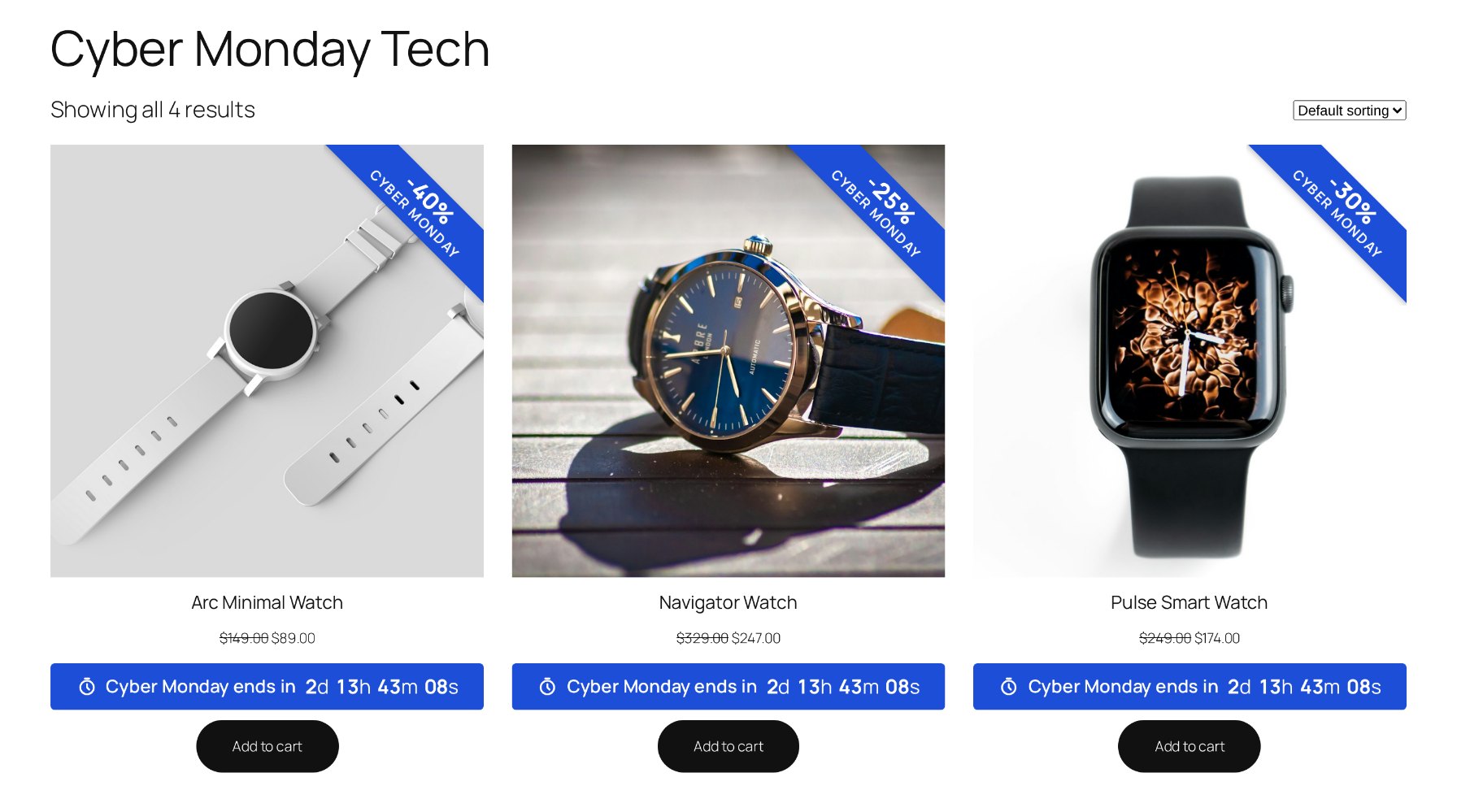
Add urgency with a live sale countdown timer. Show it on the product page, in shop lists, or both, and count down to the end of the campaign or to the product’s own scheduled sale end.
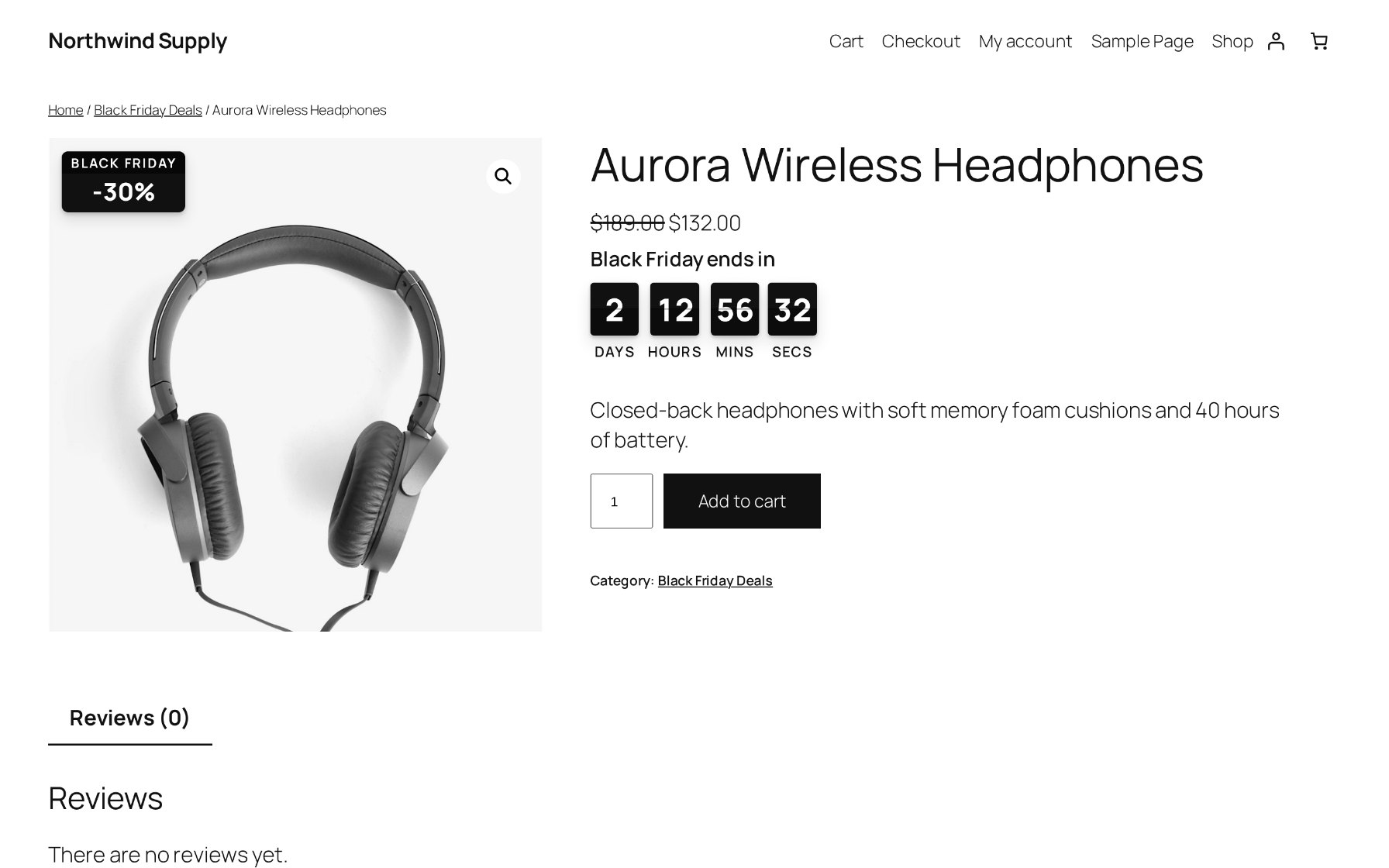
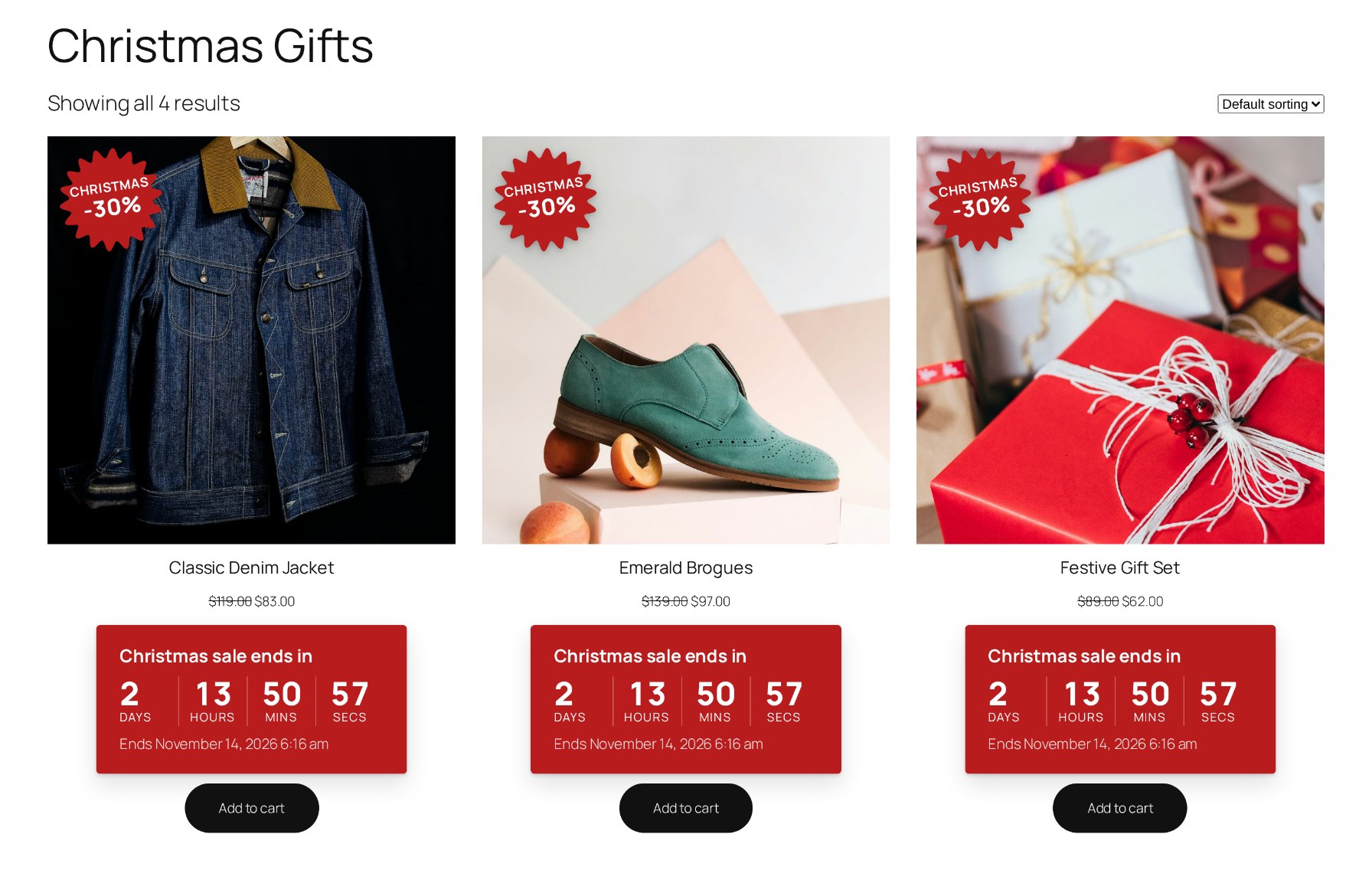
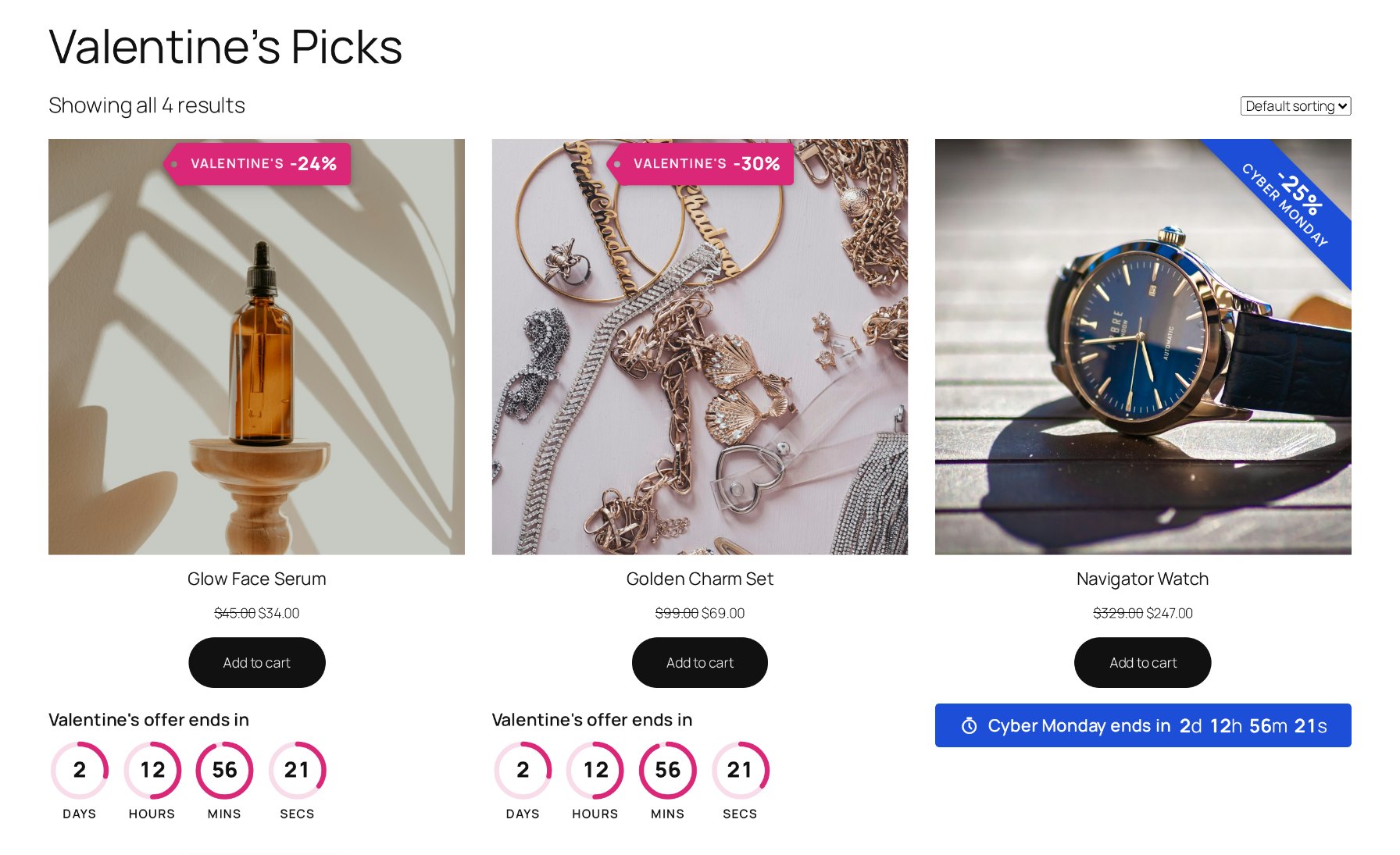
The same extension covers your whole sales calendar. Use it for a Christmas sale, a Valentine’s Day promotion, a Halloween flash sale, a Singles Day offer or a Summer Sale, each with its own badge design and countdown style.
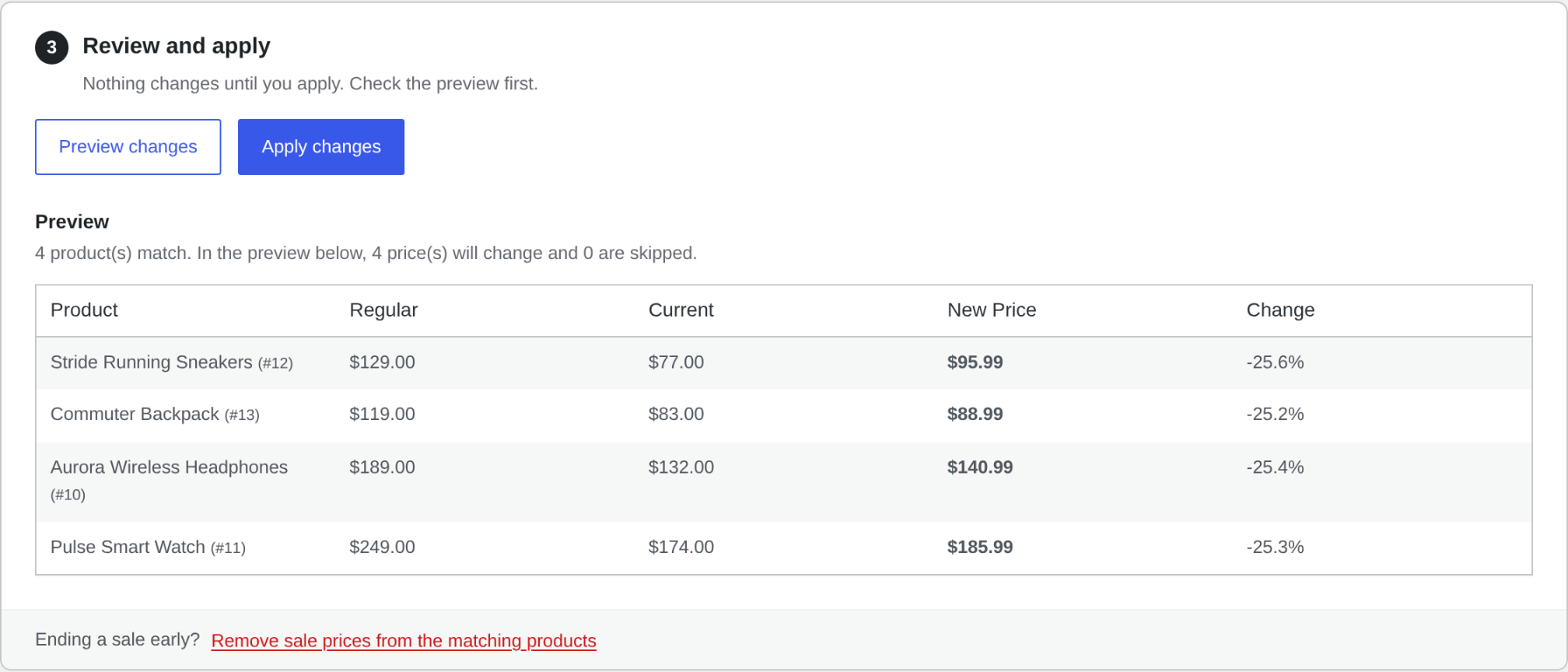
Never apply a mass price update blindly. The live preview table shows every matched product with its current price, new calculated price, and percentage change, before any data is saved. Products that will be skipped (already on sale, price out of range, held by price protection) are clearly flagged so you always know exactly what the bulk product price update will do to your catalog.

Applied a bulk discount by mistake? Every bulk price change is fully reversible. Click the Revert button to instantly restore all product prices to their exact previous values: regular price, sale price, and scheduled sale dates included. When the sale is over, the Remove sale prices button ends it early for all matching products.
Every bulk product price update is logged in a detailed run history table. Each entry shows the date, filters used, discount settings, and the total number of products affected. The complete audit trail makes it easy to review past bulk price changes and revert any run at any time.
The bulk product price updater processes products in small AJAX batches with a real-time progress bar. This means you can bulk edit prices for thousands of products without server timeouts, even on shared hosting. Adjust the batch size with the wcbdi_batch_size filter hook for fine-tuned performance.
Running the same bulk price edit regularly? Save your filter configuration as a named preset and reload it with a single click. Export all presets as a JSON file to share across multiple stores or import presets from another site. The bulk price editor also remembers your last used settings automatically, so your filters, relations, and discount configuration are ready when you return.
WCBDI_DEBUGInstall and activate Bulk Product Price Update for WooCommerce, then go to WooCommerce > Bulk Product Price Update. Use the filter builder to select the products you want to update, set your discount type (percentage, fixed amount, or exact price), click Preview to verify, and then click Apply Changes. All matching product prices are updated in one operation.
Yes. Add a Taxonomy filter, select "Product categories" from the dropdown, and choose the specific categories you want to target. Only products in those categories will be affected by the bulk price change. You can also filter by product tags or any WooCommerce attribute like Color, Size, or Brand.
Yes. Bulk Product Price Update for WooCommerce fully supports variable products. Each variation's price is updated individually. If you use a Price Range filter, only variations within that range are updated while others are skipped. The parent product's price data is automatically synced after all variations are processed.
Yes. When you select "Regular price" as the price to update, a Direction option appears. Choose "Increase" to raise prices by a percentage or fixed amount. This is ideal for adjusting prices after a supplier cost increase or currency change.
Enable the "Schedule discount" checkbox in the Price Settings section, then set the sale start and end dates. WooCommerce will automatically activate the sale price on the start date and remove it on the end date — just like scheduling a sale on a single product, but applied in bulk across all matching products.
Yes. Click the Preview button to see a detailed table with every matched product showing its current price, the new calculated price, and the percentage change. Products that will be skipped are clearly marked with a reason. No changes are made to your store until you click Apply Changes.
Every bulk price update is logged in the Run History. Click the Revert button next to any entry to rollback all affected products to their exact previous prices. The rollback restores regular prices, sale prices, and scheduled sale dates as they were before the run.
Yes. Add a Price Range filter and set a minimum and/or maximum price. Only products (or variations) with a regular price within that range will be included in the bulk price update. This is useful for applying different discount tiers to different price segments.
Click the Remove Sale Prices button. This removes the sale price from every product matching your current filters and restores each product to its regular price. Scheduled sale dates are also cleared.
Yes. Add a Stock filter to target products by their stock status (In Stock, Out of Stock, or On Backorder). You can also set a minimum and maximum stock quantity range to narrow down the selection further.
Yes. Add a Custom Field filter and enter the meta key (for example, _brand or _supplier). You can optionally set a specific meta value to match, or leave the value empty to match any product that has that custom field. This allows advanced bulk price editing based on any product data.
First lower the prices: on the bulk price page choose the products, set the discount, open Schedule the sale and pick Black Friday. Then go to WooCommerce > Sale Campaigns, choose Black Friday under Start from a sales period and press Create campaign. Choose which products it shows on, switch it on and save. Your products now show a Black Friday sale badge with the percent off and a countdown until the sale ends.
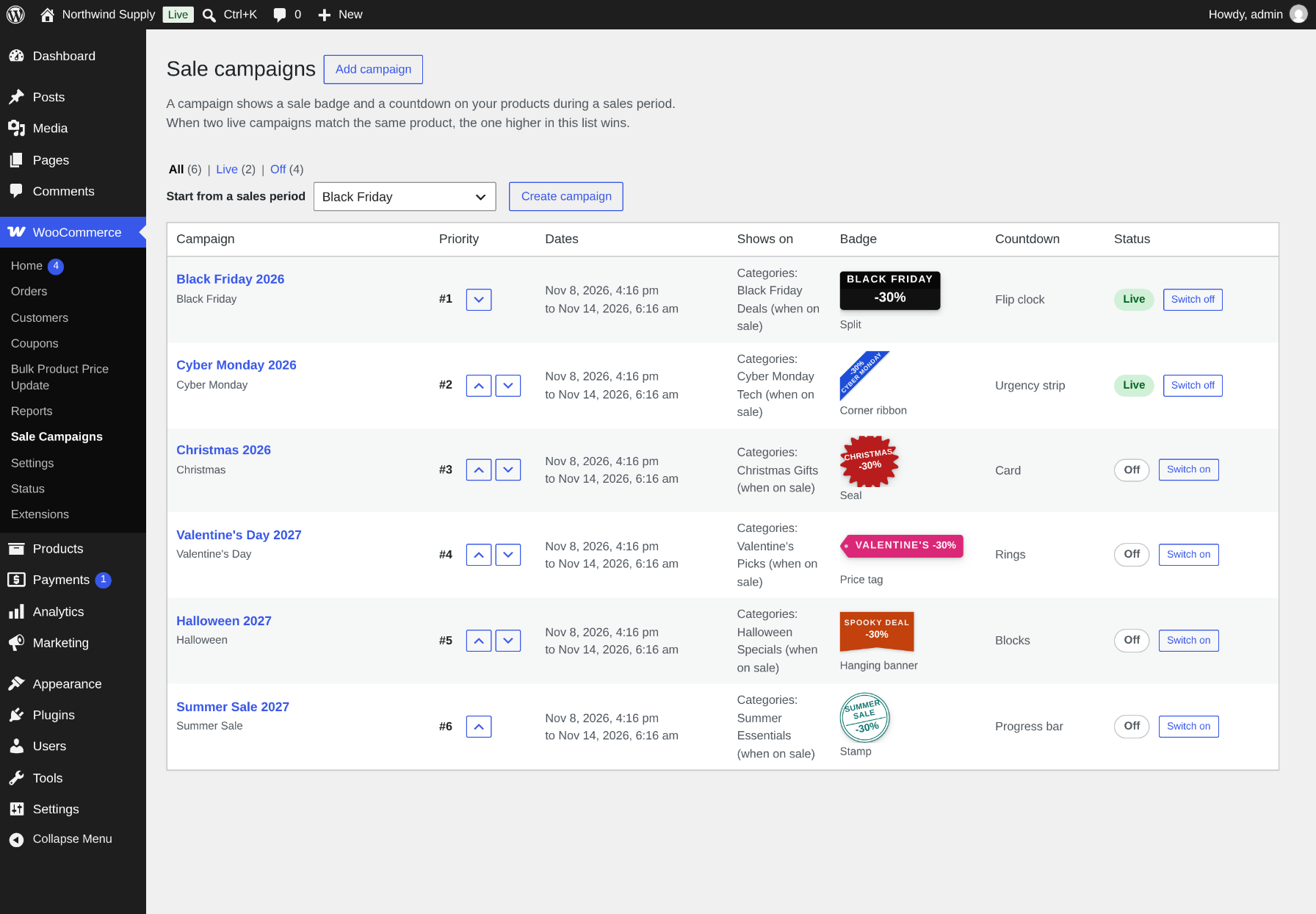
Create a sale campaign and turn on Show a badge. The badge text "-{percent}%" shows the real discount of each product, worked out from its regular and sale price. When variations have different discounts it can show "Up to -30%". You can add a title line such as "Black Friday" and pick one of 10 badge designs.
Yes. In a sale campaign turn on Show a countdown and choose where it shows: the product page, shop lists or both. There are 9 styles, including flip clock, rings, progress bar, urgency strip and card, in three sizes with your own colours.
Black Friday, Cyber Monday, Black Friday to Cyber Monday, Singles Day (11.11), Christmas, Boxing Day, New Year, Valentine's Day, Easter, Mother's Day, Summer Sale, Back to School and Halloween. Each one fills in the dates and colours for you. You can also set your own dates for any other promotion or flash sale.
Yes. Each campaign has its own products, dates, badge and countdown. If two live campaigns match the same product, the campaign higher in the Sale Campaigns list wins. Use the arrows in the list to change the order.
No. Badges only show on products that have a sale price, so the discount a customer sees is always real.
Yes. Sale badges and countdowns work with classic themes such as Storefront and with block themes that use the WooCommerce product blocks. You can place the badge on the product image top left or top right. Themes that hard-code their own sale badge instead of using the WooCommerce sale badge keep their own badge.
The countdown runs in the visitor's browser and hides itself when the campaign ends, even on a cached page. A badge can stay visible on a cached page until the cache is cleared, so clear your page cache when a campaign ends.
When you set a campaign tag on a bulk run, every product the run changes gets that product tag, so your store has a ready sale page such as /product-tag/black-friday/. Reverting the run removes the tag only from the products the run added it to. A sale campaign can then target that tag.
Categories
Extension information
Quality Checks
Countries