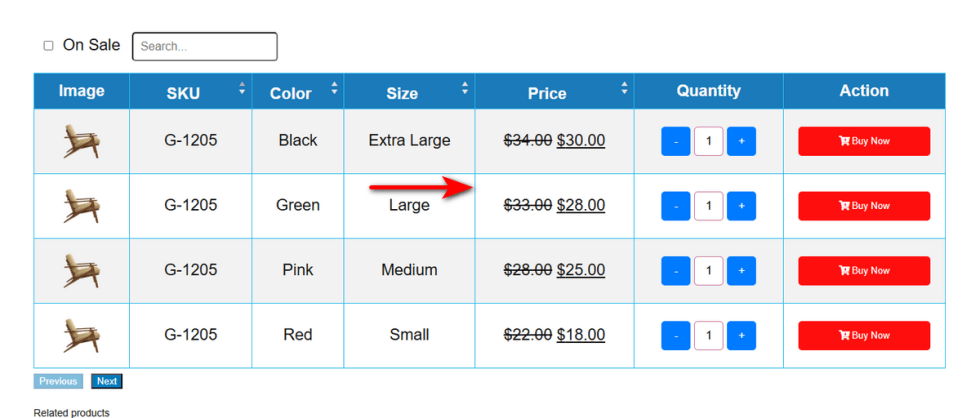
This unique styling feature designed exclusively for Template 1.
Variation Table Border Show
↑ Back to topWithout borders, data rows easily blend together. Shoppers might accidentally read across the wrong line.
This visual confusion leads to selecting the wrong price or variation. A simple mistake quickly turns into a frustrating return process.
You need clear separation between your product options. The Variation Table Border Show setting adds distinct lines around your grid. It keeps everything neat and incredibly easy to scan.
Here is how to activate it:
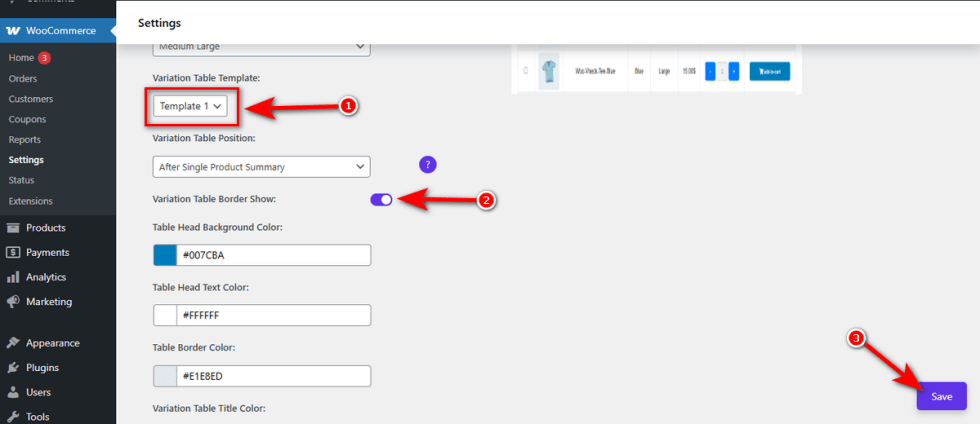
First, ensure you select “Template 1” from the “Variation Table Template” dropdown menu.
Next, toggle the “Variation Table Border Show” switch to turn it on.Finally, hit the ‘Save‘ button to apply this change.
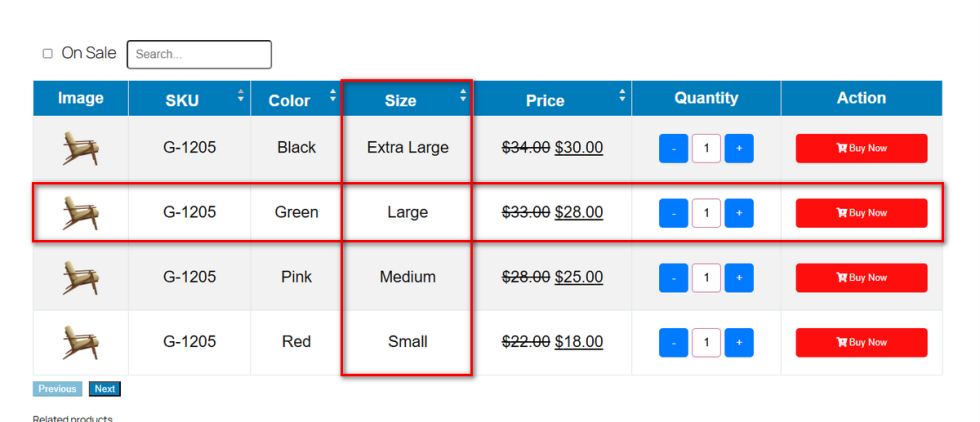
Now, visit your variable product page.
Variation Table Color
↑ Back to topVisual appeal matters. A bland or mismatched table hurts your brand identity. Colors help guide the shopper’s eye seamlessly across the page.
If rows blur together, customers make mistakes and abandon their carts. Customizing these specific shades improves readability and builds a highly professional look.
Let’s personalize your grid.
Table Head Background Color
The top row needs to pop. A strong header anchors the entire grid.
Click the color box under “Table Head Background Color“. Use the visual picker to find your brand’s primary shade.Hit the ‘Save‘ button.
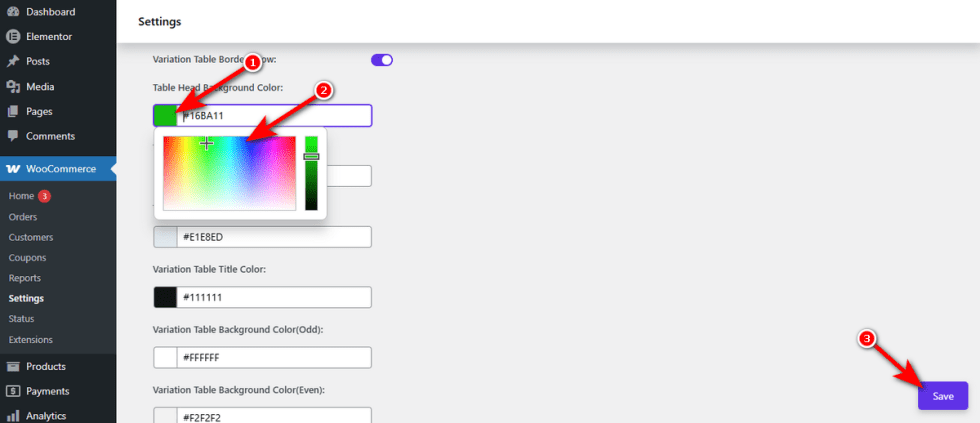
Check your storefront. The top row now grabs attention instantly.
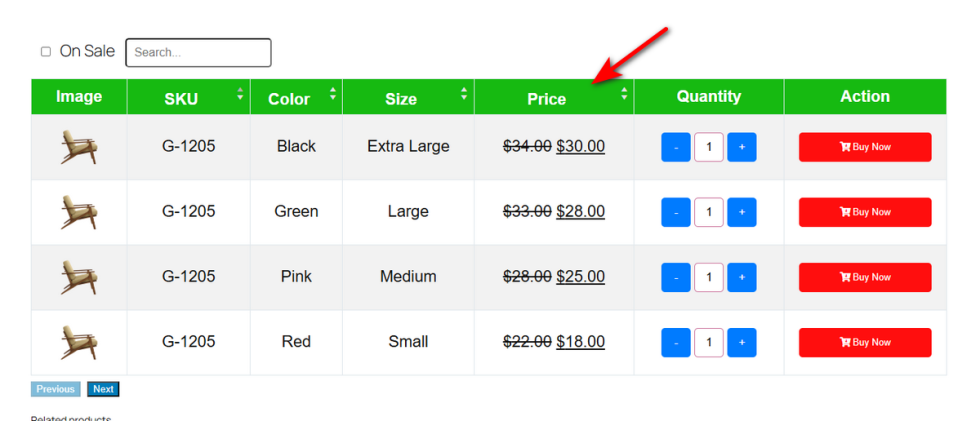
Table Head Text Color
↑ Back to topReadability is your top priority. Dark headers require light text to stand out.
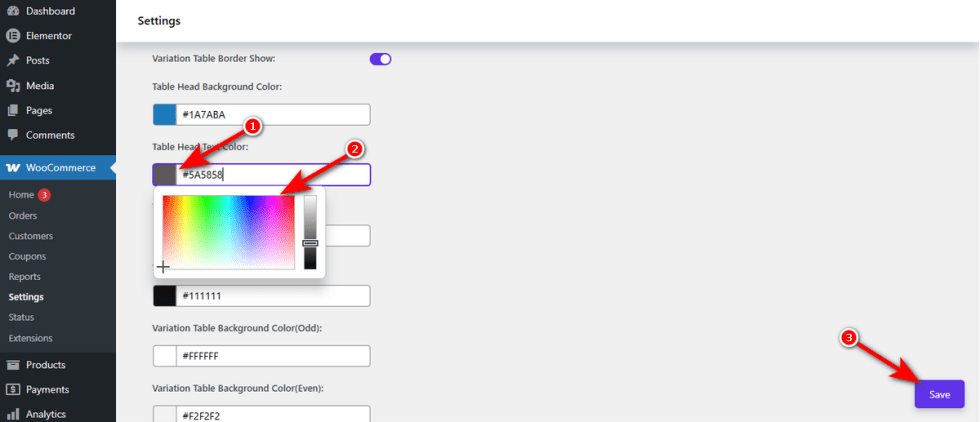
Locate the “Table Head Text Color” input field. Select a high-contrast hue from the popup palette.Press ‘Save‘ to apply the adjustment.
Visit your product page. Your column titles will look crisp and perfectly legible.
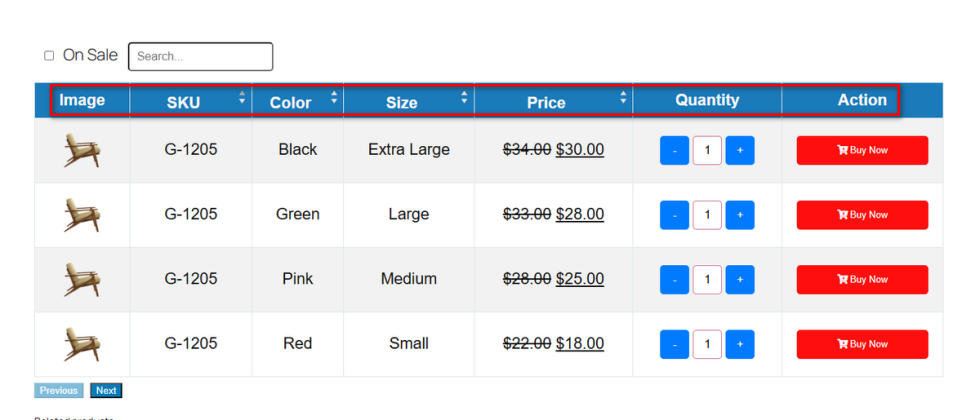
Table Border Color
↑ Back to topHarsh lines look outdated. Soften them to match a modern aesthetic.
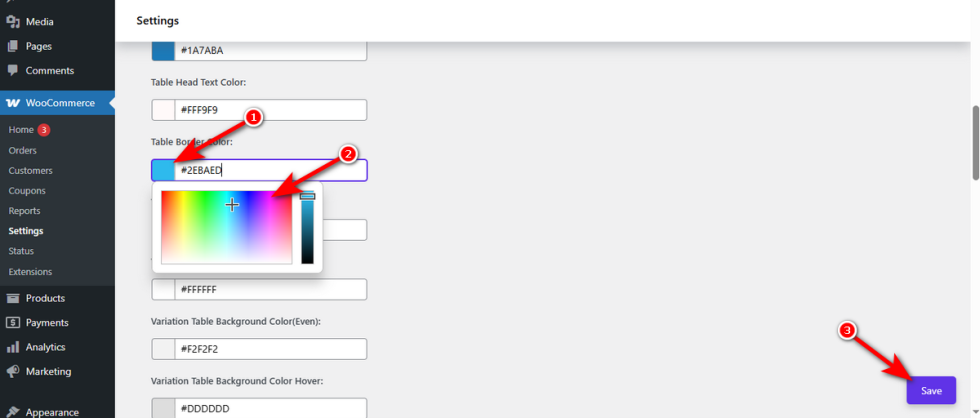
Find the “Table Border Color” setting. Choose a subtle tint that separates the columns nicely.Click ‘Save‘ at the bottom right.
Refresh the front end. You will notice sleek, refined outlines around your variable product table data.