
Displaying fifty variations at once creates an endless wall of text. Customers hate endless scrolling. It overwhelms them and makes finding the right product tedious.
Breaking a massive list into smaller pages solves this instantly. Pagination keeps your product layout neat. It makes browsing large inventories feel effortless.
Let’s configure your page controls to keep the shopping experience smooth.
3.9.1 Table Row Pagination (Pro)
Long lists destroy your page layout. You need to control exactly how many items load at a single time.
Locate the “Table Row Pagination” input box. Type the exact number of rows you want to display per page, such as ‘5‘.Hit the ‘Save‘ button.
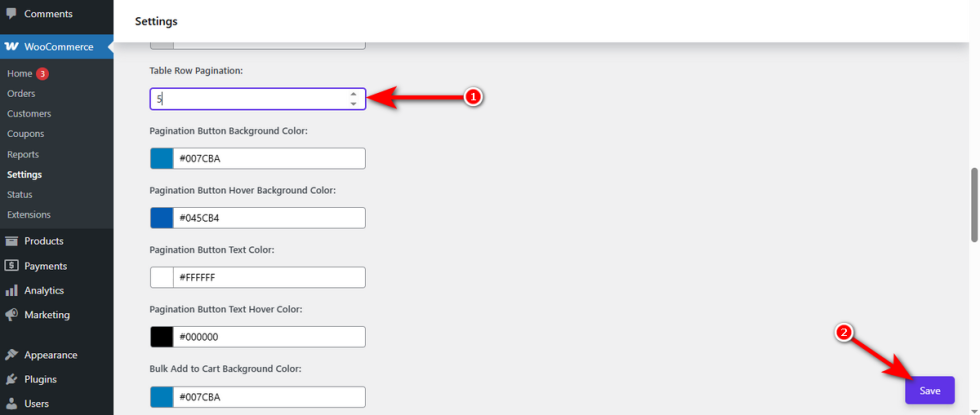
Now, check your product page. Your massive list is beautifully divided into numbered, easily digestible pages.
Pagination Button Background Color (Pro)
↑ Back to topHidden navigation buttons trap your users on the first page. You must ensure these controls stand out clearly.
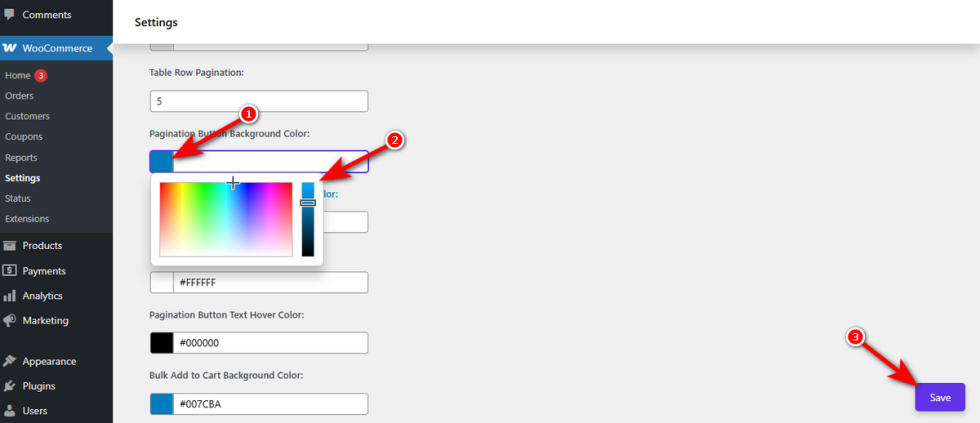
Find the “Pagination Button Background Color” setting. Use the visual color picker to select a vibrant shade that matches your brand.Press the ‘Save‘ button.
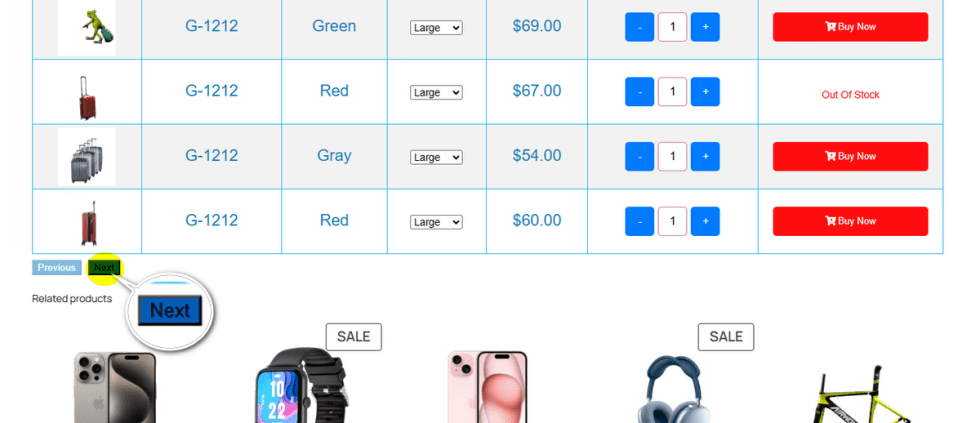
View the live table. Your ‘Next‘ and ‘Previous‘ buttons now grab attention immediately.
Pagination Button Hover Background Color (Pro)
↑ Back to topStatic buttons feel unresponsive. Adding a hover effect makes the interface feel highly interactive and premium.
Click on the “Pagination Button Hover Background Color” option. Pick a slightly darker or highly contrasting tint.Click ‘Save‘ at the bottom right.
Hover your mouse over the buttons on your storefront. They will react instantly to the pointer.
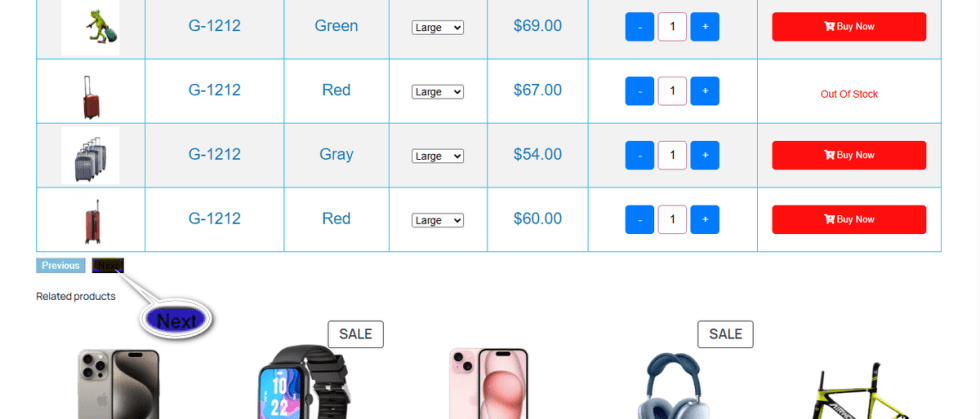
Pagination Button Text Color (Pro)
↑ Back to topIf shoppers cannot read the word “Next,” they will not click it. Text contrast is crucial for easy navigation.
Navigate to the “Pagination Button Text Color” field. Choose a solid hue that pops perfectly against your chosen button background.Hit ‘Save‘ to confirm the change.
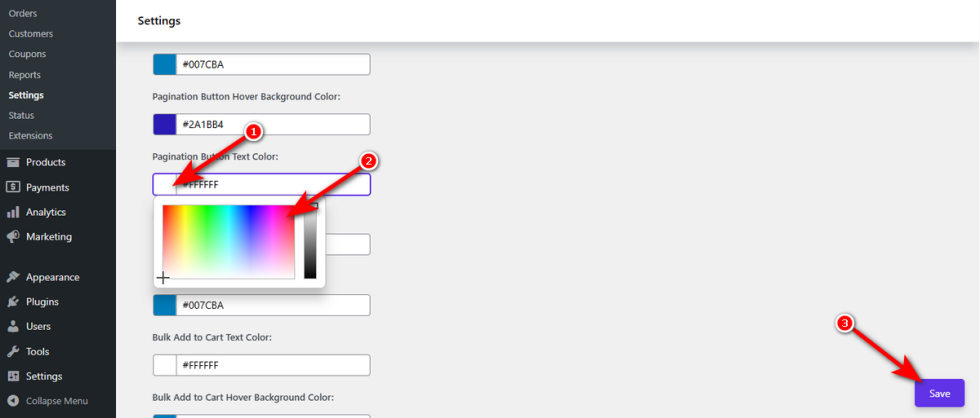
Refresh the front end. The text on your pagination controls is now perfectly legible.
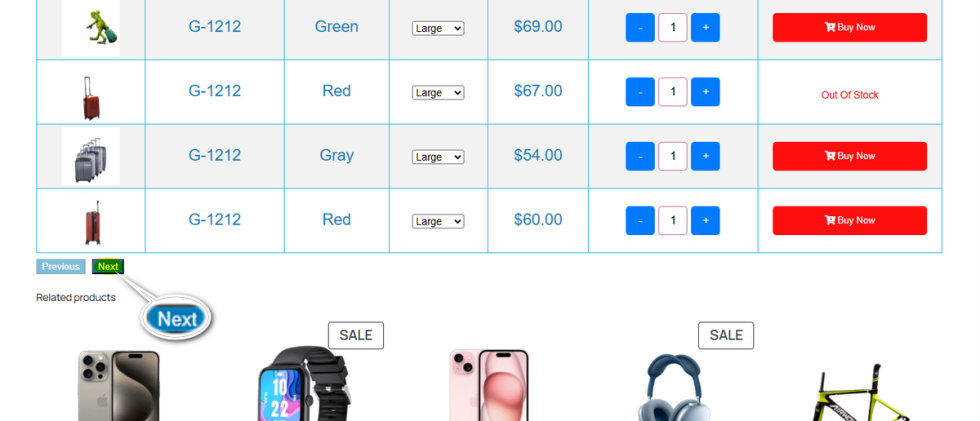
Pagination Button Text Hover Color (Pro)
↑ Back to topChanging the text color alongside the background during a hover completes the interactive experience. It adds a final layer of professional polish.
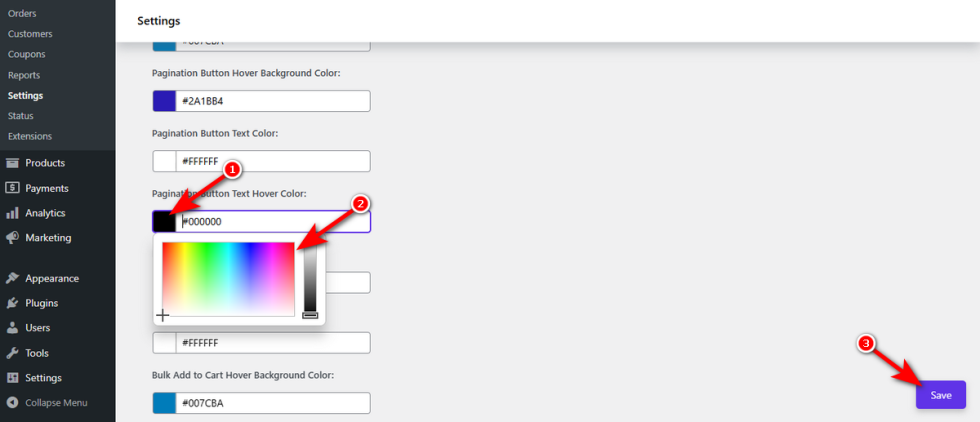
Open the “Pagination Button Text Hover Color” setting. Select a distinct shade from the popup palette.Do not forget to hit the ‘Save‘ button.
Test the live product page. The button text shifts beautifully when the customer interacts with it.