
The Woo Mobile App’s My Store tab displays the same analytics data as the WooCommerce Analytics dashboard in your WordPress admin. They share the same data source and the same settings. If you notice a difference between the two, this guide will help you identify the cause.
Important: If the numbers in the app match those in wp-admin → Analytics → Revenue for the same date range, the app is working correctly. Any concern about the numbers themselves is related to your store’s WooCommerce Analytics configuration, not the mobile app. You can learn more about how WooCommerce Analytics works in the WooCommerce Analytics documentation.
Before You Start: Verify the Mismatch
↑ Back to topBefore troubleshooting, confirm there’s actually a difference between the app and wp-admin:
- Open wp-admin → Analytics → Revenue
- Select the exact same date range you’re viewing in the app
- Compare the values shown in wp-admin with the numbers shown in the app
If they match, the app is displaying your store’s data correctly. If you have questions about what those numbers mean or how they’re calculated, refer to the WooCommerce Analytics documentation.
If they don’t match, continue with the sections below.
App Shows 0 Orders or Revenue, but I Have Orders
↑ Back to topThis commonly affects stores that use Cash on Delivery (COD) or other manual payment methods.
Why this happens:
Your store’s Analytics settings include a Date type option that controls how orders are grouped in reports. The default is “Date paid.” This means only orders that have a recorded payment date will appear in your reports.
For most payment gateways, the payment date is recorded automatically when the customer pays at checkout. However, for COD payment method orders, the payment date isn’t recorded at checkout — WooCommerce only sets it when the order is marked as completed. Until then, the payment date field is empty, and these orders won’t appear in reports filtered by “Date paid.”
The app respects this setting, so if your store uses “Date paid” and most of your orders are COD, the app will show 0 orders and 0 revenue for any period where orders haven’t been marked as completed yet.
How to fix it:
Starting with app version 24.7, you can change this setting directly in the app:
- Open the My Store tab.
- Tap the order count label (e.g., “Completed orders”) on the Performance card.
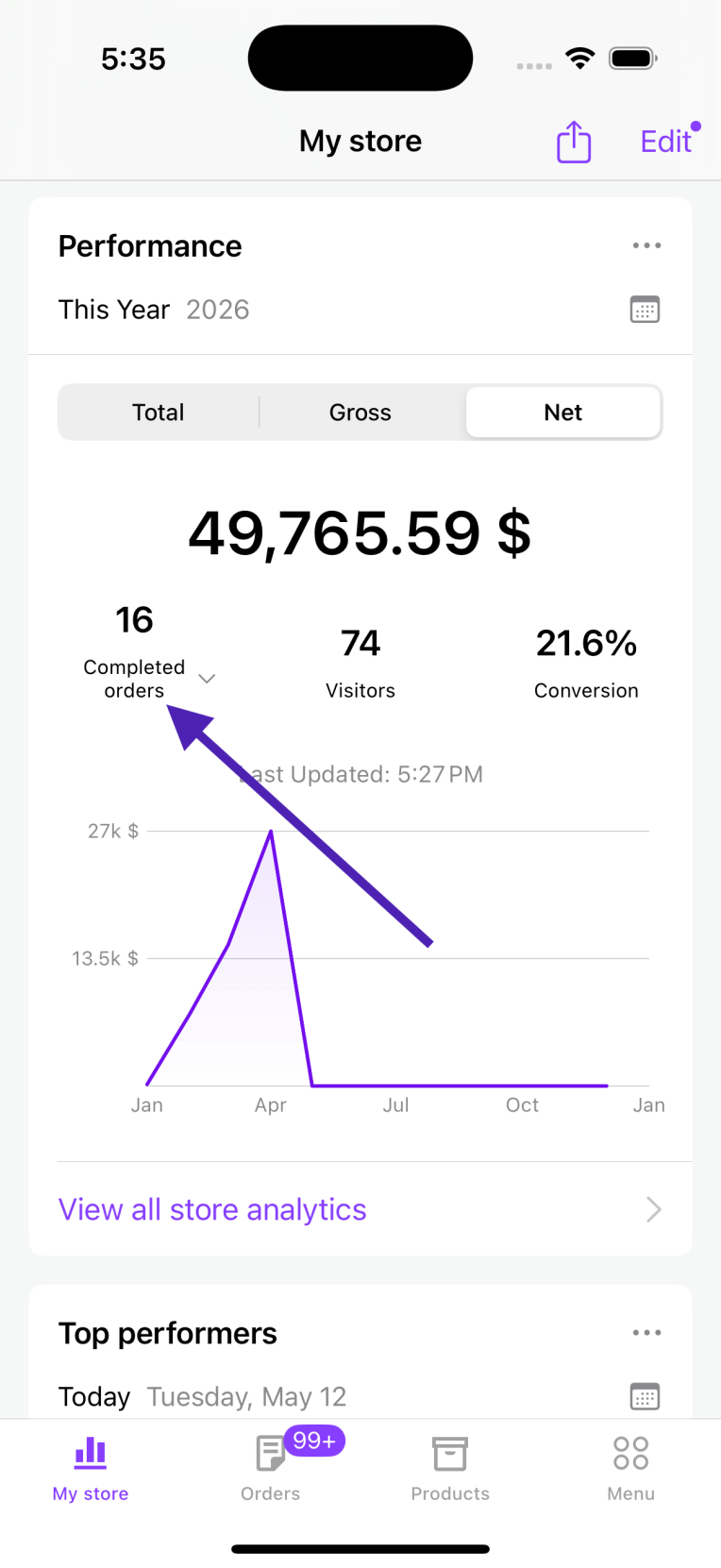
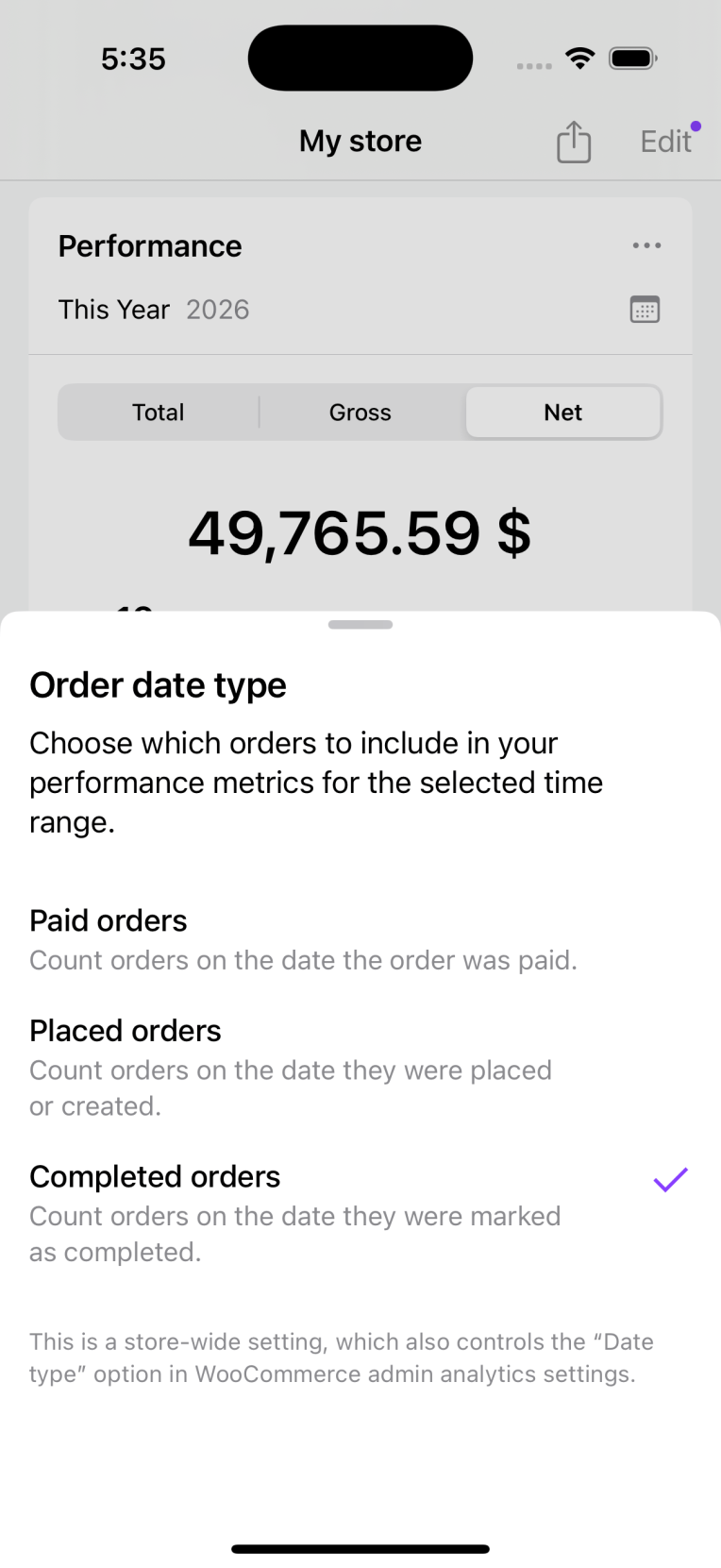
- Select “Placed orders” from the bottom sheet.
- The card will refresh automatically.
This is the recommended setting for any store that primarily uses COD or other manual payment methods.
Note: This setting affects both the app and your wp-admin Analytics dashboard. After changing it, both will group orders by the date they were placed rather than the date payment was received.
App Shows Higher Numbers Than wp-admin
↑ Back to topIf the app shows more revenue or orders than wp-admin for the same date range, a plugin conflict is likely causing the discrepancy.
Why this happens:
Some plugins can alter how analytics data is retrieved or calculated. When the app fetches analytics through your store’s API, an active plugin may include additional order statuses (such as pending, failed, or draft orders) in the totals, or route the data through a different source that applies different filtering rules. This can inflate both revenue and order counts compared to what wp-admin displays.
How to fix it:
- Go to wp-admin → Plugins
- Deactivate any third-party analytics or reporting plugins one at a time
- After each deactivation, go to WooCommerce → Status → Tools and click Clear analytics cache
- Check the app again and compare to wp-admin
If deactivating a specific plugin resolves the mismatch, that plugin is the source of the conflict. You can contact that plugin’s developer for further assistance.
If you’re unsure which plugin may be causing the issue, try a full plugin conflict test: deactivate all non-essential plugins, verify that the numbers match, then reactivate them one at a time to identify the culprit.
App Shows Lower Numbers Than Expected
↑ Back to topIf the numbers on the app’s Performance card look lower than what you expect, it’s important to first clarify what you’re comparing against.
Step 1: Compare with wp-admin
Go to wp-admin → Analytics → Revenue and select the same date range you’re viewing in the app.
- If the app matches wp-admin, the app is displaying your data correctly. The numbers may look different from what you expected because of how your store’s analytics settings work. See the sections below for common reasons.
- If the app does not match wp-admin, there may be a plugin conflict or cache issue. See the other sections in this guide.
Common reasons the numbers may look lower than expected:
- The app shows the same metric as the wp-admin’s Analytics → Revenue report. If you’re comparing against a different report, a third-party dashboard, or your payment processor’s totals, the numbers may differ because they calculate revenue differently (e.g., including or excluding taxes, shipping, fees, or refunds).
- Your Date type setting affects which orders appear. If your store’s Date type is set to “Date paid” (the default), orders that haven’t been paid yet won’t appear in the selected date range — even if they were placed during that period. This is especially relevant for stores using COD or manual payment methods. See the App Shows 0 Orders section above for how to change this.
Still Seeing a Mismatch?
↑ Back to topIf none of the above sections resolved the issue, please fill out our contact form to reach our support team from within the app by going to Menu > Settings > Help & Support > Contact Support with screenshots of both the app and wp-admin showing the same date range and metric.