
The WooCommerce Mobile App includes a built-in AI-powered support chat that helps you troubleshoot common issues directly from your phone or tablet. The AI assistant can diagnose problems, suggest fixes, and — when needed — connect you with our human support team.
Requirements
↑ Back to topHow to access AI Support Chat
↑ Back to topStarting with app version 24.9, AI Support Chat replaces the previous Contact Support form. You can start a support chat from several places in the app, depending on whether you’re logged in.
When logged in
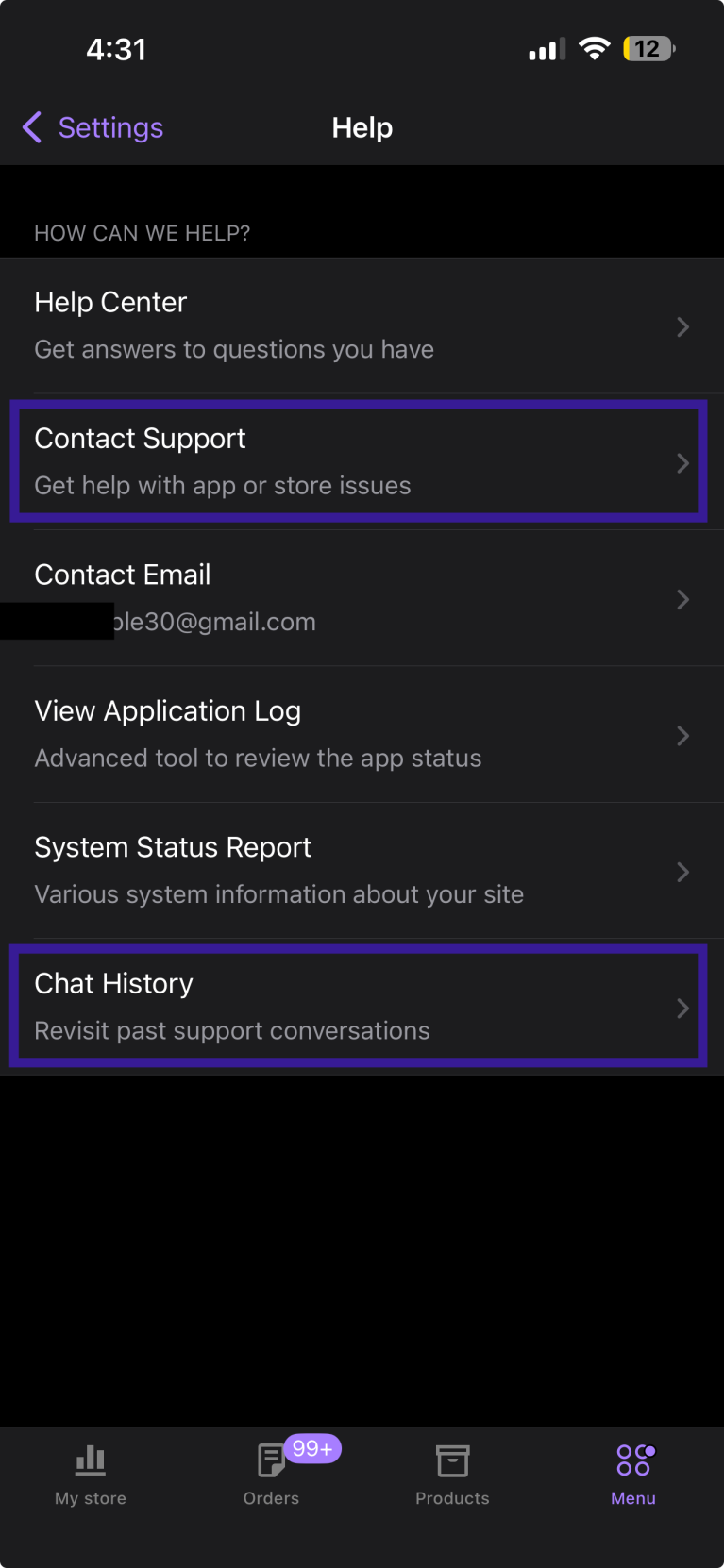
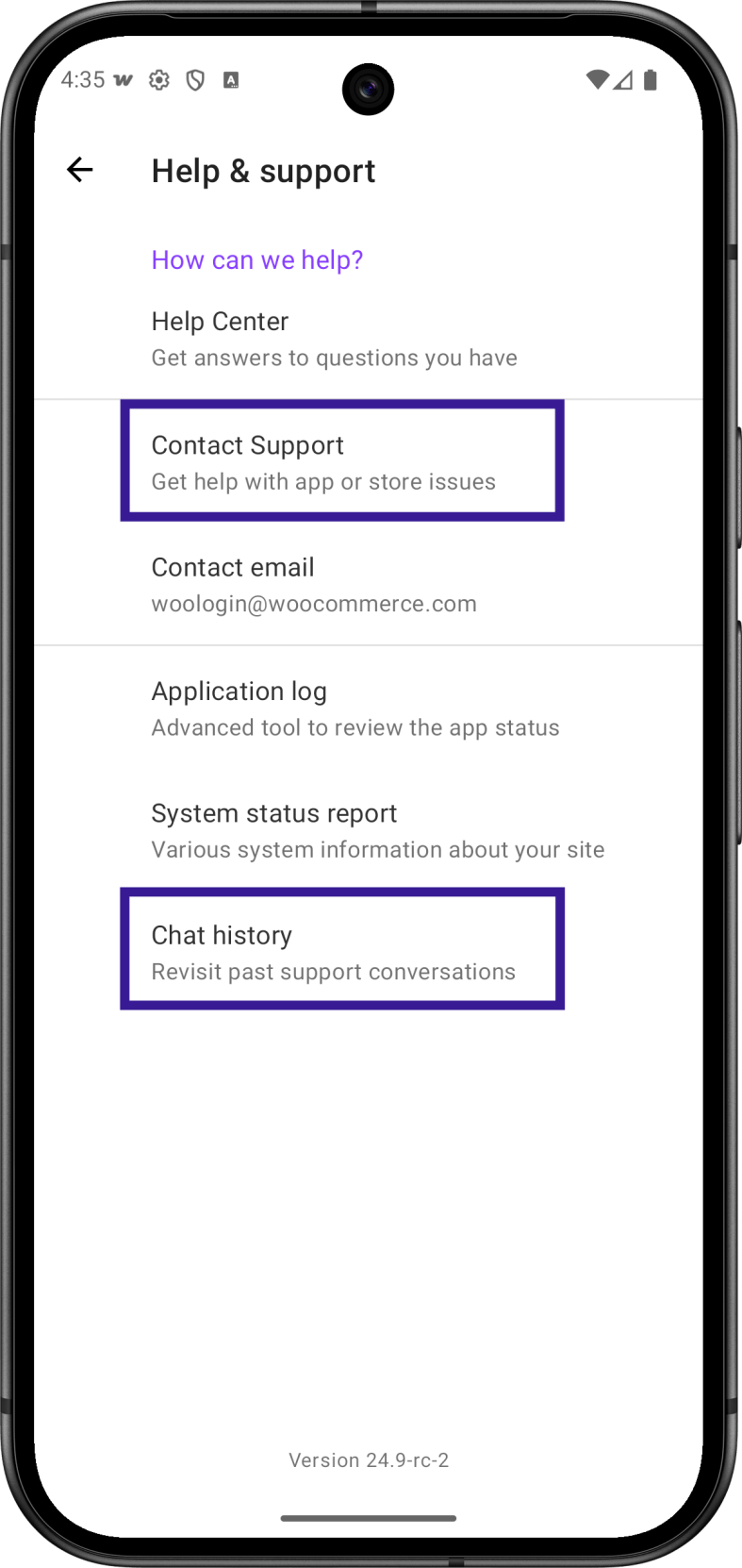
↑ Back to topGo to Menu → Settings → Help & Support. You’ll see two options:
- Contact Support — “Get help from our AI assistant” — starts a new AI chat session
- Chat History — “Revisit past support conversations” — view and resume previous sessions
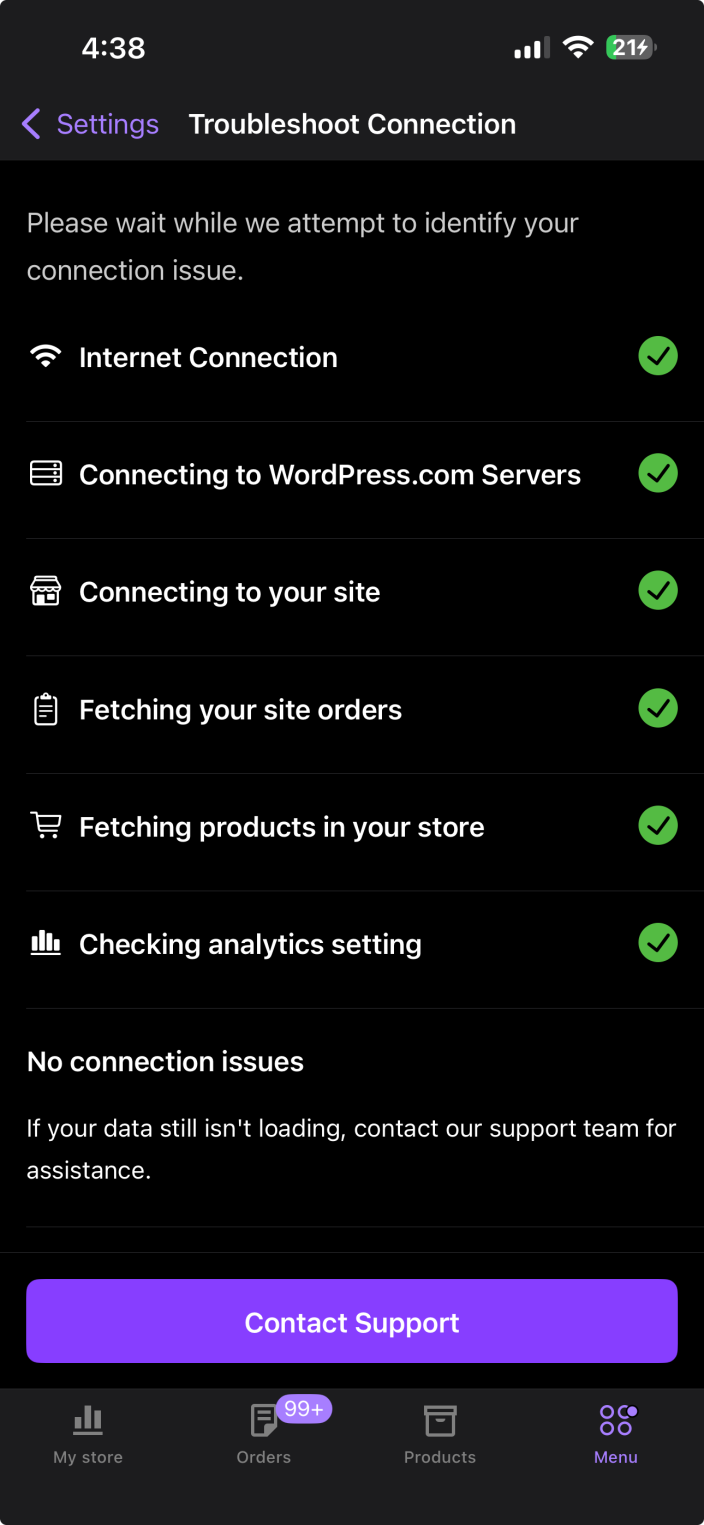
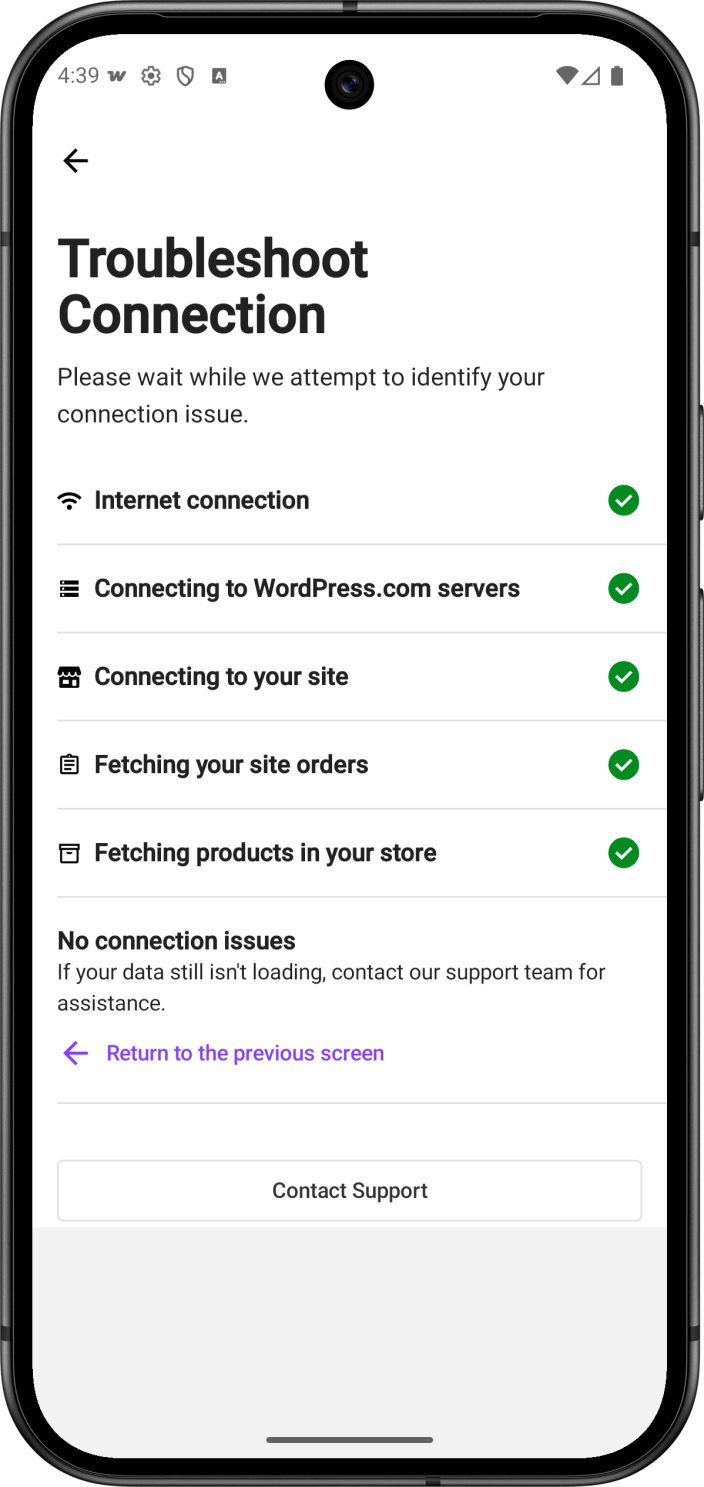
You can also access AI Support Chat from the Menu > Settings > Troubleshoot Connection tool. If diagnostics find an issue — or if you need additional help — tap the Contact Support button at the bottom of the Troubleshoot Connection screen. The diagnostic results are automatically shared with the AI assistant for context.
When logged out or having login issues
↑ Back to topFrom the login screen, tap Help to open the Help menu. Then tap Contact Support to start a conversation with the AI assistant.
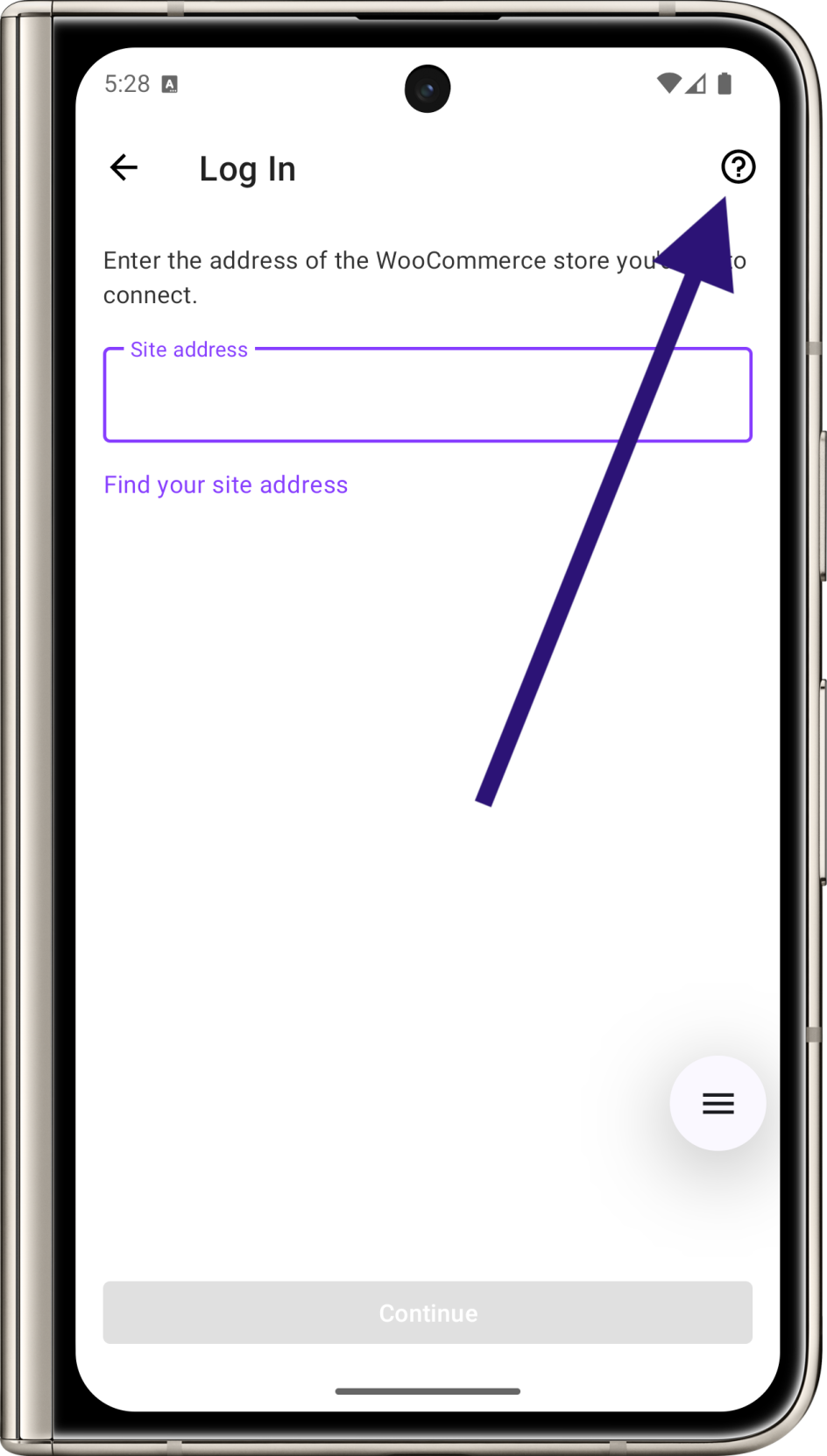
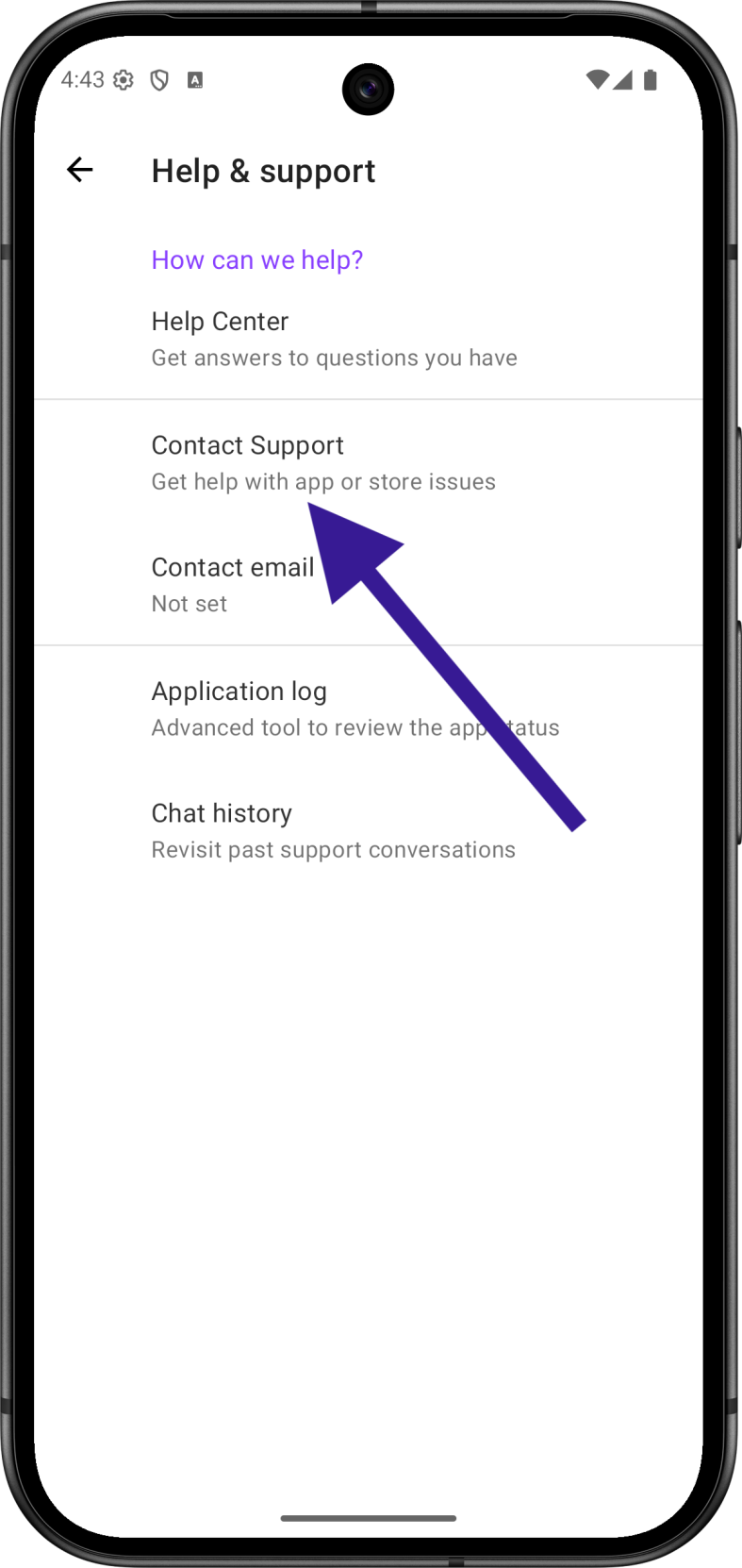
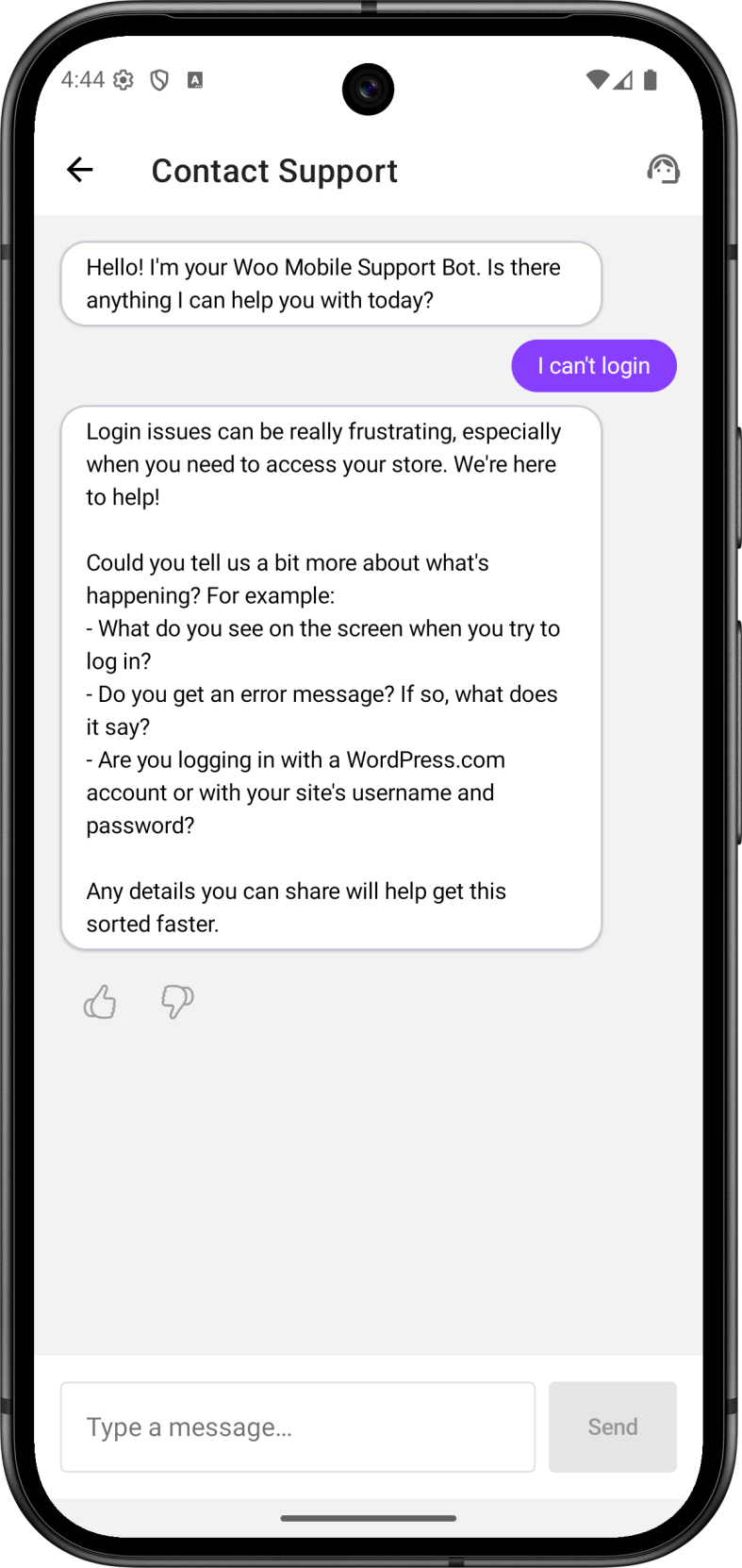
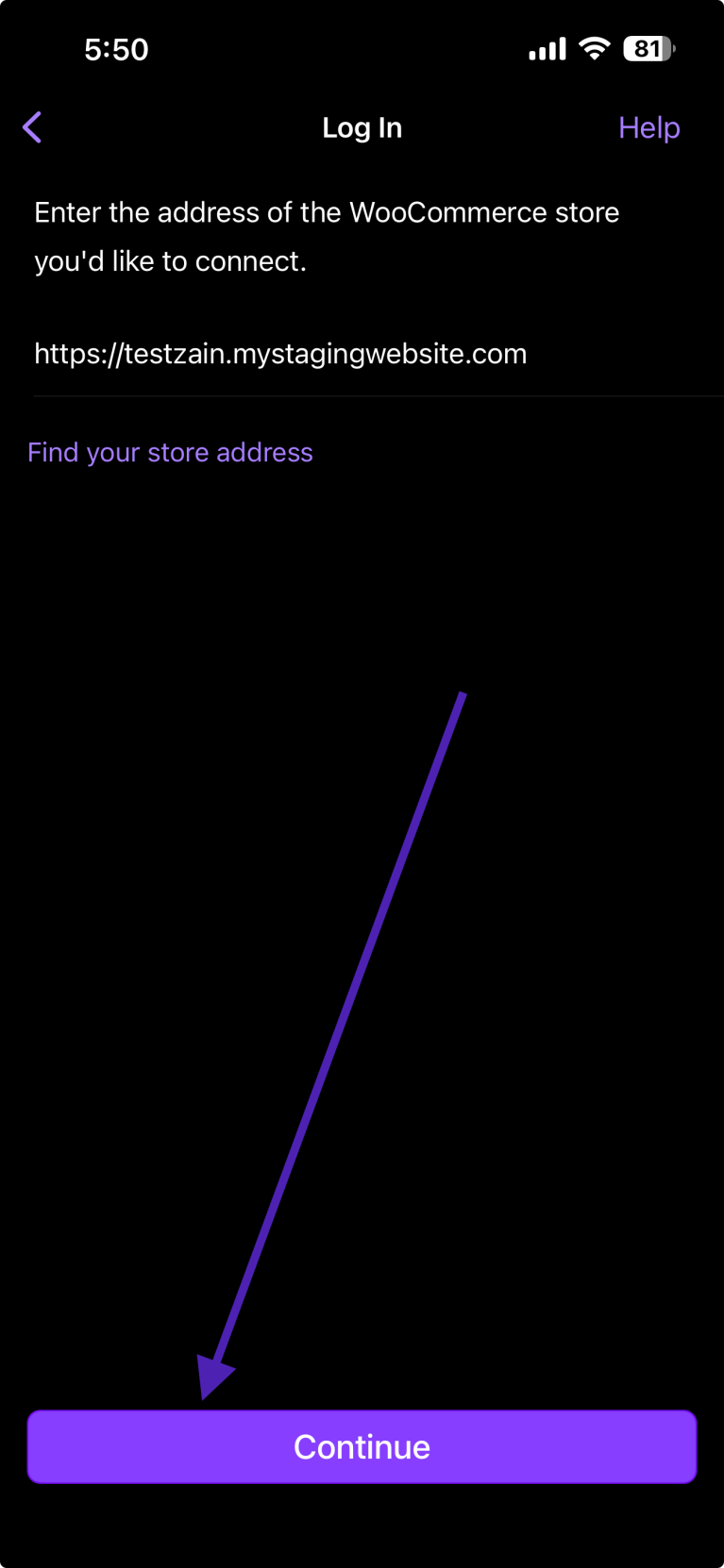
If you want to check whether your site is compatible with the app before logging in, enter your site address → tap Continue → Help → Check site compatibility (iOS only). The app checks your site’s WordPress setup, REST API, WooCommerce plugin, and application passwords support. After the checks complete, tap Chat with Support at the bottom if you need further help.
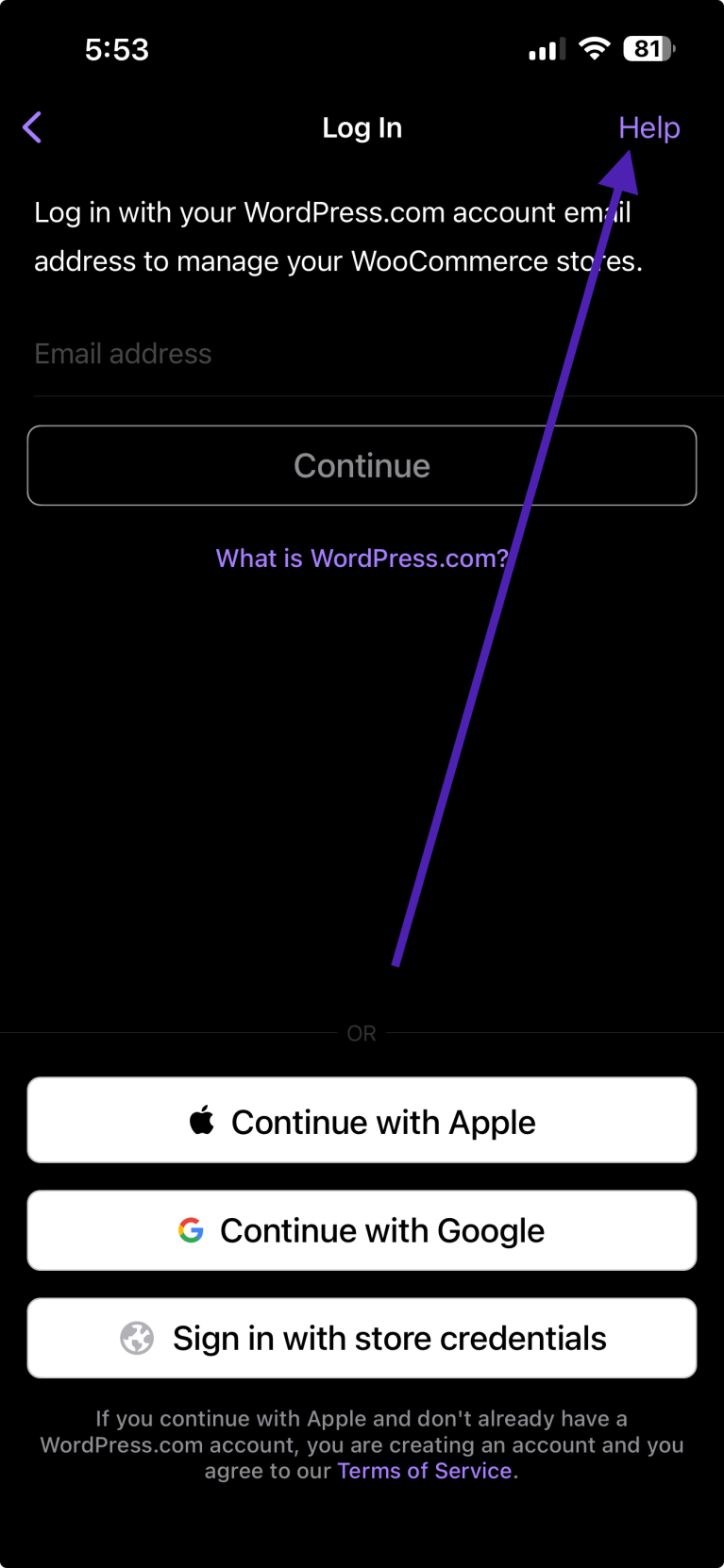
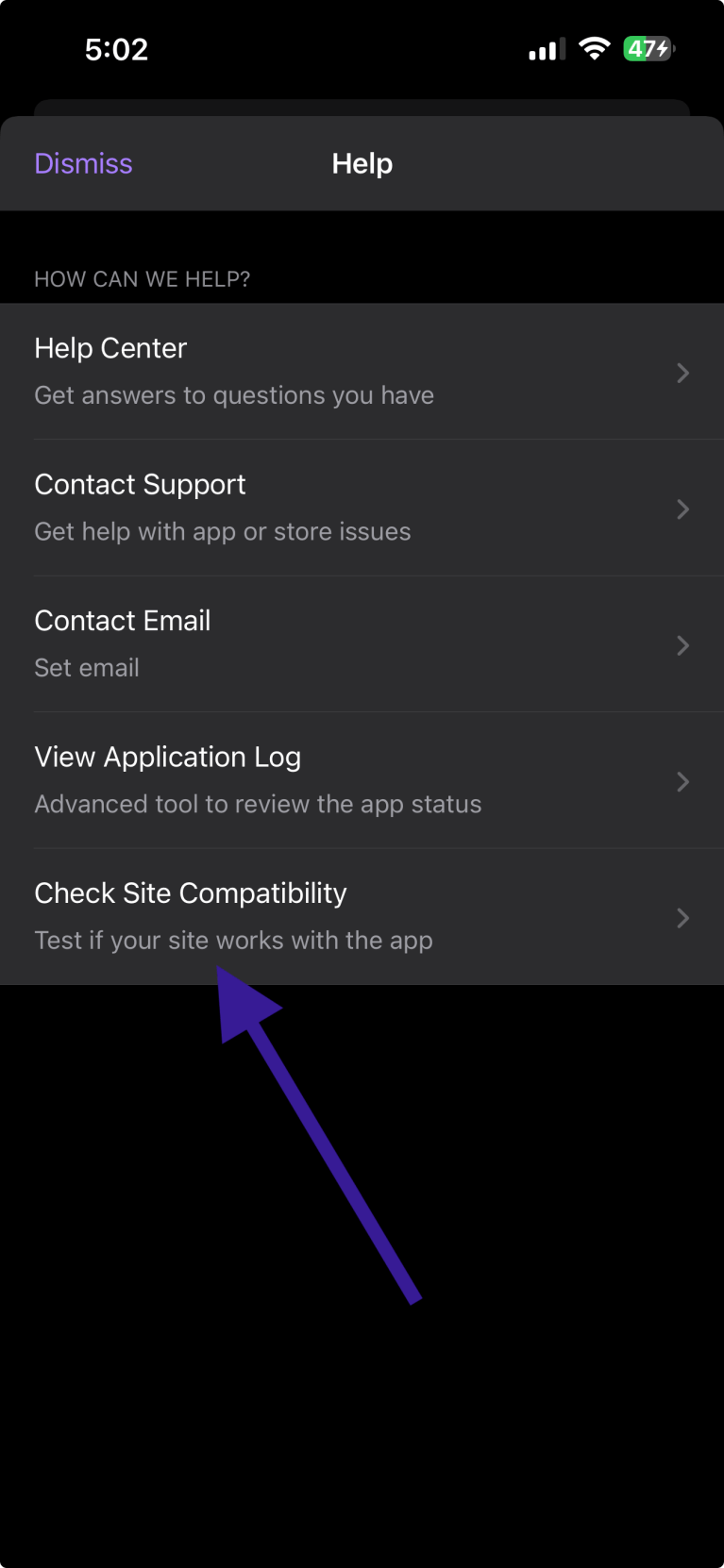
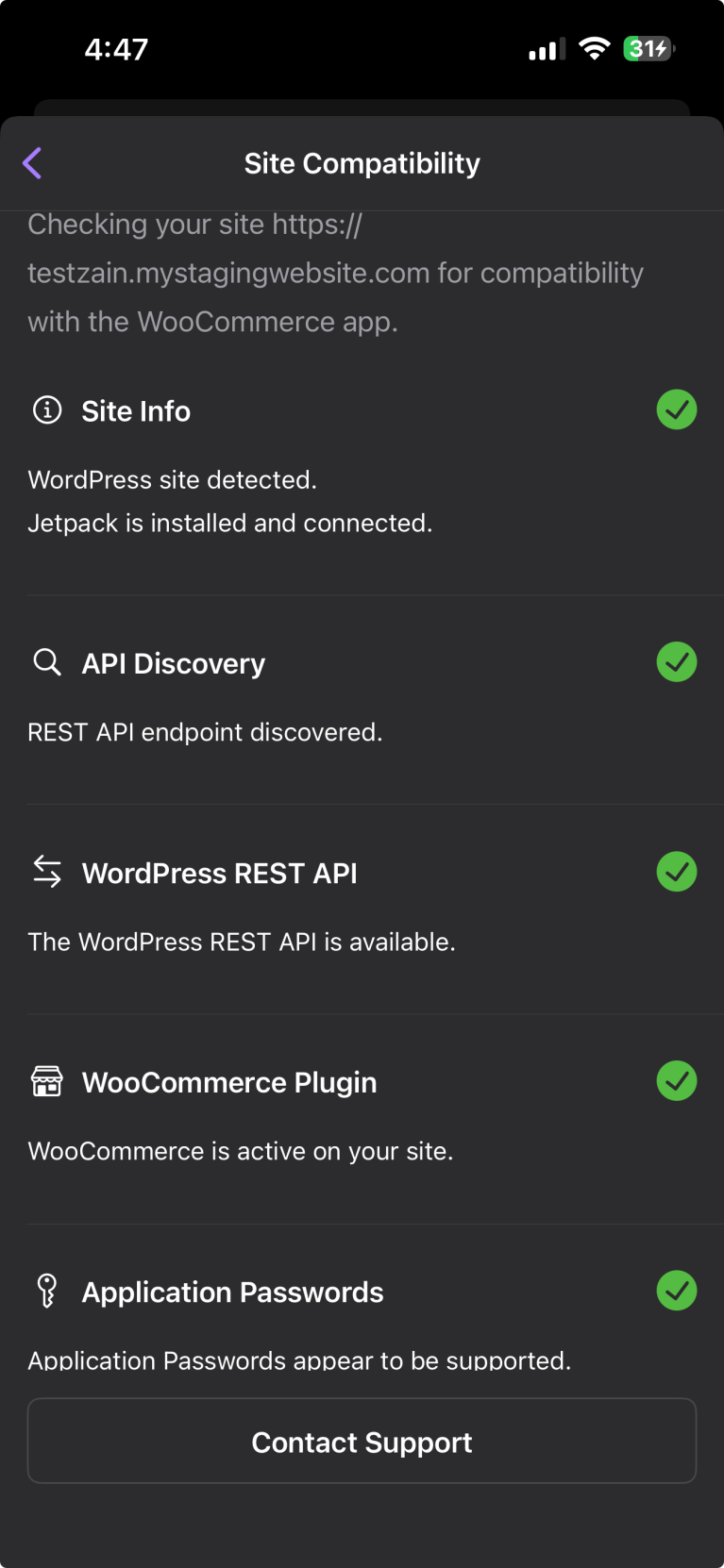
Note: When logged out, Chat History is not available. Chat history requires being logged in to a store.
Using the AI Support Chat
↑ Back to topStep 1: Select your issue
↑ Back to topWhen you open Chat with Support, the AI assistant greets you and presents a list of common issues:
- Loading orders
- Loading products
- Loading analytics
- Receiving push notifications
- Other — for any issue not listed above
Tap the option that best describes your problem. Your selection appears as a message in the chat.
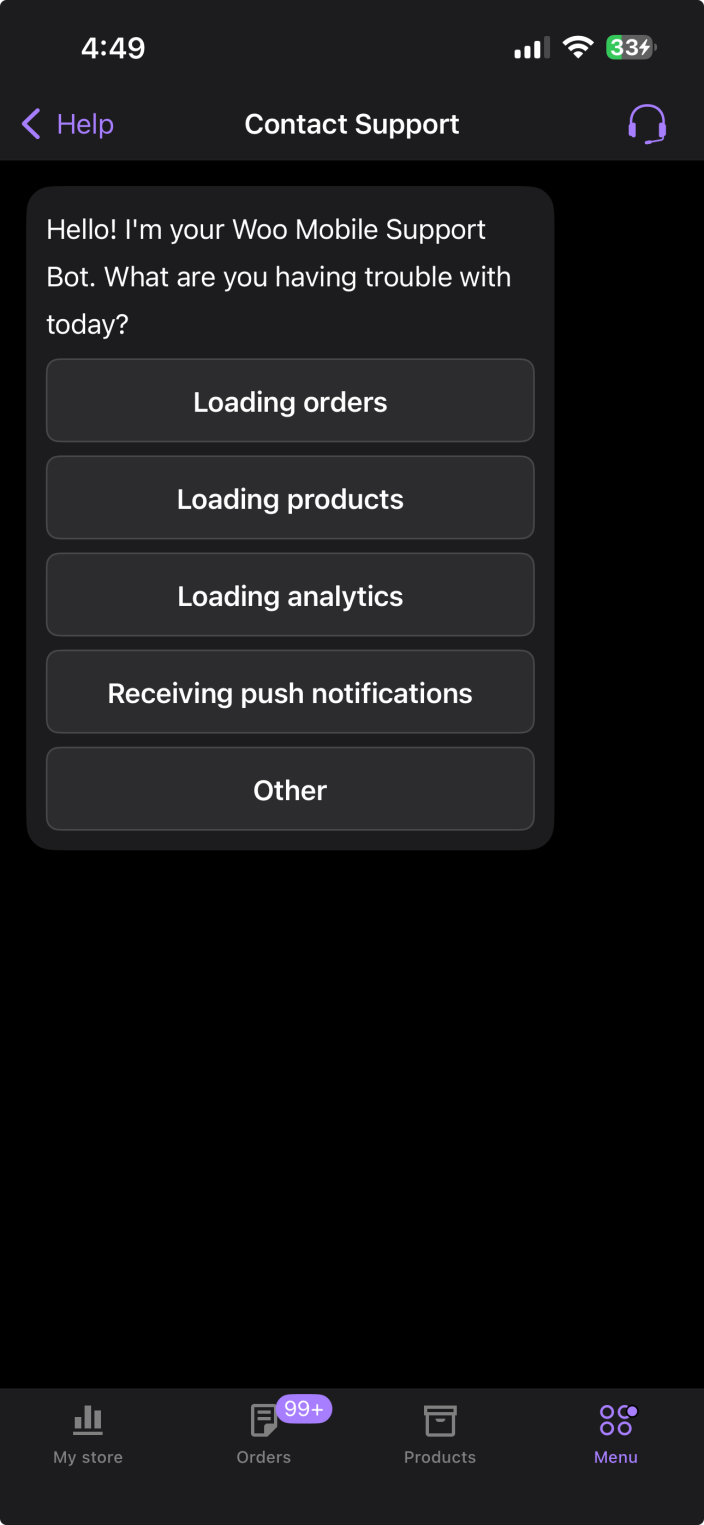
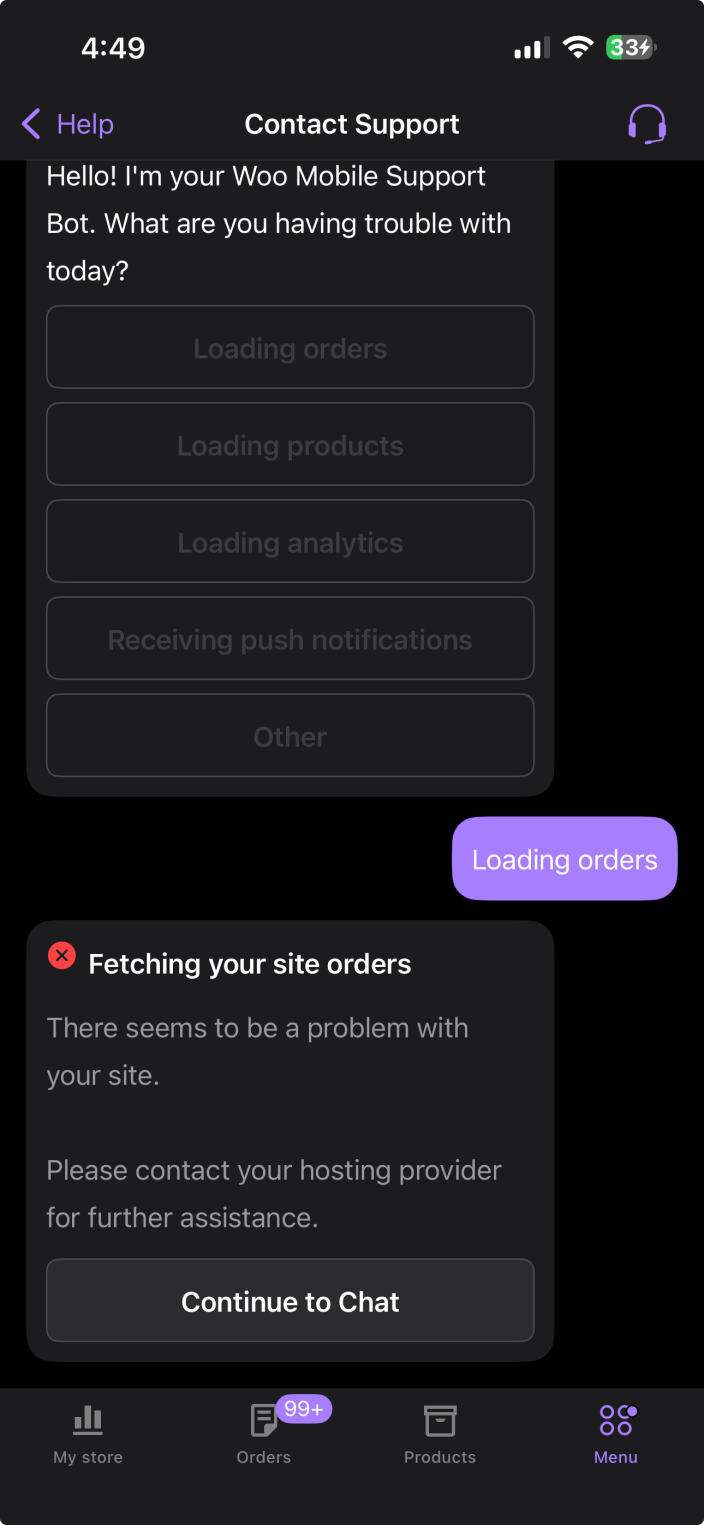
Note: If you access the chat from the Troubleshoot Connection screen, the pre-login Help screen, or the Site Compatibility tool, you may go directly to a free-text chat without seeing the issue picker.
Step 2: Automatic diagnostics
↑ Back to topAfter you select an issue, the app automatically runs diagnostics related to your selection. The results appear in the chat:
- A ✅ green checkmark means the check passed
- A ⚠️ warning icon means an issue was found — and the app may offer an inline action to fix it (such as “Register Device” for push notification issues)
If all checks pass, you’ll see “All checks completed with no issues” with a Continue to Chat button.
Step 3: Chat with the AI assistant
↑ Back to topTap Continue to Chat (or start typing if you’re in free-text mode). The AI assistant will ask you to describe your issue in more detail. Type your question in the message box at the bottom of the screen and tap the send button.
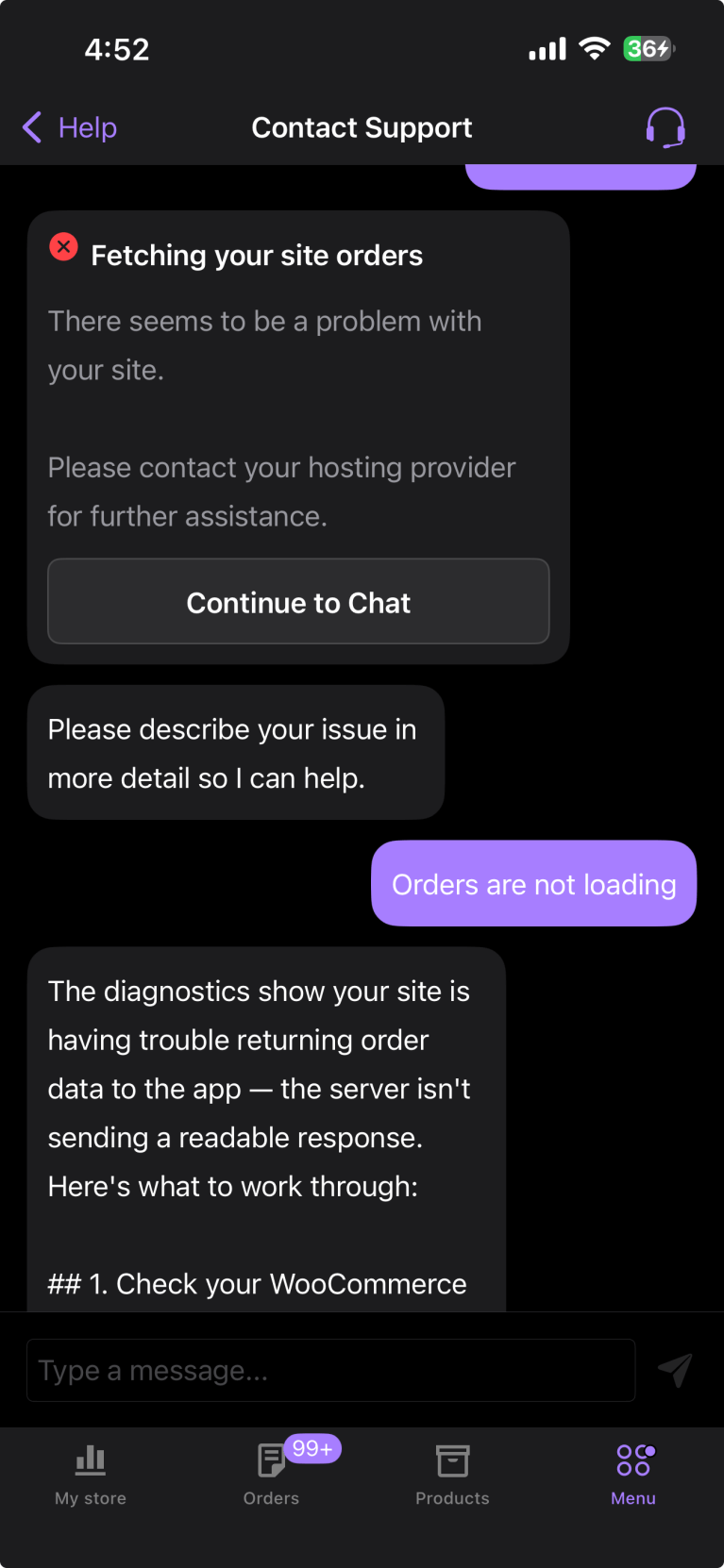
The AI assistant will respond with suggestions and troubleshooting steps. You can continue the conversation as long as you need.
Tips for getting the best help:
- Be specific about what you’re experiencing (e.g., “orders are not loading” rather than “the app isn’t working”)
- Mention any error messages you’re seeing
- The AI assistant has access to your app diagnostics and, for logged-in users, your site’s system status report — so it can give tailored suggestions
Giving feedback on responses
↑ Back to topEach response from the AI assistant has a 👍 and 👎 button. Tapping these helps us improve the quality of the support chat over time.
Contacting human support
↑ Back to topIf the AI assistant can’t resolve your issue, you can reach our human support team directly from the chat. There are two ways:
Option 1: Use the Contact Support button
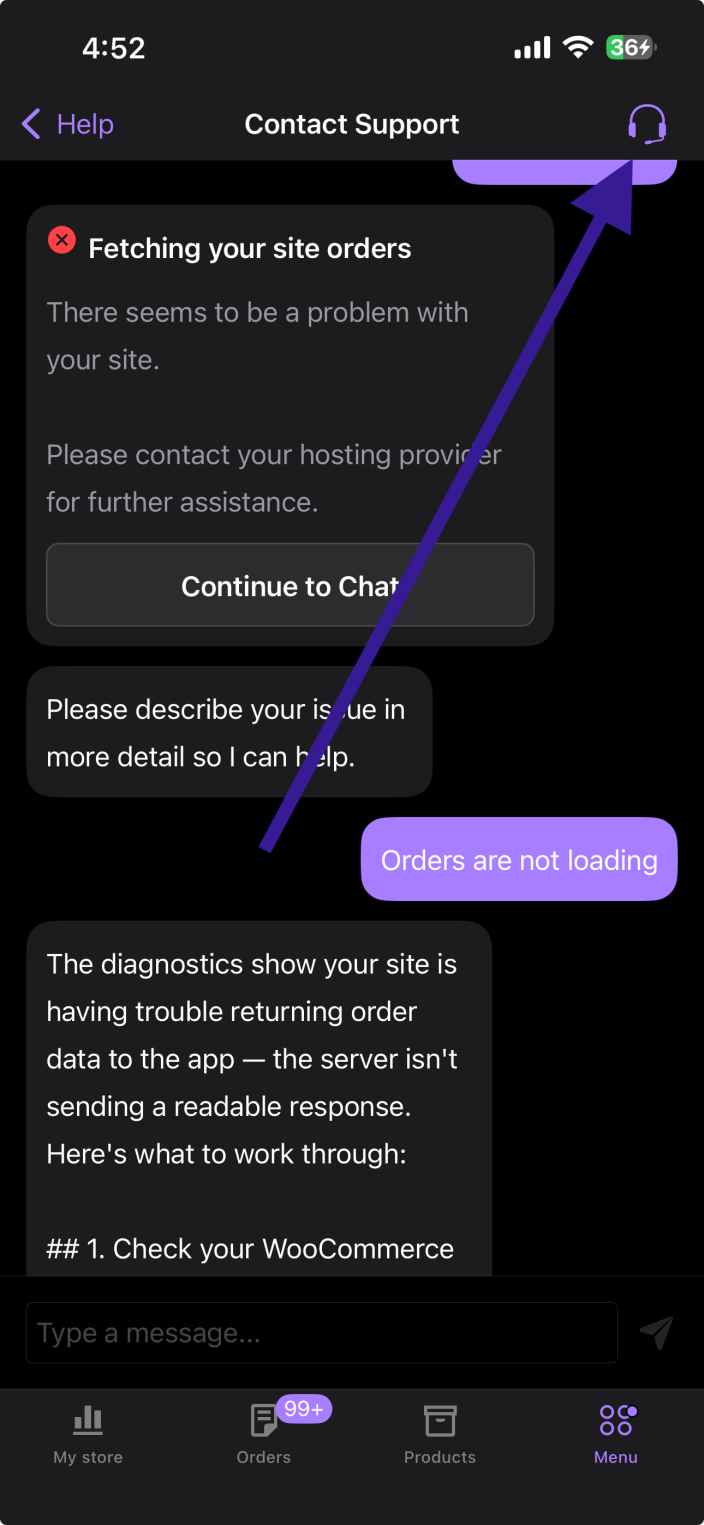
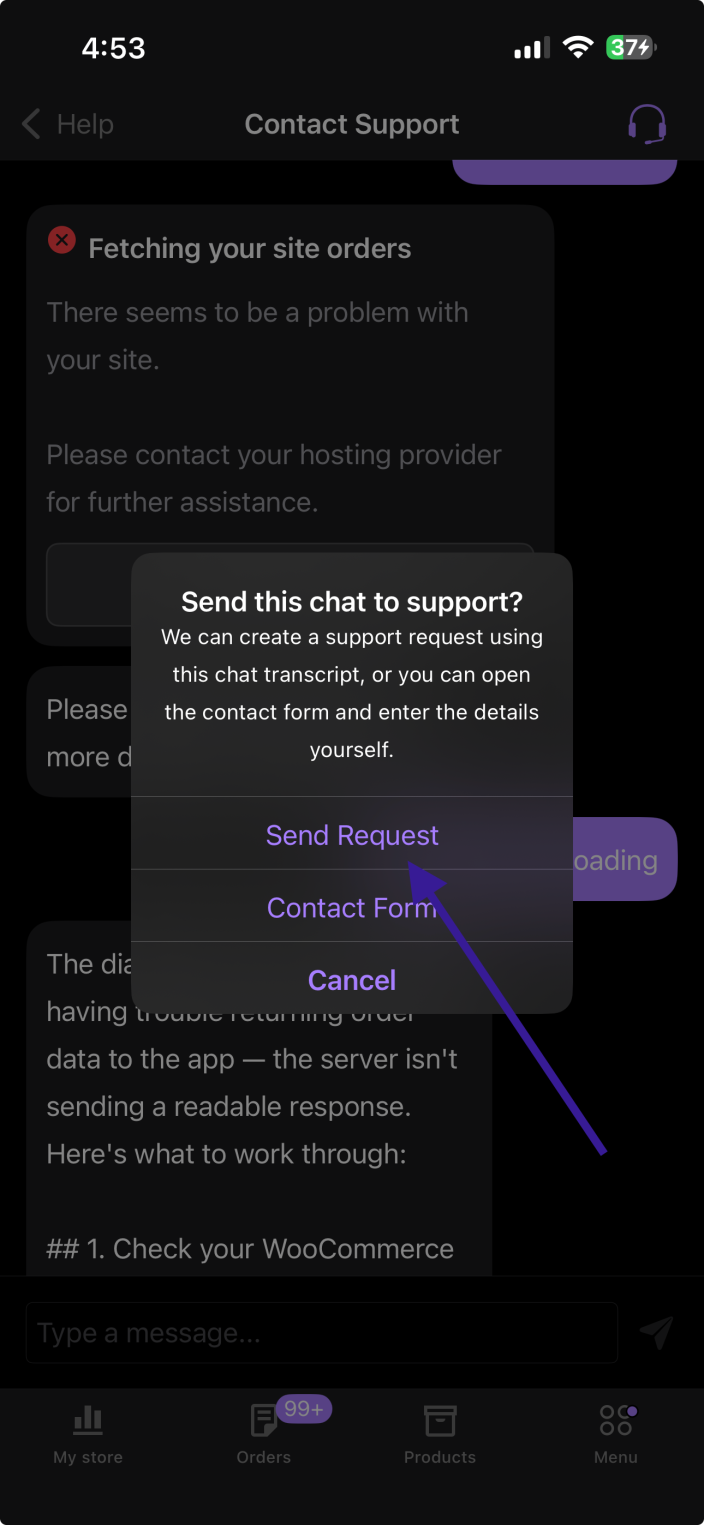
↑ Back to topA Contact Support 🎧 button is visible in the top-right corner of the chat screen. Tap this button at any time to create a support ticket.

Option 2: Ask the AI assistant
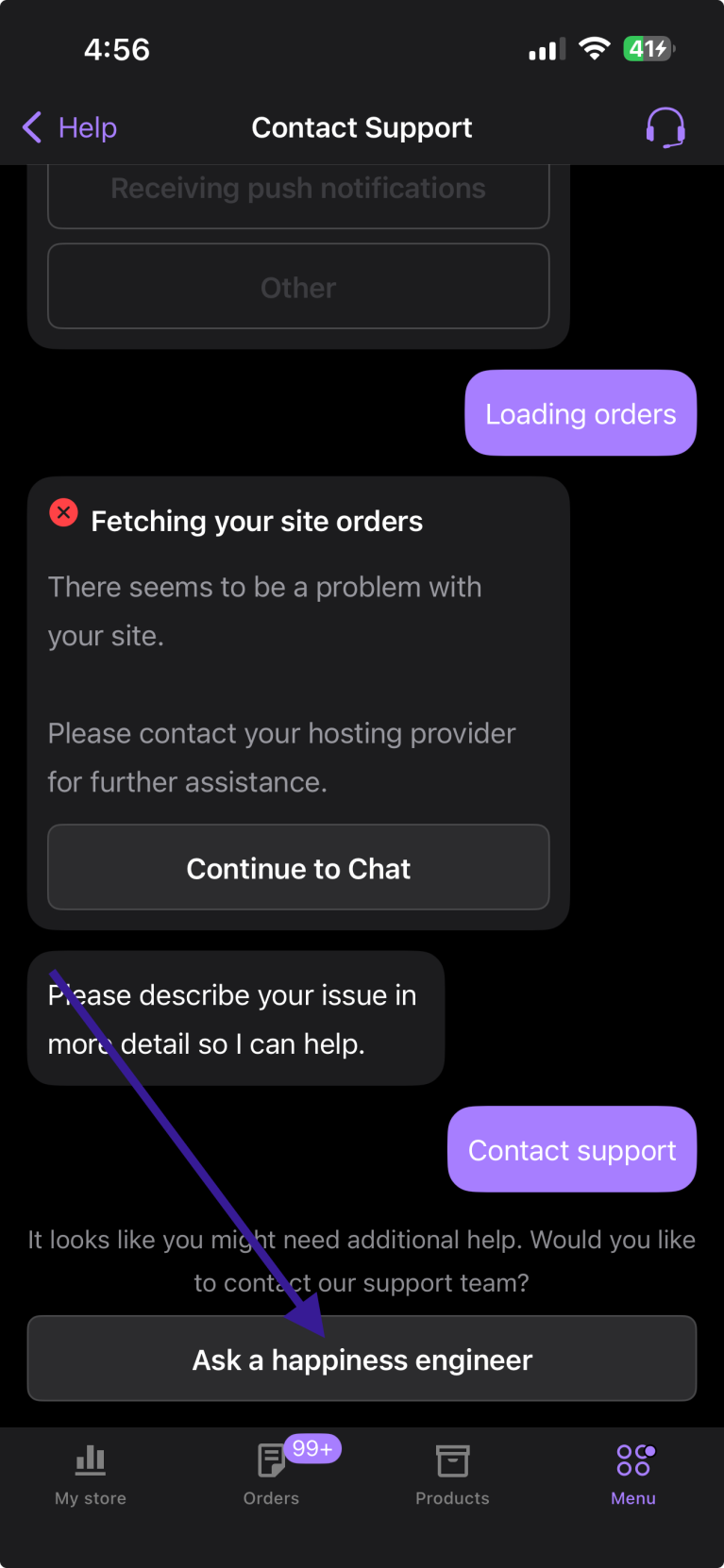
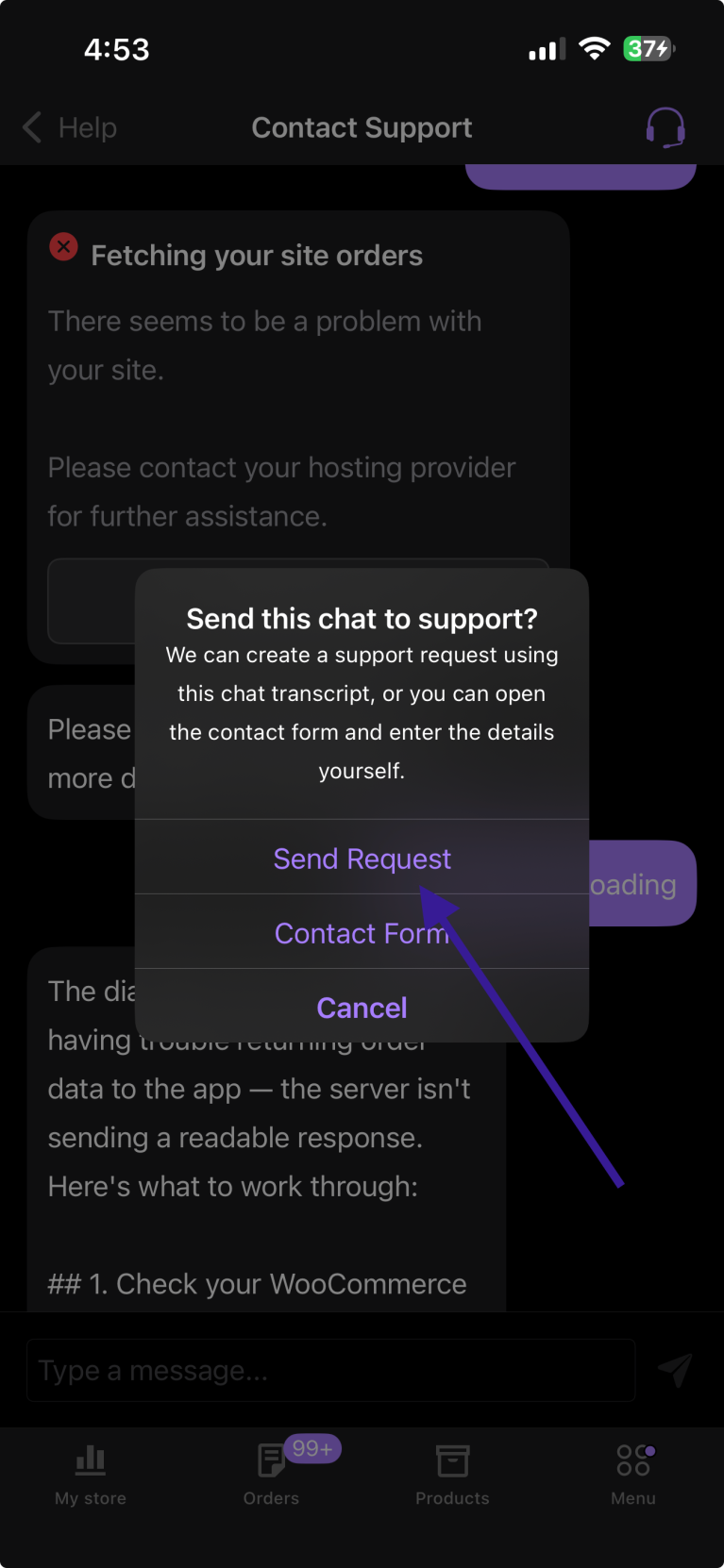
↑ Back to topYou can also simply tell the AI assistant that you’d like to speak with a human. The assistant will recognize your request and offer to connect you with our support team.
What happens when a ticket is created
↑ Back to topWhen you contact human support from the chat:
- A transcript of your AI conversation is included with the ticket, so the support team has full context
- Your system status report is attached automatically (for logged-in users)
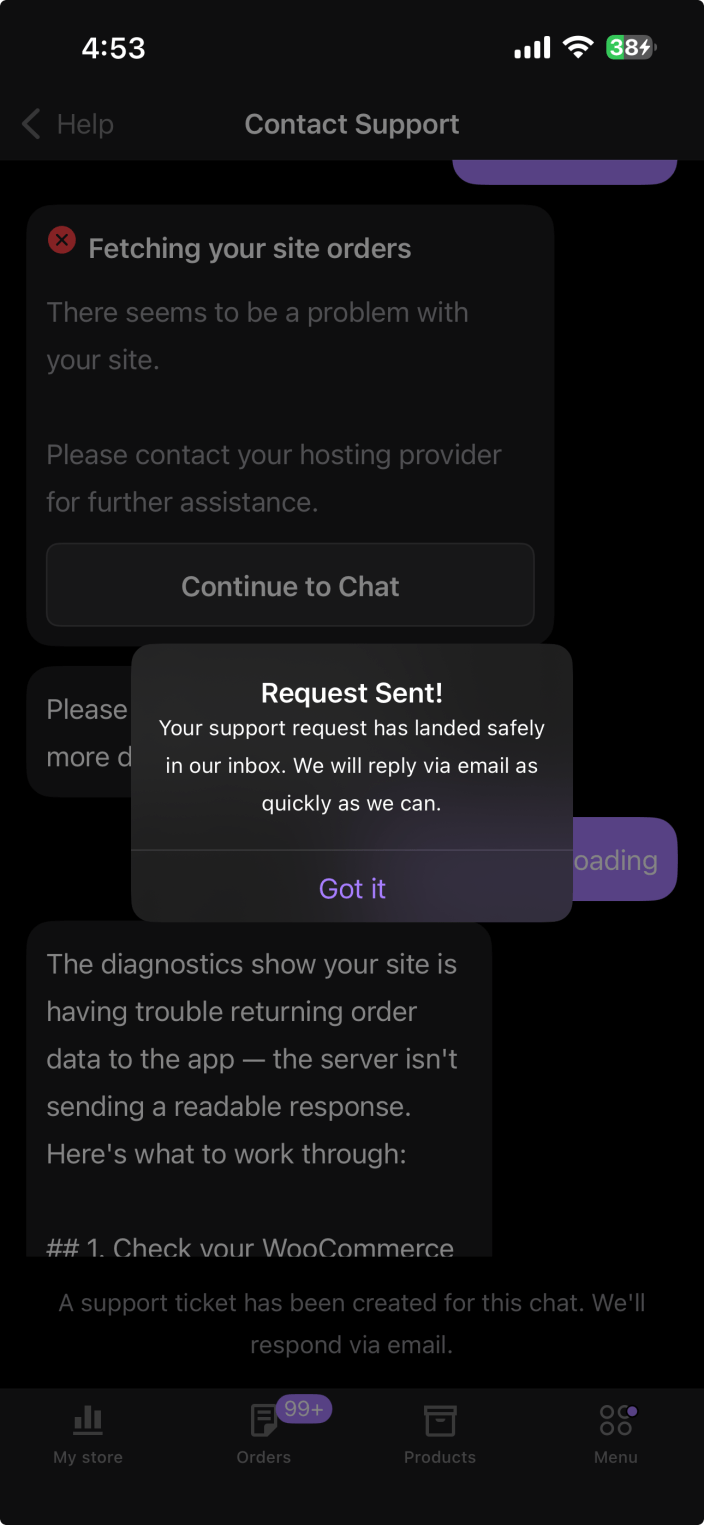
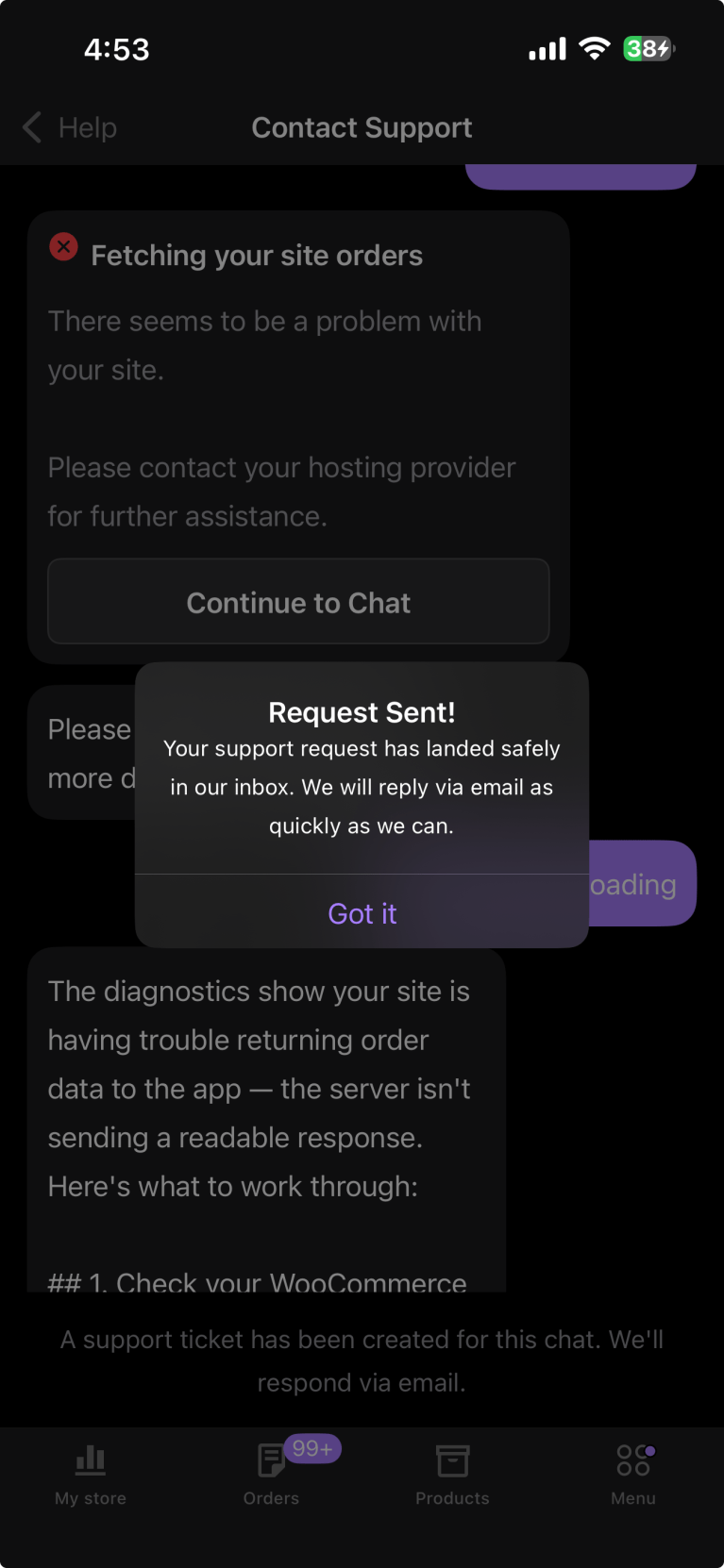
After a ticket is created, the chat session will close. You’ll see a confirmation message that our team will follow up via email.
Contacting support outside the app
↑ Back to topIf you prefer not to use the in-app chat, you can also reach our support team through our website at woocommerce.com/my-account/contact-support/.
Chat history
↑ Back to topFor logged-in users, your previous chat sessions are saved and can be accessed from Menu → Settings → Help & Support → Chat History.
Each session is listed with a preview of your first message and a timestamp showing when it was last active.
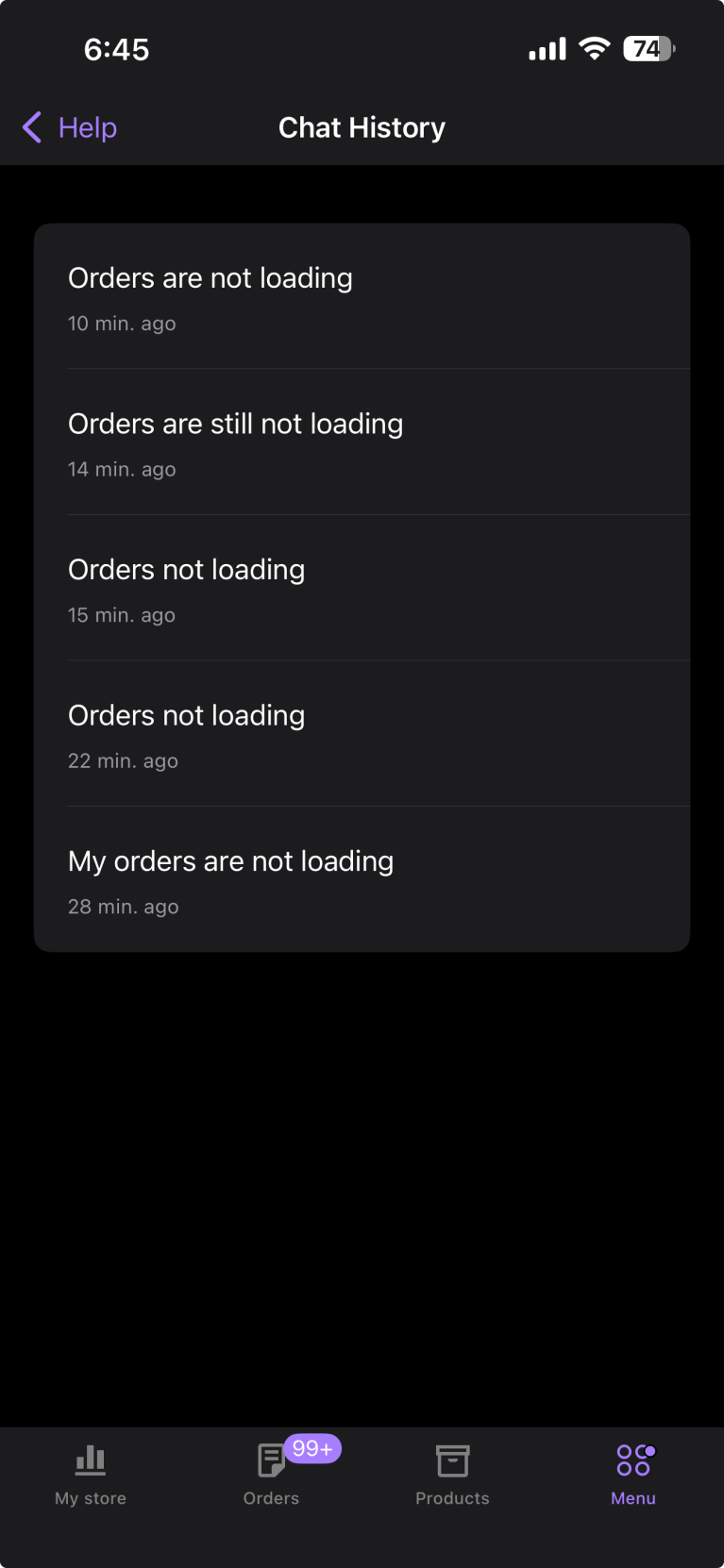
From this screen, you can:
- Resume a conversation by tapping on it
- Delete a chat session by swiping left on it (iOS) or using the delete action (Android)
Important: Chat history is stored locally on your device. If you log out of the app, delete the app, or switch devices, your chat history will be permanently deleted and cannot be recovered.
Resolving a chat
↑ Back to topIf the AI assistant resolves your issue, you’ll see a Mark resolved button. Tapping this closes the chat session and helps us track how well the AI assistant is performing.
The resolve button may also appear automatically after you’ve exchanged several messages, even if you don’t explicitly confirm the issue is fixed — this is so you can easily close resolved conversations.
Frequently asked questions
↑ Back to topWhat happened to the Contact Support form?
↑ Back to topStarting with app version 24.9, the previous Contact Support form has been replaced by AI Support Chat. You can still reach our human support team — just open Contact Support, and then tap the Contact Support 🎧 button in the top-right corner of the chat screen. Alternatively, you can contact support through our website.
Is AI Support Chat available in all countries?
↑ Back to topYes. AI Support Chat is available to all WooCommerce Mobile App users worldwide, starting with app version 24.9.
Can I skip the AI chat and go straight to human support?
↑ Back to topWithin the app, human support is accessed through the AI chat. The Contact Support 🎧 button is always visible in the top-right corner — you can tap it right away without starting/continuing the AI conversation. Alternatively, you can contact support through our website to bypass the in-app chat entirely.
Can I access my chat history on a different device?
↑ Back to topNo. Chat history is stored locally on your device and is not synced across devices. If you delete the app or log out, your chat history is permanently removed.
Can I use AI Support Chat from Point of Sale (POS) mode?
↑ Back to topAI Support Chat is not available directly from within POS mode. To access it, exit POS mode first, then navigate to Menu → Settings → Help & Support → Contact Support.
Still experiencing issues?
↑ Back to topIf you’re having trouble with AI Support Chat or can’t reach our support team through the app, you can also contact us through our website.