Product Icon

VariantFlow Variations as Single Product for WooCommerce

Show WooCommerce product variations as individual products in shop, category, and search pages for better discovery.
Choose a billing option
$49
Save 20%
$98 $78.40

Product comparison

Subscription includes

  • Product updates and improvements
  • Customer support
  • 30-day money-back guarantee

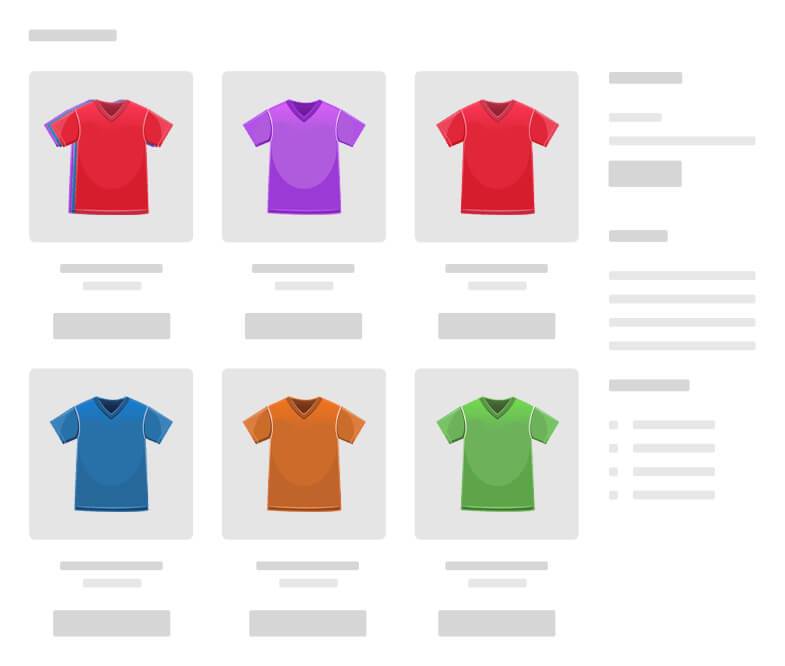
Show every WooCommerce variation as its own product on the Shop, Category, Tag, and Search result pages and in the [products] shortcode. Shoppers see the exact size, color, or style they want and add it to the cart straight from the catalog, without opening the parent product page.

By default, WooCommerce lists a variable product once and hides every size, color, and style inside a drop-down on the product page. A product with 20 variations gets one listing, a search for “red XL hoodie” lands on a generic product, and color or size filters show the parent instead of the match. Variations as Single Product fixes this, with no code and no changes to your products.

Key features

  • Variations as single products: Show every variation as its own listing, with its own image, title, and price, on the Shop, Category, Tag, and Search pages and in the [products] shortcode.
  • Choose where variations appear: Turn variations on or off for the Shop, Category, Tag, and Search pages, or for selected categories only.
  • Hide parent products: Hide parent variable products from the catalog, globally, or for specific products.
  • Flexible exclusions: Exclude variations by category, tag, or attribute, exclude a whole product, or hide a single variation.
  • Custom variation titles: Use a title pattern such as {title} in {attributes} for every variation, or write a custom title for any single one.
  • Variations next to their parent: Place variations right beside their parent product instead of at the end of the product list.
  • Add to cart from the Shop page: Each variation gets an “Add to Cart” button instead of “Select Options”, so customers buy in one click.
  • Filtering and sorting: Filter variations by color, size, or any attribute, and sort them by popularity, rating, price, and date.
  • Stock control: Hide out-of-stock and backorder variations from the catalog.
  • Related, upsell, and cross-sell products: Show single variations in the Related, Upsell, and Cross-sell sections.
  • Star ratings on every variation: Variations show their parent product’s star rating.
  • Multilingual and HPOS ready: Works with WPML, Polylang, and WooCommerce High-Performance Order Storage.

Show every variation as its own Product

Turn every variation into a standalone listing on your Shop page, so customers can compare and buy a specific size or color without opening the product page. You decide which variations appear and whether the parent product stays visible.
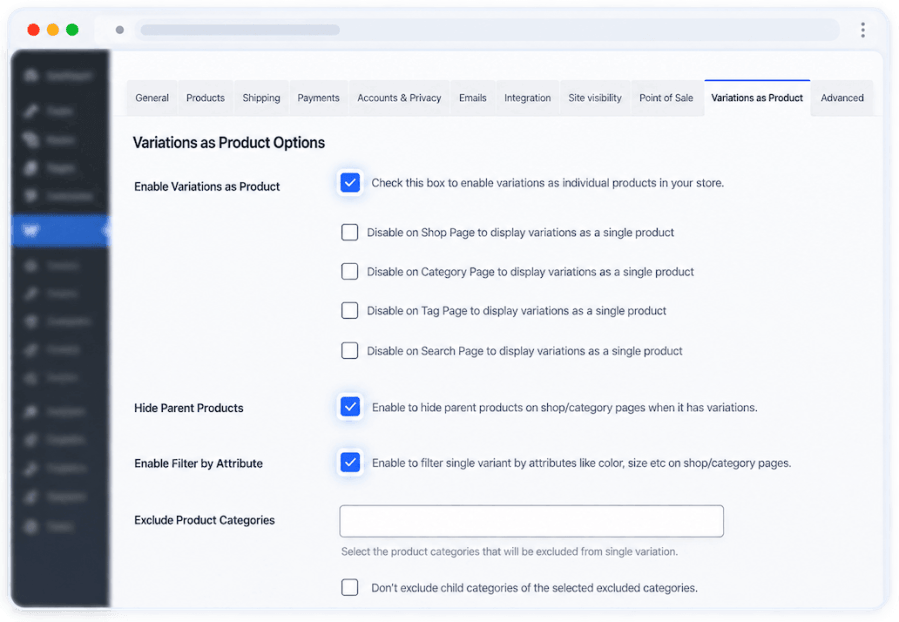
  • Show variations as single products
  • Hide parent variable products
  • Exclude variations by product attribute, such as size or color
  • Exclude variations by product category or tag, including child categories
  • Turn variations off on the Shop, Category, Tag, or Search pages

Settings to display WooCommerce variations as single products

Control Variations Product by Product

Override the global settings on any product. Choose whether its variations appear as single products, and hide the parent variable product only where it makes sense.
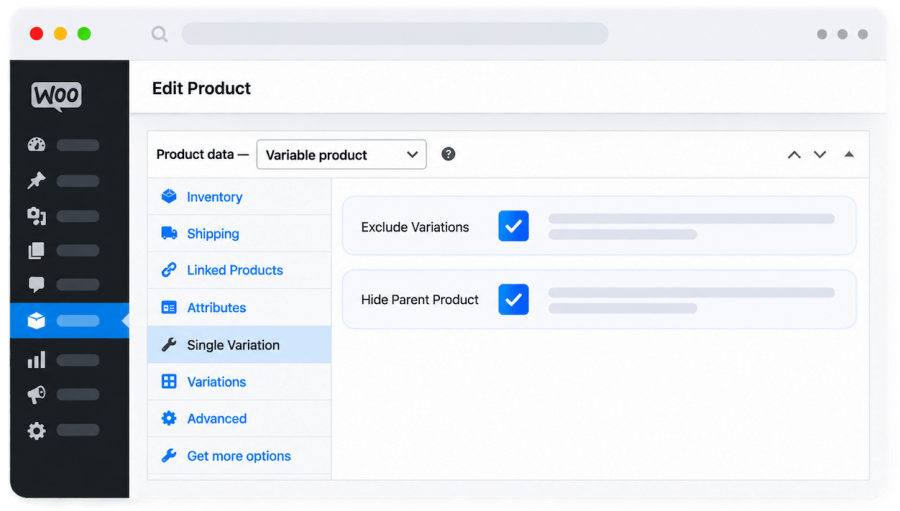
  • Exclude a product’s variations from single display
  • Hide the parent product for specific variations

Per-product setting to exclude variations and hide the parent product

Exclude individual Variations and rename them

Hide a single variation from the catalog while keeping the rest, for example, a discontinued color. You can also give any variation its own title so shoppers see exactly what they are buying.
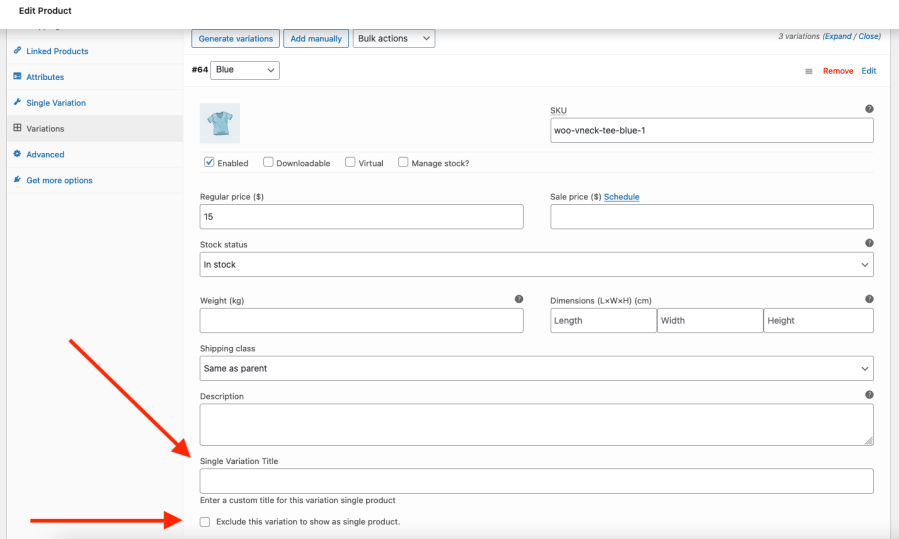
  • Exclude individual variations from the catalog
  • Set a custom title for each variation

Exclude an individual variation and set a custom variation title

Custom variation titles for clearer listings

Give variations descriptive titles that highlight the attributes shoppers care about. Use a global title pattern for every variation, or write a custom title for any single one.
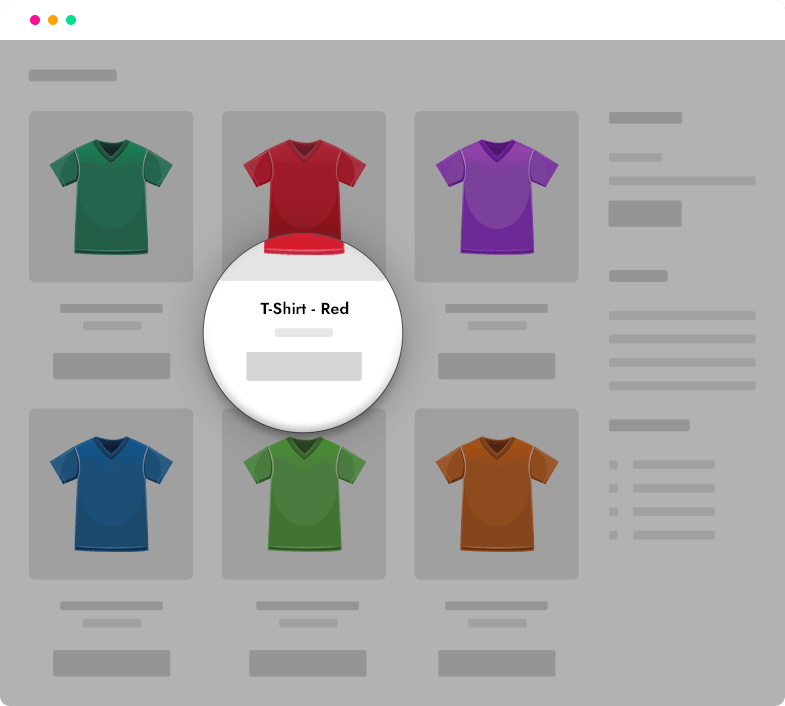
  • Global title pattern, for example {title} in {attributes}
  • Attribute format, for example {attribute_name}: {attribute_value}
  • Custom separator between attributes
  • Custom title for any individual variation

Custom variation title pattern settings

Show Variations next to their parent Product

Normally, single variations are added to the end of your product list. This option places them right beside their parent product, so related items stay together while shoppers browse. For example, if the parent product sits in position three, its variations appear in positions four, five, six, and onwards.
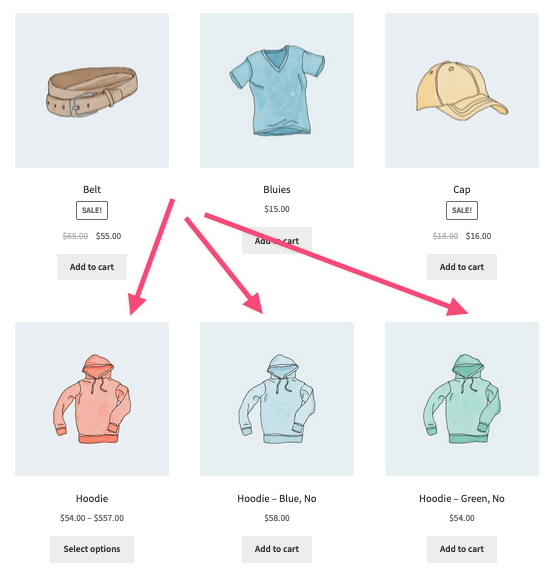
Single variations placed beside their parent product in the catalogue

Filter Variations by color, size, and other attributes

Single variations work with your shop filters like any other product. Customers can filter by colour, size, or any attribute and see the exact matching variation. Attributes that are not used for variations are inherited from the parent product, so filtering stays complete.
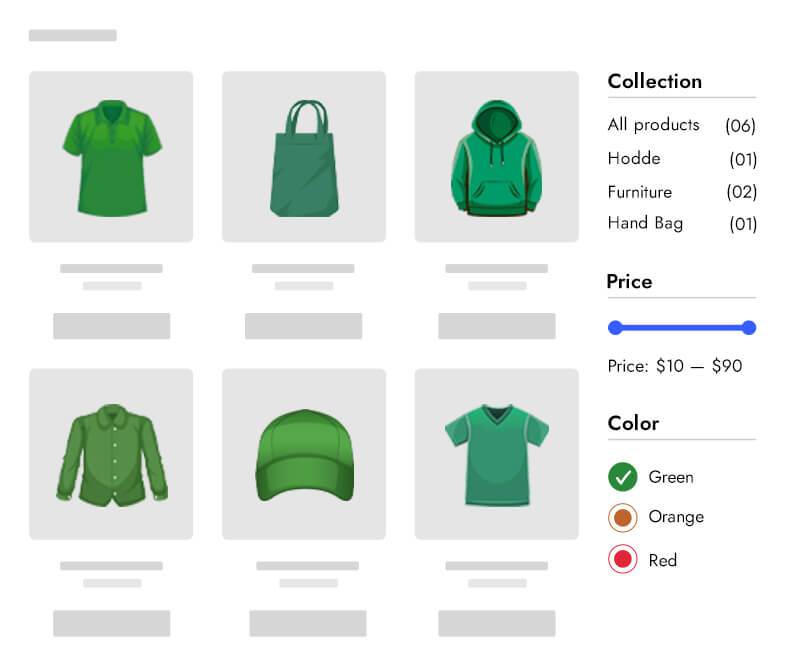
  • Works with WooCommerce product filters
  • Single variations appear in filter results
  • Non-variation attributes inherited from the parent

Filtering single variations by colour and size attributes

Add Variations to cart from the shop page

Each single variation gets an “Add to Cart” button instead of “Select Options”, so customers can buy in one click from the Shop, Category, or Search page. You can switch back to “Select Options” whenever you need.
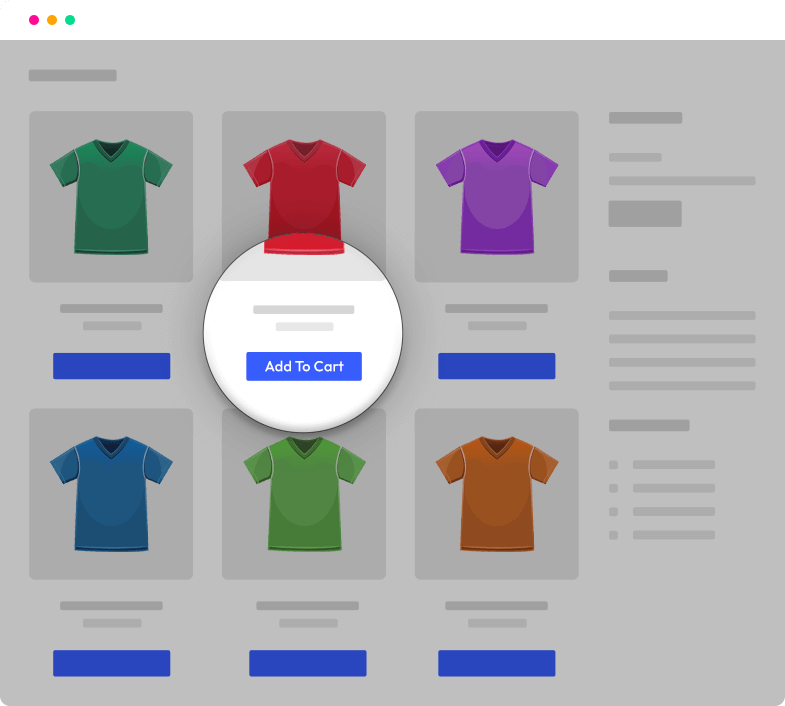
Add to cart button on single variations on the shop page

Star ratings on every variation

Every variation shows its parent product’s star rating, so ratings stay consistent across your catalogue and social proof appears on every listing. Variations are included when shoppers sort by average rating.
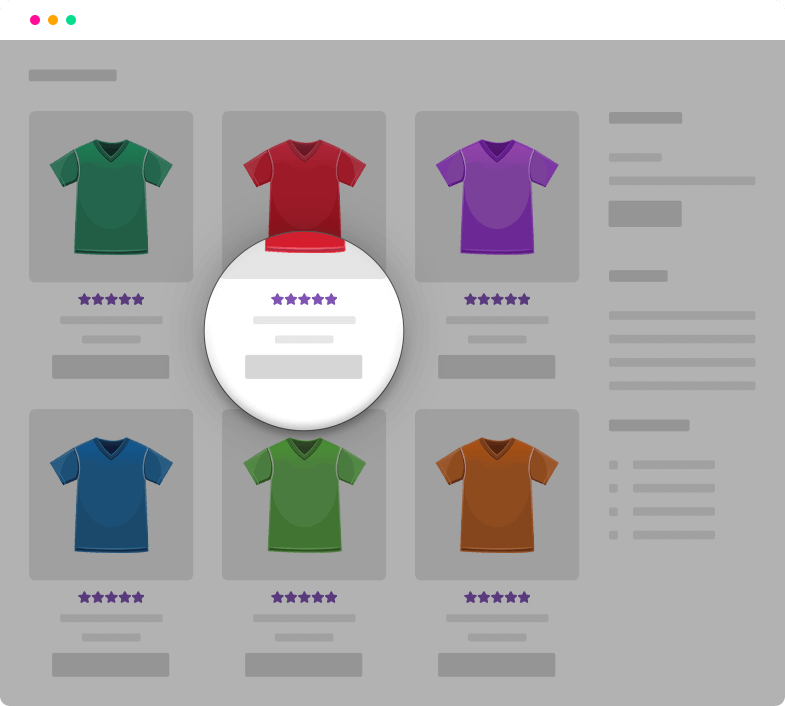
Star ratings shown on single variation products

Sort Variations by price, rating, popularity, and date

Variations are sorted like normal products, so “price low to high” really shows the cheapest size first. Popularity uses each variation’s own sales.
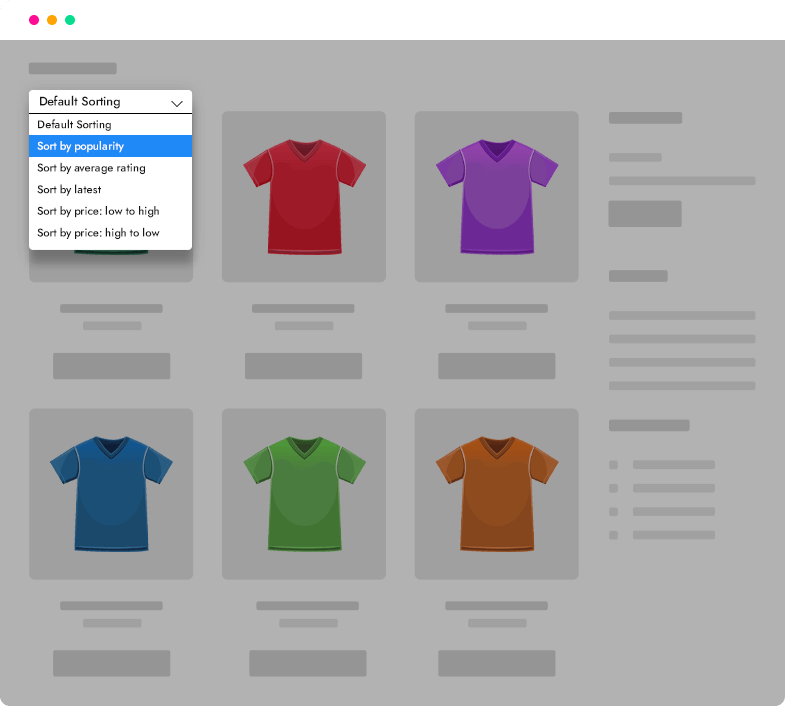
  • Sort by popularity
  • Sort by average rating
  • Sort by price, low to high and high to low
  • Sort by date

Sorting single variations by price, rating and popularity

Where Variations appear

  • Shop, Category, Tag, and Search result pages
  • The [products] shortcode
  • Related, Upsell, and Cross-sell products
  • Custom categories and tags for variations
  • Out-of-stock and backorder variations can be hidden
  • The cart button on variations can be turned on or off

Compatibility

  • WooCommerce High-Performance Order Storage (HPOS)
  • WooCommerce Brands
  • Custom variable product types, such as gift vouchers
  • WPML and Polylang
  • Elementor, Bricks Builder and Breakdance Builder
  • Enfold theme
  • JetEngine, JetSmartFilters, and JetWooBuilder
  • Barn2 and YITH Quick View
  • WooCommerce Wholesale Prices

Frequently asked questions

Does the plugin create new products or duplicate my catalogue?

No. It uses the variations you already have in WooCommerce and lists them in the catalogue. No new products are created, and your product data, prices and stock stay exactly as they are.

What happens when a customer clicks a single variation?

The customer lands on the parent product page with that variation's options already selected, so they can check the details and buy straight away. They can also add it to the cart directly from the Shop page.

Can I choose which variations show up in the catalogue?

Yes. You can leave out variations by attribute, category or tag, switch off all variations of one product, or hide one variation on its own. You can also turn the feature off on the Shop, Category, Tag or Search pages.

Will customers see both the parent product and its variations?

Only if you want them to. You can hide every parent variable product, or hide the parent only on the products you choose.

Do sorting and filtering still work correctly?

Yes. Variations are sorted by their own price, sales, rating and date, and they show up in colour, size and other attribute filters. The plugin also places each variation next to its parent product, so related items stay together.

Can I stop shoppers from seeing variations they can't buy?

Yes. Out-of-stock and backorder variations can be hidden from the catalogue, so shoppers only see items that are available.

What happens to my store if I deactivate or delete the plugin?

Your catalogue goes back to the standard WooCommerce layout as soon as you deactivate it. When you delete the plugin, its settings are removed, and your products and variations are left untouched.

Related Products

Price $279 annually
Rated 3.9 out of 5 stars
Price $79 annually
Rated 3.4 out of 5 stars
Price $59 annually
Rated 3.1 out of 5 stars
Price $109 annually
Rated 2.8 out of 5 stars
Price $49 annually
Rated 4.1 out of 5 stars
Price $109 annually
Rated 2 out of 5 stars
Price $109 annually
Rated 2.5 out of 5 stars
Price $39 annually
Rated 2.8 out of 5 stars
Price $199 annually
Rated 4 out of 5 stars
Use of your personal data
We and our partners process your personal data (such as browsing data, IP Addresses, cookie information, and other unique identifiers) based on your consent and/or our legitimate interest to optimize our website, marketing activities, and your user experience.