Subscription includes
Support
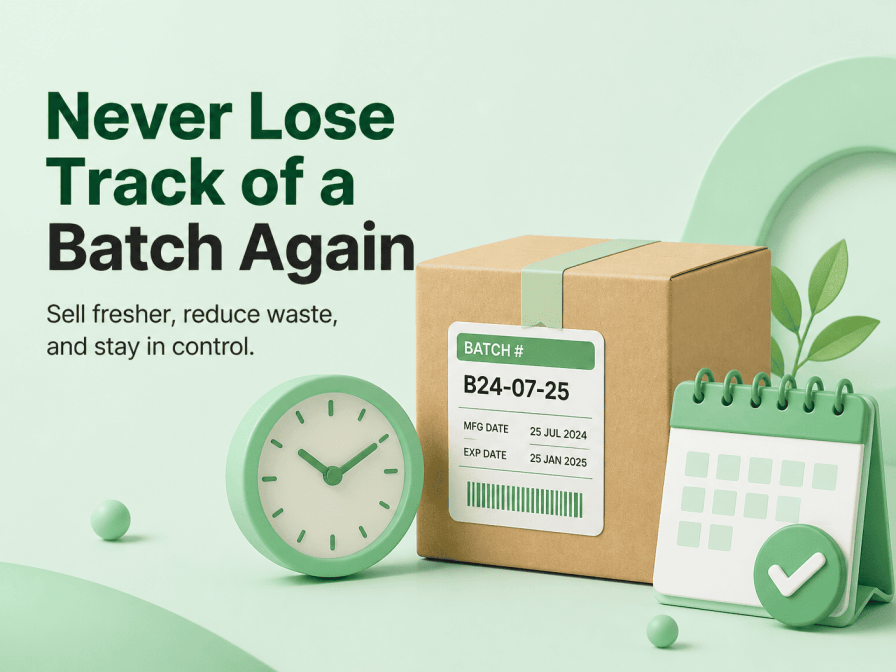
When products have expiry dates, tracking only the total stock quantity is not enough. You also need to know which batches are available, when they expire, and which orders received stock from them.
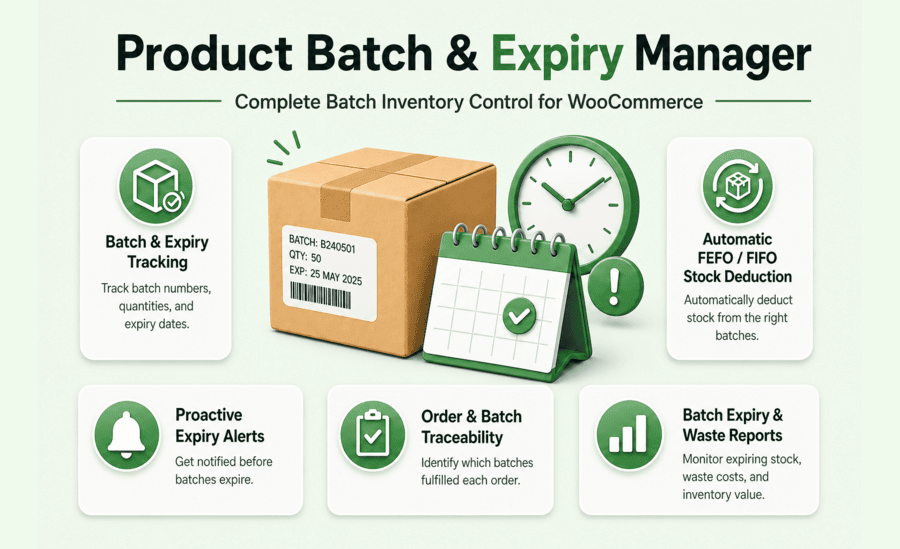
Product Batch and Expiry Manager adds batch-level inventory management to WooCommerce. Record each delivery or production batch, automate stock allocation, monitor expiry risks, and trace order allocations when needed.
Whether you sell food, beverages, supplements, cosmetics, or other products with shelf-life requirements, the plugin helps you manage batch inventory directly from your WooCommerce store.
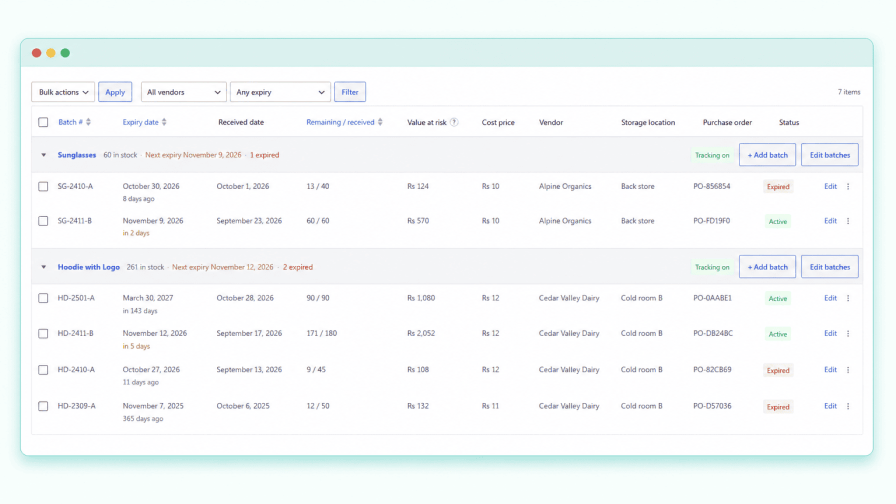
Maintain separate inventory records for each batch, including batch number, received date, manufacture date, best-before date, expiry date, received and remaining quantities, cost price, vendor details, storage location, purchase order number, and notes.
Each batch also has a status, such as Active, Expired, Depleted, Damaged, or Archived.
2. Automatic FEFO and FIFO Stock Allocation
Choose your preferred stock rotation method from the plugin settings:
The plugin records batch allocations against order items and updates remaining batch quantities as WooCommerce processes stock changes.
If batch stock cannot fully cover an order, the order is not blocked. The uncovered quantity is recorded as unassigned and flagged for review.
3. Reassign Batches from the Order Screen
Need to correct which batch fulfilled an order? Use the Reassign control on the WooCommerce order edit screen.
Select the batch that actually fulfilled the order. The plugin returns the original allocation, deducts the quantity from your selected batch, synchronizes stock, and adds an order note.
You can make reassignment even after an order has been completed.
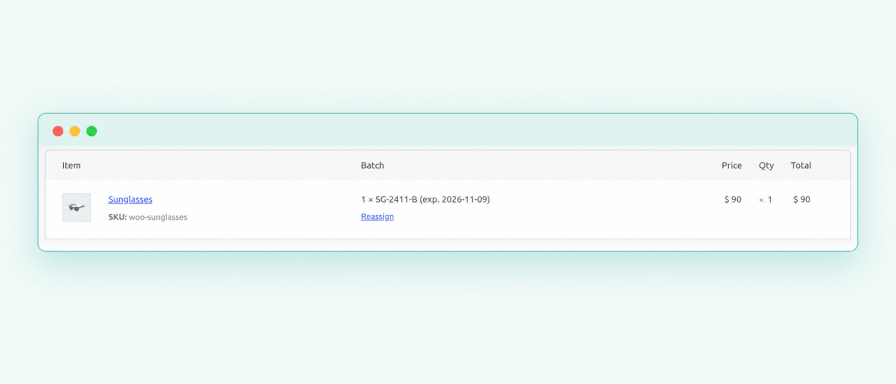
4. Manage Batches from One Place
Manage batch inventory without repeatedly opening individual product edit screens.
5. Daily Inventory Monitoring
Know which inventory needs attention without checking every batch manually.
The Batches dashboard highlights:
Check when the daily monitoring process last ran, and use Run checks now to trigger the checks manually whenever needed.
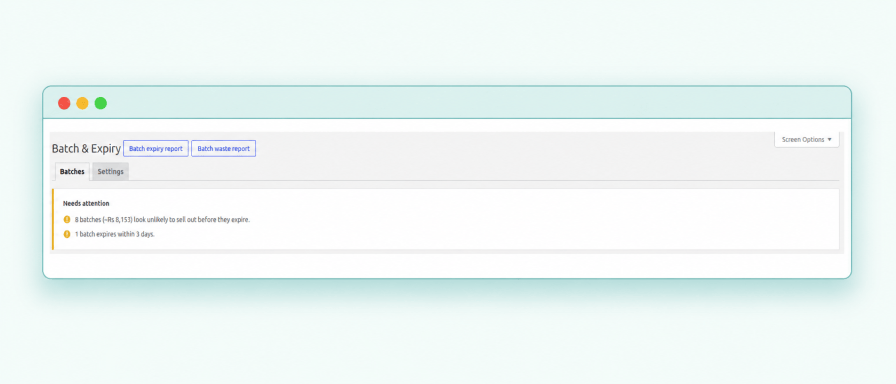
6.Monitor Expiry Dates with Email Alerts
Stay informed about inventory that needs attention. The plugin’s daily checks identify:
Configure the available email notifications, customize their templates, send test emails, and review recent email activity. The final-warning email is optional and disabled by default.
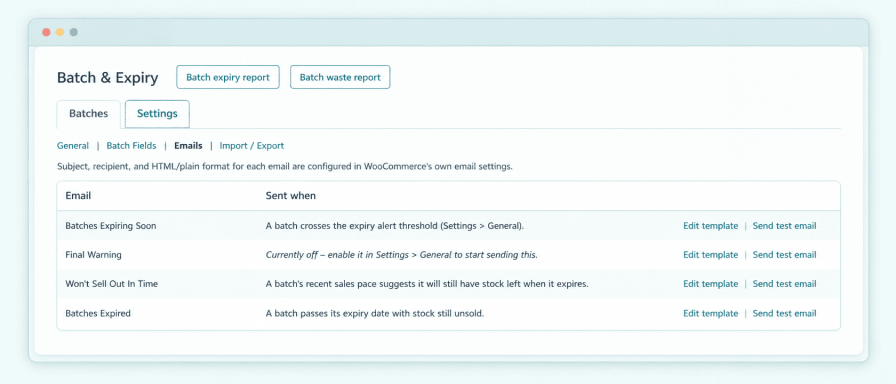
7. Trace Orders by Batch
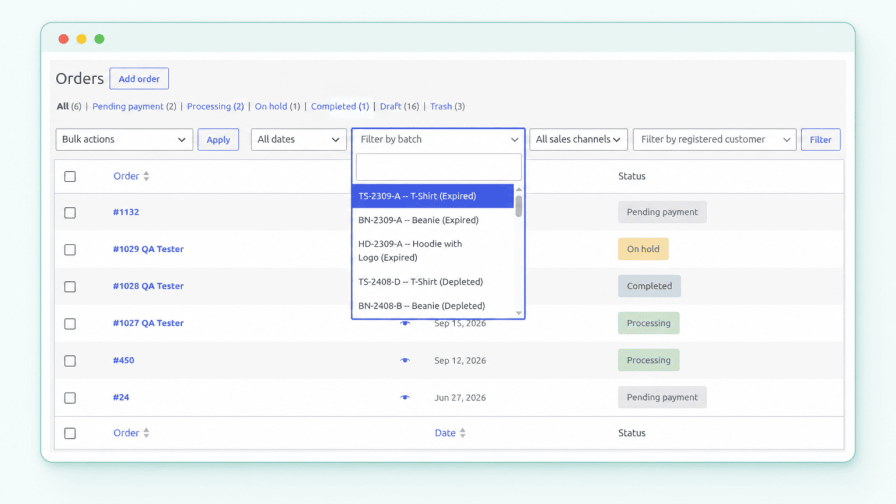
Need to identify orders associated with a particular batch?
Use View orders from a batch’s row menu, or filter the WooCommerce Orders list using the searchable Filter by batch option.
This makes it easier to investigate batch-related issues and identify orders associated with a batch recall.
Batch-related stock changes, including sales, restorations, refunds, manual adjustments, and reassignment, are also recorded with timestamps and user details.
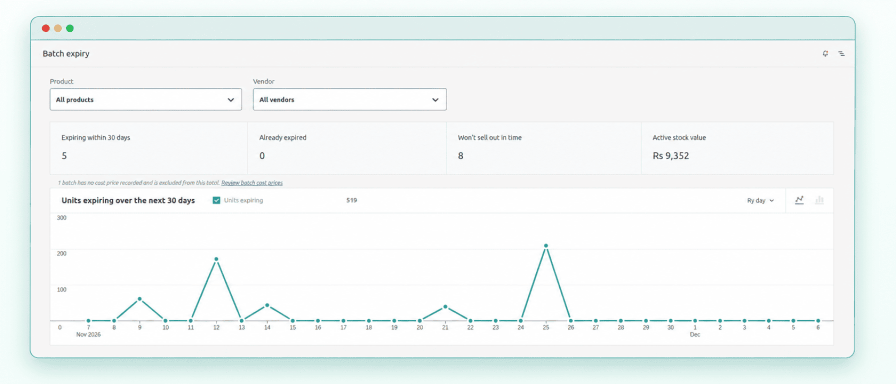
8. Two Reports in WooCommerce Analytics
Get a clearer picture of expiry risks and inventory waste through two dedicated reports:
Both reports include product and vendor filters. Monetary figures use recorded batch cost prices, not selling prices or profit margins. Batches without a cost price are excluded from money totals, with the exclusions disclosed in the reports.
WooCommerce Analytics must be enabled to use these reports.
9. Keep WooCommerce Stock in Sync
The plugin can keep WooCommerce’s stock quantity aligned with the remaining quantities in your batches. This option is enabled by default and is recommended for most stores.
You can disable synchronization if required, but WooCommerce’s displayed stock quantity may then drift from the actual batch totals.
10. Optional Near-Expiry Category and Shelf-Life Notice
Enable automatic assignment of a selected product category to products with stock inside your configured near-expiry window.
You can also display an optional minimum shelf-life message in the product’s stock status text. Customers see the minimum shelf-life information, not batch numbers or exact expiry dates.
Both options are disabled by default.
11.CSV Import and Export
Import batches using Product ID or SKU, making it easier to bring existing inventory records into your store.
Flexible column matching means column order does not matter, and additional unrecognized columns are ignored. You can also export existing batch records for external review or record keeping.
Product Batch and Expiry Manager is useful for WooCommerce stores that need to manage inventory by batch, including:
Track batches, manage stock rotation, stay ahead of expiry dates, and trace order allocations—all from your WooCommerce store with Product Batch and Expiry Manager.
No. The plugin manages inventory at the batch level and keeps WooCommerce's stock quantity synchronized with the combined remaining quantities of your batches. This synchronization is enabled by default, allowing WooCommerce's existing stock features, including backorders and low-stock notifications, to continue working normally.
Yes. You can choose between two stock rotation methods in the plugin settings:
The selected method applies store-wide to all batch-tracked products.
The order is not blocked. The plugin allocates the available batch stock and records any remaining quantity as unassigned units. It also adds an order note so you can identify and review the shortfall later.
Yes. You can use the Reassign option directly from the WooCommerce order edit screen, even after an order has been completed. The plugin returns the original allocation to its batch, deducts the quantity from your selected batch, synchronizes stock, and records the change in an order note.
Yes. You can select View orders from a batch's row menu to see the orders associated with it. Alternatively, use the searchable Filter by batch dropdown on the WooCommerce Orders list to find the relevant orders. This is particularly useful when investigating batch-related issues or handling product recalls.
Yes. You can enable batch tracking and manage batches separately for each variation through its Inventory panel. When a variation is sold, stock is deducted from that variation's own batches. For variable products, batches must be added to individual variations rather than the parent product.
Extension information
Quality Checks
Countries