

Product comparison
Subscription includes
Support
File Drop for WooCommerce makes it easy for customers to upload files directly with their orders. Whether you sell custom-printed products, personalized gifts, clothing, artwork, or products that require customer-specific designs and documents, File Drop helps you collect everything you need in one place.
Add file upload buttons to product pages, cart pages, checkout, or the Thank You / Order View page. Let customers upload images, artwork, logos, documents, and other required files at the right stage of their shopping journey. You can control where uploads appear, define file requirements, and decide whether uploads are required or optional.
Customers can preview, replace, crop, and delete files, add instructions, and provide marketing consent. Store owners can review uploaded files, approve or reject submissions, send email notifications, and manage customer files directly from WooCommerce order details.
With flexible upload rules, secure file storage, customizable upload buttons, and support for Cart and Checkout blocks, File Drop helps reduce manual communication, prevent missing information, and simplify order fulfillment.
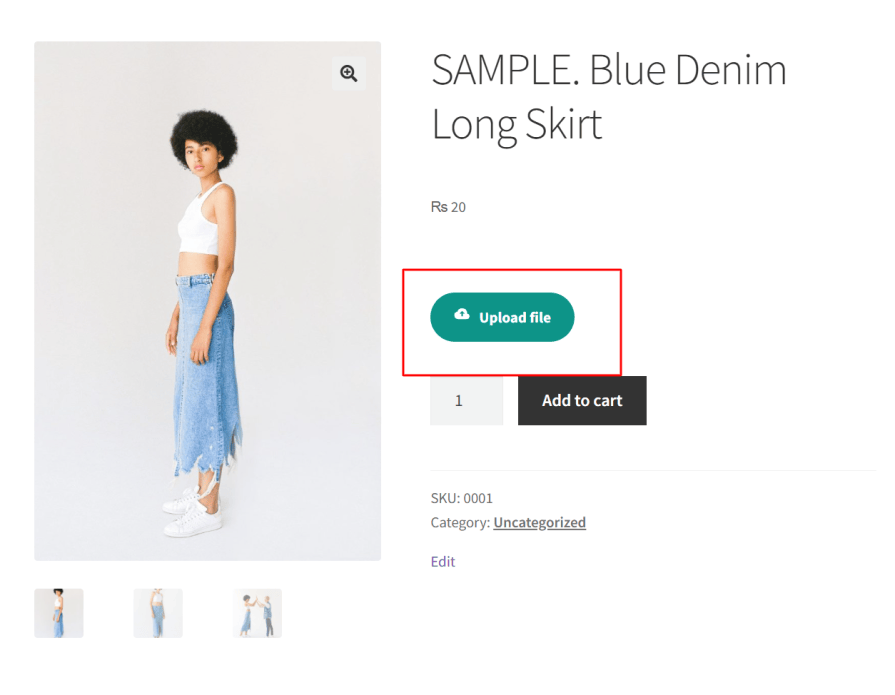
Allow customers to upload files while viewing a product. This is especially useful for personalized and customizable products that require artwork, logos, reference images, designs, or other customer-provided information.
Place the upload button on the product page so customers can attach the required files before adding the product to their cart. Configure individual upload rules to determine which products require files and whether customers can submit one or multiple attachments.
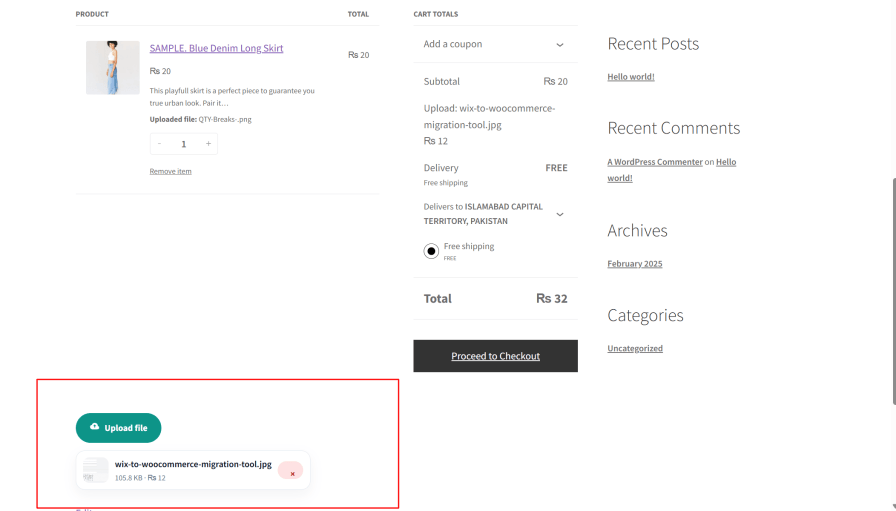
Give customers another opportunity to attach files before proceeding to checkout. With cart page file uploads, shoppers can provide designs, specifications, reference documents, and other order-related information directly from their shopping cart.
Files uploaded on the cart page remain associated with the order and are also displayed during checkout, allowing customers to review their attachments before placing the order.
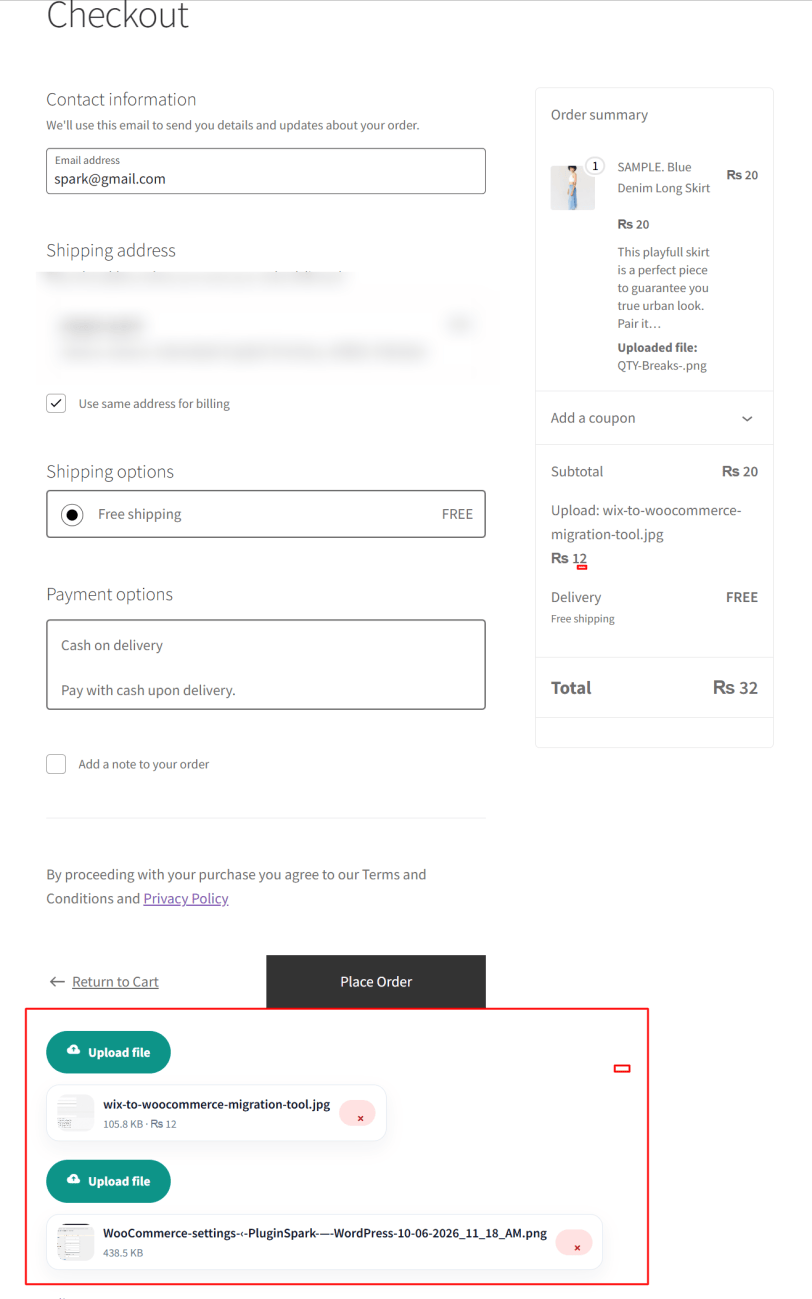
Collect important documents and customer files during checkout. Add a dedicated file upload button to your checkout page so customers can submit everything required to process their orders.
This is useful for stores that require additional documents, custom designs, artwork, or specifications before fulfilling an order. File Drop also supports WooCommerce Checkout blocks, making it possible to collect attachments within supported block-based checkout experiences.
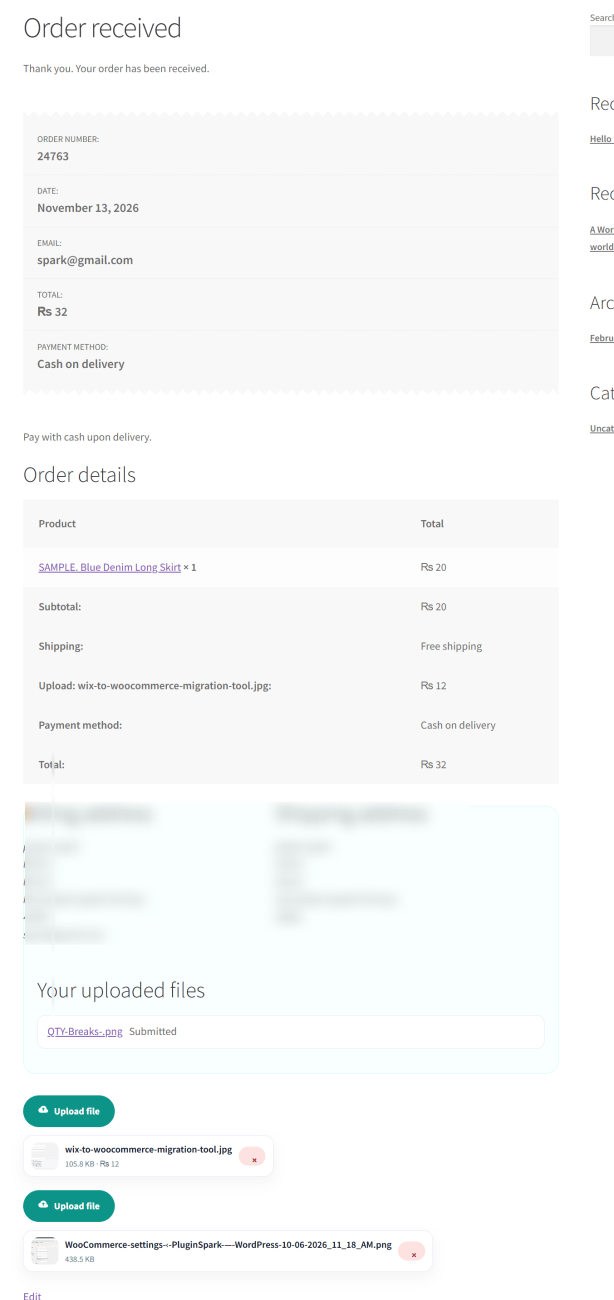
Not every customer has their files ready when placing an order. File Drop allows you to enable file uploads on the Thank You page and Order View page in My Account.
Customers can return to their order and attach missing files after checkout. This provides additional flexibility for stores that need customers to submit designs, documents, or other materials after purchasing.
Give customers more control over their file submissions. Before submitting their files, shoppers can preview attachments to make sure they have selected the correct documents or images.
Customers can replace or delete files when permitted by the upload rule and order status. Rejected files can also be replaced when changes are requested, helping reduce incorrect submissions and unnecessary support conversations.
Sometimes customers need to correct or update their uploaded files after placing an order. File Drop provides options for customers to manage their attachments through the My Account order page.
For eligible orders, such as pending or on-hold orders, customers can update or remove uploaded files. After payment, replacement uploads can still be submitted when a file has been rejected or changes are requested.
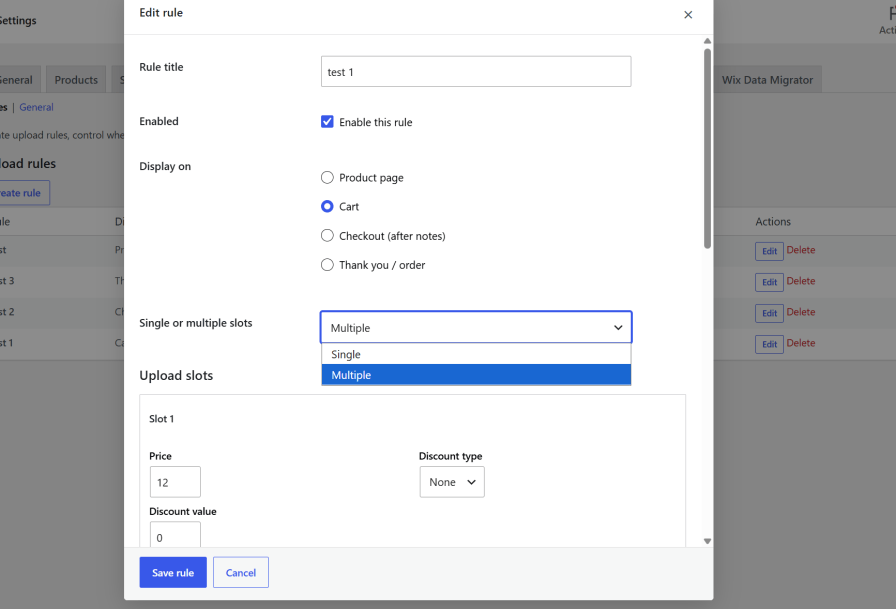
Some products require more than one customer attachment. File Drop makes it possible to collect multiple files for a single product using flexible upload configurations.
Choose between a single upload button that opens a popup containing multiple upload slots or display multiple upload buttons alongside each other. Configure individual upload slots to collect the files and information required for your products.
Files alone may not provide all the information needed to fulfill a customized order. Allow customers to add notes alongside their uploaded files to explain design requirements, customization preferences, or special instructions.
You can also request customer approval for marketing use of submitted files through an optional consent checkbox.
Manage customer file submissions directly from WooCommerce order details. Store administrators can review uploaded files, approve suitable submissions, or reject files that require corrections.
When rejecting a file, administrators can provide feedback notes explaining what needs to be changed. Customers can then receive instructions and submit replacement files where supported.

Keep customers informed about the status of their uploaded files with email notifications. File Drop can automatically notify customers when their files are approved or rejected.
Configure notification preferences according to your store’s workflow. You can also choose to send uploaded files as email attachments or disable approval and rejection emails if you prefer to manage customer communication differently.
Protect customer-uploaded files with secure storage options. Enable the Secure Upload Folder setting to restrict direct public access to stored files and deliver them through signed links instead of exposing their original file URLs.
You can also configure a custom upload directory inside /wp-content/uploads/ to organize customer attachments according to your store’s requirements.
Choose which file formats customers can upload to your WooCommerce store. Configure accepted file types, define custom file extensions, and set maximum upload sizes to suit your products and business requirements.
Set file size limits in KB or MB and control the types of attachments accepted by each upload rule. Unsafe file formats, including HTML, SVG, and executable files, remain blocked.
Control exactly where file upload buttons appear throughout your store. Create upload rules for specific products or product categories and choose whether selected items should be included or excluded.
You can also restrict upload functionality by user role, ensuring that the appropriate customers have access to the upload options they need.
Monetize customization and file submission services by charging customers for uploads. File Drop supports fixed-price and percentage-based upload fees, giving you flexibility when pricing additional customization services.
Enable the Multiply by Quantity option to calculate upload charges based on the number of products ordered. You can also configure discounts for file uploads when you want to offer customers a reduced price.
Match the file upload button to your store’s design and shopping experience. File Drop provides customization options for button text, icons, background colors, text colors, hover effects, and padding.
Choose your preferred button layout and customize popup header text to make the upload experience consistent with your store’s appearance.
Control how uploaded attachments are displayed on the frontend. Choose the file display layout that works best for your store and make it easier for customers to identify their submitted files.
Configure available display styles and choose between thumbnail and icon-based file previews according to your preferences.
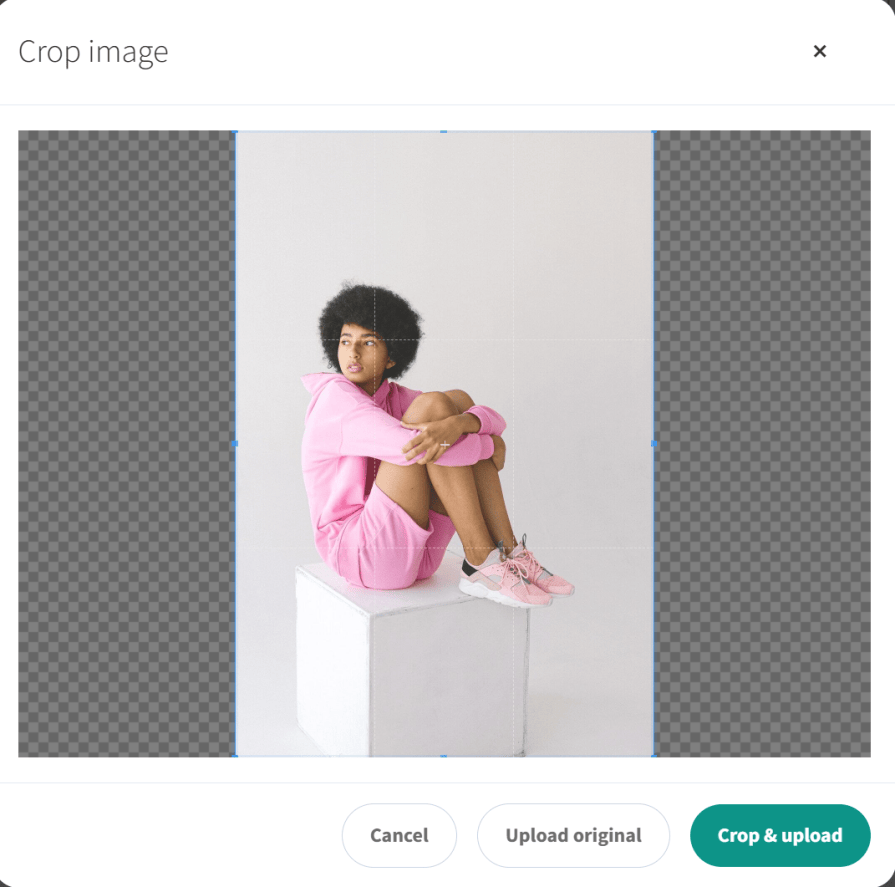
Allow customers to crop images before submitting them to your WooCommerce store. This is particularly useful for personalized products, custom printing, artwork submissions, and image-based customization.
Customers can select the relevant portion of an image before uploading. PNG and WebP transparency can be preserved, and customers can choose to upload the original image without cropping.
Keep customers informed while their files are being uploaded. File Drop includes a real-time progress bar that shows the status of file uploads, helping customers understand when their attachments have been successfully submitted.
This is especially useful when customers upload large images, artwork, or documents.
Quickly identify orders containing customer-uploaded files without opening each order individually. File Drop displays the number of uploaded files directly in the WooCommerce Orders list.
This makes it easier for store administrators and fulfillment teams to identify orders that include customer attachments.
Access customer-uploaded files directly from the WooCommerce order details page. Administrators can view, download, review, approve, or reject submitted attachments from the order management area.
Files uploaded on product pages appear alongside their respective order items, while files submitted through cart and checkout pages are displayed in a dedicated File Drop section.
Keep your product pages organized while allowing customers to submit multiple attachments. Configure a single upload button that opens a popup containing multiple upload slots.
Each slot can include its own pricing, required indicators, notes, and file type or size information. Administrators can also add a checkbox to request customer consent for marketing use of submitted files.
Running a multi-vendor marketplace? File Drop includes optional marketplace tools for stores using Dokan and WCFM.
Depending on the active marketplace integration, you can manage vendor upload limits, storage caps, artwork rounds, preflight checks, and production ZIP tools to support customer file submissions and vendor fulfillment workflows.
Use the [file_drop] shortcode to place the file upload functionality in supported locations where you need it. This provides additional flexibility when configuring your store’s customer upload experience.
File Drop is suitable for WooCommerce stores that need customers to submit files, artwork, documents, or other information with their orders.
You can add file upload buttons to product pages, cart pages, checkout pages, and the Thank You / Order View page. Each location can be configured with its own upload rules.
Yes. Configure an upload rule as required or optional, depending on your product and order requirements.
Yes. File Drop supports single and multiple file uploads. You can display multiple upload buttons or use a popup with several upload slots.
Yes. Define allowed file types, add custom file extensions, and configure maximum file size limits to control customer submissions.
Yes. Customers can update files on eligible orders, and rejected files can be replaced when a new submission is requested.
Yes. Administrators can review files from WooCommerce order details, approve or reject submissions, and provide feedback notes.
Yes. Customers can receive automatic email notifications when their uploaded files are approved or rejected. You can also configure whether files should be included as email attachments.
Categories
Quality Checks
Countries