
Some products may have many variation options. Displaying all of them at once can make the product page look crowded and difficult to navigate.
The Attribute Display Limit Enable feature solves this problem by limiting the number of variation options displayed initially.
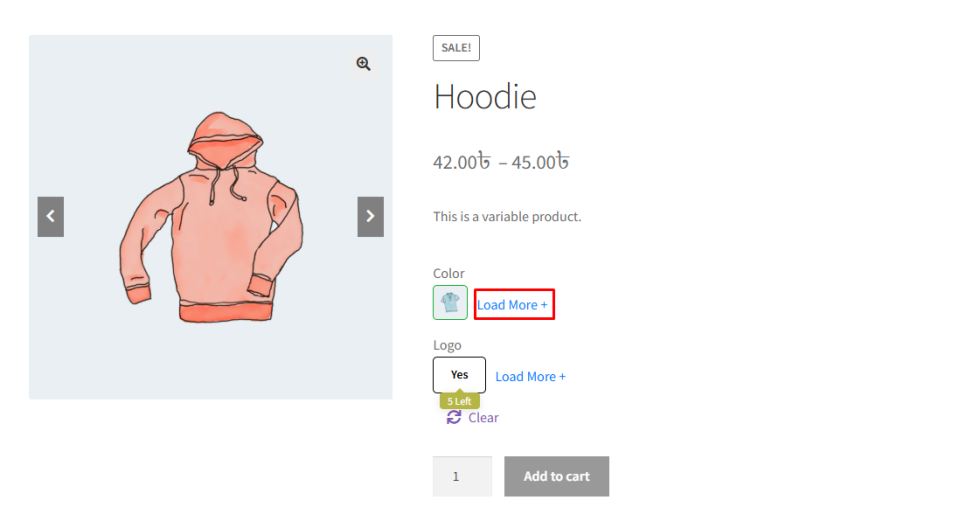
When this option is enabled, only a specific number of attribute options will be visible by default. If more variations are available, a Load More button will appear, allowing customers to expand and view all remaining options.
For example:
If a product has 7 color variations, the page may initially display only 5 colors. A Load More button will appear below the swatches.
When the customer clicks Load More, all remaining attribute options will become visible.
This keeps the product page clean while still allowing customers to access all variations when needed.
How to Configure
- Go to WordPress Admin Panel → WooCommerce → Settings.
- Open the Variation Monster tab.
- Navigate to the Variation Swatches section.
- Enable the Attribute Display Limit Enable option.
- Click the Save button.
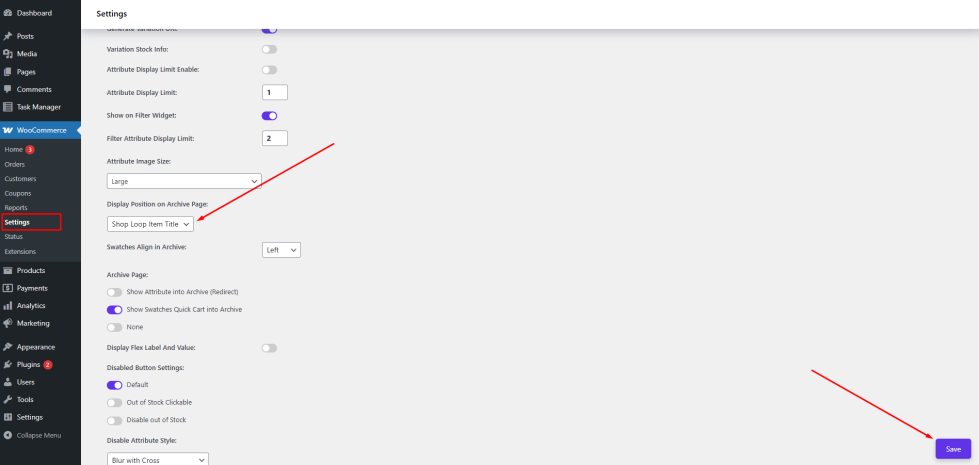
After enabling this option, the attribute limit will apply automatically on the product page.
Attribute Display Limit
↑ Back to topOnce the Attribute Display Limit feature is enabled, this setting allows the admin to define the exact number of variation options that should be displayed initially.
You can enter any number depending on how many variations you want to show before the Load More button appears.
For example:
- If the limit is set to 5, only five variation options will appear initially.
- If the product contains more than five variations, the remaining options will be hidden until the customer clicks Load More.
Store owners can customize this number based on their product layout and design preferences.
How to Configure
↑ Back to top- Navigate to WordPress Admin Panel → WooCommerce → Settings.
- Click the Variation Monster tab.
- Go to the Variation Swatches section.
- Locate the Attribute Display Limit input field.
- Enter the desired number (for example 5, 7, or 10).
Click the Save button.
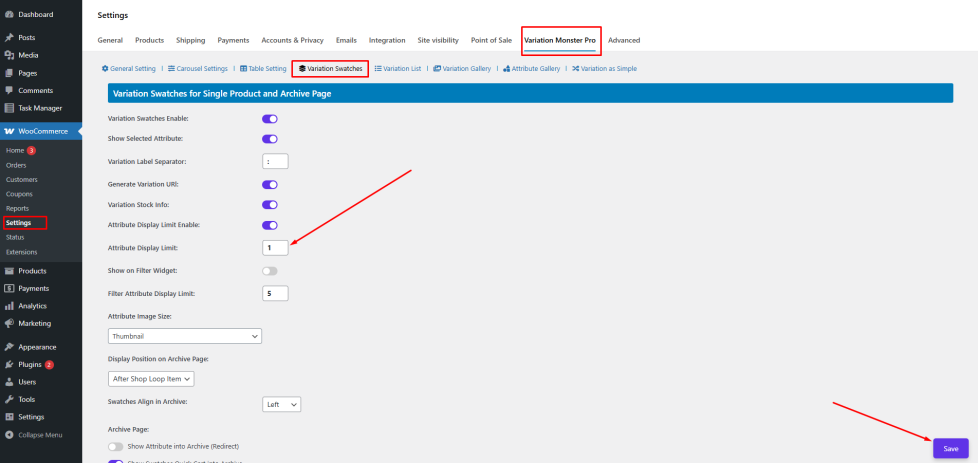
After saving the settings, the selected number of attribute options will be displayed on the single product page, and additional options will appear only after clicking Load More.