
Patterns are pre-designed groups of blocks that you can quickly insert into your pages, posts, or templates to create reusable layouts. They’re perfect for building repeatable design sections, like CTAs, product banners, grids, or testimonials, without needing to rebuild them from scratch.
You can use patterns throughout your site, whether you’re designing content-rich pages, posts, or customizing templates via the Site Editor.
Synced vs. Unsynced Patterns
↑ Back to topOne of the unique features of block patterns is that they can be either synced or unsynced, giving you flexibility in how they behave once inserted into your site.
- Synced Patterns: These act like reusable components. Any changes you make to the pattern will automatically update across every location where it’s used. They’re ideal for global elements like banners, site-wide notices, or promotional blocks that should stay consistent.
- Unsynced Patterns: These behave like a one-time template. Once added to a page or template, the pattern becomes a regular group of blocks that you can edit independently, without affecting other instances. This is useful for layouts that start from a shared design but need unique content or tweaks in different places.
💡Tip: Use synced patterns for consistency, and unsynced patterns for flexibility.
How to Find and Insert Patterns
↑ Back to topWooCommerce includes a set of pre-built patterns tailored for e-commerce needs. These can help you quickly build out common store sections like Featured product sections, Product Highlights, etc. To explore all block patterns:
- Navigate to WP Admin Dashboard > Appearance > Editor.
- Click on Patterns
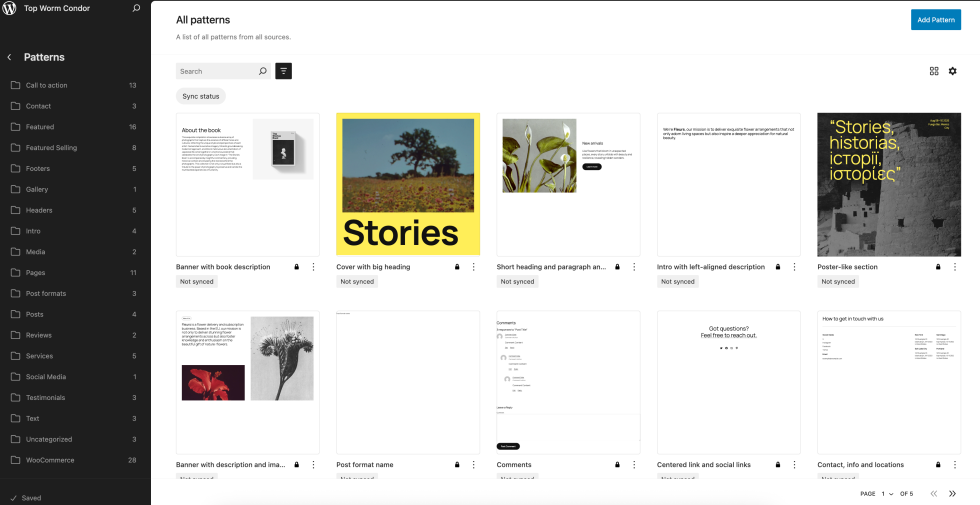
Alternatively, you can access the patterns from any post, page, or template from the + icon located at the top toolbar of your screen, and then click on the Patterns tab.
From here, you can explore block patterns specifically related to headers, footers, buttons, WooCommerce, etc.

Once inserted, you can move block patterns around in the editor or remove them just like you would with any block.
Adding and Managing Patterns
↑ Back to topYou can also create your own custom patterns to speed up your workflow and maintain consistent branding. The team at WordPress.com has created an excellent walkthrough for creating and managing custom patterns on your site. This applies to using patterns around your shop for WooCommerce. Please review the WordPress.com guide on patterns here:
WooCommerce Blocks Pattern Library
↑ Back to topWooCommerce includes a curated library of pre-built patterns designed to support common eCommerce layouts and use cases. These patterns are built on WordPress’s block pattern system and are optimized for store-specific scenarios such as product highlights, promotional sections, and shop page layouts.
You can find WooCommerce patterns by going to WP Admin > Appearance > Editor > Patterns > WooCommerce.
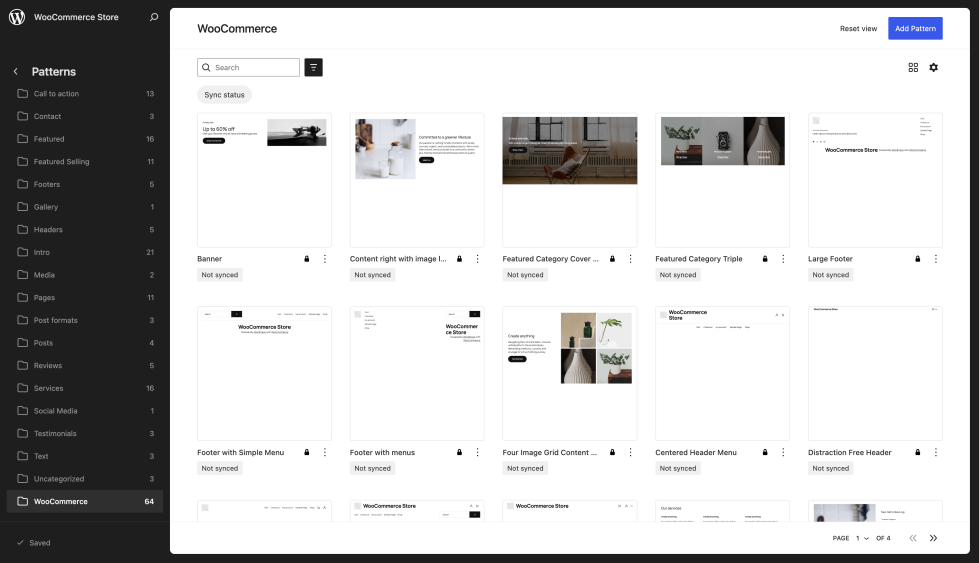
From there, you can browse all available patterns or use the filters to view synced or unsynced patterns, making it easier to locate the right layout for your store.
Questions and support
↑ Back to topDo you still have questions and need assistance?
This documentation is about the free, core WooCommerce plugin, for which support is provided in our community forums on WordPress.org. By searching this forum, you’ll often find that your question has been asked and answered before.
If you haven’t created a WordPress.org account to use the forums, here’s how.
- If you’re looking to extend the core functionality shown here, we recommend reviewing available extensions in the WooCommerce Marketplace.
- Need ongoing advanced support or a customization built for WooCommerce? Hire a Woo Agency Partner.
- Are you a developer building your own WooCommerce integration or extension? Check our Developer Resources.
If you weren’t able to find the information you need, please use the feedback thumbs below to let us know.