
The Product Search Results template controls the layout and design for pages displaying search results from your store. When a customer searches for a term using your store’s search feature, this template determines how matching products are presented.
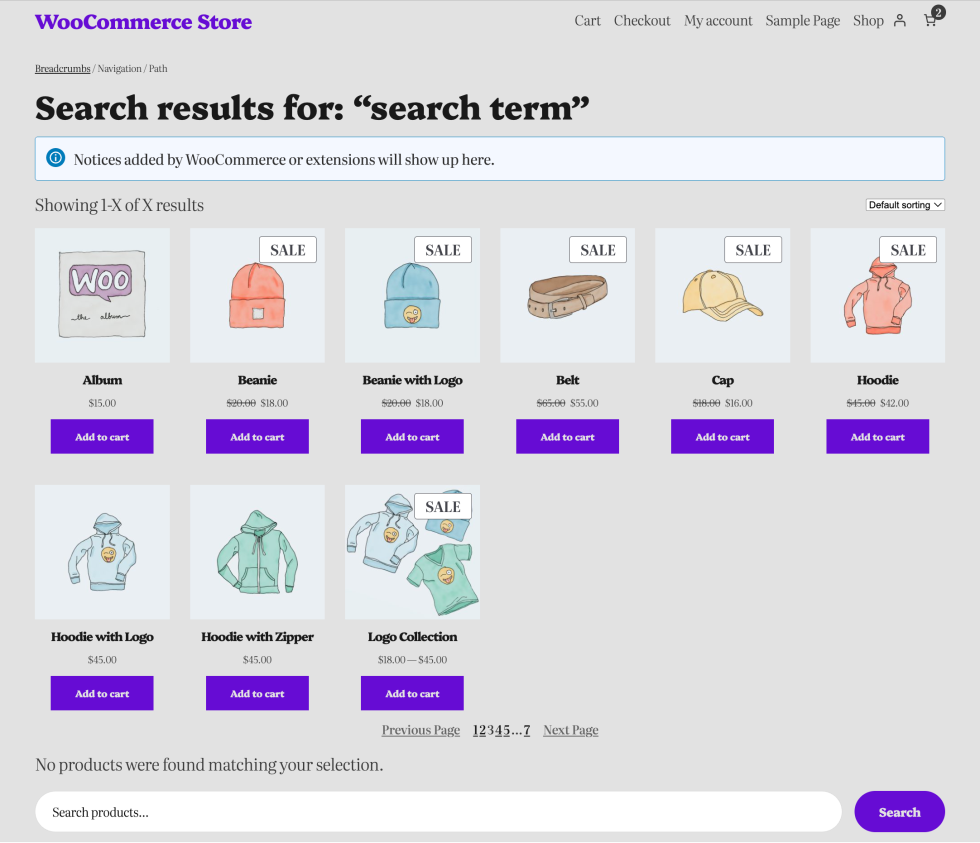
Access the Product Search Results Template
↑ Back to topYou can access this template from your WordPress Dashboard by going to:
- Appearance > Editor
- Click Templates, select WooCommerce > Product Search Results
Inner Block Structure for Product Search Results
↑ Back to top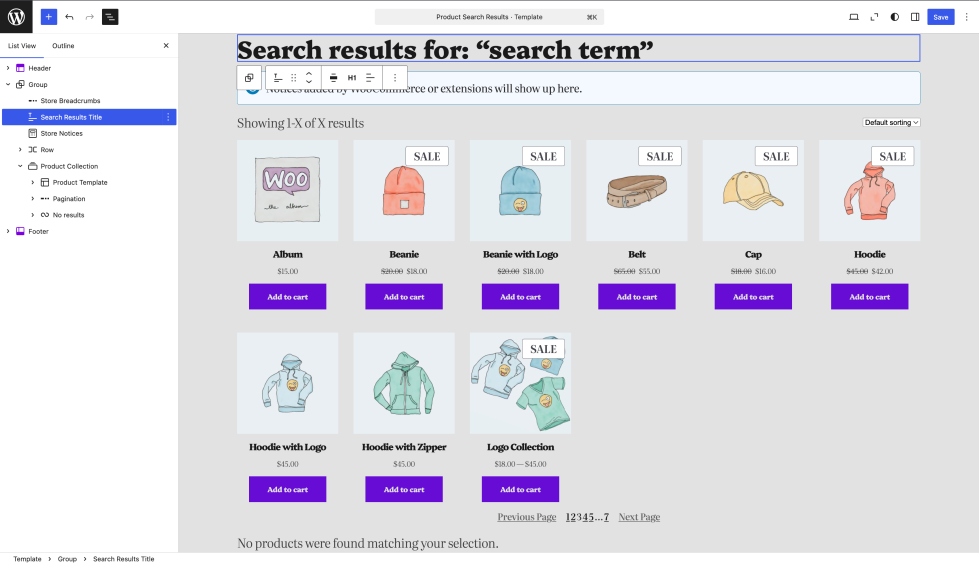
The template is created using a combination of blocks arranged to display search results in an organized, navigable format.
| Block | Purpose |
|---|---|
| Store Breadcrumbs | Displays a navigation trail for easy browsing. |
| Search Results Title | Displays the search query title. |
| Store Notices | Displays shopper-facing notifications from WooCommerce or extensions. |
| Product Collection | Displays a grid of products matching the search query. |
| Product Search (inside No Results) | Adds a search field so shoppers can try a new query without leaving the page. |
Search Results Title
↑ Back to topThe Search Results Title block displays the title of the current search results page based on the customer’s query. This helps shoppers confirm what they searched for and provides context for the products being displayed.
Block Settings
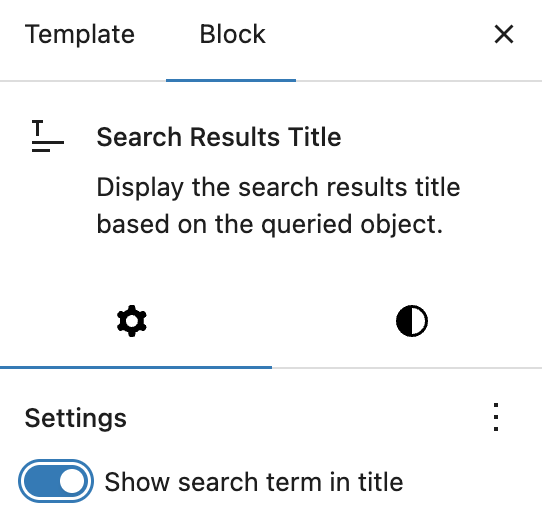
Show search term in title – When enabled, the search query will appear in the title (e.g., Search results for “running shoes”). Disabling this will hide the search term and display only a generic title like “search results”.
Product Search
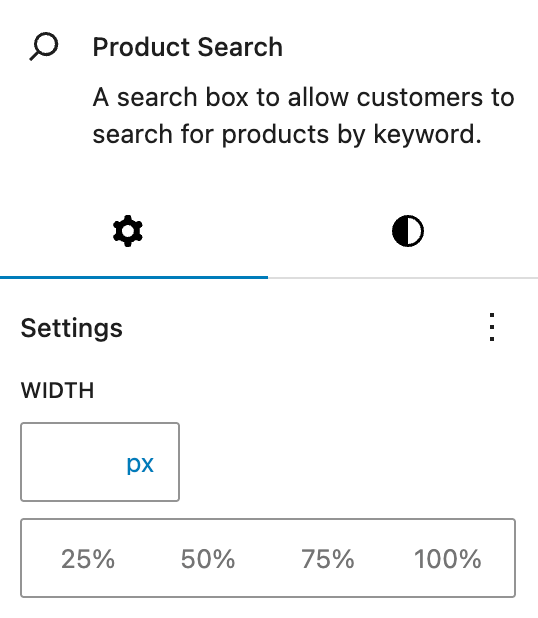
↑ Back to topThe Product Search block adds a search box that allows customers to search for products by keyword. The “No Results” section of the Product Search Results template provides customers with an easy way to try a different search without leaving the page.
Block Settings
- Text Color: Change the color of the search box text.
- Background Color: Change the background color of the search box.
- Width: Set the width of the search box in pixels or as a percentage (25%, 50%, 75%, 100%).
Questions and support
↑ Back to topDo you still have questions and need assistance?
This documentation is about the free, core WooCommerce plugin, for which support is provided in our community forums on WordPress.org. By searching this forum, you’ll often find that your question has been asked and answered before.
If you haven’t created a WordPress.org account to use the forums, here’s how.
- If you’re looking to extend the core functionality shown here, we recommend reviewing available extensions in the WooCommerce Marketplace.
- Need ongoing advanced support or a customization built for WooCommerce? Hire a Woo Agency Partner.
- Are you a developer building your own WooCommerce integration or extension? Check our Developer Resources.
If you weren’t able to find the information you need, please use the feedback thumbs below to let us know.