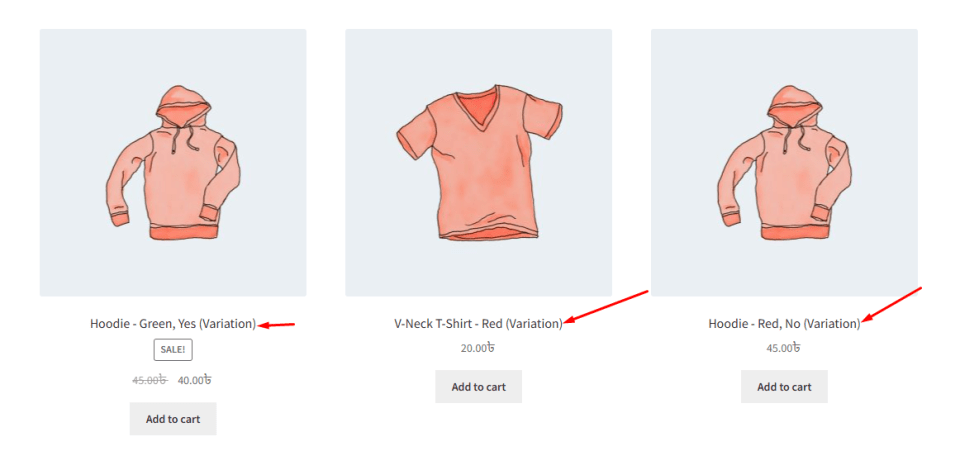
The Show Variation Product as Simple Product feature allows you to display individual variations as separate products on the shop, category, and archive pages.
By default, WooCommerce only shows the parent (variable) product. With this feature, you can make specific variations visible as standalone products, improving product visibility and helping customers discover options more easily.
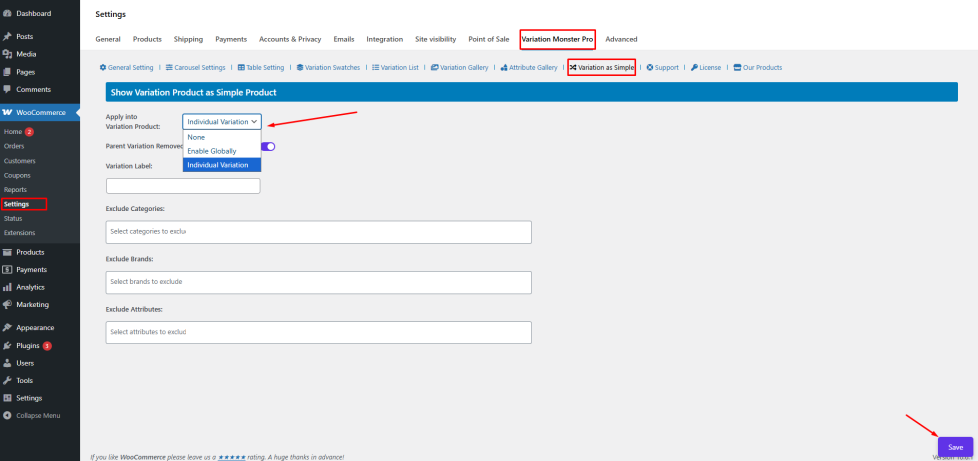
Apply into Variation Product
↑ Back to topThis setting controls how the feature is applied across your store. There are three options available:
- None
The feature is disabled. Variations will not be shown as separate products. - Enable Globally
All variations will be automatically displayed as individual (simple) products across the shop and archive pages.
Individual Variation
You can manually select which variations should be displayed as separate products.
How to Configure (Individual Variation)
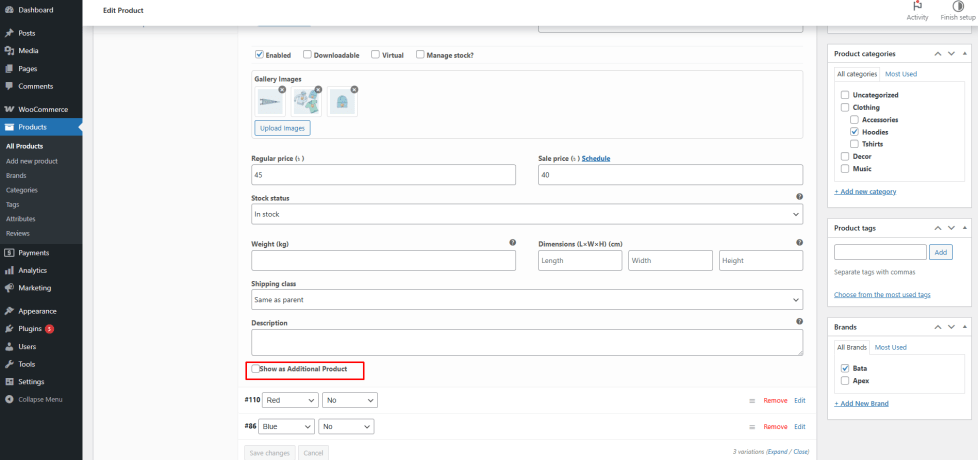
↑ Back to topIf you select Individual Variation, follow these steps:
- Go to Products → Edit Product
- Navigate to the Product Data → Variations section
- Expand the variation you want to display
- Enable the option “Show as Additional Product”
Click Update to save the product
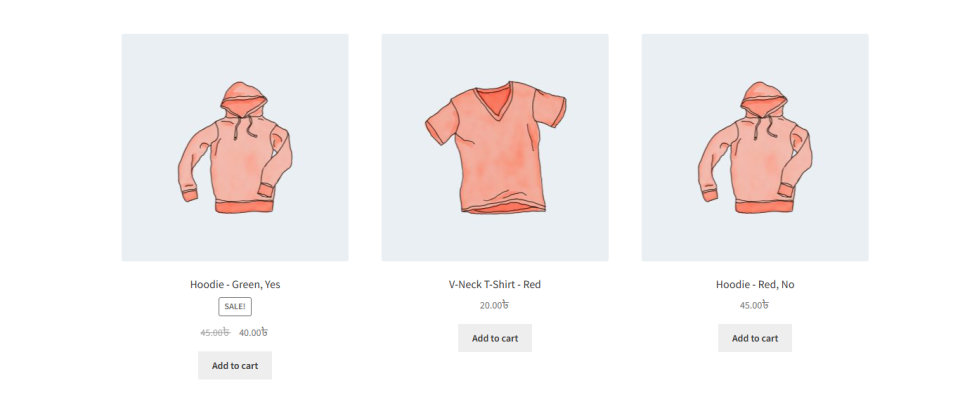
Only the selected variations will be shown as separate products on the frontend.
- Variations will appear as individual products on shop and category pages
- Each variation will have its own image, price, and attributes
- Customers can directly view and purchase specific variations without opening the parent product
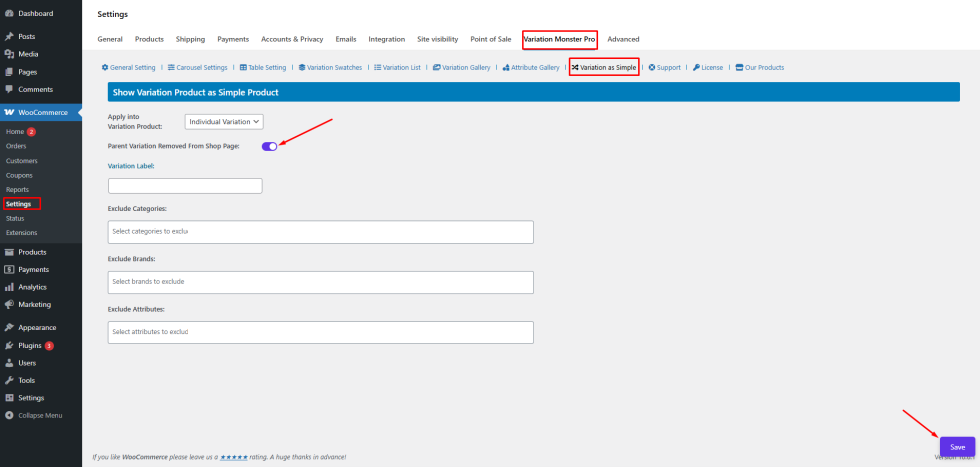
Parent Variation Removed From Shop Page
↑ Back to topThis option allows you to remove the parent (variable) product from shop and archive pages when variations are displayed as separate products.
How to Configure
↑ Back to top- Enable the option Parent Variation Removed From Shop Page
- Click Save
Frontend Output
↑ Back to top- The parent product will be hidden
- Only individual variations will be visible on shop/archive pages
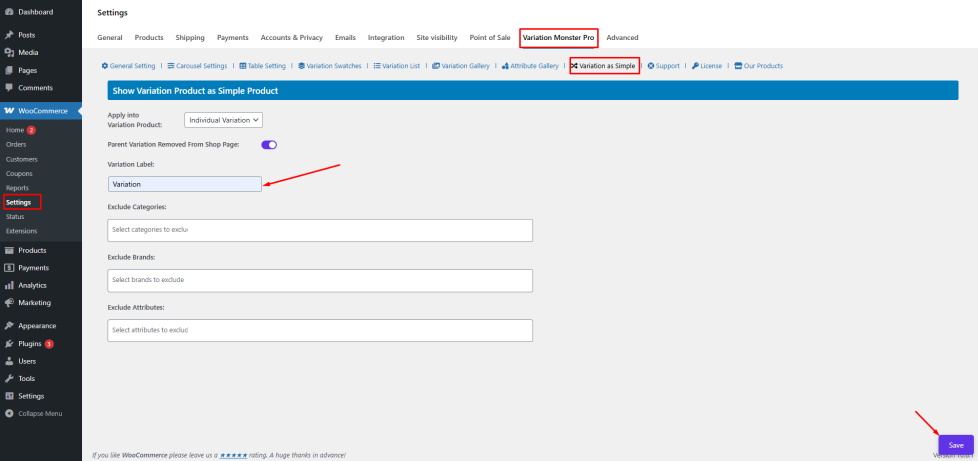
Variation Label
↑ Back to topThe Variation Label setting allows you to define a custom label for variation products.
This label helps customers identify that the product is a variation of a parent product.
How to Configure
- Enter your desired text in the Variation Label field
- Click Save
Frontend Output
↑ Back to topThe custom label will be displayed alongside variation products on the shop or product page.