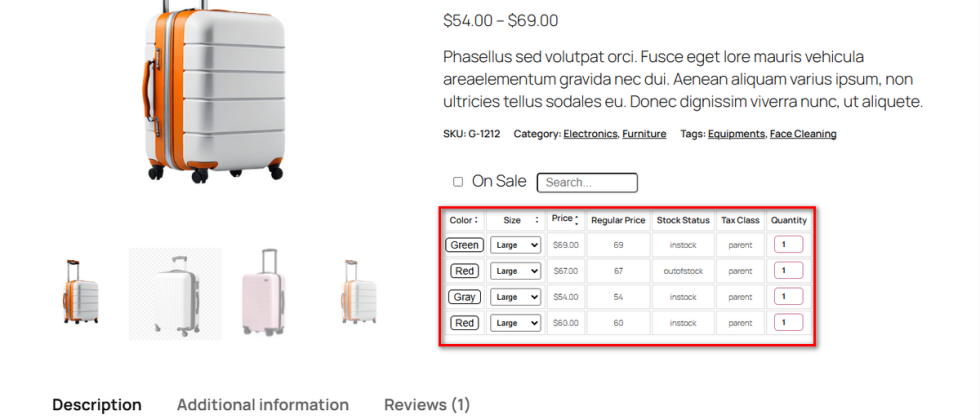
The default WooCommerce layout separates variations from a quick checkout action. Customers must select options from dropdowns before the buy button even works.
This extra step adds friction. Shoppers want a seamless process. Every second they spend fiddling with menus increases the chance they will abandon their purchase.
You can remove this barrier completely with the help of Variation Monster’s Overwrite Default Add to Cart by Table feature.
This setting replaces the standard add-to-cart area with your new, functional table. Buyers can now add specific variations directly from the grid.
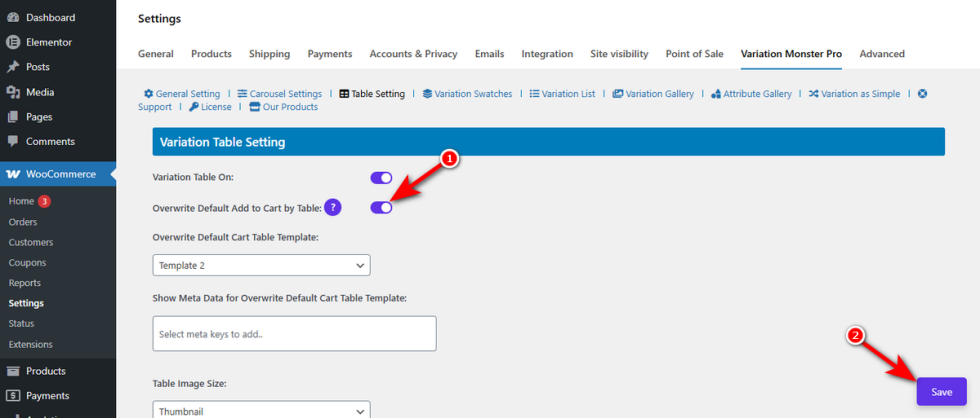
Toggle the “Overwrite Default Add to Cart by Table” switch.
Finally, hit the ‘Save‘ button to apply this change.
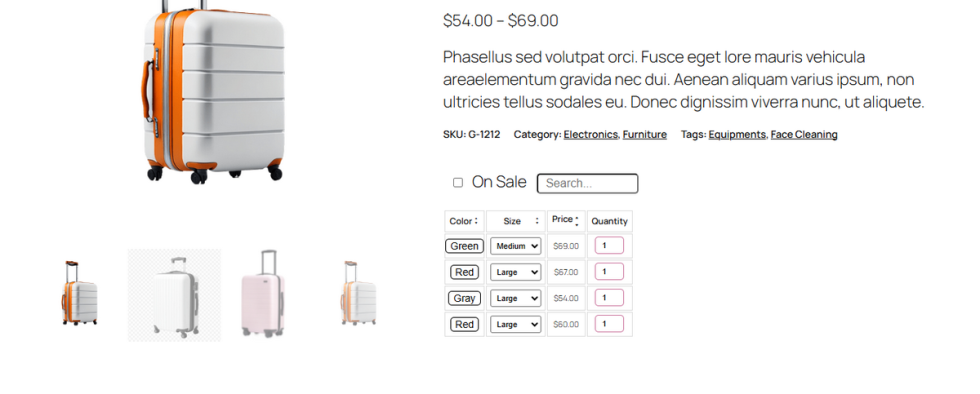
Now, visit a variable product page, and you’ll see a functional table instead of a generic add-to-cart button.
Overwrite Default Cart Table Template (Pro)
↑ Back to topA generic table design might clash with your store’s unique theme. If the layout looks out of place, it ruins the professional vibe of your product page.
A mismatched design creates visual inconsistency. Customers might find the interface jarring. You lose the aesthetic appeal you worked so hard to build.
You need a design that blends flawlessly with your website. You can achieve this with the help of Variation Monster’s Overwrite Default Cart Table Template feature.
This setting allows you to choose a pre-designed layout for your newly activated cart table.
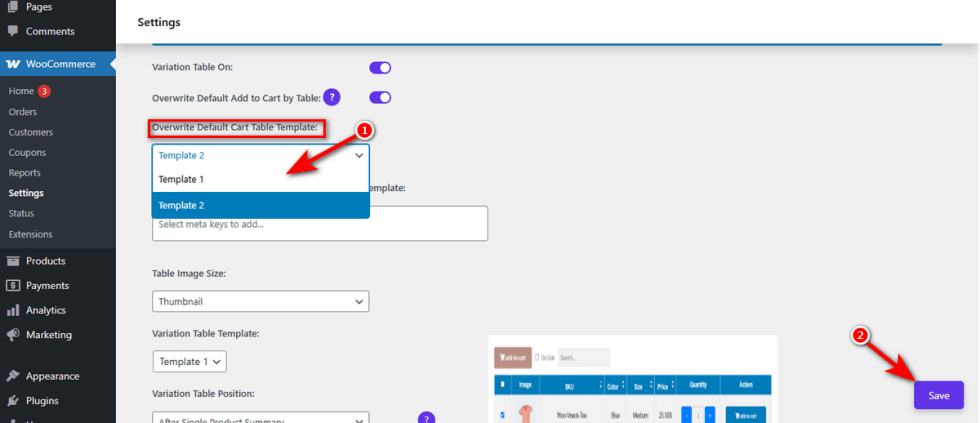
Click on the “Overwrite Default Cart Table Template” dropdown menu. Select your preferred layout, such as Template 1, from the list.Finally, hit the ‘Save‘ button to apply this change.
Now, visit a variable product page, and you will see a beautifully integrated table that perfectly matches your store’s visual style.
Show Meta Data for Overwrite Default Cart Table Template (Pro)
↑ Back to topShoppers often need more than just a price and a title. They might be looking for a specific model number or a manufacturer’s warranty.
Leaving these crucial details out creates doubt. A confused customer rarely completes checkout. They will simply abandon their cart and look elsewhere.
You can provide all the necessary information upfront with Variation Monster’s Show Meta Data for Overwrite Default Cart Table Template feature.
This setting pulls hidden backend data straight into your custom cart layout. It displays exact specifications right where the buyer makes their final decision.Click inside the “Show Meta Data for Overwrite Default Cart Table Template” input box. Select the specific meta keys you need to show.
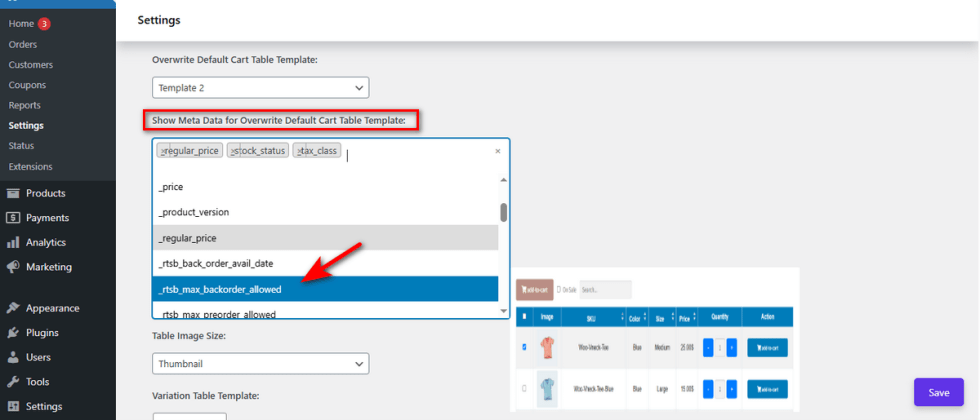
Next, write customer-friendly names in the label boxes next to your selected keys. For example, type “Regular Price” next to the _regular_price key so it makes sense to your buyers.Finally, hit the ‘Save‘ button to apply this change.
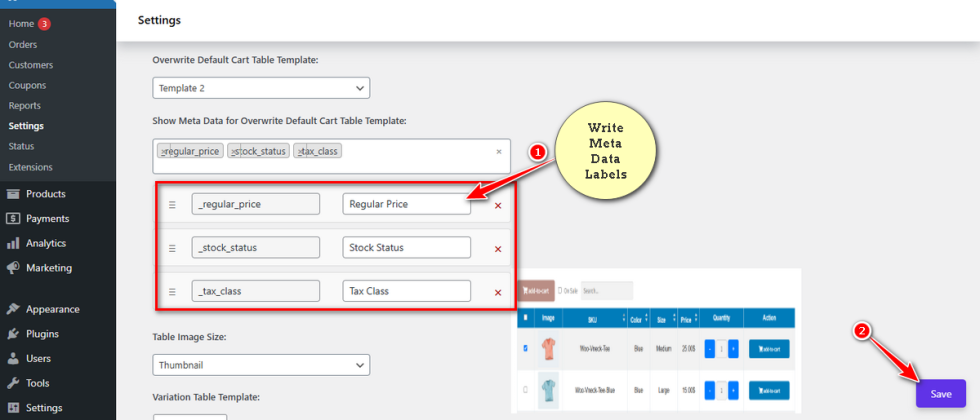
Go to a page with a variable product now. You will see your custom data fields perfectly aligned inside the cart table.