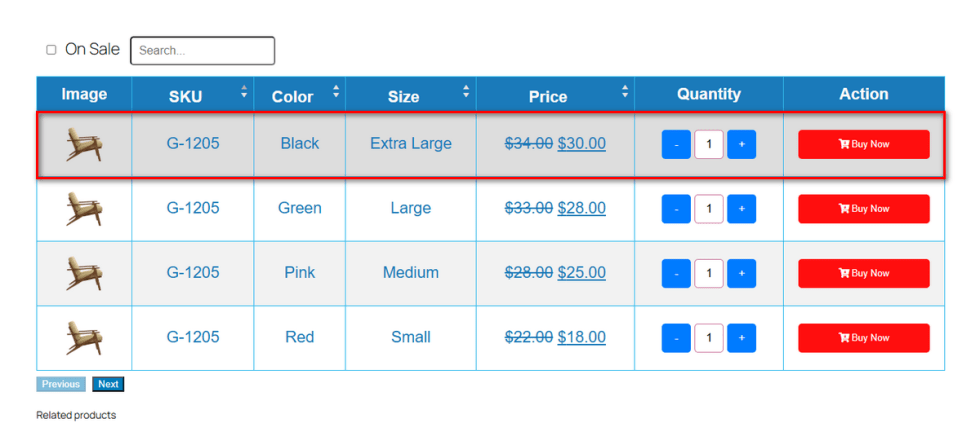
This feature enable and apply on table inner content in template 1.
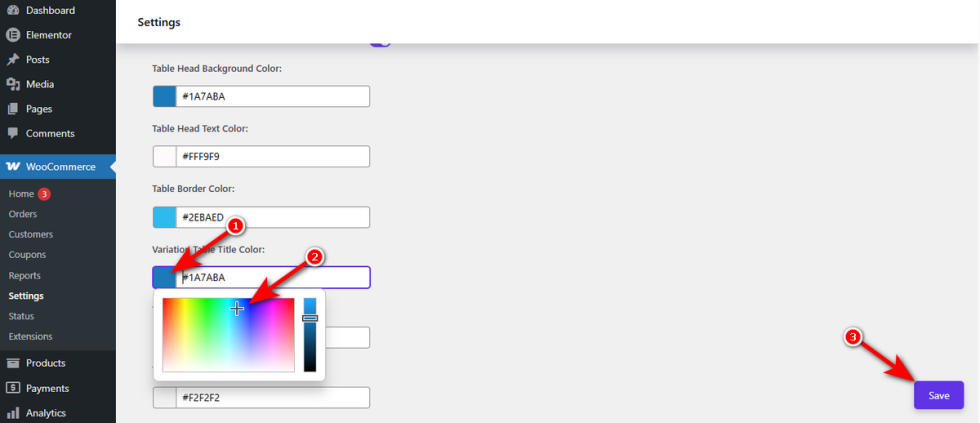
Variation Table Title Color
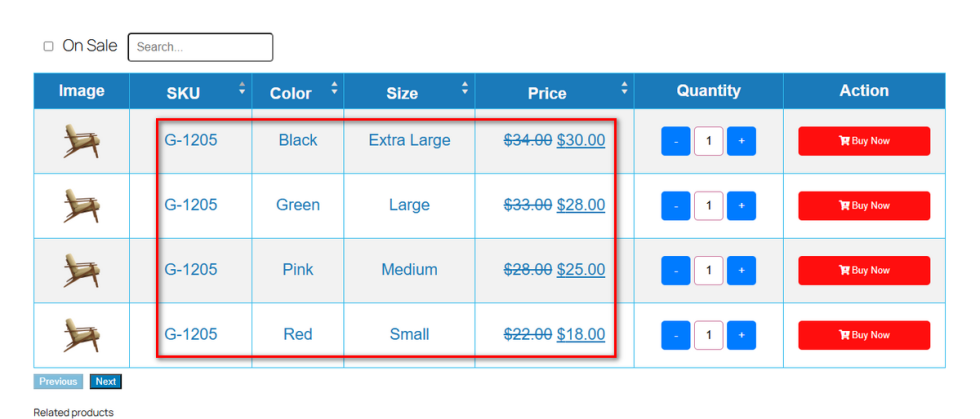
↑ Back to topYour core product details must be unmistakable. Changing the text color inside the grid prevents scanning errors.
Open the “Variation Table Title Color” option. Pick a distinct shade using the color wheel.Do not forget to hit ‘Save‘.
Review the live page. The main product attributes now stand out beautifully.
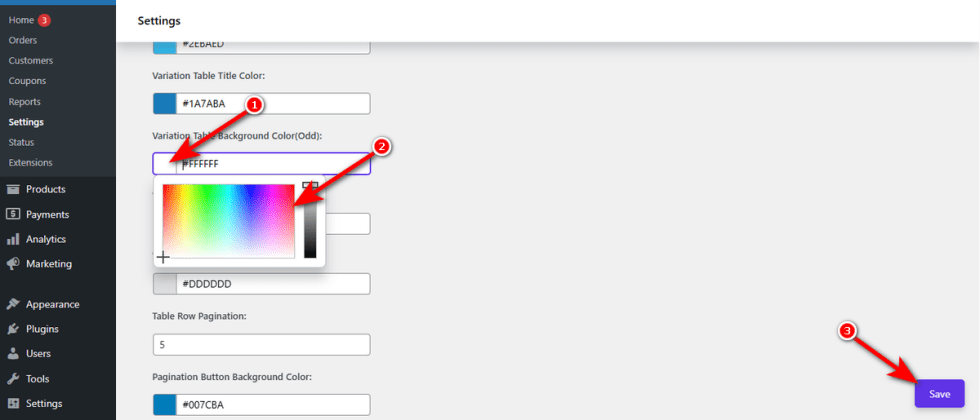
Variation Table Background Color (Odd)
↑ Back to topStaring at a solid white block strains the eyes. Zebra-striping your rows fixes this instantly.
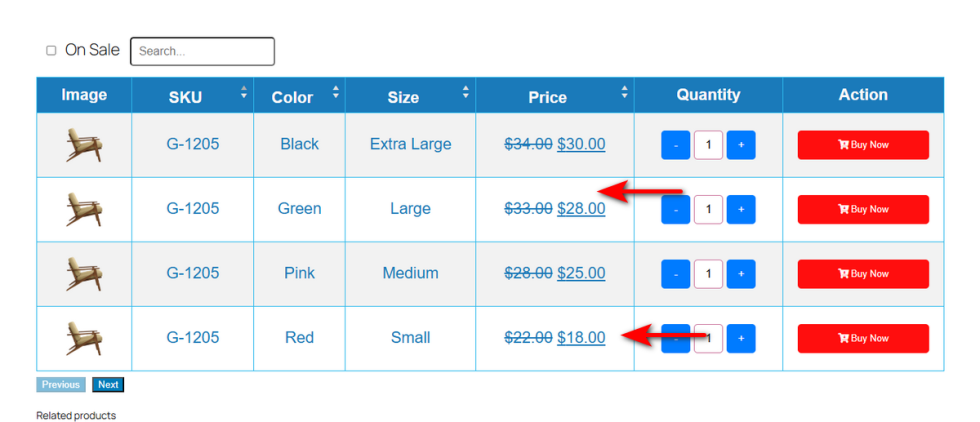
Go to “Variation Table Background Color (Odd)“. Input a clean hex code for the rows with odd pricing numbers.Click the ‘Save’ button.
Look at the table now.
Variation Table Background Color (Even)
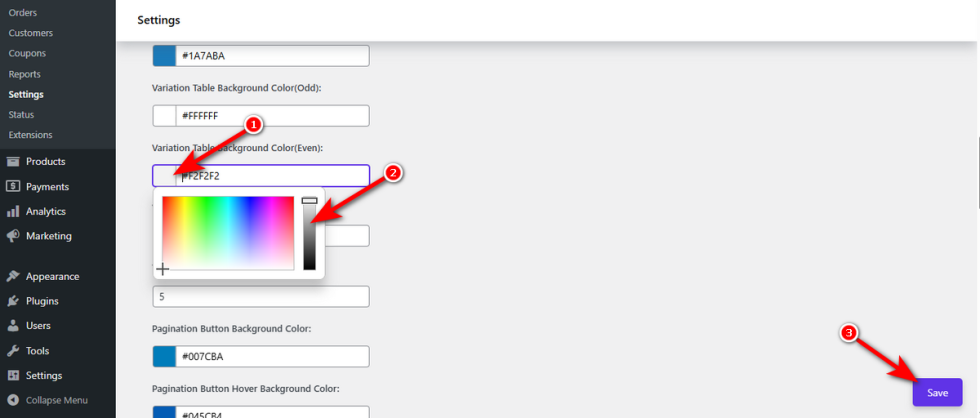
↑ Back to topComplete the zebra-stripe effect. Pairing a light gray with a white row creates perfect visual harmony.
Click on “Variation Table Background Color (Even)“. Drag the slider to a soft, complementary shade.Hit ‘Save‘ to confirm your choice.
Check the live product.
Variation Table Background Color Hover
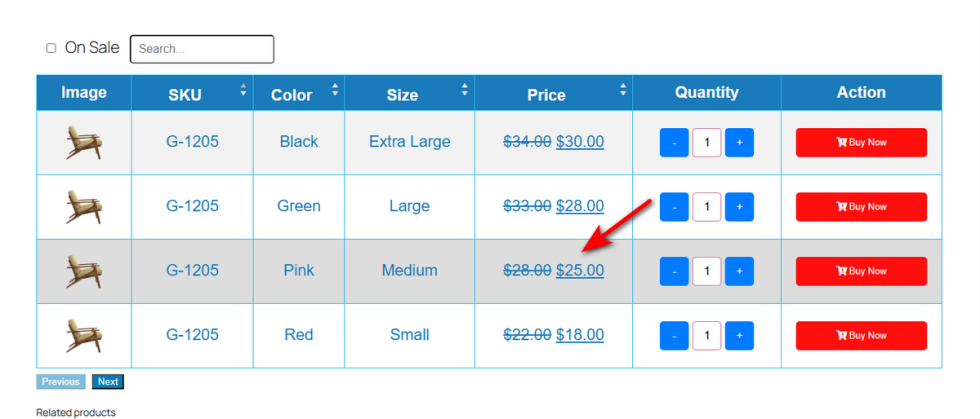
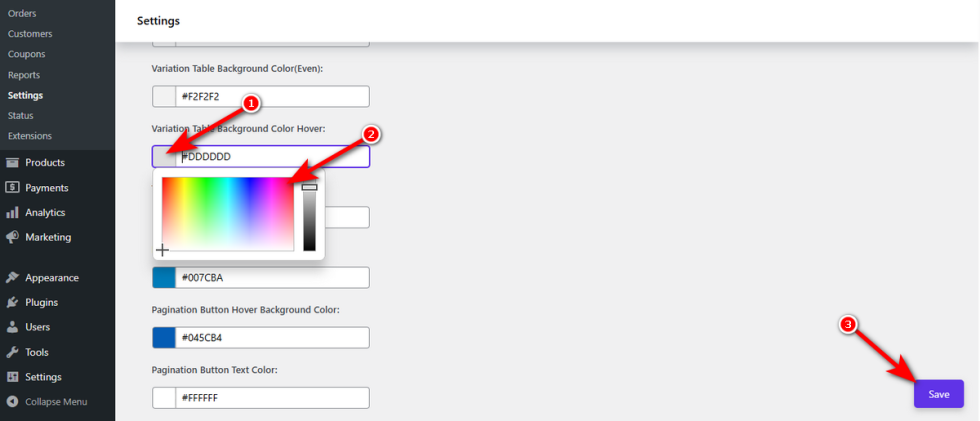
↑ Back to topInteractive elements feel premium. Highlighting a row when the mouse touches it adds a professional polish.
Navigate to the “Variation Table Background Color Hover” field. Pick a noticeable highlight tint.
Press the ‘Save‘ button.
Hover your mouse over the live grid. The active row lights up, confirming the user’s exact focus.