Use WooCommerce Bookings to charge a different per-person rate when customers book as a group. This example charges $145 for one person, or $115 per person for a group of 2–10.
Scenario
↑ Back to topA workshop accepts up to 10 people in one booking. Every attendee in a group gets the group rate: two people pay $230 in total, rather than $145 for the first person plus $115 for the second.
The example uses one fixed, one-hour booking block, with no extra base, resource, or person-type costs. Amounts use dollars; enter equivalent values in your store’s currency.
Before you begin
↑ Back to topYou’ll need WooCommerce and WooCommerce Bookings active, and permission to edit products. For an existing product, record its duration, person, and cost settings before changing them.
Set up the group rate
↑ Back to topFirst create the product, then configure its person limits and two pricing rules.
Create the bookable product
↑ Back to top- Go to Products > Add new product and enter a name, such as Small-group workshop.
- In Product data, select Bookable product. Select Virtual if the service doesn’t need shipping.
- On the General tab, set Booking duration to Fixed blocks of, enter 1, and select Hour(s). Configure available appointment times on the Availability tab.
Configure the person settings
↑ Back to top- Select Has persons in the Product data heading.
- Open the Persons tab. Set Min persons to 1 and Max persons to 10.
- Select Multiply all costs by person count. This turns the matching rule’s rate into a per-person charge.
- For this example, leave Enable person types and Count persons as bookings unselected.
Max persons limits each booking to 10 attendees. It doesn’t set a shared 10-person limit across separate bookings. The Count persons as bookings option controls how attendees consume the capacity set in Availability; configure that separately if you sell individual places in a shared session.
Configure the costs
↑ Back to top- Open the Costs tab. Set the product’s Base cost and Block cost to 0. Leave Display cost blank.
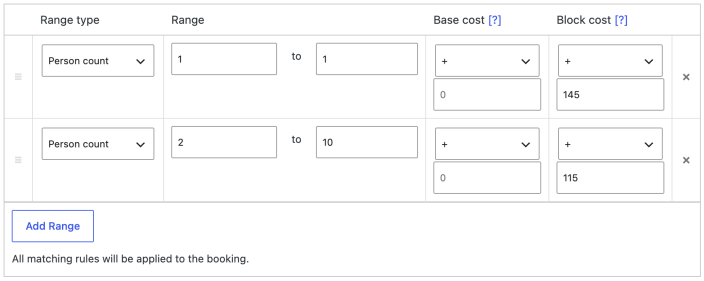
- Select Add Range. Set Range type to Person count, and enter 1 to 1 under Range. In that row’s Block cost column, select plus (+) and enter 145.
- Add a second Person count range from 2 to 10. Set its Block cost adjustment to plus 115. Leave both rows’ Base cost adjustments at plus zero.
- Select Save Draft while testing a new product, or Update for an existing published product. Updating a published product changes its live settings.
The two ranges don’t overlap, so only one of these rates matches each booking:
Check the customer view
↑ Back to topOpen Preview or view the product page. Select an available date and start time, then change Persons and wait for Booking cost to finish updating. Check these totals for one booking block:
| Persons | Rate per person | Booking total |
|---|---|---|
| 1 | $145 | $145 |
| 2 | $115 | $230 |
| 3 | $115 | $345 |
| 10 | $115 | $1,150 |
Confirm that the form won’t accept a booking for 11 people. Reopen the saved settings and check that the limits, multiplier, and both ranges persisted. You don’t need to place an order to check the calculated price. Publish a new draft only after these checks pass.
These totals exclude taxes, discounts, and other costs. The rate applies per booking block; a different duration setup can produce a different total.
If the total doesn’t match
↑ Back to top- Two people cost $115: check that Multiply all costs by person count is selected and saved.
- The total is too high: check the product’s base and block costs, additional person or resource costs, and other matching rules. All matching pricing rules apply. The person multiplier also multiplies the booking’s base cost.
- The price doesn’t change: confirm a date and time are selected, then wait for the calculation to complete after changing Persons. Check that both rules use Person count and the correct ranges.
- The limit isn’t 10: reopen Persons and confirm Max persons is saved as 10. A range ending at 10 defines a price range, not an attendee limit.
- You need to undo the change: restore the previous duration, person, and cost settings, save, and check the product form again.
For other capacity and attendee options, see Persons for bookable products.
Questions and support
↑ Back to topSomething missing from this documentation? Still have questions and need assistance?
- If you have a question about a specific extension or theme you’d like to purchase, contact us to get answers.
- If you already purchased this product and need some assistance, get in touch with a Happiness Engineer via our support page and select this product’s name from the Product dropdown.