
WooCommerce.com subscriptions renew automatically by default, but you can turn off auto-renew, manually renew, or cancel a subscription at any time. This page explains how each option works, what happens when a subscription expires, and how to reactivate an expired subscription.
Auto-renewal
↑ Back to topBy default, WooCommerce.com subscriptions are set to auto-renew. When auto-renew is enabled:
- Your payment method on file is charged automatically on the renewal date.
- The subscription continues without interruption.
- You continue to receive updates and support for the extension.
WooCommerce.com sends a reminder email before the renewal date so you know a charge is coming.
Turn off auto-renewal
↑ Back to topIf you don’t want a subscription to renew automatically:
- Log in to your WooCommerce.com account and go to My Subscriptions.
- Find the subscription and click the three-dot menu icon (⋮) on the right.
- Select Cancel subscription.
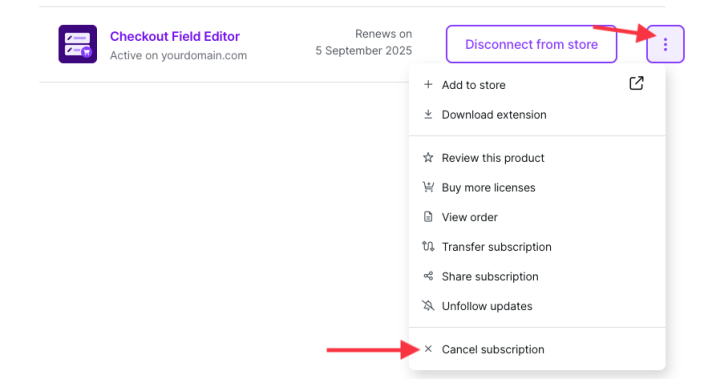
When auto-renew is turned off:
- You are not charged on the renewal date.
- The subscription remains active until its expiration date.
- After the expiration date, the subscription expires and the extension no longer receives updates or support.
You can turn auto-renew back on at any time before the subscription expires by returning to My Subscriptions and selecting the option to re-enable it.
Note: Canceling a subscription does not automatically uninstall the extension from your site. The extension remains installed but will no longer receive updates or be covered by support.
Refunds
↑ Back to topWooCommerce.com offers a 30-day money-back guarantee on most purchases. For further details about this please see our Refund policy.
What happens when a subscription expires
↑ Back to topWhen a subscription expires (either because auto-renew was turned off or the payment method failed):
- The extension stays installed on your site. It is not automatically removed.
- Updates stop. You no longer receive new versions of the extension, including security patches and compatibility updates.
- Support ends. You can no longer open support tickets for that extension.
- Your site may show a notice in the WordPress dashboard indicating that the subscription has expired and updates are unavailable.
Running an outdated extension can lead to security vulnerabilities and compatibility issues with newer versions of WordPress or WooCommerce. It is recommended to either renew the subscription or replace the extension if you choose not to renew.
Renew an expired subscription
↑ Back to topYou can manually renew an expired subscription from your WooCommerce.com account:
- Go to My Subscriptions.
- Find the expired subscription — it displays an Expired status.
- Click the Renew* option (or the three-dot menu icon ⋮ and select *Renew).
- Complete the checkout process to reactivate the subscription.
Once renewed:
- Updates and support resume immediately.
- The subscription appears as active in your My Subscriptions list.
- Once the subscription key is connected, your site can receive extension updates again.
Note: If a significant amount of time has passed since the subscription expired, the renewal price may reflect the current pricing for the extension, which could differ from what you originally paid.
Reactivate an expired or cancelled subscription
↑ Back to topIn most cases, reactivating an expired or cancelled subscription follows the same process as renewing:
- Go to My Subscriptions.
- Locate the expired or cancelled subscription.
- Use the Renew option to purchase a new subscription term.
If the subscription or product is no longer available on WooCommerce.com, or if you encounter issues reactivating, contact support for assistance.
Failed payments
↑ Back to topIf your payment method on file fails when your subscription renews:
- WooCommerce.com may retry the payment automatically.
- You receive an email notification about the failed payment.
- If the payment continues to fail, the subscription eventually expires.
To resolve a failed payment:
- Go to your WooCommerce.com account and update your payment method.
- Return to My Subscriptions and manually renew the subscription if it has already expired.
Keeping your payment method up to date helps avoid interruptions in updates and support.
Related documentation
↑ Back to top- What are WooCommerce.com subscriptions?
- Activate and manage your subscriptions
- Transfer a subscription
- Share a subscription
- WooCommerce.com Refund Policy
Questions and support
↑ Back to topDo you still have questions and need assistance?
- Get in touch with a Happiness Engineer via our Help Desk. We provide support for extensions developed by and/or sold on WooCommerce.com, and Jetpack/WordPress.com customers.
- If you are not a customer, we recommend finding help in the WooCommerce support forum or hiring a Woo Agency Partner. These are trusted agencies with a proven track record of building highly customized, scalable online stores. Learn more about Woo Agency Partners.