
This page covers common problems you may encounter when managing your WooCommerce.com subscriptions. Issues are grouped into two categories:
- Problems with subscriptions on WooCommerce.com — issues related to your account, billing, or subscription status.
- Problems with the connection between your site and WooCommerce.com — issues related to linking your WordPress site to your WooCommerce.com account, receiving updates, or installing extensions.
Problems with subscriptions on WooCommerce.com
↑ Back to topThese issues relate to viewing, managing, or purchasing subscriptions on your WooCommerce.com account.
Subscription not appearing in My Subscriptions
↑ Back to topIf you purchased an extension or theme but it doesn’t appear in your My Subscriptions list:
- Check that you’re logged in to the correct WooCommerce.com account. If you have multiple accounts, the subscription is associated with the account that made the purchase. Look for the purchase confirmation email to see which email address was used.
- Check your purchase history. Go to your WooCommerce.com account and review your orders to confirm the purchase completed successfully.
- Check your payment method. If the payment did not go through, the subscription may not have been created. Look for a failed payment notification in your email.
If you still cannot locate the subscription, contact support with your order number or payment receipt.
Subscription shows “Expired” but you expected it to renew
↑ Back to topIf a subscription shows as expired when you expected it to auto-renew:
- Check your auto-renewal setting. The subscription may have had auto-renew turned off. Go to My Subscriptions and check the status.
- Check your payment method. The renewal payment may have failed. Look for a failed payment email from WooCommerce.com. Go to your WooCommerce.com account and update your payment method if needed.
- Check your email for renewal reminders. WooCommerce.com sends a reminder email before the renewal date. If you didn’t receive one, check your spam or junk folder.
To renew, follow the steps in Renew an expired subscription.
Being charged for a subscription you thought was cancelled
↑ Back to topIf you were charged for a subscription you believed you had cancelled:
- Confirm whether you cancelled or turned off auto-renew. Turning off auto-renew stops future charges but does not cancel the current active term. If you turned off auto-renew after the renewal charge was already processed, the charge is for the new subscription period.
- Check the timing. Renewal charges are processed on or shortly before the expiration date. If you turned off auto-renew very close to the renewal date, the charge may have already been processed.
- Request a refund. WooCommerce.com offers a 30-day money-back guarantee on most purchases, including renewals. If the charge is within 30 days, you can request a refund from the order details, accessible via your Orders page. For more information, see our detailed instructions for requesting a refund.
If you need help, contact support.
Transfer or share not working
↑ Back to topIf you’re having trouble transferring or sharing a subscription:
- Confirm the recipient’s email address. The email must be associated with an existing WooCommerce.com account. Ask the recipient to verify their account email at WooCommerce.com.
- Check the subscription type. Multi-site subscriptions (5-site or 25-site) cannot be partially transferred. See Transfer a subscription and Share a subscription for details.
- Check for a pending transfer. If you already initiated a transfer and it hasn’t been accepted or rejected, you may not be able to start a new action for the same subscription. The pending action needs to be resolved first.
Extension still works after subscription expired
↑ Back to topThis is expected behavior. When a WooCommerce.com subscription expires:
- The extension remains installed and functional on your site.
- However, it no longer receives updates, including security patches and compatibility updates.
- You lose access to support for that extension.
Running an outdated extension is not recommended. Over time, it may become incompatible with newer versions of WordPress or WooCommerce, or it may develop security vulnerabilities. Renew the subscription or consider replacing the extension.
Problems with the connection between your site and WooCommerce.com
↑ Back to topThese issues relate to connecting your WordPress site to your WooCommerce.com account, receiving extension updates, or installing extensions from the Woo Marketplace.
Cannot connect site to WooCommerce.com
↑ Back to topIf you’re unable to connect your site to your WooCommerce.com account from WooCommerce > Extensions > My Subscriptions:
- Make sure WooCommerce is installed and activated on your site.
- Check that your site is publicly accessible. Sites behind a maintenance mode page, password protection, or a firewall that blocks external requests may not be able to connect.
- Check your REST API accessibility. See REST API issues below.
- Clear your browser cache and cookies and try the connection process again.
- Try a different browser or disable browser extensions temporarily.
- Check your server’s outbound connections. Your hosting environment needs to allow outbound HTTPS requests to WooCommerce.com. Contact your hosting provider if you suspect outbound connections are being blocked.
REST API issues
↑ Back to topYour site’s WordPress REST API must be accessible for the connection between your site and WooCommerce.com to work. The REST API is required for:
- Connecting your site to your WooCommerce.com account.
- Automatic extension installation via the Add to store feature.
- Receiving subscription and update data from WooCommerce.com.
Common REST API problems and solutions
REST API is disabled or restricted
Note:
This is a Developer level doc. If you are unfamiliar working with code and resolving potential conflicts, we recommend you work with a Woo Agency Partner for larger projects, or find a WooCommerce developer on Codeable for smaller customizations. We are unable to provide support for customizations under our Support Policy.
Some security plugins or custom code disable the REST API or restrict access to logged-in users only. To check:
- Visit
yourdomain.com/wp-json/in your browser. If you see a JSON response, the REST API is accessible. If you see an error or a blank page, the REST API may be blocked. - Check the settings of any security plugins you have installed (e.g., Wordfence, Really Simple Security, Sucuri) for options that disable or restrict REST API access. Allow REST API access and try connecting again.
- If you use custom code to restrict REST API access (for example, in your theme’s
functions.phpfile or a custom plugin), ensure it does not block the endpoints WooCommerce.com needs.
Permalink structure set to “Plain”
The REST API does not work with the Plain permalink structure. To resolve this:
- In your WordPress dashboard, go to Settings > Permalinks.
- Select any permalink structure other than Plain (e.g., Post name).
- Click Save Changes.
- Try the connection or installation again.
WordPress.com-hosted site set to “Private”
If your site is hosted on WordPress.com and is set to Private, the REST API is not accessible to external services. This prevents both the site connection and the automatic extension installation feature from working.
To resolve this:
- Go to your site’s settings on WordPress.com.
- Change the privacy setting from Private to Coming Soon.
- Try connecting again.
See the WordPress.com privacy settings guide for instructions.
Hosting-level firewall blocking REST API endpoints
Some hosting providers or server-level firewalls block access to /wp-json/ endpoints. If you’ve confirmed the REST API is not disabled by a plugin or custom code, contact your hosting provider and ask them to:
- Allow access to
/wp-json/endpoints. - Whitelist requests from WooCommerce.com if IP-based filtering is in place.
WordPress cron issues
↑ Back to topNote:
This is a Developer level doc. If you are unfamiliar working with code and resolving potential conflicts, we recommend you work with a Woo Agency Partner for larger projects, or find a WooCommerce developer on Codeable for smaller customizations. We are unable to provide support for customizations under our Support Policy.
WooCommerce.com relies on WordPress cron (WP-Cron) for scheduling tasks such as checking for updates and syncing subscription data. If WP-Cron is disabled or not functioning correctly, your site may not check for updates on schedule.
To verify that WP-Cron is enabled:
- Open your site’s
wp-config.phpfile (located in the root directory of your WordPress installation). - Look for the following line:
define( 'DISABLE_WP_CRON', true ); - If this line is present and set to
true, WP-Cron is disabled. Either remove the line or change it to:define( 'DISABLE_WP_CRON', false ); - Save the file.
Note: Some hosting providers disable WP-Cron and replace it with a server-level cron job for performance reasons. If your host uses a server-level cron job, WP-Cron may appear disabled, but scheduled tasks should still run. Contact your hosting provider to confirm.
Refresh your connection to WooCommerce.com
↑ Back to topIf your subscription data appears outdated or your site is not reflecting changes you’ve made on WooCommerce.com (e.g., a renewed subscription still shows as expired in your WordPress dashboard), try refreshing the connection:
- In your WordPress dashboard, go to WooCommerce > Extensions > My Subscriptions.
- Click the account dropdown (where your Gravatar and email address appear).
- Select Disconnect account.
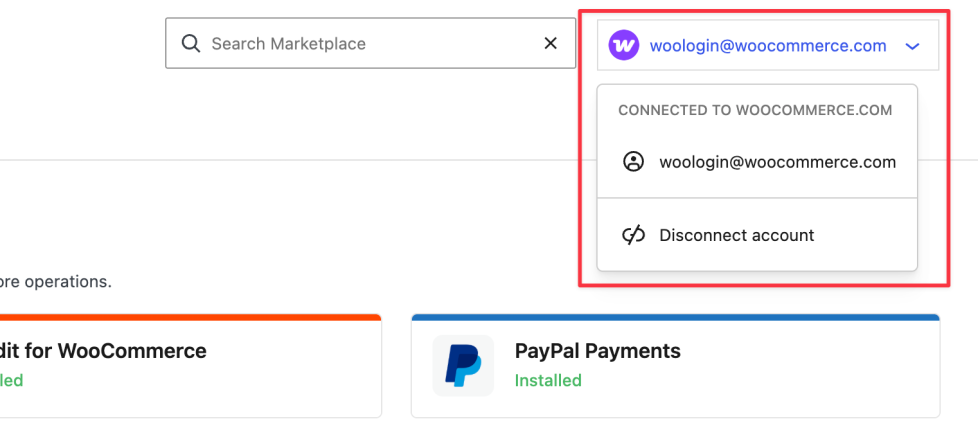
- Confirm by clicking the Disconnect button.
- Reconnect by clicking Connect and logging in to the correct WooCommerce.com account.
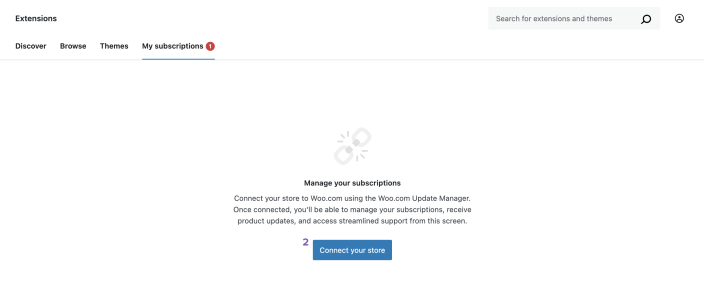
This forces your site to re-sync subscription data from WooCommerce.com.
Extension not receiving updates
↑ Back to topIf an extension on your site is not receiving updates:
- Check that the subscription is active. Go to My Subscriptions on your WooCommerce.com account and confirm the subscription status is active (not expired or cancelled).
- Check your site connection. Go to WooCommerce > Extensions > My Subscriptions in your WordPress dashboard and verify that your site is connected to your WooCommerce.com account. If it shows as disconnected, reconnect.
- Check that the WooCommerce.com Update Manager is installed. Paid Woo Marketplace extensions require the WooCommerce.com Update Manager plugin to receive updates. Verify it is installed and activated under Plugins in your WordPress dashboard.
- Check that the subscription key is assigned to the correct site. A subscription key can only be connected to one site at a time. If the key is connected to a different site, you need to remove it from that site first.
- Check your REST API. See REST API issues above.
- Check your WordPress cron. See WordPress cron issues above.
- Check for plugin conflicts. A security plugin or server-side firewall rule may block communication between your site and WooCommerce.com. Try temporarily disabling security plugins to see if updates appear.
- Manually check for updates. Go to Dashboard > Updates in your WordPress dashboard and click Check again to force WordPress to check for available updates.
An extension in your site administration shows a ‘No subscription’ label
↑ Back to topThis label, and the Subscribe button, appear in your WordPress dashboard when your WooCommerce.com account has an active subscription, but the subscription key is not connected to the site you’re viewing.
To resolve this:
- Go to WooCommerce > Extensions > My Subscriptions in your WordPress dashboard.
- Review the list of subscriptions. Look for any that show as not connected or available to activate.
- Click Connect or Activate next to the relevant subscription.
If the subscription is already connected to a different site and you want to move it:
- Log in to your WooCommerce.com account.
- Find the subscription and remove the current site connection.
- Return to the new site’s WordPress dashboard and connect the subscription there.
Error when updating a WooCommerce.com extension
↑ Back to topIf you see an error when trying to update an extension purchased from the Woo Marketplace:
- Verify the subscription is active. Expired subscriptions do not receive updates.
- Verify the subscription key is connected to the site. Go to WooCommerce > Extensions > My Subscriptions and check that the extension shows as connected.
- Check that the WooCommerce.com Update Manager is installed and up to date. An outdated version of the Update Manager may cause update errors.
- Refresh the connection. Disconnect and reconnect your site to WooCommerce.com (see Refresh your connection above).
- Check for file permission issues. If your server’s file permissions are too restrictive, WordPress may not be able to write the updated files. Contact your hosting provider to verify that file permissions are set correctly for plugin updates.
Related documentation
↑ Back to top- What are WooCommerce.com subscriptions?
- Install extensions and themes
- Connect your site to WooCommerce.com
- Activate and manage your subscriptions
- Transfer a subscription
- Share a subscription
- Auto-renewal, cancellation, refunds
Questions and support
↑ Back to topDo you still have questions and need assistance?
- Get in touch with a Happiness Engineer via our Help Desk. We provide support for extensions developed by and/or sold on WooCommerce.com, and Jetpack/WordPress.com customers.
- If you are not a customer, we recommend finding help in the WooCommerce support forum or hiring a Woo Agency Partner. These are trusted agencies with a proven track record of building highly customized, scalable online stores. Learn more about Woo Agency Partners.