
The WooCommerce Fulfillments system provides a comprehensive solution for managing the order fulfillment processes. It allows you, the store owner, to track which items in an order have been shipped, manage partial fulfillments, and communicate shipping information to your customers.
This system includes both a user-friendly interface and a robust API for integration with your favorite shipping tools and providers.
Fulfillments represent the process of sending ordered items to customers. Each fulfillment contains:
- Items: Which products and quantities are being shipped
- Status: Whether the fulfillment is in draft or fulfilled state
- Shipping Information: Tracking numbers, carriers, and delivery details
- Metadata: Additional custom information about the shipment
Managing Fulfillments
↑ Back to top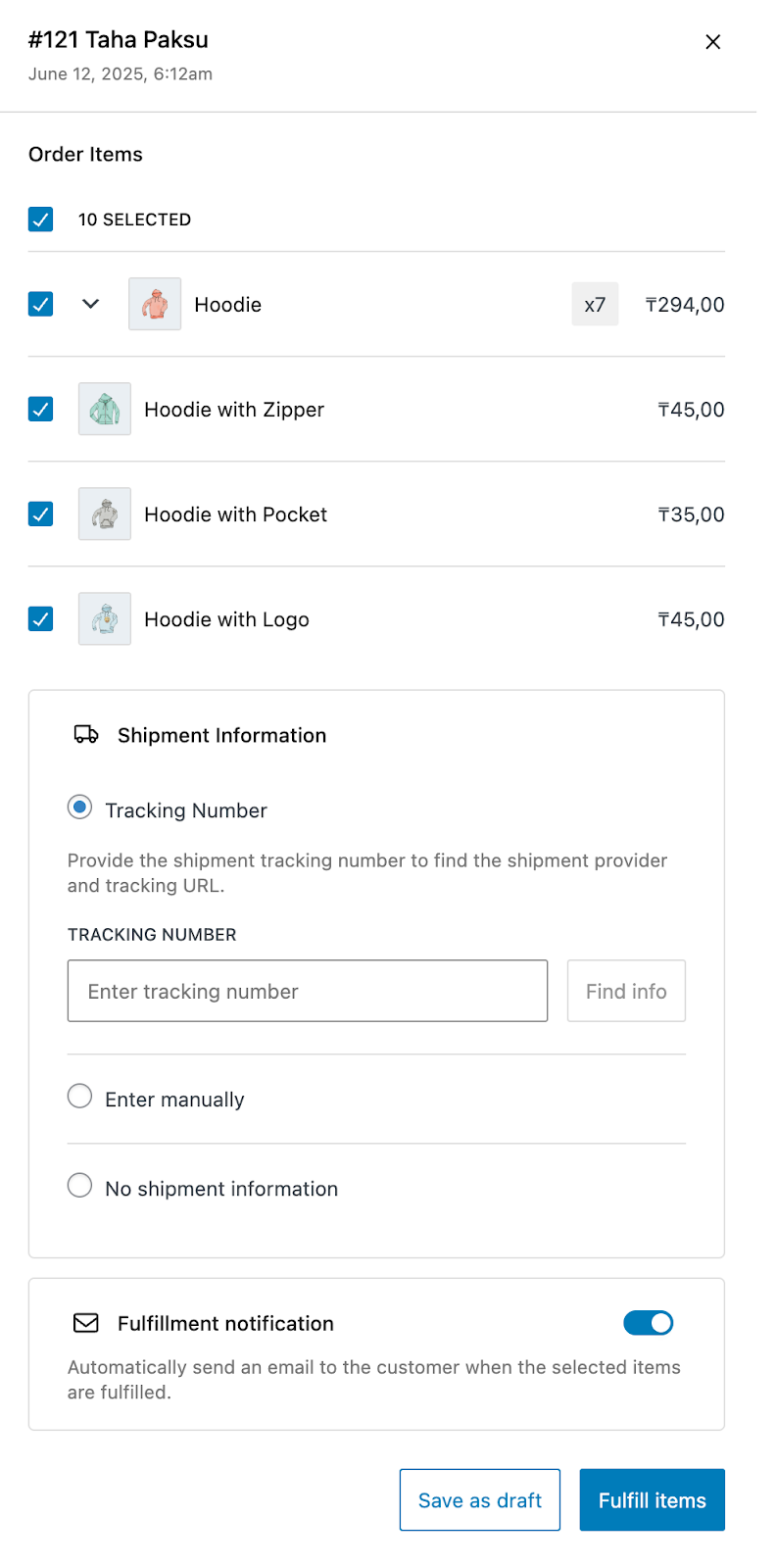
Accessing Fulfillments
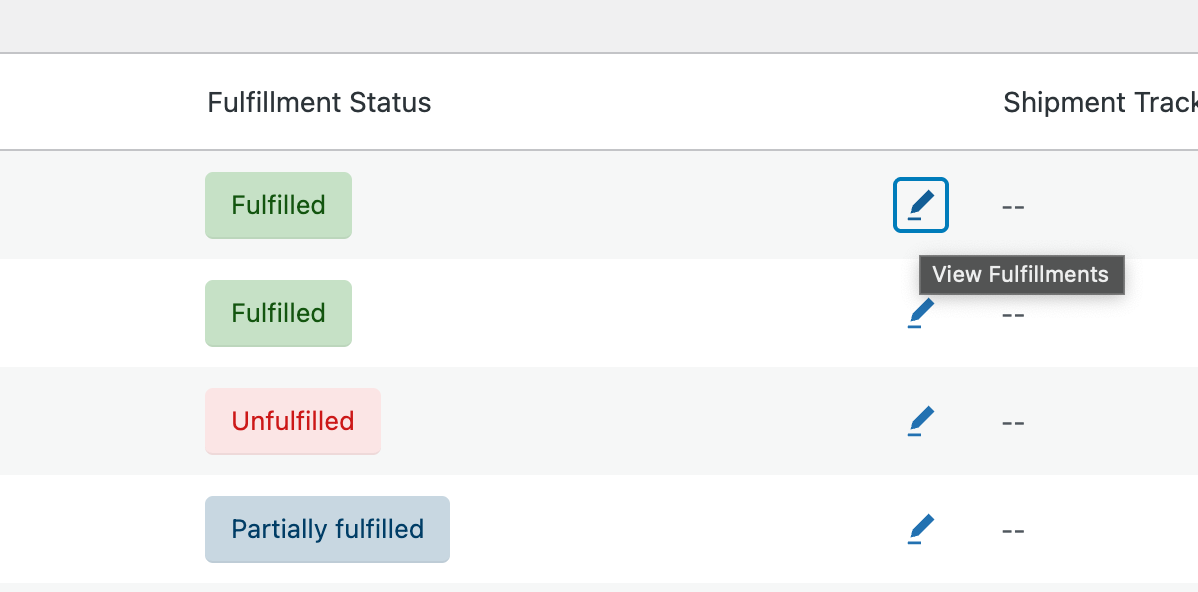
- From Orders List: Click the fulfillment button in the Fulfillment status column next to any order.
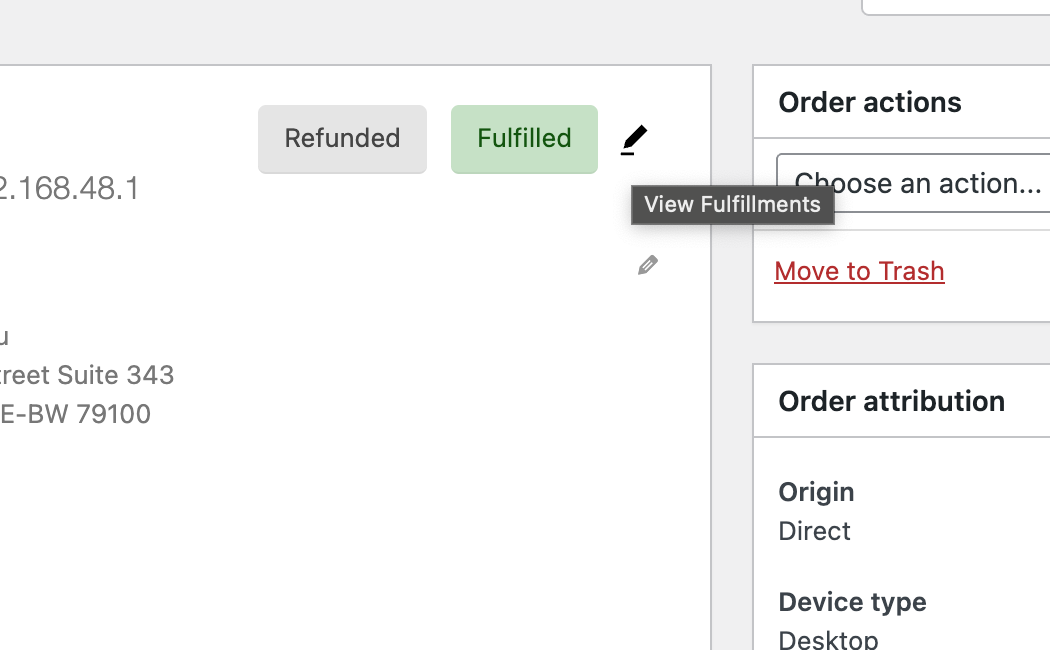
- From Order Details: Use the fulfillments panel on the order edit screen.
Creating a New Fulfillment
- Open the fulfillments drawer for an order
- Select the items you want to fulfill
- Add shipping information if you already have one
- Toggle the notification option if you want the customer to be notified immediately once you fulfill the fulfillment
- According to your fulfillment state for the selected items, you can:
- Save the fulfillment as a draft until you actually send the items via the shipping provider or have another condition to be met before marking the fulfillment as fulfilled.
- Fulfill the fulfillment directly and let the customer know that the package has been sent to them.
Managing Existing Fulfillments
- Edit: Modify fulfillment details, add tracking information
- Note that updating a fulfilled fulfillment will send a notification to the customer about the update if you didn’t explicitly set the notification toggle off for the fulfillment update.
- Draft fulfillments don’t send any notification emails to customers when updated or removed.
- Delete: Remove fulfillments that are no longer needed or have some mistake, or if you want to recreate an already fulfilled fulfillment with a draft status. If the fulfillment is fulfilled and the toggle for the notification is on, the customer will receive a notification about the removal.
Fulfillment Statuses
↑ Back to topThere are two levels of statuses that the fulfillment system introduces to a WooCommerce Store,
Individual Fulfillment Status
The system supports these individual fulfillment statuses by default:
- Draft (Unfulfilled): Fulfillment is prepared but not yet shipped, useful while preparing packages in case anything will go in or out of the package, or while waiting for shipping information to be attached. Creating, editing, or removing a draft fulfillment is not sending any notifications to the customers.
- Fulfilled: Items have been shipped to the customer. Any change to a fulfilled fulfillment has the option to be communicated to the customer with the default-on toggle on the fulfillment editor. Also, fulfilling a draft fulfillment will send a notification to the customer that the order is shipped, which also can be opted out with the toggle on the fulfillment editor screen.
But be aware that 3rd-party plugins can extend those statuses to add more functionality to your store.
Order-level Fulfillment Status
Order-level fulfillment status is automatically calculated with the statuses of fulfillments an order has, and the defaults are:
- No Fulfillments: No fulfillments have been created for the order yet.
- Partially Fulfilled: Some but not all items have been fulfilled. This may mean that some items do not belong to a fulfillment yet (are pending), or all items are in a fulfillment, but some fulfillments are not marked as fulfilled yet.
- Fulfilled: All items have been fulfilled, e.g., all fulfillments of the order are marked as fulfilled.
This also can be extended by 3rd-party plugins to provide you more details and functionality for your fulfillments.
Shipping Tracking
↑ Back to topAdding Tracking Information
- Create a new fulfillment, or edit an existing fulfillment
- Add tracking number by selecting one of the following options:
- Tracking Number: Attempts to look up the tracking number and find out the shipping provider that the tracking number belongs to and also fills the tracking URL to be sent on the customer notification email.
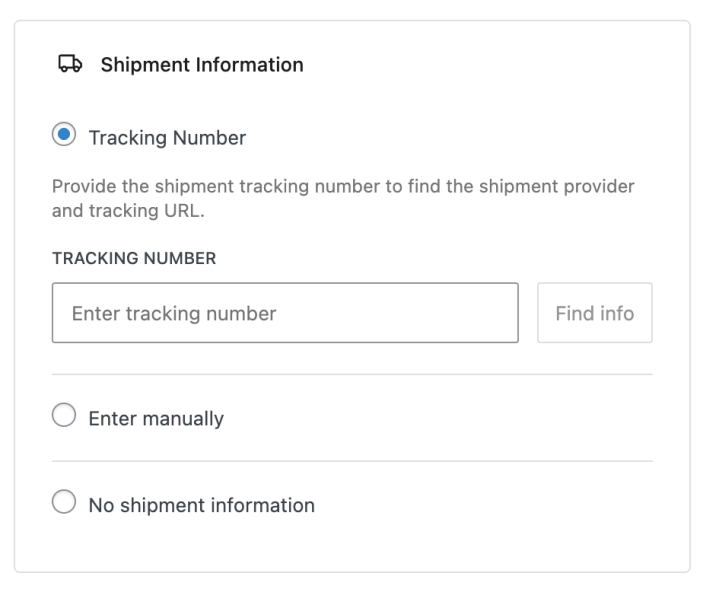
- Enter manually: Allows you to add your tracking information manually by entering the tracking number, selecting the shipping provider (you can add your own shipping provider by selecting “Other” and entering the name of it to the input), and providing the tracking URL to be sent to the customer via the notification email.
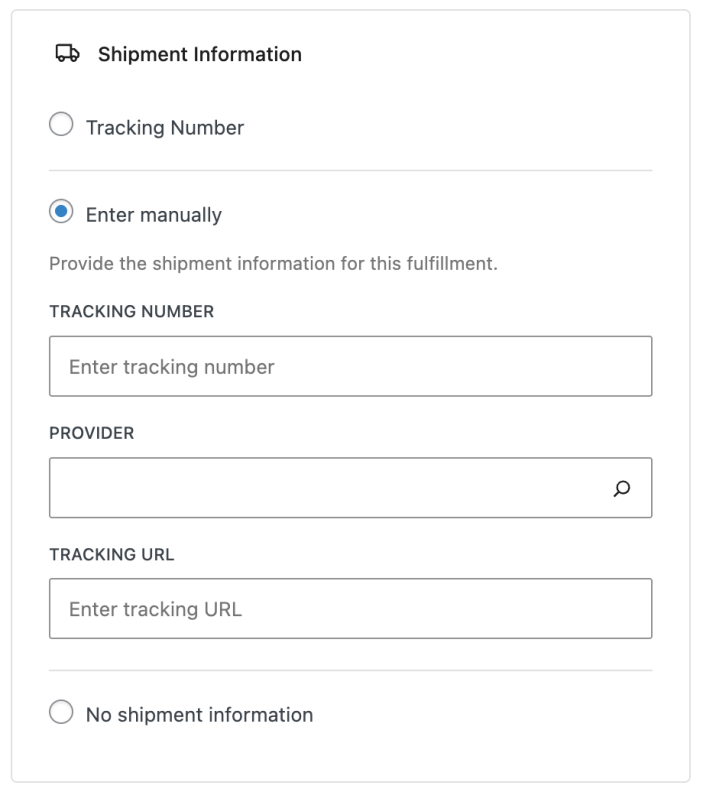
- No shipment information: Use this option if your delivery doesn’t require tracking information.
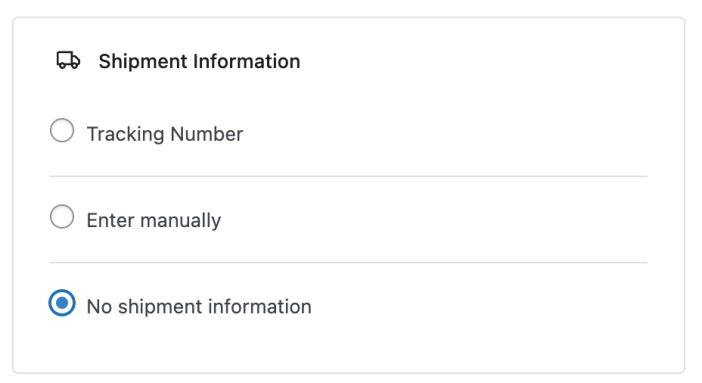
- Save the fulfillment by one of the following actions:
- Save as draft: Won’t notify the customer about the tracking information and is only available when creating a new fulfillment.
- Fulfill items: Will notify the customer about the tracking information and is available on both creating a new fulfillment and editing a draft fulfillment.
- Update fulfillment: Will notify the customer about the change of the fulfillment and is only available when you are editing a fulfilled fulfillment.
Supported Shipping Providers
The system includes support for 70+ international shipping providers, including:
- Major carriers (UPS, FedEx, DHL, USPS, and more)
- Regional postal services
- International logistics companies
Customer Notifications
↑ Back to topNotification Options
When creating, updating, or canceling (deleting) fulfilled fulfillments:
- Check the “Notify Customer” toggle to send email notifications.
- Customers receive fulfillment details and tracking information
- Notifications are sent for status changes (draft to fulfilled)
Draft fulfillments, in their nature, don’t send notifications to customers.
Email Content
Customer notifications include:
- Fulfillment status updates
- Tracking numbers and links
- Items included in the shipment
- Estimated delivery information (when available)
Fulfillment Settings
↑ Back to top
For some stores, you may need to automatically mark the virtual and downloadable items as fulfilled to reduce the work required to manage your store’s fulfillments.
If the customers’ order contains only virtual or downloadable items and you enable both of the above settings, the order status will immediately switch to “Fulfilled,” without you needing to do anything else.
If the customers’ orders contain mixed products (e.g., virtual/downloadable products besides physical, shippable items), this will ensure that the items shown in your fulfillments panel are only the products that can be fulfilled manually. And the order fulfillment status will show as “Partially fulfilled.”
These two settings are:
Automatically mark downloadable items as fulfilled when the order is created: When this setting is enabled, the downloadable items in the customers’ orders will be automatically added to a new fulfillment, and that fulfillment will be marked as fulfilled when the order is created. There will be no notification sent to the customer about this operation. This setting is enabled by default, and you can change the setting if you plan to fulfill downloadable items manually.
Automatically mark virtual (non-downloadable) items as fulfilled when the order is created: When this setting is enabled, the virtual items in the customers’ orders will be automatically added to a new fulfillment, and that fulfillment will be marked as fulfilled when the order is created. There will be no notification sent to the customer about this operation. This setting is not enabled by default, and you can change the setting if you plan to fulfill virtual items automatically.
Best Practices
↑ Back to topFor End Users
↑ Back to top- Regular Updates: Keep fulfillment information up-to-date as orders progress
- Customer Communication: Use notifications to keep customers informed
- Accurate Tracking: Always verify tracking numbers before saving
- Partial Fulfillments: Use when shipping items in multiple packages
Troubleshooting
↑ Back to topCommon Issues
↑ Back to topFulfillment not saving:
- Check user permissions (
manage_woocommercecapability) - Verify order ID exists and is valid
- Ensure fulfillment data structure is correct
Tracking numbers not recognized:
- Verify tracking number format
- Check if the shipping provider is supported.
- Use manual provider selection if automatic detection fails
Notifications not sending:
- Verify WooCommerce email settings
- Check if the notification flag is set to true
- Ensure fulfillment status triggers notification.
Questions and support
↑ Back to topDo you still have questions and need assistance?
This documentation is about the free, core WooCommerce plugin, for which support is provided in our community forums on WordPress.org. By searching this forum, you’ll often find that your question has been asked and answered before.
If you haven’t created a WordPress.org account to use the forums, here’s how.
- If you’re looking to extend the core functionality shown here, we recommend reviewing available extensions in the WooCommerce Marketplace.
- Need ongoing advanced support or a customization built for WooCommerce? Hire a Woo Agency Partner.
- Are you a developer building your own WooCommerce integration or extension? Check our Developer Resources.
If you weren’t able to find the information you need, please use the feedback thumbs below to let us know.