The Show on Filter Widget feature allows product attributes used in Variation Monster to be displayed inside the WooCommerce product filtering system. This enables customers to quickly filter products based on specific attributes such as color, size, material, or other variation options.
Once this feature is enabled, the admin can use the WooCommerce Attributes Filter widget in the shop page sidebar. This widget allows customers to filter products dynamically and find the exact variation they are looking for without browsing through multiple product pages.
For example, customers can filter products by:
- Color
- Size
- Material
- Style
This feature significantly improves the shopping experience by making product discovery faster and more convenient.
How to Configure
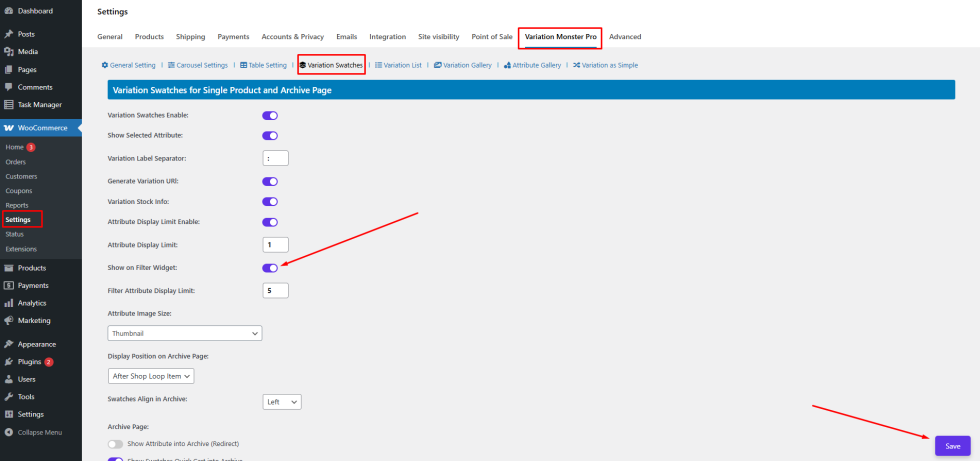
↑ Back to top- Go to WordPress Admin Panel → WooCommerce → Settings.
- Click the Variation Monster tab.
- Navigate to the Variation Swatches section.
- Enable the Show on Filter Widget option.
Click the Save button to apply the changes.
How to Display the Filter on the Shop Page
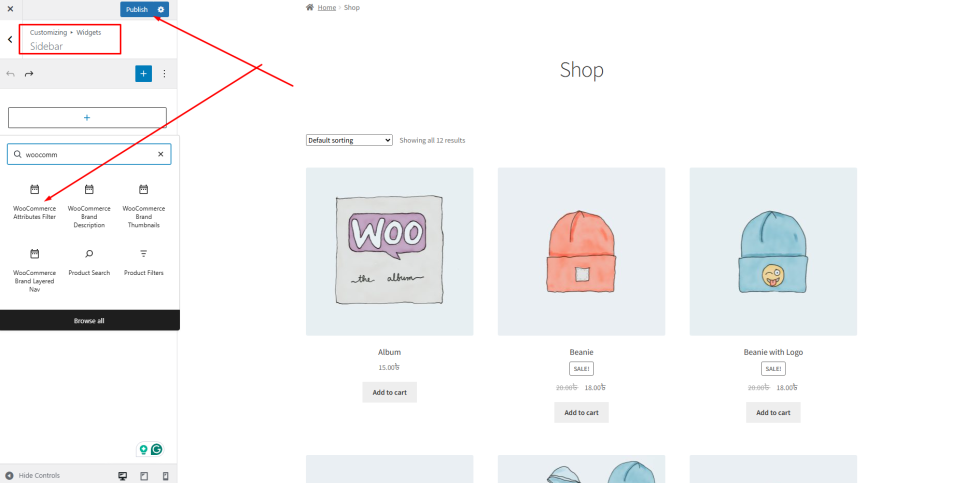
↑ Back to topAfter enabling the feature, you need to add the filter widget to your shop sidebar.
- Go to WordPress Admin Panel → Appearance → Widgets.
- Locate the widget called WooCommerce Attributes Filters.
- Drag and place the widget into your Shop Page Sidebar.
- Select the attribute you want customers to filter by.
- Save the widget settings.
Once configured, the filter will appear on the shop page sidebar, allowing customers to easily filter products based on their desired attributes.
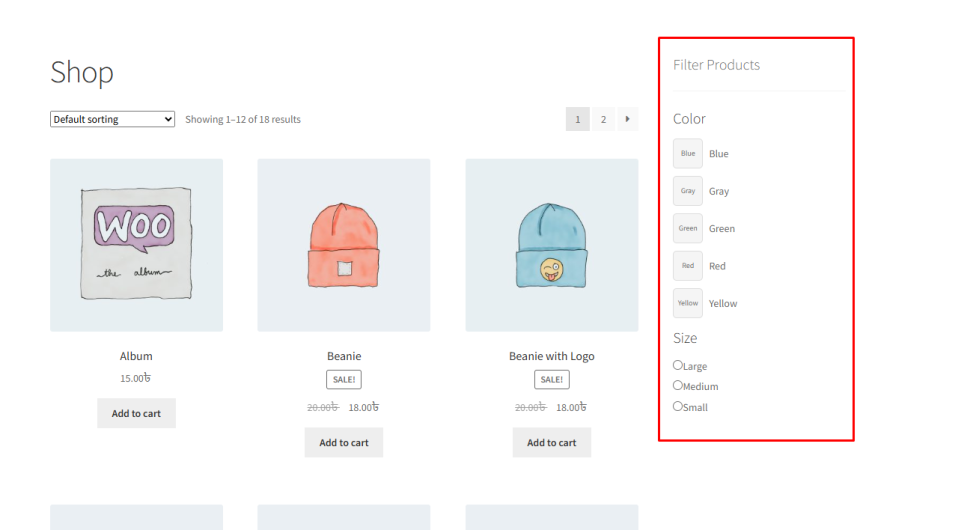
This feature makes it easier for customers to find products quickly and enhances the overall usability of your WooCommerce store.
Filter Attribute Display Limit
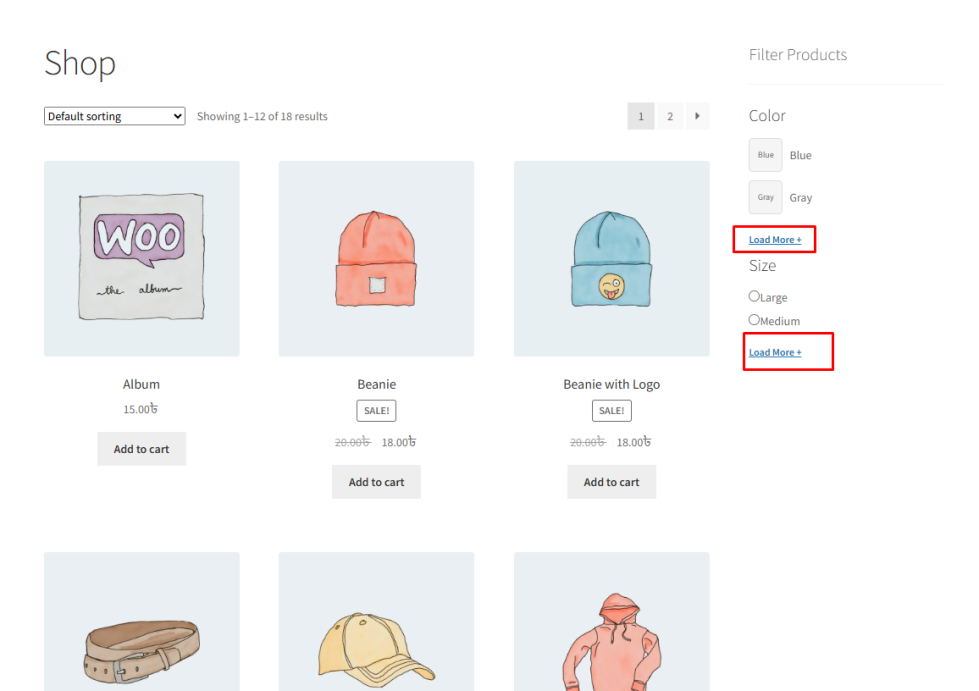
↑ Back to topWhen your store has many attribute options, displaying all of them in the filter widget can make the sidebar look crowded and harder to navigate. The Filter Attribute Display Limit feature helps keep the filter section clean by limiting the number of attributes displayed initially.
Once this feature is enabled, only a specified number of attribute options will appear in the shop page filter widget. If more attributes are available, a Load More button will appear below the list. Customers can click this button to view the remaining attribute options.
For example:
Suppose your store has 5 color attributes available in the filter widget.
If the Attribute Display Limit is set to 2, the shop page sidebar will initially display only two color options.
A Load More button will appear beneath the list. When a customer clicks Load More, the remaining color attributes will become visible.
This feature helps maintain a clean and organized filter layout while still allowing customers to access all available filtering options when needed.
How to Configure
- Go to WordPress Admin Panel → WooCommerce → Settings.
- Click the Variation Monster tab.
- Navigate to the Variation Swatches section.
- Enable the Filter Attribute Display Limit option.
- Enter the number of attributes you want to display initially.
Click the Save button.
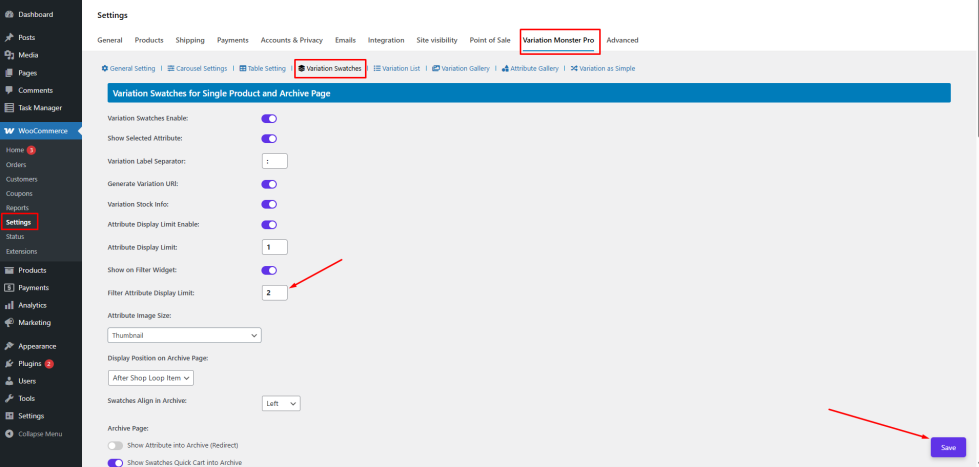
After saving the settings, the shop page filter widget will display the limited number of attributes along with a Load More option when additional attributes are available.