
The WooCommerce REST API connects your store to external systems and services. Most integrations require you to generate API keys in WooCommerce and enter them in the external service to establish the connection. This document covers how to generate and manage REST API keys from a merchant perspective, with links to developer documentation for more advanced topics.
Note: You can find the technical documentation for the REST API on GitHub.
Requirements
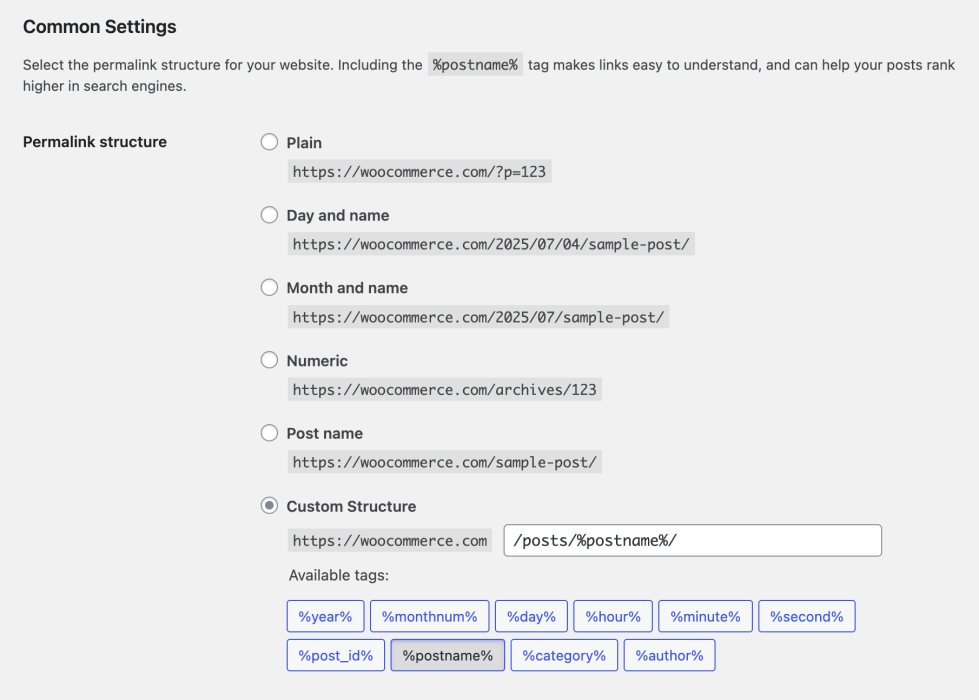
↑ Back to topBefore generating API keys, confirm that your WordPress permalinks are set to a human-readable format. Go to Settings > Permalinks in your WordPress dashboard and select any option other than Plain. Day and name is a common default that works well.
Generate API keys
↑ Back to topThe WooCommerce REST API uses a key system to control access. Each set of keys is linked to a WordPress user on your site. You can create keys with different permission levels depending on what the connected application needs.
To create or manage keys for a specific WordPress user:
- Go to WooCommerce > Settings > Advanced > REST API.
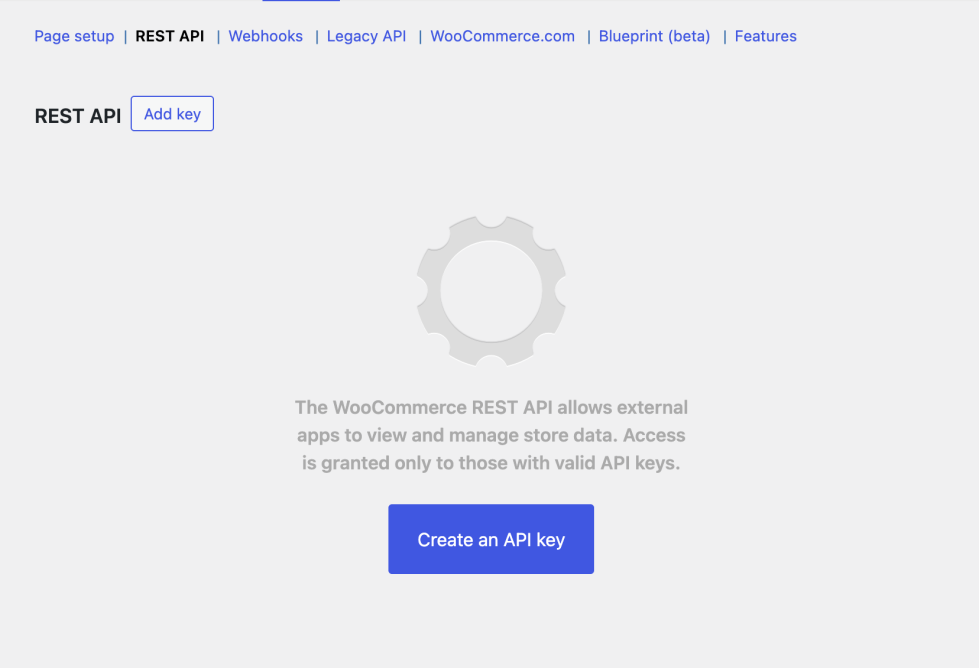
- Select Create an API key or Add Key. The Key Details screen opens.
- Enter a Description to identify what the key is used for.
- Select the User you want to generate a key for from the dropdown.
- Select a level of access for this API key from the Permissions dropdown:
- Read — allows the application to retrieve data from your store
- Write — allows the application to create and update data in your store
- Read/Write — allows the application both read and write access
- Select Generate API Key.
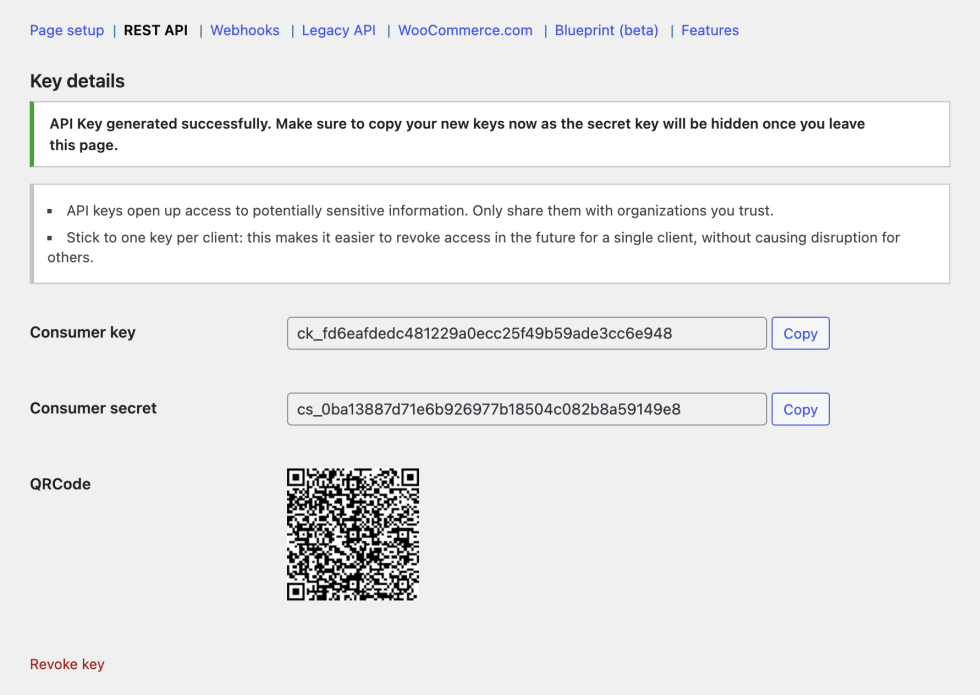
After generating the key, the screen displays your Consumer Key, Consumer Secret, a QR Code, and a Revoke Key link. Copy the Consumer Key and Consumer Secret and enter them in the application you are connecting to. The application may also request your site URL.
Note: The Consumer Secret is shown only once. Copy and store it in a safe place before leaving the page.
Enable the legacy REST API
↑ Back to topThe legacy REST API has been removed from WooCommerce core. WooCommerce now integrates directly with the WordPress REST API. If an integration on your site still requires the legacy REST API, install and activate the WooCommerce Legacy REST API plugin from WordPress.org.
Webhooks configured to use the legacy REST API also stop working unless you install this plugin.
After installing and activating the plugin, go to WooCommerce > Settings > Advanced > Legacy API and select the Enable the legacy REST API checkbox.
Developer documentation
↑ Back to topIf you need to test or build custom integrations with the REST API, the following developer resources provide detailed technical guidance:
- Make a basic request — walks through requesting order data from your site to confirm the API is working.
- WooCommerce REST API Docs — the complete technical reference for all available endpoints.
Questions and support
↑ Back to topDo you still have questions and need assistance?
This documentation is about the free, core WooCommerce plugin, for which support is provided in our community forums on WordPress.org. By searching this forum, you’ll often find that your question has been asked and answered before.
If you haven’t created a WordPress.org account to use the forums, here’s how.
- If you’re looking to extend the core functionality shown here, we recommend reviewing available extensions in the WooCommerce Marketplace.
- Need ongoing advanced support or a customization built for WooCommerce? Hire a Woo Agency Partner.
- Are you a developer building your own WooCommerce integration or extension? Check our Developer Resources.
If you weren’t able to find the information you need, please use the feedback thumbs below to let us know.