Instalaciones activas
1K+
Product comparison
La suscripción incluye
Ayuda y soporte
Presenta un calendario o una agenda con fechas y horarios disponibles en una página o entrada para conseguir más reservas. Ofrece una selección o todos tus productos en un formato que facilite a los clientes encontrar rápidamente una hora y fecha que les convenga y añadirla al carrito.
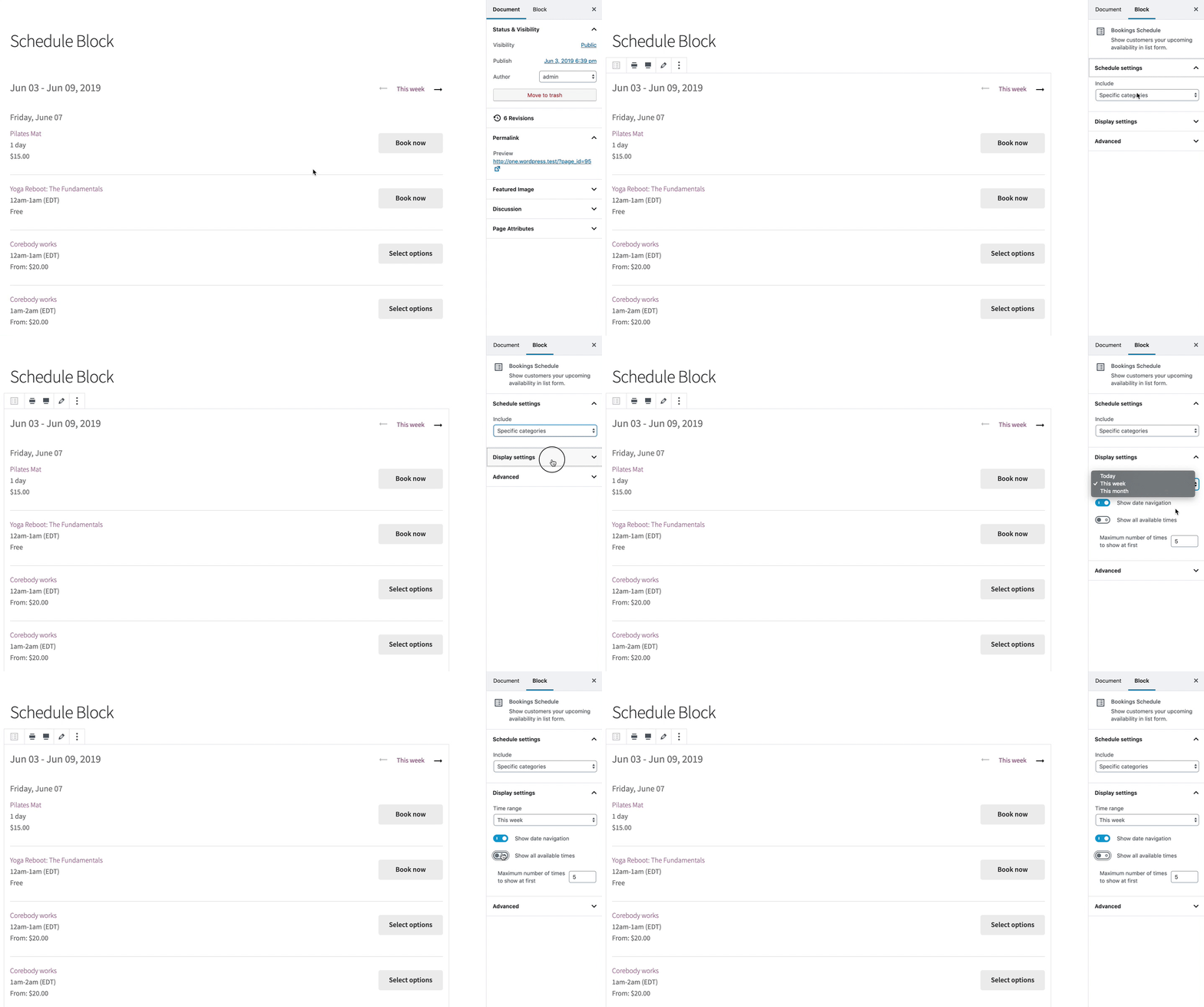
Elige qué productos aparecerán en tu calendario o agenda:
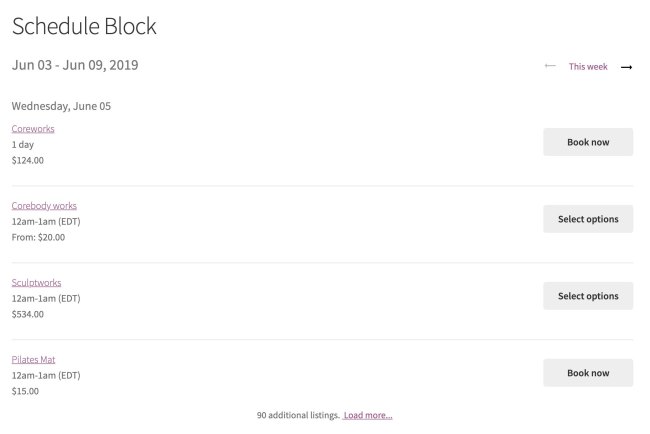
Muestra la disponibilidad de productos de un cierto día/semana/mes en una lista que permita a los clientes añadirlos directamente al carrito.
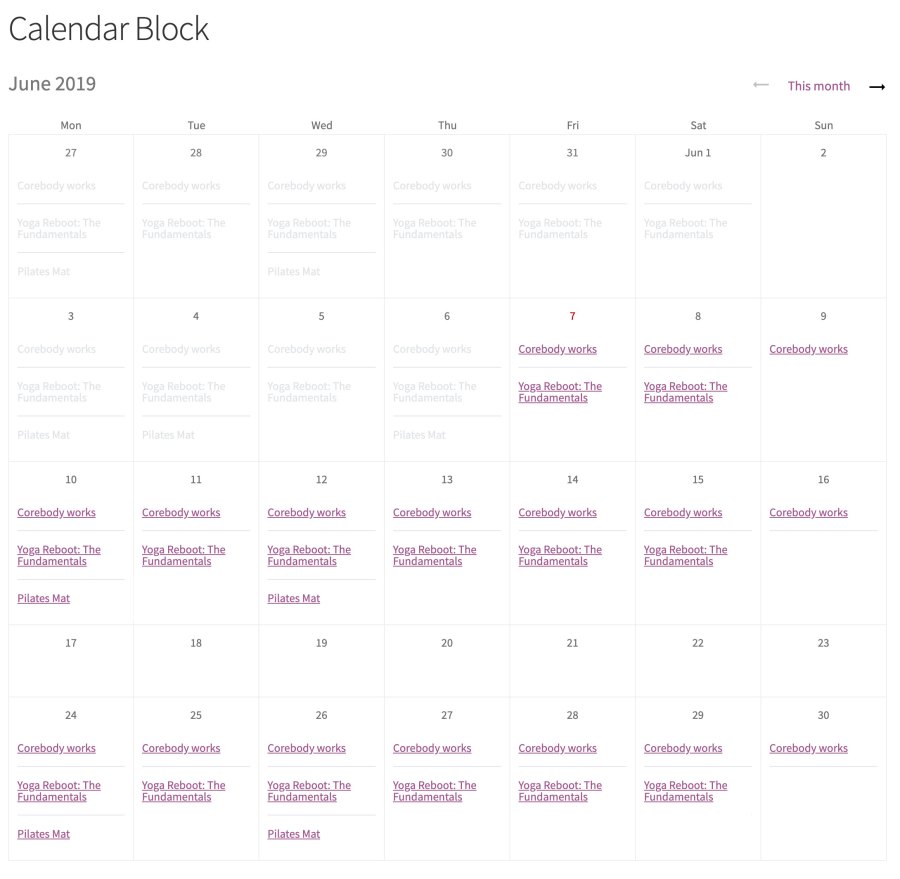
Muestra la disponibilidad de productos de un mes en concreto en un calendario que permita a los clientes añadirlos directamente al carrito. La vista de calendario también ofrece información adicional a través de una ventana emergente para cada reserva.
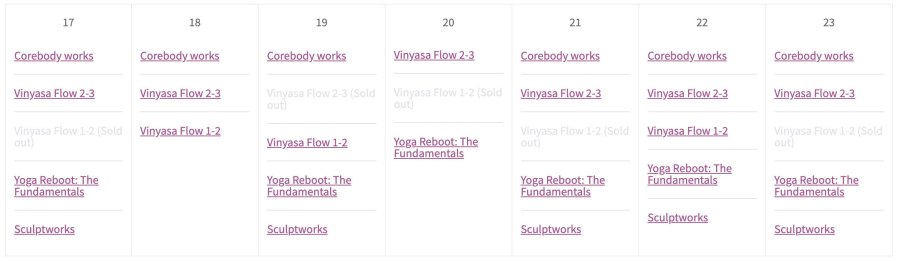
Muestra las franjas horarias no disponibles
Aumenta la demanda mediante franjas horarias no disponibles junto con la disponibilidad.
Si quieres ofrecer una experiencia perfecta para tus clientes, ten en cuenta los complementos que usan otros propietarios de tiendas WooCommerce con WooCommerce Bookings.
Yes. WooCommerce Bookings Availability is an add-on for the WooCommerce Bookings extension, which is a separate purchase. Bookings handles the core scheduling, bookable products, and availability rules, while Bookings Availability adds front-end blocks that display your open slots on any page or post. If you do not have Bookings yet, start there first.
WooCommerce Bookings Availability adds two blocks to the WordPress Block Editor: a Bookings Calendar block and a Bookings Schedule block. The Calendar block shows open slots on a weekly or monthly calendar, and the Schedule block shows them as an ordered list for a day, week, or month. Both let customers view what is open and add a booking to their cart directly from the page or post where you place the block.
Yes, it is designed to help you sell more bookings by putting your open slots front and center. Instead of asking customers to open each product page to check what is free, you can present a curated selection or all of your bookable products in a calendar or schedule, so shoppers can spot a time that works and add it to their cart in fewer steps. Surfacing availability where customers are already browsing can help reduce friction on the path to booking.
Yes. When you add a Bookings Calendar or Bookings Schedule block, you can display all bookable products, a hand-picked list of specific products, products in specific categories, or products that use specific resources. This gives you control to build focused pages, for example a page for a single class type, a seasonal offering, or one location's services.
Both blocks show open booking slots, but they present them differently. The Calendar block displays availability across a weekly or monthly calendar, and hovering over a slot opens a popup with details like date, time, and price. The Schedule block shows an ordered list of open slots for a day, week, or month, each with the product name, time, price, and a button to book or select options. Choose the Calendar block for an at-a-glance monthly view, or the Schedule block for an agenda-style list.
Customers can add a booking to their cart directly from the block, and they can customize it first if the product has options available. If a product has multiple slots open on the same date, the customer is taken to that product's page to choose their exact date and time on the calendar. This keeps single-slot bookings quick while still handling products with more complex availability.
Yes. WooCommerce Bookings Availability can display sold-out times alongside open slots. Showing that certain times are already taken can help create a sense of demand and encourage customers to book the slots that are still open.
It is useful for any store already using WooCommerce Bookings that wants to promote open slots outside of individual product pages. It works well for businesses like classes, tours, appointments, rentals, and reservations, where showing a calendar or schedule of what is open helps customers find a time quickly. It is especially handy when you want a dedicated "book now" page or want to feature availability within a blog post or landing page.
If you are not using WooCommerce Bookings, this add-on will not do anything on its own, since it depends on Bookings for the underlying scheduling. It is also focused on displaying availability rather than letting customers search by a specific date range they enter, so it is best when you want to present open slots for browsing. If you need to sell one-off event tickets rather than time-based bookings, consider WooCommerce Box Office instead. For hotel or B&B style stays, pair Bookings with the free WooCommerce Accommodation Bookings add-on.
You can add the Bookings Calendar or Bookings Schedule block to any page or post using the WordPress Block Editor. That means you can build a dedicated booking page, add availability to a service landing page, or feature open slots inside a blog post. You are in control of where customers see your availability.
The straightforward path is WooCommerce Bookings Availability, an add-on for WooCommerce Bookings. It gives you a Calendar block and a Schedule block that you drop into a page or post to show open slots, either for all of your bookable products or a chosen selection. Customers can then browse what is available and add a booking to their cart from that page.
Yes. By presenting your open slots in a single calendar or schedule, WooCommerce Bookings Availability simplifies the moment when a customer is deciding when to book. Rather than checking product pages one by one, they can scan availability in a format that suits them and move straight to their cart, which can help improve the booking experience.
Yes, WooCommerce Bookings Availability is available to merchants worldwide.
Categorías
Información de la extensión
Comprobaciones de calidad
Compatibilidad
Países
Requisitos