
Subscription includes
Support
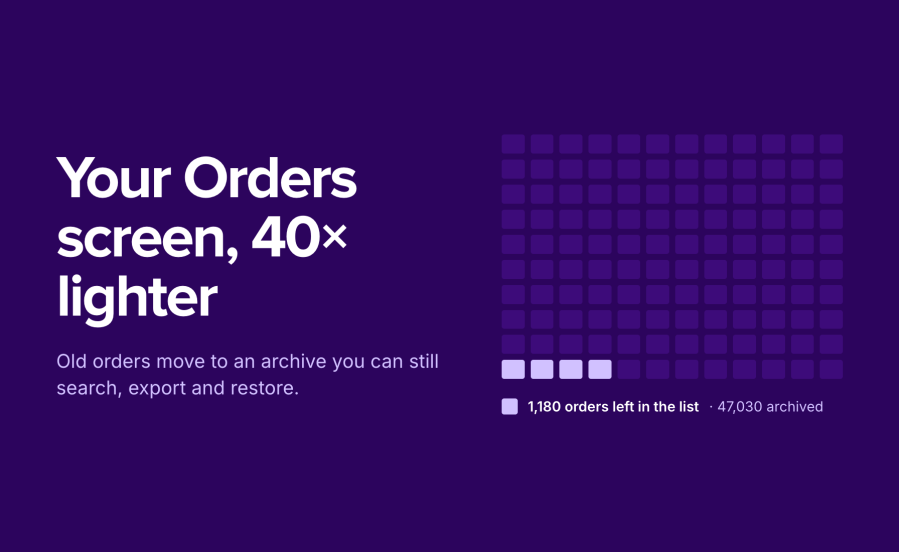
Archive Old Orders for WooCommerce moves orders you no longer work with out of WooCommerce’s live order tables and into a separate archive in your own database. You choose which orders go, by age and status, and archiving runs in the background on a schedule you set. Your Orders screen only holds the orders your team still needs. Every archived order is one search away under WooCommerce > Orders Archive, where you can view it, export it, or restore it with its original data.
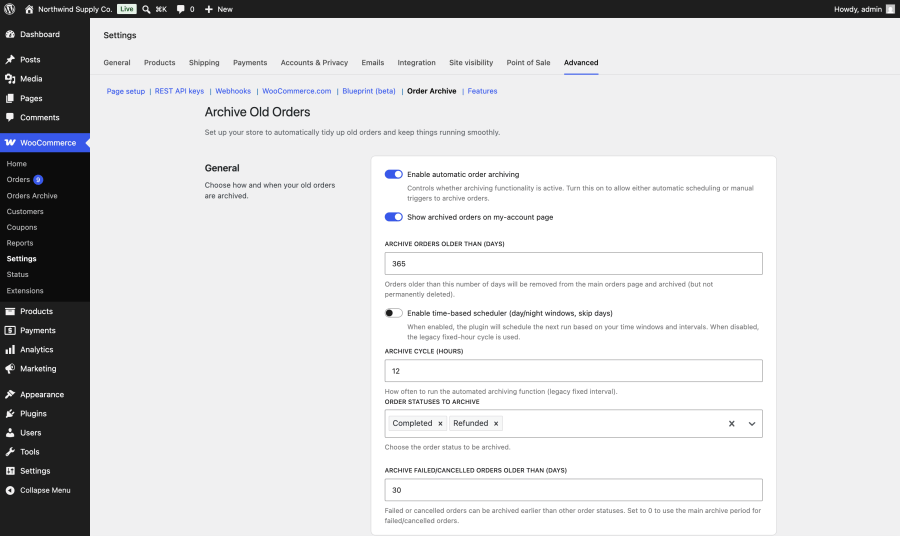
Set how old an order must be before it is archived, from 1 day up, with 365 days as the default. Pick the order statuses that qualify, such as Completed and Refunded, including custom statuses your store has registered. Archiving then runs in the background through WooCommerce’s own Action Scheduler, 50 orders per run, and it stops between orders before your server’s time limit so no order is ever left half-moved.
Failed and cancelled orders get their own threshold. Keep completed orders in the live list for a year and archive failed and cancelled checkouts after 30 days, or any number you choose.
Run archiving at a fixed interval, from every 30 minutes to every 24 hours. Or turn on the time-based scheduler and set a daytime window with its own interval, a separate overnight interval, and days of the week to skip entirely. A store that is busy on weekends can keep archiving off Saturdays and Sundays.
Move one order or a whole selection to the archive straight from WooCommerce > Orders, using a bulk action, a button in the order’s Actions column, or the Order actions box on the edit screen. Each manual archive adds an order note with the username of the person who archived it.
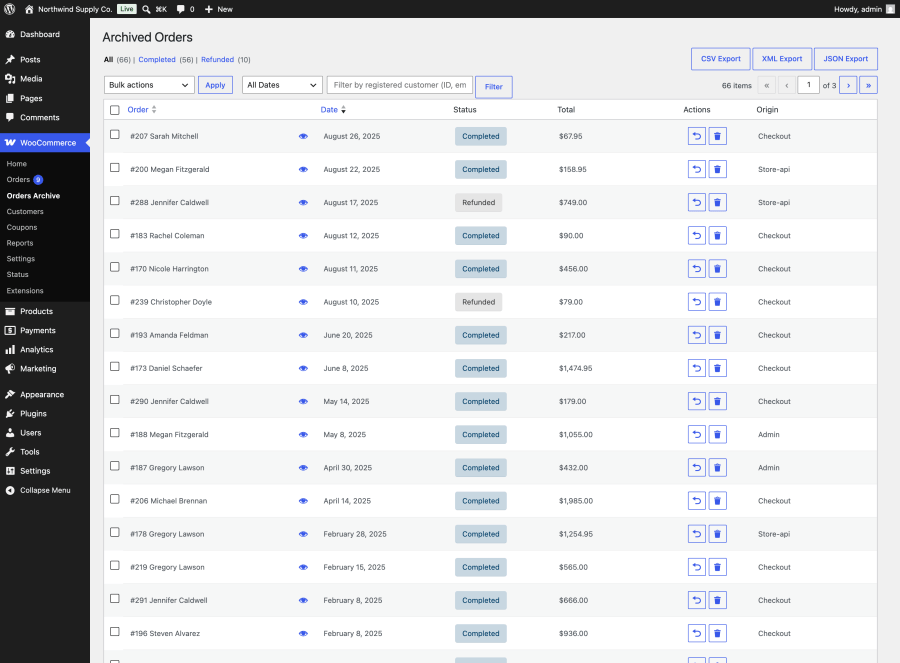
The Orders Archive screen lists archived orders with status counts, a month filter, and a search box that matches customer name, email address, customer ID, or order ID. Open any order to see its addresses, contact details, shipping and payment method, and line items. Restore one order or many to the live Orders screen when a customer comes back with a question or a return. Name search uses an index, so in W7S’s tests a 100,000-order archive returns name matches in about 24 milliseconds.
Download every archived order as a single CSV, XML, or JSON file from the settings page, or export selected orders to CSV or XML from the Orders Archive screen. Exports include order number, date, status, currency, totals, customer details, billing and shipping addresses, line items, shipping and payment method, taxes, coupons, discounts, fees, and order notes. Large exports are processed in batches so they finish on ordinary hosting.
Turn on one setting and customers get an Archived Orders tab in My Account, listing their archived orders with the order number, date, status, and total. Each order opens in your store’s normal order details layout.
If your data policy says order records should not be kept forever, turn on automatic deletion and set how many days an order stays in the archive before it is permanently deleted. The count starts on the day the order was archived. Before every deletion run, the extension writes the orders it is about to delete to a CSV file, and deletes nothing if that file cannot be written.
WP-CLI commands under wp wc-order-archive let you or your developer archive up to 500 orders per call with a dry-run preview, restore specific orders or everything matching a status, customer, or month, delete archived orders in batches, and list, inspect, or count what is in the archive.
If WooCommerce > Orders takes a long time to load because it holds tens of thousands of orders nobody opens anymore, archiving moves those orders out of the live tables while keeping them a search away.
If your admin team works through orders all day, the time-based scheduler keeps archiving to quiet hours and skips the days you choose.
If you need to keep order records for a set number of years and then remove them, automatic deletion does it on schedule and writes a CSV backup first.
If you look after client stores with big order tables, WP-CLI commands with dry runs let you clear a backlog in controlled batches, and the hooks let you tune batch sizes and time budgets per server.
Several extensions archive WooCommerce orders. The table below compares Archive Old Orders for WooCommerce with two alternatives on what each publishes about itself. Each one is the better fit for some stores.
| Archive Old Orders for WooCommerce | Export and Archive Old Orders for WooCommerce | ArchiveMaster | |
|---|---|---|---|
| Automatic archiving on a schedule | Yes, fixed interval or time-based windows with skip days | Yes, batch size 10 to 1,000 per run | Pro version only |
| Archive rules | Age plus selected statuses, separate threshold for failed and cancelled orders | Separate timing per status, value-based tiers, manual include and exclude lists by order ID | Age and status. Product category filter in Pro |
| Where archived orders are stored | Archive tables in your WordPress database | Plugin database table | Local database, Amazon RDS, and in Pro a custom MySQL database or Google Drive |
| Restore archived orders | Yes, single or bulk, and by WP-CLI | No | Yes, in bulk, with order ID conflict handling |
| Export formats | CSV, XML, JSON | CSV, XML, JSON | CSV, JSON, XML, and PDF for live orders. JSON and XML for archived orders, CSV in Pro |
| Customer access in My Account | Yes | Yes, with a custom tab label | Yes |
| Automatic deletion after a retention period | Yes, with a CSV backup before each run | Yes, with backups, a backup retention period, and a deletion log | Manual permanent delete |
| Subscription renewal orders | Archived like other orders when they match your rules | Renewal order policy for WooCommerce Subscriptions | Skips active subscription and membership orders from five plugins |
| Archived orders in WooCommerce Analytics | No | No | Yes, in Pro |
| WP-CLI commands | Yes, 8 commands | No | No |
| HPOS compatibility | Declared, including compatibility mode | No | No |
| Where it is sold and supported | WooCommerce.com Marketplace | WooCommerce.com Marketplace | WordPress.org (free) with a paid Pro version |
Yes! When you enable the "Show archived orders on My Account page" setting, customers can view their complete order history including archived orders directly in their account dashboard. They'll have access to order details, download links, and invoices just like active orders. The archiving process is completely transparent to your customers.
Extension information
Quality Checks
Countries