
Product comparison
Subscription includes
Support
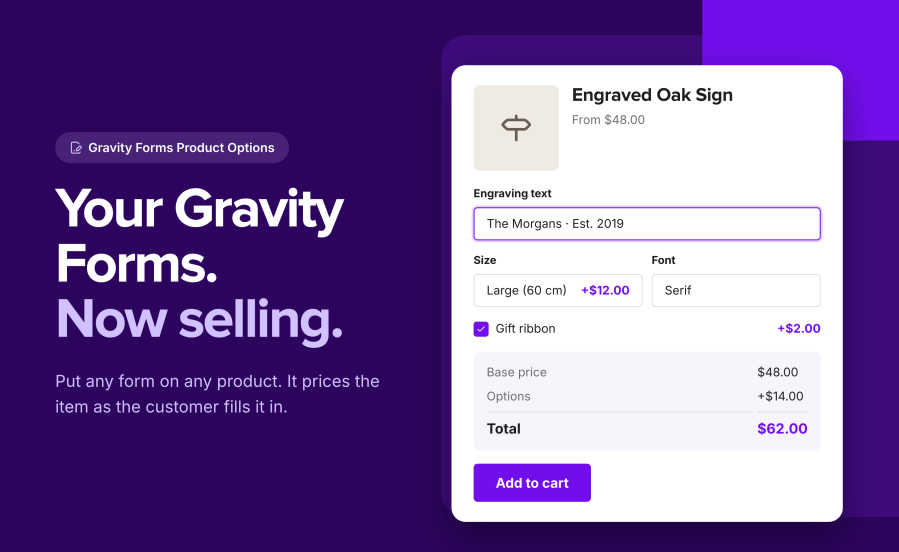
Gravity Forms Product Options for WooCommerce brings Gravity Forms to your products. Attach a form to a product and it renders on the product page, exactly as you built it: conditional logic, every field type, uploads, multi-page flows. Its Product, Option and Quantity fields price the item as the customer fills it in, and each sale becomes a Gravity Forms entry that carries the order number and the amount actually paid.
If your business already runs on Gravity Forms, its notifications, its add-ons for PDFs, spreadsheets, Zapier, Mailchimp or post creation, its exports, this is how those keep working when the form is selling a product. One form builder, one place where the answers live, and WooCommerce doing what it does best: cart, checkout, payment and shipping.
Gravity Forms add-ons, exports and notifications all run on entries. Each ordered item gets exactly one, created once the order exists and never duplicated by a later status change. It carries the order number, the order item, the product, the base price and the full line total paid, and its payment status follows the order from Pending through Paid to Refunded. An entry that says 12 for a product that sold for 62 is a reconciliation job; these say 62.
Validation runs through GFAPI, entries through the same lead builder Gravity Forms uses for its own submissions, and the form renders through gravity_form(). Nothing bypasses the plugin’s rules, which is why conditional logic, required fields, uploads and multi-page forms keep working as Gravity Forms updates. Developers get seven filters and two actions, a REST API behind the settings screen, and eight WordPress Abilities API tools.
The breakdown on the product page uses Gravity Forms’ own arithmetic, so options, quantities, calculated products and negative prices behave exactly as they do in a Gravity Forms order summary. The store then confirms the figure, which is how tax display, currency switchers and pricing plugins are honoured without a second implementation of any of them. Cart, order and entry all read the same number.
For a configured product, the order item is the manufacturing instruction. It should say what the customer chose and nothing else. Hidden fields, administrative fields, section breaks and the running total are left out by default; what remains is labelled the way the form labels it, priced choices show what they added, and uploaded files open from the order screen. When that is still too much or too little, pick the fields yourself or write one line with merge tags.
Use the form editor you already know. Add Product, Option and Quantity fields wherever a choice should change the price, and any other field for what the customer needs to tell you. Conditional logic, notifications and feeds are configured there too.
Open the product, choose the form on its Gravity Forms tab, and set any behaviour this product should handle differently from the store default. The tab links straight back to the form in Gravity Forms.
The form appears above the add-to-cart button with a live breakdown. WooCommerce’s own button adds the configured item, and the choices follow it through the cart, the checkout, the order, the emails and My Account.
The WooCommerce order lists the answers and links to the entry; the Gravity Forms entry carries the order number and the amount paid, and your feeds, exports and notifications run from it as they always have.
Two extensions on the Marketplace connect Gravity Forms to products. The established one, Gravity Forms Product Add-ons by Element Stark, has done so for over a decade; Gravity Forms Configurator by WPExperts is the other, and we make no claims about it beyond its listing since we could not examine it. The difference with the incumbent is not whether a form can price a product, both do that; it is how far the Gravity Forms side is taken: what the entry records, when notifications fire, and what reaches the order, what the entry records, and what the store can do with a form field beyond the price.
| Gravity Forms Product Options | Gravity Forms Product Add-ons by Element Stark |
|
|---|---|---|
| Fields shown in cart and order | Visible fields by default; every field, a chosen list, or a merge-tag template on request | All fields, hidden ones included, per its published feature comparison |
| Weight and dimensions from a form field | Yes, mapped per product | No weight or dimension mapping in its settings |
| Quantity from a form field | Cart quantity, or stock reduction only | Cart quantity, or stock reduction only |
| Customer image as cart thumbnail | Yes | No |
| Entry payment amount | Full line total paid | The part of the price the form added, per its published feature comparison |
| Notifications on a failed payment | Never; sent once at chosen statuses | Sent when enabled; suppressing them on failed orders is an open feature request |
| Shortcode to place the form elsewhere | Yes | No |
| Reset the form after adding | Yes | No |
| Cart editing and reorder | Yes | Yes |
| Bookings, Bulk Variations, Nested Forms, Quick View Pro | Not yet | Yes |
| Tools for AI assistants | Eight WordPress Abilities API tools | No |
Your forms, notifications, feeds and exports are set up and trusted. This puts them on your products without a second form builder, and every sale lands in the entries your add-ons already read.
Engraving, printing, embroidery, custom framing: the form asks exactly what production needs, and the order item becomes the instruction.
Blinds, boards, fabric, glass: measurements entered in the form rate the shipping and set the quantity, with stock kept by the metre.
Gravity Forms’ public API underneath, store defaults with per-product overrides, a REST API and tools for assistants on top.
Yes, with any licence tier. The plugin renders, validates and stores forms through Gravity Forms' own API, which is what keeps conditional logic, multi-page forms, uploads and every field type behaving exactly as they do in a standalone form.
From Gravity Forms' own pricing fields: Product, Option, Quantity and Shipping. The browser shows a breakdown of base price, options and total that moves as the customer chooses, and the store then confirms the exact figure so tax display, currency switchers and pricing plugins are honoured. A negative option price takes money off, which is how a discount is expressed in a form.
Yes, with Gravity Forms' own Calculation product field: its formula can reference any other field, so a 10% discount, a price per square metre or a tiered price is a formula in the form editor rather than a setting in the plugin. The result is added to the product price like any other pricing field, and the store confirms the total.
Because it would only ever show what the options add, next to a breakdown whose total includes the product itself. When the price breakdown is on, the plugin hides the form's Total field; turn the breakdown off and the field is shown as Gravity Forms renders it.
Their answers, not the form's plumbing. By default every field they could see and filled in appears, while hidden fields, admin-only fields, layout fields and the total stay out. Priced choices read as "Ribbon +$2.00" and uploads show by name. You can widen the list, narrow it to chosen fields, or replace it with a template using merge tags.
Yes. Map a Number field to weight, length, width or height and WooCommerce rates the shipping on the configured item rather than the product's defaults. This is the difference for made-to-measure products, and it is the most requested feature in this category.
Yes. Add a Number field with a calculation to the form, for example width × height × thickness × a density figure, and map that field to the weight. The customer never sees a weight, only their measurements; WooCommerce rates the parcel on the calculated figure. Dimensions work the same way, each from its own field or calculation.
Yes, in two ways. It can set the cart line quantity, or leave the line quantity as entered and reduce stock by the field's value per unit, for products sold by the piece but stocked by the metre or the sheet.
Yes. An "Edit your choices" link under the item name on the cart page reopens the product with their answers filled in, priced options included. Saving replaces the original line, or adds a second one if you prefer.
Each ordered item gets one entry, created when the order is placed and never duplicated by a later status change. It carries the order number, the order item, the product, the base price and the full line total paid, and its payment status follows the order: Paid, Pending, Failed, Cancelled or Refunded. Entries can also be created when the item is added to the cart, for stores whose Gravity Forms add-ons need to react earlier.
No. Notifications are sent once per item and only when the order reaches a status you choose, Processing and Completed by default. A declined card sends nothing.
Yes. Every setting has a store-wide default, and any product can override any of them from its Gravity Forms tab. Each setting is a single selector that reads "Store default (…)" until you pick a value for the product, so nothing drifts silently.
Yes. The form lives on the parent, the base price follows the selected variation, and the form total is added to it.
Yes. Each page is validated as the customer moves forward and the item is added only when the last page is submitted and valid. Each page change is a page load, as with any non-AJAX Gravity Form; AJAX page changes are on the roadmap.
Yes. Orders placed through the Checkout block get their item details and entries like any other, and the plugin declares compatibility with High-Performance Order Storage. The one difference is that the Cart block shows item details as plain text, so the edit link appears on the classic cart page only.
Yes. The parent order and every renewal order get their own entries with their own payment record.
Yes. `[gfpo_product id="123"]` prints the product's add-to-cart form, options included, wherever you use it.
A configurable product has no single price. You can publish a price range in the product's structured data instead, so search engines stop quoting the base price as the price.
Items carry a fingerprint of the form they were configured with. If the fields changed since, checkout asks the customer to remove and re-add the item rather than placing an order whose choices no longer match the form.
Yes. Filters cover the form attached to a product, its effective configuration, the amount the form adds, the base price, the summary lines, the output hook and the payment status written to entries; actions fire when an entry is created and when defaults are saved. A REST API backs the settings screen, and eight tools registered with the WordPress Abilities API let an MCP-connected assistant inspect and manage the configuration under the same permissions.
Nothing is deleted. Products keep their form and overrides, orders keep their item details, and entries stay in Gravity Forms.
Categories
Quality Checks
Countries