
Subscription includes
Support
Toggle Payments by Category lets you choose which payment methods your customers see at checkout, based on the product categories in their cart.
For example, you can hide Cash On Delivery when an online course is in the cart, or offer Bank Transfer only for furniture orders.
It is for stores where some products should only be paid in certain ways: courses that can’t be paid on delivery, large orders that need a bank transfer, gift cards or deposits that must skip buy now pay later.
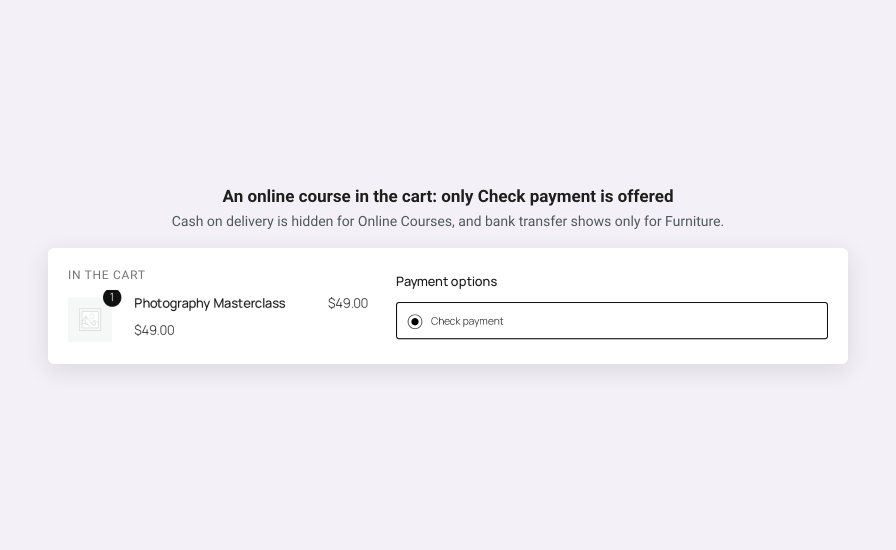
Add a Hide rule and the payment method disappears whenever a product from that category is in the cart. In this store, Cash On Delivery is hidden for Online Courses, so a customer buying a course never sees it.
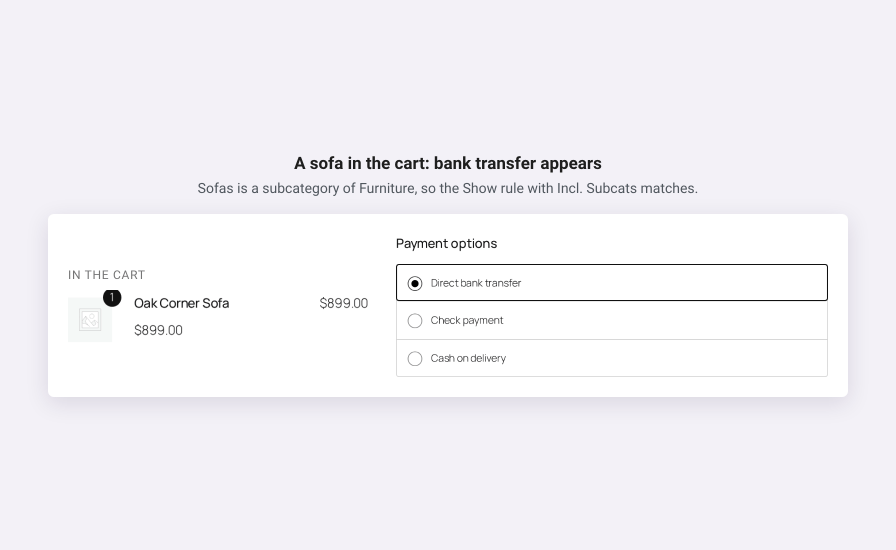
A Show rule does the opposite: the payment method appears only when a product from that category is in the cart. Tick “Incl. Subcats?” and one Furniture rule also covers Sofas, Tables and Chairs, so Direct Bank Transfer shows up for a sofa and stays hidden for everything else.
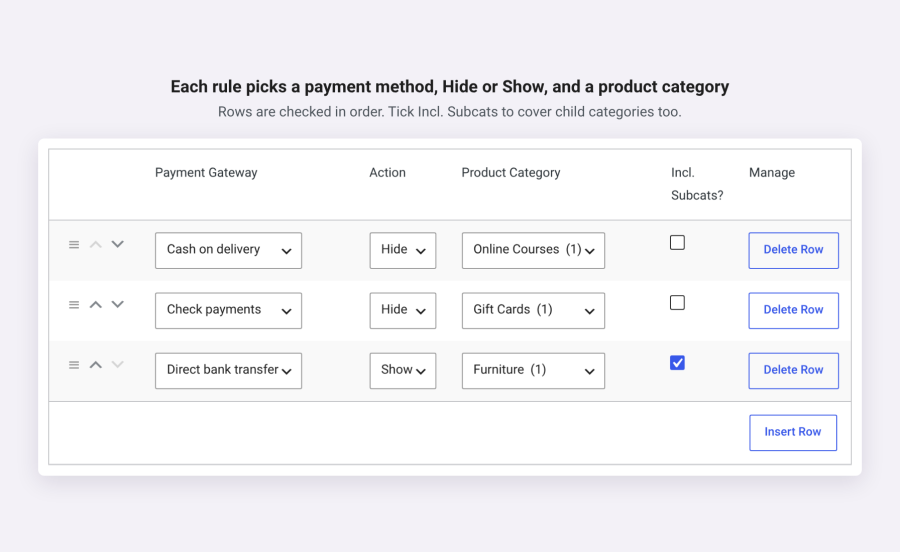
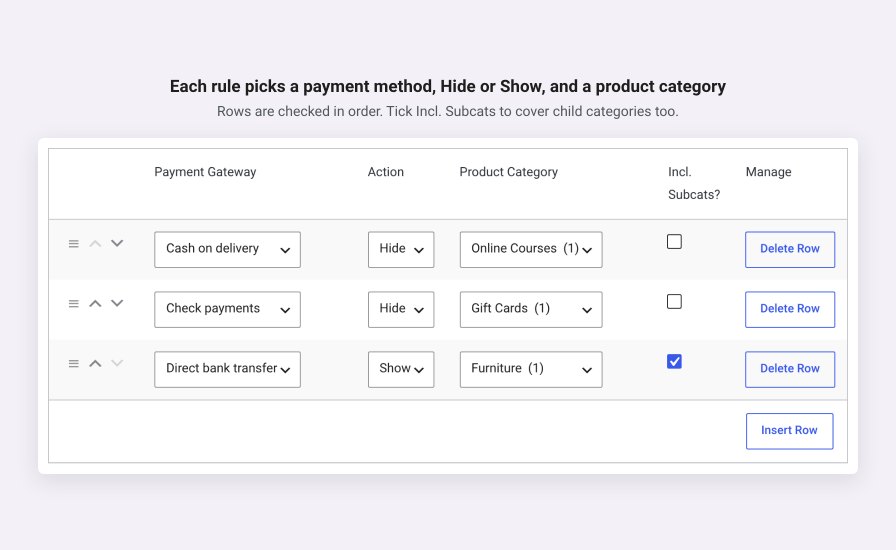
All rules live in one table under WooCommerce > Settings > Toggle Payments by Category. Each row is a payment method, Hide or Show, and a category. Rules are checked from top to bottom, and you can move them up or down at any time.
Some gateways add express buttons, such as Apple Pay or PayPal, on the cart, checkout or product page, outside the normal payment list. The extension hides those buttons too for WooCommerce PayPal Payments, WooPayments, WooCommerce Stripe Payment Gateway, WooCommerce Square, Mollie and Afterpay, so a hidden payment method does not come back through a shortcut.
I use it for some custom category products which are Telephone Order Only or Bank Transfer. Works like a charm and the support is first class.
Steve Callaghan
Excellent, easy-to-use plugin that works perfectly for our needs (eliminating AfterPay option for gift cards and deposits).
Matt Rock
I needed to block the wire transfer on some services and this easy to use plugin allowed me to do just that!
Teo Scarpellini
The extension registers its rules with the WordPress Abilities API. An AI agent connected to your store through MCP, such as Claude, ChatGPT or Cursor, can list, add and remove payment rules for you. Only administrators and shop managers can use these abilities, and every change is checked before it is saved.

Toggle Payments by Category is made by Rodolfo Melogli, who has spent years building WooCommerce stores and writing about them at Business Bloomer. It started as a code snippet for hiding a payment method by category. Store owners kept asking for more, like Show rules, subcategories and express buttons, so he turned it into an extension. He still answers support himself.
Every payment method listed in WooCommerce > Settings > Payments. It also hides express buttons from WooCommerce PayPal Payments, WooPayments, Stripe, Square, Mollie and Afterpay.
Yes. Rules apply on the block checkout, the classic checkout and the Pay for order page.
Yes. Tick "Incl. Subcats?" on the row and the rule also matches every subcategory.
Each rule uses one category. Add one row per category, or use a parent category with "Incl. Subcats?" ticked.
Every matching rule applies. A Hide rule for any of those categories hides the payment method.
Look for a "Show" rule for that payment method. "Show" hides it whenever no product from the category is in the cart.
Yes. A variation uses the categories of its parent product.
No. It only changes what customers see at checkout and on the Pay for order page.
Yes
No. Rules are stored in a single option, the extension adds no database tables and makes no external requests.
They are kept but remain unactive. To remove them when you delete the extension, tick "Delete all plugin data on uninstall" in the settings first.
Read the documentation first, then open a ticket from your WooCommerce.com account.
Categories
Quality Checks
Countries