

Product Icon

Product Input Fields for WooCommerce

Add 19 different custom fields to the WooCommerce product page and let your shoppers customize products by uploading images, texts, files, colors, and many more.
Choose a billing option
$49
Save 20%
$98 $78.40

Subscription includes

  • Product updates and improvements
  • Customer support
  • 30-day money-back guarantee

Key Features

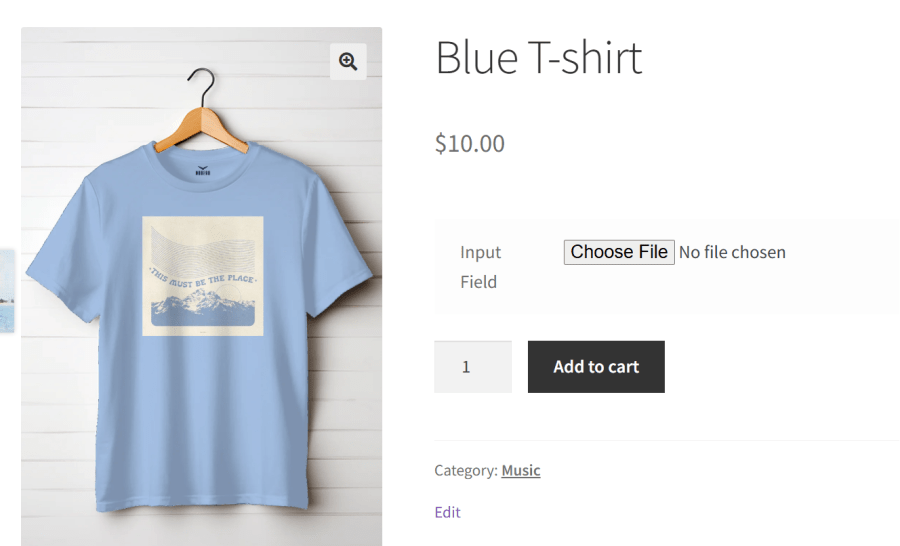
  • Allow customers to share images or documents for personalized orders.
    Example: Upload a photo for a custom coffee mug design.
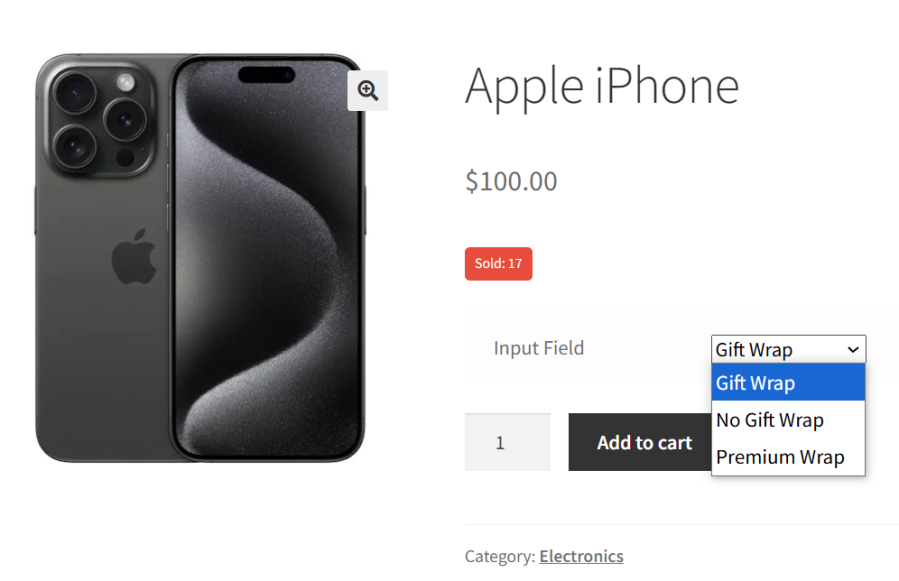
  • Help shoppers pick options easily using a clean dropdown menu.
    Example: Select “Gift Wrap,” “No Gift Wrap,” or “Premium Wrap” for a gift item.
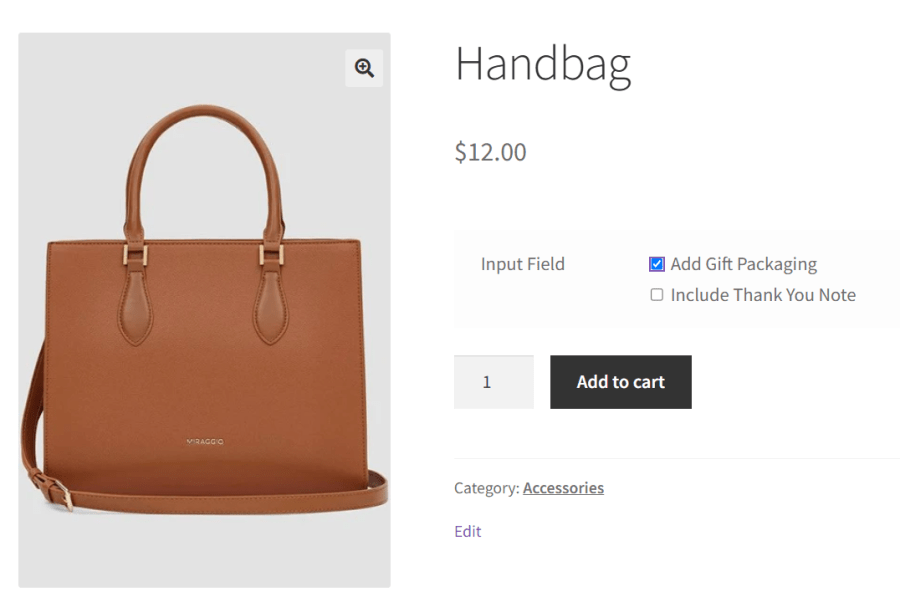
  • Offer multiple options and let customers choose one or more.
    Example: Tick “Add Gift Packaging” or “Include Thank You Note” for a personalized gift.
  • Show or hide input fields dynamically based on values selected in other input fields like dropdowns, checkboxes, or dates, as well as product variations or categories. Works for both global and product-level input fields.
    Example: Show a text field for engraving only when the “Gift Wrap” checkbox is selected, or display a date picker for products in the “Rentals” category or a specific variation.
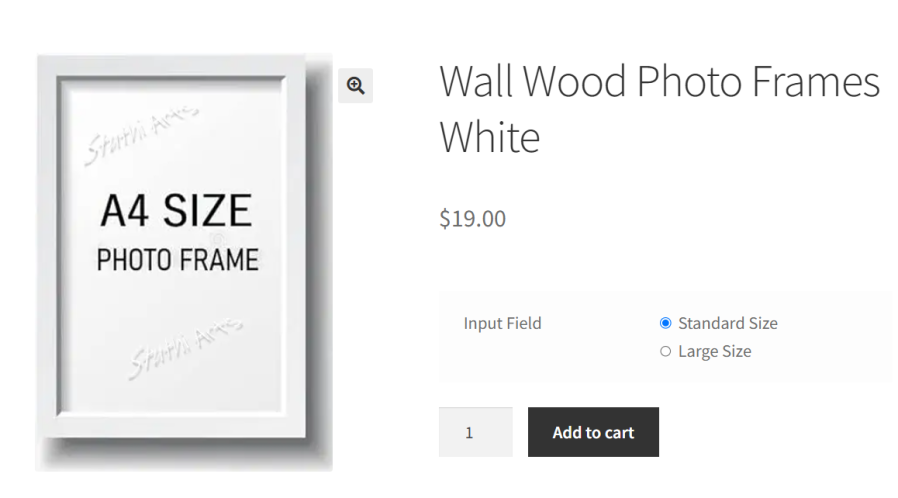
  • Simplify decision-making by displaying one-click choices.
    Example: Select “Standard Size” or “Large Size” for a printed photo frame.
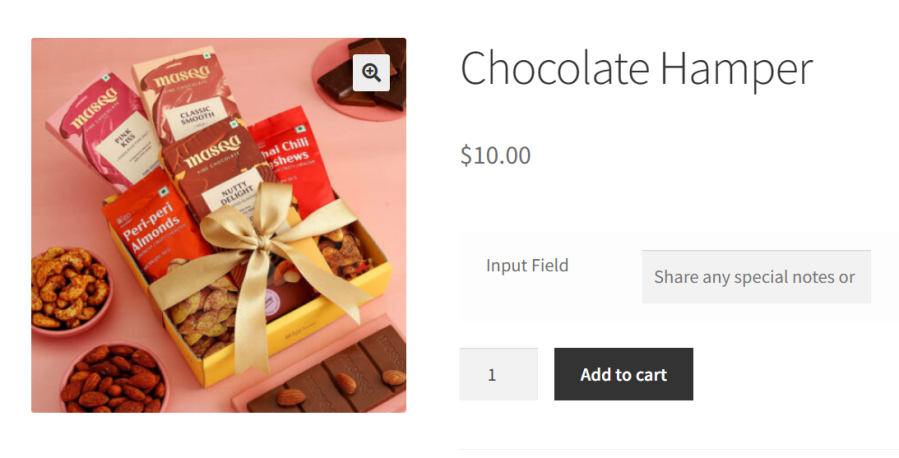
  • Let customers include notes or special requests for their orders.
    Example: Add a personalized message for a birthday cake.
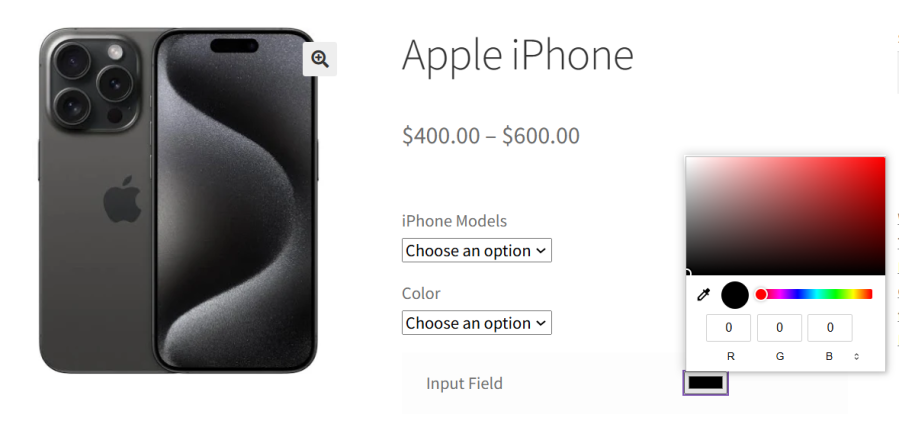
  • Enable customers to visually select their preferred product color.
    Example: Pick the color for a custom phone case or t-shirt.
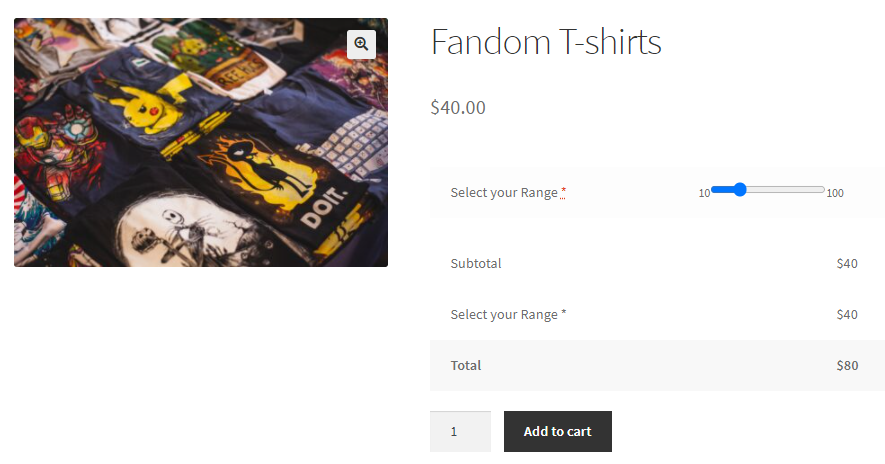
  • Let customers select a range for bulk purchases.
    Example: Order between 10 and 50 personalized pens for a corporate event.
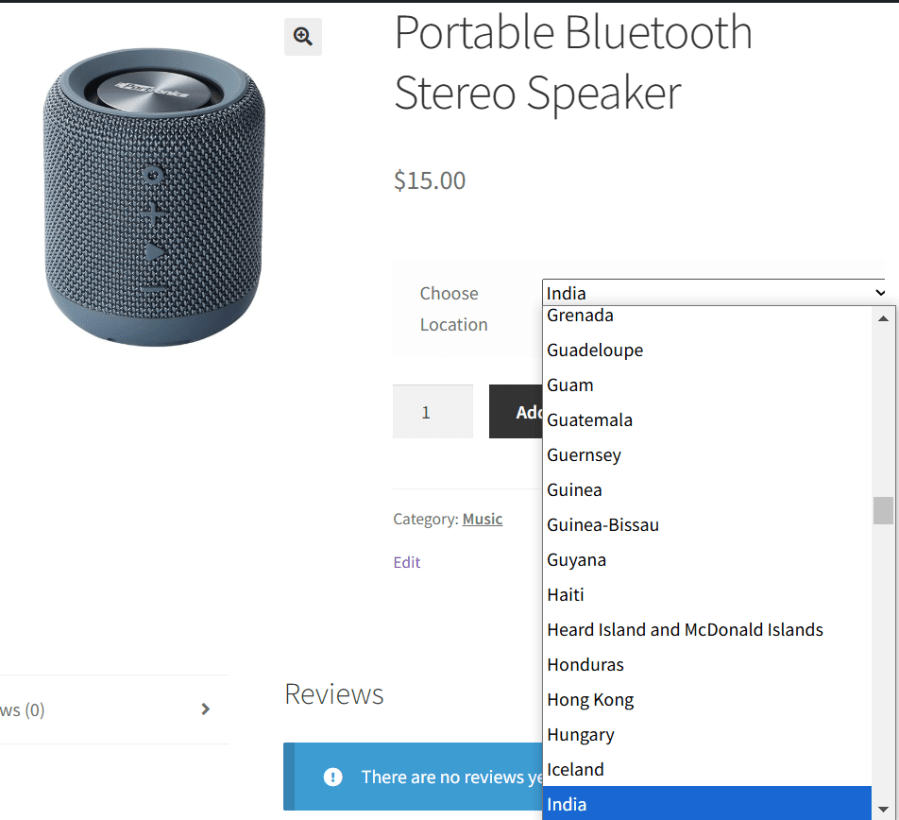
  • Adjust options or add charges based on customer location.
    Example: Select “US Plug” or “UK Plug” for a custom electronic device.
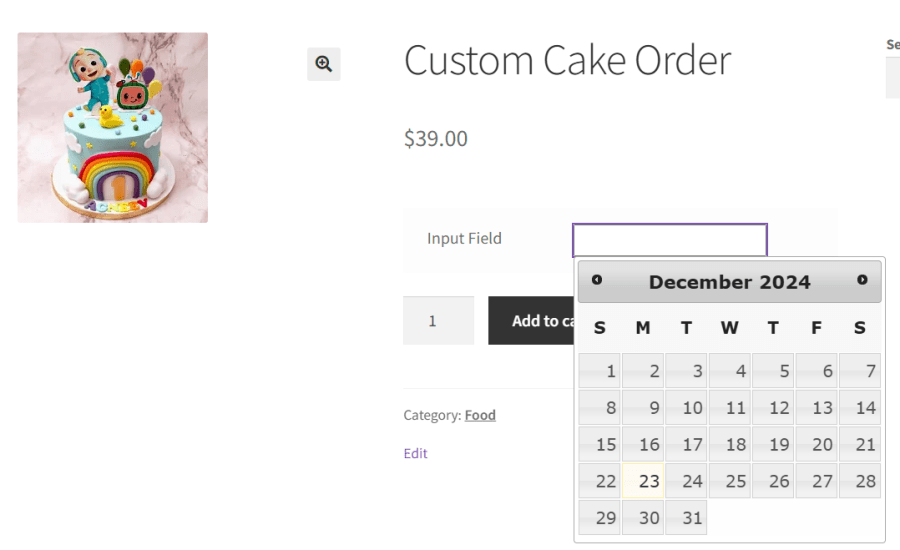
  • Offer date, month, or week selectors for better scheduling.
    Example: Choose a pick-up date for a custom cake order.
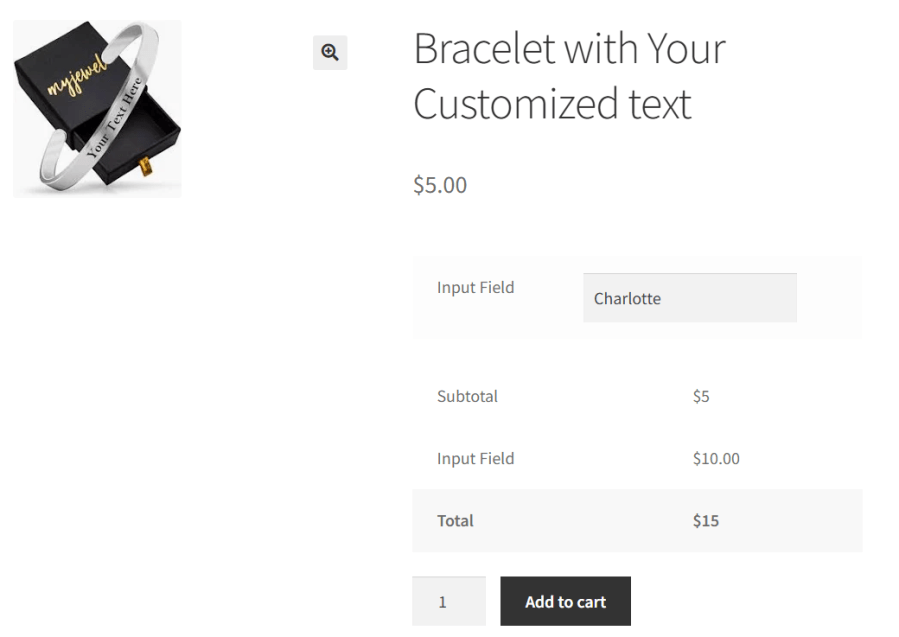
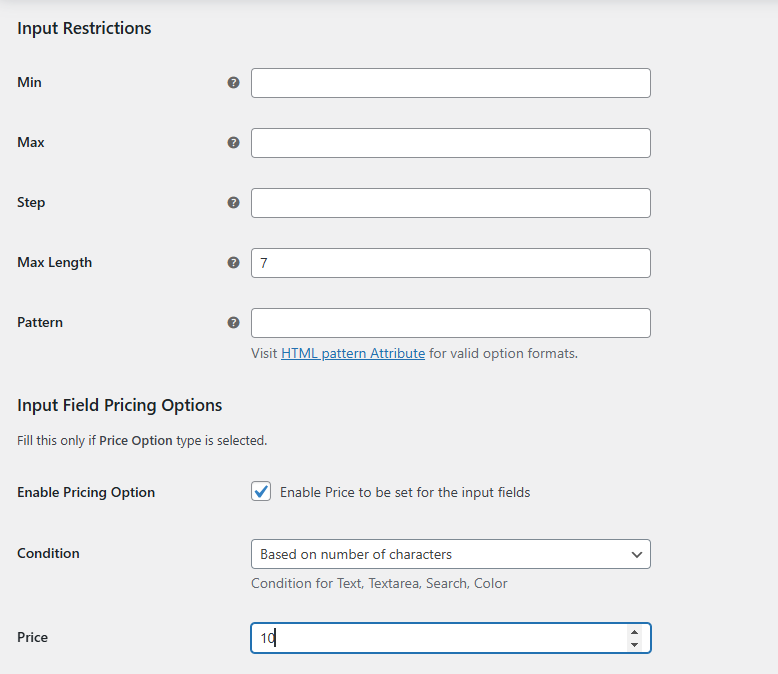
  • Show the cost of each customization directly on the product page.
    Example: Add $10 for engraving a name on a bracelet.
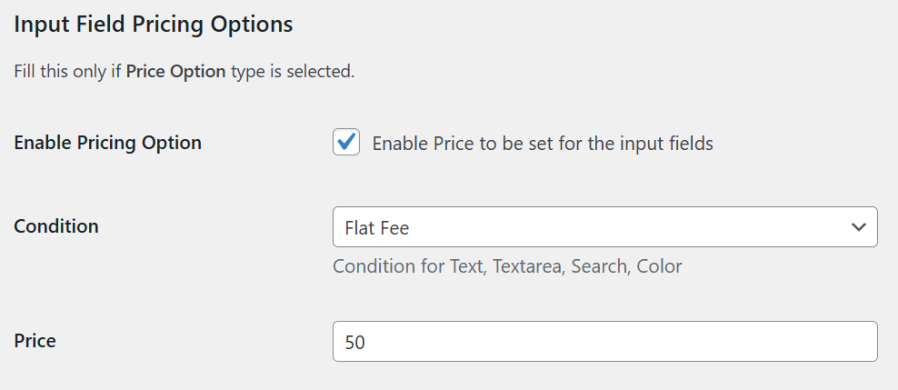
  • Set dynamic pricing for customizations based on selections.
    Example: Charge an extra $3 for adding a custom message to a greeting card.
  • Show or hide input fields based on product quantity or type.
    Example: Display a bulk discount input field for orders of 20+ custom tote bags.
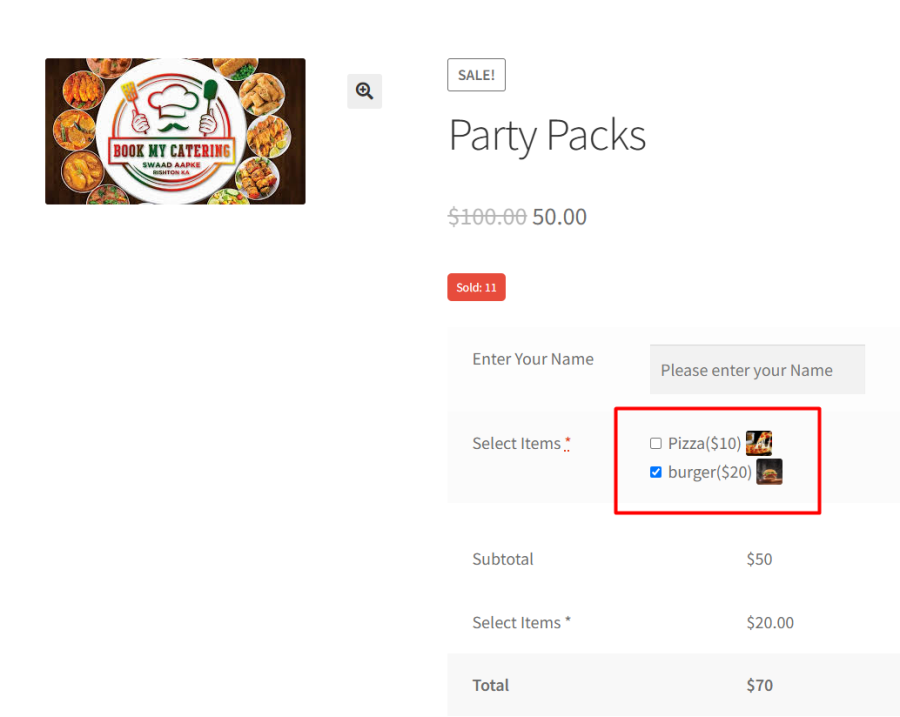
  • Show customers how their customizations will look.
    Example: Display a preview of a coffee mug with the customer’s uploaded photo.
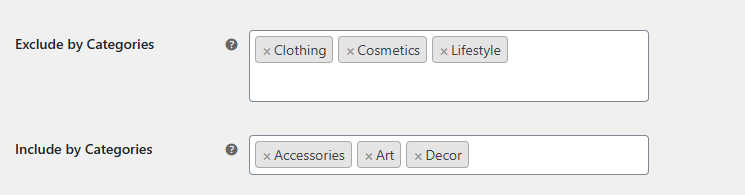
  • Apply the same input field to multiple products or categories at once.
    Example: Add “Upload Logo” to all promotional items in a corporate gift store.
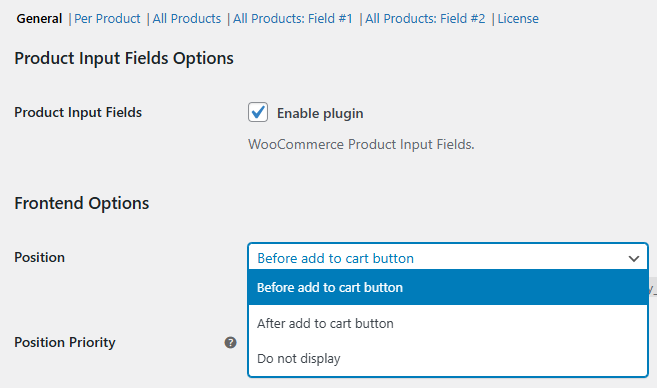
  • Decide where input fields appear for better usability.
    Example: Place “Enter Special Instructions” at the checkout for catering services.
  • Ensure customers know exactly what to input with descriptive field labels.
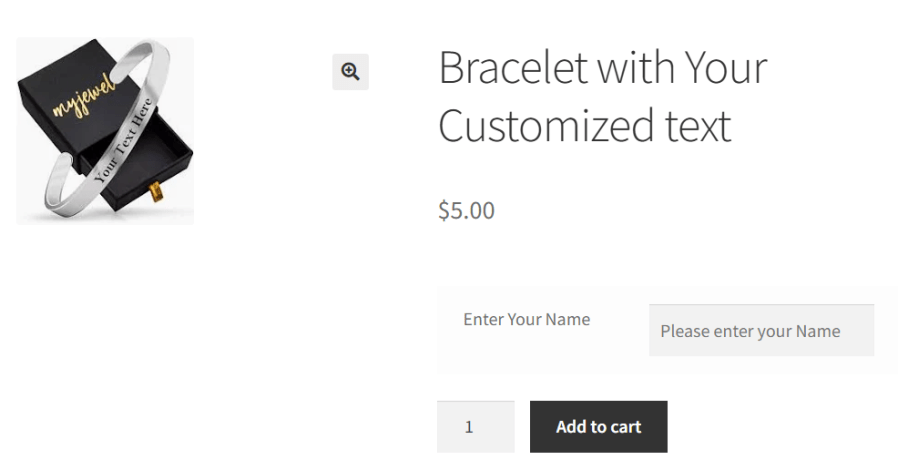
    Example: Label the input field as “Enter Your Name” for engraving.
  • Guide customers on how to fill input fields with placeholder text.
    Example: Show “Enter text for engraving” in the text field as a placeholder.
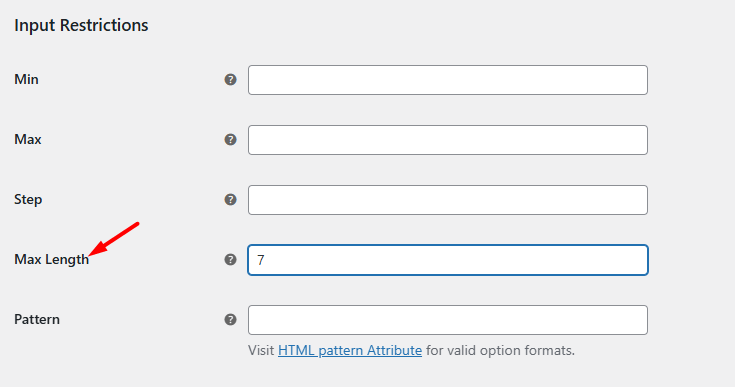
  • Define character limits as per the customization that can be done on the product.
    Example: Limit engraving messages to 20 characters for smaller items like rings.
  • Control when and how fields appear based on your business requirement.
    Example: Show the “Upload Logo” field only for bulk orders of 10 or more items.
  • Add unlimited product input fields globally or per product to collect exactly the information you need.
  • Pre-fill product fields by adding details directly in the product link—perfect for sharing ready-to-order personalized products.Example: Share a link where the name and color are already filled in for a custom mug, so customers just review and buy.

Get the product customization information how you want and where you want

Product input fields for WooCommerce plugin offers 19 different field types for your product page. Each field has its own unique features, values, restrictions, and customization options to give you the flexibility in getting clear information from the users. You can choose where to place the custom fields on the page and how to style them, and you can also set additional charges for your custom input field values.

Collect Customization Details with File Upload Fields
 

Streamline Choices with Dropdown Fields
 

Enable Simple Selection with Checkboxes
 

Provide Clear Options with Radio Buttons
 

Add Personal Touches with Text Fields
 

Choose Colors with a Color Picker Field
Conditional Logic to Show or Hide Input Fields Dynamically
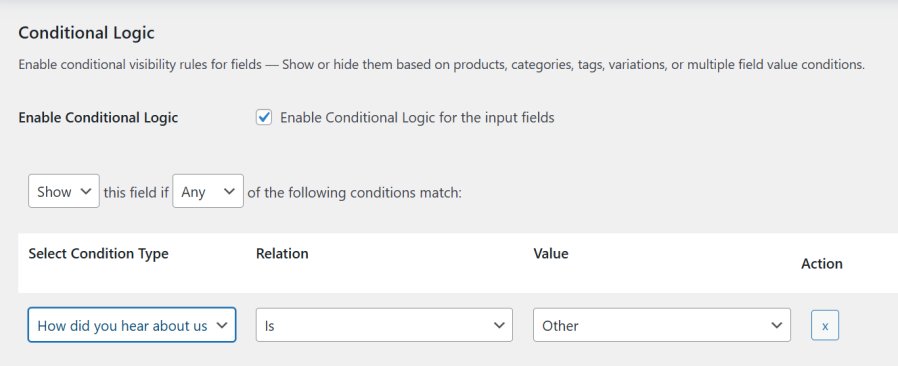
Product input fields conditional logic new


Simplify Bulk Orders with Range Fields
Customize Regionally with a Country Selector Field
Let Customers Plan Ahead with a Date Picker
Add Pricing Details to Input Fields
Use Conditional Pricing Rules
 

Use Conditional Fields for Clarity
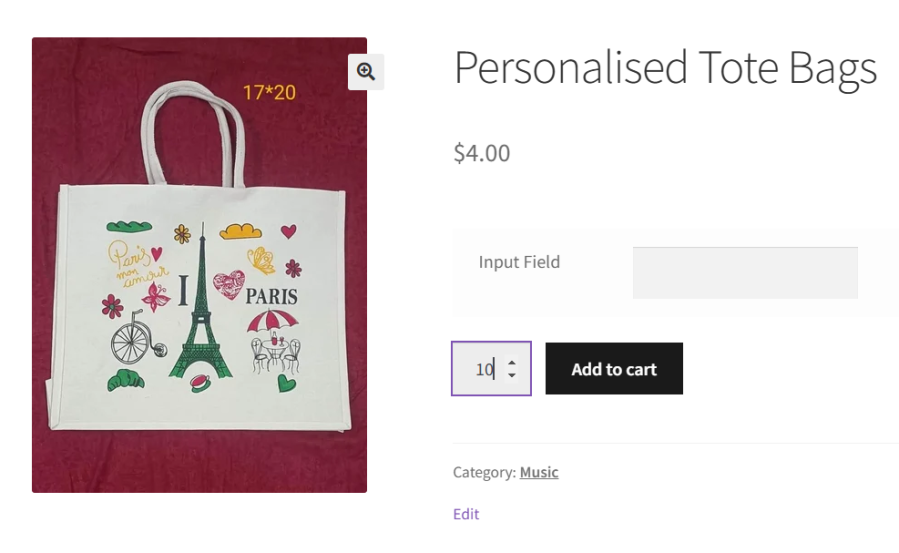
Preview Customizations with Images
Set Input Fields for Multiple Products
Choose Field Placement on Product Pages
 Add Clear Field Labels for Better Customer Understanding
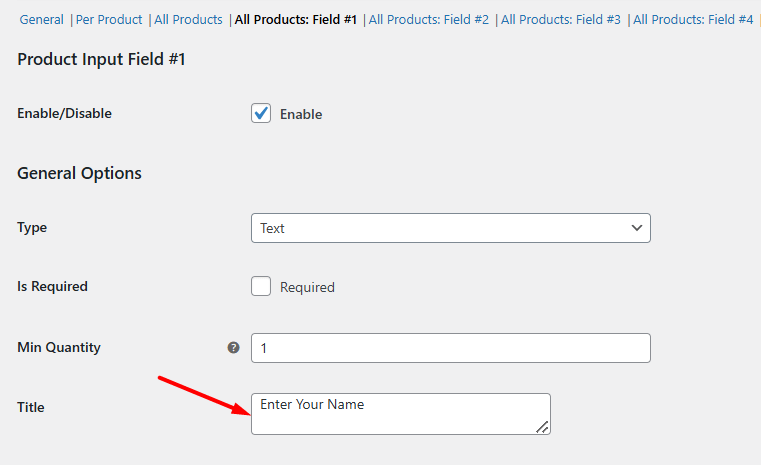
Use Placeholders to Prompt Action
Set Max Length for Custom Input Fields
Apply Conditions and Restrictions to Input Fields
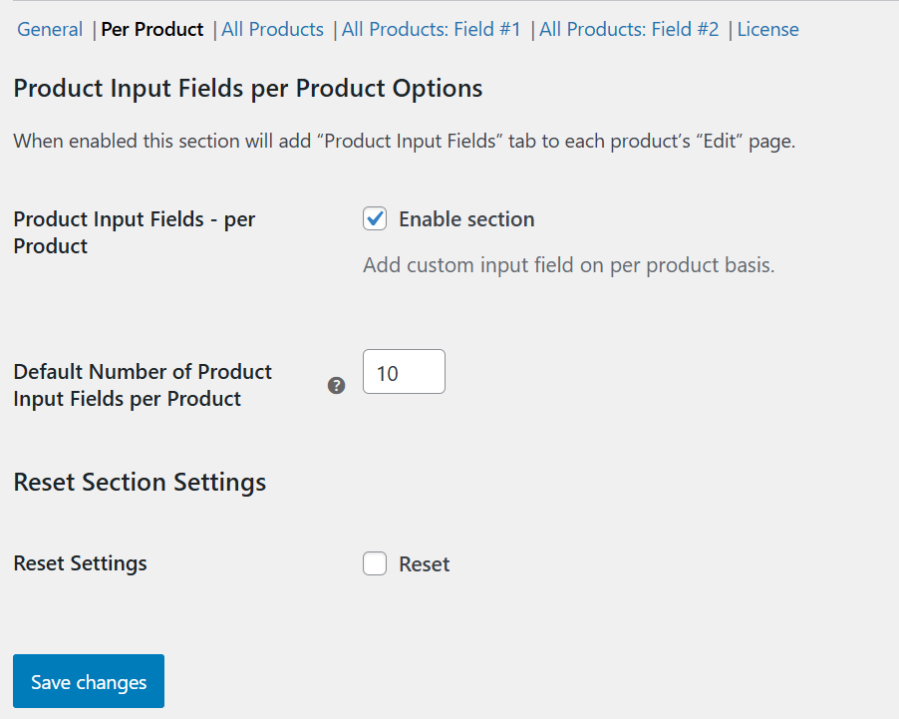
Add an Unlimited Number of Global or Local Input Fields
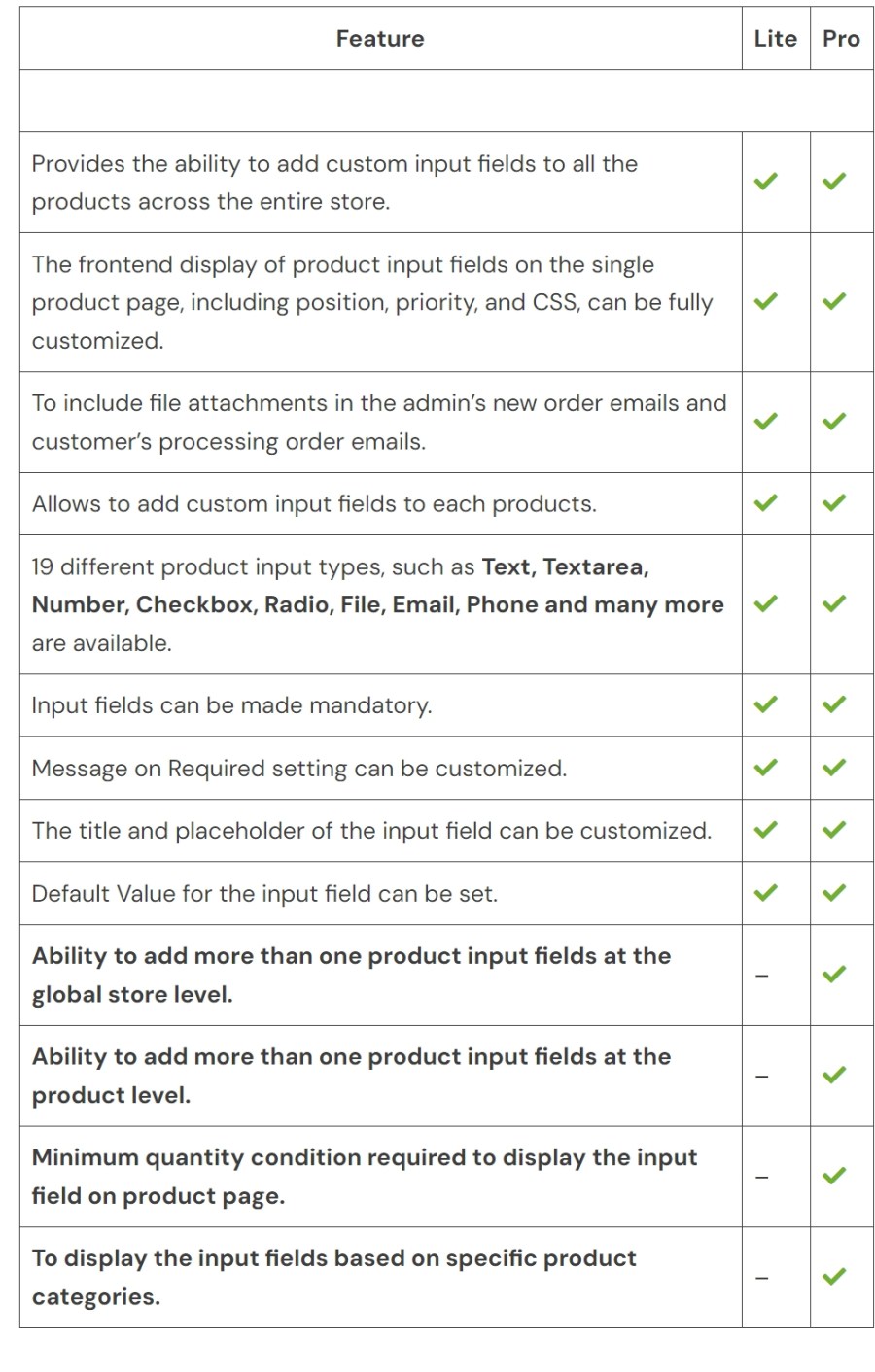
 

Product Input Fields Free Vs Premium – Full Feature Comparison


Frequently asked questions

What types of product input fields are available in the plugin?

The plugin supports 19 field types, including text, textarea, number, dropdown, checkbox, radio button, file upload, color picker, date picker, week picker, time picker, country, password, email, phone, search, URL, range, and multicheckbox.

Can I add custom product options to specific WooCommerce products?

Yes. You can add custom product options directly from the product edit page to such as the customer’s Name, Age, Gender, preferred delivery date,  selectable options like color or size, personalized messages, file uploads (for logos or images), and more.

Can I make product options mandatory?

Yes. You can make specific product options mandatory, requiring customers to fill them out before adding the product to the cart.

Can I show or hide input fields based on conditions?

Yes. You can set conditions in the backend based on products, product categories, tags, product variations, and its specific field values. When a customer selects the matching product or option on the product page, the input fields will automatically show or hide based on the conditions you have configured. This helps display only the relevant fields to customers.

Can I show input fields based on the product quantity selected?

Yes. You can set a minimum quantity for each input field. The field will appear only when the customer selects that quantity or more on the product page.

Can I charge extra for custom input field options?

Yes. You can add additional charges to specific input fields or options. When customers select those options, the extra cost is automatically added to the product price and reflected in the total.

Can I set different prices for different product options?

Yes. Each product option can have its own price. For example, you can charge $2 for adding a Name using a text field and $5 extra for selecting the gift wrapping option.

Will the extra charges show up throughout the ordering process and emails?

Yes! All customization charges are displayed in the cart, checkout, and order details, ensuring transparency for customers.

Can I set restrictions and pricing for input fields?

Yes. You can apply limits and pricing based on multiple conditions: number of characters, number of characters with quantity, product quantity, percentage of base price, or a flat fee. This lets you control input values and add extra charges seamlessly.

Can I control the position and order of input fields on the product page?

Yes. You can control where the fields appear on the product page using the Position option, and the order in which they are displayed using the Sort Order option.

Can I show images for the options customers select?

Yes! Images can appear for Select, Radio button, or Checkbox fields. For example, customers can see Red, Blue, or Black T-shirts and choose visually.

Can I apply input fields to multiple products at once?

Yes. You can create global input fields that automatically apply to all products.

Can I view selected product options in the order details?

Yes. All selected product options and custom field values are shown in the order details, making it easy to view and process customer selections.

Will customization details appear in order emails?

Yes. All selected product options and custom field values are shown in the order details, making it easy to view and process customer selections.

Can I download uploaded files from orders?


Yes. Uploaded files can be viewed and downloaded directly from the order page.

Is the plugin compatible with multi-lingual plugin such as WPML?

Yes, our Product Input Fields Pro plugin is compatible with the WPML translation plugin.

I have another question.

Please fill out this pre-sales form.

Customer reviews

Extension information

  • PHP version required: 7.4
  • Tested with WordPress: 6.9.0
  • Tested with WooCommerce: 10.4.0
  • Requires at least WordPress: 4.4
  • Requires at least WooCommerce: 5.0

Countries

  • Worldwide

Related Products

Price $79 annually
Rated 3.4 out of 5 stars
Price $59 annually
Rated 3.1 out of 5 stars
Price $109 annually
Rated 2.9 out of 5 stars
Price $49 annually
Rated 4.1 out of 5 stars
Price $109 annually
Rated 2 out of 5 stars
Price $109 annually
Rated 2.3 out of 5 stars
Price $109 annually
Rated 2 out of 5 stars
Price $109 annually
Rated 2.6 out of 5 stars
Price $109 annually
Rated 2.3 out of 5 stars