
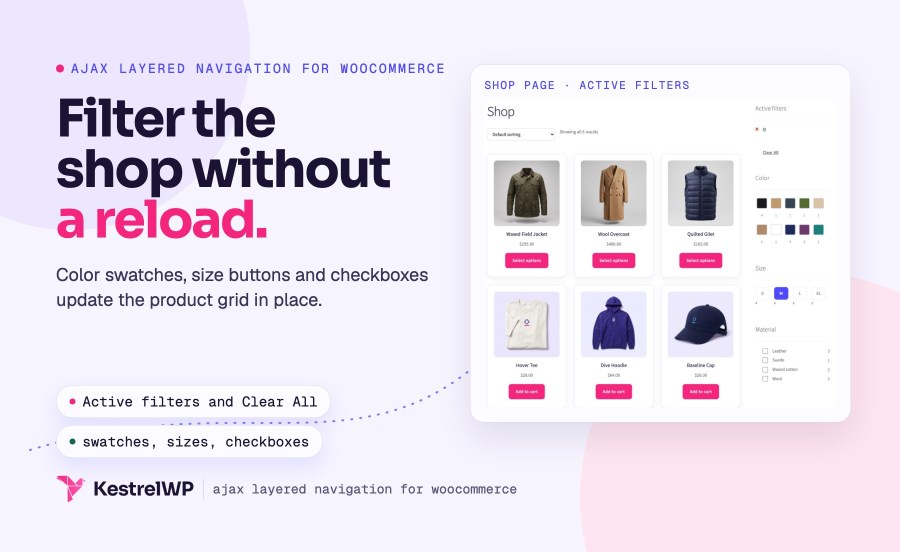
Product Icon

Ajax-Enabled Enhanced Layered Navigation for WooCommerce

Ajax product filters and layered navigation for WooCommerce: swatch, size, checkbox and category filters that update the shop in place.
Choose a billing option
$59
Save 20%
$118 $94.40

Subscription includes

  • Product updates and improvements
  • Customer support
  • 30-day money-back guarantee

Ajax layered navigation for WooCommerce: product filters on shop and category pages

Ajax product filters let shoppers narrow a big catalog by color, size, material or category and watch the product grid update without a page reload. Advanced Ajax Layered Navigation for WooCommerce turns your product attributes and categories into live filters, from color swatches to size buttons, checkboxes and dropdowns. Formerly listed as Ajax-Enabled Enhanced Layered Navigation, it also filters by product category since version 2.2.0. It uses your existing global attributes and product categories, so there is nothing to rebuild, and it suits stores with many products that share attributes.

Before you buy: the filters are three classic widgets for your shop and product archive pages. There is no settings page, shortcode or block, and they don’t filter single product pages. They work with global product attributes and product categories.

Show attributes as color swatches, size buttons, checkboxes or dropdowns

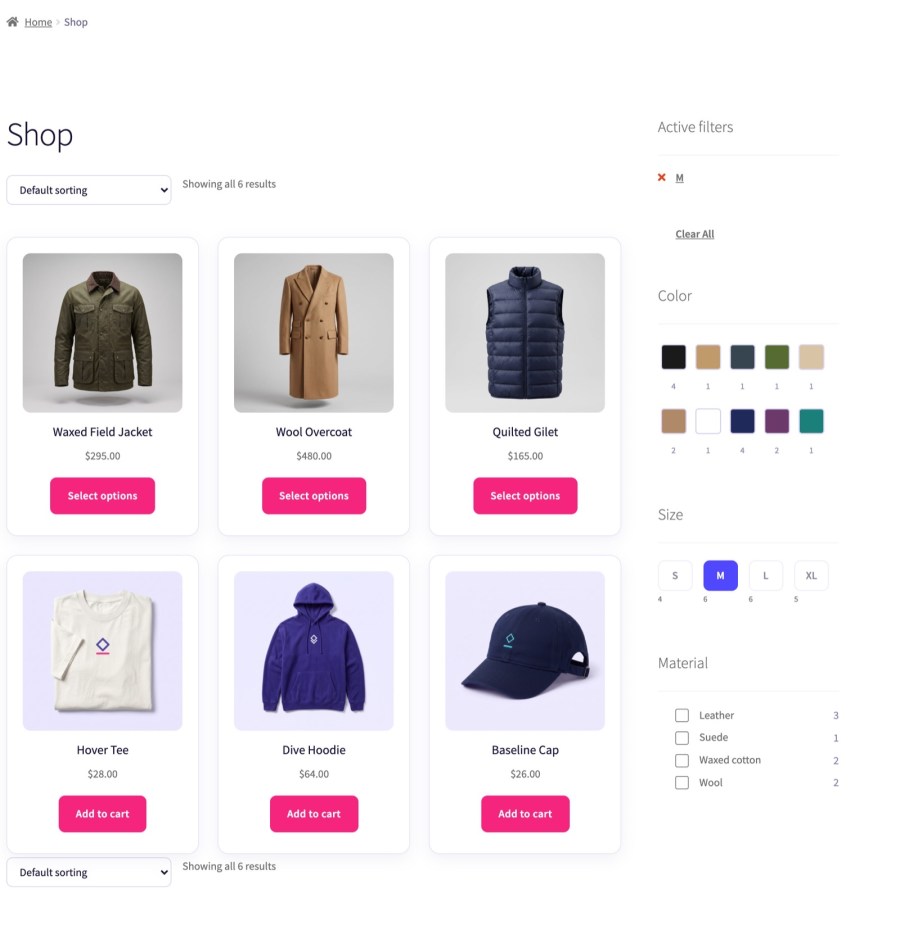
Add one Ajax Layered Nav widget for each attribute and choose how it looks. List matches WooCommerce’s own layered nav, Dropdown picks one value at a time, and Checkbox lets shoppers tick several. Size Selector shows a short label per term as inline buttons such as XS, S and M, and Color Picker shows a swatch in the hex color you set for each term. Turn on Show Attribute Count and shoppers see how many products each value holds before they click it.
  • Choose List, Dropdown, Checkbox, Size Selector or Color Picker for every attribute
  • Set a label for each size and a hex color for each swatch
  • Show product counts beside each value so shoppers see what is available
shop filtered to size M with six results, beside Active filters, Clear All, Color swatches, Size buttons and Material checkboxes
Shoppers narrow the shop by size, color and material, with counts beside each value

Widen or narrow results with AND and OR

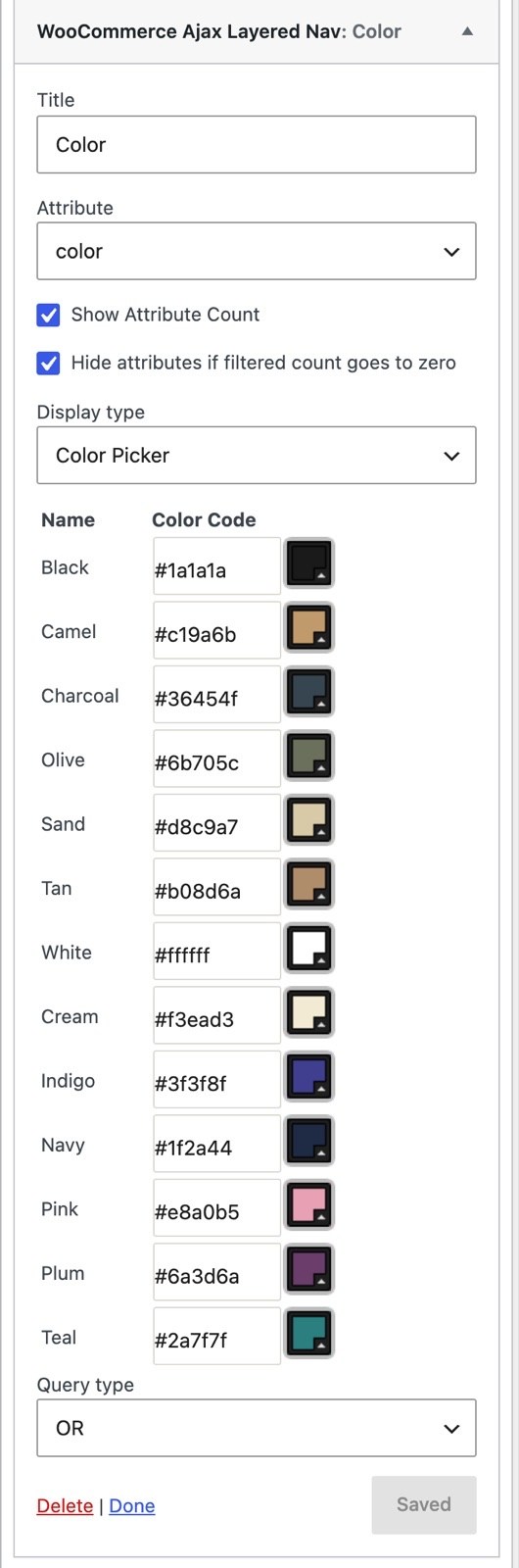
Choose AND when every chosen value must match, or OR when a product with any of the chosen values should appear. OR works well for colors: a shopper who ticks Navy and Teal sees both. In AND mode, a value that would return no products is left out, and Hide attributes if filtered count goes to zero tidies the list after each filter. You set the query type per widget, so size can narrow the results while color widens them.
  • Set AND or OR separately for each attribute widget
  • Let a shopper pick Navy and Teal together and see both colors
  • Hide values that would return no products once other filters are on
  • Use Dropdown when shoppers should choose one value at a time
Color widget settings with Attribute color, Color Picker display type, the colour code table and Query type OR
Turn any attribute into color swatches by setting a hex color for each

Filter your shop by product category

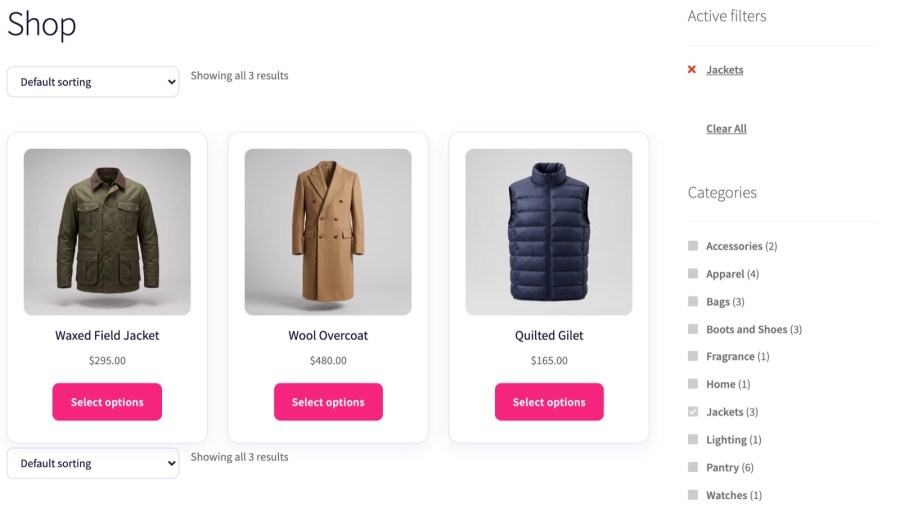
Choose Product categories as the widget’s Attribute and it lists your categories as a filter. On the main shop page it shows your top-level categories, and on a category page it shows that category’s subcategories. Choosing a category also includes its subcategories, and the counts include them too. Shoppers can combine a category with a color, a size or any other filter, so a search for navy jackets takes two clicks. A store with a deep category tree gets a filter that follows the shopper down it, one level at a time.
  • List top-level categories on the shop page and subcategories on a category page
  • Include subcategories when shoppers choose a parent category
  • Combine the category filter with any attribute filter on the same page
Shop filtered by the Jackets category, with Active filters, Clear All and the Categories list beside the three jackets
Filter by category and see active filters with a Clear All link

Show active filters and clear them in one click

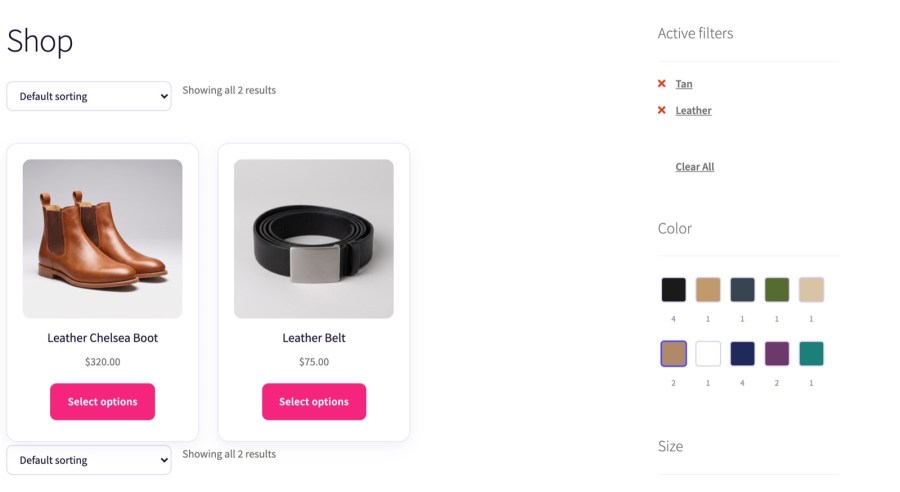
The Active Filters widget lists every filter that is on, including a price range, with a link to remove each one. The Clear All widget adds a single link that removes them all. Both stay hidden until a filter is active, so your sidebar stays tidy, and you can rename their titles and the Clear All link text to match your store’s wording. Shoppers always see what they have narrowed down, and they can undo it without hunting for a reset.
  • List every applied filter with its own remove link
  • Remove every filter with one Clear All link
  • Keep both widgets hidden until a filter is active
  • Rename the widget titles and the Clear All link text
Active Filters list with Tan and Leather and a Clear All link beside the two matching products
Pick Tan and Leather together and see only the products that match both

Update the page in place and keep the Back button working

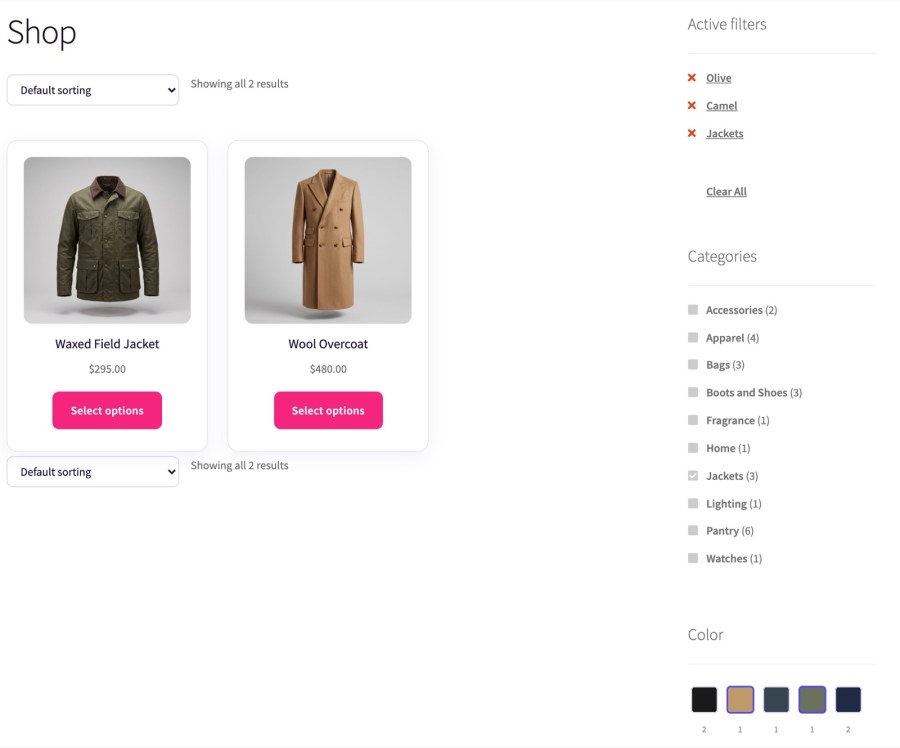
Clicking a filter replaces the product grid, result count, pagination and filter widgets without reloading the page. A loading indicator shows while it updates, and the page scrolls back to the products. The browser’s address and history change with each filter, so shoppers can share a filtered link, and Back returns them to the products they saw before. WooCommerce’s price filter widget refreshes too and keeps the other filters that are on. Shoppers can keep refining without waiting on a full page load each time.
  • Refresh the grid, result count and pagination without a page reload
  • Update the address and browser history after every filter
  • Keep other active filters when the price filter changes
Jackets narrowed to two results with Olive and Camel swatches chosen, Active filters and Clear All in the sidebar
Stack colors and categories, then remove any filter with one click

Works well with Product Finder

Both help shoppers narrow a big catalog, in different ways, and many stores use both. Ajax Layered Navigation puts live filter widgets beside the products, with swatches, size buttons and checkboxes, and updates the grid in place. Product Finder adds a search form for your homepage, where shoppers build criteria from rows, add keywords and press Search to reach your results page. Together they cover the shopper who knows what they want and the one who is browsing. Product Badges adds sale, low stock or custom badges to the products in the grid your shoppers are filtering. WooCommerce’s own price filter widget works alongside it too: its slider updates after each Ajax filter and keeps your other filters.

Get started

  1. Install and activate Advanced Ajax Layered Navigation on your store
  2. Create global attributes under Products » Attributes and assign them to products
  3. Open Appearance » Widgets and add a WooCommerce Ajax Layered Nav widget
  4. Choose the Attribute, Display type and Query type, then save
  5. Add the Active Filters and Clear All widgets above it
  6. Open your shop and click a filter

Built and supported by Kestrel, a long-time WooCommerce extension developer. Every option is covered in the Get started with Advanced Ajax Layered Navigation guide. Need a hand with your catalog? Contact Kestrel support.

KestrelWP

Frequently asked questions

How do I add product filters to my WooCommerce shop page?

Add one widget per attribute or category filter to your shop sidebar. Each global attribute filter can be a List, Dropdown, Checkbox, Size Selector or Color Picker, and there is a Product categories filter too. Combine as many as you need, then add the Active Filters and Clear All widgets.

Can I show color swatches and size buttons as product filters?

Yes. Set the widget's Display type to Color Picker and choose a hex color for each term, or to Size Selector and set a short label for each term. Swatches stay white until you set a color, so fill in the Color Code table for every term.

Does it filter by product category?

Yes. Choose Product categories in the widget's Attribute list. It shows as a list, with top-level categories on the shop page and subcategories on a category page, and a chosen category includes its subcategories.

Can I filter by custom attributes set on a single product?

No. The widget works with global product attributes and product categories. Attributes added to one product only aren't listed, so create them under Products » Attributes first and assign them to your products.

Will it work with my theme?

It looks for WooCommerce's standard markup, with a #products wrapper around the shop loop, and it uses classic widgets, so your theme needs a widget area. If your theme's markup differs, the plugin has filters such as sod_ajax_layered_nav_containers to point it at the right containers. Customizing theme markup is outside support.

Where do the filters appear?

On shop and product archive pages, through classic widgets. They don't filter single product pages or ordinary pages. Whether they work on product search results isn't confirmed, so test that page first if you need it.

Extension information

  • WooCommerce version required: 3.5.0
  • PHP version required: 7.4
  • Tested with WordPress: 7.1.4
  • Tested with WooCommerce: 11.2.1
  • Requires at least WordPress: 6.3
  • Requires at least WooCommerce: 8.0

Countries

  •  Worldwide

Customer reviews

Average rating 3

3 reviews from verified users

5 stars, 33% of reviews
4 stars, 0% of reviews
3 stars, 0% of reviews
2 stars, 67% of reviews
1 star, 0% of reviews

Click to rate

  • Rated 5 out of 5
    spletnasinergijaSloveniaMay 19, 2023
    This is a must have plugin! If you have your own webshop this is the plugin you must have. It works out of the box. The plugin had some problems so i contact the support and they responded immediately. The went above and beyond to fix all problems. Top notch support!
  • Rated 2 out of 5
    pageeffectpondelekGermanyMar 25, 2021
    Hi, I just realized that the JS Code of this Plugin is loaded on every url, even if the functions are not used on this sites. And it was render blocking with 2.5 seconds - as well on every site. I don't think this is "best practice" any more these days.
  • Rated 2 out of 5
    NextPixelUnited Kingdom (UK)Aug 1, 2018
    Doesn't use new features within Woocommerce, such as caching term counts and WooSelect for select boxes Update to use new features

Related Products

Price $279 annually
Rated 3.9 out of 5 stars
Price $79 annually
Rated 3.4 out of 5 stars
Price $59 annually
Rated 3.1 out of 5 stars
Price $109 annually
Rated 2 out of 5 stars
Price $109 annually
Rated 2.8 out of 5 stars
Price $49 annually
Rated 4.1 out of 5 stars
Price $199 annually
Rated 4 out of 5 stars
Price $109 annually
Rated 2.5 out of 5 stars
Price $39 annually
Rated 2.8 out of 5 stars
Use of your personal data
We and our partners process your personal data (such as browsing data, IP Addresses, cookie information, and other unique identifiers) based on your consent and/or our legitimate interest to optimize our website, marketing activities, and your user experience.