
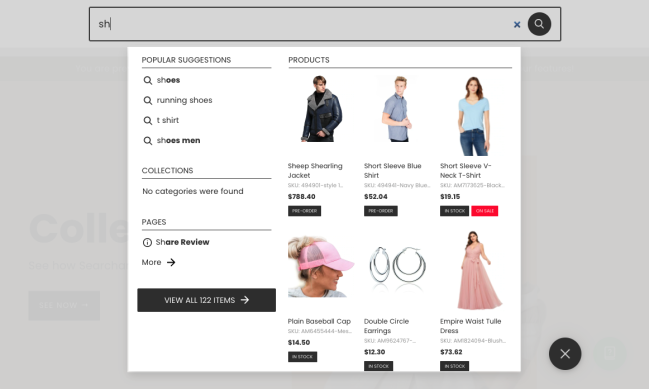
The Instant Search Widget builds itself into your existing search bar. If the theme you are using doesn’t have a search bar, the Sticky widget with similar functionality appears.
As soon as a customer starts typing a query in the search bar, the widget instantly drops down suggestions, dynamically changing with each keystroke.
You can configure the widget in the Searchanise control panel > Search & Navigation > Instant search widget section.
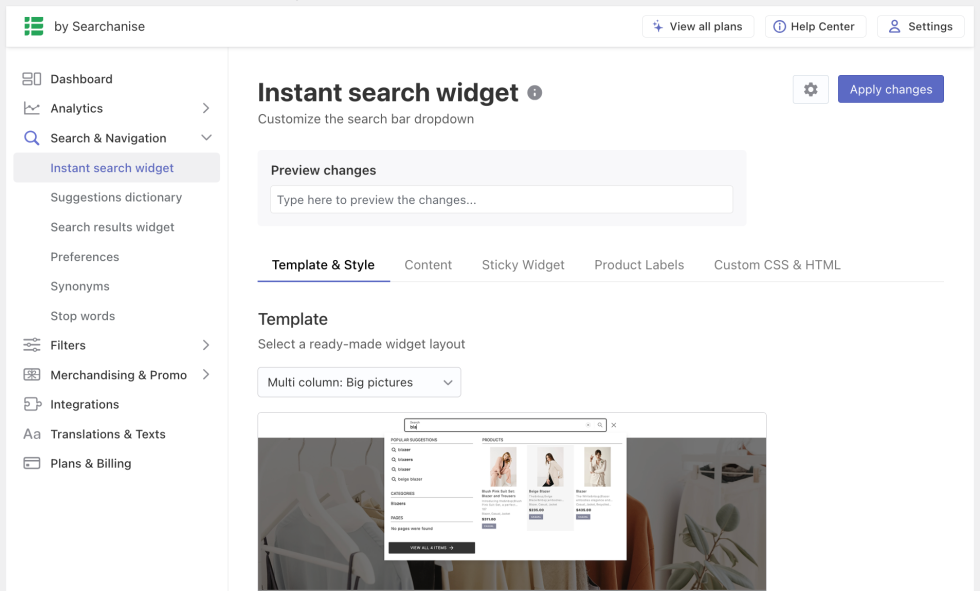
Template & Style
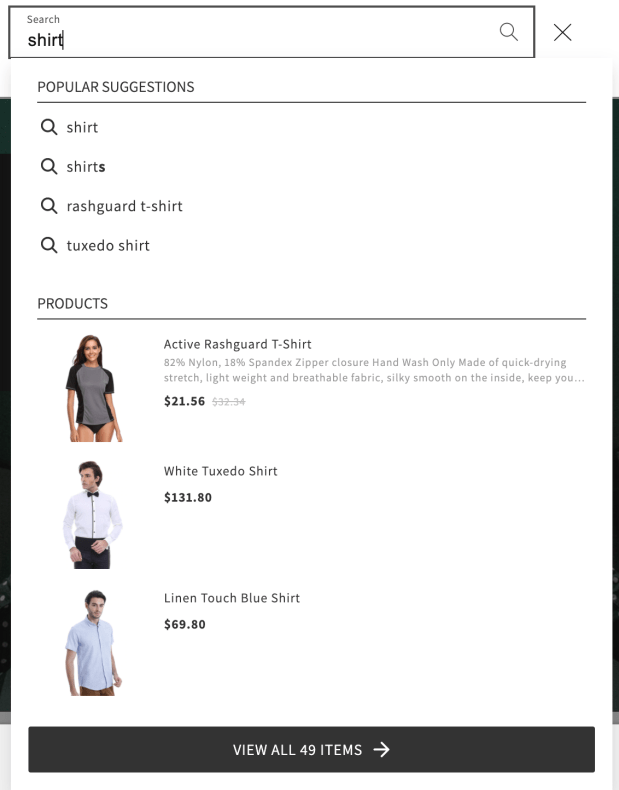
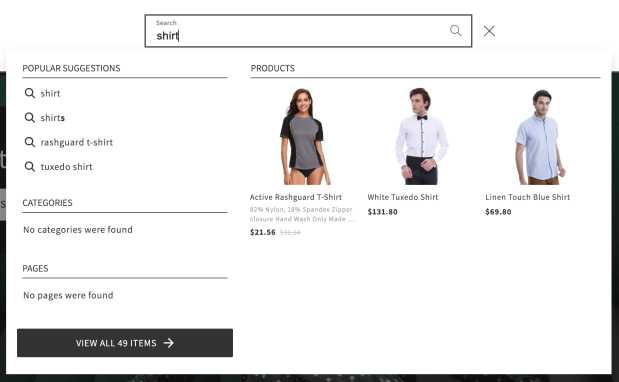
↑ Back to topYou can choose either a single-column or multi-column widget template in the Searchanise control panel > Search & Navigation > Instant search widget section > Template & Style tab.
Single Column template:
Multi-Column template:
You can also change colors for the widget template to suit your store’s look and feel more.
Changing colors
↑ Back to topTo change widget colors, follow these steps:
- Go to the Searchanise control panel > Search & Navigation > Instant search widget section > Template & Style tab.
- Enter a hex color in a Color palette field or use a color picker next to the necessary element.
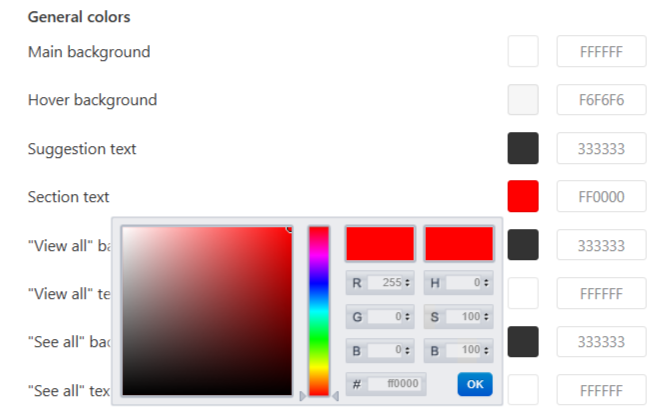
- Type a search term in the preview area to check out how it will look.
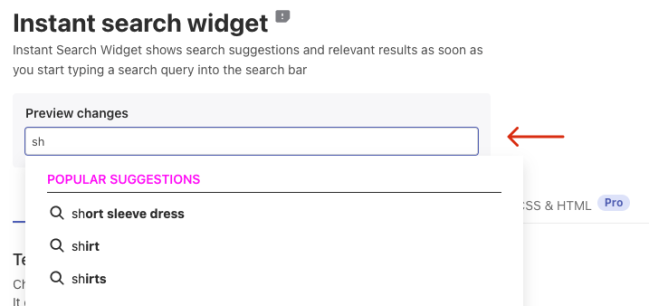
- Apply the changes.
Color palette description
The examples below show color highlights in red-pink for the widget elements that match a particular color option.
| Color option | Description | Example |
|---|---|---|
| General colors | ||
| Main background | Changes the background color of the whole drop-down widget | 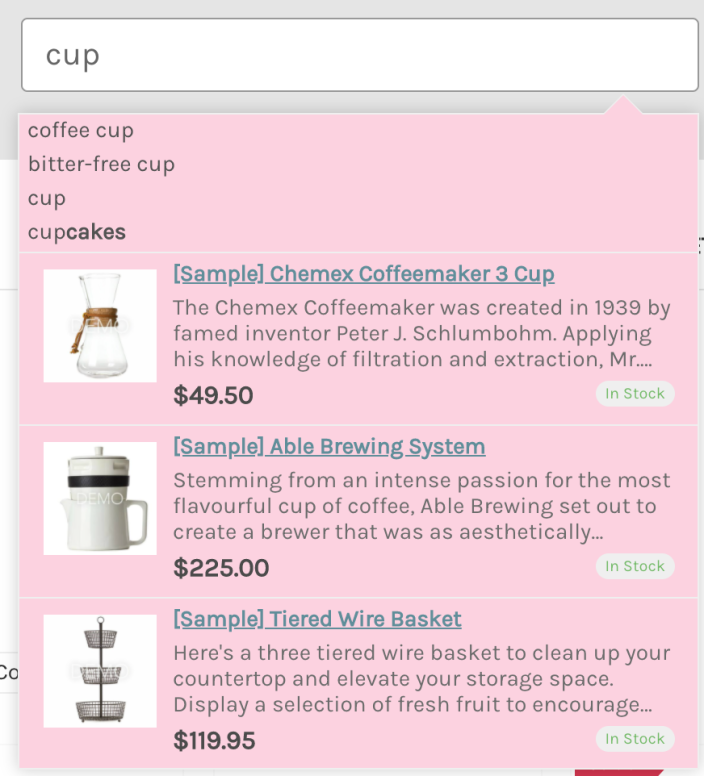 |
| Hover background | Changes the background color of a product or a suggestion on hover | 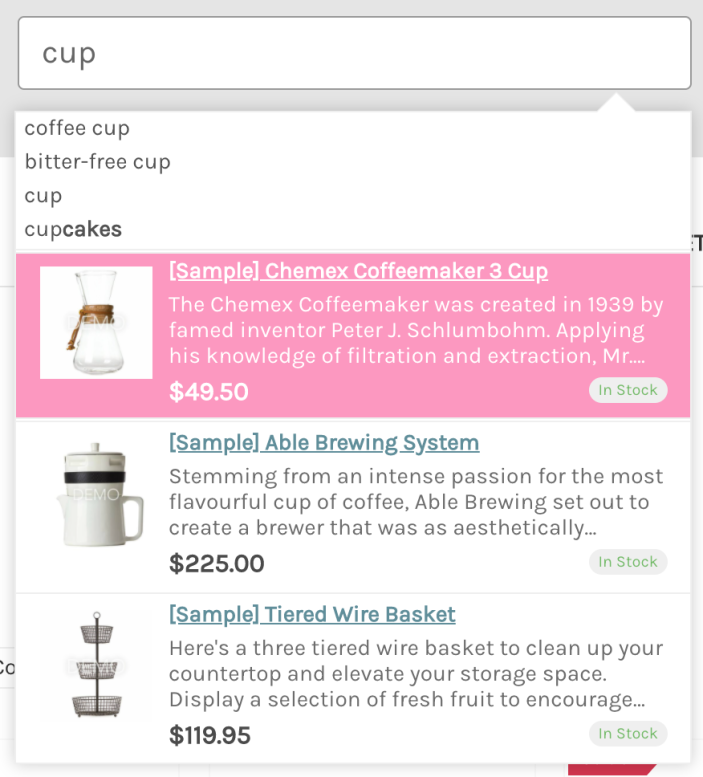 |
| Section text | Changes the text color of labels of the search results sections It is not used in the “Classic” template and the “Classic” style | 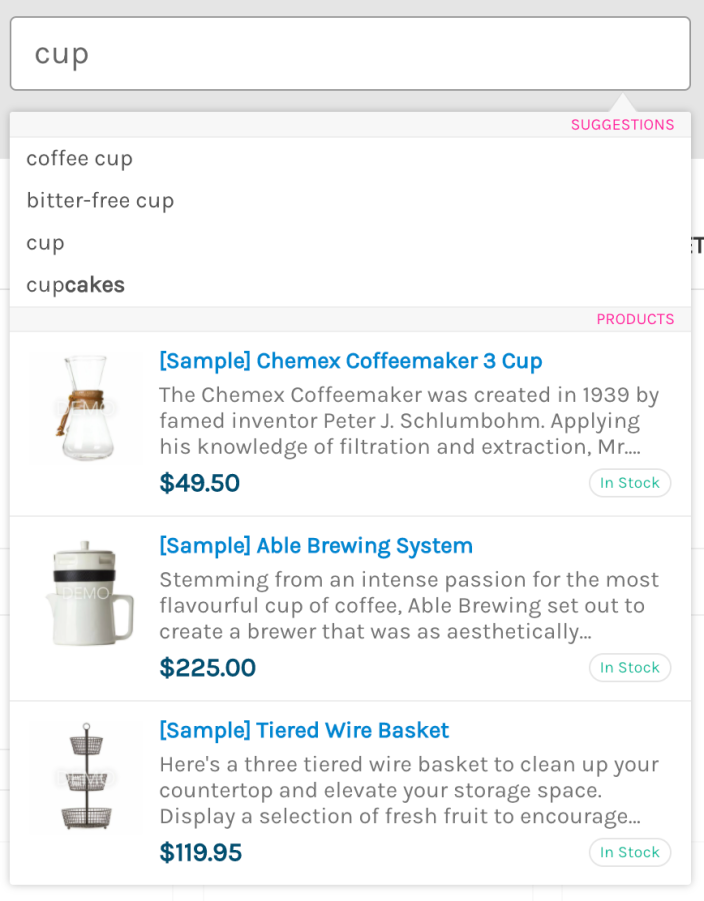 |
| Border | Changes the border color of the widget It is used in the “Classic” template and the “Classic” style only | 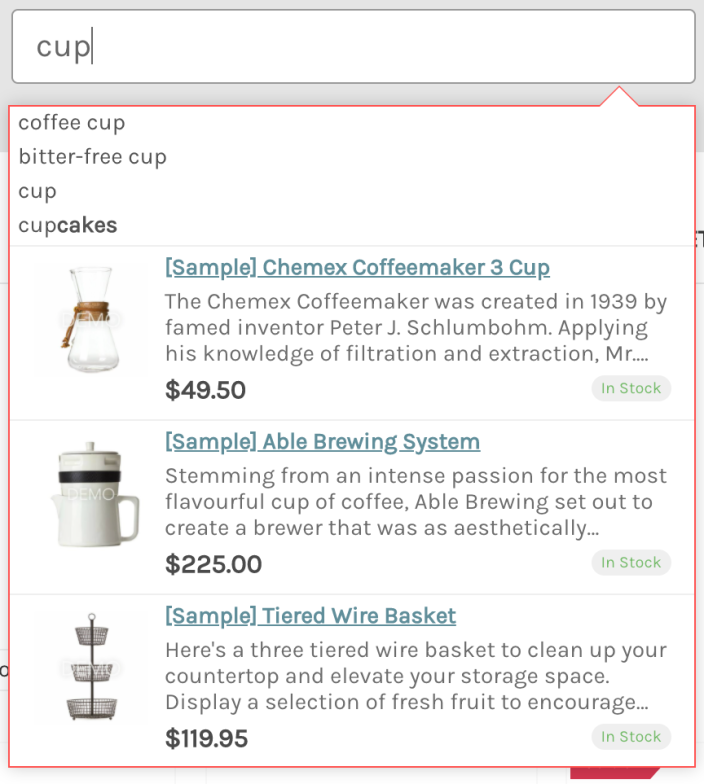 |
| Items separator | Changes the separator color It is used in the “Classic” template only | 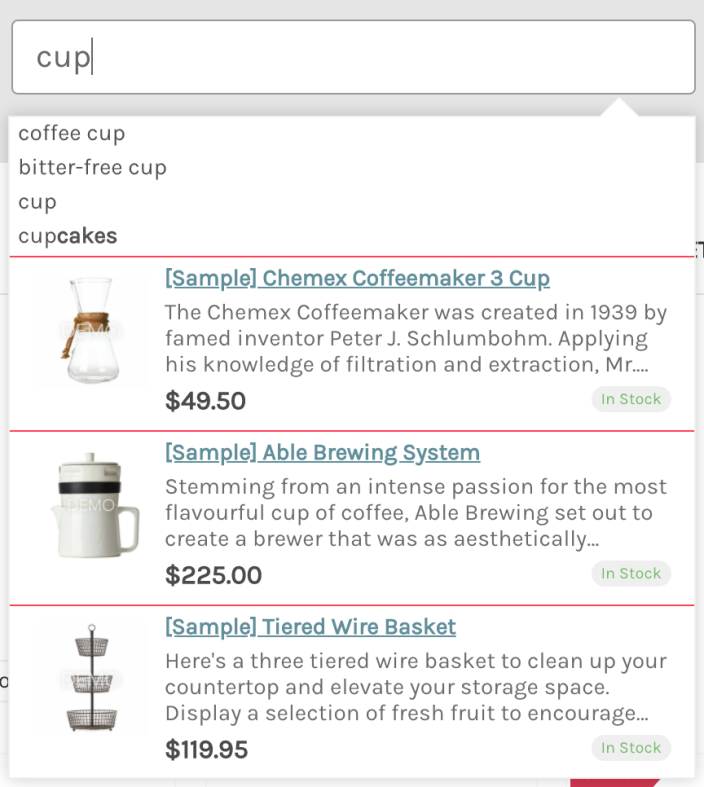 |
| Suggestion text | Changes the text color of suggestions In the “Classic” template and the “Classic” style, it is also used for the text color of the search result product description | 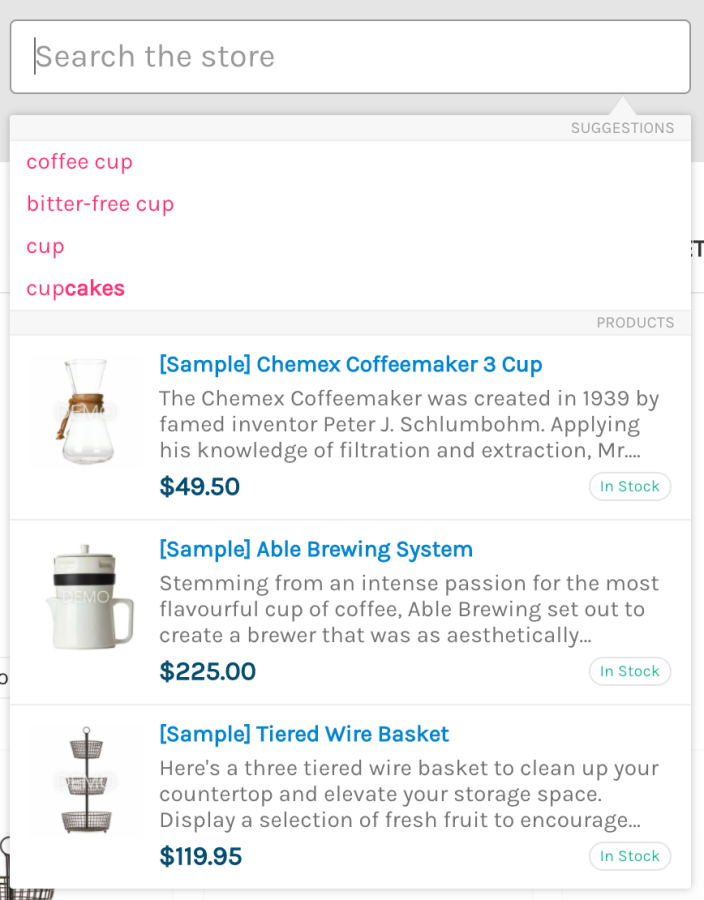 |
| “See all” text | Changes the text color of the See all products button (it appears when no search results) It is used in the new templates only | 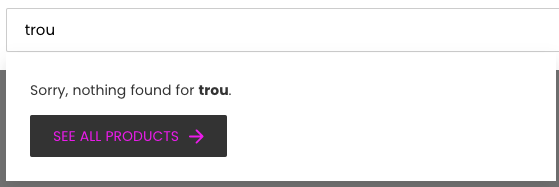 |
| “See all” background | Changes the background color of the See all products button (it appears when no search results) It is used in the new “Single Column”, “Multi Column” templates only | 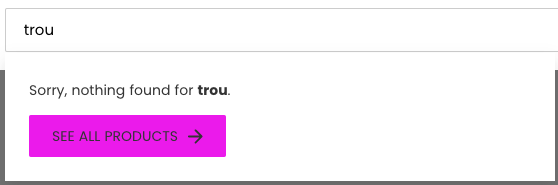 |
| Product cards colors | ||
| Title | Changes the text color of product titles in the drop-down widget | 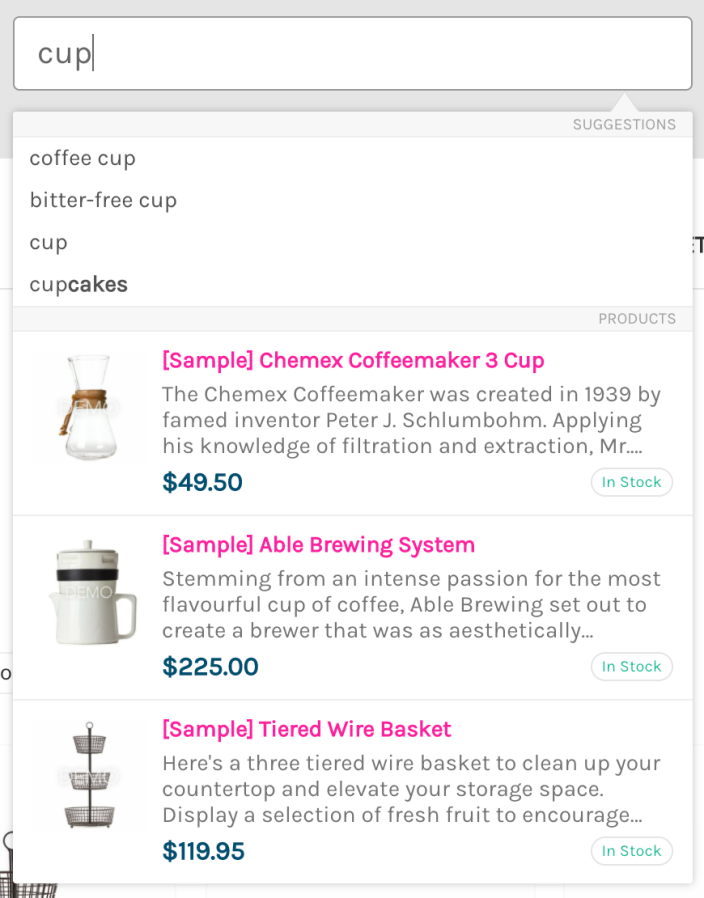 |
| Description | Changes the text color of product descriptions in the widget It is used in the “Classic” template and the “Classic” style only | 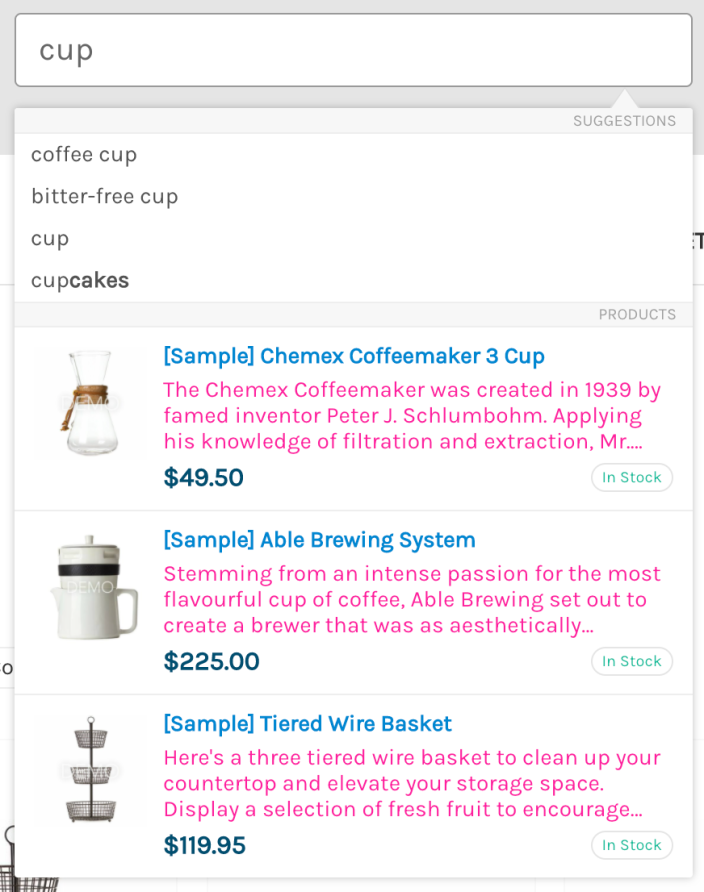 |
| Price | Changes the color of product prices | 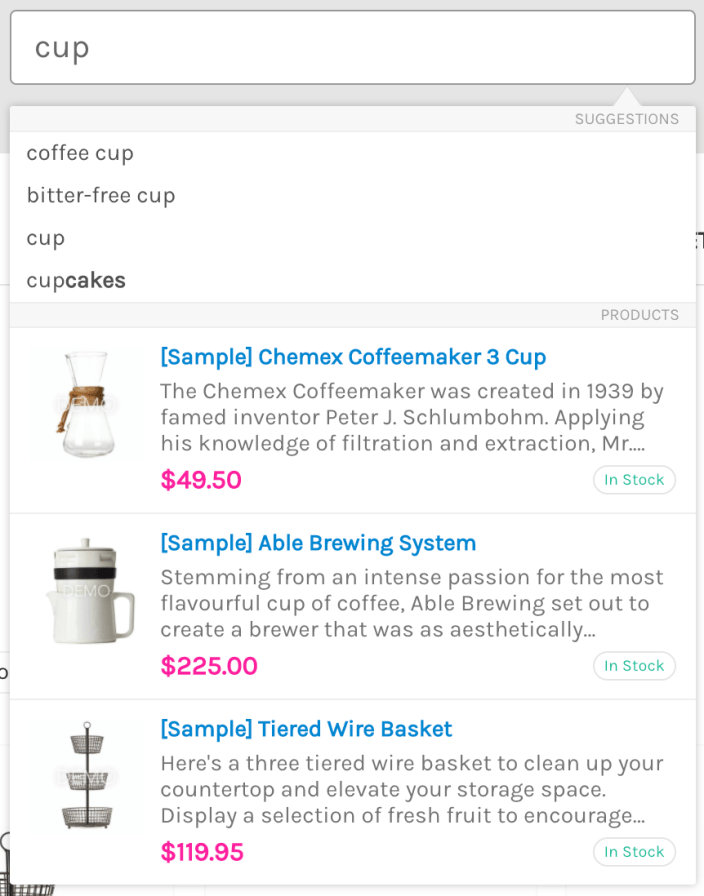 |
| Crossed-out original price | Changes the text color of retail product prices (before the discount) It is used only when the discount label isn’t enabled (Product labels tab > Discount label part > Show label option) | 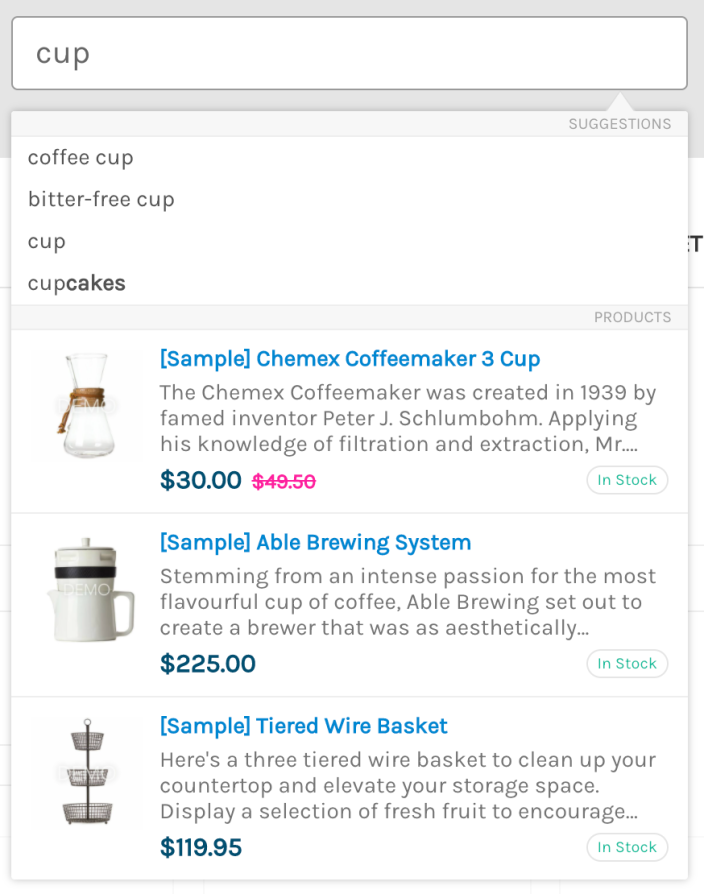 |
| Sale price | Changes the text color for discounted product prices | 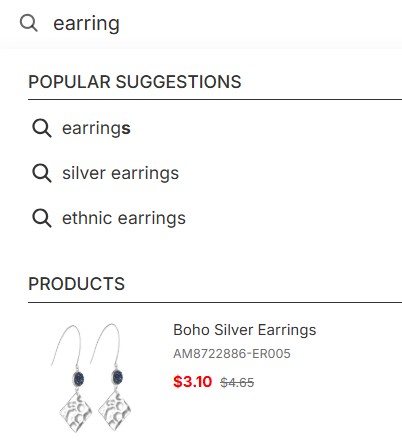 |
| SKU | Changes the color of product SKUs It is used when the Show SKU option is enabled (Content tab > Products part) | 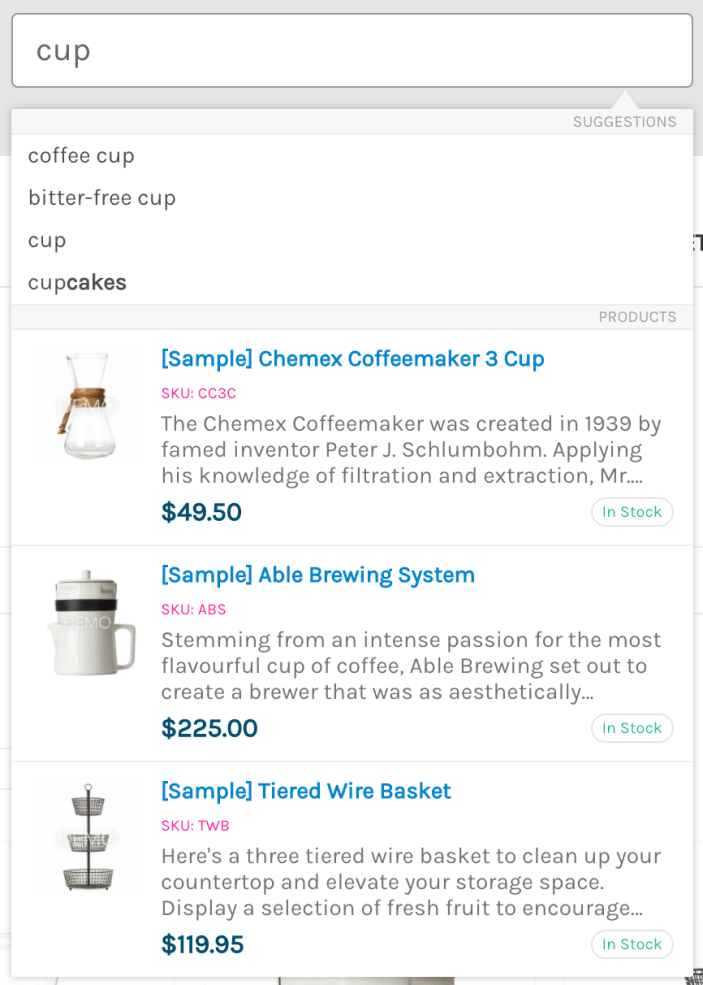 |
| Hover text | Changes the text color of a product or a suggestion on hover It is used in the “Classic” template and the “Classic” style only | 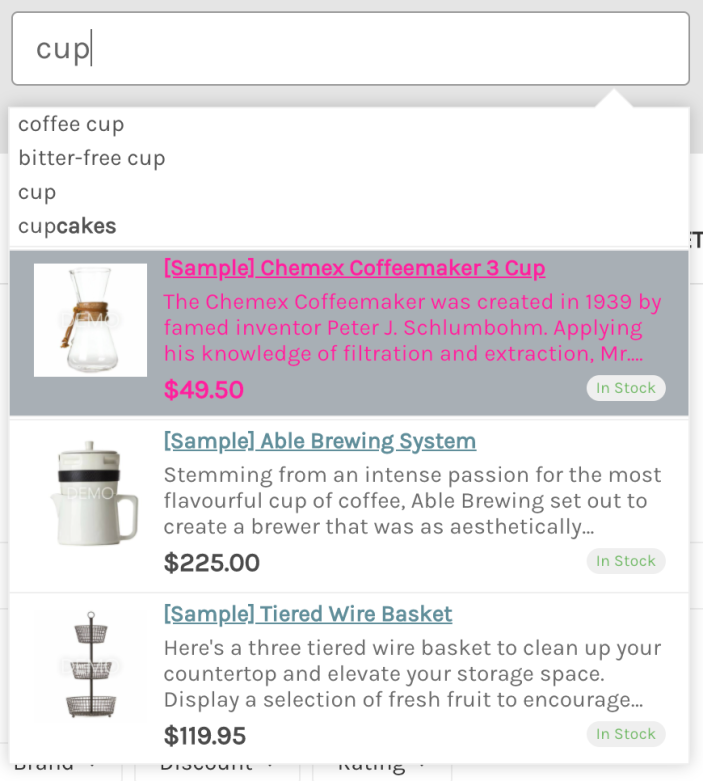 |
| CTA button text | Changes the text color of the Add to cart (View product) button on product cards | 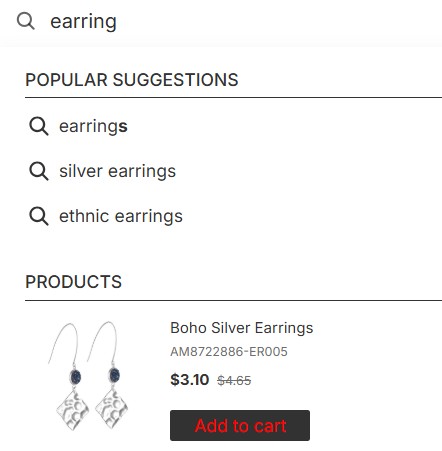 |
| CTA button background | Changes the background color of the Add to cart (View product) button on product cards | 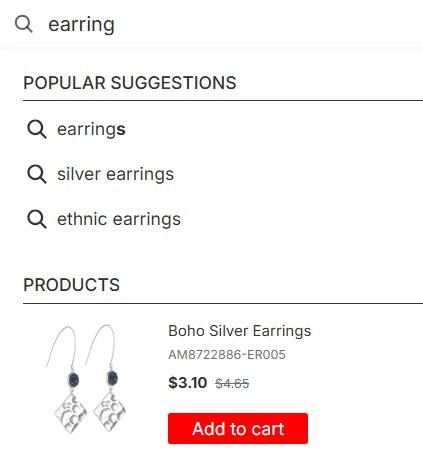 |
| ‘View cart’ background | Changes the background color of the View cart button (it appears after adding a product to the cart) | 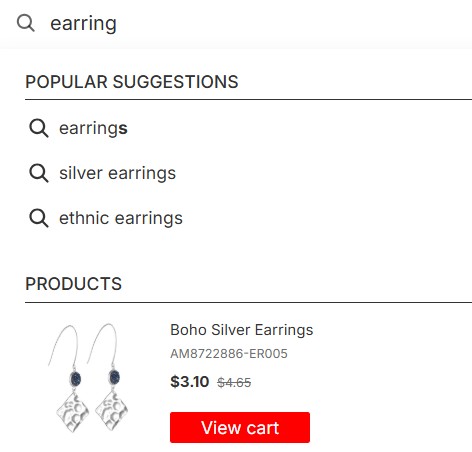 |
Resetting colors
↑ Back to topTo reset colors to the default values, follow these steps:
- Go to the Searchanise control panel > Search & Navigation > Instant search widget section > Template & Style tab.
- Click the Reset colors button under the chosen template. All color palettes of the current template will be changed to default values.
- Apply the changes.
Changing font
↑ Back to topBy default, Searchanise widgets use your theme’s font family. If you’d like, you can change it in the Instant Search Widget. Here’s how:
- In the Searchanise Search & Filter control panel, go to:
Search & Navigation > Instant search widget > Template & Style > Typography part. - Change the Font setting.
- Apply the changes.
That’s it. Your widgets will now display in the new font.
Content
↑ Back to topIn the Content tab, it’s possible to customize what information, sections, and widget elements to display to customers and how to show that in the widget.
Content settings description
↑ Back to top| Content setting | Description |
|---|---|
| Products | |
| Show products | The widget won’t show the widget’s Products section if the setting is disabled. |
| Displayed product qty. | Sets the maximum number of products displayed in the widget’s Products section. |
| Show price | Displays the product price in the product cards. |
| Show original price | If Show price is enabled. Shows the original product price compared with the discounted product price if the product has a discount. The enabled Discount labels setting overrides this one. |
| Compare price position | If Show original price is enabled. Adjusts the position of the original crossed-out price relative to the sale price. |
| Highlight saving | If Show original price is enabled. Displays the discount amount as “Save …”. You can choose how the value is displayed (percentage or number) in Translations & Texts > Instant Search Widget: To show an absolute value, use save amountTo show a percentage, use save_percent |
| Zero price action Zero price text | If Show price is enabled. You can choose how free products are displayed using 3 options: Show zero price; Hide zero price; Hide zero price, show text instead – with this option, you can specify custom text for free products in the Zero price text field. |
| Show “Add to cart” button | Shows the Add to cart button on product cards. If a product is out of stock, a View product button appears instead. After clicking Add to cart, the product is added to the cart, and the button changes to View cart. You can customize the button text in the Translation and Texts section > Instant Search Widget tab, and adjust its appearance in the Template & Style tab (CTA button background, Button text, ‘View cart’ background). |
| Show SKU | Displays SKU (the product code) in the product cards. |
| Max description strings | Sets the maximum number of strings displayed in the product description in the product cards. |
| Additional product field | Shows the selected additional product field in the product cards. You can set the label for the field in the Translations & Texts section > Instant Search Widget tab > Additional product field text box. |
| Search Suggestions | |
| Show suggestions | The widget won’t show the widget’s Suggestion section if the setting is disabled. |
| Suggestion qty. | Sets the maximum number of suggestions displayed in the widget. If you set the value to 0, the widget won’t show the Suggestions section. |
| Suggest single words | Shows the single-word suggestions |
| Suggest automatically generated terms | Creates suggestion terms in the Suggestion Dictionary based on successful customer searches from the found product titles and descriptions |
| Show popular suggestions on click | Shows suggestions as the customers click in the search bar before they start typing. The setting will work if there are at least 5 suggestions in the Suggestion Dictionary. |
| Show recent customer searches | Shows the search suggestions based on the recent customer searches if they match the current search query |
| Other | |
| Highlight search term | Highlights the current search query in the widget’s Suggestions section. |
| Show the ‘View All Products’ link | Displays the View All Product link under the Products section for legacy templates, or the View All Items button for actual templates. |
| Show categories | The widget won’t show the widget’s Categories section if the setting is disabled. |
| Categories qty. | Sets the maximum number of categories displayed in the widget’s Categories section. |
| Show pages | The widget won’t show the widget’s Pages section if the setting is disabled. |
| Pages qty. | Sets the maximum number of pages displayed in the widget’s Pages section. |
| Search results order | Controls the order of the widget sections. To change the order, drag and drop the blocks. |
Adjust the content of the widget
↑ Back to topTo adjust the content of the widget, follow these steps:
- Go to the Searchanise control panel > Search & Navigation > Instant search widget section > Content tab.
- Adjust the settings.
- To check out the changes, type a search term in the preview area.
- If you like the results, click the Apply changes button.
That’s it. The settings are now applied to the storefront of your store.
Sticky widget
↑ Back to topWhat is Sticky Widget?
↑ Back to topThe Sticky Widget looks like a magnifying glass icon locked in one place, so it doesn’t disappear when a customer scrolls down or up the page.
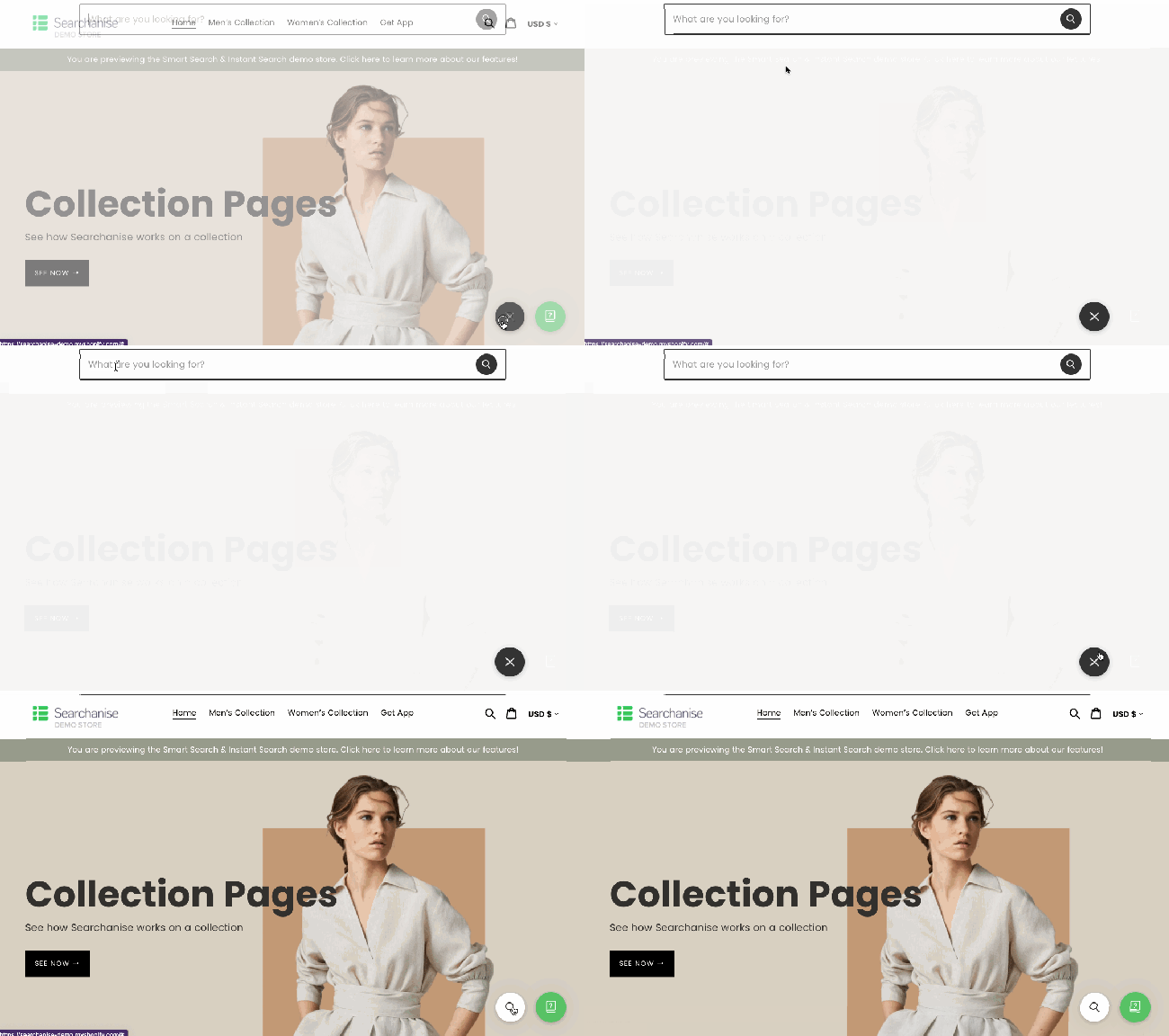
The Sticky Widget appears by default if there is no search bar in your store.
As soon as you start typing, the Instant Search Widget opens.
Widget’s configuration
↑ Back to topEnable/Disable the widget
Important Info
The Sticky Widget works only if the Search Results Widget is enabled.
To enable or disable the widget, follow these steps:
- Go to the Searchanise control panel > Search & Navigation > Instant search widget section > Sticky widget tab.
- Switch on / switch off the Enable Sticky Widget setting
- Set the Appearance conditions option to one of the values:
- Auto – the widget will be shown only when there is no search bar in your store
- Always – the widget will always be shown in your store
- Apply the changes.
Widget’s position
To change the widget’s position, follow these steps:
- Go to the Searchanise control panel > Search & Navigation > Instant search widget section > Sticky widget tab.
- Select one of the available values of the Position option.
- Apply the changes.
Widget’s customization
1. Changing the input placeholder for the search bar
- Go to the Searchanise control panel > Search & Navigation > Instant search widget section > Sticky widget tab.
- Enter your text into the Search input placeholder field.
- Apply the changes.
2. Changing colors of a magnifying glass icon
- Go to the Searchanise control panel > Search & Navigation > Instant search widget section > Sticky widget tab.
- Enter a hex color in a Color palette field or use a color-picker next to the necessary element:
- Icon color – changes the icon color
- Background color – changes the icon background color (only for new up-to-date templates selected in the Colors tab)
- Apply the changes.
3. CSS customization (for modifying the widget’s appearance)
- Go to the Searchanise control panel > Search & Navigation > Instant search widget section > Custom CSS & HTML tab.
- Switch on the Custom CSS setting if it is disabled.
- Enter your CSS code for the widget’s appearance.
CSS selectors:- .snize-sticky-searchbox – the Sticky Widget floating search button
- .snize-search-magnifier – the Sticky Widget search icon (magnifying glass)
- .snize-sticky-searchbox.snize-sticky-searchbox-opened – the Sticky Widget floating closing button, appears when the Searchanise search widget is open
- .snize-search-close – the Searchanise search widget’s closing icon
- #snize-modal-sticky-searchbox – the pop-up window with the Searchanise widgets
- Apply the changes
Product Labels
↑ Back to topThe Product Labels feature allows adding eye-catching labels to products in search results. You can add Discount Labels to products sold with discounts or In-Stock Labels to display the product availability.
Below is an example of Product Labels in the Instant Search Widget:
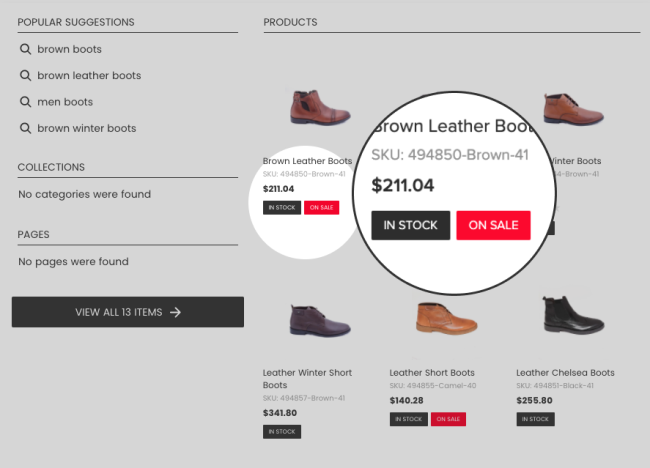
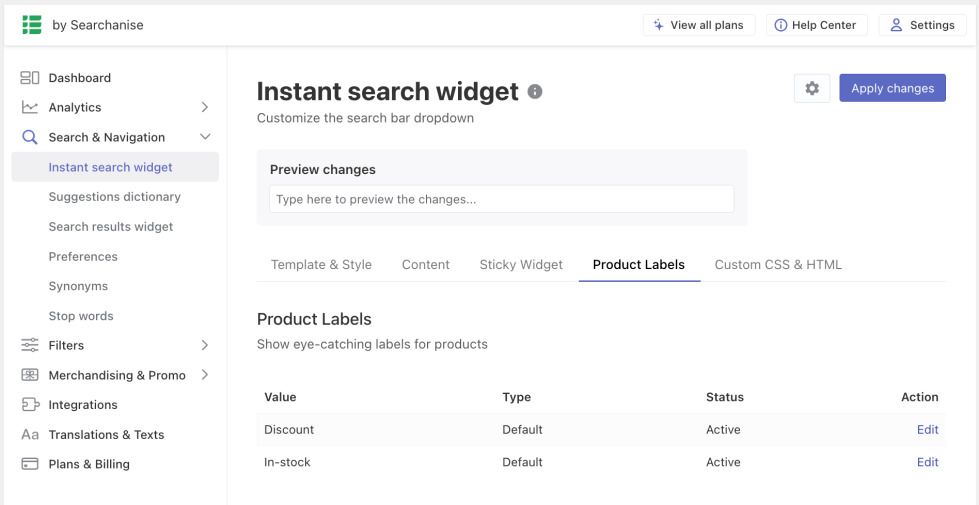
You can adjust the Product Labels in the Searchanise control panel > Search & Navigation > Instant search widget section > Product Labels tab.
Discount Labels
↑ Back to topImportant Info
The Discount Label overrides the setting which allows showing the original product price compared with the discount product price.
To set up Discount Labels, follow these steps:
- Go to the Searchanise control panel > Search & Navigation > Instant search widget section > Product Labels tab.
- Click the Edit button next to the Discount label.
- Switch the Show label toggle to On.
- Optionally, change the background color and the text color of the discount label.
- Optionally, change the text of the Discount Label. If you enter the [discount] parameter in the text box, it will be replaced with the actual product discount.
- Click the Save label button in the top-right corner.
To show Discount Labels in the Search Results Widget, you’ll need to apply the same settings in the Search & Navigation > Search results widget section > Product Labels tab.
In-stock Labels
↑ Back to topYou can add In-stock Labels to products in the Instant Search Widget to show their availability to customers:
- in-stock
- pre-order (the plugin v. 1.0.12 or later) – products where allowed backorders (Product > Inventory > Allow backorders?)
- out-of-stock
To do so, follow these steps:
- Go to the Searchanise control panel > Search & Navigation > Instant search widget section > Product Labels tab.
- Click the Edit button next to the In-stock label.
- Switch the Show label toggle to On.
- Optionally, change the background color and the text color of the labels.
- Optionally, change the text of the labels.
- Click the Save label button in the top-right corner.
To show In-stock Labels in the Search Results Widget, you’ll need to apply the same settings in the Search & Navigation > Search results widget section > Product Labels tab.
Custom CSS & HTML
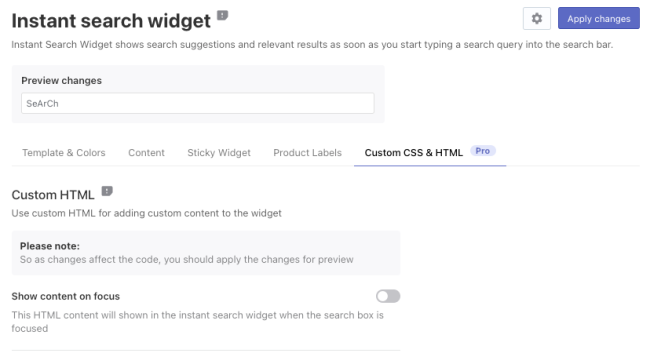
↑ Back to topIn the Custom CSS & HTML tab, you can adjust the HTML blocks or paste your CSS code to customize the Instant Search Widget in the more advanced way.
Custom HTML
↑ Back to topThe Custom HTML feature consists of the settings that allow adding HTML blocks to the Instant Search Widget.
The settings description
Show content on focus
This block is displayed when a user focuses on the search bar. Default settings:
<br><i>Start typing for instant search results</i><br><br>Extra content
This block is displayed after the last block set in the Search & Navigation > Instant search widget section > Content tab > Search results order setting. Default value:
<div style="text-align: center;">
    <a href="#" title="Exclusive sale">
        <img src="https://www.searchanise.com/images/sale_sign.jpg" style="display: inline;" />
    </a>
</div>
“Nothing found” content
This block is displayed in the instant search results when the search query returns no results.
Default settings:
<p>Sorry, nothing found for [search_string].</p>

<p>Try some of our <a href="#" title="Bestsellers">bestsellers →</a>.</p>
Adjust Custom HTML
Steps:
- Go to the Searchanise control panel > Search & Navigation > Instant search widget section > Custom CSS & HTML tab.
- Select one of the settings and change its default HTML if you need it.
- Apply the changes.
Custom CSS
↑ Back to topUsing the Custom CSS feature, you can change widget styles if the settings are not enough.
Custom CSS examples
How to add text to product prices?
- The text before the product price:
.snize-price:before { content: "from "; } - The text after the product price:
.snize-price:after {
   content: " inc tax";
}
How to hide the price of a certain product?
Add the following CSS rule and replace <ID> with the ID of the necessary product:
#snize-ac-product-<ID> .snize-price-list {
    visibility: hidden;
}
Adjust Custom CSS
Steps:
- Go to the Searchanise control panel > Search & Navigation > Instant search widget section > Custom CSS & HTML tab.
- Switch on the Custom CSS toggle if it is switched off.
- Paste your CSS rules into the text area.
- Apply the changes.
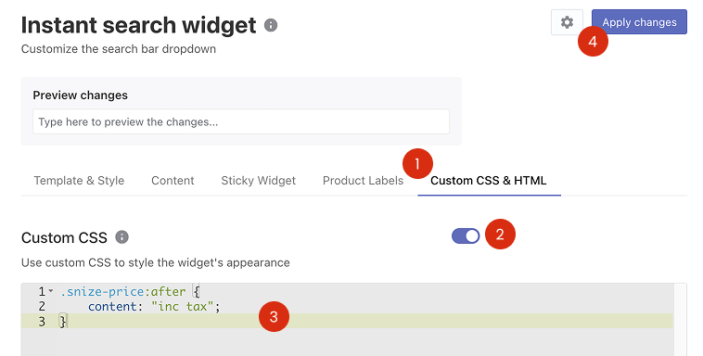
If the applied CSS rules didn’t affect the widget’s appearance well, it’s always possible to switch off the Use custom CSS setting and apply the changes.